%22%2F%3E%0A%3Cpath%20d%3D%22M59.8894%2016.6974C60.1689%2016.9331%2060.5416%2017.1216%2060.9142%2017.0745C61.5664%2017.0273%2061.8925%2016.6031%2061.6596%2015.7547C61.5198%2014.4349%2061.4267%2013.1623%2061.2869%2011.8425C61.1006%209.72149%2060.8211%207.55331%2060.5881%205.38512L60.1689%201.70863C60.0757%200.81307%2059.6099%200.294591%2058.7713%200.106053C58.4918%20-0.0353509%2058.2123%20-0.0353509%2057.9328%200.106053C57.7931%200.106053%2057.6999%200.106053%2057.6067%200.153187C56.5353%200.483129%2055.4172%200.81307%2054.3458%201.19015C53.5073%201.47295%2052.6222%201.75576%2051.7371%202.03857C50.2929%202.50991%2048.8488%203.02839%2047.4047%203.49974C46.4264%203.82967%2045.4016%204.1596%2044.3768%204.48952L44.3767%204.48956C43.6313%204.72523%2043.3518%205.24371%2043.6313%205.85646C43.7711%206.13927%2044.004%206.32781%2044.2369%206.46921C44.7028%206.79915%2045.2152%207.08196%2045.6811%207.4119C45.8674%207.55331%2046.0537%207.69471%2045.8208%208.02465C45.7276%208.21319%2045.5879%208.35459%2045.4481%208.54313L45.355%208.73167L44.5164%2010.0986L43.9108%2010.9941L43.3052%2011.8897L43.2121%2011.9839L42.1406%2013.5865L44.5867%2019.8706C45.5713%2022.1447%2048.6357%2026.5713%2052.552%2023.6277L53.9265%2022.2593L54.3458%2021.5523C54.3924%2021.458%2054.4856%2021.3637%2054.5321%2021.2694L54.5787%2021.2223C55.2309%2020.1854%2055.883%2019.1956%2056.5352%2018.2059L56.5353%2018.2057C57.0477%2017.4044%2057.5601%2016.6503%2058.0726%2015.849C58.2123%2015.6604%2058.3055%2015.6133%2058.4918%2015.7076C58.9577%2016.0375%2059.4235%2016.4146%2059.8894%2016.6974Z%22%20fill%3D%22%233D89D0%22%2F%3E%0A%3Cpath%20d%3D%22M28.0259%2022.0232C27.9793%2022.0703%2027.9793%2022.1175%2027.9327%2022.1646C27.9793%2022.1175%2028.0259%2022.0703%2028.0259%2022.0232Z%22%20fill%3D%22url(%23paint1_linear)%22%2F%3E%0A%3Cpath%20d%3D%22M53.9265%2022.3064C53.7402%2022.5892%2053.5538%2022.872%2053.3675%2023.202C53.0414%2023.7204%2052.7153%2024.1918%2052.3892%2024.7103C51.3178%2026.4071%2050.1531%2027.9625%2048.4295%2029.0938C46.9388%2030.0365%2045.4015%2030.6021%2043.6779%2030.8849C42.1872%2031.1206%2040.7896%2030.9791%2039.3921%2030.5549C37.6219%2030.0365%2036.038%2029.1409%2034.687%2027.8211C33.7088%2026.8784%2032.9634%2025.7944%2032.3578%2024.616C32.0317%2023.9561%2031.7988%2023.2491%2031.4727%2022.5421C31.0534%2021.5522%2030.1683%2019.2427%2030.1218%2019.1012C30.0752%2019.0541%2030.0752%2018.9598%2030.0286%2018.9127C29.9354%2018.7242%2029.8422%2018.5828%2029.7957%2018.3942C29.6559%2018.0172%2029.4696%2017.6401%2029.3298%2017.2159C29.2366%2017.0273%2029.1901%2016.8388%2029.0969%2016.6503C28.9571%2016.3674%2028.864%2016.0846%2028.7242%2015.7547C28.5845%2015.3776%2028.4447%2015.0005%2028.2584%2014.6235C28.1652%2014.3407%2028.0254%2014.0579%2027.9323%2013.775C27.9323%2013.7279%2027.9323%2013.7279%2027.8857%2013.6808C27.7925%2013.4922%2027.7459%2013.3037%2027.6528%2013.1152C27.4664%2012.5967%2027.2335%2012.1253%2027.0006%2011.6069C27.0006%2011.5597%2026.954%2011.5126%2026.9074%2011.4655C26.8142%2011.2769%2026.7211%2011.1355%2026.5813%2010.947C26.5347%2010.8998%2026.4882%2010.8527%2026.4882%2010.8056C26.4416%2010.7584%2026.395%2010.7113%2026.395%2010.6642C26.3484%2010.617%2026.3018%2010.5699%2026.2552%2010.5228C26.2086%2010.4756%2026.2086%2010.4285%2026.1621%2010.4285L26.1155%2010.3814C26.0689%2010.3342%2026.0223%2010.2871%2026.0223%2010.2871C25.9291%2010.1928%2025.8826%2010.1457%2025.7894%2010.0514C25.7428%2010.0043%2025.6962%209.95715%2025.6496%209.95715C25.603%209.91002%2025.5565%209.91002%2025.5099%209.86288C25.4167%209.81575%2025.3701%209.76861%2025.277%209.67435C25.2304%209.62721%2025.1838%209.62721%2025.1372%209.58008C25.0906%209.53294%2025.044%209.53294%2024.9974%209.48581C24.9509%209.48581%2024.9043%209.43867%2024.9043%209.43867C24.8577%209.39154%2024.8111%209.39154%2024.7645%209.3444C24.7179%209.3444%2024.7179%209.29727%2024.6714%209.29727C24.5782%209.25014%2024.485%209.203%2024.3918%209.15587C22.9943%208.59025%2021.1775%208.77879%2020.1992%209.10873C19.2675%209.43867%2018.2893%2010.3342%2018.2427%2010.4285C18.6619%209.72148%2019.0812%208.96733%2019.547%208.26031C20.1526%207.36475%2020.7117%206.4692%2021.3638%205.62078C22.3887%204.63095%2023.4602%203.78253%2024.6714%203.07551C27.0006%201.75575%2029.4696%201.52007%2032.0317%201.89715C33.3361%202.08569%2034.5939%202.60417%2035.7585%203.35832C36.9231%204.06534%2037.9014%204.96089%2038.7399%206.04499C39.2989%206.79914%2039.8114%207.60043%2040.1374%208.49598C40.6033%209.67435%2041.1623%2010.8056%2041.5816%2011.9839C41.7679%2012.5496%2042.0008%2013.068%2042.2338%2013.6336C42.2338%2013.6336%2042.2338%2013.6336%2042.2338%2013.6808V13.7279L45.0288%2019.8554C45.4015%2020.8452%2045.9139%2021.6465%2046.7059%2022.3535C47.2183%2022.872%2047.8705%2023.1548%2048.5227%2023.3905C48.5693%2023.3905%2048.6158%2023.4376%2048.6624%2023.4376C49.7805%2023.7676%2051.2246%2023.3905%2052.3426%2023.0134C53.088%2022.6835%2053.6936%2022.4007%2053.9265%2022.3064Z%22%20fill%3D%22url(%23paint2_linear)%22%2F%3E%0A%3Cpath%20d%3D%22M28.0255%2022.0238C27.9789%2022.0709%2027.9789%2022.118%2027.9324%2022.1652C27.9324%2022.1652%2027.9324%2022.1652%2027.9324%2022.2123C27.7926%2022.448%2027.6063%2022.6836%2027.4665%2022.9664C25.8826%2025.8416%2024.4385%2028.1512%2021.6434%2029.6595C19.3142%2030.9793%2016.8452%2031.215%2014.2831%2030.8379C14.1433%2030.8379%2014.0501%2030.7908%2013.9104%2030.7908C12.7458%2030.6022%2011.5812%2030.0838%2010.4165%2029.2825C8.78607%2028.1512%207.52829%2026.5958%206.64318%2024.8047L6.17733%2023.9091L5.01272%2021.5524L0.726927%2012.6911C0.447419%2012.0784%200.214496%2011.4656%200.121327%2010.8529C-0.437689%207.8834%200.95985%204.77252%203.80151%203.35849C5.43198%202.51007%207.24878%202.4158%208.87924%202.93428C10.6029%203.45276%2012.1402%204.67825%2013.0253%206.46937L13.1184%206.6579L14.7489%209.95732C14.7955%2010.0516%2014.7955%2010.1459%2014.8421%2010.2401C15.075%2010.8529%2015.8204%2012.4083%2016.426%2013.5867C16.4725%2013.6809%2016.5191%2013.7752%2016.5657%2013.8223C16.6123%2013.9638%2016.7055%2014.1052%2016.752%2014.1994C16.7986%2014.2937%2016.8452%2014.3408%2016.8452%2014.4351C16.8452%2014.4822%2016.8918%2014.4822%2016.8918%2014.5294C16.9384%2014.5765%2016.9384%2014.6708%2016.985%2014.7179C16.985%2014.765%2017.0316%2014.765%2017.0316%2014.8122C17.0316%2014.8593%2017.0781%2014.8593%2017.0781%2014.9064C17.0781%2014.9536%2017.1247%2015.0007%2017.1247%2015.0478C17.1247%2015.095%2017.1713%2015.095%2017.1713%2015.1421C17.3111%2015.4249%2017.4042%2015.7549%2017.544%2016.0377C17.6372%2016.2262%2017.6837%2016.4147%2017.7769%2016.6504C17.9632%2017.1689%2018.1962%2017.6402%2018.3825%2018.1587C18.5223%2018.4415%2018.6154%2018.7715%2018.7552%2019.0543C18.8018%2019.1485%2018.8484%2019.29%2018.8949%2019.3842C18.9881%2019.5728%2019.0347%2019.7613%2019.1279%2019.9498C19.3608%2020.5154%2019.5937%2021.0811%2019.9664%2021.5995C20.1993%2021.8823%2020.3857%2022.1652%2020.6652%2022.4008C22.3888%2023.9563%2024.9975%2023.862%2028.0255%2022.0238Z%22%20fill%3D%22url(%23paint3_linear)%22%2F%3E%0A%3Cpath%20d%3D%22M68.0888%2024.8694L68%207.88696H71.9963L71.8187%2018.4448L76.8806%207.88696H80.6548L81.3209%2018.3999L85.5392%207.88696H89.713L82.4754%2024.8694H78.1683L77.5466%2013.9072L72.3959%2024.8694H68.0888Z%22%20fill%3D%22%230D5293%22%2F%3E%0A%3Cpath%20d%3D%22M92.7771%2025.1385C89.2693%2025.1385%2086.7383%2022.6675%2086.7383%2019.2081C86.7383%2015.3893%2089.8021%2012.1545%2093.4431%2012.1545C96.6402%2012.1545%2098.8603%2014.4458%2098.8603%2017.7704C98.8603%2018.5342%2098.8159%2019.1182%2098.7271%2019.6124H90.4237C90.6457%2021.0501%2091.7114%2022.0385%2093.2211%2022.0385C94.1536%2022.0385%2094.9528%2021.724%2095.5301%2021.095L97.617%2023.4762C96.0185%2024.6443%2094.5976%2025.1385%2092.7771%2025.1385ZM90.6457%2017.411H95.4857C95.3081%2016.0632%2094.4644%2015.2545%2093.2211%2015.2545C92.0666%2015.2096%2091.0898%2016.0632%2090.6457%2017.411Z%22%20fill%3D%22%230D5293%22%2F%3E%0A%3Cpath%20d%3D%22M105.965%2024.9589C104.411%2024.9589%20103.167%2024.24%20102.368%2022.8473L101.924%2024.869H98.1499L101.791%207.52717L105.698%206.89819L104.322%2013.5923C105.166%2012.7836%20106.32%2012.2894%20107.519%2012.2894C110.139%2012.2894%20112.181%2014.8054%20112.181%2018.0401C112.226%2021.814%20109.428%2024.9589%20105.965%2024.9589ZM103.789%2016.3778L102.945%2020.4212C103.478%2021.185%20104.366%2021.6792%20105.388%2021.6792C107.208%2021.6792%20108.54%2020.2415%20108.54%2018.3097C108.54%2016.6474%20107.43%2015.4793%20105.92%2015.4793C105.077%2015.4793%20104.411%2015.7937%20103.789%2016.3778Z%22%20fill%3D%22%230D5293%22%2F%3E%0A%3Cpath%20d%3D%22M120.44%207.88696H125.058L127.899%2024.8694H123.725L123.193%2020.8259H117.154L114.978%2024.8694H110.582L120.44%207.88696ZM122.704%2017.5912L121.949%2011.9304L118.886%2017.5463H122.704V17.5912Z%22%20fill%3D%22%230D5293%22%2F%3E%0A%3Cpath%20d%3D%22M131.23%2012.3347H135.004L134.782%2013.5927C135.626%2012.7391%20136.736%2012.2449%20137.935%2012.2449C140.555%2012.2449%20142.597%2014.7608%20142.597%2017.9955C142.597%2021.8143%20139.8%2024.9592%20136.336%2024.9592C134.782%2024.9592%20133.539%2024.2853%20132.828%2022.9824L131.274%2030.0809H127.456L131.23%2012.3347ZM134.205%2016.3332L133.317%2020.5114C133.85%2021.2303%20134.738%2021.6796%20135.715%2021.6796C137.535%2021.6796%20138.867%2020.2419%20138.867%2018.31C138.867%2016.6477%20137.757%2015.4796%20136.247%2015.4796C135.493%2015.4796%20134.827%2015.7492%20134.205%2016.3332Z%22%20fill%3D%22%230D5293%22%2F%3E%0A%3Cpath%20d%3D%22M144.595%2012.3347H148.369L148.147%2013.5927C148.99%2012.7391%20150.101%2012.2449%20151.299%2012.2449C153.919%2012.2449%20155.962%2014.7608%20155.962%2017.9955C155.962%2021.8143%20153.164%2024.9592%20149.701%2024.9592C148.147%2024.9592%20146.904%2024.2853%20146.193%2022.9824L144.683%2030.0809H140.865L144.595%2012.3347ZM147.57%2016.3332L146.682%2020.5114C147.214%2021.2303%20148.102%2021.6796%20149.079%2021.6796C150.9%2021.6796%20152.232%2020.2419%20152.232%2018.31C152.232%2016.6477%20151.122%2015.4796%20149.612%2015.4796C148.857%2015.4796%20148.191%2015.7492%20147.57%2016.3332Z%22%20fill%3D%22%230D5293%22%2F%3E%0A%3Cpath%20d%3D%22M159.115%2024.8694H155.296L158.005%2012.3347H161.824L159.115%2024.8694ZM158.449%208.47099C158.449%207.1681%20159.559%206%20160.847%206C161.912%206%20162.8%206.85361%20162.8%207.93186C162.8%209.27967%20161.69%2010.4029%20160.358%2010.4029C159.248%2010.4029%20158.449%209.54924%20158.449%208.47099Z%22%20fill%3D%22%230D5293%22%2F%3E%0A%3Cpath%20d%3D%22M169.727%2020.6909L171.592%2023.1619C170.304%2024.4648%20168.572%2025.1387%20166.752%2025.1387C163.466%2025.1387%20161.068%2022.7126%20161.068%2019.388C161.068%2015.3446%20164.088%2012.1099%20167.862%2012.1099C170.082%2012.1099%20171.947%2013.0983%20173.013%2014.7606L170.304%2017.0069C169.727%2015.9736%20168.927%2015.4794%20167.773%2015.4794C166.13%2015.4794%20164.842%2017.0518%20164.842%2019.0286C164.842%2020.6909%20165.819%2021.6793%20167.329%2021.6793C168.261%2021.7243%20169.016%2021.4098%20169.727%2020.6909Z%22%20fill%3D%22%230D5293%22%2F%3E%0A%3Cpath%20d%3D%22M175.722%207.52717L179.629%206.89819L177.365%2017.6807L182.426%2012.3344H187L180.517%2018.6691L184.691%2024.869H180.162L177.009%2019.5676L175.899%2024.869H172.081L175.722%207.52717Z%22%20fill%3D%22%230D5293%22%2F%3E%0A%3Cdefs%3E%0A%3ClinearGradient%20id%3D%22paint0_linear%22%20x1%3D%2223.1831%22%20y1%3D%2224.7007%22%20x2%3D%2223.3049%22%20y2%3D%228.44851%22%20gradientUnits%3D%22userSpaceOnUse%22%3E%0A%3Cstop%20stop-color%3D%22%23327ACD%22%2F%3E%0A%3Cstop%20offset%3D%221%22%20stop-color%3D%22%234696D2%22%2F%3E%0A%3C%2FlinearGradient%3E%0A%3ClinearGradient%20id%3D%22paint1_linear%22%20x1%3D%2227.9436%22%20y1%3D%2222.0876%22%20x2%3D%2228.0428%22%20y2%3D%2222.0876%22%20gradientUnits%3D%22userSpaceOnUse%22%3E%0A%3Cstop%20offset%3D%220.2029%22%20stop-color%3D%22%234C51BF%22%20stop-opacity%3D%220.9%22%2F%3E%0A%3Cstop%20offset%3D%221%22%20stop-color%3D%22%235A67D8%22%20stop-opacity%3D%220.9%22%2F%3E%0A%3C%2FlinearGradient%3E%0A%3ClinearGradient%20id%3D%22paint2_linear%22%20x1%3D%2232.4583%22%20y1%3D%222.22148%22%20x2%3D%2239.8371%22%20y2%3D%2230.0298%22%20gradientUnits%3D%22userSpaceOnUse%22%3E%0A%3Cstop%20offset%3D%220.3367%22%20stop-color%3D%22%2342B9FF%22%2F%3E%0A%3Cstop%20offset%3D%220.7818%22%20stop-color%3D%22%233B97E1%22%2F%3E%0A%3Cstop%20offset%3D%221%22%20stop-color%3D%22%233784D1%22%2F%3E%0A%3C%2FlinearGradient%3E%0A%3ClinearGradient%20id%3D%22paint3_linear%22%20x1%3D%2211.252%22%20y1%3D%220.972585%22%20x2%3D%2215.8771%22%20y2%3D%2225.7529%22%20gradientUnits%3D%22userSpaceOnUse%22%3E%0A%3Cstop%20offset%3D%220.3367%22%20stop-color%3D%22%2342B9FF%22%2F%3E%0A%3Cstop%20offset%3D%220.7818%22%20stop-color%3D%22%233B97E1%22%2F%3E%0A%3Cstop%20offset%3D%221%22%20stop-color%3D%22%233784D1%22%2F%3E%0A%3C%2FlinearGradient%3E%0A%3C%2Fdefs%3E%0A%3C%2Fsvg%3E%0A)

How to Format Attribute Output Using Commands
CTX Feed pulls values from your WooCommerce products, such as title, description, and price, and puts them into a feed file that is sent to channels like Google Shopping, Meta, or Bing. Output formatting commands let you change how those values look in the feed, without editing your actual products.
A few examples of what you can do: make a title all uppercase, cut a description down to 80 characters, remove HTML tags from a description, or replace one word with another. The changes only appear in the feed — your WooCommerce products stay the same.
Where Do You Type a Command?
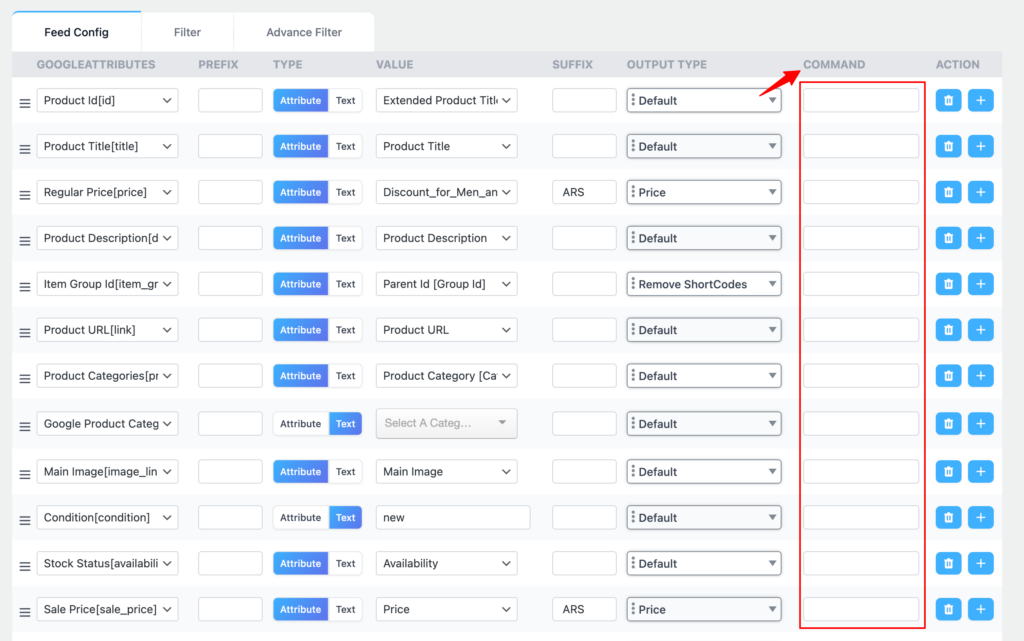
Every field in your feed has a small text box on the right side called the Output box. It sits right next to the attribute value dropdown. You type your formatting command there — one field at a time.
How to find the Output box?
- Go to CTX Feed → Manage Feeds and open the feed you want to edit.
- In the field list, find the row for the field you want to format — for example, Title or Description.
- Look to the right of the attribute dropdown on that row. You will see a small text input — that is the Output box. Type your command there.
- Click Save, then go to Manage Feeds and click Update Feed to rebuild the feed with your command applied.
Three Rules Every Command Must Follow
All formatting commands use the same structure. Follow these three rules, and every command will work correctly.
Command syntax rules:
[strtoupper]
✓ Rule 1 — Wrap every command in square brackets. strtoupper — no brackets means the command will not run.
[substr 0 80]
✓ Rule 2 — Leave a space before each value inside the brackets. [substr080] — missing spaces will cause errors.
[strtoupper], […] -
Rule 3 — Add […] at the end as a fallback. If the command returns nothing, CTX Feed uses the original product value instead. Always include […] unless you are sure the field will never be empty.
Clean Up the Value
Remove HTML tags, shortcodes, or broken characters that channels cannot read.
1. [strip_tags]— Remove all HTML tags, leave plain text
Removes all HTML tags and leaves plain text only. Product descriptions often have bold text, paragraph tags, links, and other HTML that channels like Google Shopping do not accept. This command strips all of that out in one step.
| Before | After |
| <p>Great <strong>shoes</strong> for trail running.</p> | Great shoes for trail running. |
Type in the Output box: [strip_tags], […]
2. [strip_shortcodes]— Remove WordPress shortcodes
Removes WordPress shortcodes from the value. Shortcodes are special tags that page builders and plugins add to descriptions — things like [button link="..."] or [vc_row]. They appear as broken text inside a feed. This command deletes them and leaves the rest of the description untouched.
| Before | After |
| Durable trail shoes. [button link=”buy-now”] | Durable trail shoes. |
Type in the Output box: [strip_shortcodes], […]
3. [htmlentities]— Convert special characters to safe HTML codes
Converts characters like &, <, and > into their safe HTML equivalents — &, <, >. Use this when special characters in a title or description are causing your XML feed to fail validation or break entirely.
| Before | After |
| Shoes & Boots <2024 Range> | Shoes & Boots <2024 Range> |
Type in the Output box: [htmlentities], […]
4. [clear]— Remove broken or invisible characters
Removes any characters that are not valid UTF-8 text. This is useful when product data was copied from old systems or spreadsheets and contains invisible characters that cause feed validation errors.
Type in the Output box: [clear], […]
Cut and Replace Text
Trim values to a set length or swap out specific words and phrases.
1. [substr start length]— Cut to a set number of characters
Cuts the value down to a set number of characters. The first number is where to start — always use 0 to start from the beginning. The second number is how many characters to keep.
| Before — 108 characters | After — [substr 0 80] |
| Blue Running Shoes For Men With Extra Cushioning And Wide Toe Box — Perfect For Long Distance Trail Runs | Blue Running Shoes For Men With Extra Cushioning And Wide Toe Box — Perfect Fo |
💡Google Shopping allows titles up to 150 characters. Use [substr 0 150] on your Title field to make sure nothing goes over the limit.
Type in the Output box: [substr 0 80], […]
2. [str_replace => find => replace]— Swap one word or phrase for another
Finds an exact word or phrase and replaces it with something else. Write the word to find after the first =>, and the replacement word after the second =>.
| Before | After [str_replace => ABC => XYZ] |
| ABC Running Shoes | XYZ Running Shoes |
⚠️ Replacing a comma? Use the word comma as your replacement value instead of a real comma character. A real comma in the Output box will break the command. Example: [ str_replace => old text => comma ]
Type in the Output box: [ str_replace => ABC => XYZ], […]
3. [preg_replace /pattern/ replacement]— Replace text using a pattern (advanced)
A more powerful version of str_replace. Instead of matching one exact word, it matches a pattern — for example, any text that looks a certain way. The pattern goes between two forward slashes /like this/. Use this when str_replace is not flexible enough for your needs.
| Before | After [preg_replace /abc/ qwe] |
| Buy abc shoes now | Buy qwe shoes now |
Type in the Output box: [preg_replace /abc/ qwe], […]
Format Numbers and Prices
Control decimal places and thousands separators for price and number fields.
[number_format decimals decimal-sep thousands-sep] — Format a price or number
Sets the number of decimal places and which characters to use as the decimal point and the thousands separator. All three options are optional — you can use just [number_format] for basic formatting, or add values for full control. Separator options are: point, comma, or space.
| Command | What it produces (input: 1234.5) |
|---|---|
[number_format] | 1,234 — basic, no decimals shown |
[number_format 2] | 1,234.50 — two decimal places |
[number_format 2 point] | 1,234.50 — point as decimal separator |
[number_format 2 comma] | 1,234,50 — comma as decimal separator |
[number_format 2 point space] | 1 234.50 — space between thousands |
[number_format 2 comma point] | 1.234,50 — European format |
[number_format 2 point comma] | 1,234.50 — US format |
[number_format 2 point point] | 1.234.50 |
Fix Links
Switch all URLs in a field between HTTP and HTTPS.
1. [urlToSecure]— Change http:// to https://
Converts every http:// link in the field to https://. Use this on image URL or product link fields when your store has moved to HTTPS but some older product records still contain plain HTTP addresses.
| Before | After |
| http://mystore.com/shoe.jpg | https://mystore.com/shoe.jpg |
Type in the Output box: [urlToSecure], […]
Variable Product Commands
These commands control what value shows up when a product has variations — like different sizes or colours. By default, CTX Feed shows the variation’s own value. These commands let you pull from the parent product instead, which is useful for fields like description that most variations do not have.
[parent_if_empty]— Use the parent value only when the variation has nothing
If the variation has its own value for this field, that value is used. If the variation’s field is empty, CTX Feed falls back to the parent product’s value. This is the most commonly used variable product command — ideal for descriptions since most variations do not have their own.
| Before Variation description (empty) | After [ parent_if_empty] |
| [blank — nothing shown in the feed] | Durable trail running shoe with wide toe box… (from parent product) |
Type in the Output box: [ parent_if_empty], […]
2. [parent]— Use the parent value first, fall back to the variation
The reverse of [parent_if_empty]. Tries the parent product’s value first. If the parent field is empty, it uses the variation’s value as a fallback.
Type in the Output box: [parent], […]
3. [only_parent]— Always use the parent product’s value, no exceptions
Forces CTX Feed to always show the parent product’s value for this field — even when the variation has its own value. The variation’s own value is ignored.
Type in the Output box: [only_parent], […]
No Longer Working
[convert FROM TO]— Currency conversion (disabled)
This command has been turned off and will not work. Do not use [convert USD AUD] or any other currency conversion command — it will not change prices in the feed. For currency conversion, use a dedicated WooCommerce currency plugin instead.
Combining Multiple Commands
You can chain more than one command together in the same Output box. Separate them with commas. CTX Feed runs them from left to right — the result of the first command is passed into the second, and so on.
Example combinations
[strip_tags], [strtoupper], […]
Removes HTML tags first, then makes the clean text all uppercase.
Result: plain uppercase text with no HTML.
[strip_tags], [substr 0 150], […]
Removes HTML tags first, then trims the result to 150 characters.
Result: clean plain text within the Google Shopping title character limit.
[strip_shortcodes], [strip_tags], [ucfirst], […]
Removes shortcodes, removes HTML, then capitalises the first letter.
Result: a clean, sentence-style description with no markup.


You must be logged in to post a comment.
Hi!
I want to replace all empty descriptions with a “there’s no description here!” description.
Is there a command for “empty” or something similar?
I was thinking about the str_replace command, but I can’t find the word for empty.
Thanks!
Hi! You can do it using Dynamic attribute if you are using the pro version of CTX Feed. To know how, please, contact us from here – webappick.com/contact
Hi,
If I want to put all the product title in lowercase except the first string of each word .
An Example would be:
My Website: SNEAKERS BLUE
I need: Sneakers Blue
In the output type I can make this: ucwords , strtolower ?
Hi, You can simply use ucword as the output type as shown here and the titles will be converted to your desired format.