Most channels have a ready-made template in CTX Feed, and Custom Template 1 lets you name your own columns. But some marketplaces need a very specific XML structure — nested elements, wrapper tags, or a layout no built-in template produces. Custom Template 2 (XML) is for exactly that: you write the raw feed markup by hand and drop attribute shortcodes into it, so the output matches any spec down to the last tag. This guide explains the template pattern — the loop markers, shortcodes, sub-loops, and inline code blocks — and how to build a feed with it.
This feature requires CTX Feed Pro. Custom Template 2 (XML) only appears in the template picker when the Pro plugin is active; on the free plugin you will see Custom Template 1 but not Custom Template 2.
Choosing Custom Template 2
- Open CTX Feed → Make Feed.
- In Feed settings, open the Template dropdown and choose Custom Template 2 (XML) (under the Custom Templates group). A few marketplace channels — Admarkt, Yandex (XML), and GLAMI — also use this hand-authored editor; they are listed on the free plugin too, but generating them needs Pro.
- Give the feed a File name; the file type is XML.
- Switch to the Config tab. Instead of the attribute mapping table, you will see a Feed markup editor with a line-numbered text area, a Reset to default button, a Validate button, and a Product attributes shortcode helper below it.
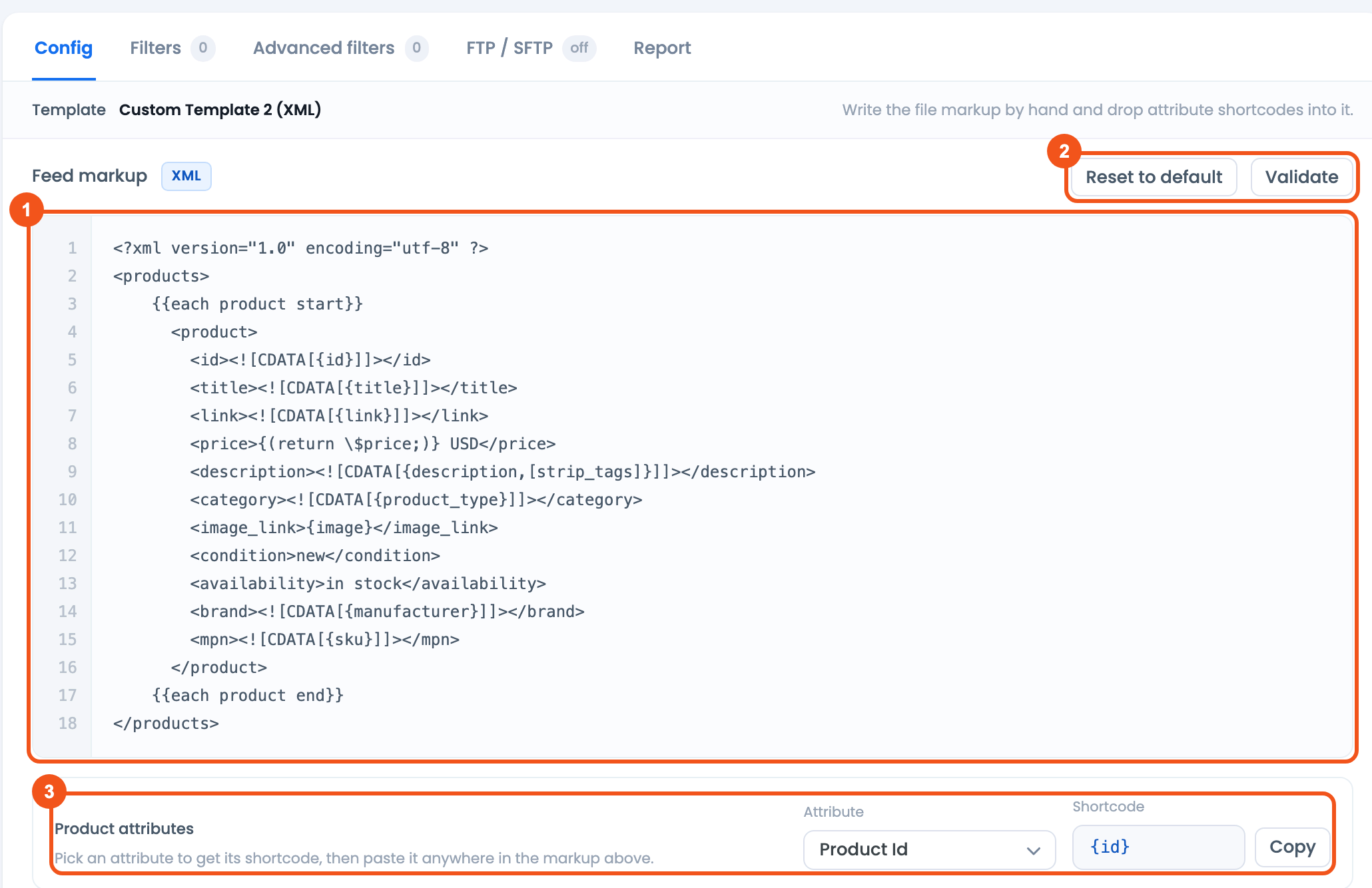
- Feed markup — the line-numbered editor holding the whole XML file.
- Reset to default and Validate — restore the bundled markup, or check that your markup is well-formed XML.
- Product attributes — pick an attribute to get its shortcode, then Copy it into the markup.
When you first pick the template, CTX Feed loads the channel’s bundled default markup into the editor so you have a working starting point rather than a blank page.
How the template pattern works
The editor holds one complete XML document. CTX Feed splits it into three parts using a product-loop marker:
- Everything before
{{each product start}}is the header — written once at the top of the file (the XML declaration and your opening wrapper tag). - Everything between
{{each product start}}and{{each product end}}is the product block — repeated once per product. - Everything after
{{each product end}}is the footer — written once at the bottom (your closing wrapper tag).
Here is the default Custom Template 2 body, which shows the whole pattern:
<?xml version="1.0" encoding="utf-8" ?>
<products>
    {{each product start}}
      <product>
        <id><![CDATA[{id}]]></id>
        <title><![CDATA[{title}]]></title>
        <link><![CDATA[{link}]]></link>
        <price>{(return \$price;)} USD</price>
        <description><![CDATA[{description,[strip_tags]}]]></description>
        <category><![CDATA[{product_type}]]></category>
        <image_link>{image}</image_link>
        <condition>new</condition>
        <availability>in stock</availability>
        <brand><![CDATA[{manufacturer}]]></brand>
        <mpn><![CDATA[{sku}]]></mpn>
      </product>
    {{each product end}}
</products>
The default template writes \$price with a backslash; CTX Feed strips backslashes before running the code block, so $price and \$price behave the same. Keep each element on its own line: the template is read line by line.
Attribute shortcodes
Inside the product block, wrap any product attribute in curly braces to output its value: {id}, {title}, {sku}, {image}, {price}, {product_type}, and so on. When the feed runs, CTX Feed replaces each {attribute} with the resolved value for the current product.
You don’t have to remember the attribute names. Under the editor, the Product attributes helper has an Attribute picker and a Shortcode box: choose an attribute, and the box shows the exact shortcode (for example {brand}). Click Copy and paste it into the markup.
Inline formatters (the [command] pattern)
A shortcode can carry formatting commands in square brackets, separated by commas: {description,[strip_tags]} outputs the description with HTML tags removed, and {title,[strtolower],[ucfirst]} lowercases the title and then capitalises its first letter. These are the same output commands used in the Command box elsewhere in CTX Feed, applied inline in the markup.
- Most commands that take arguments separate them with spaces, for example
{description,[substr 0 150]}or{price,[multiply 1.2]}. The replace commands use=>instead:{title,[str_replace => Shirt => Tee]}. - Command names ignore case, and
-works the same as_. An unknown command is silently ignored, so check the spelling if a field comes out unchanged. - Because commas split the commands, you can’t type a literal comma inside a command.
- Commonly used commands:
strip_tags,strip_shortcodes,htmlentities,htmlspecialchars,ucwords,ucfirst,strtoupper,strtolower,sentence_case,trim,substr,truncate_words,str_replace,preg_replace,number_format,round,multiply,add,integer,if_empty,date_format,urltosecure,cdataandremove_emojis. - For variations,
[parent],[only_parent]and[parent_if_empty]pull the value from the parent product, the same way as the row options described in Add Variable Product Info to Variations. They only act on variation rows, so use them inside a variation sub-loop.
Sub-loops for repeating data
Some fields repeat per product — gallery images, variations, categories. The pattern provides paired sub-loop markers you place inside the product block. Each marker must sit on a line of its own; a marker sharing a line with other markup is not recognised.
- Images —
{{each image start}} … {{each image end}}repeats its content once per image: the featured image first, then the gallery, with duplicates removed. Use{image}inside it. - Variations —
{{each variation start}} … {{each variation end}}repeats once per variation of a variable product; attribute shortcodes inside resolve against each variation. - Variation guard —
{{if variation available}} … {{endif variation}}renders its block only when the product is a variable product, so simple products skip it. - Categories —
{{each category start}} … {{each category end}}repeats once per category path.
For example, to emit every gallery image as its own tag:
{{each image start}}
<additional_image_link>{image}</additional_image_link>
{{each image end}}
The PHP code-block pattern
For logic that a plain shortcode can’t express, the template supports code blocks written as {(return $expression;)}. In the default template, {(return $price;)} USD outputs the price followed by a literal USD. Inside the block, $ plus any attribute code (for example $price, $sku, $weight) holds that attribute’s value for the current product, and the block outputs whatever it returns. For example, {(return $price * 1.2;)} sends the price plus 20%. Only the {(return …)} form runs; a {(php …)} block is not executed.
Because these blocks run as code on your server, a site can disable code-block evaluation entirely via the ctxfeed_custom2_eval_enabled filter if your security policy forbids it; disabled blocks render empty. Importing a feed file (.wpf) keeps its code blocks only when an administrator imports it; for anyone else (for example a Shop Manager) the blocks are removed and a notice says so. If you don’t need computed values, you can build a complete feed with shortcodes and sub-loops alone — no code blocks required.
Validating and resetting
- Validate — checks that your markup is well-formed XML. It temporarily replaces the template tokens (
{{…}},{(…)},{…}) with inert text, parses what remains, and reports either “well-formed XML” or the first parser error (with its line). This catches unclosed tags and stray characters before you generate a real feed. - Reset to default — replaces your markup with the channel’s bundled default template. You’ll be asked to confirm, since it discards your hand-written markup.
When the markup is ready, click Save & generate. Open the finished file from Manage Feeds → Preview to confirm the structure matches the spec.
Troubleshooting
- Validate reports a parser error. Look at the reported line — usually an unclosed tag, a
<or&that needs escaping, or a missing wrapper. Wrap free text fields in<![CDATA[ … ]]>as the default template does. - A field is empty in the output. Confirm the shortcode name is correct (use the Copy helper) and that the product actually has that value; unset attributes render empty.
- A code block outputs nothing or an error. Check the expression returns a string, and confirm code-block evaluation hasn’t been disabled on the site.
- Variations or images aren’t repeating. Make sure each
startandendmarker is on its own line, the repeating content sits between them, and the markers are inside the product block. - A field whose name contains “return” is empty. CTX Feed Pro before 8.0.26 treated any element containing the word
returnas a code block, so{return_policy_label}rendered empty. Update CTX Feed Pro, or on an older version write it as a code block:{(return $return_policy_label;)}. - A
+disappeared from the output. Every+is removed from the template before it is read, code blocks included. To add a number, use theaddcommand instead:{price,[add 5]}.
Related guides
- Configure Product Images Into Feed
- Configure Product Price
- Include Variations in the Feed
- Configure a CSV or TXT Feed

Hello ,
Is it possible to extract conditionally data from the “184” object ?
Hi! Please, contact our technical support team from here or create a support ticket explaining your query. Our technical support team will reach you soon via email.
Hey man, Its possible to use ur plugin for any other post type? Or does it work only for WooCommerce Products?
Hi! Our plugin works with WooCommerece products only. It doesn’t work with other post types.
Ah ok! Thanks for reply. But Ansary, a tip, want to sell a lot to the Brazilian market? Add the listing template, or the custom post type option with custom fields, there are no integrations with real estate portals to WordPress, and all portals use feed. This here is the feed format of one of the largest portals in Brazil https://developers-grupozap-com.translate.goog/feeds/vrsync/elements/listing/?_x_tr_sl=pt&_x_tr_tl=en&_x_tr_hl=pt-BR&_x_tr_pto=wapp#title
I’m not sure if your store is based on WooCommerce. If you are using WooCommerce in your WordPress setup to create your store then you can create the above template using Cusotm template 2. To know more about it, please, reach us from here – webappick.com/contact
Hi.
Is there a way to run a custom function during generation?
I have a function that takes the description and removes from it all the html elements that wouldn’t look good in the price comparison site my client shows his products in. I need it to work like clean_description($id)
(It is important that the value that gets pushed to the function is the ID and not the description itself.)
Is there a way to do it?
Hi,
We have built-in commands to remove HTML from the description, and here you can find them.
Please, feel free to reach out to our support team for further queries.
Thank you,
Hi folks,
Is it possible to do conditional attributes? I have certain products in my catalogue that I need to show additional attributes for, based on their category. E.g product is in Category A, add attribute X in addition to the defaults. Product is in Category B, and attributes Y and Z in addition to the defaults.
Thanks,
Brendan
Hi Brendan,
Yes, it’s possible to add additional attributes to the feed based on the product category and it can be done using our plugin Dynamic Attribute which is available in the pro version.
To get step by step solution, please, reach out to our technical support team explaining what attributes you would be adding based on which categories.
Please, create the ticket from here – webappick.com/contact
Thank you,