When you export a WooCommerce variable product as a single parent line, that line has no price or stock level of its own — those belong to the individual variations. CTX Feed’s Variable price and Variable quantity settings decide which variation’s figures the parent line borrows. This guide explains when the settings appear, what each option does, and how to choose the ones that keep your feed accurate.
When these settings apply
Variable price and Variable quantity only appear — and only matter — when the parent variable product itself is written to the feed. That happens with exactly two Include variations choices:
- Variable Products (Parent) — only the parent line is exported.
- Variable + Variations — the parent line is exported alongside each variation.
With any other choice, they stay hidden. In particular, with All Variations each variation is its own line carrying its own real price and stock, so there is nothing to borrow and no need for these settings. If the two fields are not showing, check your Include variations value first — see Variable product or variations.
Where to set them
- Open CTX Feed → Make feed (or edit a feed from Manage feeds).
- In the Feed settings card, set Include variations to Variable Products (Parent) or Variable + Variations.
- Two more dropdowns appear: Variable price and Variable quantity. Both start on their First option; set each as described below.
- Click Save & generate.
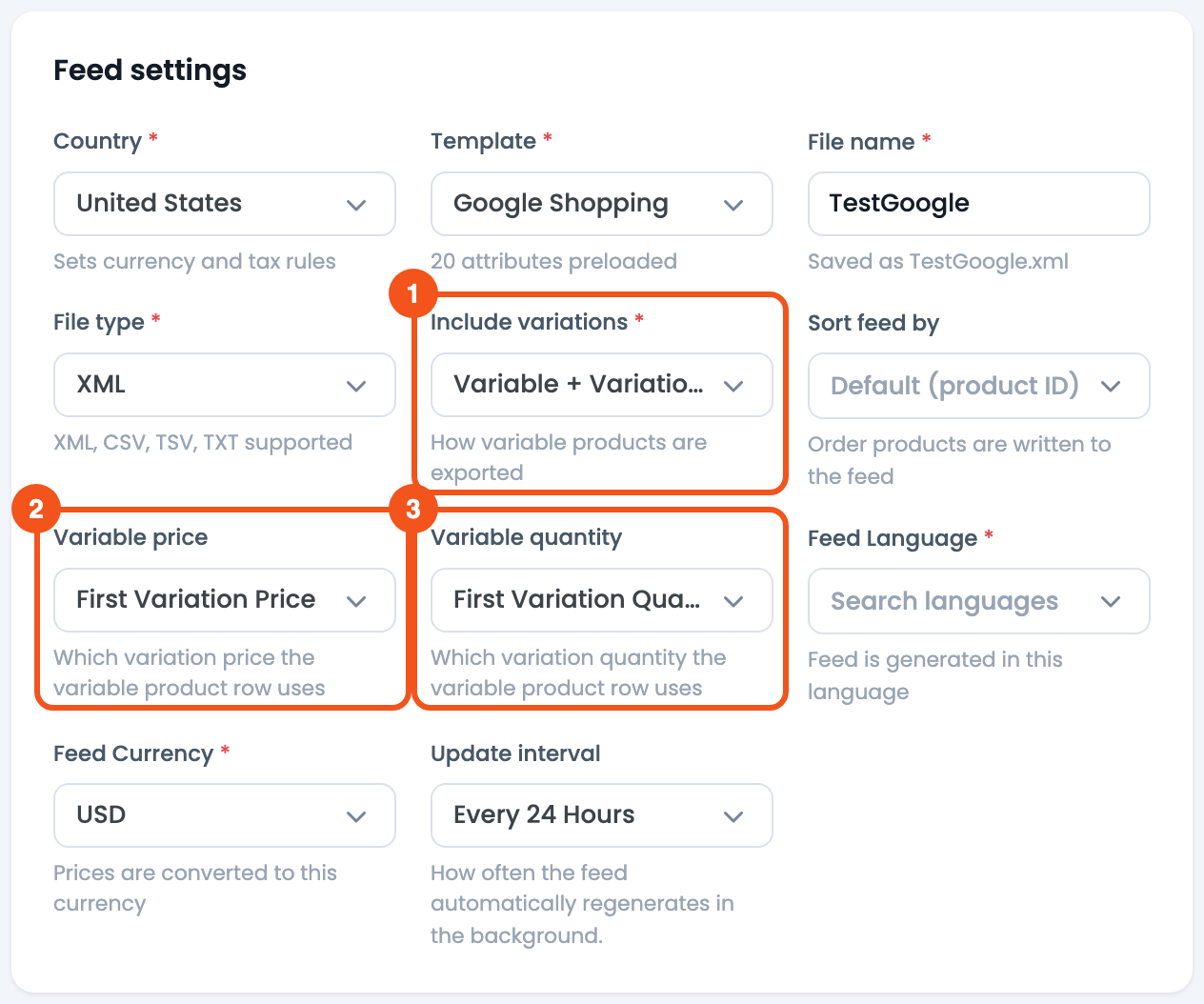
- Include variations — set to Variable Products (Parent) or Variable + Variations to reveal the two dropdowns.
- Variable price — which variation price the parent line uses.
- Variable quantity — which variation stock the parent line uses.
Variable price options
Variable price picks which variation price the parent line reports:
- First Variation Price (the default) — uses the price of the first variation in the product’s variation order, the same variation First Variation Quantity uses. Reorder the variations on the product’s Variations tab to change which one is first. (Before CTX Feed 8.0.35 this gave the same figure as Min Variation Price.)
- Max Variation Price — uses the highest variation price, the top of the range.
- Min Variation Price — uses the lowest variation price. This is the common “prices starting at” figure shoppers expect on a listing.
Because a variable product spans a price range, this setting chooses one representative number from that range. It is applied to each price field on its own: the parent’s Regular Price, Price and Sale Price (and their With Tax versions) each take the min or max of their own list, so they can come from different variations. Sale Price stays empty unless at least one variation is on sale right now.
Only published variations count, and out-of-stock ones are left out if WooCommerce is set to hide out-of-stock items. Variations without a price are skipped.
Variable quantity options
Variable quantity picks the stock figure the parent line reports in the Quantity attribute:
- First Variation Quantity (the default) — uses the stock of the first variation in the product’s variation order.
- Max Variation Quantity — uses the largest single variation’s stock.
- Min Variation Quantity — uses the smallest single variation’s stock.
- Sum of Variation Quantity — adds up the stock across all variations. This is usually the most meaningful figure, because it reflects the total units available across every size and colour.
If your channel reads a stock count, Sum of Variation Quantity is the safest choice — a parent that reports one variation’s low stock could otherwise look nearly out of stock even when plenty is available overall.
Two things to know:
- The figure is each variation’s own stock quantity. A variation that doesn’t manage stock (no quantity set) counts as 0, so if your variations don’t track stock, every option reports 0.
- The setting changes only the Quantity attribute. Availability (in stock / out of stock) comes from the parent product’s own stock status and isn’t affected.
A note on “All Variations”
If you export with All Variations, ignore these settings entirely. Each variation becomes its own feed line with its own exact price and stock, which is what Google, Meta, Pinterest, and most channels want. Only switch to a parent-based mode — and therefore to these settings — when a channel specifically asks for one line per product.
Troubleshooting
- The Variable price / quantity fields are missing. They only show for Variable Products (Parent) or Variable + Variations. Change Include variations to reveal them.
- The parent price looks wrong. Confirm which option is selected — Min (or First) for a “starting at” price, Max for the top of the range. The figure comes from the published variations’ current prices.
- Stock looks too low on parent lines. Switch Variable quantity to Sum of Variation Quantity so the parent reflects total availability rather than a single variation’s stock.
- Quantity is 0 on every parent line. The variations don’t manage stock. Turn on Manage stock? for the variations in WooCommerce and enter their quantities.
- Changes are not in the feed yet. Regenerate the feed after changing the settings; if a stale value persists, use Clear Cache and regenerate.
- You need per-variation prices instead. Use All Variations so each variation exports its own price and quantity — the parent settings do not apply there.
Related guides
- Variable product or variations
- How to add variable product info to variations
- Configure product price
- How to add sale price into feed
