WooCommerce variable products — a T-shirt sold in several sizes and colours, for example — hold one parent product plus a variation for each combination. When you build a feed, you have to decide what reaches the file: the parent, each variation as its own line, or some mix. CTX Feed’s Include variations setting makes that choice. This guide explains every option and helps you pick the right one for your channel.
Variable products and variations, in brief
- A variable product is the parent that groups options together. It has a title and description but no single price or SKU of its own — those live on the variations.
- A variation is one buyable combination (for example Blue / Large), with its own price, SKU, stock level, and often its own image.
Shopping channels care about this because shoppers buy a specific variation, not the abstract parent. Google and Meta, for instance, want each variation as its own item, tied together by a shared group ID.
Where to set Include variations
- Open CTX Feed → Make feed (or edit a feed from Manage feeds).
- In the Feed settings card, find the Include variations dropdown (its hint reads “How variable products are exported”).
- Choose an option (explained below). New feeds default to All Variations.
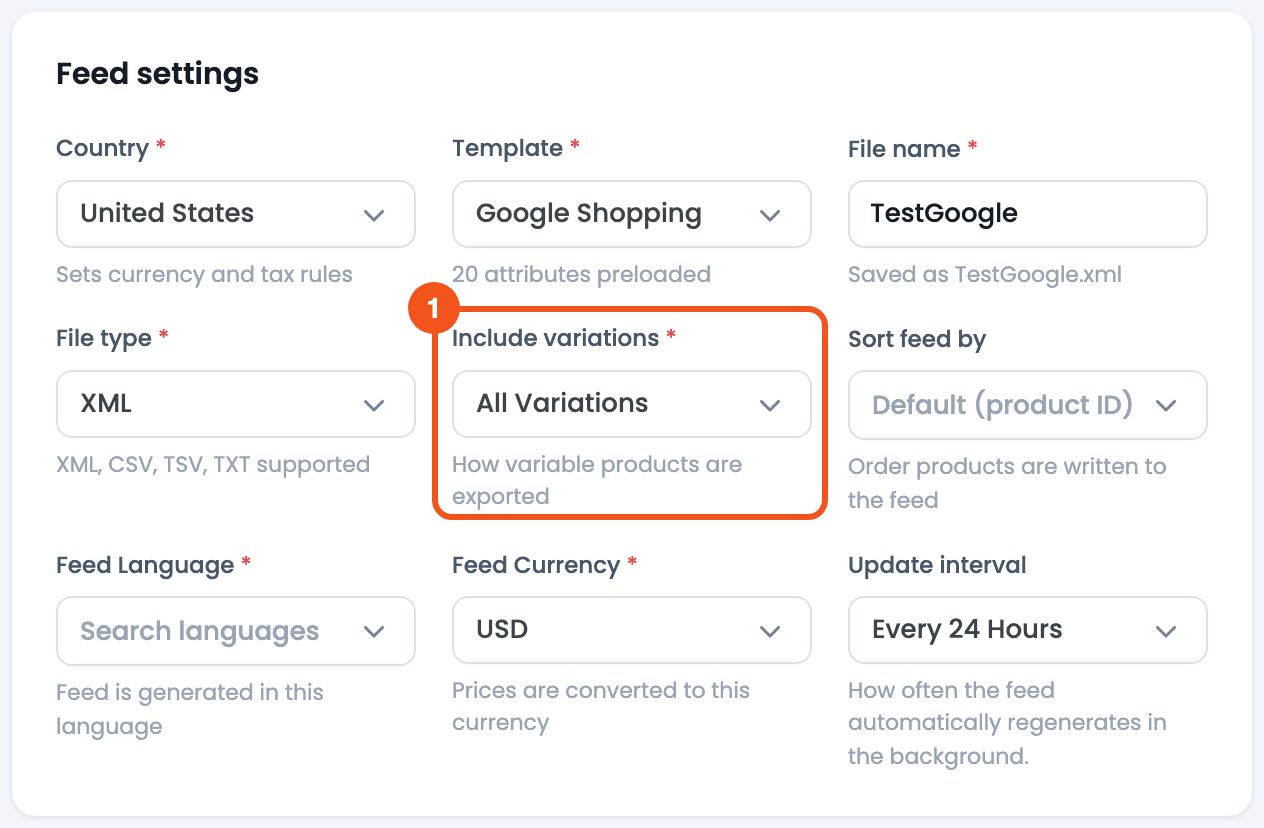
- Include variations — choose how variable products are exported (the setting this guide covers). All eight options are included in the free plugin.
The setting only affects variable products. Simple, grouped, and external products are exported the same way whatever you choose.
The options explained
- All Variations — each variable product is replaced by its individual variations, so every combination becomes its own line in the feed. The parent is not exported on its own. This is the default and the right choice for most channels.
- Variable Products (Parent) — only the parent product is exported; the variations are not. The parent needs a representative price and quantity, which you control with the Variable price and Variable quantity settings that appear when you pick this option.
- Default Variation — each variable product is represented by the variation matching its WooCommerce default attributes (the one preselected on the product page).
- Cheapest Variation — each variable product is represented by its lowest-priced variation only.
- Expensive Variation — each variable product is represented by its highest-priced variation only.
- First Variation — each variable product is represented by its first variation.
- Last Variation — each variable product is represented by its last variation.
- Variable + Variations — both are exported: the parent line first, then a line for each of its variations. Use this only when a channel explicitly wants the parent alongside the children.
The five single-variation options (Default, Cheapest, Expensive, First, Last) all substitute one chosen variation for the parent, so the feed has exactly one line per variable product — useful when a channel wants a single representative item rather than every size and colour. If no variation can be picked (for example, Default Variation on a product with no default attributes), the parent line is exported instead.
Which option should I choose?
- Google Shopping, Meta / Facebook, Pinterest, Bing: choose All Variations. These channels expect every variation as a separate item, linked by a shared group identifier. Map the Parent Id [Group Id] attribute (Google’s
item_group_id) on the Config tab so the channel knows which variations belong together. - A channel that only wants one entry per product: choose Variable Products (Parent), or one of the single-variation options (Cheapest, Default, and so on) if you would rather send a representative variation than the parent.
- A channel that asks for the parent and its children together: choose Variable + Variations.
When in doubt, follow the channel’s own feed specification — most match one of the cases above.
Related settings
- Variable price / Variable quantity appear in Feed settings only when you choose Variable Products (Parent) or Variable + Variations, because only then does the parent line need a price and stock figure. See Set variable product price and quantity.
- Parent Id [Group Id] on the Config tab produces the shared group identifier that ties a set of variations together — important whenever you export variations for Google or Meta.
Troubleshooting
- My feed only has parent products. The setting is on Variable Products (Parent). Switch to All Variations to export each combination.
- My feed has parents I did not want. You are on Variable + Variations. Choose All Variations to drop the standalone parent lines.
- Variations are missing after a change. Regenerate the feed after changing the setting — feeds only reflect the new choice on the next generation. Then use Clear Cache and regenerate if stale product data persists.
- A variable product shows up as a parent line under All Variations. It has no variations the feed can use (none exist, or none match the feed’s product status filter), so there is nothing to expand it into and the parent itself is exported. Add or publish its variations, then regenerate.
- A Google product review feed lists only parents. That’s expected: review feeds always use the parent product, whatever Include variations is set to.
Related guides
- Set variable product price and quantity
- How to add variable product info to variations
- How to make feed for specific product type (simple, parent, and child)
- Configure product price

I would like to exclude last variation
Hi Noman,
Currently, there is no option available in our plugin to exclude the last variation by default, but if the attribute is the same for all the last variations, for example, if you want to exclude all the variations having the size XL, then it would be possible with advanced filter. Please, follow the condition as shown here, which should be added to the advanced filter to exclude variations with a specific attribute value. For more, please, contact us from here.
Thank you,
Hi, can you tell me why the free verison includes the parent product as a variantion so in my FB catalog I have 4 variations for a product that only has 3, as 1 of these 4 variations is the parent product.
Hi Svetlomir,
The parent product will help to group the products. However, selecting the product type while creating the feed is available in the Pro version of the plugin at this moment.
Thank you,
Hi i do not have this feature?
Is it only in the pro version?
Hi Michella,
Yes, this feature is only available in the premium version of CTX Feed.