Sometimes a single feed field needs to be filled from more than one place in your store. One product carries its brand in a global Brand attribute, another keeps it in a custom field, a third has none at all — yet Google, Meta, and every other channel want one clean value in one column. CTX Feed’s Dynamic Attributes solve this: you build one output field, add IF–THEN rules that check different product attributes, and the first rule that matches supplies the value. This page shows how to merge multiple attributes into a single field conditionally, then feed that merged value to any channel.
This feature requires CTX Feed Pro. On the free plugin the Dynamic attributes screen shows what the feature does, with an upgrade button instead of the editor.
What “merging” means in CTX Feed
A dynamic attribute produces one value per product. It does that by running a list of rules top to bottom:
- Each rule has an IF side (a product attribute, a condition, and a value to compare against) and an OUTPUT side (the value to emit when the IF side is true).
- Rules are checked in order — the first rule that matches wins, and the rest are skipped.
- If no rule matches, the Otherwise output (fallback) is used.
So “merging multiple attributes” here means: pull the field’s value from attribute A when a condition holds, from attribute B otherwise, and from a fixed default for everything left over — all collapsed into a single, consistent field. A dynamic attribute never joins two values side by side. Each rule’s output can be wrapped with a prefix and suffix (static text prepended and appended), so you can add labels or units around the value.
Want to join values instead — for example a title and a colour into “Running Shoes – Blue”? Use Attribute mapping (Data mapping → Attribute mapping, also CTX Feed Pro): it combines several attributes and fixed text into one field with a separator you choose. You can then use that attribute mapping as the source of a dynamic attribute rule, or the other way round.
Where to find Dynamic Attributes
In your WordPress dashboard, open CTX Feed, then go to Data mapping → Dynamic attributes.
- If you have never created one, you land on an empty state with a Create your first attribute button.
- Otherwise you see the list of existing dynamic attributes; use New dynamic attribute at the top right to add another.
Build a merged attribute step by step
Say you want one brand value: use the global Brand attribute when a product has one, fall back to a Manufacturer attribute when it does not, and use your store name for the rest.
- Go to Data mapping → Dynamic attributes and click New dynamic attribute (or Create your first attribute).
- In Attribute name, type a short, lowercase name with no spaces — for example
brand_merged. This is the name you will pick later when editing a feed. - In Rule 1, set the IF side: choose the first source attribute (for example Brand), pick a condition such as is not/not equal to, and leave the compare value blank so the rule means “Brand is not empty.”
- On the OUTPUT side of Rule 1, leave the toggle on Attribute and pick Brand as the value. Now Rule 1 says: if the product has a Brand, output the Brand.
- Click Add rule to create Rule 2. Set its IF side to check your second source — for example Manufacturer is not/not equal to empty — and set its OUTPUT to the Manufacturer attribute.
- In the Otherwise output bar at the bottom, choose Text and type your store or default brand name. This covers every product that matched neither rule.
- Click Save attribute.
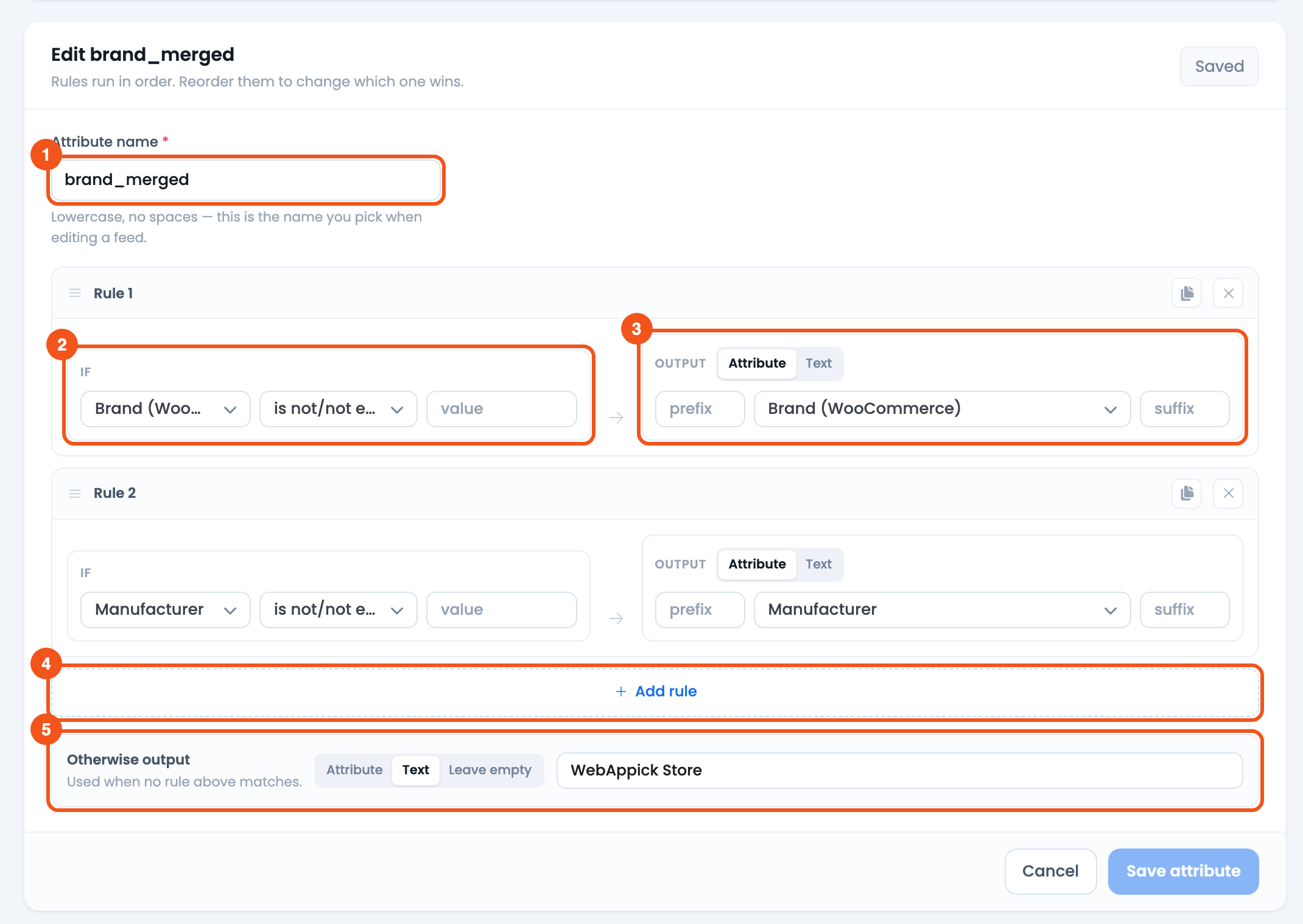
- Attribute name —
brand_merged, the name you pick on the feed’s Config tab. - IF — Rule 1 tests Brand (WooCommerce) is not/not equal to empty; Rule 2 tests Manufacturer the same way.
- OUTPUT — Attribute → the same field, so the first source that has a value is sent.
- Add rule — add another IF → OUTPUT rule below.
- Otherwise output — Text with your default brand, for products that match neither rule.
The Unsaved chip in the header turns to Saved once the attribute is stored. Because rules run top to bottom, ordering matters — drag a rule by its handle to change which source is preferred. Use the duplicate and remove icons on each rule card to copy or delete rules.
Adding static text to the merged value
Each rule’s OUTPUT has a prefix and suffix field around the value. Use them to merge a live attribute with fixed text — for example, prefix SKU- in front of a SKU, or add a unit as a suffix. Leading and trailing spaces in prefix and suffix are preserved exactly as you type them, so Brand: (with the trailing space) stays intact.
Choosing text vs. attribute output
The OUTPUT toggle switches between two source types:
- Attribute — output the live value of a product attribute (it changes per product).
- Text — output a fixed value you type (the same for every product that matches that rule).
Mix them freely across rules and in the fallback. Leave empty in the Otherwise output bar outputs nothing for unmatched products, which is useful when you would rather send no value than a placeholder.
Use the merged attribute in a feed
Creating a dynamic attribute does not change any feed on its own — you have to point a channel field at it.
- Go to Feeds → Make feed (or edit an existing feed from Manage feeds).
- Open the Config tab, where each row maps a channel attribute to a value.
- Find the channel field you want to fill (for example
brand). Set its source to Attribute. - In the value dropdown, open the Dynamic Attributes group and pick the attribute you built (for example
brand_merged). - Save and regenerate the feed. Every product now shows the single merged value your rules produce.

- The
brandrow, with Source set to Attribute andbrand_mergedpicked from the Dynamic Attributes group.
Because the dynamic attribute is stored once, you can reuse the same merged field across every feed and channel without rebuilding the logic.
Tips and troubleshooting
- Nothing shows in the feed field. Confirm the channel field’s source is Attribute and that you picked the dynamic attribute from the Dynamic Attributes group, not a raw product attribute. Then regenerate the feed.
- The wrong source wins. Rules are first-match, top to bottom. Reorder them with the drag handle so the preferred attribute sits higher.
- A rule never matches. Check the IF condition and compare value. For “is not empty” checks, leave the compare box blank and use is not/not equal to; for keyword checks use contains.
- Prefix or suffix loses its spacing. Type the space directly in the prefix/suffix field — CTX Feed keeps leading and trailing spaces there on purpose.
- The attribute is not in the dropdown. New dynamic attributes are cached briefly; if it does not appear immediately, reload the Make Feed screen.
Related guides
- Attribute Mapping
- Dynamically Change Size Value for Google Product Feed
- Dynamically Add Gender to Google Product Feed
- Dynamically Change Product Price
- Dynamic Discount Prices Based on Product Title
