If your product titles carry a signal — a season, a collection, a “Clearance” or “Outlet” tag — you can turn that signal into a discounted price in the feed without editing a single product. CTX Feed’s Dynamic Attributes let you write a rule that reads the product title, and for the products whose title contains a keyword, sends the channel a special sale price. This page shows how to set that up, when to use it, and where the approach ends.
This feature requires CTX Feed Pro. On the free plugin the Dynamic attributes screen shows what the feature does, with an upgrade button instead of the editor.
When this is the right tool
Use a title-based discount when a group of products can be identified by wording in their name and you want to advertise a sale price for exactly that group in your feed — for example:
- Everything with “Clearance” in the title should show a flat sale price.
- Products from your “Winter Collection” should carry a promotional price during a campaign.
- Items tagged “Outlet” in the name go out at a fixed reduced price.
The value you send lands in the feed’s sale-price field (for Google, that is sale_price), so shopping channels display the crossed-out original price next to the discounted one — while your actual WooCommerce store prices stay untouched.
How the rule works
A dynamic attribute produces one value per product from a list of IF–THEN rules:
- The IF side checks the Product Title with a contains condition against a keyword.
- The OUTPUT side emits the discounted value for products that match.
- The Otherwise output (fallback) covers every product whose title does not contain the keyword.
Because the rule keys off the title (text), the output is the value you type — a fixed sale price — rather than a calculated percentage. Percentage math is available when the source attribute is a price or weight field; see Dynamically Change Product Price for that pattern. For title-driven discounts, you set the sale price explicitly.
Set up a title-based discount
Suppose every product with “Clearance” in its title should show a sale price of 19.99.
- Go to CTX Feed → Data mapping → Dynamic attributes and click New dynamic attribute (or Create your first attribute).
- In Attribute name, type a short name such as
clearance_sale_price. This is the name you will select when editing the feed. - In Rule 1, set the IF side: choose Product Title as the attribute, pick contains as the condition, and type
Clearancein the compare value box. - On the OUTPUT side, switch the toggle to Text and type
19.99in the value field. Make sure this is lower than the regular price of every matching product — channels reject a sale price that isn’t lower. - In the Otherwise output bar, choose Leave empty. Products that are not clearance items get an empty sale price, which channels ignore, so they keep showing only their regular price.
- Click Save attribute.
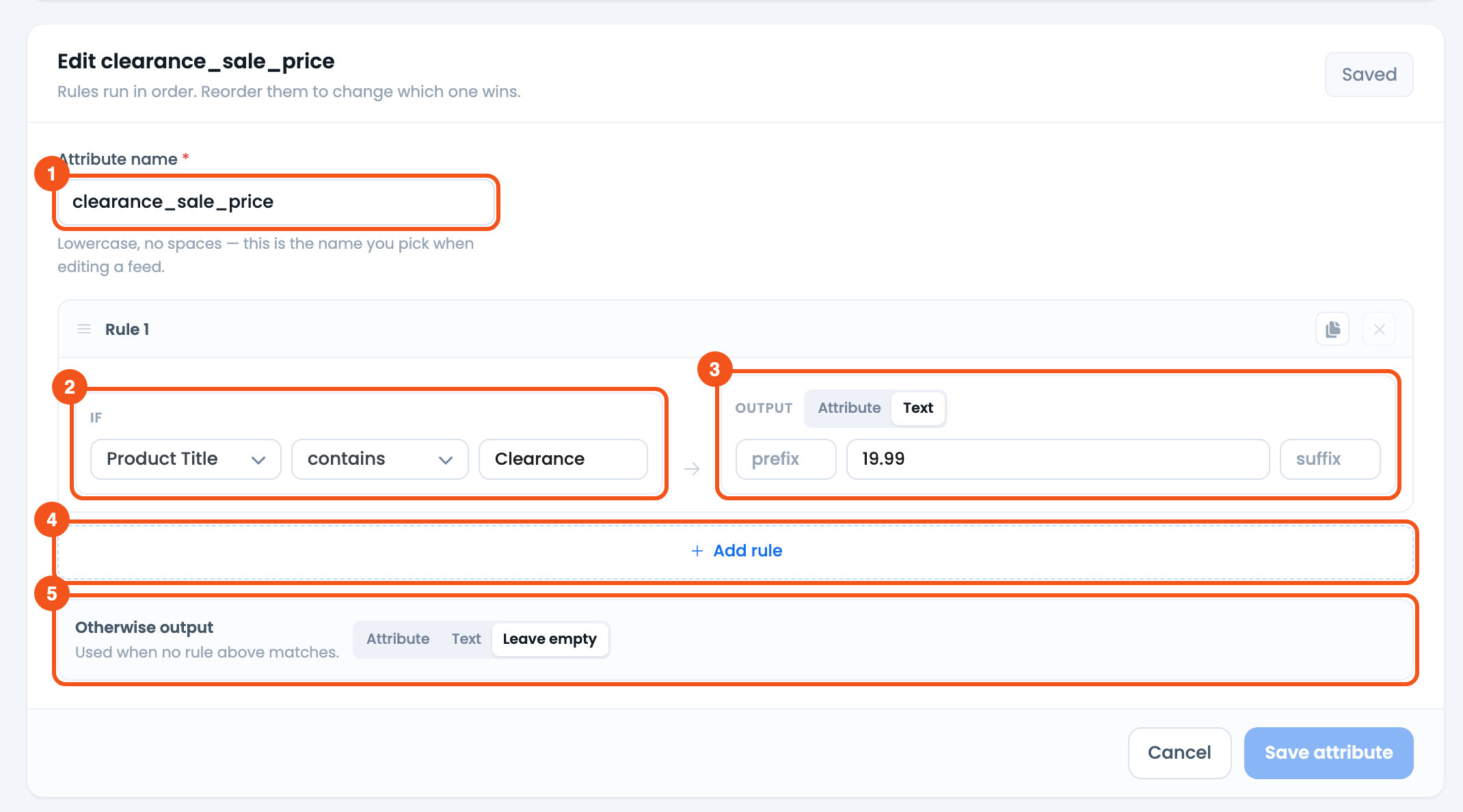
- Attribute name —
clearance_sale_price, the name you pick on the feed’s Config tab. - IF — Product Title contains
Clearance. - OUTPUT — Text
19.99, the fixed sale price. - Add rule — add another IF → OUTPUT rule below.
- Otherwise output — Leave empty, so other products get no sale price.
To discount several title groups at once — say a different price for “Clearance” and for “Outlet” — click Add rule and give each keyword its own rule and price. Rules run top to bottom, and the first matching rule wins, so order them from most specific to most general.
Add a prefix or suffix if the channel needs it
Each rule’s OUTPUT has a prefix and suffix field. Most price fields want a bare number, so you usually leave these blank. If a channel expects a currency suffix, you can add it here; CTX Feed preserves the leading space in a suffix like USD exactly as typed.
Apply the discount to your feed
The dynamic attribute does nothing until a feed’s price field points to it.
- Go to Feeds → Make feed, or edit an existing feed from Manage feeds.
- Open the Config tab.
- Find the sale-price row for your channel (for Google this is
sale_price). Set its source to Attribute. - In the value dropdown, open the Dynamic Attributes group and pick the attribute you created (for example
clearance_sale_price). - Save and regenerate the feed.

- The
sale_pricerow, with Source set to Attribute and the discount attribute picked from the Dynamic Attributes group.
Matching products now carry your discounted sale price; everything else keeps its normal pricing because the fallback leaves the field empty.
Tips and troubleshooting
- Keep the regular price intact. Map only the sale-price field to the dynamic attribute, not the main
pricefield. The channel compares the two to show a discount. - Match the title exactly enough. contains is case-insensitive and matches anywhere in the title, so
salewould also match “Wholesale.” Choose a distinctive keyword. - Non-matching products show no discount — by design. The Leave empty fallback means only titled products get a sale price. If you would rather set a store-wide default, choose Text in the fallback instead.
- The sale price is not appearing. Confirm the feed’s sale-price field is mapped to the dynamic attribute (under the Dynamic Attributes group) and regenerate the feed. Also confirm your channel actually reads a sale-price field.
- You need a percentage off, not a flat price. Title text cannot be turned into a calculated percentage. Use a price-sourced rule instead — see the related price guide below.
Related guides
- Dynamically Change Product Price
- Conditionally Merge Multiple Attributes
- Dynamically Add Gender to Google Product Feed
- Dynamically Change Size Value for Google Product Feed

Is there a good way to use this technique to set a discounted sales price on the font end of the website? Say I wanted to discount all products from a certain brand in a specific product category by 15%, and set my sale start and end dates as well.
Hi Brad,
Our plugin is designed to apply changes on the feed only. So, applying sale price on the front end won’t be possible with our plugin. But, you can use plugins like WOOOCS and our plugin is compatible with WOOCS.
Thank you,
What must be done if our discount is based on product category? Dynamic Attribute is not in the “Value” dropdown. Please assist.
Hi James,
Please, go to Make feed > click the Clear Cache button on the right top and find the newly created dynamic attribute from the dropdown.
If you are not getting it on the list, reach out to our technical team from here – webappick.com/contact to get a quick fix.
Thank you,
the calculation is always wrong. i give -24% in my price value and i get higher discount than i should.