There are plenty of reasons to send a channel a different price than the one on your store: covering marketplace commission, adding a handling margin, rounding, or running a channel-only promotion. CTX Feed’s Dynamic Attributes let you recalculate the price at feed-generation time — raise or lower it by a percentage or a fixed amount — without ever touching your WooCommerce catalog. This page shows how to build a price-adjusting rule and apply it to any feed field that carries a price.
This feature requires CTX Feed Pro. On the free plugin the Dynamic attributes screen shows what the feature does, with an upgrade button instead of the editor.
How price math works in a dynamic attribute
A dynamic attribute rule has an IF side and an OUTPUT side. When the source attribute on the IF side is a price field (Regular Price, Price, Sale Price, or their With Tax versions) — or a weight field — CTX Feed treats the OUTPUT value as an arithmetic instruction applied to that source value. You type the operation in the OUTPUT’s Text field:
+10%— increase the source price by 10%-15%— decrease the source price by 15%+5— add a fixed 5 to the price-2.50— subtract a fixed 2.50*1.2— multiply the price (here, a 20% markup)/2— divide the price in half80%— take 80% *of the price (careful:*20%gives a fifth of the price, not a 20% markup)
Remember the difference between Regular Price (the normal price) and Price (the active price — the sale price while a sale runs). A +10% on Price marks up the sale price for products on sale.
The math only runs when the IF-side source is a price or weight attribute. If you point the rule at a non-price source (like the title), the OUTPUT text is used literally, not calculated — that is why price adjustments are keyed off the price itself.
Where to find Dynamic Attributes
In your WordPress dashboard, open CTX Feed, then go to Data mapping → Dynamic attributes. Click New dynamic attribute (or Create your first attribute).
Build a price-adjustment rule
Say you want every price in a feed to be 10% higher than your store price.
- In Attribute name, type a short name such as
price_plus_10. This is the name you will select when editing the feed. - In Rule 1, set the IF side: choose Regular Price (or Price) as the attribute, change the condition from the default is/equal to to greater than, and type
0in the compare value. This matches every product that has a price. - On the OUTPUT side, switch the toggle to Text and type
+10%. - In the Otherwise output bar, choose Attribute and pick the same price attribute, so any product that somehow fails the rule still outputs its original price.
- Click Save attribute.
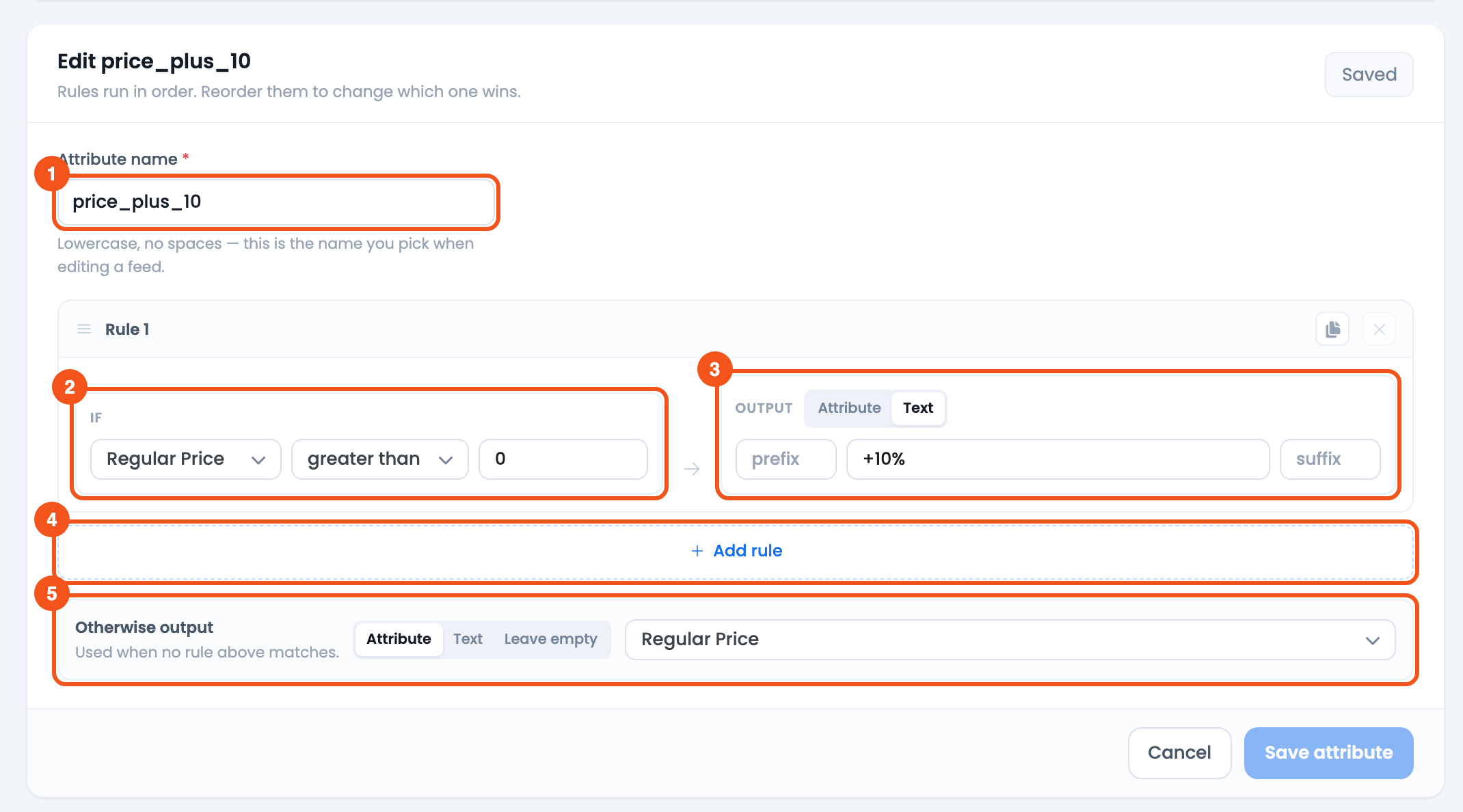
- Attribute name —
price_plus_10, the name you pick on the feed’s Config tab. - IF — Regular Price greater than
0— every product with a price. - OUTPUT — Text
+10%, applied as maths to the price. - Add rule — add another IF → OUTPUT rule below.
- Otherwise output — Attribute → Regular Price, the unchanged price.
That is the whole rule: for every priced product, output the price raised by 10%.
Targeting only some products
To adjust prices for a subset instead of the whole catalog, tighten the IF condition or add rules:
- By price band — use greater than, less than or between (with a min and max) so premium items get a different markup than budget items.
- Multiple tiers — click Add rule and give each price band its own operation. Rules run top to bottom and the first match wins, so order them from the narrowest band to the widest, and let the last rule (or the fallback) catch everything else.
Adjusting the sale price instead
To recalculate a discounted price, build the same kind of rule but choose Sale Price as the IF-side source, and map it to the feed’s sale-price field (see below). Sale Price is empty for products that aren’t on sale right now, so those fall to the Otherwise output — set it to Leave empty so they don’t get a sale price. Keep the regular-price and sale-price adjustments in separate dynamic attributes so each field gets the right value.
Apply the adjusted price to your feed
The rule changes nothing until a feed’s price field points at it.
- Go to Feeds → Make feed, or edit an existing feed from Manage feeds.
- Open the Config tab.
- Find the price row for your channel (for Google this is
price). Set its source to Attribute. - In the value dropdown, open the Dynamic Attributes group and pick
price_plus_10. - Save and regenerate the feed.

- The
pricerow, with Source set to Attribute,price_plus_10picked from the Dynamic Attributes group, and Output set to Price so the result has two decimals.
Open the generated feed and confirm the prices reflect the adjustment. Your WooCommerce store prices remain exactly as they were — only the feed output changes.
Tips and troubleshooting
- Keep the currency out of the math. The rule works on the numeric price. Let the feed row’s Suffix add the currency. Typing a currency into the OUTPUT (for example
+10% USD) stops the maths and sends that text literally, and a currency in the rule’s own suffix box would double up with the row suffix. - Percentage vs. fixed.
%in the value means “percent of the source price.” Without%, the number is added, subtracted, multiplied, or divided as a flat amount. - The price did not change. Confirm the IF-side source is a price (or weight) attribute — the math only applies to those. Also confirm the feed’s price field is mapped to the dynamic attribute on the Config tab, then regenerate.
- Rounding looks off. The result is the raw calculation (19.99
+10%gives21.989). Set the feed row’s Output to Price for two decimals, or Rounded Price for whole numbers. - Variable products. The rule reads each product’s own price, so variations are adjusted individually when your feed outputs variations.
Related guides
- Dynamic Discount Prices Based on Product Title
- Conditionally Merge Multiple Attributes
- Dynamically Add Gender to Google Product Feed
- Dynamically Change Size Value for Google Product Feed

Hello,
I export in the Feed price in EURO, i need it in RON, the RON is 5 times more expensive than EURO.
How to set the rule x5 ?
Example: Feed product is 1 EURO but i need it to be 5 RON.
Kind regards,
John
Please follow the multiplication method.
That’s cool, but price $12.99 -20% is $10.392 and plugin is sending to google this price. Was this feature even tested locally because already at first sight can see its dumb
Hi! If you are getting wrong value from Dynamic attribute, please, get it touch with our technical support team from here – webappick.com/contact or https://webappick.com/my-account/contact-support/