Gaps in product data are the most common reason feeds get disapproved: a handful of products have no short description, a few are missing a GTIN, some variations don’t have their own image. The fix is a fallback rule — “if field A is empty, use field B instead.” CTX Feed builds this with a dynamic attribute: a small IF–THEN rule that outputs your preferred field when it has a value, and quietly substitutes a backup field when it doesn’t. This guide shows the exact rule and how to apply it.
This feature requires CTX Feed Pro. On the free plugin the Dynamic attributes screen shows what the feature does, with an upgrade button instead of the editor.
How the pattern works
The rule has two parts:
- A single rule that says: IF field A is not empty, output field A.
- A fallback (Otherwise output) that says: use field B.
Because a dynamic attribute uses the first rule that matches and produces a value, and falls back when none do, this reads naturally as “prefer A, otherwise B.” When A has a value the rule matches and A is exported; when A is blank the rule fails and the fallback exports B.
Build the fallback rule
- In your WordPress dashboard, open CTX Feed → Data mapping → Dynamic attributes.
- Click New dynamic attribute.
- In Attribute name, type a short name (lowercase, no spaces recommended) that describes the field you’re filling — for example
description_fallbackoridentifier_fallback. - Build Rule 1 so it matches only when field A has a value:
- IF panel — in Select attribute, choose field A (the field you prefer). Set the Condition to is not/not equal to, and leave the value box empty. A field that is “not equal to nothing” is a field that has a value, so this rule matches every product where A is filled.
- OUTPUT panel — switch the toggle to Attribute and pick field A as the source. When the rule matches, the attribute outputs A’s own value.
- Set the Otherwise output (fallback) bar to Attribute and choose field B — the backup source used when A is empty.
- Click Save attribute.
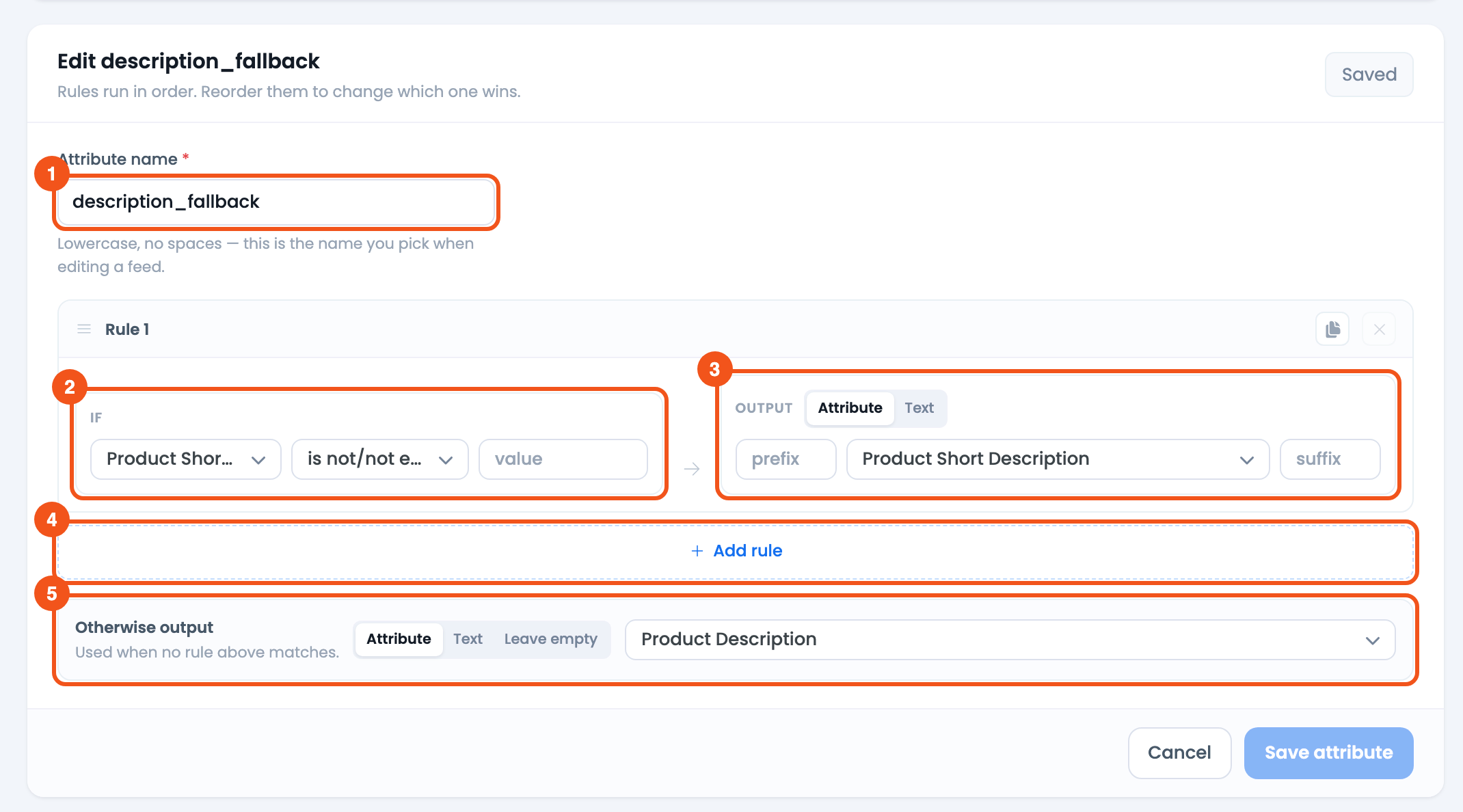
- Attribute name —
description_fallback, the name you pick on the feed’s Config tab. - IF — Product Short Description is not/not equal to an empty value — the field has a value.
- OUTPUT — Attribute → Product Short Description (field A).
- Add rule — add another IF → OUTPUT rule below.
- Otherwise output — Attribute → Product Description (field B), used when field A is empty.
That’s the whole rule: one condition, one fallback. When A is present you get A; when A is blank you get B.
Worked example: description fallback
Say you want each product’s Short Description, but some products don’t have one, so those should use the full Description instead:
- IF Product Short Description is not/not equal to (value left empty) → OUTPUT Attribute → Product Short Description
- Otherwise output → Attribute → Product Description
Products with a short description export it; products without one fall back to the full description, so no product ships an empty description field.
Chaining more than two fields
Need “A, else B, else C”? Add another rule above the fallback:
- Rule 1 — IF field A is not empty → output field A.
- Rule 2 — IF field B is not empty → output field B.
- Otherwise output — field C.
Rules are checked top to bottom and the first match wins, so field A is preferred, field B is the second choice, and field C is the final backup. Drag a rule’s handle to change the priority order.
Apply it to your feed
- Open the feed in CTX Feed → Make feed (or Manage feeds → Edit).
- In the attribute table, find the output field you’re filling (for example
description, or an identifier such asgtin). - In that row’s value dropdown, select your dynamic attribute from the Dynamic Attributes group.
- Save the feed and click Regenerate, then open the file and confirm the previously empty fields are now filled.

- The
descriptionrow, with Source set to Attribute and thedescription_fallbackdynamic attribute picked from the Dynamic Attributes group.
Common uses
- Identifiers: if your GTIN field is empty, use your MPN field (or the SKU) so Google’s identifier requirement is satisfied. Pick the GTIN and MPN fields your store actually uses — a product attribute, a custom field, or a plugin’s GTIN field.
- Descriptions: if the Short Description is empty, use the full Description.
- Images: if a variation image is missing, fall back to the Featured Image.
Troubleshooting
- A is exported even when it looks empty. The field may contain a space or hidden HTML, which counts as “not empty.” A number field holding
0also counts as having a value. Clean the source data, or test with contains on a known marker instead. - B is always used. Rule 1 never matched — confirm the IF attribute is field A, the condition is is not/not equal to, and the compare value is left blank. Also confirm the OUTPUT source is field A (not a fixed text).
- Both fields are empty for some products. The fallback can only substitute a field that itself has data. Fill field B for those products, or add a further fallback with a fixed value.
- Values didn’t refresh. Run Clear Cache on the Manage feeds screen, then regenerate.
Related guides
- How to Make a Dynamic Attribute
- Dynamically Set the Product Brand
- Conditionally Merge Multiple Attributes
- Dynamically Change Stock Status
