Google Shopping and Meta expect the price in your feed to be the final price a shopper pays — VAT included — for the countries you target. If your WooCommerce store shows prices net of tax, your feed will under-report prices and the channel may disapprove items for a price mismatch against your landing page. CTX Feed gives you two clean ways to add VAT to the exported price: use WooCommerce’s own tax-inclusive price fields, or add a fixed VAT percentage with a dynamic attribute. This guide covers both, so you can pick whichever matches how your store is set up.
Method 2 on this page requires CTX Feed Pro. Method 1 (the tax-inclusive price fields) works in the free plugin. On the free plugin the Dynamic attributes screen shows what the feature does, with an upgrade button instead of the editor.
First, decide which method fits
- You already configured tax rates in WooCommerce (WooCommerce → Settings → Tax). Use the built-in with-tax price attributes — they apply your real WooCommerce tax rates automatically, per product and per tax class. This is the most accurate option and needs no rule.
- You have not set up WooCommerce taxes, but every product carries the same VAT rate (for example a flat 20%). Use a dynamic attribute to add that fixed percentage to the price.
Method 1 — Use WooCommerce’s tax-inclusive price fields
If your WooCommerce tax settings are correct, CTX Feed can export the price with tax already applied — no arithmetic, no rule:
- Go to CTX Feed → Make feed, or open a feed from Manage feeds.
- In the attribute configuration table, find the price output field — usually price (
g:pricefor Google). - In that row’s value dropdown, choose one of the tax-inclusive price attributes instead of the plain price:
- Price With Tax — the active selling price (sale price if on sale, otherwise regular) with tax added.
- Regular Price With Tax — the regular price with tax added.
- Sale Price With Tax — the sale price with tax added; map this to the sale_price field.
- Save the feed and click Regenerate. Open the file and confirm the prices now include VAT.

- The
pricerow, with Price With Tax chosen in the Value dropdown.
These attributes use WooCommerce’s own tax engine, calculated for the feed’s Country (set in Feed settings). Taxes must be enabled in WooCommerce and there must be a tax rate for that country — otherwise no tax is added. If your store enters prices including tax, these attributes don’t add it a second time. Because most channels want the current price to include tax, mapping Price With Tax to price (and, if you run sales, Sale Price With Tax to sale_price) is the usual setup.
Method 2 — Add a fixed VAT percentage with a dynamic attribute
Use this when you haven’t configured WooCommerce taxes but need every price raised by a set percentage. A dynamic attribute can do arithmetic on price fields — including adding a percentage.
- Open CTX Feed → Data mapping → Dynamic attributes and click New dynamic attribute.
- In Attribute name, type a short name such as
price_with_vat. - Build Rule 1:
- IF panel — set Select attribute to a price field (for example Price, the current selling price), change the condition to greater than or equal, and type
0in the value box. Every priced product satisfies this, so the rule matches all of them. - OUTPUT panel — switch the toggle to Text and type the VAT expression. To add 20%, enter
+20%. Because the source field is a price, CTX Feed reads this as “add 20% to the price” rather than a literal string.
- IF panel — set Select attribute to a price field (for example Price, the current selling price), change the condition to greater than or equal, and type
- Set the Otherwise output (fallback) to Attribute → Price, so a product that somehow fails the rule still exports its plain price rather than nothing. (Pick Regular Price instead if your rule uses the regular price.)
- Click Save attribute.
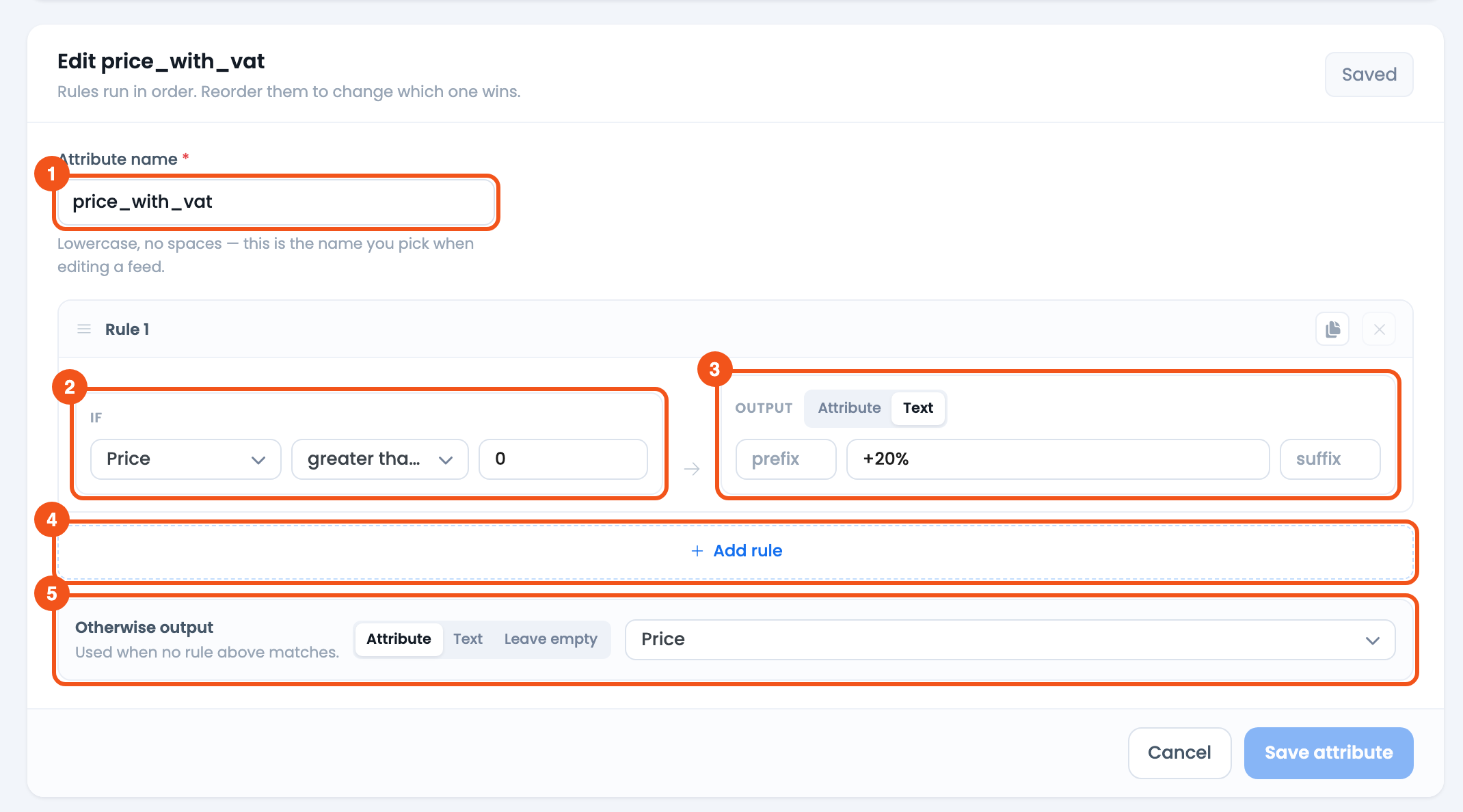
- Attribute name —
price_with_vat, the name you pick on the feed’s Config tab. - IF — Price greater than or equal
0— every priced product. - OUTPUT — Text
+20%, which adds 20% to the price. - Add rule — add another IF → OUTPUT rule below.
- Otherwise output — Attribute → Price, the plain price.
How the price maths works
When the tested attribute is a price or weight field, the OUTPUT value is treated as an arithmetic instruction against the source value:
+20%— add 20% (a £10.00 price becomes £12.00)-10%— subtract 10%+5— add a flat 5*1.2— multiply by 1.2 (another way to add 20%)/1.2— divide by 1.2 (strip a 20% markup)
Only price and weight fields do arithmetic; on any other field the same text is output literally. The result isn’t rounded (£19.99 +20% gives 23.988), so set the price row’s Output to Price for two decimals.
Apply it to the feed
- Open the feed in Make feed (or Manage feeds → Edit).
- On the price output row, open the value dropdown and pick your dynamic attribute from the Dynamic Attributes group (for example
price_with_vat). - If you run sales, build a second dynamic attribute the same way using the Sale Price field, and map it to the sale_price output row.
- Set the row’s Output to Price, save, and click Regenerate, then open the file to confirm the VAT-inclusive prices.

- The
pricerow, withprice_with_vatpicked from the Dynamic Attributes group and Output set to Price.
Keep the feed and landing page consistent
Whichever method you choose, the golden rule is that the price in the feed must match the price a shopper sees on the product page for the country the feed targets:
- With Method 2, only add VAT if your store prices are entered without tax. If they already include tax, the
+20%rule would add it twice. (Method 1 handles both cases.) - If you sell to multiple countries at different VAT rates, prefer Method 1 with proper WooCommerce tax classes, or build a separate feed per country with the right rate.
Troubleshooting
- Prices didn’t change with the dynamic attribute. The tested attribute must be a price field for the arithmetic to fire. Confirm the IF attribute is Price (or another price field) and that the OUTPUT is Text like
+20%, not a plain number. - Prices doubled. Your store prices already include tax, so the
+20%rule added it twice. Map the plain price instead, or use Method 1. - With-tax prices equal the plain prices. WooCommerce found no tax rate for the feed’s Country. Check that taxes are enabled and that a rate exists for that country.
- Some products export no price. They failed the rule and the fallback was set to Leave empty. Set the fallback to Attribute → Price.
- Price looks stale. Run Clear Cache on the Manage feeds screen, then regenerate the feed.
Related guides
- Dynamically Change Product Price
- How to Make a Dynamic Attribute
- Dynamic Discount Prices Based on Product Title
- If Field A Is Empty Then Get B Rule
