When you build a feed that includes variations, WooCommerce names each variation by combining the parent product’s title with its chosen attributes — for example Slim Fit Shirt – Blue, Large. That extra “- Blue, Large” is the variation info. Whether you want it in the title depends on the channel: some merchants prefer distinct per-variant titles, while others want every variant of a product to share one clean group title. This guide shows how CTX Feed builds the title for variations and how to add or remove the variation info.
How CTX Feed builds the variation title
In the feed’s attribute mapping, the Product Title value maps to WooCommerce’s product name. For a variation, that name already includes the variation attributes, so the title comes out as Parent Title - Attribute, Attribute by default. For a simple (non-variation) product there are no variation attributes, so the title is just the product’s own name.
That default — variation attributes included — is what most Google and Facebook feeds want, because it gives every variant a unique, descriptive title. If that’s the behavior you’re after, you don’t have to change anything: just make sure the title row’s Value is set to title.
Where to change the title
All of this lives on the Make Feed screen (CTX Feed → Make Feed, or edit a feed from Manage Feeds):
- Open the Config tab to see the attribute mapping table.
- Find the row whose Channel attribute is the title field (for a Google feed,
title). - The Value column controls what fills it, and the Output column controls how it’s transformed.
Remove variation info from the title
If you want variations to use the parent product’s clean title — the same title for every variant, with no “- Blue, Large” appended — set the title row’s Output type to a parent option:
- In the title row, open the Output dropdown.
- Choose only_parent (always use the parent’s value) or parent (resolve the value against the parent product).
- Save & generate.
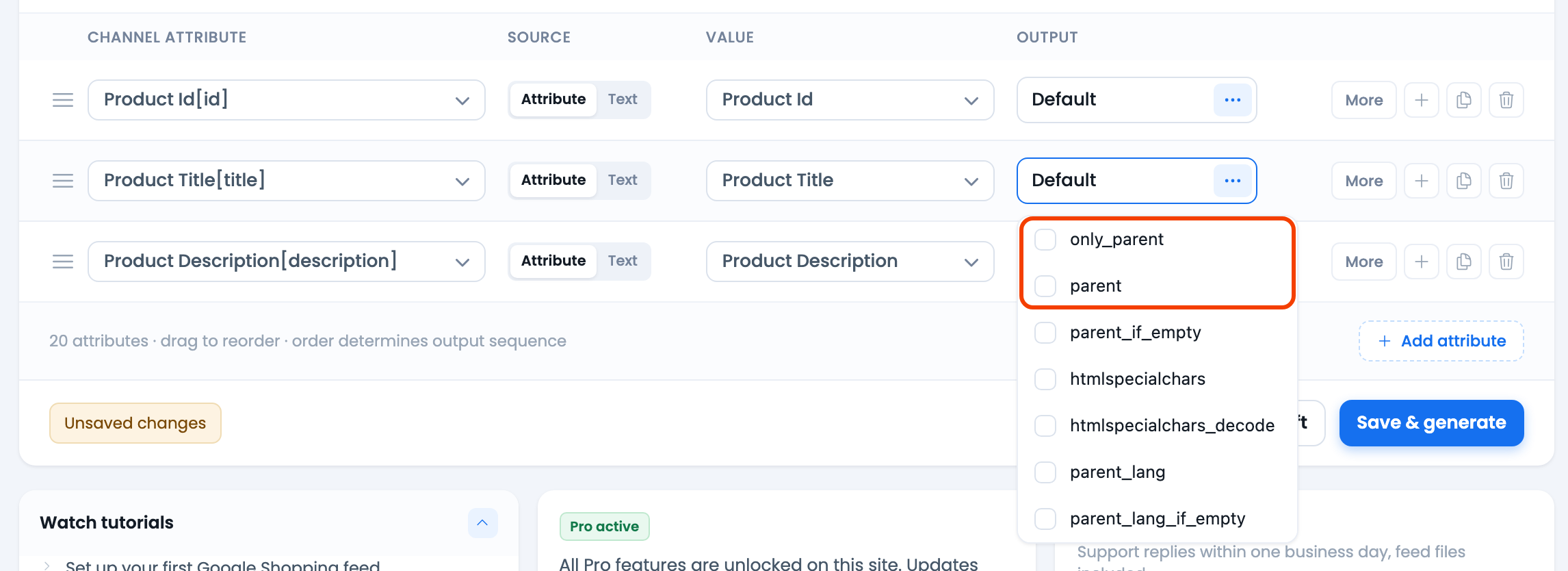
With a parent output type, each variation’s title is re-resolved against its parent, so you get Slim Fit Shirt for every variant instead of Slim Fit Shirt - Blue. Simple products are unaffected — they have no parent, so they keep their own title. This is the safest choice for a mixed feed that contains both simple products and variations.
A second option is to change the Value itself from Product Title to the Parent Title attribute. For a variation, Parent Title returns the group’s title without the auto-appended attributes; for a simple or variable product it returns the product’s own title (CTX Feed 8.0.28 and newer — older versions left it empty for products that aren’t variations). So Parent Title also works in a feed that mixes simple products and variations.
Add or keep variation info in the title
To make sure the variation attributes are included:
- Set the title row’s Value to Product Title and leave the Output type on Default (do not use a parent option). This is the out-of-the-box behavior and produces
Parent Title - Attribute, Attributefor each variation.
If you want to enrich the title further — for instance prepend the brand or append a keyword — use the row’s Prefix and Suffix fields (click More to reveal them). A Prefix of Acme produces Acme Slim Fit Shirt - Blue; a Suffix works the same way at the end. For rule-based rewriting (removing a specific word, or building a title from several fields per product), use a Dynamic Attribute, which is part of CTX Feed Pro.
Remove a specific word (like a brand name) from the title
If the goal is to strip a fixed word — a brand name, a size label, a stray dash — from every title, use CTX Feed’s find-and-replace rules (the String replace section of the Filters tab, which requires CTX Feed Pro) rather than the output type. Set a rule that matches the text and replaces it with nothing. See How to Replace Any String From Feed for the exact steps.
Troubleshooting
- Titles still show “- Blue, Large” after choosing a parent output type. Confirm you changed the Output on the title row (not another column), and that you saved and regenerated the feed. Preview the file from Manage Feeds to check.
- Simple-product titles went blank. You mapped the value to Parent Title on a CTX Feed version older than 8.0.28, where Parent Title was empty for products that aren’t variations. Update CTX Feed to 8.0.28 or newer and regenerate — simple products then get their own title — or use the only_parent / parent output type instead.
- The variation attributes aren’t in the title at all. Something is forcing the parent title. Reset the title row’s Output to Default and set its Value to Product Title.
Related guides
- How to Extend Product Title
- How to Replace Any String From Feed
- How to Use a Command to Format Attribute Output
