If you sell to shoppers in more than one country, each market usually wants prices in its own currency — euros for the EU, pounds for the UK, dollars for the US. This guide shows how CTX Feed builds a separate product feed for each currency, converting every product’s price with the exchange rates from your currency switcher plugin, so Google Shopping, Meta, and other channels advertise the right price in the right currency.
This feature requires CTX Feed Pro. The Feed Currency selector on the Make Feed screen is unlocked by the Pro plugin’s multi-currency compatibility layer. On the free plugin the field is visible but locked, and every feed is generated in your store’s default currency only.
How multi-currency feeds work
CTX Feed does not invent exchange rates of its own. Instead it reads the currencies and rates from whatever multi-currency plugin you already run, and converts each product’s price and sale_price to the currency you assign to a feed. CTX Feed detects and works with the major switchers:
- WooCommerce Multilingual & Multicurrency (WCML) — WPML’s currency companion.
- Aelia Currency Switcher
- FOX – Currency Switcher Professional for WooCommerce (formerly WOOCS)
- CURCY – WooCommerce Multi Currency by VillaTheme (free and Premium; Premium’s manually fixed prices are used as-is from CTX Feed Pro 8.0.19)
- Currency Switcher for WooCommerce (Algoritmika / ALG)
- X-Currency and YayCurrency
- WooPayments Multi-Currency (CTX Feed Pro 8.0.22 and CTX Feed 8.0.31 or later). Feed prices use the same exchange rate, price rounding and charm pricing your store shows, and product links open the page in the feed currency (
?currency=EUR).
When one of these plugins is active and configured with more than one currency, a Feed Currency field appears in the feed’s Feed settings card. Pick a currency there and CTX Feed produces a feed with every price converted to it.
Before you start
- Install and activate one of the supported currency switcher plugins, and add the currencies you want (with their exchange rates) in that plugin’s settings.
- Activate your CTX Feed Pro license under CTX Feed → System → License. Without it, the Currency field stays locked.
- Decide how many feeds you need — one per target currency. A US feed in USD and a EU feed in EUR are two separate feeds.
Create a feed for one currency
- Open CTX Feed → Make Feed.
- In Feed settings, name the feed so its currency is obvious — for example
Google Shopping – EUR. - Choose the Country, Merchant/Template (for example, Google Shopping), and File type.
- Find the Feed Currency field. It appears only when a multi-currency plugin is active. Its hint reads “Prices are converted to this currency.” Select the currency for this feed — for example, EUR.
- Map your attributes on the Config tab. Leave the price rows on the standard price and sale price attributes — CTX Feed handles the conversion; you do not enter converted numbers by hand.
- Click Save & generate at the bottom.
- Copy the feed URL from Manage Feeds and submit it to the channel account or campaign that targets that currency’s market.
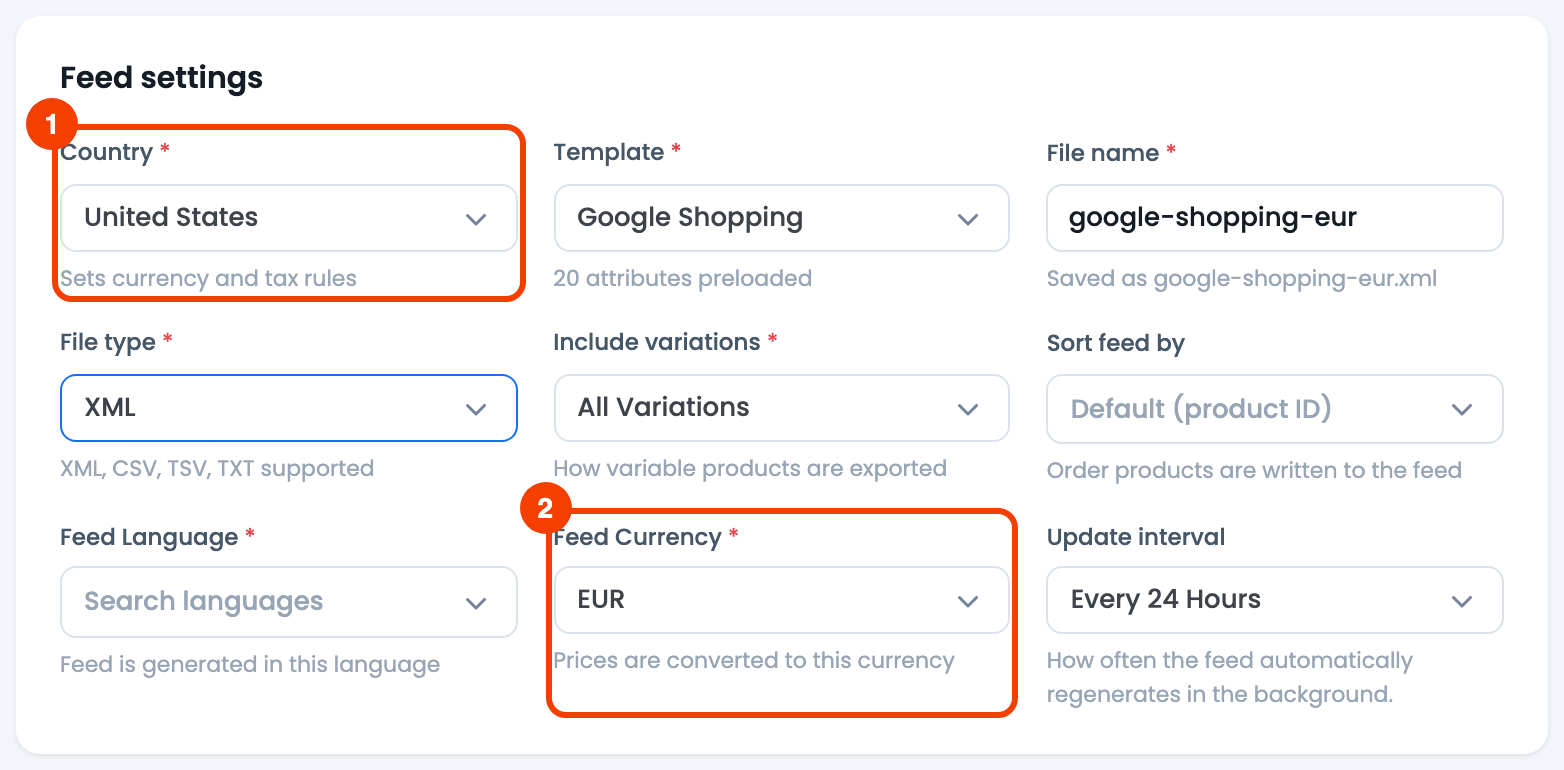
- Country — the target market.
- Feed Currency — the currency this feed’s prices are converted to. It appears when a supported currency plugin is active.
Repeat once per currency. Each feed lives on its own row with its own URL.
The currency suffix on price columns
For channels whose price format includes the currency code (for example, Google’s 19.99 EUR), CTX Feed keeps the price column’s suffix in step with the feed currency automatically. When you pick a currency, the plugin updates the price rows’ suffix from the old code to the new one, while leaving any custom suffix you typed yourself untouched. You normally do not need to edit this by hand — but if you open a price row’s More panel on the Config tab, you will see the suffix there and can adjust it.
By default the Feed Currency field opens on your store’s base currency, so an untouched feed still produces valid, base-currency prices.
Verify the conversion
Before submitting a feed, confirm the numbers actually converted:
- On Manage Feeds, open the feed’s ⋮ menu and choose Preview, or open the feed URL in a browser.
- Check that the
pricevalues match the converted amounts — a EUR feed should show euro amounts, not your base-currency prices. - Check the currency code where the channel expects one (for example
29.99 EUR), and thatsale_priceconverted too.
Pairing currencies with languages
Multilingual stores often want each language feed priced in its own currency — a German feed in EUR, a UK feed in GBP. When both a multilingual plugin (such as WPML) and a currency plugin are active, the Feed settings card shows both a Feed Language and a Feed Currency field, and you can set them together on the same feed. See How to make feed for WPML languages.
Troubleshooting
- The Currency field does not appear. It only shows when a supported currency switcher plugin is active with more than one currency configured. Confirm the plugin is active and has at least two currencies set up.
- The Currency field is locked with a PRO badge. Currency targeting is a Pro feature — activate your CTX Feed Pro license to unlock it.
- Prices did not convert. Make sure the currency switcher plugin has an exchange rate set for the target currency, then regenerate the feed. A missing or zero rate leaves prices in the base currency.
- Sale prices did not convert. Confirm the products are genuinely on sale, then regenerate. Converted sale prices follow the same rate as the regular price.
- The wrong currency code shows on the price. Reselect the currency in the Feed settings card (this re-syncs the price suffix) and regenerate.
Related guides
- How to create multi currency feeds with different currency switcher plugins
- How to make feed for WPML languages
- Add currency code or symbol to price into feed
- How to format price or number into feed
