You built a feed, but some products you expected are not in it. In CTX Feed this is almost never random — a product is missing because a filter, a stock or visibility rule, an empty required field, or the variation setting deliberately left it out. This guide walks through every reason a product can be dropped from the generated file, in the order worth checking, so you can find the exact rule responsible and put the product back.
First, confirm where the product is missing
There are two different “missing product” problems, and they have different fixes:
- The product is not in the feed file at all — this guide covers that (the plugin excluded it).
- The product is in the file but does not show up in Google/Meta — that is a channel-side issue; see How to solve the missing product issue for Google Shopping.
To tell which one you have, open the feed and search it:
- Go to CTX Feed → Manage Feeds.
- Open the feed’s ⋮ menu → Preview (or open the feed URL) and search the file for the product’s title or SKU.
- If it is not there, keep reading. If it is there, the problem is on the channel side.
Check the Filters tab
Open the feed on CTX Feed → Make Feed (or edit it from Manage Feeds) and go to the Filters tab. Several controls here can exclude products:
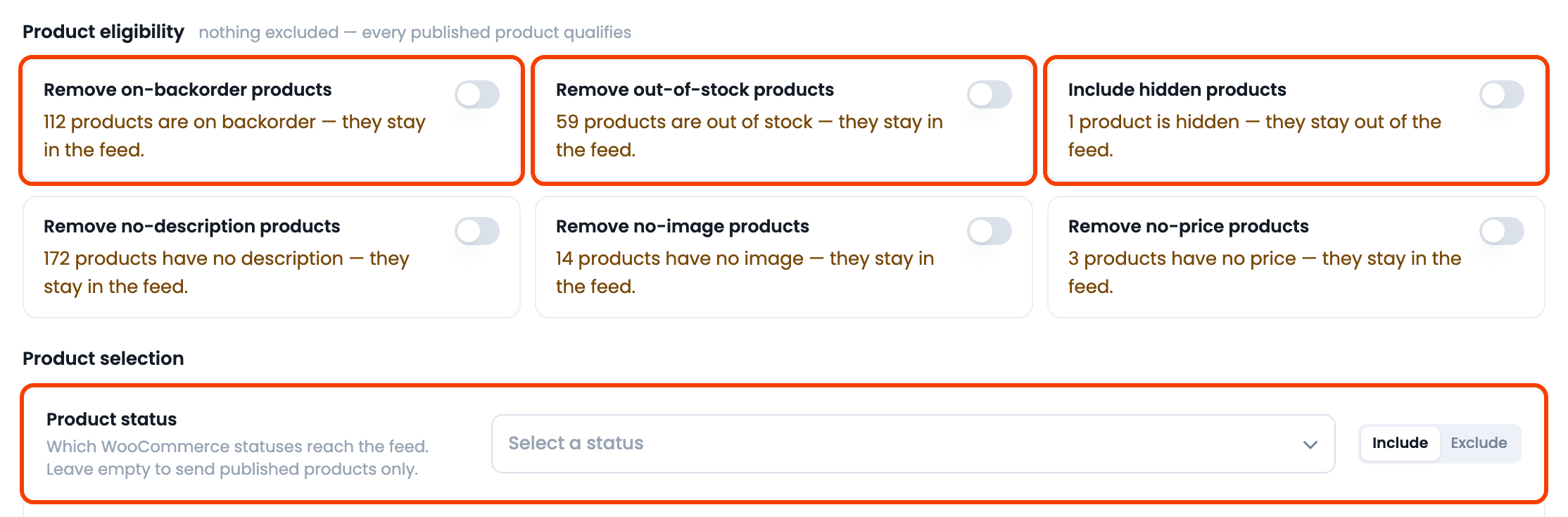
- Product status — under Product selection. This decides which WooCommerce statuses (published, draft, etc.) reach the feed. If a mode or status is set here, products outside it are dropped. Leave it empty and only published products are sent; an unpublished product never appears in a feed unless you add its status here.
- Product eligibility toggles — these remove products that match a condition:
- Remove out-of-stock products — drops anything out of stock.
- Remove on-backorder products — drops backordered items.
- Remove no-description products / no-image products / no-price products — drop items missing that field.
- Include hidden products — when OFF, products set to hidden catalog visibility stay out; turn it ON to include them.
- Product categories and Specific products — if you set an Include list here, only those products are exported; if you set an Exclude list, those are removed.
Turn off (or adjust) whichever rule is excluding your product, then regenerate.
Note: The product-eligibility toggles, category filter and specific-products filter are CTX Feed Pro features. On the free plugin they are shown but locked — so if your feed is missing products on Free, the cause is more likely product status, visibility, or the variation setting below.
Check the Advanced filters tab
If you use Advanced filters (Pro), a condition group there can exclude products based on any attribute — price ranges, custom fields, and so on. Review the groups on the Advanced filters tab and confirm none of them unintentionally removes your product. Remember these run after the Filters tab.
Check the variation setting
On the Feed settings card, the Include variations option controls how variable products are exported, and it is a common reason products “disappear”:
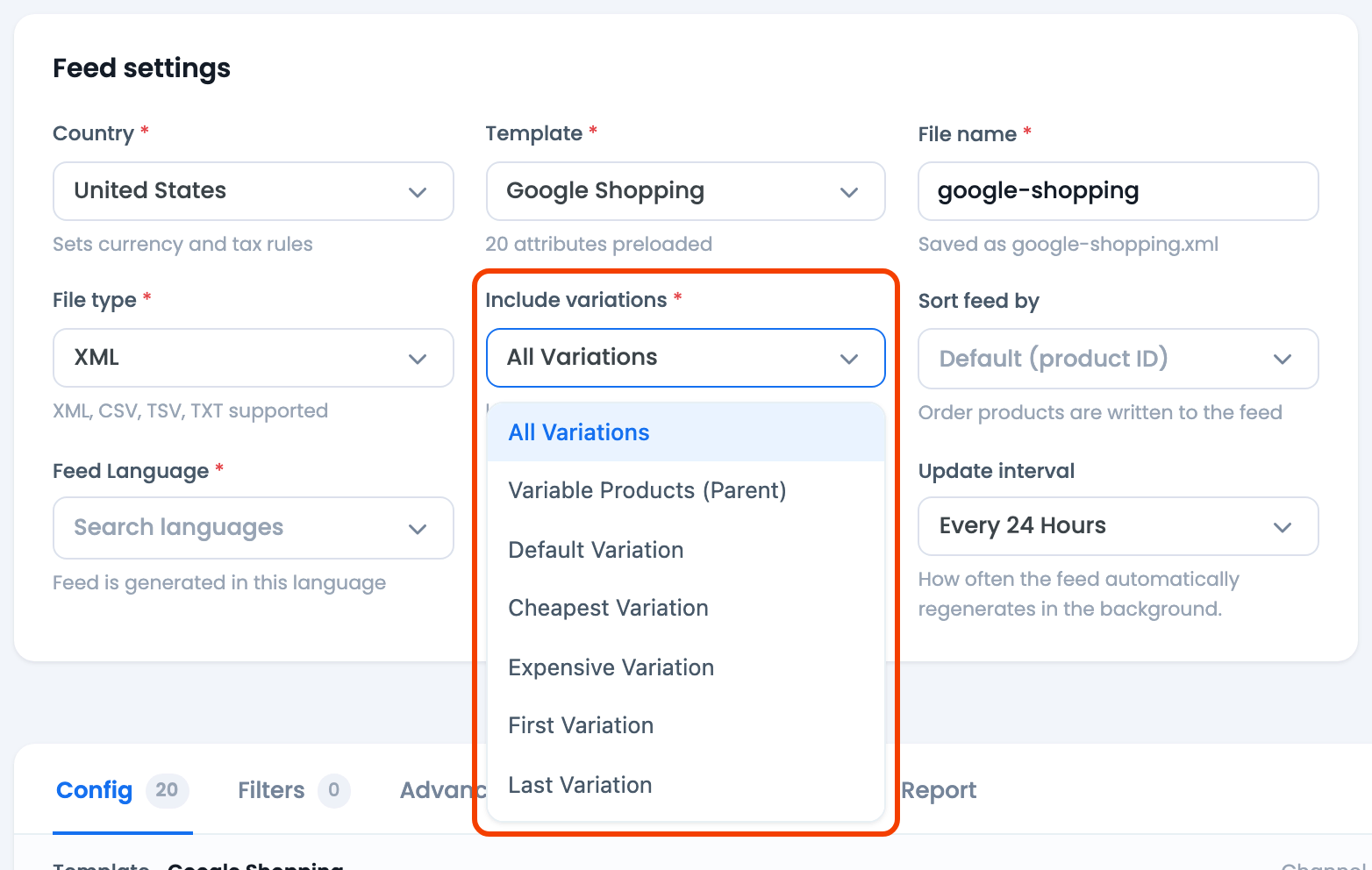
- All Variations (the default) — each variation is its own row; the parent (variable) product does not appear.
- Variable Products (Parent) — only the parent appears; its variations do not.
- Default / Cheapest / Expensive / First / Last Variation — one variation per parent; the other variations are left out.
- Variable + Variations — the parent and all its variations.
- Choose the mode that matches what you expect to see, then regenerate.
A single-variation or childless variable product can also behave unexpectedly here, so if a variable product is missing, this setting is the first place to look.
Check WooCommerce itself
Some exclusions come from WooCommerce, not the feed:
- Product status — a product left as Draft, Pending, or Private is not a normal published product. Publish it.
- Catalog visibility — a product set to Hidden is excluded unless Include hidden products is on (Pro).
- Store-wide out-of-stock hiding — if WooCommerce → Settings → Products → Inventory → Out of stock visibility hides out-of-stock items from the catalog, they are also kept out of the feed unless you turn on the Override out-of-stock visibility toggle on the Filters tab (Pro).
- Products with no product type — products created by an import, a supplier sync, or a migration sometimes have no product type saved. WooCommerce still lists them (and counts them under Published), but they appear under none of the Filter by product type options, and WooCommerce’s own export skips them too. To spot this, add up the counts per product type and compare with All. CTX Feed 8.0.30 and newer includes these products as simple products. A product WooCommerce itself can’t read properly (a broken import) is still left out, and noted in the CTX Feed system log when debug logging is on. Older versions leave all of them out, so update CTX Feed. Don’t re-save the products to fix their type: a product with variations that has lost its type opens as a simple product, and saving it could remove its variations.
Regenerate and clear the cache
After any change, rebuild the file so it reflects the new rules:
- Click Regenerate on the feed’s row.
- If a product you removed from a filter still does not appear, click Clear Cache on Manage Feeds and regenerate once more.
- Preview the feed and confirm the product is now present.
Troubleshooting checklist
- A whole category is missing → check the Product categories filter and the Include variations setting.
- Out-of-stock items are missing → the Remove out-of-stock products filter, or WooCommerce’s own out-of-stock hiding, is excluding them.
- A product with no description/image/price is missing → an empty-field filter dropped it; either fill the field or turn the filter off. See Remove product if description, price or image is empty.
- Variable products are missing → the Include variations mode is excluding parents or variations.
- It is in the file but not on Google → that is a channel issue; see the guide below.
Related guides
- How to solve the missing product issue (Google Shopping)
- Solve the missing product issue
- Remove product if description, price or image is empty
- How to solve the feed configuration not updating issue
