WordPress and WooCommerce store many shop-wide settings as options — your site title, store currency, base country, weight unit, and so on. CTX Feed lets you expose any of these as a feed attribute so a single, store-level value is written into every product row. This guide is for anyone who needs to output a constant like a brand name, currency code, or shipping country in a feed without editing each product. The result: pick the setting once, and it appears in the Value dropdown when you build a feed.
What a WordPress option is
An option is a named value saved in your WordPress database. blogname holds your site title, woocommerce_currency holds your store currency (for example USD), woocommerce_default_country holds your base location. These values are the same for the whole site, not per product — which makes them ideal for feed columns that should carry one fixed value for every item.
Step 1 — Expose an option
- In your WordPress dashboard open CTX Feed, then go to Data mapping → WP options.
- Click Add option (or Add a WP option on the empty screen).
- In the picker, start typing to search your site’s options — matches appear as you type. You can narrow the list with the All / Site / WooCommerce / Advanced filter.
- Click Add next to the option you want. It is saved immediately and now appears in your exposed-options list.
- Repeat for any other options, then click Done.
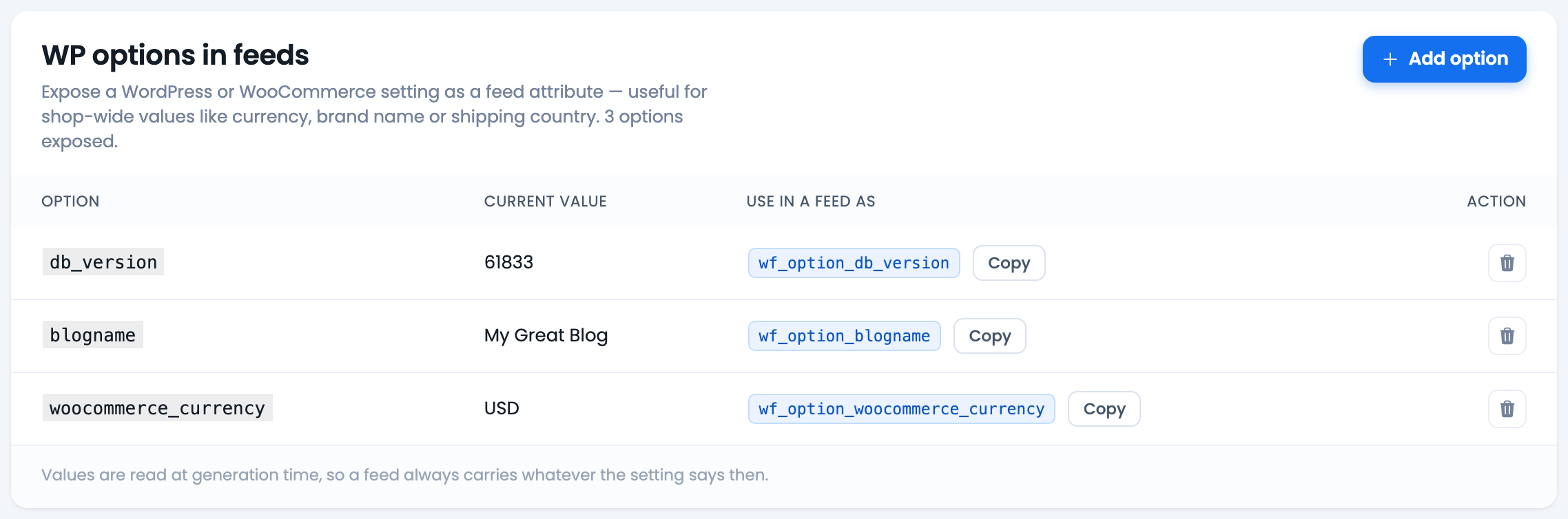
Most stores begin with blogname and woocommerce_currency. The list shows each option’s name, its current value, and a friendly label where one is known, so you can confirm you picked the right one before adding it.
Serialized (multi-value) options are marked Not usable — a feed column can only carry plain text, so those are blocked on purpose. Sensitive options such as passwords, secret keys and licence keys are blocked too, so they can never end up in a public feed file.
Step 2 — Use the option in a feed
- Open CTX Feed → Manage Feeds and edit a feed, or start a new one with Make Feed.
- On the Config tab, in the row where you want the value, keep Source on Attribute and open the Value dropdown. Your exposed options appear together in an Options group.
- Select the option (for example your currency or site title). CTX Feed writes that value into the column for every product.
- Click Save & generate.
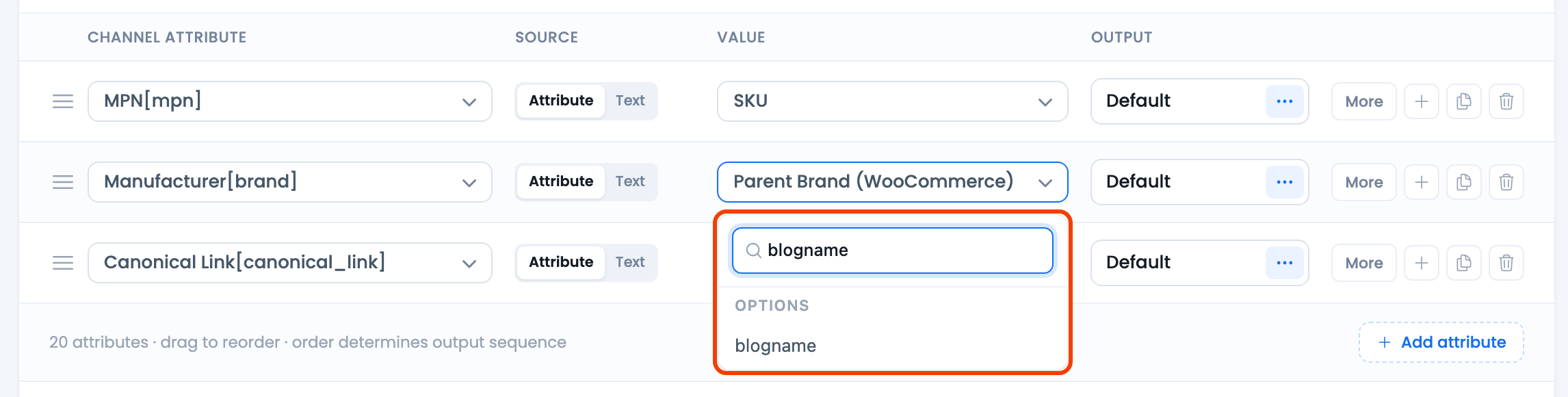
Because options are global, the same value is written to every row — this is exactly what you want for attributes like a store-wide brand, currency, or country.
When to use WordPress options
- A constant brand or manufacturer — expose a custom option (or
blogname) and map it to the brand attribute. - Currency code — output
woocommerce_currencywhere a channel wants an explicit currency column. - Shipping or base country — output
woocommerce_default_countryfor feeds that need a static country value. - Store name or tagline — output
blognameorblogdescriptionfor channels that ask for a seller name.
How the value is read
CTX Feed reads each exposed option at generation time, so a feed always carries whatever the setting says when the feed is built. If you change your store currency in WooCommerce and regenerate, the new currency flows into the feed automatically — you do not have to re-map anything.
Troubleshooting
- My option isn’t in the Value dropdown. Confirm it was added under Data mapping → WP options, then reopen the feed. Newly exposed options appear the next time you open the attribute mapping.
- The value is empty in the feed. The underlying WordPress option may itself be empty. Check its current value in the WP options picker.
- My option shows “Not usable”. It stores a serialized/array value, which cannot ride in a feed column. Pick a plain-text option instead, or store the value you need in a simple option.
- I need a value that changes per product. Options are store-wide by design. For per-product data, map a product attribute or a custom field on the Config tab instead.
Related guides
- How to use commands to format attribute output
- Product description with or without HTML
- Which plugins are compatible with CTX Feed Pro

Hi,
I am facing an issue in CTX Feed, When we generate a feed and paste the URL in the Meta catalog data source it says the URL is incorrect. I am trying yo solve this but I am unable to solve this
Hi! To solve any issues related to the feeds created with our plugin, please, contact our support team from here – webappick.com/contact