Most shopping channels penalise, or outright reject, listings for items you can’t actually sell, so it’s good practice to keep out-of-stock products out of the feed you submit. CTX Feed can drop out-of-stock (and, separately, on-backorder) products with a single toggle. This guide shows how, and covers the WooCommerce setting that already influences this.
This feature requires CTX Feed Pro. On the free plugin the Product eligibility toggles on the Filters tab are shown as a locked preview and are not applied to the feed.
Remove out-of-stock products
- Open CTX Feed → Manage Feeds and edit the feed.
- Go to the Filters tab.
- In Product eligibility, turn Remove out-of-stock products ON.
- Click Save & generate.
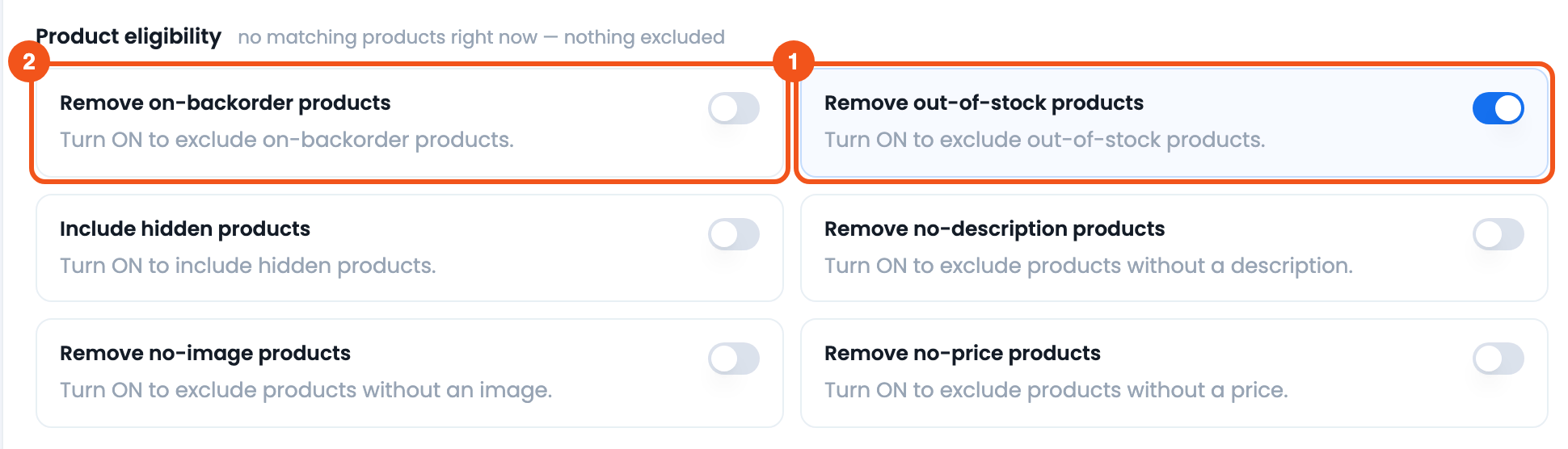
- Remove out-of-stock products — turned ON for this feed.
- Remove on-backorder products — a separate toggle for backorder items.
Products whose stock status is Out of stock — or whose stock quantity is exactly 0 — are now excluded from this feed. On-backorder products are kept — they have their own toggle (below) — since backorder items can often still be sold. When you export variations, each variation is checked on its own, so only the sold-out variations drop out. On stores where product counts are shown, the card also tells you how many products are currently out of stock, so you can see the impact before saving.
Variable products: only in-stock sizes are listed
When a variable product is exported as one row (the parent), attributes such as Size list every option — for example Toddler, Small, Medium, Large. With Remove out-of-stock products on, that list only includes options that still have an in-stock variation: if the Large variation has a quantity of 0, the row shows Toddler, Small, Medium. This works for sizes picked from Attributes or Product Taxonomies and for custom product attributes. Backorder options stay unless Remove on-backorder products is also on. Attributes that are not used for variations (such as Material) are not changed, and a variation set to “Any Size” keeps every size listed. The parent row itself stays in the feed as long as at least one variation can be bought. (CTX Feed 8.0.29 and CTX Feed Pro 8.0.20 or newer.)
Remove on-backorder products
If your channel treats backorder items as unavailable, turn Remove on-backorder products ON as well. This drops products with the On backorder stock status. You can use either toggle on its own or both together, depending on how strict you want the feed to be.
The WooCommerce “Hide out of stock items” setting
WooCommerce has its own control at WooCommerce → Settings → Products → Inventory called Hide out of stock items. When it’s turned on, out-of-stock products are hidden from your catalog, and CTX Feed respects that by default — even on the free plugin — so those items are already left out of feeds before you touch the toggle above. For a variable product this looks at the parent: it’s left out only when WooCommerce marks the whole product out of stock.
The opposite toggle, Override out-of-stock visibility, forces out-of-stock items back into the feed despite that store setting. If you actually want to keep out-of-stock products, see the related guide on including hidden and out-of-stock products.
Alternative: report availability instead of dropping
Removing out-of-stock items keeps a channel clean, but it also means a product loses its listing history and ranking each time it sells out and returns. For Google Shopping and Meta, an accepted alternative is to keep the product in the feed and let CTX Feed report its real stock status in the availability field (in stock / out of stock). CTX Feed maps WooCommerce stock status to each channel’s availability attribute automatically, so choose whichever approach your channel prefers — remove the items, or send them with accurate availability.
Troubleshooting
- Out-of-stock items are still in the feed. Confirm Remove out-of-stock products is ON and Override out-of-stock visibility is OFF, then click Save & generate.
- Backorder items are still there. That’s expected — Remove out-of-stock products keeps backorder items. Turn on Remove on-backorder products too.
- The channel still shows sold-out items. The channel re-fetches your feed URL on its own schedule; give it time after regenerating, or trigger a manual fetch in the channel’s dashboard.
- The toggles are locked. On the free plugin the Product eligibility toggles require CTX Feed Pro.
Related guides
- How to Include Hidden Out of Stock Products in WooCommerce Product Feed
- How to Filter Products
- How to Remove Some Products from Feed by ID
