Sometimes a feed attribute should carry the same fixed value for every product rather than pulling a value from each product. A single brand for a one-brand store, new for condition, a custom label that groups products for a Google Ads campaign, or a static shipping label — these are all cases where you type the value once and CTX Feed writes it to every row. In CTX Feed this is done with the Text source (stored internally as a pattern), and it works in the free version. This guide shows exactly how.
When you’d use a custom value
Reach for a fixed value whenever the data isn’t (or shouldn’t be) stored per product:
- Custom labels — Google Shopping supports
custom_label_0throughcustom_label_4, which you use to segment products in Google Ads (for example, label a whole feedclearanceorbestseller). - A single brand — if every product in the feed is the same brand, type it once instead of setting it on each product.
- Condition — set
new,used, orrefurbishedfor the whole feed. - A static shipping label or a promotion ID that Google expects as a plain string.
- Placeholder identifiers — a fixed value where a channel requires a non-empty field.
Add a custom value with the Text source
The mapping happens on the Make Feed screen’s Config tab.
- Go to CTX Feed → Make Feed, or open a feed from Manage Feeds and choose Edit Feed.
- Select your channel template (for example, Google Shopping) and stay on the Config tab. You’ll see the mapping table with Channel attribute, Source, Value, and Output columns.
- Find the attribute you want to set to a fixed value. If it isn’t listed yet, click Add attribute and choose it (for a custom label, the channel attribute is
custom_label_0, and so on). - In the Source column, switch the toggle from Attribute to Text.
- The Value column changes from a dropdown to a plain text box. Type the exact value you want — for example
new,Bestseller, or your brand name. - Click Save & generate to save and regenerate.

- Channel attribute — the attribute you’re giving a fixed value, here
custom_label_0. - Source — switched from Attribute to Text, so the Value becomes a plain text box.
- Value — the exact text written for every product (here
Bestseller). - Output — optional formatting applied to the value, such as Strip Tags or CDATA. Leave it on Default for plain text.
Every product row in that feed now carries the text you entered. The text is written exactly as typed: placeholders such as {title} are not replaced with product data.
Add a prefix or suffix to a value
You can also keep pulling a value from each product but wrap it with fixed text on both ends — a lightweight pattern. Each mapping row can carry a prefix (added before the value) and a suffix (added after it).
- On the Config tab, click Show prefix / suffix / command at the top of the table, or click More on a single row to expand its options.
- In the expanded row, fill in Prefix and/or Suffix.
- Save and regenerate.
For example, on an id row you could set a prefix of SKU- so a product with ID 1024 outputs SKU-1024. On a price row, a suffix of USD appends the currency code. Prefix and suffix apply on top of whichever source the row uses — attribute or text. When a product has no value for the row, nothing is written: the prefix and suffix are skipped too.
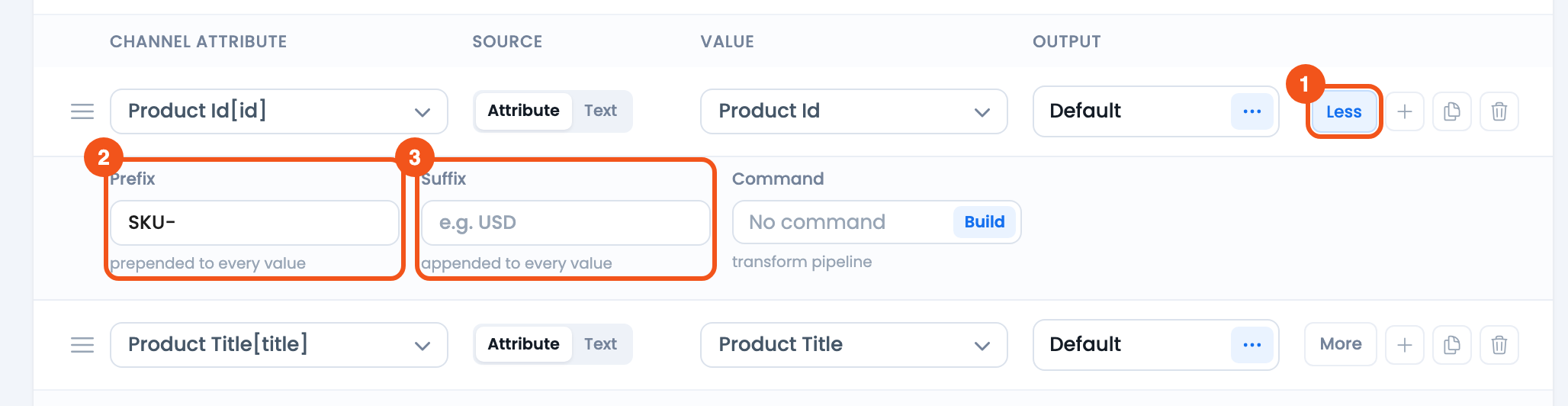
- More — expands the row; the button then reads Less.
- Prefix — text added before the value.
- Suffix — text added after the value.
Building a value from several attributes
A prefix/suffix wraps one value. To combine several product attributes into one field — say, “Title – Color – Size” — use an attribute mapping: you list the parts in order, attributes and fixed text, and pick a separator. To choose a value by rules instead (for example “if the category is Shoes, write X”), use a dynamic attribute.
Attribute mappings and dynamic attributes require CTX Feed Pro. The Text source, prefix and suffix on this page are free.
For most “one fixed value for the whole feed” cases, the Text source above is all you need and stays in the free version.
Troubleshooting
- My typed value isn’t showing up. Make sure the Source toggle on that row is set to Text, not Attribute — the text box only appears in Text mode. Then regenerate the feed.
- The value shows on some products but not others. A fixed Text value applies to every row. If it’s uneven, the row is probably still on Attribute source and reading per-product data. Re-check the toggle.
- I want the value to appear only when the product’s own value is empty. That’s a fallback, not a fixed value. Keep the row on Attribute and add the If empty command with your text — see How to use commands to format attribute output. Commands require CTX Feed Pro.
- I typed
{title}and it shows literally. The Text source doesn’t fill in placeholders. Use an attribute mapping to mix product data with text. - Google rejects my custom label. Custom labels accept plain text only and are meant for Google Ads segmentation, not for shopper-facing data. Keep them short and consistent across the feed.
Related guides
- How to use commands to format attribute output
- Add GTIN, EAN, MPN, UPC & ISBN to products and make feed
- How to add brand plugin data into your feed
