%22%2F%3E%0A%3Cpath%20d%3D%22M59.8894%2016.6974C60.1689%2016.9331%2060.5416%2017.1216%2060.9142%2017.0745C61.5664%2017.0273%2061.8925%2016.6031%2061.6596%2015.7547C61.5198%2014.4349%2061.4267%2013.1623%2061.2869%2011.8425C61.1006%209.72149%2060.8211%207.55331%2060.5881%205.38512L60.1689%201.70863C60.0757%200.81307%2059.6099%200.294591%2058.7713%200.106053C58.4918%20-0.0353509%2058.2123%20-0.0353509%2057.9328%200.106053C57.7931%200.106053%2057.6999%200.106053%2057.6067%200.153187C56.5353%200.483129%2055.4172%200.81307%2054.3458%201.19015C53.5073%201.47295%2052.6222%201.75576%2051.7371%202.03857C50.2929%202.50991%2048.8488%203.02839%2047.4047%203.49974C46.4264%203.82967%2045.4016%204.1596%2044.3768%204.48952L44.3767%204.48956C43.6313%204.72523%2043.3518%205.24371%2043.6313%205.85646C43.7711%206.13927%2044.004%206.32781%2044.2369%206.46921C44.7028%206.79915%2045.2152%207.08196%2045.6811%207.4119C45.8674%207.55331%2046.0537%207.69471%2045.8208%208.02465C45.7276%208.21319%2045.5879%208.35459%2045.4481%208.54313L45.355%208.73167L44.5164%2010.0986L43.9108%2010.9941L43.3052%2011.8897L43.2121%2011.9839L42.1406%2013.5865L44.5867%2019.8706C45.5713%2022.1447%2048.6357%2026.5713%2052.552%2023.6277L53.9265%2022.2593L54.3458%2021.5523C54.3924%2021.458%2054.4856%2021.3637%2054.5321%2021.2694L54.5787%2021.2223C55.2309%2020.1854%2055.883%2019.1956%2056.5352%2018.2059L56.5353%2018.2057C57.0477%2017.4044%2057.5601%2016.6503%2058.0726%2015.849C58.2123%2015.6604%2058.3055%2015.6133%2058.4918%2015.7076C58.9577%2016.0375%2059.4235%2016.4146%2059.8894%2016.6974Z%22%20fill%3D%22%233D89D0%22%2F%3E%0A%3Cpath%20d%3D%22M28.0259%2022.0232C27.9793%2022.0703%2027.9793%2022.1175%2027.9327%2022.1646C27.9793%2022.1175%2028.0259%2022.0703%2028.0259%2022.0232Z%22%20fill%3D%22url(%23paint1_linear)%22%2F%3E%0A%3Cpath%20d%3D%22M53.9265%2022.3064C53.7402%2022.5892%2053.5538%2022.872%2053.3675%2023.202C53.0414%2023.7204%2052.7153%2024.1918%2052.3892%2024.7103C51.3178%2026.4071%2050.1531%2027.9625%2048.4295%2029.0938C46.9388%2030.0365%2045.4015%2030.6021%2043.6779%2030.8849C42.1872%2031.1206%2040.7896%2030.9791%2039.3921%2030.5549C37.6219%2030.0365%2036.038%2029.1409%2034.687%2027.8211C33.7088%2026.8784%2032.9634%2025.7944%2032.3578%2024.616C32.0317%2023.9561%2031.7988%2023.2491%2031.4727%2022.5421C31.0534%2021.5522%2030.1683%2019.2427%2030.1218%2019.1012C30.0752%2019.0541%2030.0752%2018.9598%2030.0286%2018.9127C29.9354%2018.7242%2029.8422%2018.5828%2029.7957%2018.3942C29.6559%2018.0172%2029.4696%2017.6401%2029.3298%2017.2159C29.2366%2017.0273%2029.1901%2016.8388%2029.0969%2016.6503C28.9571%2016.3674%2028.864%2016.0846%2028.7242%2015.7547C28.5845%2015.3776%2028.4447%2015.0005%2028.2584%2014.6235C28.1652%2014.3407%2028.0254%2014.0579%2027.9323%2013.775C27.9323%2013.7279%2027.9323%2013.7279%2027.8857%2013.6808C27.7925%2013.4922%2027.7459%2013.3037%2027.6528%2013.1152C27.4664%2012.5967%2027.2335%2012.1253%2027.0006%2011.6069C27.0006%2011.5597%2026.954%2011.5126%2026.9074%2011.4655C26.8142%2011.2769%2026.7211%2011.1355%2026.5813%2010.947C26.5347%2010.8998%2026.4882%2010.8527%2026.4882%2010.8056C26.4416%2010.7584%2026.395%2010.7113%2026.395%2010.6642C26.3484%2010.617%2026.3018%2010.5699%2026.2552%2010.5228C26.2086%2010.4756%2026.2086%2010.4285%2026.1621%2010.4285L26.1155%2010.3814C26.0689%2010.3342%2026.0223%2010.2871%2026.0223%2010.2871C25.9291%2010.1928%2025.8826%2010.1457%2025.7894%2010.0514C25.7428%2010.0043%2025.6962%209.95715%2025.6496%209.95715C25.603%209.91002%2025.5565%209.91002%2025.5099%209.86288C25.4167%209.81575%2025.3701%209.76861%2025.277%209.67435C25.2304%209.62721%2025.1838%209.62721%2025.1372%209.58008C25.0906%209.53294%2025.044%209.53294%2024.9974%209.48581C24.9509%209.48581%2024.9043%209.43867%2024.9043%209.43867C24.8577%209.39154%2024.8111%209.39154%2024.7645%209.3444C24.7179%209.3444%2024.7179%209.29727%2024.6714%209.29727C24.5782%209.25014%2024.485%209.203%2024.3918%209.15587C22.9943%208.59025%2021.1775%208.77879%2020.1992%209.10873C19.2675%209.43867%2018.2893%2010.3342%2018.2427%2010.4285C18.6619%209.72148%2019.0812%208.96733%2019.547%208.26031C20.1526%207.36475%2020.7117%206.4692%2021.3638%205.62078C22.3887%204.63095%2023.4602%203.78253%2024.6714%203.07551C27.0006%201.75575%2029.4696%201.52007%2032.0317%201.89715C33.3361%202.08569%2034.5939%202.60417%2035.7585%203.35832C36.9231%204.06534%2037.9014%204.96089%2038.7399%206.04499C39.2989%206.79914%2039.8114%207.60043%2040.1374%208.49598C40.6033%209.67435%2041.1623%2010.8056%2041.5816%2011.9839C41.7679%2012.5496%2042.0008%2013.068%2042.2338%2013.6336C42.2338%2013.6336%2042.2338%2013.6336%2042.2338%2013.6808V13.7279L45.0288%2019.8554C45.4015%2020.8452%2045.9139%2021.6465%2046.7059%2022.3535C47.2183%2022.872%2047.8705%2023.1548%2048.5227%2023.3905C48.5693%2023.3905%2048.6158%2023.4376%2048.6624%2023.4376C49.7805%2023.7676%2051.2246%2023.3905%2052.3426%2023.0134C53.088%2022.6835%2053.6936%2022.4007%2053.9265%2022.3064Z%22%20fill%3D%22url(%23paint2_linear)%22%2F%3E%0A%3Cpath%20d%3D%22M28.0255%2022.0238C27.9789%2022.0709%2027.9789%2022.118%2027.9324%2022.1652C27.9324%2022.1652%2027.9324%2022.1652%2027.9324%2022.2123C27.7926%2022.448%2027.6063%2022.6836%2027.4665%2022.9664C25.8826%2025.8416%2024.4385%2028.1512%2021.6434%2029.6595C19.3142%2030.9793%2016.8452%2031.215%2014.2831%2030.8379C14.1433%2030.8379%2014.0501%2030.7908%2013.9104%2030.7908C12.7458%2030.6022%2011.5812%2030.0838%2010.4165%2029.2825C8.78607%2028.1512%207.52829%2026.5958%206.64318%2024.8047L6.17733%2023.9091L5.01272%2021.5524L0.726927%2012.6911C0.447419%2012.0784%200.214496%2011.4656%200.121327%2010.8529C-0.437689%207.8834%200.95985%204.77252%203.80151%203.35849C5.43198%202.51007%207.24878%202.4158%208.87924%202.93428C10.6029%203.45276%2012.1402%204.67825%2013.0253%206.46937L13.1184%206.6579L14.7489%209.95732C14.7955%2010.0516%2014.7955%2010.1459%2014.8421%2010.2401C15.075%2010.8529%2015.8204%2012.4083%2016.426%2013.5867C16.4725%2013.6809%2016.5191%2013.7752%2016.5657%2013.8223C16.6123%2013.9638%2016.7055%2014.1052%2016.752%2014.1994C16.7986%2014.2937%2016.8452%2014.3408%2016.8452%2014.4351C16.8452%2014.4822%2016.8918%2014.4822%2016.8918%2014.5294C16.9384%2014.5765%2016.9384%2014.6708%2016.985%2014.7179C16.985%2014.765%2017.0316%2014.765%2017.0316%2014.8122C17.0316%2014.8593%2017.0781%2014.8593%2017.0781%2014.9064C17.0781%2014.9536%2017.1247%2015.0007%2017.1247%2015.0478C17.1247%2015.095%2017.1713%2015.095%2017.1713%2015.1421C17.3111%2015.4249%2017.4042%2015.7549%2017.544%2016.0377C17.6372%2016.2262%2017.6837%2016.4147%2017.7769%2016.6504C17.9632%2017.1689%2018.1962%2017.6402%2018.3825%2018.1587C18.5223%2018.4415%2018.6154%2018.7715%2018.7552%2019.0543C18.8018%2019.1485%2018.8484%2019.29%2018.8949%2019.3842C18.9881%2019.5728%2019.0347%2019.7613%2019.1279%2019.9498C19.3608%2020.5154%2019.5937%2021.0811%2019.9664%2021.5995C20.1993%2021.8823%2020.3857%2022.1652%2020.6652%2022.4008C22.3888%2023.9563%2024.9975%2023.862%2028.0255%2022.0238Z%22%20fill%3D%22url(%23paint3_linear)%22%2F%3E%0A%3Cpath%20d%3D%22M68.0888%2024.8694L68%207.88696H71.9963L71.8187%2018.4448L76.8806%207.88696H80.6548L81.3209%2018.3999L85.5392%207.88696H89.713L82.4754%2024.8694H78.1683L77.5466%2013.9072L72.3959%2024.8694H68.0888Z%22%20fill%3D%22%230D5293%22%2F%3E%0A%3Cpath%20d%3D%22M92.7771%2025.1385C89.2693%2025.1385%2086.7383%2022.6675%2086.7383%2019.2081C86.7383%2015.3893%2089.8021%2012.1545%2093.4431%2012.1545C96.6402%2012.1545%2098.8603%2014.4458%2098.8603%2017.7704C98.8603%2018.5342%2098.8159%2019.1182%2098.7271%2019.6124H90.4237C90.6457%2021.0501%2091.7114%2022.0385%2093.2211%2022.0385C94.1536%2022.0385%2094.9528%2021.724%2095.5301%2021.095L97.617%2023.4762C96.0185%2024.6443%2094.5976%2025.1385%2092.7771%2025.1385ZM90.6457%2017.411H95.4857C95.3081%2016.0632%2094.4644%2015.2545%2093.2211%2015.2545C92.0666%2015.2096%2091.0898%2016.0632%2090.6457%2017.411Z%22%20fill%3D%22%230D5293%22%2F%3E%0A%3Cpath%20d%3D%22M105.965%2024.9589C104.411%2024.9589%20103.167%2024.24%20102.368%2022.8473L101.924%2024.869H98.1499L101.791%207.52717L105.698%206.89819L104.322%2013.5923C105.166%2012.7836%20106.32%2012.2894%20107.519%2012.2894C110.139%2012.2894%20112.181%2014.8054%20112.181%2018.0401C112.226%2021.814%20109.428%2024.9589%20105.965%2024.9589ZM103.789%2016.3778L102.945%2020.4212C103.478%2021.185%20104.366%2021.6792%20105.388%2021.6792C107.208%2021.6792%20108.54%2020.2415%20108.54%2018.3097C108.54%2016.6474%20107.43%2015.4793%20105.92%2015.4793C105.077%2015.4793%20104.411%2015.7937%20103.789%2016.3778Z%22%20fill%3D%22%230D5293%22%2F%3E%0A%3Cpath%20d%3D%22M120.44%207.88696H125.058L127.899%2024.8694H123.725L123.193%2020.8259H117.154L114.978%2024.8694H110.582L120.44%207.88696ZM122.704%2017.5912L121.949%2011.9304L118.886%2017.5463H122.704V17.5912Z%22%20fill%3D%22%230D5293%22%2F%3E%0A%3Cpath%20d%3D%22M131.23%2012.3347H135.004L134.782%2013.5927C135.626%2012.7391%20136.736%2012.2449%20137.935%2012.2449C140.555%2012.2449%20142.597%2014.7608%20142.597%2017.9955C142.597%2021.8143%20139.8%2024.9592%20136.336%2024.9592C134.782%2024.9592%20133.539%2024.2853%20132.828%2022.9824L131.274%2030.0809H127.456L131.23%2012.3347ZM134.205%2016.3332L133.317%2020.5114C133.85%2021.2303%20134.738%2021.6796%20135.715%2021.6796C137.535%2021.6796%20138.867%2020.2419%20138.867%2018.31C138.867%2016.6477%20137.757%2015.4796%20136.247%2015.4796C135.493%2015.4796%20134.827%2015.7492%20134.205%2016.3332Z%22%20fill%3D%22%230D5293%22%2F%3E%0A%3Cpath%20d%3D%22M144.595%2012.3347H148.369L148.147%2013.5927C148.99%2012.7391%20150.101%2012.2449%20151.299%2012.2449C153.919%2012.2449%20155.962%2014.7608%20155.962%2017.9955C155.962%2021.8143%20153.164%2024.9592%20149.701%2024.9592C148.147%2024.9592%20146.904%2024.2853%20146.193%2022.9824L144.683%2030.0809H140.865L144.595%2012.3347ZM147.57%2016.3332L146.682%2020.5114C147.214%2021.2303%20148.102%2021.6796%20149.079%2021.6796C150.9%2021.6796%20152.232%2020.2419%20152.232%2018.31C152.232%2016.6477%20151.122%2015.4796%20149.612%2015.4796C148.857%2015.4796%20148.191%2015.7492%20147.57%2016.3332Z%22%20fill%3D%22%230D5293%22%2F%3E%0A%3Cpath%20d%3D%22M159.115%2024.8694H155.296L158.005%2012.3347H161.824L159.115%2024.8694ZM158.449%208.47099C158.449%207.1681%20159.559%206%20160.847%206C161.912%206%20162.8%206.85361%20162.8%207.93186C162.8%209.27967%20161.69%2010.4029%20160.358%2010.4029C159.248%2010.4029%20158.449%209.54924%20158.449%208.47099Z%22%20fill%3D%22%230D5293%22%2F%3E%0A%3Cpath%20d%3D%22M169.727%2020.6909L171.592%2023.1619C170.304%2024.4648%20168.572%2025.1387%20166.752%2025.1387C163.466%2025.1387%20161.068%2022.7126%20161.068%2019.388C161.068%2015.3446%20164.088%2012.1099%20167.862%2012.1099C170.082%2012.1099%20171.947%2013.0983%20173.013%2014.7606L170.304%2017.0069C169.727%2015.9736%20168.927%2015.4794%20167.773%2015.4794C166.13%2015.4794%20164.842%2017.0518%20164.842%2019.0286C164.842%2020.6909%20165.819%2021.6793%20167.329%2021.6793C168.261%2021.7243%20169.016%2021.4098%20169.727%2020.6909Z%22%20fill%3D%22%230D5293%22%2F%3E%0A%3Cpath%20d%3D%22M175.722%207.52717L179.629%206.89819L177.365%2017.6807L182.426%2012.3344H187L180.517%2018.6691L184.691%2024.869H180.162L177.009%2019.5676L175.899%2024.869H172.081L175.722%207.52717Z%22%20fill%3D%22%230D5293%22%2F%3E%0A%3Cdefs%3E%0A%3ClinearGradient%20id%3D%22paint0_linear%22%20x1%3D%2223.1831%22%20y1%3D%2224.7007%22%20x2%3D%2223.3049%22%20y2%3D%228.44851%22%20gradientUnits%3D%22userSpaceOnUse%22%3E%0A%3Cstop%20stop-color%3D%22%23327ACD%22%2F%3E%0A%3Cstop%20offset%3D%221%22%20stop-color%3D%22%234696D2%22%2F%3E%0A%3C%2FlinearGradient%3E%0A%3ClinearGradient%20id%3D%22paint1_linear%22%20x1%3D%2227.9436%22%20y1%3D%2222.0876%22%20x2%3D%2228.0428%22%20y2%3D%2222.0876%22%20gradientUnits%3D%22userSpaceOnUse%22%3E%0A%3Cstop%20offset%3D%220.2029%22%20stop-color%3D%22%234C51BF%22%20stop-opacity%3D%220.9%22%2F%3E%0A%3Cstop%20offset%3D%221%22%20stop-color%3D%22%235A67D8%22%20stop-opacity%3D%220.9%22%2F%3E%0A%3C%2FlinearGradient%3E%0A%3ClinearGradient%20id%3D%22paint2_linear%22%20x1%3D%2232.4583%22%20y1%3D%222.22148%22%20x2%3D%2239.8371%22%20y2%3D%2230.0298%22%20gradientUnits%3D%22userSpaceOnUse%22%3E%0A%3Cstop%20offset%3D%220.3367%22%20stop-color%3D%22%2342B9FF%22%2F%3E%0A%3Cstop%20offset%3D%220.7818%22%20stop-color%3D%22%233B97E1%22%2F%3E%0A%3Cstop%20offset%3D%221%22%20stop-color%3D%22%233784D1%22%2F%3E%0A%3C%2FlinearGradient%3E%0A%3ClinearGradient%20id%3D%22paint3_linear%22%20x1%3D%2211.252%22%20y1%3D%220.972585%22%20x2%3D%2215.8771%22%20y2%3D%2225.7529%22%20gradientUnits%3D%22userSpaceOnUse%22%3E%0A%3Cstop%20offset%3D%220.3367%22%20stop-color%3D%22%2342B9FF%22%2F%3E%0A%3Cstop%20offset%3D%220.7818%22%20stop-color%3D%22%233B97E1%22%2F%3E%0A%3Cstop%20offset%3D%221%22%20stop-color%3D%22%233784D1%22%2F%3E%0A%3C%2FlinearGradient%3E%0A%3C%2Fdefs%3E%0A%3C%2Fsvg%3E%0A)


WooCommerce Product Visibility: How to Hide & Show Products [2026]
 Mohammad Miraj
 Whether you’re managing a growing WooCommerce catalog or fine-tuning a niche store, controlling what your customers can and cannot see is one of the most important skills you can master.
WooCommerce Product visibility affects everything — from user experience and conversion rates to SEO and sales channel performance.
This guide covers every method available to show or hide products in WooCommerce, from the simplest dashboard toggle to advanced developer solutions. By the end, you’ll know exactly which approach to use for every situation.
What Is Product Visibility in WooCommerce?
Product visibility in WooCommerce determines where and to whom a product is displayed — across your shop pages, search results, category listings, and even external sales channels like Google Shopping or Facebook.
WooCommerce gives every product its own set of visibility controls. These controls live inside the product editor and can be configured per product, per category, or globally — giving you a flexible system for managing even complex catalogs.
Understanding these visibility controls is essential if you want to build a store that feels curated, professional, and intentional rather than cluttered with irrelevant or unavailable products.
Why Would You Want to Hide Products in WooCommerce?
There are more reasons than you might think. Hiding products strategically can actually improve your store’s performance, not just its appearance.
Out-of-Stock Items
Remove temporarily unavailable products without deleting them. Restore them instantly when stock returns — no rebuilding required.
Seasonal Products
Halloween costumes and Christmas decorations don’t need to live in your store year-round. Hide them off-season to keep your catalog clean.
Shipping Restrictions
Some products can’t be shipped internationally. Hiding them from customers outside your shipping zones prevents confusion and abandoned carts.
Exclusive Products
Products made for specific clients or retail partners should stay private. Control access so exclusivity isn’t accidentally broken.
Pre-Launch Listings
Keep a product hidden while you finalize its description, images, and pricing. Go live only when everything is perfect.
Testing & QA
Test new features, layouts, or pricing models on hidden products before exposing them to real customers.
Members-Only Products
Offer exclusive deals or products only to registered customers. This motivates more shoppers to create an account.
Wholesale Catalogs
Show different product sets to wholesale buyers vs. retail customers. Manage B2B and B2C audiences from one store.
The 4 Core Visibility Types in WooCommerce
Before diving into methods, it’s important to understand the four native visibility states WooCommerce assigns to products. Each serves a different purpose.
Shop + Search Results (Public)
Fully visible everywhere — shop pages, category listings, and search results. The default for any published product.
Shop Only (Catalog)
Visible on shop and category pages, but hidden from on-site search. Useful for browsable-only products.
Search Results Only (Search)
Only appears when a customer actively searches. Hidden from category and shop pages.
Completely Hidden
Invisible everywhere on the front end. Only accessible via a direct URL. Ideal for private or exclusive products.
💡Pro Tip: The “Hidden” catalog visibility option still allows the product to be accessed by anyone who has its direct link. For truly private products, combine Hidden visibility with the Private post status.
How Do You Change Product Visibility In WooCommerce?
WooCommerce offers many simple ways to change the visibility of your e-commerce products.
Method 1: Change Product Status to Draft
The quickest way to temporarily remove a product from your store. Draft products are completely invisible to all visitors — they can’t be found via search, browsing, or direct URL. Only administrators can access them from the backend.
Best for: Products being updated, incomplete listings, or items you need to temporarily pull from sale.
How to Change Product Status to Draft in WooCommerce?
- Go to your WordPress Admin Dashboard → Products → All Products
- Find the product you want to hide and click its name or the Edit link
- In the Publish panel on the top right, find the Status field (currently showing “Published”)
- Click the Edit link next to the status and select Draft from the dropdown menu
- Click OK to confirm, then click the Update button to save your changes
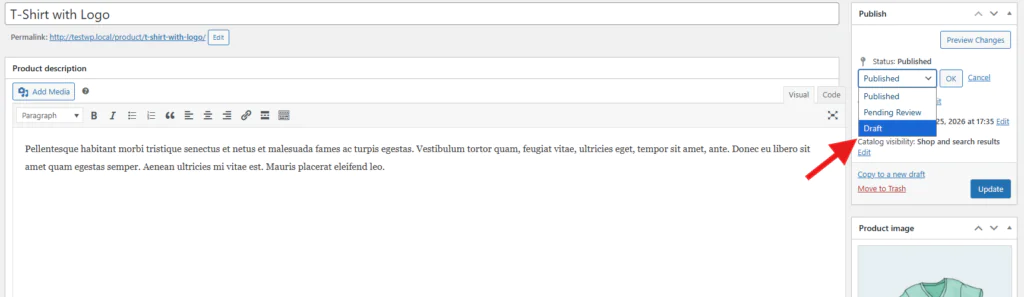
⚠️ Important Note: Unlike the “Hidden” catalog visibility, a Draft product cannot be accessed by direct URL either. If you share a product link with a client, make sure the product is Published first — even if its visibility is set to Hidden or Private.
Method 2: Modify Catalog Visibility
Catalog visibility gives you finer control than simply toggling Draft/Published. You can show a product in shop pages but not search, or in search but not the shop — giving you granular control over product discoverability.
Best for: Managing how products are discovered within your store without completely hiding them.
How to Modify Catalog Visibility in WooCommerce?
- Navigate to Products → All Products and open the product you want to adjust
- In the Publish panel, locate the Catalog visibility field
- Click the Edit link next to Catalog visibility
- Choose your preferred option: Shop and search results, Shop only, Search results only, or Hidden
- Click OK, then Update to save
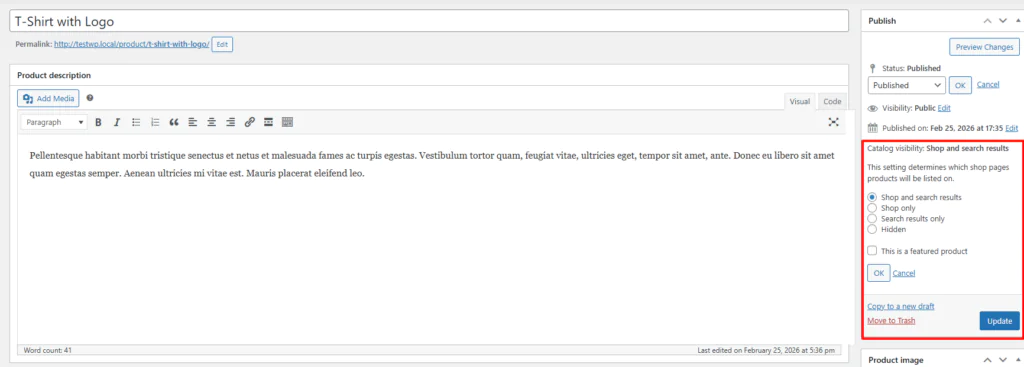
You can also bulk-update catalog visibility for multiple products. From the All Products list, select multiple products, choose Edit from the Bulk Actions dropdown, and update the visibility field for all selected items at once.
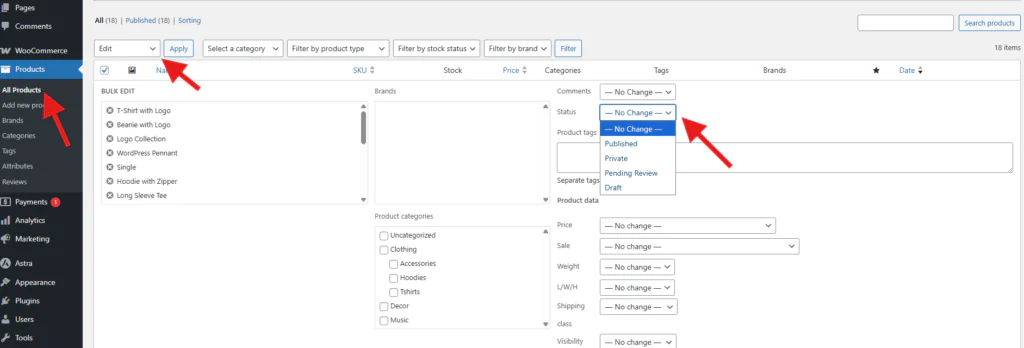
Method 3: Private & Password-Protected Products
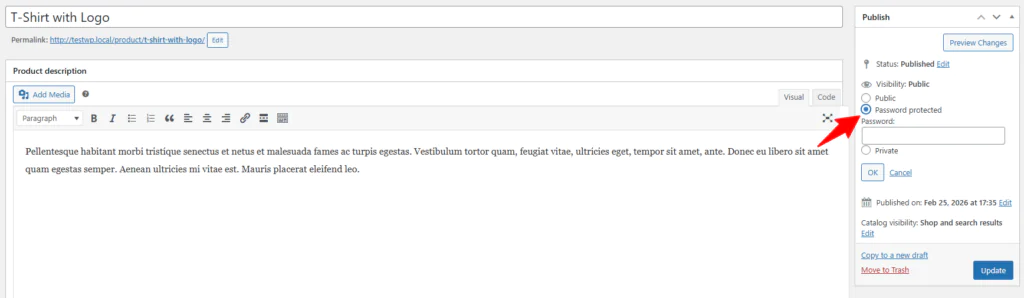
These two options give you access control over who can see a product page. Private products are only visible to admin-level users. Password-protected products require anyone viewing the page to enter a password first.
Best for: Client-specific products, VIP offers, wholesale pricing pages, and exclusive previews.
How to Set a Product as Private in WooCommerce?
- Open the product editor and find the Publish panel on the right
- Click Edit next to the Visibility field (which shows “Public” by default)
- Select Private from the options
- Click OK, then Update
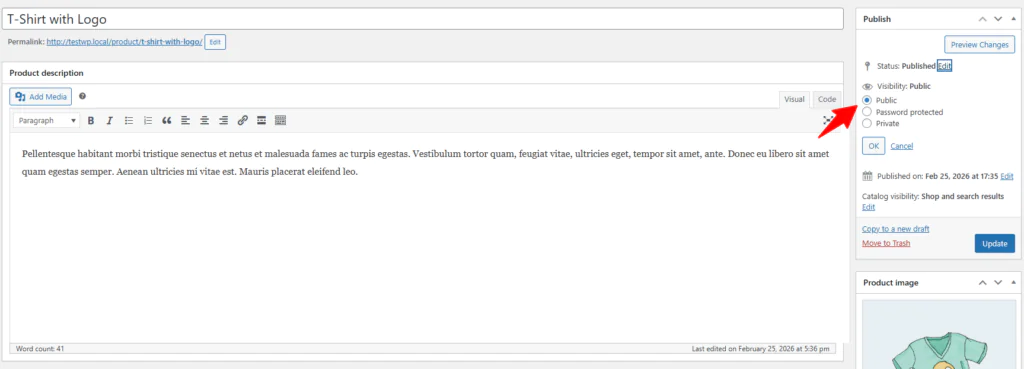
How to Password Protect a Product in WooCommerce?
- Follow the same steps above, but select Password Protected instead of Private
- Enter a strong password in the field that appears below the visibility options
- Click OK, then Update to save the product with its new password
- Share the product URL and the password directly with the intended audience
Who Can See Private Products?
Private products are visible to WordPress users with Administrator or Editor roles. Regular subscribers and customers cannot see them, even if they have the direct link. This makes Private the best option for internal previews and admin-only catalog management.
Method 4: Hide Out-of-Stock Products Automatically
WooCommerce includes a global setting that automatically hides any product marked as out of stock from your catalog. This is a set-it-and-forget-it solution that keeps your store looking fully stocked at all times.
Best for: Stores with frequent inventory changes that don’t want to manage visibility for each item manually.
How to Hide Out-of-Stock Products in WooCommerce?
- In your WordPress dashboard, go to WooCommerce → Settings
- Click the Products tab at the top
- Click the Inventory sub-tab
- Scroll down to find the Out of stock visibility section
- Check the box next to “Hide out of stock items from the catalog”
- Click Save changes at the bottom of the page
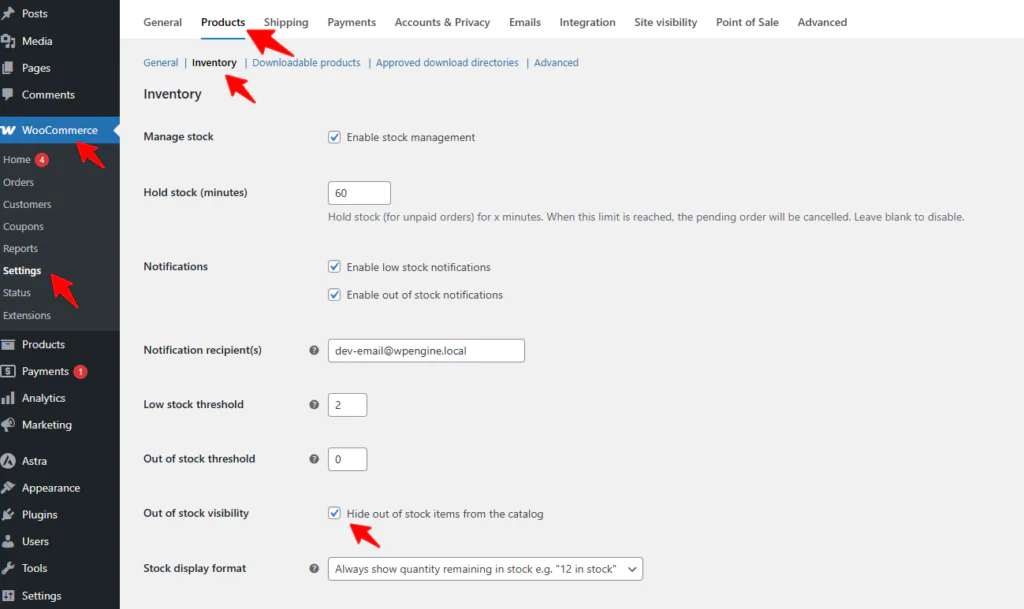
Once enabled, this setting applies to all products across the site. Any product with a stock status of “Out of stock” will automatically be hidden from the catalog and search results, but its page will still be accessible via direct URL.
Method 5: Role-Based Visibility Using Plugins
Native WooCommerce doesn’t support role-based product visibility out of the box. To show products only to specific user groups — such as logged-in customers, wholesale buyers, or members — you’ll need a plugin.
Best for: B2B/wholesale stores, membership sites, multi-tier pricing catalogs.
Recommended Plugins
Here are the most reliable options currently available:
- YITH WooCommerce Catalog Mode — Hides prices and add-to-cart buttons, or restricts entire catalog visibility by user role. Popular and well-supported.
- WooCommerce Private Store (Barn2) — Locks your entire store or specific products behind a login or user role requirement. One of the cleanest implementations available.
- Hide Products for WooCommerce — A lightweight plugin focused specifically on per-product or per-category visibility restrictions based on login status or user role.
- WooCommerce Password-Protected Categories (Barn2) — Protect full product categories behind passwords or user roles — useful for wholesale catalogs or membership tiers.
- WooCommerce Wholesale Suite — A comprehensive solution for B2B stores that need different product catalogs, pricing, and visibility for wholesale vs. retail customers.
💡Choosing the Right Plugin
If you only need to hide one or two products from guests, a lightweight free plugin is sufficient. If you’re running a full wholesale or membership operation, invest in a premium solution like Wholesale Suite or Barn2’s Private Store — they’re built for scale.
Method 6: Hide Products Programmatically (Developer Method)
For developers who need precise, conditional control over product visibility, WooCommerce’s hook system is the most powerful option. You can filter the product query to show or hide specific products based on any condition — user login status, user role, date, cart contents, and more.
Best for: Complex business logic, custom membership systems, bespoke hiding rules.
Example 1: Hide a Specific Product from Guest Users
Add this snippet to your theme’s functions.php file or a custom plugin. Replace 123 with your actual product ID.
/**
 * Hide a specific product from non-logged-in users
 */
add_action( 'woocommerce_product_query', 'hide_product_from_guests' );

function hide_product_from_guests( $q ) {
    if ( ! is_user_logged_in() ) {
        $q->set( 'post__not_in', array( 123 ) );
    }
}
Example 2: Hide a Whole Category from Non-Admins
/**
 * Hide products from 'wholesale' category unless user is admin
 */
add_action( 'woocommerce_product_query', 'hide_wholesale_from_non_admins' );

function hide_wholesale_from_non_admins( $q ) {
    if ( ! current_user_can( 'manage_options' ) ) {
        $tax_query = ( array ) $q->get( 'tax_query' );
        $tax_query[] = array(
            'taxonomy' => 'product_cat',
            'field'    => 'slug',
            'terms'   => array( 'wholesale' ),
            'operator' => 'NOT IN',
        );
        $q->set( 'tax_query', $tax_query );
    }
}
Example 3: Hide Products Below a Minimum Price
/**
 * Hide products priced below $10 from the catalog
 */
add_action( 'woocommerce_product_query', 'hide_low_price_products' );

function hide_low_price_products( $q ) {
    $meta_query = ( array ) $q->get( 'meta_query' );
    $meta_query[] = array(
        'key'     => '_price',
        'value'   => 10,
        'compare' => '>=',
        'type'    => 'NUMERIC',
    );
    $q->set( 'meta_query', $meta_query );
}⚠️Always Test on a Staging Site First
Code-based visibility changes affect your entire product query. Always test on a staging environment before deploying to production. A mistake here can unintentionally hide all your products from customers.
Method 7: WooCommerce Product Visibility On Sales Channels with Product Feed Plugin
If you advertise on external channels like Google Shopping, Meta Ads, or Bing, your WooCommerce visibility settings alone won’t control what appears there. You need to manage visibility at the product feed level — using feed filters to include or exclude specific products from each channel independently.
Best for: Multi-channel retailers who need different product sets on different advertising platforms.
What Is a Product Feed?
A product feed is a structured data file — typically in XML, CSV, TSV, or JSON format — that contains a complete, organized list of your WooCommerce products along with all their relevant attributes.
Each product entry in the feed typically includes:
- Product title — the name of the product as it will appear on the channel
- Description — a detailed explanation of what the product is
- Price & sale price — current pricing including any active promotions
- Product images — primary and additional image URLs
- Availability / stock status — whether the product is in stock or out of stock
- SKU / product ID — unique identifiers that help platforms track your listings
- Category & brand — product classification used by channels for matching and targeting
- GTIN / MPN — global trade identifiers required by platforms like Google Shopping
- Shipping & tax info — delivery cost and tax classification where required
When you submit this feed to an advertising platform like Google Shopping, Facebook/Meta Ads, TikTok Shop, or Bing Shopping, that platform reads the file and uses the data to display your products to shoppers browsing their marketplace. Every time a shopper searches for something on Google, the product feed is what powers the shopping results they see.
Your WooCommerce Store → CTX Feed Plugin → Google · Meta · Bing · TikTok → Shoppers See Your Products
Product feed plugins let you control which products get included in each feed — effectively giving you a separate visibility layer for every external sales channel. You can show completely different product sets on Google Shopping vs. Facebook Ads, all from one WooCommerce store.
Why This Matters for Visibility
Your WooCommerce visibility settings only control what customers see on your website. They have zero effect on what appears in Google Shopping or Meta Ads. A product you’ve hidden on your store can still appear in your product feed — and vice versa. Product feed filters are the only way to control external channel visibility.
Generate Your Product Feed with CTX Feed Plugin
CTX Feed is one of the most popular free WooCommerce product feed plugins available. It lets you generate optimized product feeds for Google Shopping, Facebook Catalog, TikTok, Bing, and 130+ other channels — directly from your WordPress dashboard, with no coding required.
What Key Features of the CTX Feed Plugin?
220+ Pre-Built Channel Templates: Ready-made feed templates for Google Shopping, Facebook Catalog, TikTok, Bing, Pinterest, Idealo, PriceRunner, Kelkoo, and 220+ more — no manual field mapping needed.
Advanced Product Filters: Include or exclude products based on category, price, stock status, tag, SKU, custom attributes, or any product field — giving you precise visibility control per channel.
Automatic Feed Updates: Schedule your feeds to auto-refresh at custom intervals — hourly, daily, or weekly — so your channel listings always reflect your latest prices, stock, and product data.
Multiple Feed Formats: Generate feeds in XML, CSV, TSV, TXT, and JSON formats. Different channels require different formats — CTX Feed handles them all from one plugin.
Custom Attribute Mapping: Map WooCommerce product fields, custom fields, and ACF meta data to any channel’s required attributes. Full control over how your product data gets structured in the feed.
Variable Product Support: Handles simple, variable, grouped, and bundle products. Each product variation can be included in feeds with its own price, image, and attribute data.
Batch Processing for Large Stores: Uses batch processing to generate feeds for large catalogs without timing out — even stores with 50,000+ products can generate feeds without performance issues.
Multi-Language & Multi-Currency: Compatible with WPML, Polylang, and WooCommerce Currency Switcher — generate localized feeds for different regions and currencies from a single store.
How to Generate a Product Feed with CTX Feed? (Step by Step)
Follow these steps to create your first WooCommerce product feed and control which products are visible on your chosen sales channel.
- Install CTX Feed — Go to WordPress Dashboard → Plugins → Add New, search for “CTX Feed”, install, and activate the plugin.
- Open the Feed Creator — In your dashboard, navigate to CTX Feed → Make Feed to open the feed creation screen.
- Choose Your Channel Template — From the Template dropdown, select your target platform (e.g., Google Shopping, Facebook Catalog, TikTok). CTX Feed will auto-populate all required fields for that channel.
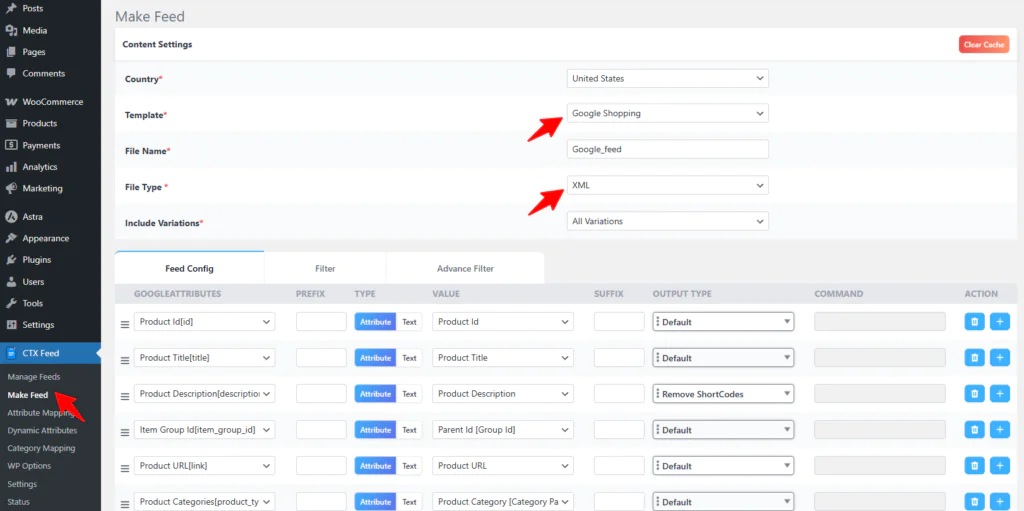
Set Feed File Details — Enter a feed title, choose your preferred file format (XML, CSV, TSV, or JSON), and set the feed update interval (how often it auto-refreshes).
Configure Attribute Mapping — Review the auto-mapped product attributes and adjust any field mappings if needed. Make sure fields like title, description, price, image, and availability are correctly mapped to your WooCommerce data.
Add Product Filters — Click on the Filter tab. Add if-then rules to control which products are included or excluded from the feed. For example: “If stock status = Out of stock → Exclude” or “If category = Wholesale → Exclude.”
Generate the Feed — Click Update and Generate Feed. CTX Feed will process your entire product catalog and create the feed file according to your settings.
Copy the Feed URL — Once generated, CTX Feed provides a direct feed URL. Copy this URL — you’ll submit it to your chosen advertising platform.
Submit to Your Channel — Go to your advertising platform (e.g., Google Merchant Center, Meta Commerce Manager) and submit the feed URL. The platform will fetch and validate your products automatically.
Filter Logic Note
When combining multiple filters, they work as AND conditions — every condition must be true. If you use both “Include only” and “Exclude” filters, always place the “Include only” filter first to avoid unexpected results.
Feed Filter Examples for Controlling Visibility
Here are the most common visibility scenarios and the exact filter rules to use in CTX Feed:
| Visibility Goal | CTX Feed Filter Rule | Action |
|---|---|---|
| Hide out-of-stock products | If Availability equals Out of stock | Exclude from feed |
| Show only sale/discounted items | If Sale Price is not empty | Include only |
| Hide low-priced products | If Price is less than 10 | Exclude from feed |
| Advertise one category only | If Category equals Swimwear | Include only |
| Hide a specific brand | If Brand equals BrandName | Exclude from feed |
| Show only high-margin items | If Price is greater than 50 | Include only |
| Hide products without images | If Image URL is empty | Exclude from feed |
| Show only featured products | If Featured equals Yes | Include only |
Best Practices for Managing Product Visibility
Managing visibility well is part of running a polished, professional WooCommerce store. Here are the practices that make the biggest difference:
Always Test as a Guest
After any visibility change, log out and browse your store to confirm the product is no longer visible from a customer’s perspective.
Use Tags to Track Hidden Products
Tag hidden products with “hidden” or “draft” so you can easily find and review them in bulk from the All Products screen.
Audit Regularly
Set a monthly reminder to review hidden products. It’s easy to forget about seasonal items or pre-launch products that should have gone live.
Stage Before Going Live
For code-based or plugin-based changes, always test on a staging environment first. Visibility bugs can silently remove all your products from your store.
Keep URLs Consistent
If you share product links externally (emails, ads), changing visibility to Draft will break access even via direct URL. Use “Hidden” catalog visibility instead to preserve links.
Combine Methods Strategically
For maximum control, layer your approaches — e.g., use Hidden catalog visibility + a role-based plugin to create a product that only logged-in wholesale users can find and access.
Quick Reference: Which Method Should You Use?
- Draft status — Temporarily pull a product while you update it. No customer access at all, including direct links.
- Catalog Visibility: Hidden — Hide from shop and search but keep the direct URL working. Great for sharing with specific clients.
- Private visibility — Admin-only access. Use for internal products or previews not meant for any customer.
- Password-protected — Share a product with a select audience using a password. Easy, no plugin required.
- Out-of-stock global setting — Automatically clean up your catalog when items run out of stock.
- Role-based plugins — Show different product sets to different customer tiers. Essential for wholesale and membership stores.
- Custom code — Maximum flexibility for complex business logic. Requires development knowledge.
- Product feed filters — Control exactly which products appear on Google Shopping, Facebook Ads, and other external channels.
Frequently Asked Questions
Can I hide products from specific customers in WooCommerce?
Yes, but not with native WooCommerce settings alone. You’ll need a role-based visibility plugin such as YITH WooCommerce Catalog Mode or WooCommerce Wholesale Suite. These plugins allow you to show or hide products based on a user’s assigned role in WordPress — for example, displaying wholesale products only to users assigned the “Wholesale Customer” role.
Does hiding a product affect its SEO?
It depends on the method used:
Draft status — The product page returns a 404 or is inaccessible, which can hurt SEO if the page was previously indexed.
Hidden catalog visibility — The product page still exists and can be crawled by search engines. It just won’t appear in your shop navigation.
Private visibility — Search engines cannot index private posts in WordPress, so the page will be deindexed over time.
If SEO is important for a product, use “Hidden” catalog visibility instead of Draft or Private to preserve the page’s indexability.
Why are my new products not showing up in my WooCommerce store?
There are several common reasons for this:
The product status is still set to Draft or Pending Review instead of Published
The catalog visibility is set to Hidden
The product is marked as Out of Stock and you have the “Hide out of stock items” setting enabled
A caching plugin is serving an old version of your shop page — clear your cache
The product hasn’t been assigned to a category and your shop page filters by category
A theme or plugin conflict is filtering your product query — try switching to a default theme to test
How do I hide an entire product category in WooCommerce?
Native WooCommerce doesn’t include category-level visibility controls, but you have a couple of options. You can use a plugin like WooCommerce Password Protected Categories by Barn2 to password-protect or restrict entire categories. Alternatively, you can use a PHP snippet with the woocommerce_product_query hook to exclude all products from a specific category from the query, effectively hiding the entire category from view.
Can hidden products still be purchased in WooCommerce?
Yes — if a product is set to “Hidden” catalog visibility (not Draft), it can still be purchased by anyone who has its direct URL. The product page, add-to-cart button, and checkout process all function normally. The only difference is that the product won’t appear in your shop navigation, search results, or category listings. This is actually a useful feature for exclusive or private sales.
How do I hide WooCommerce products from non-logged-in users?
Use a plugin like WooCommerce Private Store (Barn2) or add a custom PHP snippet to your functions.php that checks is_user_logged_in() and modifies the product query accordingly. This redirects guest visitors away from product pages and removes products from catalog queries when the user is not authenticated.
Conclusion
Managing WooCommerce product visibility is not one-size-fits-all. The right method depends entirely on your use case — whether you’re temporarily pulling a product, building a private B2B catalog, protecting exclusive items, or optimizing what gets advertised on external channels.
To recap the seven methods covered in this guide: Draft status for complete temporary removal, Catalog visibility for controlling discoverability within your store, Private and password-protected visibility for access-controlled products, the Out-of-stock global setting for automated catalog hygiene, role-based plugins for multi-tier customer catalogs, custom PHP code for complex conditional logic, and product feed filters for managing which products appear on Google Shopping, Facebook, and other external channels.
Start with the native WooCommerce tools for simpler needs, and layer in plugins or custom code as your store grows in complexity. A well-managed catalog isn’t just cleaner — it converts better, ranks better, and makes your customers’ experience meaningfully better.