
You can easily generate a product feed for ChatGPT in WooCommerce using the CTX Feed plugin. This plugin helps you create accurate and structured product data that ChatGPT or other AI tools can use to analyze, recommend, or display your WooCommerce products more effectively.
In the fast-evolving world of e-commerce, staying ahead means more than just optimizing for Google Shopping or Facebook.
A new player has entered the arena: conversational AI.
ChatGPT and other AI-powered assistants are increasingly helping customers find, compare, and evaluate products.
This shift means your product data must be ready not just for search algorithms but for digital agents that “talk” to your customers in a natural, meaningful way.
If you’ve ever spent hours tweaking titles, descriptions, and structured data for multiple marketplaces, you know how time-consuming this process can be.
Now, with AI, the stakes are higher—messy or incomplete data could mean your products get ignored entirely.
In this guide, we’ll show you how to generate a ChatGPT-ready product feed for WooCommerce using the CTX Feed plugin, so your products are accurate, discoverable, and ready for conversational AI engagement.
Why AI Product Feed Optimization Matters?
When customers interact with AI assistants, the AI doesn’t just scrape a webpage for keywords.
Instead, it pulls structured snippets, product facts, and descriptions from feeds or product pages it can access, either via direct parsing or integrations.
If your data is incomplete, outdated, or confusing, the AI may skip your products entirely.
But when your feeds are properly structured:
- Your products appear correctly in AI-driven search results.
- Chatbots can answer user queries accurately.
- Your brand representation remains consistent, even without human intervention.
OpenAI now accepts direct product feed submissions for ChatGPT from approved partners: you apply first. The feed gives ChatGPT the catalog data it uses to show accurate product information.
Preparing your feed for ChatGPT now with a robust plugin like CTX Feed – WooCommerce Product Feed Plugin ensures you’re ready to leverage this opportunity.
For a more comprehensive guide on product feed optimization, check out our complete feed optimization guide.
Understanding Product Feed Structure for AI
Before you can generate a feed, it’s important to know what makes a good AI-ready product feed.
Formats that ChatGPT Marchent Love
AI models thrive on structured, predictable data formats. Some of the most widely accepted formats include:
- ChatGPT product feed (OpenAI’s own format): OpenAI prefers Parquet and also supports
jsonl.gz,csv.gzandtsv.gz. XML isn’t on its list. - JSON-LD & Schema.org: Useful for embedding structured data directly into product pages or exports.
- Open Standards (GS1, GoodRelations): Ensures clarity and prevents misinterpretation of product information.
While schema markup supports search engines, your product feed is the central source for conversational AI.
Think of it as the catalog that the ChatGPT AI can “read” and understand instantly.
Key Fields Every Product Feed Should Include
OpenAI publishes ChatGPT’s feed requirements: nine required fields, in OpenAI’s own field names (item_id, url and image_url where Google uses id, link and image_link). The table below uses Google’s names; CTX Feed’s ChatGPT (OpenAI) template loads OpenAI’s names for you.
Essential fields include:
| Attribute | Additional Details |
| Id [id] | Unique product identifier, e.g., SKU12345. Avoid duplicates. |
| Title [title] | Descriptive product name, e.g., “Men’s Waterproof Hiking Boots.” Clear and concise. |
| Link [link] | Direct URL to the product page. Accurate links are crucial for indexing. |
| Image link [image_link] | High-quality main image. Enhances trust and visibility. |
| Price [price] | Current price, e.g., 89.99 USD (the amount, a space, then the currency code). Keep up-to-date. |
| Description [description] | Comprehensive product description highlighting features, use, and benefits. |
| Availability [availability] | Stock status, e.g., in_stock. |
| Condition [condition] | Product condition, e.g., new. |
| Brand [brand] | Brand name, e.g., “Columbia.” |
| Gtin [gtin] | Global Trade Item Number, e.g., 012345678905. |
| Mpn [mpn] | Manufacturer Part Number, e.g., COL-HB-2024. |
| Multipack [multipack] | Number of items in a pack, e.g., “2-pack.” |
| Bundle [is_bundle] | Whether it’s a bundle, e.g., “Yes.” |
| Color [color] | Main color, e.g., “Forest Green.” |
| Size [size] | Standardized sizing, e.g., “11 US.” |
| Age group [age_group] | Target demographic, e.g., “Adult.” |
| Gender [gender] | Intended gender, e.g., “Unisex.” |
| Item group ID [item_group_id] | Identifier for product variants, e.g., BOOT-COL-2024. |
| Shipping [shipping] | Shipping details, e.g., “Free shipping within 5 business days.” |
| Tax [tax] | Tax info, e.g., “Tax included.” |
AI assistants can grab these fields directly from your feed. Missing or weak values can result in products being skipped or misrepresented.
Writing for Machines and Humans
Unlike traditional SEO, feeding AI isn’t about stuffing keywords. AI models interpret natural language and context.
For best results:
- Focus on the “why” as well as the “what”. Explain benefits, use cases, and scenarios.
- Anticipate common questions and answer them in your descriptions, e.g., “Is it waterproof?” or “Does it fit wide feet?”
- Include synonyms and alternative terms your customers might use. If you sell running shoes, mention “sneakers,” “trainers,” and “trail shoes.”
- Clarity is key. AI doesn’t reward keyword tricks—it rewards structured, accurate, and detailed content.
Boost Context With Structured Attributes
To emulate a helpful in-store assistant, AI benefits from detailed attributes. Consider adding:
| Attribute | Example Values |
| Material | Leather, mesh, organic cotton, stainless steel |
| Size/Fit | Wide, regular, slim, adjustable, one-size |
| Features | Breathable, waterproof, noise-canceling, USB-C charging |
| Usage | Commuter backpack, office-appropriate, eco-friendly |
Structured attributes allow AI to answer nuanced customer queries without guessing.
Sample Product Feed for AI
Here’s an example of a ChatGPT product feed:
item_id,title,description,url,brand,seller_name,image_url,availability,price,sale_price,group_id,listing_has_variations,variant_dict
HOODIE-NVY-M,"Merino hoodie, navy, size M",Midweight merino wool hoodie with a zip pocket.,https://example.com/product/merino-hoodie/?size=m,Fernhill,Example Outfitters,https://example.com/img/hoodie-navy.jpg,in_stock,64.00 USD,49.00 USD,HOODIE-NVY,true,"{""color"":""Navy"",""size"":""M""}"
HOODIE-NVY-L,"Merino hoodie, navy, size L",Midweight merino wool hoodie with a zip pocket.,https://example.com/product/merino-hoodie/?size=l,Fernhill,Example Outfitters,https://example.com/img/hoodie-navy.jpg,backorder,64.00 USD,,HOODIE-NVY,true,"{""color"":""Navy"",""size"":""L""}"
BEANIE-GRY,Ribbed wool beanie,Ribbed wool beanie with a folded cuff.,https://example.com/product/ribbed-beanie/,Fernhill,Example Outfitters,https://example.com/img/beanie-grey.jpg,in_stock,22.00 USD,,,false,
This sample is a CSV file in OpenAI’s format: the nine required fields, one row per variant (each size has its own item_id and shares one group_id), and prices with the currency code.
How to generate your ChatGPT Product Feed Using CTX Feed Plugin?
Now that you know what makes a strong feed, let’s walk through generating one in WooCommerce using the CTX Feed plugin.
Step 1: Install and Activate CTX Feed
- Go to your WordPress dashboard.
- Navigate to Plugins → Add New.
- Search for CTX Feed and install it.
- Activate the plugin.
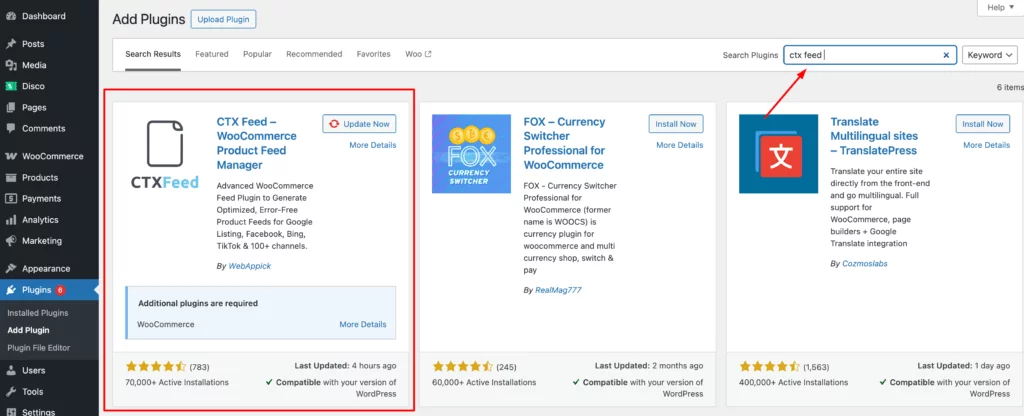
CTX Feed is designed to handle large catalogs and export feeds in multiple formats compatible with marketplaces and AI platforms.
Step 2: Configure Feed Settings
- Open CTX Feed → Make feed.
- Under Template, choose ChatGPT (OpenAI).
- Under File type, choose:
- CSV or TSV. They’re the only two this template offers; there’s no XML option, and XML isn’t on OpenAI’s list.
- Either way, CTX Feed writes a plain, uncompressed file. OpenAI’s list names Parquet and
.gzfiles, so ask your OpenAI onboarding contact whether they accept the plain file.
- Optional: to include only specific categories, use the Product categories filter. It’s a CTX Feed Pro feature.
Step 3: Map Your WooCommerce Product Attributes
CTX Feed allows you to map WooCommerce product fields to feed attributes. Ensure you map:
- SKU → item_id
- Product Title → title
- Product URL → url
- Main Image → image_url
- Price → price
- Short/Full Description → description
- Stock Status → availability
- Brand → brand, and your store name → seller_name
- Color, Size, Material → custom fields or attributes
Tip: Use custom attributes in WooCommerce to store AI-specific data like usage, features, or alternative keywords.
Step 4: Add Structured & Semantic Attributes
- Use CTX Feed’s custom fields mapping to add material, size/fit, features, usage, and other structured data.
- This ensures your feed is rich in contextual details, helping AI assistants answer nuanced questions.
Step 5: Generate & Preview Your Feed
- Click Save & generate.
- Preview the feed to ensure all required fields are present.
- Check for errors like missing GTINs, duplicate IDs, or broken URLs.
- Download the feed as a CSV or TSV file.
Pro Tip: Before you send the full feed to OpenAI, test a small sample (around 100 items) with every required field on every row, and check it against OpenAI’s product feed spec.
Step 6: Expose the Feed to ChatGPT
Once your feed is ready:
- Apply to OpenAI first: right now it accepts product feeds only from approved partners.
- Once approved, push the file to OpenAI over SFTP as a full snapshot, at least once a day, under the same file name every time. CTX Feed can do this after every run: open the feed’s FTP / SFTP tab, turn on Upload after every generation and choose SFTP.
- For promotions, OpenAI points you to its separate Promotions API. A current sale price still goes in the file, as
sale_price.
AI can now access your structured product data, giving your products a better chance of appearing in conversational recommendations.
Maintaining and Optimizing Your ChatGPT (OpenAI) Feed
A feed isn’t “set and forget.” AI expects accuracy and freshness.
Keep Data Fresh
- Sync inventory daily.
- Update prices and stock in your feed when they change, and send OpenAI the full feed at least once a day.
- Check product links and images regularly.
Stale data can lead to disappointed customers or your products being ignored entirely.
Test Before Going Live
- Check the CSV or TSV file for OpenAI’s three common ingestion failures: missing required fields, outdated or non-spec field names, and malformed values.
- Check URLs, GTINs, and MPNs for uniqueness.
- Simulate AI queries to ensure your feed responds correctly.
- Use feedback loops from AI integrations to improve content clarity.
Level Up With Semantic Search
For advanced users:
- Feed your catalog into a vector database (e.g., Pinecone, Weaviate).
- Include user queries, reviews, and purchase history.
- Enable AI to answer nuanced, context-aware questions, not just basic product facts.
Semantic AI integrations can turn your product feed into a smart shopping assistant for customers.
Key Takeaways
- Structure First: Ensure all products have unique IDs, descriptive titles, and detailed attributes.
- Human Clarity: Write product descriptions in natural, customer-friendly language.
- Immediate Accuracy: Keep stock, price, and link data updated.
- Access: For ChatGPT, apply to OpenAI as an approved partner, then push the feed to OpenAI over SFTP.
- Feed Is the Foundation: Schema markup helps, but the feed drives AI recommendations.
- Continuous Iteration: Test feeds and content regularly to improve AI visibility.
If you want ChatGPT and other AI tools to recommend your products, optimizing your feed is no longer optional—it’s central to your eCommerce strategy.
Conclusion
Generating a ChatGPT-ready product feed in WooCommerce using CTX Feed positions your store at the forefront of AI-powered commerce.
By combining structured data, semantic attributes, and human-friendly content, your products can appear accurately in AI recommendations, improve customer trust, and increase conversions.
The future of eCommerce visibility is no longer just about search engines—it’s about talking to your customers where they are, through AI.
Start optimizing your feed today: ChatGPT already accepts direct feed submissions from approved partners.
If you’re serious about AI-driven visibility, consider using AI SEO tools that can help generate optimized feeds, descriptions, and content for both humans and machines, saving hours of manual work.

Free version on WordPress.org. Every Pro licence includes a 30-day money-back guarantee.

