
Google Shopping has evolved into an important product discovery channel for WooCommerce stores and you don’t necessarily need an advertising budget to get started.
Your products can be on Google without you paying for every click—but getting them seen is another story. Google offers free product listings that allow eligible products to appear across Google’s shopping experiences, while paid Shopping campaigns give merchants another way to increase reach and control their advertising.
But simply uploading your products doesn’t guarantee visibility. Google needs accurate, complete, and up-to-date product information to understand what you’re selling and determine where your products may be eligible to appear. Product titles, descriptions, prices, availability, images, product identifiers, and other attributes all contribute to the quality and usefulness of your product data.
That’s why your WooCommerce product feed matters, whether you’re using free listings, running paid Shopping campaigns, or both.
This guide covers everything you need to know about Google Shopping for WooCommerce, including:
- What Is Google Shopping and How Does It Work?
- Why Selling on Google Shopping Matters
- Benefits of Selling on Google Shopping
- Common Google Shopping Mistakes to Avoid
- How to Set Up Google Shopping for WooCommerce
- Google Shopping Best Practices
- Advanced Google Shopping Tips for Merchants
- Google Shopping Troubleshooting
- Recommended Google Shopping Feed Tool
- Final Steps for Google Shopping Success
Whether you’re setting up Google Shopping for the first time or improving an existing setup, this guide will help you build a more reliable product feed, improve your product data, and create more opportunities for your WooCommerce products to be discovered by shoppers.
Chapter 1: What is Google Shopping & Its Fundamentals
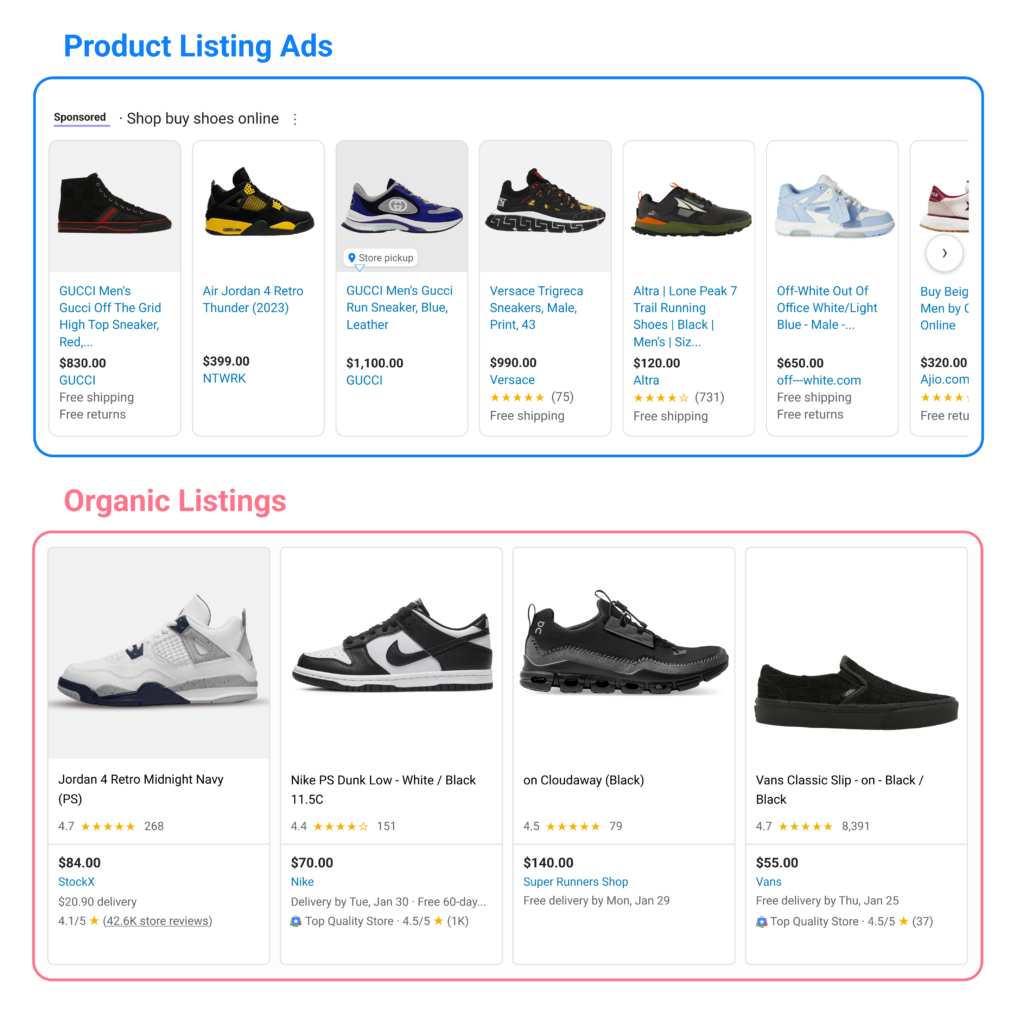
Google Shopping is a product discovery and comparison experience that helps shoppers find products from online stores. Depending on the product, market, and eligibility, your products can appear across Google’s shopping surfaces, including Google Search, the Shopping tab, Google Images, Google Lens, YouTube, Maps, and Gemini.
There are two main ways WooCommerce stores can gain visibility through Google:
Free Listings
Free listings allow eligible products to appear on Google’s surfaces without paying for product clicks.
Your products can potentially reach shoppers without an advertising budget. However, eligibility and visibility depend on factors such as your product data, website, Merchant Center account, policies, and the requirements of the specific Google surface.
A well-structured product feed is therefore important even if you aren’t running paid campaigns.
Paid Shopping Ads
Paid Shopping ads are managed through Google Ads and can provide additional opportunities to reach shoppers.
You set your advertising budget and campaign strategy, and Google determines when and where eligible ads can appear based on factors such as the search query, campaign settings, bid, relevance, and competition.
Paid campaigns can give you more control over how you promote your products, but they don’t guarantee a specific position or number of clicks.
Free Listings vs. Paid Ads
The key difference is simple:
- Free listings: No cost per click, but visibility and eligibility depend on Google’s systems and requirements.
- Paid ads: Require an advertising budget and can provide additional, more controllable opportunities for product visibility.
For many WooCommerce stores, the two approaches can work together. You can use free listings to build organic product visibility while using paid campaigns when you want to invest in additional reach and traffic.
Either way, it all starts with the same foundation: accurate, complete, and up-to-date product data.
Chapter 2: Why Selling on Google Shopping Matters
A search ad competes for the attention of someone who may still be deciding what to buy. A Google Shopping listing reaches shoppers who are already comparing products, prices, and stores.
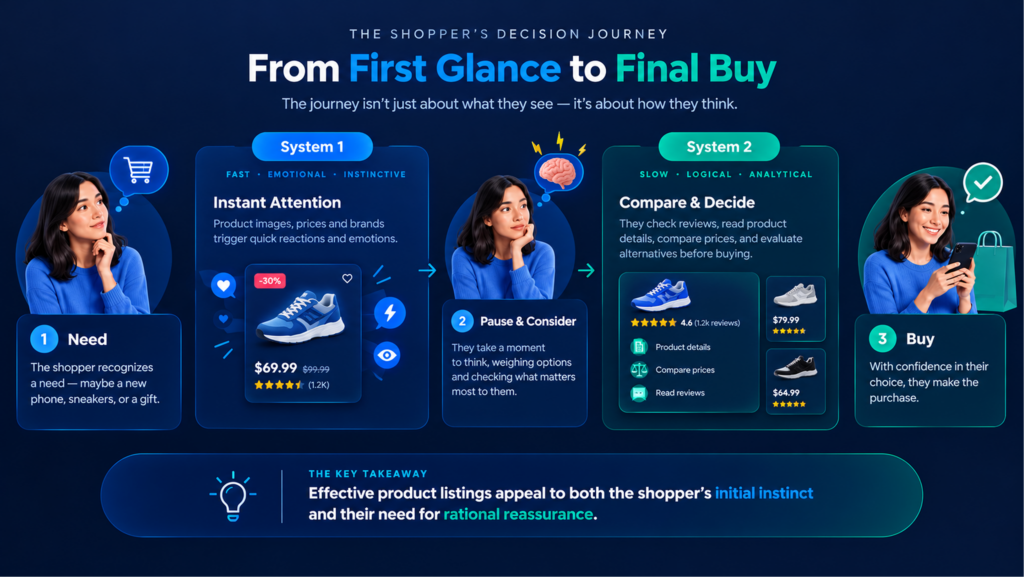
This difference also connects to how people make decisions. Daniel Kahneman’s dual-process theory describes two modes of thinking: fast, intuitive decisions (System 1) and slower, more deliberate decisions (System 2). When shoppers compare products, prices, and features side by side, they are typically making a more deliberate purchase decision.
According to Kirk Williams, founder of ZATO and an expert in Google Shopping campaigns, his often-cited advice is:
“If your feed isn’t right, nothing else matters.”
The point is simple: your product feed is the foundation Google uses to understand your products. Incomplete, inaccurate, or inconsistent data can reduce visibility and, in some cases, prevent products from appearing in eligible Shopping experiences.
Chapter 3: Benefits of Selling on Google Shopping
- Free organic reach: With free listings, you can appear across Google without paying per click. It’s a valuable opportunity for stores that want to reach shoppers without relying entirely on ad spend.
- Pre-qualified traffic: Shoppers clicking a Shopping listing have already seen your product image, price, and sometimes your rating. They arrive with a clearer idea of what you’re selling and what it costs.
- One feed, multiple channels: The same structured product feed can be adapted for Meta Catalog, Bing Shopping, TikTok, and other platforms. A well-built feed can become a multi-channel asset rather than a one-time task.
- A data-quality feedback loop: Google Shopping puts your products alongside competing offers. A missing size, vague title, or incomplete product detail can cost you the click. Optimizing your feed can also reveal gaps in your product data that may have gone unnoticed.
- Signals for AI-driven search: Feed attributes such as brand, material, size, and color are becoming increasingly important as search becomes more conversational. Keeping this information accurate and complete helps your products stay ready for evolving shopping experiences.
Chapter 4: Common Mistakes to Avoid
- Treating the feed as a one-time task: Prices, inventory, and promotions can change frequently. Without scheduled updates, your feed can quickly become outdated, which can lead to price-mismatch and availability issues.
- Skipping GTIN or MPN fields: WooCommerce doesn’t provide these fields by default. Leaving them blank when they’re available can make product matching harder and may affect visibility. Google uses product identifiers such as GTIN to help match products to its catalog.
- Uploading products with incomplete category mapping: Map your WooCommerce categories to Google’s product taxonomy instead of relying entirely on Google to interpret them. Accurate categorization helps Google understand what your products are and where they’re relevant.
- Ignoring the Needs Attention tab in Merchant Center: Google uses this area to highlight product and account issues. Checking it regularly helps you identify problems before they affect more products.
- Pricing without checking the competitive landscape: Merchant Center’s Price Competitiveness report shows how your prices compare with other sellers offering the same products. Since shoppers can easily compare prices, an uncompetitive price can hurt clicks even when your feed is technically correct.
Chapter 5: How to Setup Google Shopping?
Before you start, ensure the following are in place :
- A WooCommerce store with live, published products.
- A Google Merchant Center account
- A product feed covering the required attributes:(title, price, item, GTIN etc)
- A verified website, including shipping, tax, and return policies.
- (Optional)A Google Ads account, if you intend to promote your products through paid campaigns alongside product listings.
Before you start, make sure you have:
- A WooCommerce store with live, published products
- A Google Merchant Center account
- A product feed with the required attributes, such as title, price, availability, and product identifiers
- A verified website with shipping, tax, and return information
- A Google Ads account (optional) if you plan to run paid Shopping campaigns
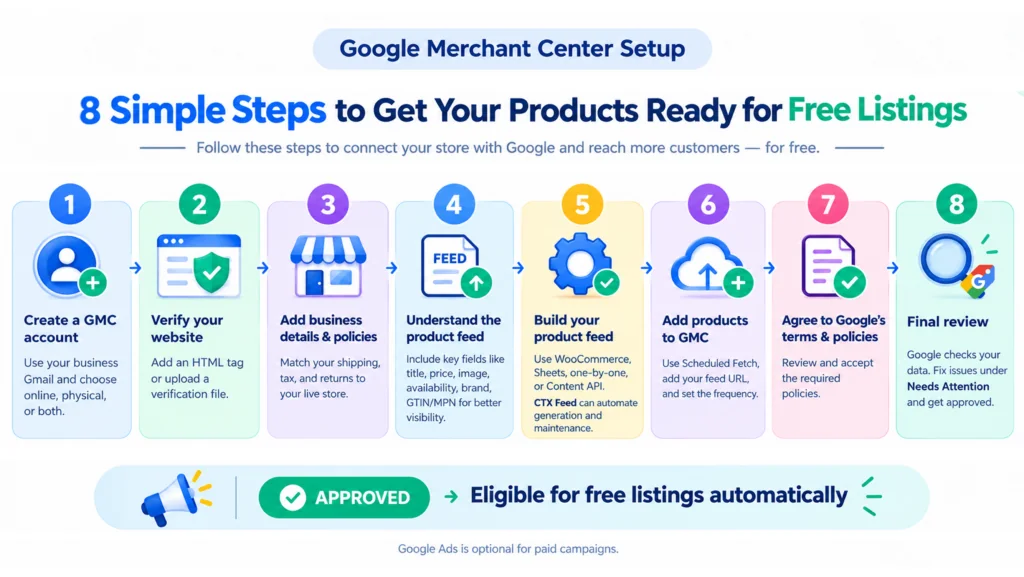
Step 1: Create a Google Merchant Center account
Sign up with your business Google account and provide your business information.
Step 2: Verify your website
Google Merchant Center requires you to verify that you own or manage your website. You can use methods such as an HTML tag, HTML file upload, or Google Tag Manager.
Step 3: Add your business details and policies
Set up your shipping, tax, and return information and make sure they match what customers see in your store.
Step 4: Understand the product feed
Your product feed is a structured file containing your product information. Common attributes include ID, title, description, image, price, availability, brand, GTIN/MPN, and condition.
Step 5: Build your feed
Choose a method that fits your store. Manual entry may work for a small catalog, while a feed plugin or automated connection is more practical for larger stores or frequently changing products.
Step 6: Add your products to Merchant Center
Connect your feed and set up scheduled updates. Choose an update frequency that matches how often your product data changes.
Step 7: Review Google’s requirements and policies
Make sure your products, website, and business information meet Google’s requirements before submitting them.
Step 8: Review and fix issues
Google reviews your product data and highlights any problems that need attention. Check the Needs attention section regularly and resolve flagged issues.
Once your products meet Google’s requirements, they can become eligible for free listings. You can also connect Google Ads if you want to promote your products through paid campaigns.
Chapter 6: Google Shopping Best Practices
- Automate feed updates instead of manually re-uploading: Set a fetch schedule based on how often your prices or inventory change. For most stores, daily updates are a good starting point.
- Fill recommended attributes, not just required ones: Required fields are the starting point, not the finish line. Adding relevant attributes such as brand, GTIN, color, size, and material gives Google more information to understand and match your products.
- Use high-quality product images: Clear, high-resolution images help your products make a stronger impression in Shopping results. Make sure your images follow Google’s requirements and clearly show the product.
- Monitor Price Competitiveness and Best Sellers reports: These Merchant Center reports can help you understand how your products and prices compare with the market, giving you useful insights for catalog and pricing decisions.
- Aim for Top Quality Store status: Factors such as shipping speed, return policies, checkout experience, and overall store experience can contribute to Google’s assessment of your store and may affect badge eligibility.
- Reuse one feed source across channels: Instead of rebuilding product feeds for every platform, maintain one reliable source and adapt it for Google, Meta, Bing, and other channels. This helps reduce inconsistencies in pricing, inventory, and product information.
Chapter 7: Advanced Tips For Merchants
- Layer Performance Max campaigns on top of a strong free-listing feed: Once your product data is accurate and complete, you can use the same product data in Performance Max campaigns to expand your paid reach.
- Use dynamic remarketing to re-target Shopping visitors: If shoppers interact with your products but don’t buy, dynamic remarketing can help bring those products back to their attention.
- Create dedicated feed rules for high-margin and best-selling products: Tools like CTX Feed let you filter products and apply custom attribute rules. This gives you more control over specific product groups instead of treating your entire catalog the same way.
- Monitor how your products appear in AI-powered search: Google’s AI-driven shopping experiences are making structured product information increasingly important. Clear titles, descriptions, and accurate attributes can help Google better understand your products.
- Don’t overlook Local Inventory Ads if you have a physical store: If you sell products both online and in-store, local inventory features can help nearby shoppers discover products that are available at your physical location.
Chapter 8: Google Shopping Troubleshooting
Products approved but missing from search results: Approval only means your products meet Google’s requirements. It doesn’t guarantee that they will appear in search results. If an approved product isn’t showing, review the title and description, check for missing attributes, verify image quality, and make sure the landing page matches the product information.
Price mismatch disapprovals: This usually happens when the price in your feed is outdated. If your feed isn’t updated or fetched often enough, Merchant Center may detect a difference between the feed price and the price shown on your website. Increasing the update or fetch frequency can help prevent this.
Product identifier and GTIN errors: Don’t fix GTIN issues one product at a time as they appear. Audit your catalog instead. Missing or incorrect GTINs often affect groups of products from the same category or supplier, so fixing the underlying pattern is more effective than handling each error individually.
Products stuck under “Needs Attention” without an obvious cause: The Needs Attention tab in Merchant Center replaced the old “Diagnostics” section and brings account- and item-level issues together in one place. Review it regularly to catch and resolve issues early. If you believe an issue is incorrect, you can also submit a review request.
Feed not refreshing on schedule: Check that your Scheduled Fetch URL and your plugin’s update interval are configured correctly. If these settings don’t match your intended update schedule, your feed may remain outdated even when your products or prices have changed.
Chapter 9: Recommended Google Shopping Feed Tool
For a small WooCommerce store, manually maintaining a product feed in a spreadsheet can quickly become time-consuming. Every price change, new product, or stock update may require you to re-export and re-upload the file.
CTX Feed supports 220+ shopping channels, with ready-made feed templates for 130+ channels.
CTX Feed simplifies WooCommerce product feed management by automating attribute mapping, feed generation, and scheduled updates. It can recommend and auto-fill Google product attributes and supports additional fields such as GTIN and Brand, which WooCommerce does not provide as standard product fields. You can also map WooCommerce categories to Google Product Taxonomy and generate separate feeds for platforms such as Google Shopping, Meta, and Bing from the same product catalog.
Compared with manually managed Google Sheets templates or a direct WooCommerce-to-Merchant Center connection, CTX Feed offers greater control over product attributes, filtering, and feed rules. This flexibility is particularly useful for stores managing large catalogs, multiple shopping channels, or different product data requirements across markets.
Chapter 10: Final Steps for Google Shopping Success
Ultimately, it comes down to one essential element: a properly structured product feed. You don’t need an advertising budget to get started with Google Shopping. Your visibility depends in part on how accurate and complete your product data is.
Set up your Google Merchant Center account, verify your website, then build a complete product feed and keep it synchronized. Avoid common issues like outdated pricing and missing GTINs by using complete attributes, quality images, and regular monitoring. The goal is to move beyond simply being “approved” and give your products the best chance of being visible.

Free version on WordPress.org. Every Pro licence includes a 30-day money-back guarantee.

