%22%2F%3E%0A%3Cpath%20d%3D%22M59.8894%2016.6974C60.1689%2016.9331%2060.5416%2017.1216%2060.9142%2017.0745C61.5664%2017.0273%2061.8925%2016.6031%2061.6596%2015.7547C61.5198%2014.4349%2061.4267%2013.1623%2061.2869%2011.8425C61.1006%209.72149%2060.8211%207.55331%2060.5881%205.38512L60.1689%201.70863C60.0757%200.81307%2059.6099%200.294591%2058.7713%200.106053C58.4918%20-0.0353509%2058.2123%20-0.0353509%2057.9328%200.106053C57.7931%200.106053%2057.6999%200.106053%2057.6067%200.153187C56.5353%200.483129%2055.4172%200.81307%2054.3458%201.19015C53.5073%201.47295%2052.6222%201.75576%2051.7371%202.03857C50.2929%202.50991%2048.8488%203.02839%2047.4047%203.49974C46.4264%203.82967%2045.4016%204.1596%2044.3768%204.48952L44.3767%204.48956C43.6313%204.72523%2043.3518%205.24371%2043.6313%205.85646C43.7711%206.13927%2044.004%206.32781%2044.2369%206.46921C44.7028%206.79915%2045.2152%207.08196%2045.6811%207.4119C45.8674%207.55331%2046.0537%207.69471%2045.8208%208.02465C45.7276%208.21319%2045.5879%208.35459%2045.4481%208.54313L45.355%208.73167L44.5164%2010.0986L43.9108%2010.9941L43.3052%2011.8897L43.2121%2011.9839L42.1406%2013.5865L44.5867%2019.8706C45.5713%2022.1447%2048.6357%2026.5713%2052.552%2023.6277L53.9265%2022.2593L54.3458%2021.5523C54.3924%2021.458%2054.4856%2021.3637%2054.5321%2021.2694L54.5787%2021.2223C55.2309%2020.1854%2055.883%2019.1956%2056.5352%2018.2059L56.5353%2018.2057C57.0477%2017.4044%2057.5601%2016.6503%2058.0726%2015.849C58.2123%2015.6604%2058.3055%2015.6133%2058.4918%2015.7076C58.9577%2016.0375%2059.4235%2016.4146%2059.8894%2016.6974Z%22%20fill%3D%22%233D89D0%22%2F%3E%0A%3Cpath%20d%3D%22M28.0259%2022.0232C27.9793%2022.0703%2027.9793%2022.1175%2027.9327%2022.1646C27.9793%2022.1175%2028.0259%2022.0703%2028.0259%2022.0232Z%22%20fill%3D%22url(%23paint1_linear)%22%2F%3E%0A%3Cpath%20d%3D%22M53.9265%2022.3064C53.7402%2022.5892%2053.5538%2022.872%2053.3675%2023.202C53.0414%2023.7204%2052.7153%2024.1918%2052.3892%2024.7103C51.3178%2026.4071%2050.1531%2027.9625%2048.4295%2029.0938C46.9388%2030.0365%2045.4015%2030.6021%2043.6779%2030.8849C42.1872%2031.1206%2040.7896%2030.9791%2039.3921%2030.5549C37.6219%2030.0365%2036.038%2029.1409%2034.687%2027.8211C33.7088%2026.8784%2032.9634%2025.7944%2032.3578%2024.616C32.0317%2023.9561%2031.7988%2023.2491%2031.4727%2022.5421C31.0534%2021.5522%2030.1683%2019.2427%2030.1218%2019.1012C30.0752%2019.0541%2030.0752%2018.9598%2030.0286%2018.9127C29.9354%2018.7242%2029.8422%2018.5828%2029.7957%2018.3942C29.6559%2018.0172%2029.4696%2017.6401%2029.3298%2017.2159C29.2366%2017.0273%2029.1901%2016.8388%2029.0969%2016.6503C28.9571%2016.3674%2028.864%2016.0846%2028.7242%2015.7547C28.5845%2015.3776%2028.4447%2015.0005%2028.2584%2014.6235C28.1652%2014.3407%2028.0254%2014.0579%2027.9323%2013.775C27.9323%2013.7279%2027.9323%2013.7279%2027.8857%2013.6808C27.7925%2013.4922%2027.7459%2013.3037%2027.6528%2013.1152C27.4664%2012.5967%2027.2335%2012.1253%2027.0006%2011.6069C27.0006%2011.5597%2026.954%2011.5126%2026.9074%2011.4655C26.8142%2011.2769%2026.7211%2011.1355%2026.5813%2010.947C26.5347%2010.8998%2026.4882%2010.8527%2026.4882%2010.8056C26.4416%2010.7584%2026.395%2010.7113%2026.395%2010.6642C26.3484%2010.617%2026.3018%2010.5699%2026.2552%2010.5228C26.2086%2010.4756%2026.2086%2010.4285%2026.1621%2010.4285L26.1155%2010.3814C26.0689%2010.3342%2026.0223%2010.2871%2026.0223%2010.2871C25.9291%2010.1928%2025.8826%2010.1457%2025.7894%2010.0514C25.7428%2010.0043%2025.6962%209.95715%2025.6496%209.95715C25.603%209.91002%2025.5565%209.91002%2025.5099%209.86288C25.4167%209.81575%2025.3701%209.76861%2025.277%209.67435C25.2304%209.62721%2025.1838%209.62721%2025.1372%209.58008C25.0906%209.53294%2025.044%209.53294%2024.9974%209.48581C24.9509%209.48581%2024.9043%209.43867%2024.9043%209.43867C24.8577%209.39154%2024.8111%209.39154%2024.7645%209.3444C24.7179%209.3444%2024.7179%209.29727%2024.6714%209.29727C24.5782%209.25014%2024.485%209.203%2024.3918%209.15587C22.9943%208.59025%2021.1775%208.77879%2020.1992%209.10873C19.2675%209.43867%2018.2893%2010.3342%2018.2427%2010.4285C18.6619%209.72148%2019.0812%208.96733%2019.547%208.26031C20.1526%207.36475%2020.7117%206.4692%2021.3638%205.62078C22.3887%204.63095%2023.4602%203.78253%2024.6714%203.07551C27.0006%201.75575%2029.4696%201.52007%2032.0317%201.89715C33.3361%202.08569%2034.5939%202.60417%2035.7585%203.35832C36.9231%204.06534%2037.9014%204.96089%2038.7399%206.04499C39.2989%206.79914%2039.8114%207.60043%2040.1374%208.49598C40.6033%209.67435%2041.1623%2010.8056%2041.5816%2011.9839C41.7679%2012.5496%2042.0008%2013.068%2042.2338%2013.6336C42.2338%2013.6336%2042.2338%2013.6336%2042.2338%2013.6808V13.7279L45.0288%2019.8554C45.4015%2020.8452%2045.9139%2021.6465%2046.7059%2022.3535C47.2183%2022.872%2047.8705%2023.1548%2048.5227%2023.3905C48.5693%2023.3905%2048.6158%2023.4376%2048.6624%2023.4376C49.7805%2023.7676%2051.2246%2023.3905%2052.3426%2023.0134C53.088%2022.6835%2053.6936%2022.4007%2053.9265%2022.3064Z%22%20fill%3D%22url(%23paint2_linear)%22%2F%3E%0A%3Cpath%20d%3D%22M28.0255%2022.0238C27.9789%2022.0709%2027.9789%2022.118%2027.9324%2022.1652C27.9324%2022.1652%2027.9324%2022.1652%2027.9324%2022.2123C27.7926%2022.448%2027.6063%2022.6836%2027.4665%2022.9664C25.8826%2025.8416%2024.4385%2028.1512%2021.6434%2029.6595C19.3142%2030.9793%2016.8452%2031.215%2014.2831%2030.8379C14.1433%2030.8379%2014.0501%2030.7908%2013.9104%2030.7908C12.7458%2030.6022%2011.5812%2030.0838%2010.4165%2029.2825C8.78607%2028.1512%207.52829%2026.5958%206.64318%2024.8047L6.17733%2023.9091L5.01272%2021.5524L0.726927%2012.6911C0.447419%2012.0784%200.214496%2011.4656%200.121327%2010.8529C-0.437689%207.8834%200.95985%204.77252%203.80151%203.35849C5.43198%202.51007%207.24878%202.4158%208.87924%202.93428C10.6029%203.45276%2012.1402%204.67825%2013.0253%206.46937L13.1184%206.6579L14.7489%209.95732C14.7955%2010.0516%2014.7955%2010.1459%2014.8421%2010.2401C15.075%2010.8529%2015.8204%2012.4083%2016.426%2013.5867C16.4725%2013.6809%2016.5191%2013.7752%2016.5657%2013.8223C16.6123%2013.9638%2016.7055%2014.1052%2016.752%2014.1994C16.7986%2014.2937%2016.8452%2014.3408%2016.8452%2014.4351C16.8452%2014.4822%2016.8918%2014.4822%2016.8918%2014.5294C16.9384%2014.5765%2016.9384%2014.6708%2016.985%2014.7179C16.985%2014.765%2017.0316%2014.765%2017.0316%2014.8122C17.0316%2014.8593%2017.0781%2014.8593%2017.0781%2014.9064C17.0781%2014.9536%2017.1247%2015.0007%2017.1247%2015.0478C17.1247%2015.095%2017.1713%2015.095%2017.1713%2015.1421C17.3111%2015.4249%2017.4042%2015.7549%2017.544%2016.0377C17.6372%2016.2262%2017.6837%2016.4147%2017.7769%2016.6504C17.9632%2017.1689%2018.1962%2017.6402%2018.3825%2018.1587C18.5223%2018.4415%2018.6154%2018.7715%2018.7552%2019.0543C18.8018%2019.1485%2018.8484%2019.29%2018.8949%2019.3842C18.9881%2019.5728%2019.0347%2019.7613%2019.1279%2019.9498C19.3608%2020.5154%2019.5937%2021.0811%2019.9664%2021.5995C20.1993%2021.8823%2020.3857%2022.1652%2020.6652%2022.4008C22.3888%2023.9563%2024.9975%2023.862%2028.0255%2022.0238Z%22%20fill%3D%22url(%23paint3_linear)%22%2F%3E%0A%3Cpath%20d%3D%22M68.0888%2024.8694L68%207.88696H71.9963L71.8187%2018.4448L76.8806%207.88696H80.6548L81.3209%2018.3999L85.5392%207.88696H89.713L82.4754%2024.8694H78.1683L77.5466%2013.9072L72.3959%2024.8694H68.0888Z%22%20fill%3D%22%230D5293%22%2F%3E%0A%3Cpath%20d%3D%22M92.7771%2025.1385C89.2693%2025.1385%2086.7383%2022.6675%2086.7383%2019.2081C86.7383%2015.3893%2089.8021%2012.1545%2093.4431%2012.1545C96.6402%2012.1545%2098.8603%2014.4458%2098.8603%2017.7704C98.8603%2018.5342%2098.8159%2019.1182%2098.7271%2019.6124H90.4237C90.6457%2021.0501%2091.7114%2022.0385%2093.2211%2022.0385C94.1536%2022.0385%2094.9528%2021.724%2095.5301%2021.095L97.617%2023.4762C96.0185%2024.6443%2094.5976%2025.1385%2092.7771%2025.1385ZM90.6457%2017.411H95.4857C95.3081%2016.0632%2094.4644%2015.2545%2093.2211%2015.2545C92.0666%2015.2096%2091.0898%2016.0632%2090.6457%2017.411Z%22%20fill%3D%22%230D5293%22%2F%3E%0A%3Cpath%20d%3D%22M105.965%2024.9589C104.411%2024.9589%20103.167%2024.24%20102.368%2022.8473L101.924%2024.869H98.1499L101.791%207.52717L105.698%206.89819L104.322%2013.5923C105.166%2012.7836%20106.32%2012.2894%20107.519%2012.2894C110.139%2012.2894%20112.181%2014.8054%20112.181%2018.0401C112.226%2021.814%20109.428%2024.9589%20105.965%2024.9589ZM103.789%2016.3778L102.945%2020.4212C103.478%2021.185%20104.366%2021.6792%20105.388%2021.6792C107.208%2021.6792%20108.54%2020.2415%20108.54%2018.3097C108.54%2016.6474%20107.43%2015.4793%20105.92%2015.4793C105.077%2015.4793%20104.411%2015.7937%20103.789%2016.3778Z%22%20fill%3D%22%230D5293%22%2F%3E%0A%3Cpath%20d%3D%22M120.44%207.88696H125.058L127.899%2024.8694H123.725L123.193%2020.8259H117.154L114.978%2024.8694H110.582L120.44%207.88696ZM122.704%2017.5912L121.949%2011.9304L118.886%2017.5463H122.704V17.5912Z%22%20fill%3D%22%230D5293%22%2F%3E%0A%3Cpath%20d%3D%22M131.23%2012.3347H135.004L134.782%2013.5927C135.626%2012.7391%20136.736%2012.2449%20137.935%2012.2449C140.555%2012.2449%20142.597%2014.7608%20142.597%2017.9955C142.597%2021.8143%20139.8%2024.9592%20136.336%2024.9592C134.782%2024.9592%20133.539%2024.2853%20132.828%2022.9824L131.274%2030.0809H127.456L131.23%2012.3347ZM134.205%2016.3332L133.317%2020.5114C133.85%2021.2303%20134.738%2021.6796%20135.715%2021.6796C137.535%2021.6796%20138.867%2020.2419%20138.867%2018.31C138.867%2016.6477%20137.757%2015.4796%20136.247%2015.4796C135.493%2015.4796%20134.827%2015.7492%20134.205%2016.3332Z%22%20fill%3D%22%230D5293%22%2F%3E%0A%3Cpath%20d%3D%22M144.595%2012.3347H148.369L148.147%2013.5927C148.99%2012.7391%20150.101%2012.2449%20151.299%2012.2449C153.919%2012.2449%20155.962%2014.7608%20155.962%2017.9955C155.962%2021.8143%20153.164%2024.9592%20149.701%2024.9592C148.147%2024.9592%20146.904%2024.2853%20146.193%2022.9824L144.683%2030.0809H140.865L144.595%2012.3347ZM147.57%2016.3332L146.682%2020.5114C147.214%2021.2303%20148.102%2021.6796%20149.079%2021.6796C150.9%2021.6796%20152.232%2020.2419%20152.232%2018.31C152.232%2016.6477%20151.122%2015.4796%20149.612%2015.4796C148.857%2015.4796%20148.191%2015.7492%20147.57%2016.3332Z%22%20fill%3D%22%230D5293%22%2F%3E%0A%3Cpath%20d%3D%22M159.115%2024.8694H155.296L158.005%2012.3347H161.824L159.115%2024.8694ZM158.449%208.47099C158.449%207.1681%20159.559%206%20160.847%206C161.912%206%20162.8%206.85361%20162.8%207.93186C162.8%209.27967%20161.69%2010.4029%20160.358%2010.4029C159.248%2010.4029%20158.449%209.54924%20158.449%208.47099Z%22%20fill%3D%22%230D5293%22%2F%3E%0A%3Cpath%20d%3D%22M169.727%2020.6909L171.592%2023.1619C170.304%2024.4648%20168.572%2025.1387%20166.752%2025.1387C163.466%2025.1387%20161.068%2022.7126%20161.068%2019.388C161.068%2015.3446%20164.088%2012.1099%20167.862%2012.1099C170.082%2012.1099%20171.947%2013.0983%20173.013%2014.7606L170.304%2017.0069C169.727%2015.9736%20168.927%2015.4794%20167.773%2015.4794C166.13%2015.4794%20164.842%2017.0518%20164.842%2019.0286C164.842%2020.6909%20165.819%2021.6793%20167.329%2021.6793C168.261%2021.7243%20169.016%2021.4098%20169.727%2020.6909Z%22%20fill%3D%22%230D5293%22%2F%3E%0A%3Cpath%20d%3D%22M175.722%207.52717L179.629%206.89819L177.365%2017.6807L182.426%2012.3344H187L180.517%2018.6691L184.691%2024.869H180.162L177.009%2019.5676L175.899%2024.869H172.081L175.722%207.52717Z%22%20fill%3D%22%230D5293%22%2F%3E%0A%3Cdefs%3E%0A%3ClinearGradient%20id%3D%22paint0_linear%22%20x1%3D%2223.1831%22%20y1%3D%2224.7007%22%20x2%3D%2223.3049%22%20y2%3D%228.44851%22%20gradientUnits%3D%22userSpaceOnUse%22%3E%0A%3Cstop%20stop-color%3D%22%23327ACD%22%2F%3E%0A%3Cstop%20offset%3D%221%22%20stop-color%3D%22%234696D2%22%2F%3E%0A%3C%2FlinearGradient%3E%0A%3ClinearGradient%20id%3D%22paint1_linear%22%20x1%3D%2227.9436%22%20y1%3D%2222.0876%22%20x2%3D%2228.0428%22%20y2%3D%2222.0876%22%20gradientUnits%3D%22userSpaceOnUse%22%3E%0A%3Cstop%20offset%3D%220.2029%22%20stop-color%3D%22%234C51BF%22%20stop-opacity%3D%220.9%22%2F%3E%0A%3Cstop%20offset%3D%221%22%20stop-color%3D%22%235A67D8%22%20stop-opacity%3D%220.9%22%2F%3E%0A%3C%2FlinearGradient%3E%0A%3ClinearGradient%20id%3D%22paint2_linear%22%20x1%3D%2232.4583%22%20y1%3D%222.22148%22%20x2%3D%2239.8371%22%20y2%3D%2230.0298%22%20gradientUnits%3D%22userSpaceOnUse%22%3E%0A%3Cstop%20offset%3D%220.3367%22%20stop-color%3D%22%2342B9FF%22%2F%3E%0A%3Cstop%20offset%3D%220.7818%22%20stop-color%3D%22%233B97E1%22%2F%3E%0A%3Cstop%20offset%3D%221%22%20stop-color%3D%22%233784D1%22%2F%3E%0A%3C%2FlinearGradient%3E%0A%3ClinearGradient%20id%3D%22paint3_linear%22%20x1%3D%2211.252%22%20y1%3D%220.972585%22%20x2%3D%2215.8771%22%20y2%3D%2225.7529%22%20gradientUnits%3D%22userSpaceOnUse%22%3E%0A%3Cstop%20offset%3D%220.3367%22%20stop-color%3D%22%2342B9FF%22%2F%3E%0A%3Cstop%20offset%3D%220.7818%22%20stop-color%3D%22%233B97E1%22%2F%3E%0A%3Cstop%20offset%3D%221%22%20stop-color%3D%22%233784D1%22%2F%3E%0A%3C%2FlinearGradient%3E%0A%3C%2Fdefs%3E%0A%3C%2Fsvg%3E%0A)

23 Google Shopping Feed Optimization Tips & Best Practices (2026)
 Fadiyah Sameh
 Google Shopping feed optimization focuses on improving product titles, descriptions, images, and structured data to boost visibility and performance.
Using tools like Google Merchant Center, CTX Feed for WooCommerce, feed management software, and AI-powered optimization can help eCommerce businesses increase clicks, conversions, and ROI on their Google Shopping campaigns.
Google Shopping receives a staggering 1.2 billion searches every month, and Google Shopping ads are the number one advertisement channel for eCommerce businesses.
Now, Google lets you add your products in multiple ways, including manually adding them one by one.
However, the most effective and popular way is to add through an optimized product feed.
To run Google Shopping ads, you must have a product feed.
The success of your Google Shopping campaign massively relies on the quality of your product feed.
Poor data quality means fewer impressions, lower CTR, and wasted ad spend.
So, you need to make sure to optimize your Google Shopping data feed.
That’s our topic of discussion today.
We will discuss how you can do Google Shopping feed optimization for all the attributes. We will also show you how to insert these attributes optimally using a plugin called CTX Feed Plugin (WooCommerce Users).
Let’s go!
Why Should You Optimize Your Google Shopping Product Feed?
A product feed file contains all the necessary product information that you want to represent on Google. The Google product feed comes with all the necessary product attributes that Google understands.
Before learning how to optimize the Google product feed, we need to focus on why to optimize it.
We should apply feed optimization techniques for two reasons:
- Optimized Google product feed gives you better performance.
- With an optimized Google product feed, your ad spending and promotional costs are minimized.
Better performance means more clicks and more reach, which results in more customer engagement. The logic is straightforward: with greater engagement, you get more sales output.
One more thing!
An optimized Google product feed injects qualified product data into the Google Merchant Center.
It helps the platform represent shopping ads more effectively — matching your listings to the right search queries.
Optimized Google product feed comes with three simple features:
- Perfectly used Google product attributes
- Complete product data
- Precise and accurate product information
What Are the Attributes of a Google Shopping Product Feed?
Attributes in a Google Shopping product feed are the specific pieces of information about your products that you submit to the Google Merchant Center.
These attributes are used to populate the product listings that appear in Google Shopping search results.
There are currently 170 attributes that can be included in a Google Shopping product feed.
These attributes are divided into 10 categories:
- Basic product data: 9 attributes
- Price and availability: 8 attributes
- Product category: 11 attributes
- Product identifiers: 5 attributes
- Detailed product description: 4 attributes
- Shopping campaigns and other configurations: 7 attributes
- Marketplaces: 3 attributes
- Destinations: 2 attributes
- Shipping: 4 attributes
- Tax: 2 attributes
The specific attributes you need to include in your product feed will vary depending on the type of products you sell and the markets you want to target.
However, including as many of the 170 attributes as possible will help ensure that your products are visible in Google Shopping search results and that the right audience sees them.
Most Important or Common Attributes of Google Shopping
- Product ID
- Product Title
- Product Description
- Product Link
- Product Image link
- Product Availability
- Product Availability date
- Product Price
- Product Category & Subcategory
- Brand
- GTIN
- MPN
- Dynamic product views
- Marketplaces
- Destinations
- Shipping
- Tax
How to Create a Google Shopping Product Data feed In WooCommerce?
How you create your product feed for your WooCommerce store will greatly affect how efficiently Google will display them. Your Google Shopping product data feed optimization will also be influenced by the method you choose to generate the feed file.
One way is to generate feeds manually in a Google Sheets file. You can insert the attributes as column headers and copy-paste your product data one by one. However, this process is not recommended — it consumes a great amount of time and is prone to errors.
The best way to generate a WooCommerce data feed and optimize the Google Shopping feed is to use a product feed plugin such as CTX Feed.

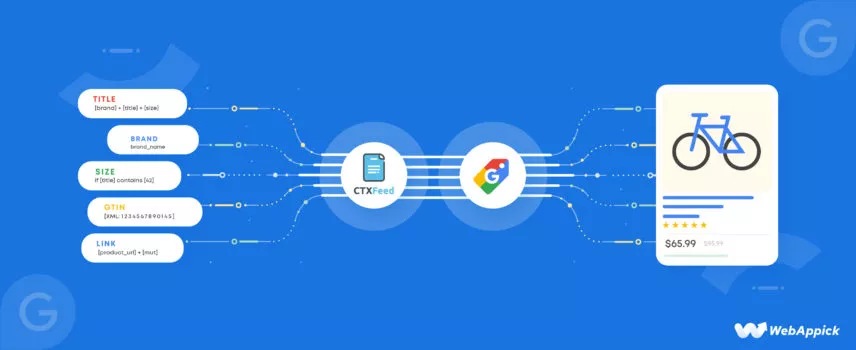
CTX Feed plugin makes feed creation and Google Shopping feed optimization a breeze. It already knows what attributes a Google Shopping product feed needs. It has dedicated Google Shopping templates that have all the attributes and guidelines integrated inside.
You can create a standard Google product feed with just two clicks. Moreover, you can insert as many additional attributes as you want.
Most importantly, it supports URL fetch for the Scheduled Fetch option on the GMC. In this process, you no longer need to download and upload your feed file.
You can host your feed file in your WooCommerce server and share the feed URL. Google will fetch your product information from the URL.
CTX Feed also updates all your WooCommerce product changes automatically. That means you generate the feed once and connect to GMC — the plugin and Google take things from there.
Overall, CTX Feed can significantly save you time and help with Google product feed optimization.
How to create a Google shopping feed using CTX Feed
CTX Feed has a very popular free version available for you in the WordPress repository. Install and activate it.
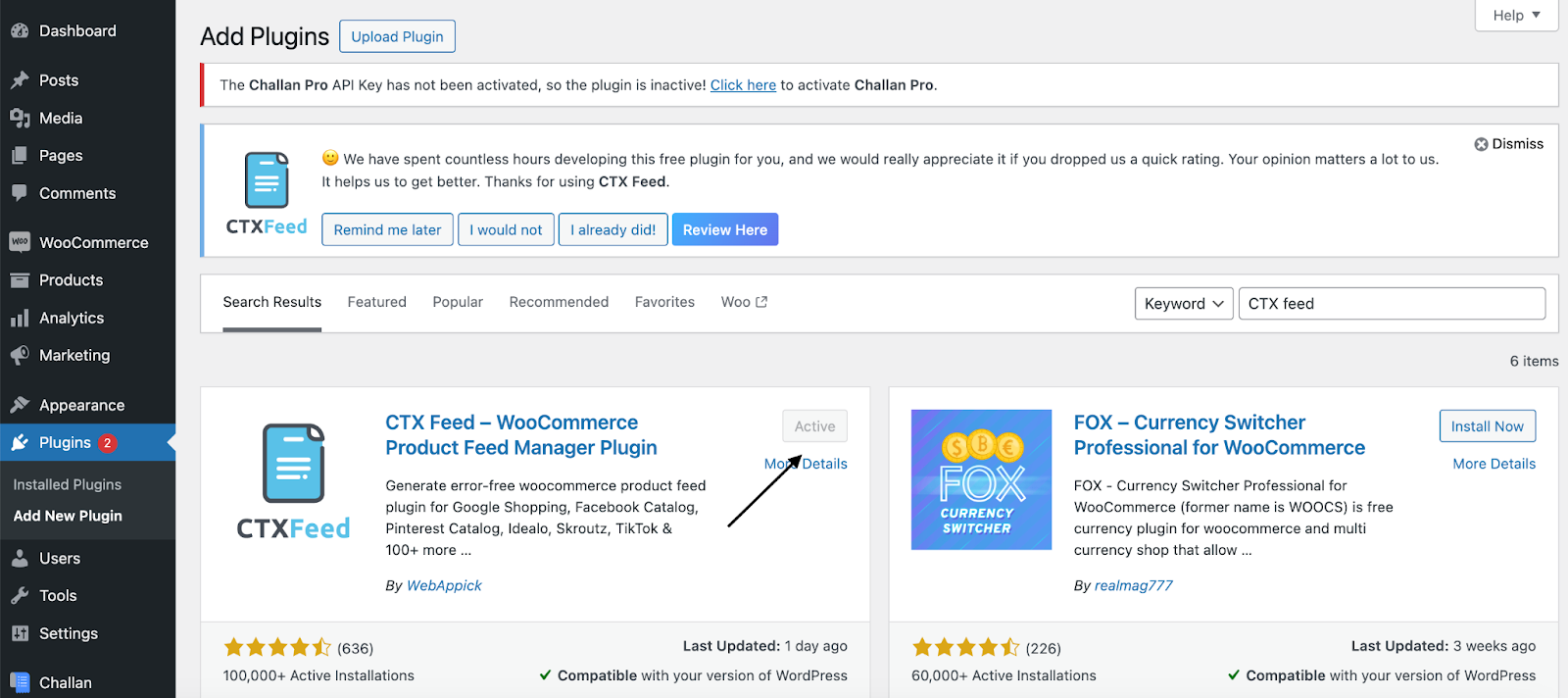
Click on Make Feed from the CTX Feed menu.
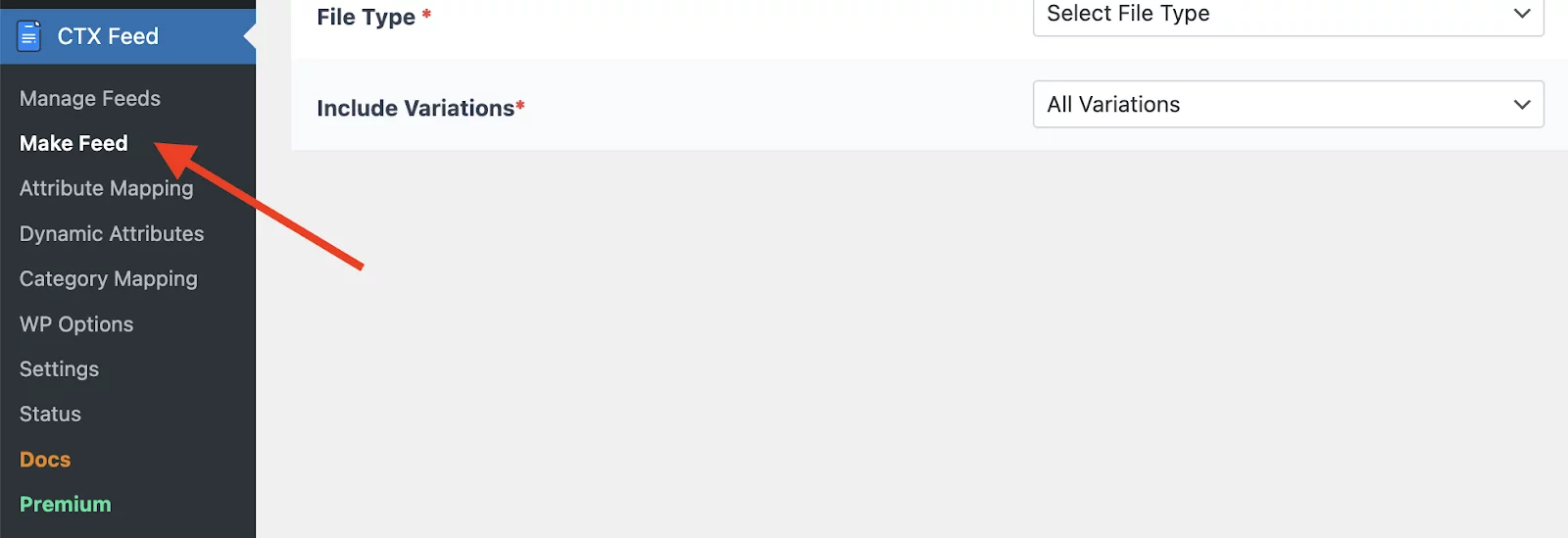
Select Google Shopping from the Template dropdown.
CTX Feed will automatically populate the necessary attributes for you at the bottom.
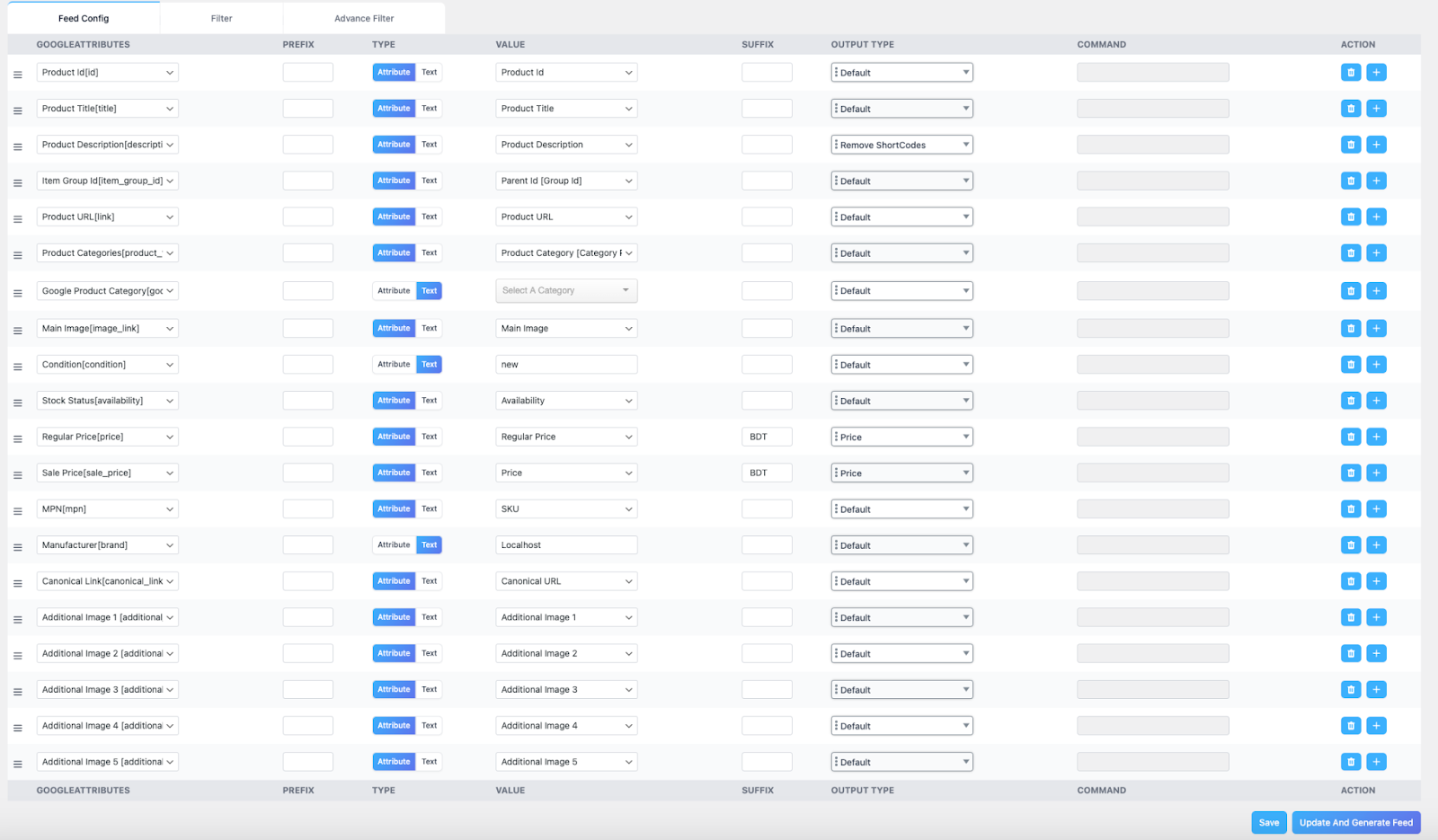
Click “Update and generate feed” to create your feed. The plugin will automatically gather your WooCommerce product data and generate the file.
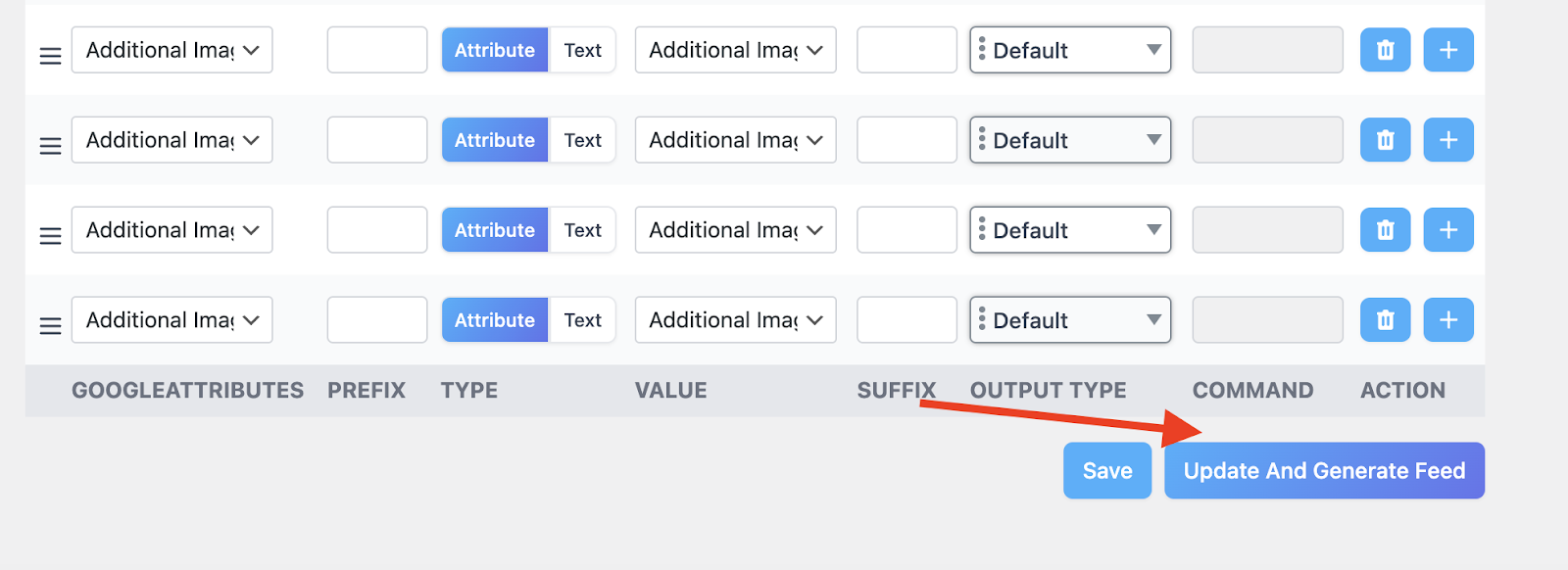
Therefore, if you have an SEO-optimized WooCommerce site, your product feed will also be SEO-optimized. That also means it will cut down manual labor significantly when doing Google data feed optimization.
Go to “Manage Feeds” from the CTX Feed to access your feed file. You can also set the update settings from there.

You can copy the URL from here and paste it into the GMC account we saw earlier.
23 Google Shopping Feed Optimization and Best Practices Tips
To optimize the Google product data feed, you must optimize data under each attribute. Let’s break down how to optimize your Google Shopping feed by focusing on each attribute individually.
We will also check how to insert those attributes in the CTX Feed manually.
1. Product ID Optimization
The Product ID attribute is a unique identifier for each product in your Google Shopping product feed.
It is used to identify your products in Google Shopping search results and match them with other product feeds.
Tips for Product ID optimization:
- Use a unique Product ID for each product — This helps Google identify your products correctly.
- Use a consistent Product ID format — Makes it easier for Google to parse your product feed.
- Use a globally unique Product ID — Helps Google identify your products across different countries and markets.
- Monitor your IDs — Keep monitoring product IDs to avoid errors.
- Maintain consistency — Always maintain consistent IDs to help tracking for both you and your users.
Feed parameter: id
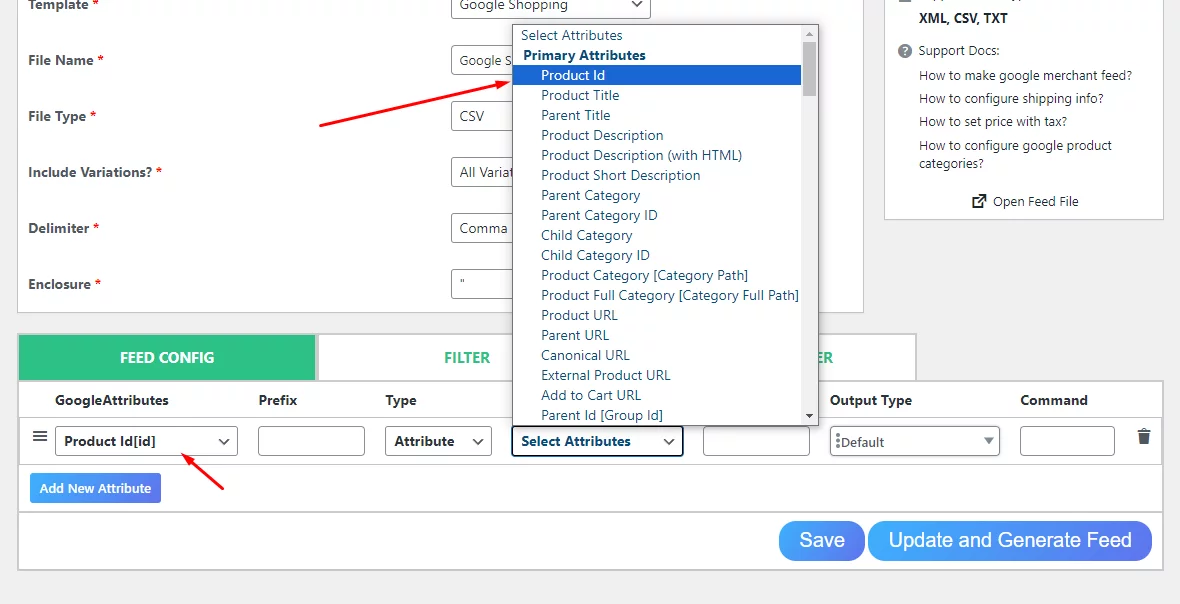
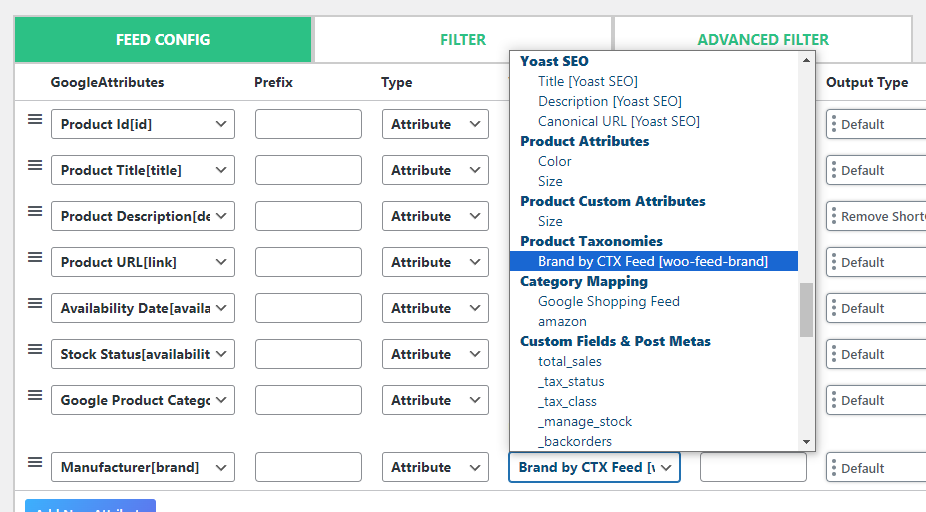
WooCommerce assigns unique product IDs to all your products automatically. When using CTX Feed, select the appropriate option from the attribute and value dropdown.
The plugin will automatically collect your WooCommerce product IDs and insert them into the Google Shopping feed.
2. Creating Compelling Product Titles (Google Shopping Title Optimization)
Whether it’s for Google Shopping ads, organic listings, or your product page, product titles hold significant importance.
A well-crafted title can be the deciding factor in making or breaking a sale.
Google Shopping title optimization is one of the highest-impact improvements you can make. The Product Title attribute is one of the most important attributes in your Google Shopping product feed.
Google also uses it to match your product with other product feeds — including Walmart or eBay.
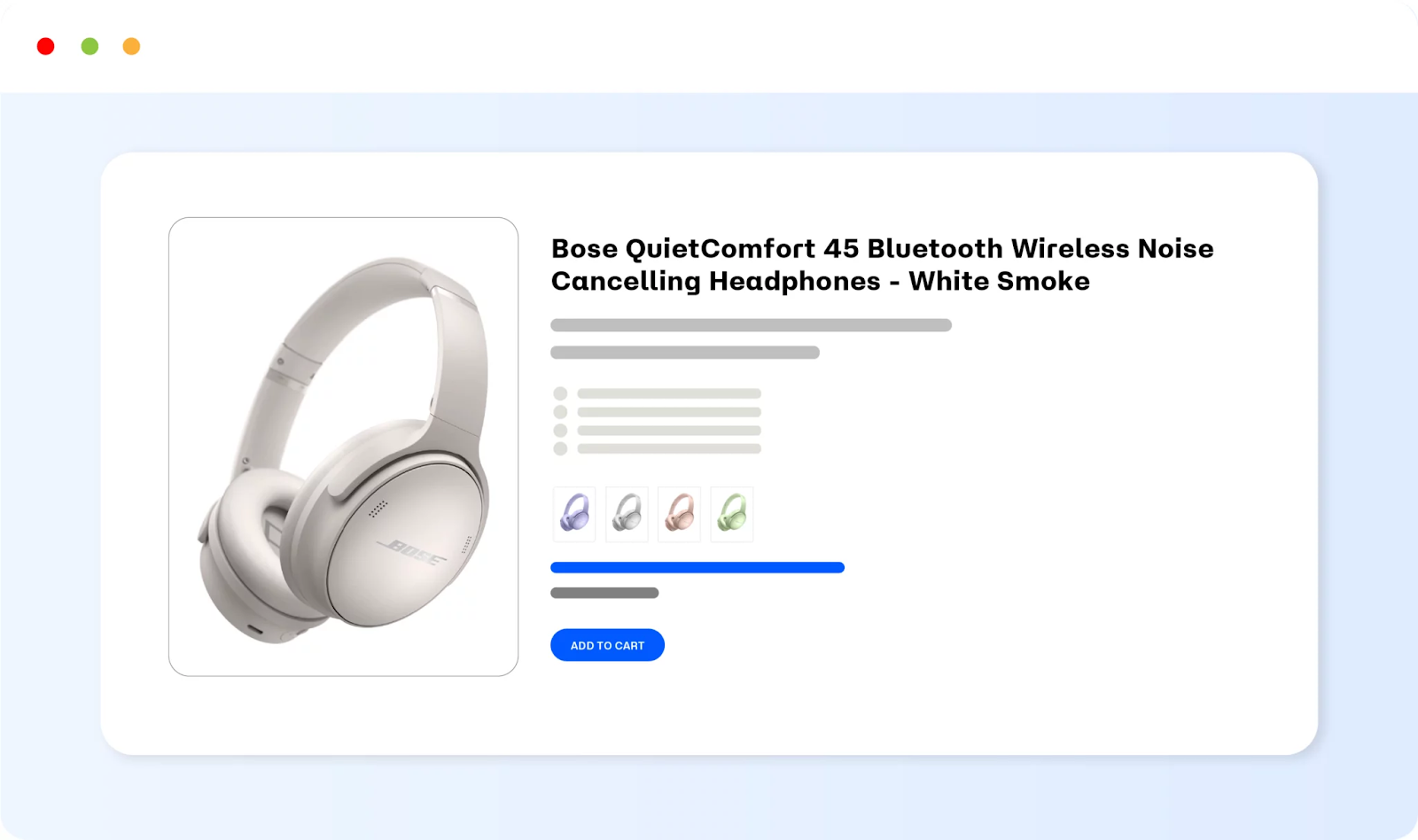
How to optimize Google Shopping feed titles?
Make your product title clear and concise
Your product title should be easy to read and understand. It should accurately reflect the product you are selling.
Use keywords in your product title
The keywords you use will help Google match your product with other product feeds and show your product in relevant search results. Place your most important keyword within the first 70 characters.
Use the brand name in your product title
If your product has a brand name, include it. This helps Google identify your product and show it to shoppers searching for that brand.
Use relevant modifiers in your product title
Relevant modifiers help Google match your product to more specific search queries. For example, if you sell a laptop, use modifiers such as “ultrabook” or “13-inch” in your title.
Keep your product title under 150 characters
Google Shopping only shows the first 70 characters of your product title in search results. Keep your title under 150 characters to ensure the most important information is visible.
Use this proven title formula
Formula: Brand Name + Product Type + Key Feature(s) + Model/Size/Color
Example: Sony WH-1000XM4 Wireless Noise-Canceling Headphones – Black
Bonus Tips:
- Place important information first
- Test different keyword combinations in your titles
- Don’t include price in the title
- Don’t use promotional text (e.g., “Best Deal,” “Free Shipping”)
- Don’t use symbols
Feed parameter: title
If you have already optimized your WooCommerce product titles, CTX Feed will fetch those optimized titles from your website and insert them into the Google Shopping feed automatically.

3. Optimizing Product Descriptions for Google Shopping
The Product Description attribute is another critical attribute in your Google Shopping product feed. It is used to provide more information about your product to shoppers.
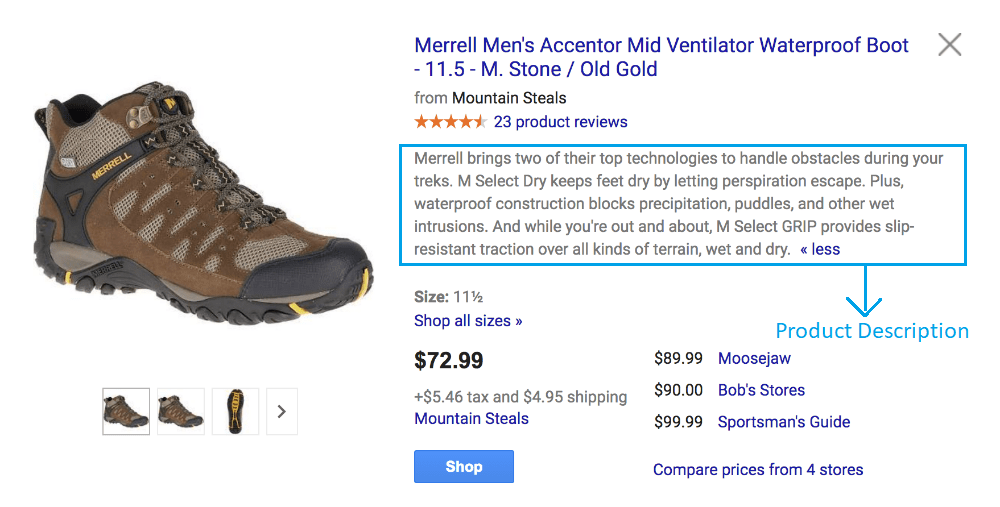
A well-optimized description can improve both the click-through rate (CTR) and conversion rate of your products.
Google Shopping product description best practices:
Make your description clear and concise
Your description should be easy to read and accurately reflect the product you are selling.
Must-include elements
- Specific keyword relevant to the product
- Best usage scenarios
- Key benefits of the product
- Key features
Use keywords naturally
The keywords you use help Google match your product with relevant search queries. Include primary and secondary keywords — but write for the shopper, not just the algorithm.
Use bullet points and numbered lists
Bullet points make your description easy to scan. Shoppers can quickly find the information they are looking for.
Keep your description under 5,000 characters
List the most important details in the first 160–500 characters. Google often uses this portion for matching and display.
Know your audience
Before writing your description, understand your target audience. Think like a customer — explain how the features benefit them, not just what those features are.
Feed parameter: description
CTX Feed will collect descriptions from your product pages automatically.
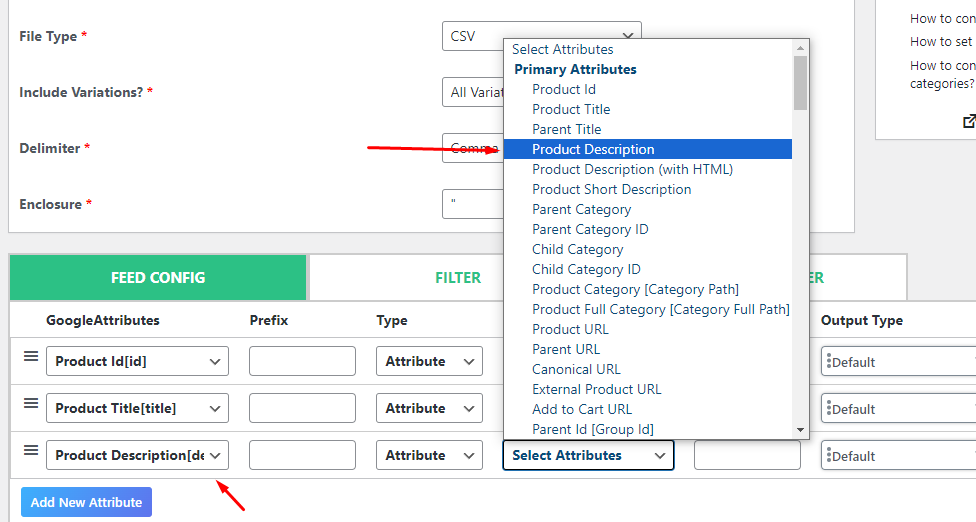
4. Product Image Optimization — Improve Google Shopping CTR
A must-have for Google Shopping feed optimization is optimizing product images. Images are the first element your customers notice and have the most impact on purchasing decisions.

Research shows lifestyle images can increase CTR significantly on Google Shopping.
Here’s how to optimize product images:
Use high-quality images
Product images should be high-resolution and clear. They should be relevant to the product you are selling. Google recommends a minimum size of 800 x 800 pixels.
Use clear and concise image titles
Your image titles should accurately reflect the product you are selling.
Follow Google’s image requirements
The file format should be PNG, JPEG, or WebP. Follow all Google Shopping image specifications carefully to avoid disapprovals.
Add additional images
Google allows up to 10 additional product images using the additional_image_link attribute. Multiple images increase buyer confidence and can improve CTR.
Use relevant keywords in image alt text
Alt text helps Google understand what the image contains. Use descriptive, keyword-rich alt text on your WooCommerce product images.
Avoid watermarks
Watermarks can be distracting and may violate Google’s policies. Avoid using them on your product images.
Optimize images for mobile
More people are shopping on mobile devices every year. Make sure your product images look great on all screen sizes.
Feed parameter: image_link
CTX Feed will automatically fetch your image link for your products. You can also include additional images using the additional_image_link attribute.
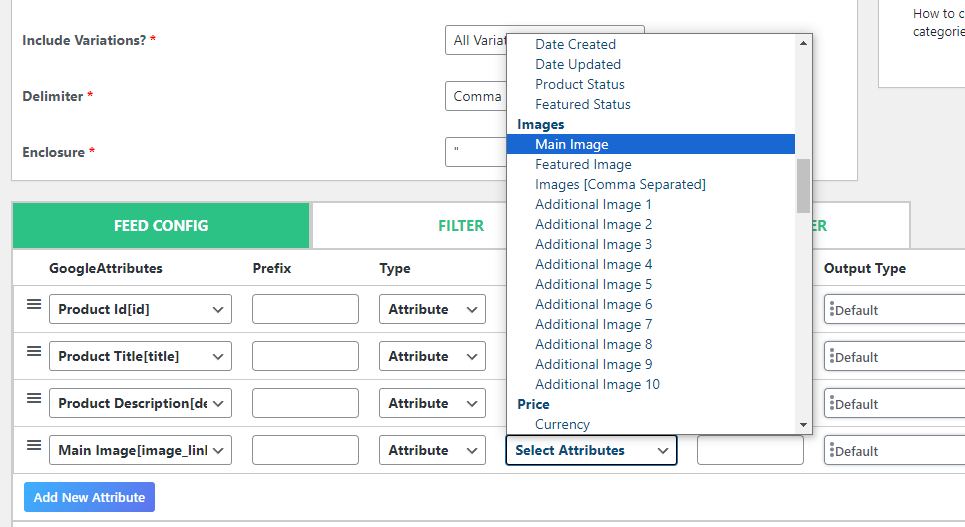
5. Product Link Attribute — Landing Page Optimization
The Product Link attribute is the URL of your product’s landing page. It sends shoppers to your website when they click on your product in Google Shopping search results.
The quality of your landing page also influences your Google Shopping quality score.
Tips for optimizing the Product Link attribute:
- Make sure the URL is accurate — Inaccurate URLs lead to lost sales and disapprovals.
- Use a secure URL — Google Shopping only shows products with
https://URLs. - Use a descriptive URL — Descriptive URLs help Google understand your product.
- Use keywords in the URL — Keyword-rich URLs can help with matching.
- Ensure price, availability, and product information match — Mismatched product availability in GMC is a common disapproval cause. Your landing page data must match your feed data exactly.
Feed parameter: link
WooCommerce lets you edit product URLs individually or in bulk. CTX Feed will collect them automatically.
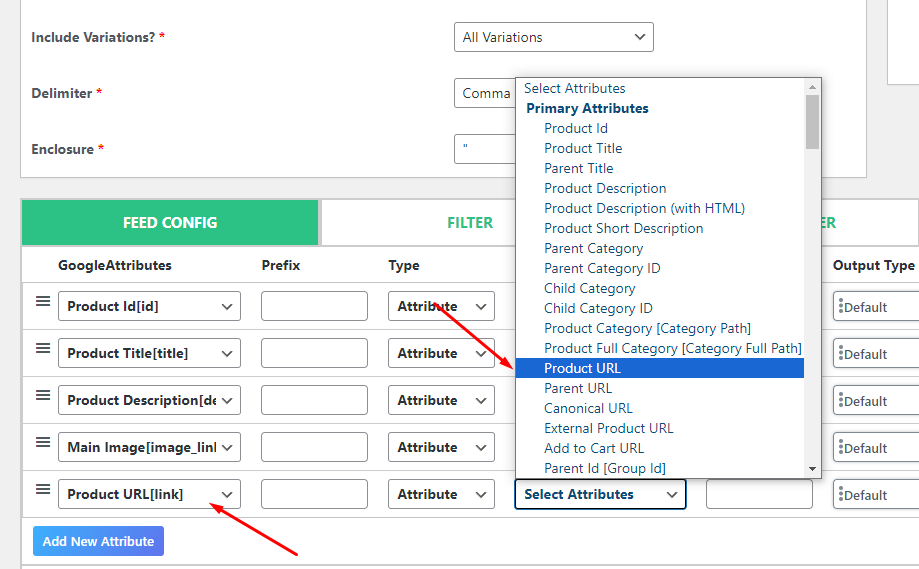
6. Use of Product Availability Attribute
If you run out of some products and your Google Shopping list still shows them as available, visitors will immediately leave your site when redirected.
They will also lose trust in your brand.

Therefore, putting the availability attribute correctly in your feed is crucial. The availability status should be updated regularly in your Google feed to reflect actual product availability.
Supported values:
in_stockout_of_stockpreorderbackorder
In CTX Feed, you can exclude out-of-stock products with just one click. You can also filter your products by different statuses and conditions from the filter settings.
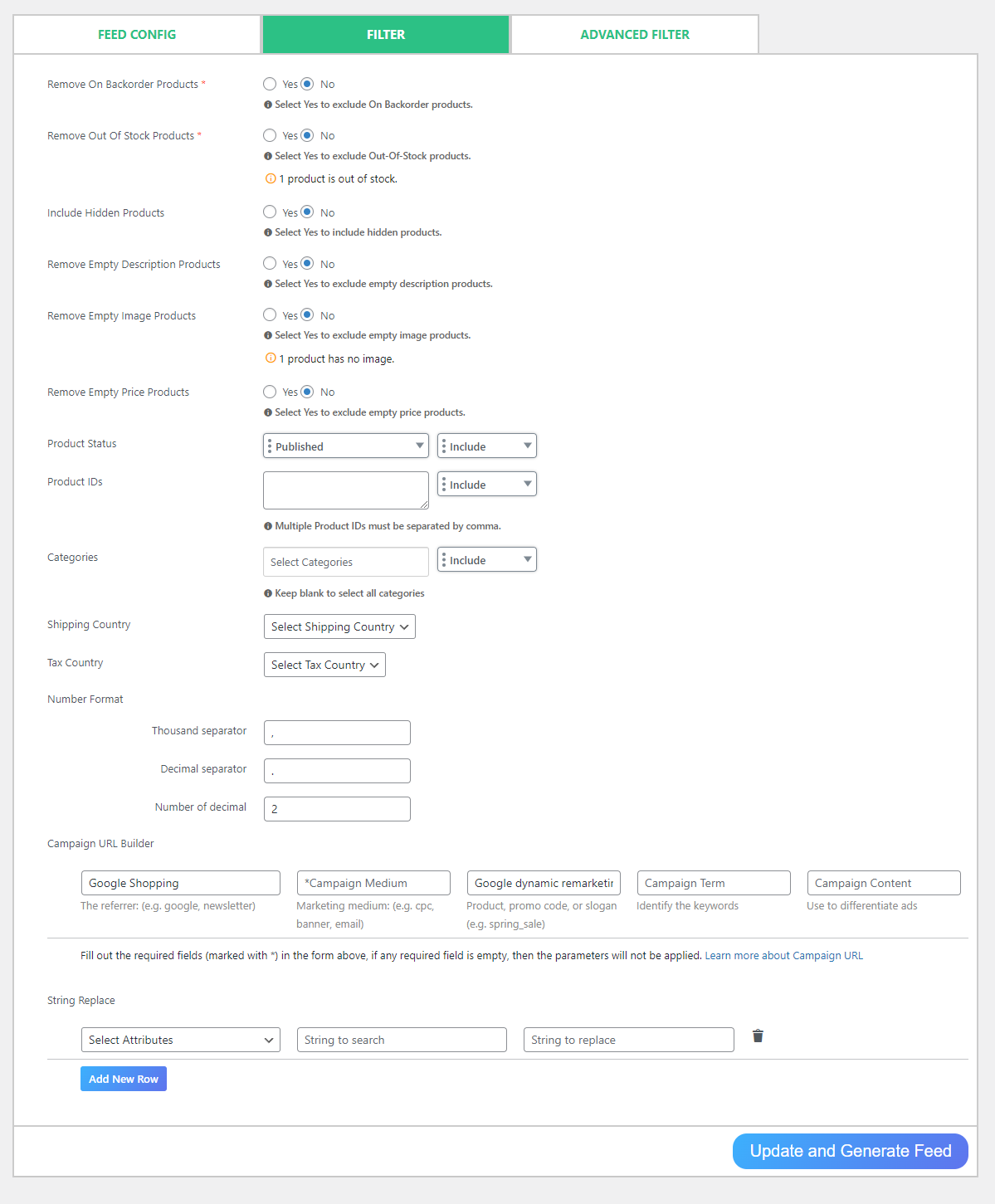
Feed parameter: availability
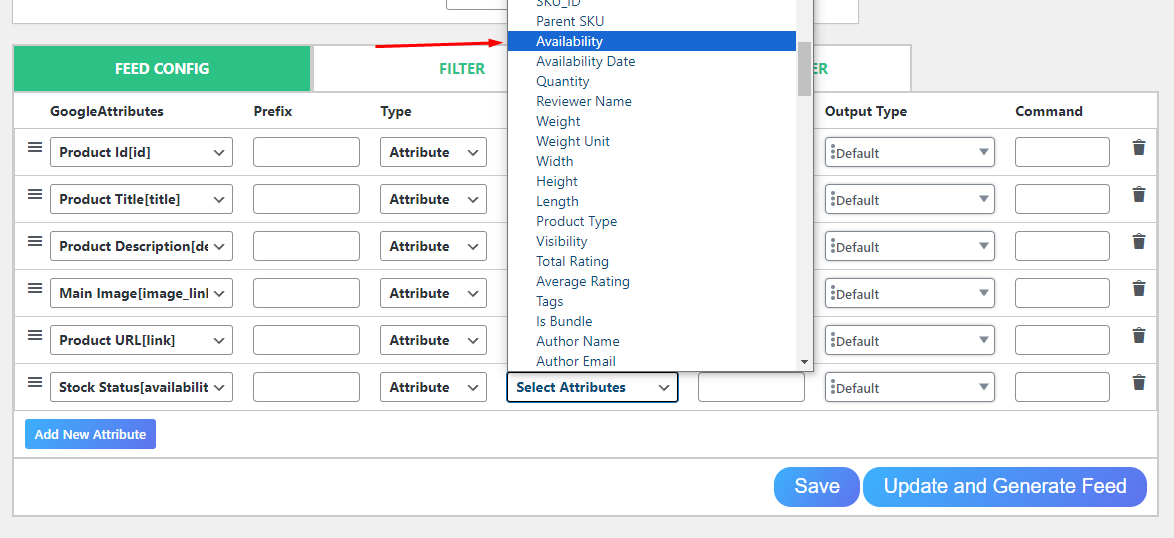
7. Product Availability Date
The Product Availability Date attribute is a must-have if you’re selling products that are not yet available.
It tells shoppers when your product will be available and can help improve product visibility in Google Shopping search results.
This attribute is only required for products that have an availability status of preorder or backorder.
The Product Availability Date should follow the format YYYY-MM-DD.
For example, if your product will be available on January 1, 2026, enter it as 2026-01-01.
Optimization tips for availability date:
- Set the correct availability date
- Update the availability date regularly
- Use a consistent format (YYYY-MM-DD)
- Include it for all products with “preorder” or “backorder” status
- Avoid using past dates
Feed parameter: availability_date
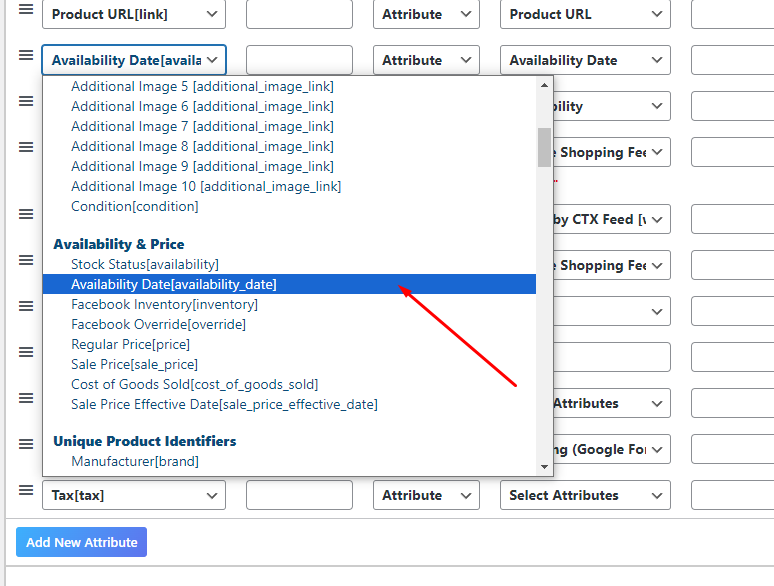
8. Product Price Optimization and Dynamic Pricing
The Product Price attribute plays a very key role in optimizing your shopping feed for Google Shopping.
It is crucial for driving better performance and attracting potential customers.
Google Shopping pricing best practices:
Set the correct price
The price you enter should be the actual price you charge for your product. Incorrect prices lead to shopper disappointment and disapprovals.
Update the price regularly
Your price may change over time. Update the price in your Google Shopping feed regularly using the sale_price and sale_price_effective_date attributes when running promotions.
Currency and formatting
Ensure prices are in the correct currency and follow a consistent formatting style. Different countries may have different conventions.
Consider dynamic pricing for Google Shopping
Dynamic pricing allows you to adjust prices based on factors such as demand and competition. This can help maximize profits and attract more shoppers.
Use Google’s Price Competitiveness report in Merchant Center to benchmark your prices against competitors.
Track your price performance
Monitor your price performance to ensure your prices are competitive. Use Google Shopping price benchmarks available in Merchant Center to stay informed.
Feed parameter: price
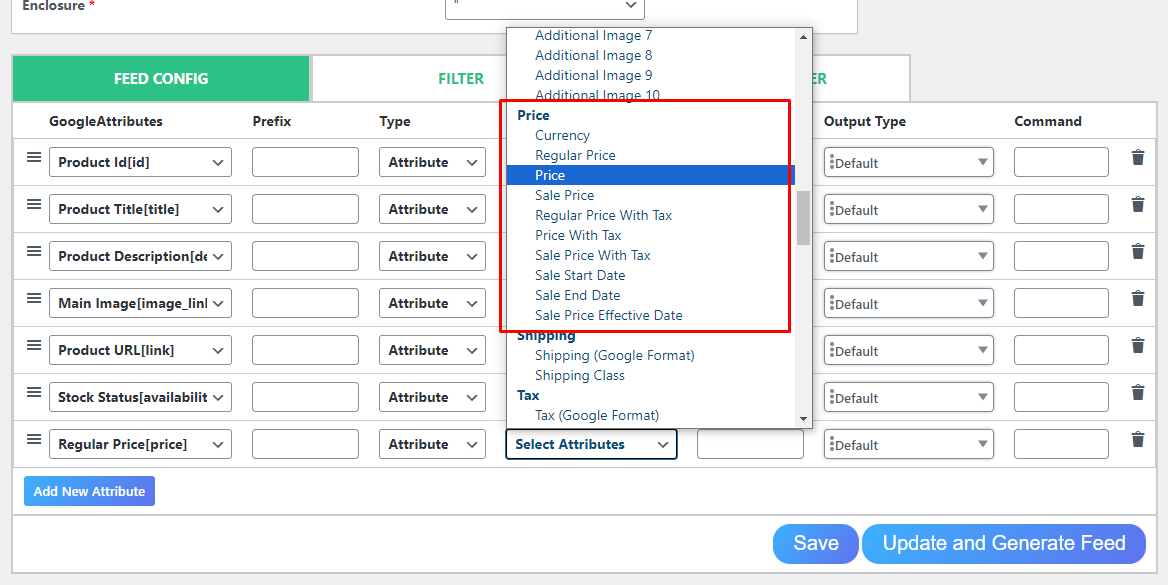
Most Common Price Errors in Google Merchant Center – Full Fix Guide (All Error Types)
9. Product Category and Google Product Taxonomy
In your WooCommerce store, the category names you use might not always match the ones used by Google.
To ensure buyers can find your products, it’s essential to map your categories to Google’s taxonomy.
When entering your product’s category and subcategory, be as specific as possible. The more granular the category, the better Google can classify your product and display it to relevant searchers.
Tips for category optimization:
- Download Google’s full product taxonomy to find the best matching categories
- Use the most specific (deepest) category level available
- Do not create your own categories — use only Google’s official taxonomy list
- Review and update your category mapping periodically as Google updates its taxonomy
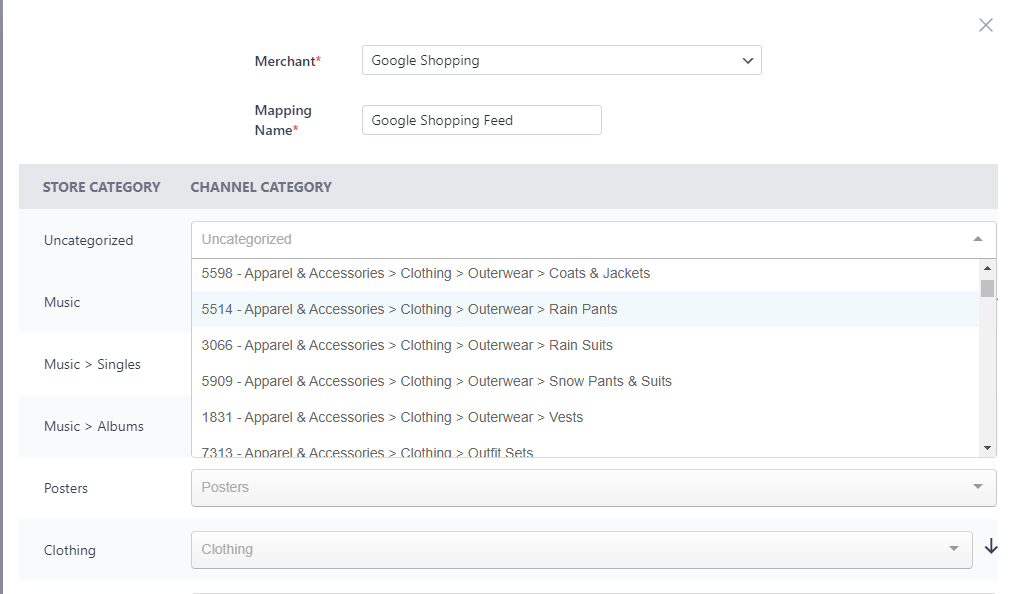
CTX Feed has a dedicated Category Mapping menu where you can create and set appropriate categories for the feed.
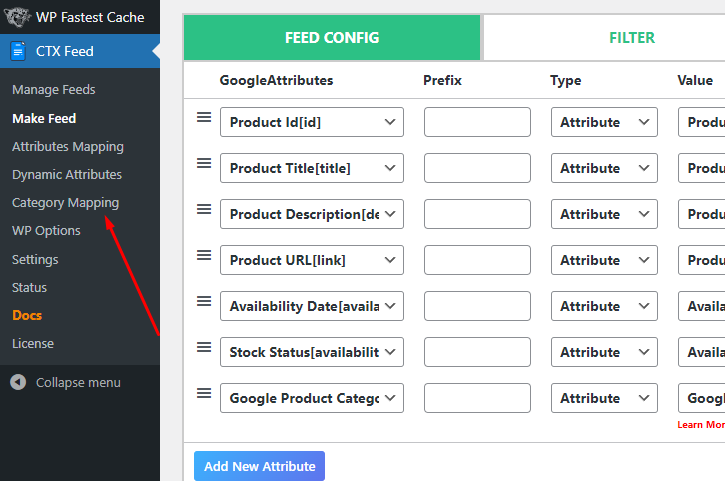
The plugin has integrated all available categories and subcategories.
Feed parameter: google_product_category
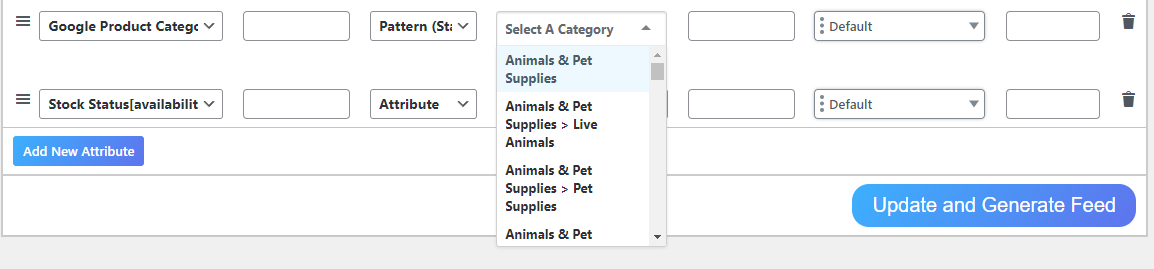
From the feed generation window, you can either set categories manually as static values.
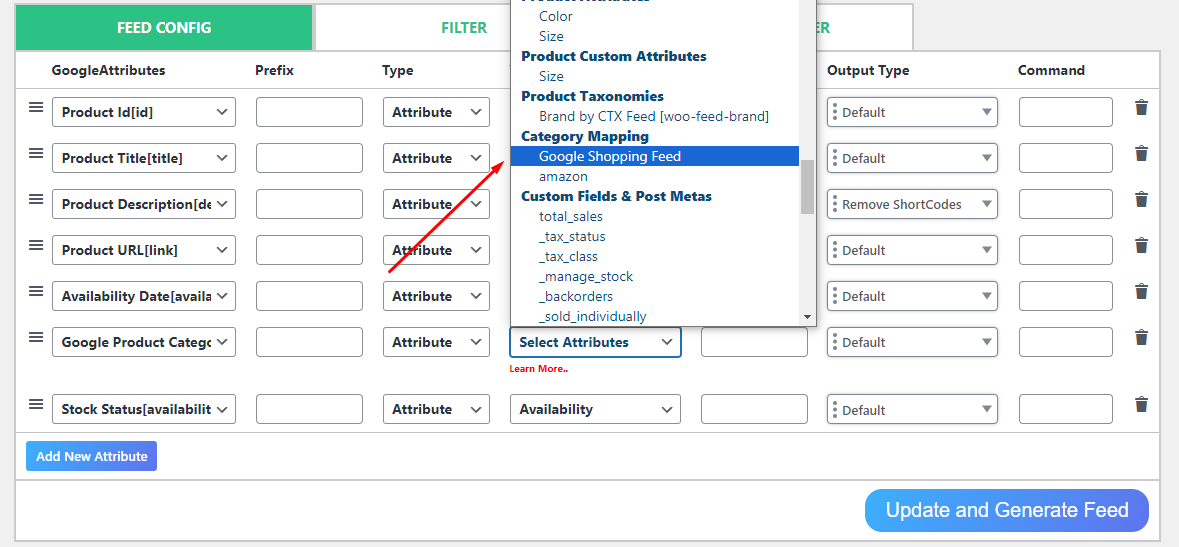
Or select the mapping attribute you created.
10. Specifying the Brand Attribute
If your product has a brand name, include it in your Google Shopping product feed. This helps Google understand your product and show it to shoppers searching for products from that brand.
The brand name you enter should be the same brand name used on your product’s packaging and on your website.
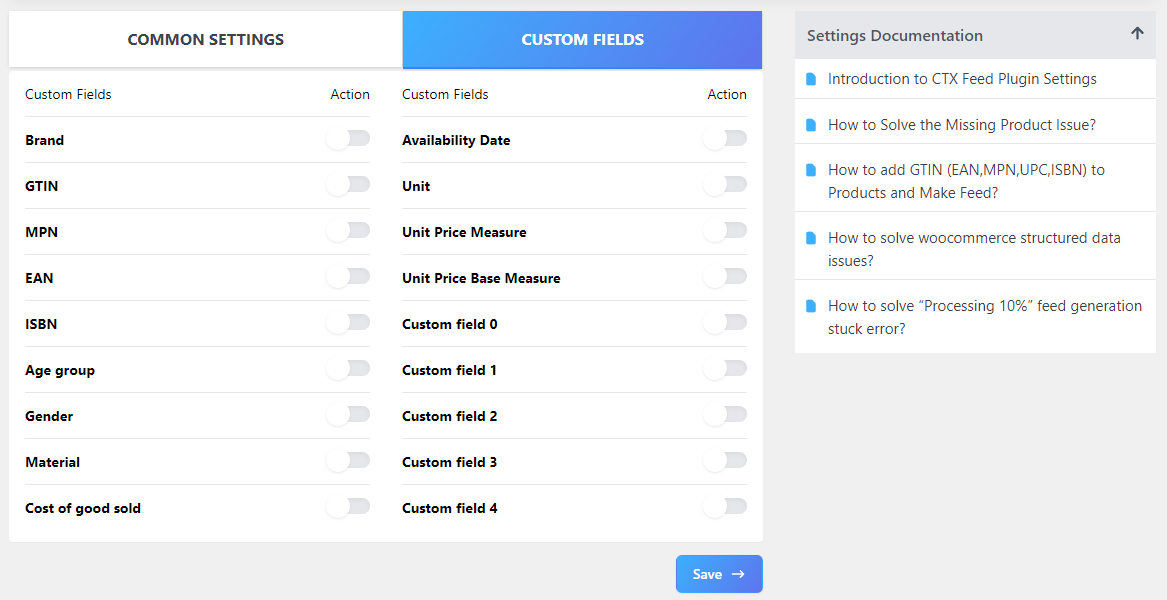
Important: WooCommerce doesn’t natively include brand, GTIN, or MPN fields. You can create custom fields or use CTX Feed, which comes with all the attributes Google may require.
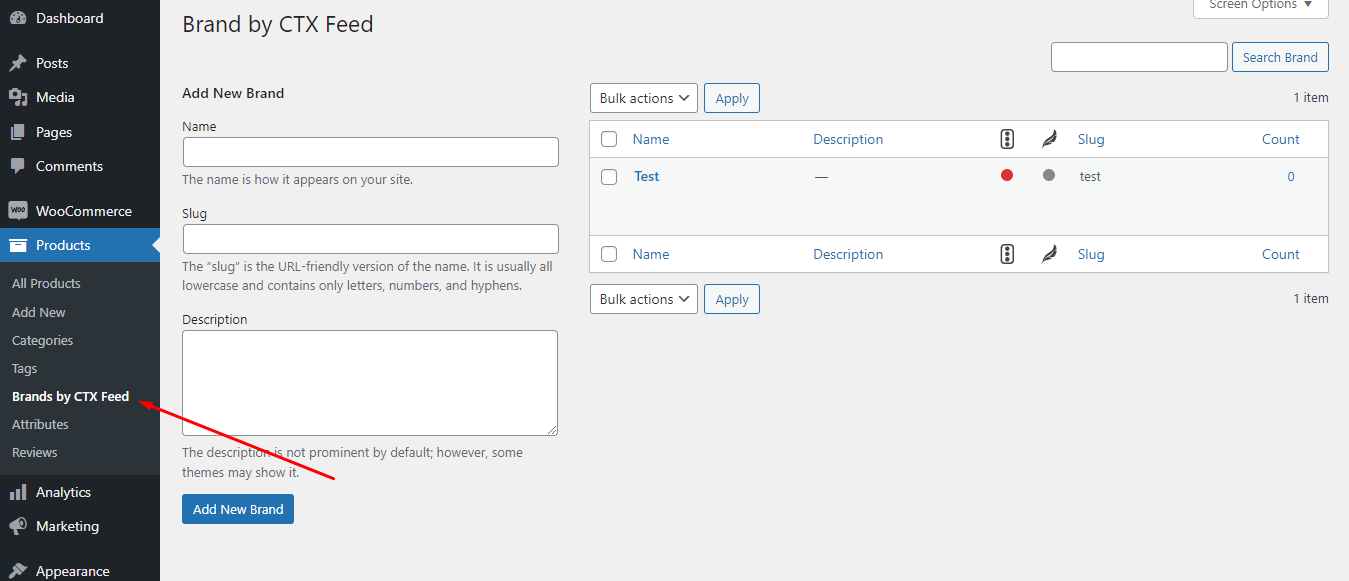
Go to Settings > Custom Fields in CTX Feed to enable custom fields. For the brand attribute, go to Products > Brands By CTX Feed and create your brand.
Feed parameter: brand
For brand attribute, go to Products>>Brands By CTX Feed and create your brand.
CTX Feed entry –
11. GTIN — Global Trade Item Number
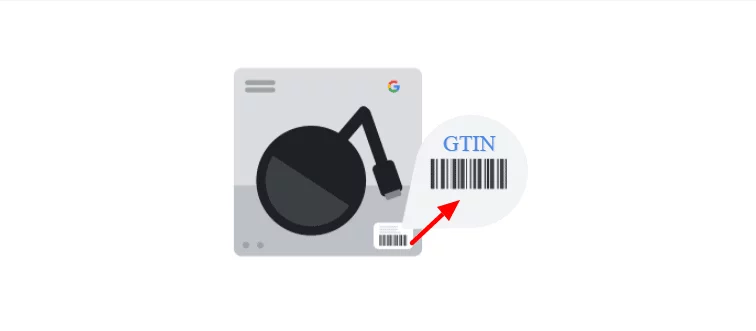
GTINs uniquely identify your product globally. Using correct GTINs gives Google more information to match your product to relevant searches and can improve your product’s visibility significantly.
GTIN optimization tips:
- Include GTINs for all products that have them
- Use the correct GTIN format (UPC, EAN, JAN, ISBN, or ITF-14)
- Never make up GTINs — use only officially assigned codes
- If your product doesn’t have a GTIN (e.g., handmade items), set
identifier_existstofalse
Feed parameter: gtin
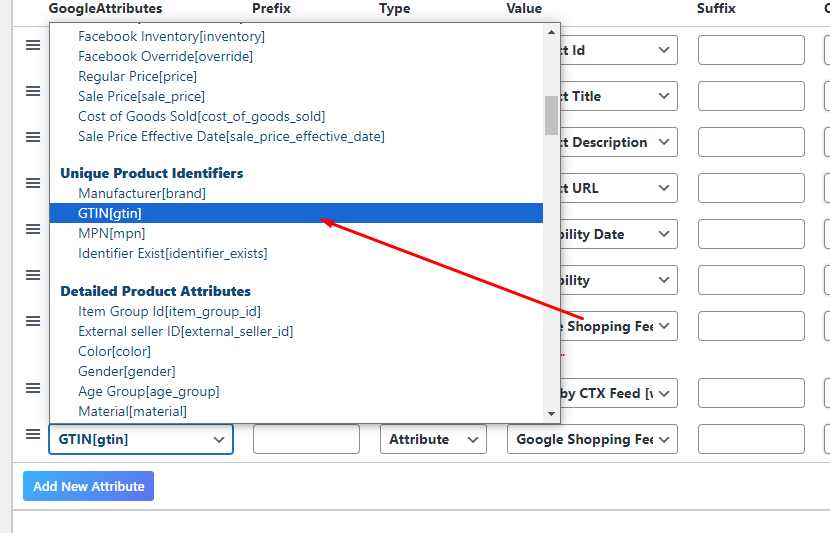
To know more, check out our article on Google Shopping GTINs: The Ultimate Guide for Sellers
12. Using Correct MPNs
12. MPN — Manufacturer Part Number
The Manufacturer Part Number (MPN) is a unique identifier assigned by the manufacturer to identify a specific product. It is used alongside the brand attribute to identify your product in Google Shopping.
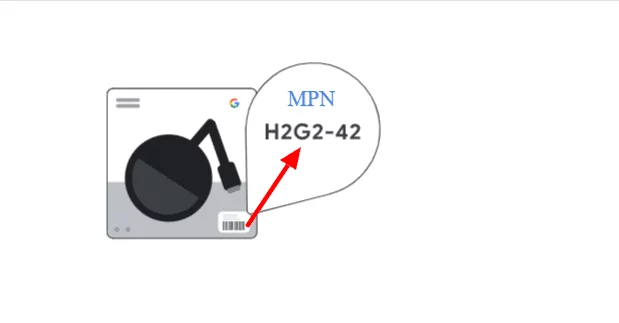
Ensure the MPN you submit is accurate. As Google’s policies tighten, incorrect MPNs can cause your product to be matched incorrectly with other products — or get disapproved entirely.
Feed parameter: mpn
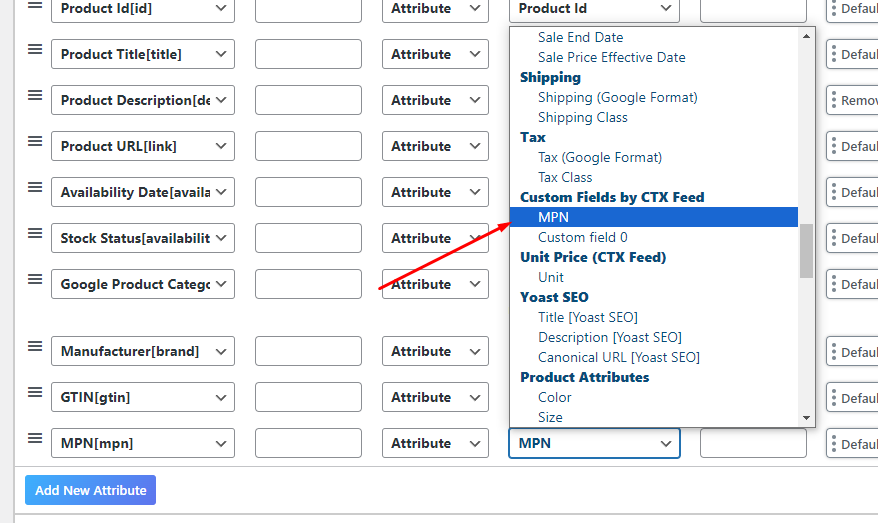
As like Brand, MPN, and GTIN are also not available on WooCommerce. Enable them from Custom Fields.
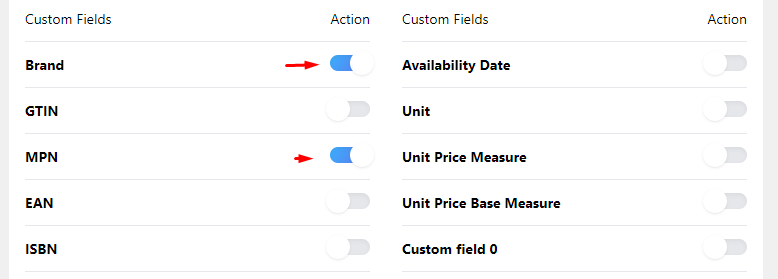
After you enable it, your product pages will have a field where you can enter the value.
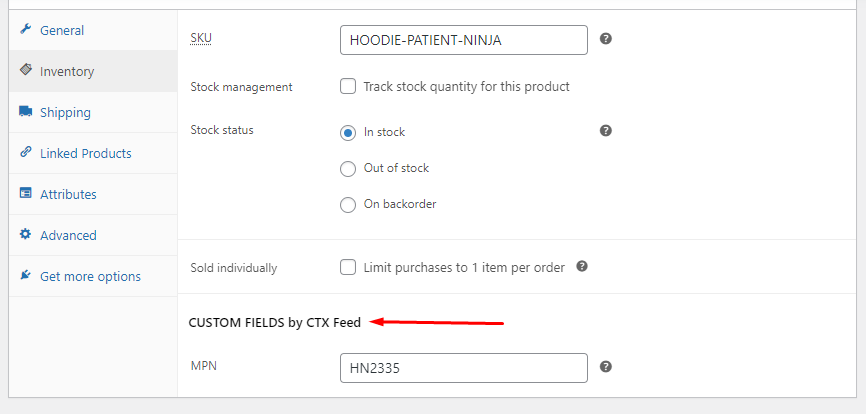
MPN parameter for Google Shopping product feed – mpn.
13. Custom Labels — Advanced Feed Segmentation
Custom labels let you add your own classification data to products in your feed. This is one of the most powerful but underused features in Google Shopping feed management.
What you can use custom labels for:
- Segment products by profit margin (e.g., “high-margin,” “low-margin”)
- Label seasonal products (e.g., “summer,” “holiday”)
- Identify bestsellers vs. slow-movers
- Flag products by price tier or promotion status
Custom labels allow precise bidding and performance tracking in your campaigns. You can define up to 5 custom labels per product (custom_label_0 through custom_label_4).
Feed parameter: custom_label_0 to custom_label_4
14. Shipping Attribute Optimization
Accurate shipping information is required for Google Shopping and directly impacts your product’s eligibility to show in results.
Incorrect or missing shipping data is one of the most common causes of product disapprovals.
Shipping optimization tips:
- Submit accurate shipping costs that match your website
- If you offer free shipping, make sure to reflect that in your feed
- Use the shipping attribute for region-specific shipping rules
- Keep shipping data updated — mismatches between feed and website cause disapprovals
- Use the
shipping_labelattribute in conjunction with custom campaign strategies
Feed parameter: shipping
15. Google Shopping Feed Optimization with Feed Rules
Feed rules in Google Merchant Center allow you to transform your product data without editing your original data source.
This is a powerful feature for managing and optimizing product data feeds without technical changes to your website.
What you can do with feed rules:
- Set a price range for product variants
- Reformat or standardize attribute values
- Populate missing attributes from existing data
- Override specific values for a subset of products
Feed rules are especially useful when managing product data feeds for multiple marketplaces from a single source.
16. Supplemental Feed Optimization
A supplemental feed adds data that is missing from your primary feed or overrides certain attributes for specific products.
It’s an excellent tool for ecommerce feed optimization best practices without rebuilding your entire primary feed.
Common supplemental feed use cases:
- Adding custom labels for campaign segmentation
- Overriding titles or descriptions for specific products
- Adding missing GTINs or MPNs
- Setting sale prices for a limited product set
Feed parameter: Set up in Google Merchant Center under “Feeds” > “Supplemental feeds.”
17. Product Data Feed Update Frequency
Stale data reduces your ranking priority in Google Shopping. Keeping your feed fresh is essential for maintaining product visibility and avoiding disapprovals due to price or availability mismatches.
Feed update best practices:
- Update your primary feed at least once per day
- For fast-changing data (price, stock), aim for multiple updates daily
- Use the Scheduled Fetch option in GMC to automate feed refreshes
- Enable automatic item updates with structured data markup on your website — this allows Google to update price and availability in near real time
CTX Feed supports scheduled URL fetching, meaning Google pulls fresh data from your WooCommerce server automatically without any manual intervention.
18. Google Merchant Center Optimization Beyond the Feed
Google Merchant Center optimization goes well beyond just submitting a feed. To maximize performance:
- Resolve all disapprovals — Go to the Diagnostics section in GMC to identify and fix disapproved items. Disapprovals reduce your impression share significantly.
- Set up Merchant Promotions — Promotions (e.g., “10% off” or “Free Shipping”) are shown directly in your Shopping ads, which can meaningfully boost CTR.
- Enable Product Ratings — Star ratings appear in your listings and help increase shopper trust. High-rated products tend to rank and convert better.
- Use Price Competitiveness reports — Identify products where your prices are significantly above market benchmarks. Adjust pricing or bids accordingly.
- Check the Click Potential metric — GMC provides recommendations for improving your feed quality score and click potential.
19. Improve Product Feed Quality Score
Improving your product feed quality score in Google Merchant Center helps your products appear more often in relevant searches. A higher quality score means better ad placement and lower effective CPC.
How to improve product feed quality:
- Fill all required and recommended attributes completely
- Ensure product data matches your website exactly (price, availability, description)
- Use high-quality images
- Submit accurate GTINs and brand names
- Avoid keyword stuffing in titles and descriptions
- Fix all disapprovals in Merchant Center Diagnostics
20. WooCommerce-Specific Feed Optimization Tips
For WooCommerce store owners, there are some platform-specific Google Shopping feed optimization tips worth noting:
- WooCommerce product feed optimization works best when your WooCommerce product pages are already SEO-optimized. CTX Feed will pull that optimized data directly.
- Use CTX Feed’s filter and rule engine to include/exclude products based on stock, price, category, or custom criteria.
- For Shopify stores, similar feed optimization principles apply — ensure your Shopify Google Shopping feed is mapped with all required and recommended attributes.
- For Magento users, use a dedicated Magento Google Shopping feed extension and follow the same attribute optimization principles.
- For BigCommerce stores, submit a BigCommerce Google Shopping feed with complete attribute mapping.
21. Multi-Channel and Marketplace Feed Optimization
If you sell across multiple channels, consider how to optimize product feeds for multiple channels from a single source. The same core principles apply across Google Shopping, Meta (Facebook/Instagram), and other comparison shopping engines.
Multi-channel feed management tips:
- Use a centralized product feed management solution to manage data for multiple marketplaces from one place
- Customize attributes per channel — titles and descriptions that work on Google may need adjustment for Meta or Amazon
- Use custom labels to segment products by channel performance
- Track performance separately per channel to identify where to invest more budget
Solutions like CTX Feed allow you to create multiple feed variations from the same WooCommerce product data, tailored for different platforms.
22. How to Optimize Google Shopping Campaigns Beyond the Feed
Google Shopping campaign optimization is the other half of the equation. A great feed without a well-structured campaign leaves performance on the table.
Campaign optimization best practices:
- Segment your campaign by product category, brand, or profit margin — avoid one large catch-all campaign
- Use negative keywords to exclude irrelevant search queries and reduce wasted spend
- Use custom labels in your feed to enable granular bidding strategies
- Monitor Benchmark CTR and Benchmark CPC in your campaign reports
- Use bid adjustments by device and audience — mobile and repeat visitors often convert better
- Consider Performance Max campaigns — as of 2026, they account for the majority of Shopping ad impressions, but only when feeds are fully optimized
For Google Shopping negative keywords setup, go to your Google Ads campaign and navigate to the Keywords tab to add negative terms based on your Search Terms report.
23. Using AI and Automation for Google Shopping Feed Optimization
AI-powered product feed optimization is now one of the most effective ways to scale your Google Shopping presence without increasing headcount.
What AI can do for your feed:
- Automatically identify missing keywords in product titles and descriptions
- Suggest title and description rewrites based on high-performing queries
- Reorder title elements to front-load the most impactful keywords
- Flag products with quality issues for review
- Automate attribute mapping and data enrichment at scale
Tools like CTX Feed, combined with Google’s own machine learning in Performance Max and Smart Shopping campaigns, allow merchants to optimize product feeds with minimal manual effort.
For merchants asking how to improve ROAS with product feeds, the answer usually lies in a combination of better feed data quality, smarter campaign segmentation, and automated bidding strategies aligned with your product margins.
How to Check Your Google Shopping Feed for Errors?
Before submitting or updating your feed, always validate it. A feed with errors causes disapprovals that reduce visibility and waste ad budget.
How to check your Google Shopping feed:
- Log in to Google Merchant Center
- Go to Products > Diagnostics
- Review and fix all item-level errors and account-level issues
- Use the Feed Rules section to apply fixes without changing your source data
- Use CTX Feed’s built-in validation to catch errors before uploading
Common errors include mismatched prices, missing GTINs, incorrect availability values, and image quality issues.
Google Shopping Feed Optimization Best Practices — Quick Checklist
Use this checklist before submitting or updating your Google Shopping product feed:
Feed Data Quality
- All required attributes are filled (id, title, description, link, image_link, price, availability, brand, gtin/mpn)
- Product titles follow the recommended formula with keywords at the front
- Descriptions are clear, keyword-rich, and under 5,000 characters
- Images are high-quality (800×800 min), no watermarks, correct format
- Prices match exactly what’s on your landing page
- Availability status is accurate and updated
Google Merchant Center
- No active disapprovals in Diagnostics
- Feed updates scheduled (at least daily)
- Merchant Promotions set up (if applicable)
- Product Ratings enabled
- Price Competitiveness reports reviewed
Campaign
- Campaign segmented by product type or custom labels
- Negative keywords applied
- Bid strategy aligned with ROAS goals
Frequently Asked Questions (FAQs)
What is feed optimization?
Answer: Feed optimization is the process of improving and refining your product data feed to enhance its performance and effectiveness in advertising.
What is the maximum size for a Google Shopping feed?
Answer: Google recommends that each XML feed file be no larger than 500MB. If the XML file is compressed in GZIP format, the original file size should also not exceed 500MB.
Conclusion
Google Shopping feed optimization is not a one-time task — it’s an ongoing process. Every attribute you refine, every image you improve, and every disapproval you fix contributes to better product visibility, higher CTR, and more conversions.
Start with your highest-impression, lowest-CTR keywords from your Search Console data. These are your biggest opportunities. Improve your product titles and descriptions to better match how your shoppers search.
Use a reliable product feed management tool like CTX Feed to automate and scale your WooCommerce Google Shopping feed optimization.
The right tool will save you time, reduce errors, and help you get more from every dollar you spend on Google Shopping.
If you need to do Google Shopping feed optimization for multiple channels — Google, Meta, TikTok Shop, and others — a centralized feed management approach will help you maintain consistency while customizing data per platform.
Take action today. Improve your feed, improve your results.