Your store might label sizes as “Small”, “Medium”, and “Large”, but Google Shopping shoppers filter by “S”, “M”, and “L” — and a mismatch can cost you visibility in size-based searches. CTX Feed’s Dynamic Attributes let you rewrite size values on the way into the feed: read the size a product already carries and output the exact label you want Google to see, without renaming a single WooCommerce variation. This page shows how to normalize or remap size values and wire them into your Google feed.
This feature requires CTX Feed Pro. On the free plugin the Dynamic attributes screen shows what the feature does, with an upgrade button instead of the editor.
When to remap size
Reach for a dynamic size attribute when:
- Your store sizes are spelled out (“Small”) and you want the short forms (“S”) that shoppers search.
- Different products use inconsistent labels (“XL”, “X-Large”, “Extra Large”) that you want collapsed into one standard value.
- You need to translate regional sizing (for example EU numbers to US letters) for a specific feed.
If your store sizes are already exactly what Google should show, you do not need a dynamic attribute — just map the size attribute directly in the feed. Use this approach when the values need to change.
Where to find Dynamic Attributes
In your WordPress dashboard, open CTX Feed, then go to Data mapping → Dynamic attributes. Click New dynamic attribute (or Create your first attribute on the empty state).
Build the size-remapping rule
Say your variations use Small / Medium / Large and you want S / M / L in the feed. You will create one rule per size value.
- In Attribute name, type a short, lowercase name such as
google_size. This is the name you will select when editing the feed. - In Rule 1, set the IF side: choose your size attribute (for example the Size product attribute) on the left, pick is/equal to as the condition, and type
Smallin the compare value. - On the OUTPUT side, switch the toggle to Text and type
S. - Click Add rule. Set Rule 2 to Size is/equal to
Medium→ TextM. - Add Rule 3 for Size is/equal to
Large→ TextL. Continue for every size value you sell. - In the Otherwise output bar, choose Attribute and select the Size attribute. This passes through any size you did not explicitly remap, so nothing is lost.
- Click Save attribute.
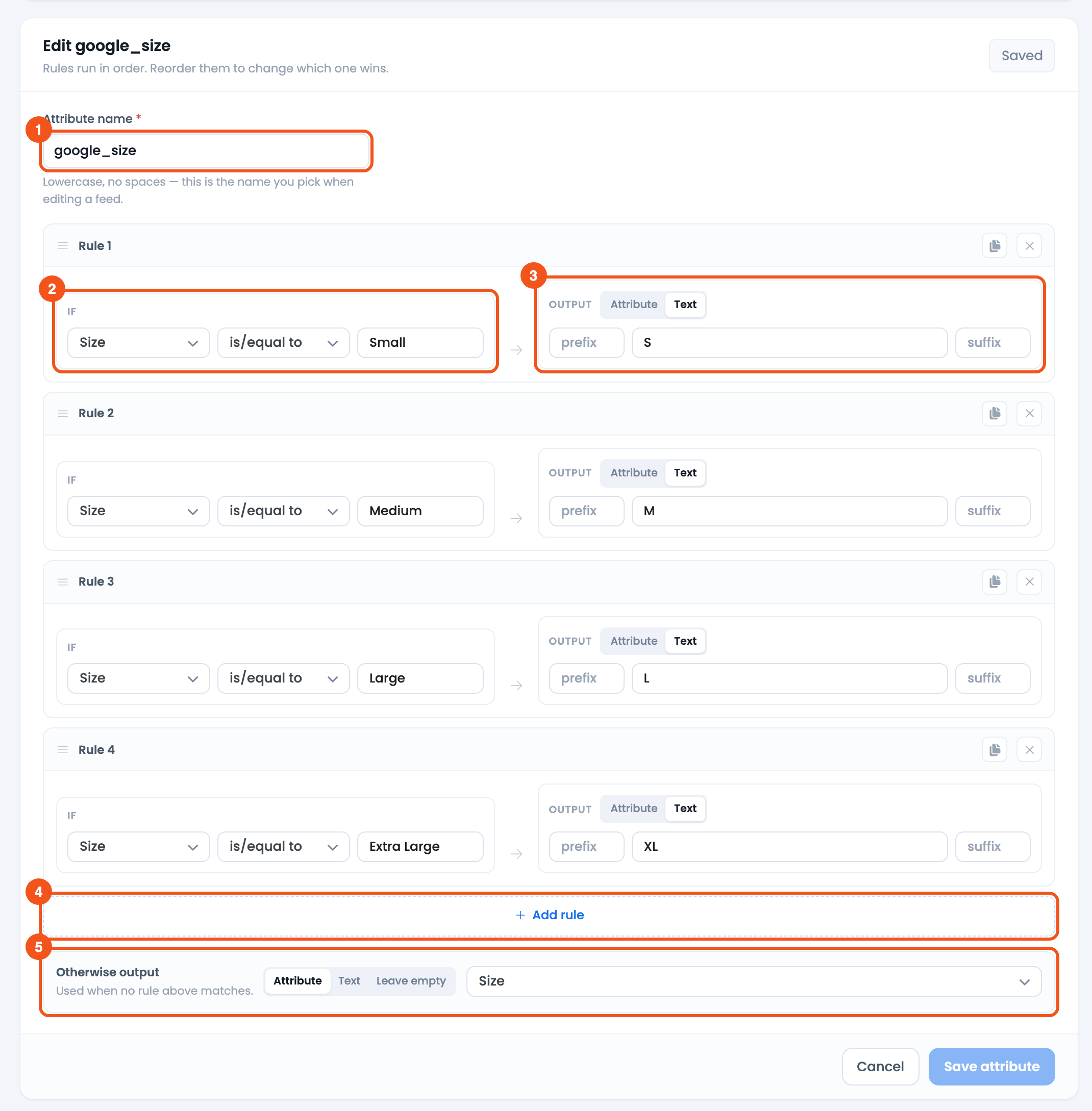
- Attribute name —
google_size, the name you pick on the feed’s Config tab. - IF — Size is/equal to
Small. - OUTPUT — Text
S. - Add rule — add another IF → OUTPUT rule below.
- Otherwise output — Attribute → Size, so unmapped sizes keep their value.
Rules run top to bottom and the first match wins. With is/equal to, each rule matches one exact value, so ordering rarely causes overlaps here — but keep the fallback set to the original Size attribute so unlisted sizes still appear.
Match store values exactly
The compare value is checked against the size a product actually stores. Use the display value your store shows for that size (for example Small, not the slug small). If a size never remaps, open the product, confirm the exact wording of its size value, and match it in the rule.
Add the size field to your Google feed
The dynamic attribute changes nothing until the feed’s size field points at it.
- Go to Feeds → Make feed, or edit your Google feed from Manage feeds.
- Confirm the channel is Google Shopping and open the Config tab.
- Find the
sizerow (add it if it is missing) and set its source to Attribute. - In the value dropdown, open the Dynamic Attributes group and pick
google_size. - Save and regenerate the feed.

- The
sizerow, with Source set to Attribute andgoogle_sizepicked from the Dynamic Attributes group.
Preview the generated feed from Manage feeds and confirm each item’s g:size value now shows the standardized label.
Tips and troubleshooting
- Commas become slashes. On Google feeds CTX Feed turns a comma in
size(and incolor,materialandpattern) into/, so an output likeS, Mis sent asS/M— the separator Google expects. - Size is per-variation. Each variation has its own size, so make sure your feed is set to output variations — otherwise only the parent product is sent and there is no size to remap.
- A size did not change. The is/equal to condition needs an exact match. Double-check the product’s stored size wording (including capitalization and any hyphens like “X-Large”) and mirror it in the compare value.
- Some sizes disappear. Set the Otherwise output fallback to the Size attribute so any value you did not remap passes through unchanged. Leave empty would drop unmatched sizes.
- Reuse across feeds. One
google_sizeattribute can feed the size field on multiple channels — build the mapping once and select it wherever you need it. - The attribute is not in the dropdown. New dynamic attributes are cached briefly; reload the Make Feed screen if it does not appear right away.
Related guides
- Dynamically Add Gender to Google Product Feed
- Conditionally Merge Multiple Attributes
- Dynamically Change Product Price
- Dynamic Discount Prices Based on Product Title
