Google Shopping, Meta, and most comparison-shopping channels expect a brand value on every product, and they reject or de-rank items that leave it blank. WooCommerce, however, has no single universal brand field — some shops store the brand in a brands taxonomy, some in a product attribute, some in a custom field, and some sell only one brand. This guide explains how to fill the brand attribute in your CTX Feed feed for every one of those situations, from a one-line static value to a per-product dynamic attribute rule.
The per-product method on this page requires CTX Feed Pro. Setting the brand from a single source or a fixed value works in the free plugin. On the free plugin the Dynamic attributes screen shows what the feature does, with an upgrade button instead of the editor.
Where your brand data lives
Before you map anything, decide where the brand actually comes from in your store. The right method depends on the answer:
- One brand for the whole shop. You resell or manufacture a single label — set a fixed text value.
- A brands taxonomy. You use the native WooCommerce Brands taxonomy (built into newer WooCommerce) — new Google feeds already map
brandto Parent Brand (WooCommerce) for you. Brands from another plugin’s taxonomy (for example Perfect Brands) can be picked too, but other taxonomies need CTX Feed Pro. - A product attribute. You have a global attribute such as Brand (
pa_brand) — map the brand field to that attribute. - A custom field / SEO field. The brand sits in a meta field, an ACF field, or an SEO plugin field — map to that source.
- Brand depends on the product. Different categories or lines carry different brands with no single field to read — use a dynamic attribute rule.
The simplest cases: map or fix the value
For most stores you don’t need a rule at all. On the feed editor, the brand output field takes its value from whichever source you choose:
- Go to CTX Feed → Make feed, or open an existing feed from Manage feeds.
- In the attribute configuration table, find the brand output field (it appears automatically for channels that use it, such as Google Shopping’s
g:brand). If your channel’s template doesn’t list it, click Add attribute and choose the brand field (on Google it’s listed as Manufacturer [brand]). - Set its value:
- One brand for all products: switch Source to Text and type the brand name (for example
Acme). New feeds start this way with your store name when no WooCommerce brands exist. - Brand from a taxonomy or attribute: keep Source on Attribute, open the value dropdown and pick Brand (WooCommerce), your brand taxonomy, or the Brand product attribute. CTX Feed reads the assigned term for each product.
- One brand for all products: switch Source to Text and type the brand name (for example
- Save and Regenerate the feed, then open the file and confirm the brand column is populated.

- The
brandrow (listed as Manufacturer [brand] on Google), with Source set to Attribute and Parent Brand (WooCommerce) as the value.
If one of these covers you, you’re done — the rest of this guide is for catalogues where the brand varies and no single field holds it.
Set the brand conditionally with a dynamic attribute
When brand depends on the product — for example, everything under Footwear is Nike and everything under Apparel is Adidas — build a dynamic attribute that decides the brand per product.
- Open CTX Feed → Data mapping → Dynamic attributes and click New dynamic attribute.
- In Attribute name, enter a lowercase name with no spaces, such as
product_brand. - Build one rule per brand in the IF → OUTPUT row:
- IF panel — pick the field that tells you the brand in Select attribute (for example Product Category [Category Path] or a product attribute), choose a Condition such as contains, and type the value to match (for example
Footwear). - OUTPUT panel — switch to Text and type the brand (for example
Nike).
- IF panel — pick the field that tells you the brand in Select attribute (for example Product Category [Category Path] or a product attribute), choose a Condition such as contains, and type the value to match (for example
- Click Add rule for each additional brand. Rules run top to bottom and the first match wins, so order them from most specific to most general and drag the handle to reorder.
- In Otherwise output, choose a sensible default — Text with your house brand, or Attribute pointing at your brand taxonomy so any product the rules miss still gets a value. Avoid Leave empty, since channels dislike a blank brand.
- Click Save attribute.
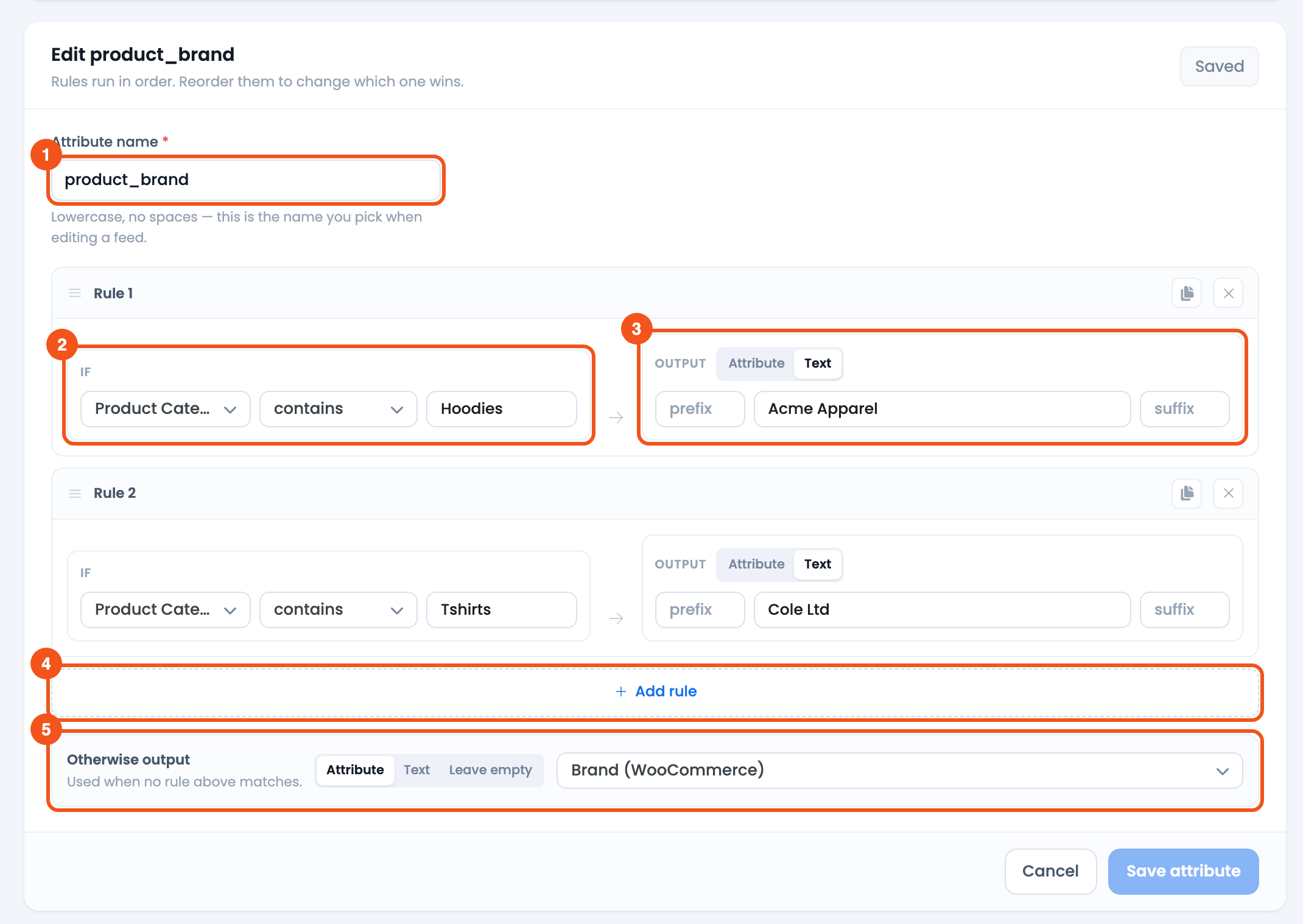
- Attribute name —
product_brand, the name you pick on the feed’s Config tab. - IF — Product Category [Category Path] contains
Hoodies. - OUTPUT — Text
Acme Apparel, the brand for that category. - Add rule — add another IF → OUTPUT rule below.
- Otherwise output — Attribute → Brand (WooCommerce), so other products keep their own brand.
Reading the brand from a field, then rewriting it
A dynamic attribute can also output an attribute, not just fixed text. If your brand sits in an attribute but needs a prefix, suffix, or a cleanup for a few edge cases, set the OUTPUT toggle to Attribute, pick the brand source, and use the prefix/suffix boxes to wrap it. Add a specific rule above it to override just the products that need a different brand.
Apply the dynamic attribute to your feed
- Open the feed in Make feed (or Manage feeds → Edit).
- On the brand output row, open the value dropdown and select your dynamic attribute from the Dynamic Attributes group (for example
product_brand). - Save the feed and click Regenerate.
- Open the generated file and confirm each product now shows the correct brand.

- The
brandrow, withproduct_brandpicked from the Dynamic Attributes group.
Because the dynamic attribute is reusable, you can map the same product_brand to a Google feed, a Meta feed, and a Pinterest feed without rebuilding the logic.
Troubleshooting
- Brand column is empty. No source is mapped, or the mapped taxonomy/attribute has no term assigned to those products. Assign brand terms in WooCommerce, or set a fallback value.
- All products show the fallback brand. A dynamic-attribute rule never matched — verify the Select attribute and compare value. For category matching, remember the category path may read like
Shoes > Running, so contains is safer than is/equal to. - Google flags “missing brand” for some items. Those products slipped through to a Leave empty fallback. Change the fallback to a text value or a taxonomy source so nothing exports blank.
- Brand looks outdated. Run Clear Cache on the Manage feeds screen, then regenerate.
Related guides
- How to Make a Dynamic Attribute
- If Field A Is Empty Then Get B Rule
- Dynamically Add Gender to Google Product Feed
- Conditionally Merge Multiple Attributes
