%22%2F%3E%0A%3Cpath%20d%3D%22M59.8894%2016.6974C60.1689%2016.9331%2060.5416%2017.1216%2060.9142%2017.0745C61.5664%2017.0273%2061.8925%2016.6031%2061.6596%2015.7547C61.5198%2014.4349%2061.4267%2013.1623%2061.2869%2011.8425C61.1006%209.72149%2060.8211%207.55331%2060.5881%205.38512L60.1689%201.70863C60.0757%200.81307%2059.6099%200.294591%2058.7713%200.106053C58.4918%20-0.0353509%2058.2123%20-0.0353509%2057.9328%200.106053C57.7931%200.106053%2057.6999%200.106053%2057.6067%200.153187C56.5353%200.483129%2055.4172%200.81307%2054.3458%201.19015C53.5073%201.47295%2052.6222%201.75576%2051.7371%202.03857C50.2929%202.50991%2048.8488%203.02839%2047.4047%203.49974C46.4264%203.82967%2045.4016%204.1596%2044.3768%204.48952L44.3767%204.48956C43.6313%204.72523%2043.3518%205.24371%2043.6313%205.85646C43.7711%206.13927%2044.004%206.32781%2044.2369%206.46921C44.7028%206.79915%2045.2152%207.08196%2045.6811%207.4119C45.8674%207.55331%2046.0537%207.69471%2045.8208%208.02465C45.7276%208.21319%2045.5879%208.35459%2045.4481%208.54313L45.355%208.73167L44.5164%2010.0986L43.9108%2010.9941L43.3052%2011.8897L43.2121%2011.9839L42.1406%2013.5865L44.5867%2019.8706C45.5713%2022.1447%2048.6357%2026.5713%2052.552%2023.6277L53.9265%2022.2593L54.3458%2021.5523C54.3924%2021.458%2054.4856%2021.3637%2054.5321%2021.2694L54.5787%2021.2223C55.2309%2020.1854%2055.883%2019.1956%2056.5352%2018.2059L56.5353%2018.2057C57.0477%2017.4044%2057.5601%2016.6503%2058.0726%2015.849C58.2123%2015.6604%2058.3055%2015.6133%2058.4918%2015.7076C58.9577%2016.0375%2059.4235%2016.4146%2059.8894%2016.6974Z%22%20fill%3D%22%233D89D0%22%2F%3E%0A%3Cpath%20d%3D%22M28.0259%2022.0232C27.9793%2022.0703%2027.9793%2022.1175%2027.9327%2022.1646C27.9793%2022.1175%2028.0259%2022.0703%2028.0259%2022.0232Z%22%20fill%3D%22url(%23paint1_linear)%22%2F%3E%0A%3Cpath%20d%3D%22M53.9265%2022.3064C53.7402%2022.5892%2053.5538%2022.872%2053.3675%2023.202C53.0414%2023.7204%2052.7153%2024.1918%2052.3892%2024.7103C51.3178%2026.4071%2050.1531%2027.9625%2048.4295%2029.0938C46.9388%2030.0365%2045.4015%2030.6021%2043.6779%2030.8849C42.1872%2031.1206%2040.7896%2030.9791%2039.3921%2030.5549C37.6219%2030.0365%2036.038%2029.1409%2034.687%2027.8211C33.7088%2026.8784%2032.9634%2025.7944%2032.3578%2024.616C32.0317%2023.9561%2031.7988%2023.2491%2031.4727%2022.5421C31.0534%2021.5522%2030.1683%2019.2427%2030.1218%2019.1012C30.0752%2019.0541%2030.0752%2018.9598%2030.0286%2018.9127C29.9354%2018.7242%2029.8422%2018.5828%2029.7957%2018.3942C29.6559%2018.0172%2029.4696%2017.6401%2029.3298%2017.2159C29.2366%2017.0273%2029.1901%2016.8388%2029.0969%2016.6503C28.9571%2016.3674%2028.864%2016.0846%2028.7242%2015.7547C28.5845%2015.3776%2028.4447%2015.0005%2028.2584%2014.6235C28.1652%2014.3407%2028.0254%2014.0579%2027.9323%2013.775C27.9323%2013.7279%2027.9323%2013.7279%2027.8857%2013.6808C27.7925%2013.4922%2027.7459%2013.3037%2027.6528%2013.1152C27.4664%2012.5967%2027.2335%2012.1253%2027.0006%2011.6069C27.0006%2011.5597%2026.954%2011.5126%2026.9074%2011.4655C26.8142%2011.2769%2026.7211%2011.1355%2026.5813%2010.947C26.5347%2010.8998%2026.4882%2010.8527%2026.4882%2010.8056C26.4416%2010.7584%2026.395%2010.7113%2026.395%2010.6642C26.3484%2010.617%2026.3018%2010.5699%2026.2552%2010.5228C26.2086%2010.4756%2026.2086%2010.4285%2026.1621%2010.4285L26.1155%2010.3814C26.0689%2010.3342%2026.0223%2010.2871%2026.0223%2010.2871C25.9291%2010.1928%2025.8826%2010.1457%2025.7894%2010.0514C25.7428%2010.0043%2025.6962%209.95715%2025.6496%209.95715C25.603%209.91002%2025.5565%209.91002%2025.5099%209.86288C25.4167%209.81575%2025.3701%209.76861%2025.277%209.67435C25.2304%209.62721%2025.1838%209.62721%2025.1372%209.58008C25.0906%209.53294%2025.044%209.53294%2024.9974%209.48581C24.9509%209.48581%2024.9043%209.43867%2024.9043%209.43867C24.8577%209.39154%2024.8111%209.39154%2024.7645%209.3444C24.7179%209.3444%2024.7179%209.29727%2024.6714%209.29727C24.5782%209.25014%2024.485%209.203%2024.3918%209.15587C22.9943%208.59025%2021.1775%208.77879%2020.1992%209.10873C19.2675%209.43867%2018.2893%2010.3342%2018.2427%2010.4285C18.6619%209.72148%2019.0812%208.96733%2019.547%208.26031C20.1526%207.36475%2020.7117%206.4692%2021.3638%205.62078C22.3887%204.63095%2023.4602%203.78253%2024.6714%203.07551C27.0006%201.75575%2029.4696%201.52007%2032.0317%201.89715C33.3361%202.08569%2034.5939%202.60417%2035.7585%203.35832C36.9231%204.06534%2037.9014%204.96089%2038.7399%206.04499C39.2989%206.79914%2039.8114%207.60043%2040.1374%208.49598C40.6033%209.67435%2041.1623%2010.8056%2041.5816%2011.9839C41.7679%2012.5496%2042.0008%2013.068%2042.2338%2013.6336C42.2338%2013.6336%2042.2338%2013.6336%2042.2338%2013.6808V13.7279L45.0288%2019.8554C45.4015%2020.8452%2045.9139%2021.6465%2046.7059%2022.3535C47.2183%2022.872%2047.8705%2023.1548%2048.5227%2023.3905C48.5693%2023.3905%2048.6158%2023.4376%2048.6624%2023.4376C49.7805%2023.7676%2051.2246%2023.3905%2052.3426%2023.0134C53.088%2022.6835%2053.6936%2022.4007%2053.9265%2022.3064Z%22%20fill%3D%22url(%23paint2_linear)%22%2F%3E%0A%3Cpath%20d%3D%22M28.0255%2022.0238C27.9789%2022.0709%2027.9789%2022.118%2027.9324%2022.1652C27.9324%2022.1652%2027.9324%2022.1652%2027.9324%2022.2123C27.7926%2022.448%2027.6063%2022.6836%2027.4665%2022.9664C25.8826%2025.8416%2024.4385%2028.1512%2021.6434%2029.6595C19.3142%2030.9793%2016.8452%2031.215%2014.2831%2030.8379C14.1433%2030.8379%2014.0501%2030.7908%2013.9104%2030.7908C12.7458%2030.6022%2011.5812%2030.0838%2010.4165%2029.2825C8.78607%2028.1512%207.52829%2026.5958%206.64318%2024.8047L6.17733%2023.9091L5.01272%2021.5524L0.726927%2012.6911C0.447419%2012.0784%200.214496%2011.4656%200.121327%2010.8529C-0.437689%207.8834%200.95985%204.77252%203.80151%203.35849C5.43198%202.51007%207.24878%202.4158%208.87924%202.93428C10.6029%203.45276%2012.1402%204.67825%2013.0253%206.46937L13.1184%206.6579L14.7489%209.95732C14.7955%2010.0516%2014.7955%2010.1459%2014.8421%2010.2401C15.075%2010.8529%2015.8204%2012.4083%2016.426%2013.5867C16.4725%2013.6809%2016.5191%2013.7752%2016.5657%2013.8223C16.6123%2013.9638%2016.7055%2014.1052%2016.752%2014.1994C16.7986%2014.2937%2016.8452%2014.3408%2016.8452%2014.4351C16.8452%2014.4822%2016.8918%2014.4822%2016.8918%2014.5294C16.9384%2014.5765%2016.9384%2014.6708%2016.985%2014.7179C16.985%2014.765%2017.0316%2014.765%2017.0316%2014.8122C17.0316%2014.8593%2017.0781%2014.8593%2017.0781%2014.9064C17.0781%2014.9536%2017.1247%2015.0007%2017.1247%2015.0478C17.1247%2015.095%2017.1713%2015.095%2017.1713%2015.1421C17.3111%2015.4249%2017.4042%2015.7549%2017.544%2016.0377C17.6372%2016.2262%2017.6837%2016.4147%2017.7769%2016.6504C17.9632%2017.1689%2018.1962%2017.6402%2018.3825%2018.1587C18.5223%2018.4415%2018.6154%2018.7715%2018.7552%2019.0543C18.8018%2019.1485%2018.8484%2019.29%2018.8949%2019.3842C18.9881%2019.5728%2019.0347%2019.7613%2019.1279%2019.9498C19.3608%2020.5154%2019.5937%2021.0811%2019.9664%2021.5995C20.1993%2021.8823%2020.3857%2022.1652%2020.6652%2022.4008C22.3888%2023.9563%2024.9975%2023.862%2028.0255%2022.0238Z%22%20fill%3D%22url(%23paint3_linear)%22%2F%3E%0A%3Cpath%20d%3D%22M68.0888%2024.8694L68%207.88696H71.9963L71.8187%2018.4448L76.8806%207.88696H80.6548L81.3209%2018.3999L85.5392%207.88696H89.713L82.4754%2024.8694H78.1683L77.5466%2013.9072L72.3959%2024.8694H68.0888Z%22%20fill%3D%22%230D5293%22%2F%3E%0A%3Cpath%20d%3D%22M92.7771%2025.1385C89.2693%2025.1385%2086.7383%2022.6675%2086.7383%2019.2081C86.7383%2015.3893%2089.8021%2012.1545%2093.4431%2012.1545C96.6402%2012.1545%2098.8603%2014.4458%2098.8603%2017.7704C98.8603%2018.5342%2098.8159%2019.1182%2098.7271%2019.6124H90.4237C90.6457%2021.0501%2091.7114%2022.0385%2093.2211%2022.0385C94.1536%2022.0385%2094.9528%2021.724%2095.5301%2021.095L97.617%2023.4762C96.0185%2024.6443%2094.5976%2025.1385%2092.7771%2025.1385ZM90.6457%2017.411H95.4857C95.3081%2016.0632%2094.4644%2015.2545%2093.2211%2015.2545C92.0666%2015.2096%2091.0898%2016.0632%2090.6457%2017.411Z%22%20fill%3D%22%230D5293%22%2F%3E%0A%3Cpath%20d%3D%22M105.965%2024.9589C104.411%2024.9589%20103.167%2024.24%20102.368%2022.8473L101.924%2024.869H98.1499L101.791%207.52717L105.698%206.89819L104.322%2013.5923C105.166%2012.7836%20106.32%2012.2894%20107.519%2012.2894C110.139%2012.2894%20112.181%2014.8054%20112.181%2018.0401C112.226%2021.814%20109.428%2024.9589%20105.965%2024.9589ZM103.789%2016.3778L102.945%2020.4212C103.478%2021.185%20104.366%2021.6792%20105.388%2021.6792C107.208%2021.6792%20108.54%2020.2415%20108.54%2018.3097C108.54%2016.6474%20107.43%2015.4793%20105.92%2015.4793C105.077%2015.4793%20104.411%2015.7937%20103.789%2016.3778Z%22%20fill%3D%22%230D5293%22%2F%3E%0A%3Cpath%20d%3D%22M120.44%207.88696H125.058L127.899%2024.8694H123.725L123.193%2020.8259H117.154L114.978%2024.8694H110.582L120.44%207.88696ZM122.704%2017.5912L121.949%2011.9304L118.886%2017.5463H122.704V17.5912Z%22%20fill%3D%22%230D5293%22%2F%3E%0A%3Cpath%20d%3D%22M131.23%2012.3347H135.004L134.782%2013.5927C135.626%2012.7391%20136.736%2012.2449%20137.935%2012.2449C140.555%2012.2449%20142.597%2014.7608%20142.597%2017.9955C142.597%2021.8143%20139.8%2024.9592%20136.336%2024.9592C134.782%2024.9592%20133.539%2024.2853%20132.828%2022.9824L131.274%2030.0809H127.456L131.23%2012.3347ZM134.205%2016.3332L133.317%2020.5114C133.85%2021.2303%20134.738%2021.6796%20135.715%2021.6796C137.535%2021.6796%20138.867%2020.2419%20138.867%2018.31C138.867%2016.6477%20137.757%2015.4796%20136.247%2015.4796C135.493%2015.4796%20134.827%2015.7492%20134.205%2016.3332Z%22%20fill%3D%22%230D5293%22%2F%3E%0A%3Cpath%20d%3D%22M144.595%2012.3347H148.369L148.147%2013.5927C148.99%2012.7391%20150.101%2012.2449%20151.299%2012.2449C153.919%2012.2449%20155.962%2014.7608%20155.962%2017.9955C155.962%2021.8143%20153.164%2024.9592%20149.701%2024.9592C148.147%2024.9592%20146.904%2024.2853%20146.193%2022.9824L144.683%2030.0809H140.865L144.595%2012.3347ZM147.57%2016.3332L146.682%2020.5114C147.214%2021.2303%20148.102%2021.6796%20149.079%2021.6796C150.9%2021.6796%20152.232%2020.2419%20152.232%2018.31C152.232%2016.6477%20151.122%2015.4796%20149.612%2015.4796C148.857%2015.4796%20148.191%2015.7492%20147.57%2016.3332Z%22%20fill%3D%22%230D5293%22%2F%3E%0A%3Cpath%20d%3D%22M159.115%2024.8694H155.296L158.005%2012.3347H161.824L159.115%2024.8694ZM158.449%208.47099C158.449%207.1681%20159.559%206%20160.847%206C161.912%206%20162.8%206.85361%20162.8%207.93186C162.8%209.27967%20161.69%2010.4029%20160.358%2010.4029C159.248%2010.4029%20158.449%209.54924%20158.449%208.47099Z%22%20fill%3D%22%230D5293%22%2F%3E%0A%3Cpath%20d%3D%22M169.727%2020.6909L171.592%2023.1619C170.304%2024.4648%20168.572%2025.1387%20166.752%2025.1387C163.466%2025.1387%20161.068%2022.7126%20161.068%2019.388C161.068%2015.3446%20164.088%2012.1099%20167.862%2012.1099C170.082%2012.1099%20171.947%2013.0983%20173.013%2014.7606L170.304%2017.0069C169.727%2015.9736%20168.927%2015.4794%20167.773%2015.4794C166.13%2015.4794%20164.842%2017.0518%20164.842%2019.0286C164.842%2020.6909%20165.819%2021.6793%20167.329%2021.6793C168.261%2021.7243%20169.016%2021.4098%20169.727%2020.6909Z%22%20fill%3D%22%230D5293%22%2F%3E%0A%3Cpath%20d%3D%22M175.722%207.52717L179.629%206.89819L177.365%2017.6807L182.426%2012.3344H187L180.517%2018.6691L184.691%2024.869H180.162L177.009%2019.5676L175.899%2024.869H172.081L175.722%207.52717Z%22%20fill%3D%22%230D5293%22%2F%3E%0A%3Cdefs%3E%0A%3ClinearGradient%20id%3D%22paint0_linear%22%20x1%3D%2223.1831%22%20y1%3D%2224.7007%22%20x2%3D%2223.3049%22%20y2%3D%228.44851%22%20gradientUnits%3D%22userSpaceOnUse%22%3E%0A%3Cstop%20stop-color%3D%22%23327ACD%22%2F%3E%0A%3Cstop%20offset%3D%221%22%20stop-color%3D%22%234696D2%22%2F%3E%0A%3C%2FlinearGradient%3E%0A%3ClinearGradient%20id%3D%22paint1_linear%22%20x1%3D%2227.9436%22%20y1%3D%2222.0876%22%20x2%3D%2228.0428%22%20y2%3D%2222.0876%22%20gradientUnits%3D%22userSpaceOnUse%22%3E%0A%3Cstop%20offset%3D%220.2029%22%20stop-color%3D%22%234C51BF%22%20stop-opacity%3D%220.9%22%2F%3E%0A%3Cstop%20offset%3D%221%22%20stop-color%3D%22%235A67D8%22%20stop-opacity%3D%220.9%22%2F%3E%0A%3C%2FlinearGradient%3E%0A%3ClinearGradient%20id%3D%22paint2_linear%22%20x1%3D%2232.4583%22%20y1%3D%222.22148%22%20x2%3D%2239.8371%22%20y2%3D%2230.0298%22%20gradientUnits%3D%22userSpaceOnUse%22%3E%0A%3Cstop%20offset%3D%220.3367%22%20stop-color%3D%22%2342B9FF%22%2F%3E%0A%3Cstop%20offset%3D%220.7818%22%20stop-color%3D%22%233B97E1%22%2F%3E%0A%3Cstop%20offset%3D%221%22%20stop-color%3D%22%233784D1%22%2F%3E%0A%3C%2FlinearGradient%3E%0A%3ClinearGradient%20id%3D%22paint3_linear%22%20x1%3D%2211.252%22%20y1%3D%220.972585%22%20x2%3D%2215.8771%22%20y2%3D%2225.7529%22%20gradientUnits%3D%22userSpaceOnUse%22%3E%0A%3Cstop%20offset%3D%220.3367%22%20stop-color%3D%22%2342B9FF%22%2F%3E%0A%3Cstop%20offset%3D%220.7818%22%20stop-color%3D%22%233B97E1%22%2F%3E%0A%3Cstop%20offset%3D%221%22%20stop-color%3D%22%233784D1%22%2F%3E%0A%3C%2FlinearGradient%3E%0A%3C%2Fdefs%3E%0A%3C%2Fsvg%3E%0A)


Pinterest for WooCommerce: The Complete Guide to Growing Revenue Through Visual Commerce
 Muntaha Karim
 Pinterest isn’t just another social media platform—it’s a visual discovery engine where 570 million monthly users actively search for products to buy.
And here’s what makes it different from Instagram or Facebook: people come to Pinterest with purchase intent.
📊 Pinterest by the Numbers: – 89% of users use Pinterest for purchase inspiration – 83% have made purchases based on content they discovered – 97% of top searches are unbranded (your opportunity!) – Average e-commerce ROAS: 2.7x to 6.2x
Source: Pinterest Business, 2025
For WooCommerce store owners, this represents a massive opportunity. Unlike Google Shopping where you’re competing on price, or Facebook, where organic reach is dying, Pinterest lets you reach shoppers who haven’t decided which brand to buy from yet.
But here’s the challenge: connecting your WooCommerce store to Pinterest isn’t always straightforward.
The official Pinterest for WooCommerce plugin has a 2.2 out of 5 star rating on WordPress.org—with users complaining about feed sync failures, server timeouts, and random disconnections. Many store owners give up before seeing results.
That’s exactly why we created this guide.
Whether you’re setting up Pinterest integration for the first time or troubleshooting a broken feed, this guide covers everything:
- Three integration methods are compared honestly (with pros and cons)
- Complete feed attribute specifications so your products don’t get rejected
- Pinterest Tag and Conversions API setup for accurate conversion tracking
- Real troubleshooting solutions for the errors you’ll actually encounter
- Optimization strategies to maximize your Pinterest ROI
By the end, you’ll know exactly how to connect your WooCommerce store to Pinterest, create feeds that sync reliably, and start driving revenue from the platform’s high-intent shoppers.
🔗 Related: If you’re also selling on Google Shopping, see our WooCommerce Google Shopping Feed Guide for multi-channel strategies.
Why Pinterest Matters for WooCommerce Stores?
Before diving into setup, let’s understand why Pinterest deserves a spot in your marketing strategy—and why it’s fundamentally different from other channels.
Pinterest is a visual search engine, not a social network.
When someone opens Instagram, they’re scrolling to pass the time. When someone opens Pinterest, they’re planning a purchase, researching ideas, or saving products for later. This distinction matters because it directly impacts conversion rates.
| Discovery & Planning | High (growing) | $0.50-$0.80 | 4+ months | |
| Google Shopping | Direct Purchase | Paid only | $0.66-$1.25 | Immediate |
| Facebook/Instagram | Entertainment | Very low | $0.70-$1.00 | 24-48 hours |
| TikTok Shop | Entertainment | Medium | $0.50-$1.00 | 48-72 hours |
Notice that Pinterest content continues working for months after you publish it. A pin created today can drive traffic six months from now—something you won’t get from Facebook posts or Instagram stories.
The Unbranded Search Advantage
Here’s the statistic that should get your attention: 97% of top Pinterest searches are unbranded.
When someone searches “minimalist desk setup” or “boho living room ideas” on Pinterest, they haven’t decided which store to buy from. They’re open to discovering your products.
Compare this to Google, where branded searches dominate, and you’re competing against established players with massive ad budgets.
Who Succeeds on Pinterest?
Pinterest works particularly well for:
- Home decor and furniture — Pinterest’s #1 category
- Fashion and accessories — Strong visual appeal
- Jewelry and handmade goods — High-margin, gift-worthy items
- Food and kitchen products — Recipe-driven discovery
- Beauty and skincare — Tutorial and routine content
- DIY and craft supplies — Project inspiration drives purchases
💡 Not sure if Pinterest fits your niche? Check Pinterest Trends to see if people are searching for products like yours. If your category shows steady or growing interest, Pinterest is worth testing.
The Bottom Line
Pinterest gives you access to high-intent shoppers actively looking for products, with lower advertising costs than Google Shopping and content that compounds over time. For WooCommerce stores selling visually appealing products, it’s one of the highest-ROI channels available.
The question isn’t whether Pinterest can work for your store—it’s whether you’ll set it up correctly. That’s what the rest of this guide covers.
What You Need Before Getting Started?
Before setting up any Pinterest integration, make sure you have these essentials in place. Missing even one can cause sync failures or rejected products down the line.
Required: Pinterest Business Account
You’ll need a Pinterest Business account—not a personal account. Business accounts give you access to:
- Pinterest Analytics
- Product catalogs and shopping features
- Pinterest Tag for conversion tracking
- Ads Manager (if you run paid campaigns)
Already have a personal account? You can convert it to a Business account for free at business.pinterest.com without losing your existing pins or followers.
Required: WooCommerce Store Basics
Your WooCommerce products need complete data before syncing to Pinterest:
Product Data Checklist: –
- [ ] Product titles (descriptive, not just SKUs)
- [ ] Product descriptions (at least 100 characters)
- [ ] Prices set correctly (including currency)
- [ ] Stock status updated (in stock / out of stock)
- [ ] High-quality product images (minimum 75x75px, recommended 1000x1500px)
- [ ] Valid product URLs (no broken links)
💡 Pro tip:
Make sure price, availability, and images are always synced with your store—these are the top reasons feeds get disapproved.
Required: SSL Certificate (HTTPS)
Pinterest requires all product URLs and image links to use HTTPS. If your site still uses HTTP, you’ll need to install an SSL certificate first. Most hosting providers offer free SSL through Let’s Encrypt.
Required: Shipping & Returns Policies
Pinterest’s Merchant Guidelines require visible shipping and returns policies on your website. Without these, you won’t qualify for the Verified Merchant Program and may face catalog restrictions.
⚠️ Common Mistake: Many store owners skip straight to feed setup, then wonder why products get rejected. Spend 10 minutes checking these prerequisites now—it’ll save hours of troubleshooting later.
Optional But Recommended
- Google Product Categories assigned to products (improves Pinterest categorization)
- Brand names added to product data
- GTIN/UPCs for products that have them
3 Ways to Connect WooCommerce to Pinterest
There are three main methods to connect your WooCommerce store to Pinterest. Each has different trade-offs in terms of reliability, features, and control.
Before we dive into step-by-step tutorials for each method, here’s an honest comparison to help you choose the right approach for your store.
| Price | From $119/year | Free | Free |
| Setup Difficulty | Easy (template-based) | Very Easy | Moderate |
| Feed Updates | Scheduled (hourly to daily) | Automatic (every 24hr) | Manual only |
| Reliability | ✅ Excellent | ⚠️ Sync issues reported | ✅ You control it |
| Large Catalogs (1000+ products) | ✅ Handles well | ⚠️ Timeout issues | ⚠️ Very tedious |
| Variable Products | ✅ Full support | ✅ Supported | ✅ Manual work |
| Custom Labels | ✅ Full support (0-4) | ❌ Not available | ✅ Manual |
| Feed Filtering | ✅ Advanced rules | ❌ Basic only | ✅ Manual |
| Multi-Channel | ✅ 100+ channels | ❌ Pinterest only | ❌ One at a time |
| Google Product Category | ✅ Auto-mapping | ⚠️ Manual per product | ✅ Manual |
| WordPress.org Rating | 4.9/5 ⭐ (800+ reviews) | 2.2/5 ⭐ (64 reviews) | N/A |
| Support | Dedicated ticket system | WordPress.org forum | None |
| Best For | Serious sellers, multi-channel | Small stores, testing | One-time uploads |
Quick Recommendation Guide
Choose CTX Feed Pro if you:
- Have 100+ products or plan to scale
- Sell on multiple channels (Google, Facebook, Pinterest, etc.)
- Need reliable, scheduled feed updates
- Want advanced filtering (exclude out-of-stock, low-margin items)
- Need custom labels for campaign segmentation
Choose the Official Plugin if you:
- Have fewer than 500 products
- Only need Pinterest integration (no other channels)
- Want the simplest possible setup process
- Don’t mind occasional sync issues
- Budget is your primary concern
Choose Manual Upload if you:
- Are testing Pinterest with a handful of products
- Running a one-time seasonal promotion
- Have fewer than 50 products that rarely change
- Have time for ongoing manual maintenance
⚠️ About the Official Plugin’s Rating: The Pinterest for WooCommerce plugin has a 2.2/5 rating on WordPress.org, with 36 out of 64 reviews being 1-star. Common complaints include feed sync timeouts, random Pinterest Tag disconnections, and products not appearing in catalogs.
It works fine for many small stores, but if reliability is critical for your business, consider CTX Feed Pro or be prepared to troubleshoot.
What We’ll Cover Next
In the following sections, we’ll provide complete setup tutorials for each method:
- Method 1: CTX Feed Pro — Full tutorial with feed optimization (recommended)
- Method 2: Official Plugin — Setup guide with known limitations
- Method 3: Manual Upload — When and how to use this approach
Method 1: Using CTX Feed Pro (Recommended)
CTX Feed Pro is a dedicated product feed plugin that generates optimized feeds for Pinterest and 100+ other marketing channels. We recommend this method because it offers the most control, reliability, and flexibility—especially for stores with large catalogs or multi-channel selling strategies.
Why CTX Feed Pro for Pinterest?
Before we get into the setup steps, here’s why this method solves the problems most store owners face:
✅ CTX Feed Pro Advantages: –
- No timeout issues — Batch processing handles 10,000+ products without server crashes
- Scheduled updates — Set feeds to regenerate every 1, 6, 12, or 24 hours automatically
- Advanced filtering — Exclude out-of-stock, low-margin, or specific category products
- Custom labels — Segment products for targeted Pinterest ad campaigns
- Multi-channel ready — Same plugin works for Google Shopping, Facebook, TikTok, and 100+ channels
- Pre-built Pinterest template — All required attributes pre-mapped, customize and generate
Step 1: Install and Activate CTX Feed Pro
First, purchase and download CTX Feed Pro from WebAppick, then install it on your WordPress site.
- Go to Plugins → Add New → Upload Plugin
- Select the CTX Feed Pro zip file and click Install Now
- Click Activate Plugin
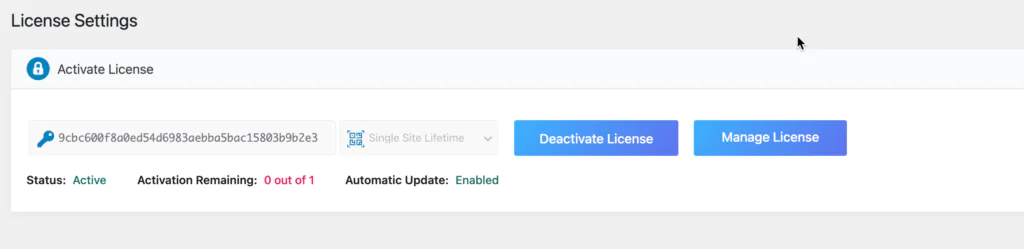
- Enter your license key under CTX Feed → License
Step 2: Create a New Pinterest Feed
Now let’s create your Pinterest product feed.
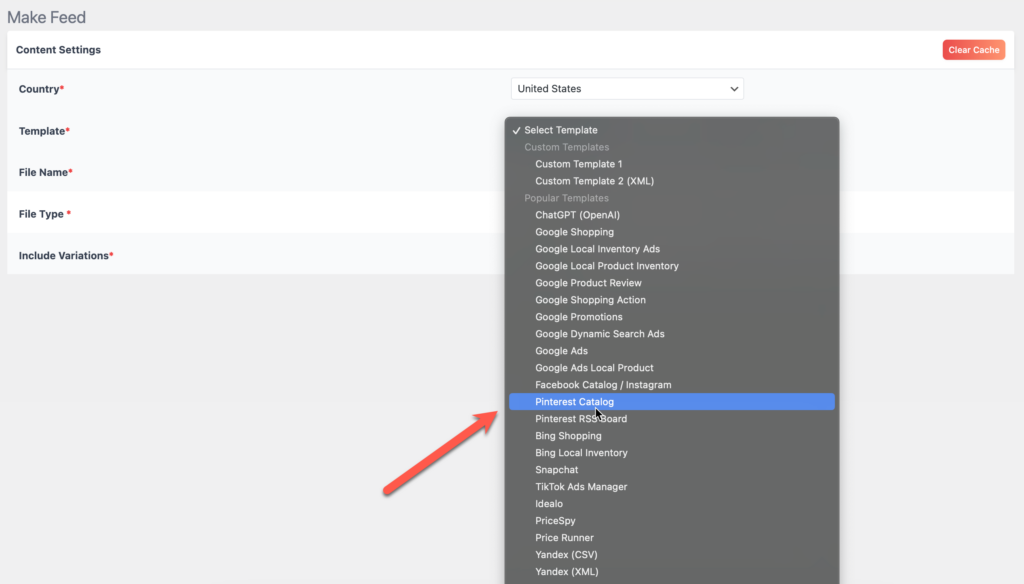
- Navigate to CTX Feed → Make Feed
- In the Template dropdown, select “Pinterest Catalog.”
- Give your feed a name (e.g., “Pinterest-Main-Catalog”)
- Choose your file type: XML (recommended) or CSV
Step 3: Configure Feed Settings
The Pinterest template pre-fills most required attributes automatically. Review and customize these settings:
Basic Settings:
- Country: Select your target market –
- Currency: Must match your WooCommerce currency –
- Include Variations: Enable if you want variable product options listed separately
Update Schedule:
- Update Interval: Select how often the feed regenerates
- Recommended: Every 6 hours for active stores, every 24 hours for stable catalogs
💡 Why 6-hour updates? Pinterest fetches feeds once every 24 hours, but generating your feed more frequently ensures Pinterest always pulls fresh data. This prevents price mismatches and “out of stock” errors that hurt your catalog quality score.
Step 4: Map Your Product Attributes
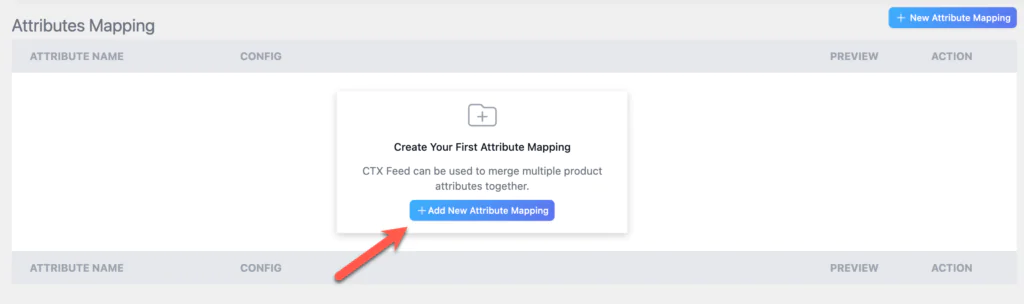
This is where CTX Feed Pro shines. The Pinterest template automatically maps your WooCommerce product data to Pinterest’s required attributes.
Review the attribute mapping screen:
| Pinterest Attribute | CTX Feed Mapping | Your Action |
|---|---|---|
| id | Product ID or SKU | Verify correct (SKU recommended) |
| title | Product Title | Consider using “Title + Brand” pattern |
| description | Product Description | Check for minimum 100 characters |
| link | Product URL | Automatic ✓ |
| image_link | Main Product Image | Automatic ✓ |
| price | Regular Price + Currency | Verify currency format |
| availability | Stock Status | Automatic ✓ |
| google_product_category | Category Mapping | Set up category mapping (important!) |
| brand | Product Brand or Store Name | Add if not set |
| condition | new / used / refurbished | Set default to “new” for most stores |
⚠️ IMPORTANT: Don’t skip Google Product Category mapping! This is the #1 cause of “products not appearing” issues on Pinterest. Go to CTX Feed → Category Mapping and assign Google categories to your WooCommerce categories. Pinterest uses this data to properly categorize your products.
📥 DOWNLOAD: Pinterest Feed Attribute Checklist (PDF)
Get our complete checklist of all required and recommended Pinterest attributes with examples and formatting rules.
Step 5: Set Up Feed Filters (Optional but Recommended)
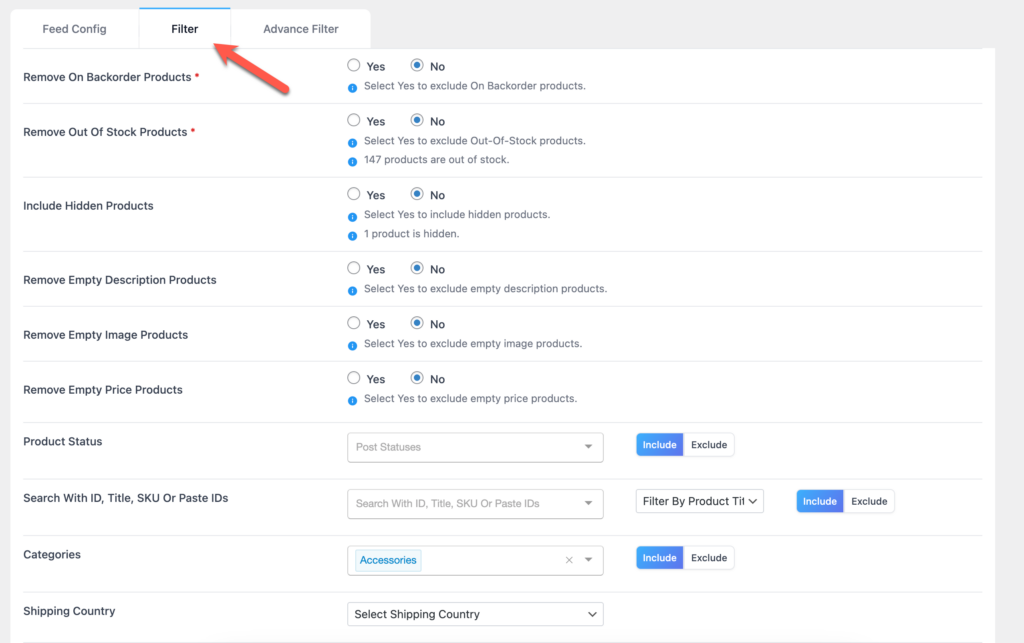
Feed filters let you control exactly which products appear in your Pinterest catalog. This is crucial for maintaining feed quality.
Navigate to the Filter tab and consider these rules:
| Filter Rule | Why Use It |
|---|---|
| Exclude “Out of Stock” products | Pinterest penalizes unavailable items |
| Exclude products without images | Prevents feed validation errors |
| Exclude products under $5 | Low-value items rarely convert on Pinterest |
| Include only specific categories | Focus on your best-performing Pinterest categories |
Step 6: Generate and Copy Your Feed URL
Once your settings are configured:
- Click Update and Generate Feed
- Wait for the feed to generate (progress bar shows status)
- Copy the Feed URL — you’ll need this for Pinterest
Your feed URL will look something like:
https://yourstore.com/wp-content/uploads/ctx-feed/pinterest/pinterest-catalog.xml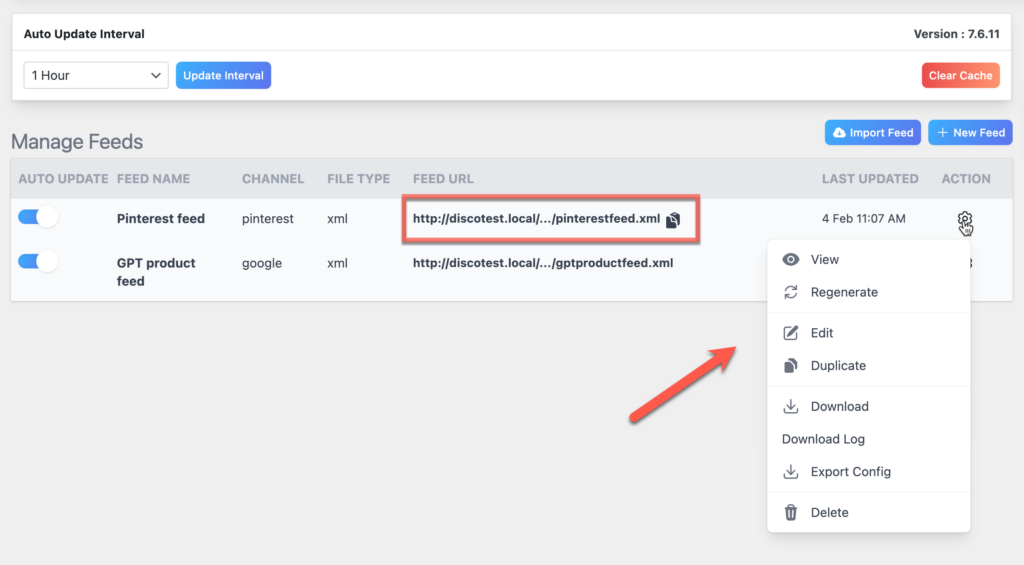
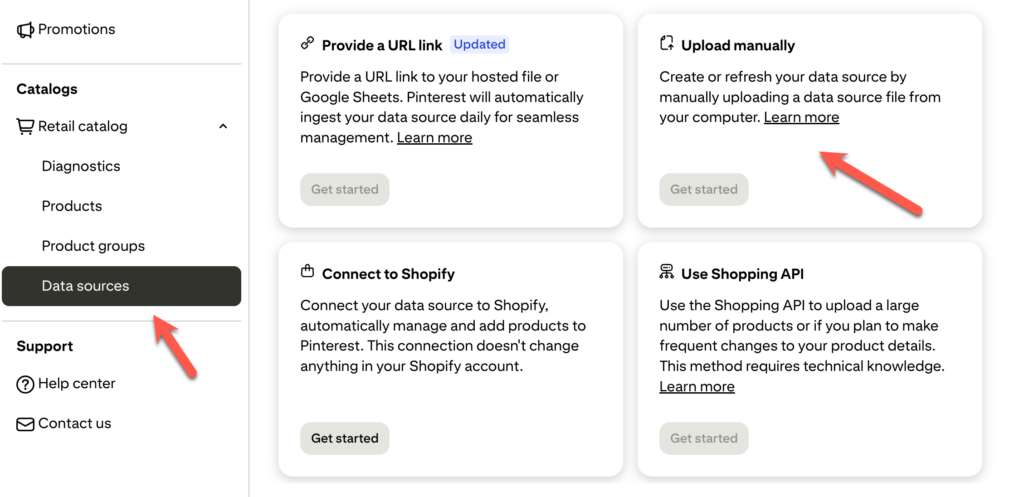
Step 7: Add Your Feed to Pinterest Business Hub
Now connect your feed to Pinterest:
- Go to Pinterest Business Hub (business.pinterest.com)
- Navigate to Ads → Catalogs
- Click Add Data Source → Add Manually
- Select Product Feed and paste your CTX Feed URL
- Set feed ingestion frequency to Daily
- Name your data source and click Create
Pinterest will validate your feed and begin importing products. Initial ingestion takes 24-48 hours for large catalogs.
Step 8: Verify Feed Status
After 24-48 hours, check your feed status:
- In Pinterest Business Hub, go to Catalogs → Data Sources
- Click on your feed to view the ingestion report
- Check for any errors or warnings
✅ Success Indicators: – “Processing Complete” status – Product count matches your expected number – Error rate below 5% – Products visible in your Shop Tab
🎯 Ready to create reliable Pinterest feeds?
Get CTX Feed Pro → Full Pinterest template + 220 channel support. Or try the free version with basic Pinterest support.
Method 2: Using the Official Pinterest for WooCommerce Plugin
The official Pinterest for WooCommerce plugin is developed jointly by Pinterest and WooCommerce. It’s free, integrates directly with Pinterest’s API, and automatically installs the Pinterest Tag for conversion tracking.
However, we need to be upfront: this plugin has a 2.2 out of 5-star rating on WordPress.org, with many users reporting reliability issues. We’ll cover both the setup process and the known limitations so you can make an informed decision.
When the Official Plugin Makes Sense
This method works well if you:
- Have a smaller catalog (under 500 products)
- Only need Pinterest integration (no other channels)
- Want the simplest possible setup process
- Don’t need advanced feed customization
- Are comfortable troubleshooting occasional sync issues
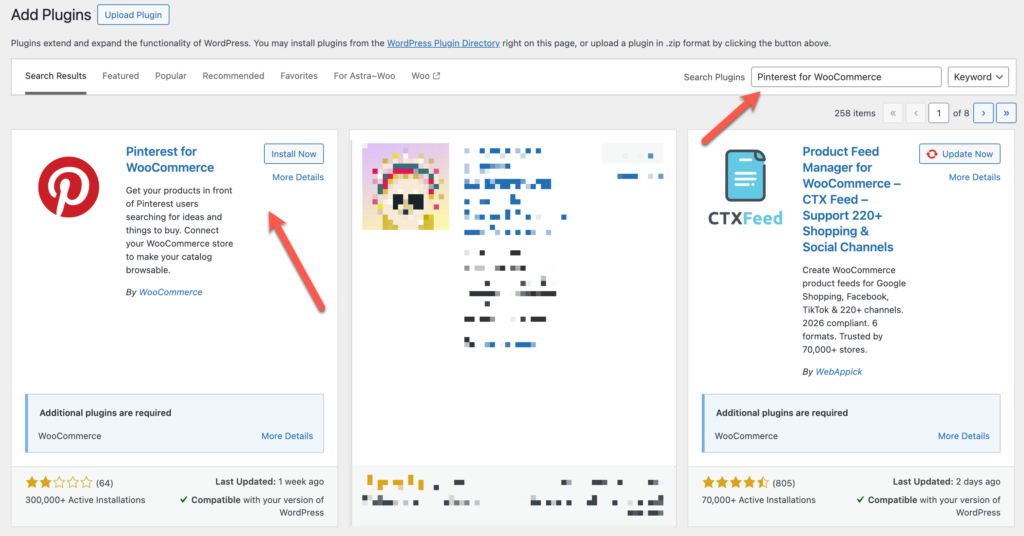
Step 1: Install the Plugin
- Go to Plugins → Add New in your WordPress dashboard
- Search for “Pinterest for WooCommerce”
- Find the plugin by WooCommerce (look for the official WooCommerce author)
- Click Install Now, then Activate
Step 2: Connect Your Pinterest Business Account
After activation, the setup wizard launches automatically:
- Navigate to Marketing → Pinterest (or follow the setup prompt)
- Click Get Started
- Click Connect to link your Pinterest Business account
- Log in to Pinterest and authorize the connection
- Click Give Access when prompted for permissions
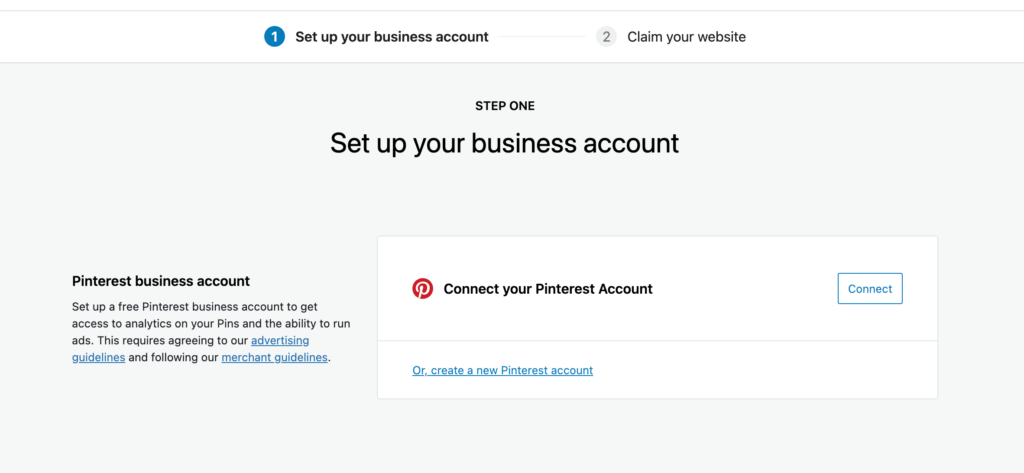
The plugin requests access to manage your Pinterest profile, catalogs, and ads account.
Step 3: Verify Your Domain
Pinterest needs to verify that you own your website:
- The plugin automatically attempts domain verification
- If automatic verification fails, you’ll see options for manual verification
- Choose the HTML Tag method — the plugin adds this to your site automatically
- Click Verify and wait a few seconds
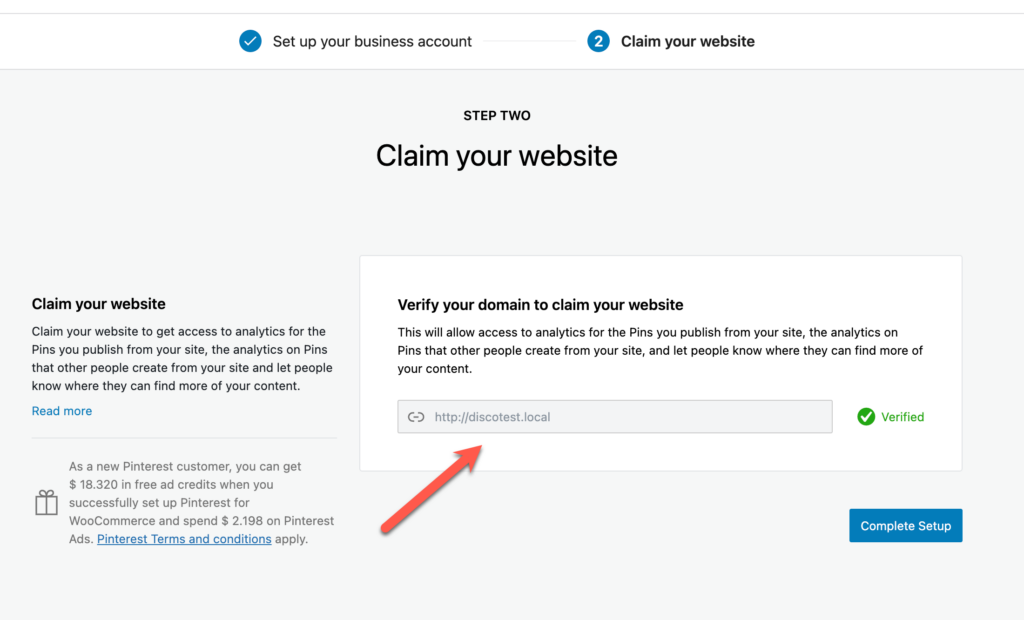
⚠️ “Domain Already Claimed” Error? This means another Pinterest account previously claimed your domain. To fix:
1. Log into the old Pinterest account
2. Go to Settings → Claimed Accounts
3. Click Unclaim next to your domain
4. Return to the new account and try verification again
Don’t have access to the old account? Contact Pinterest Support directly.
Step 4: Configure Product Sync
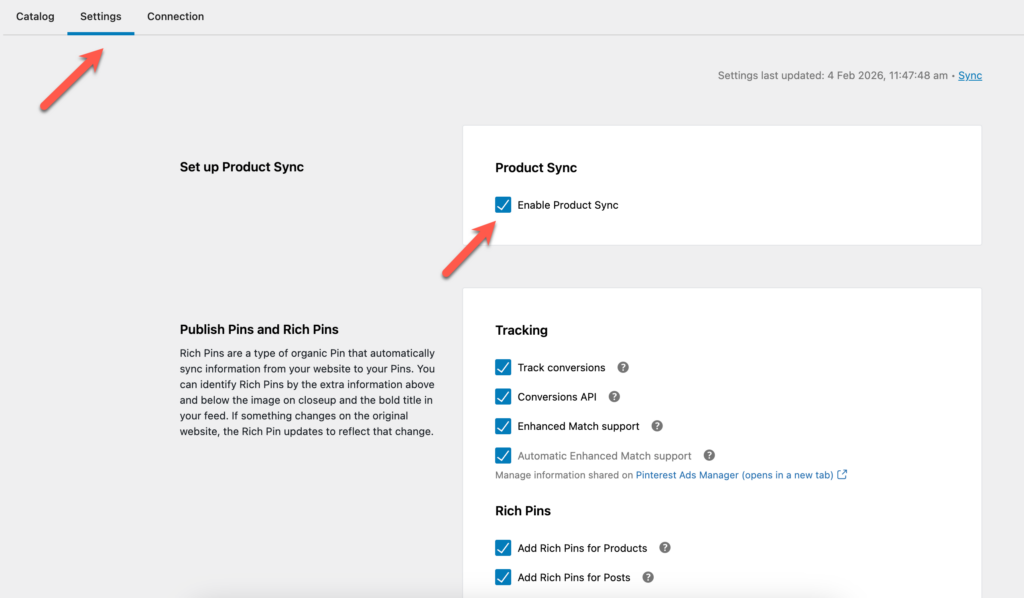
Once connected, enable product synchronization:
- Go to Marketing → Pinterest → Settings
- Under Product Sync, toggle Enable Product Sync on
- The plugin will automatically generate a feed and register it with Pinterest
- Initial sync takes 24-48 hours to complete
Step 5: Set Up Tracking (Pinterest Tag + Conversions API)
The plugin automatically installs the Pinterest Tag, but you should verify it’s working:
- In Marketing → Pinterest → Settings, find the Tracking section
- Ensure Track Conversions is enabled
- Enable Conversions API for improved tracking accuracy (recommended)
- Enable Enhanced Match to improve conversion attribution
💡 Why enable Conversions API?
Due to iOS 14+ privacy changes and browser cookie restrictions, the Pinterest Tag alone misses many conversions. Conversions API sends data server-side, capturing purchases that would otherwise go untracked. Pinterest reports this can improve attributed conversions by 15-25%.
Step 6: Add Google Product Category (Important!)
The official plugin doesn’t automatically map Google Product Categories—you must do this manually for each product or in bulk:
For individual products:
- Edit any product in WooCommerce
- Scroll to the Pinterest tab.”
- Select the appropriate Google Product Category
- Set the Condition (usually “new”)
- Save the product
For bulk editing:
- Go to WooCommerce → Products → Export
- Export products with all custom meta
- Edit the CSV to add _wc_pinterest_google_product_category values
- Import the updated CSV
⚠️ This step is critical. Without Google Product Category assigned, Pinterest may reject products or fail to display them in relevant searches. This is the most common cause of “products not appearing” issues with the official plugin.
Known Limitations and Issues
Based on WordPress.org reviews and support forums, here are the most common problems users report:
| Issue | Frequency | Impact | Workaround |
|---|---|---|---|
| Feed sync timeouts | Common (large catalogs) | Products don’t update | Increase PHP max_execution_time to 300+ |
| Pinterest Tag disconnects | Occasional | Conversion tracking stops | Check connection weekly, reconnect if needed |
| Products stuck in “Processing” | Common | Products not visible | Manually trigger sync in Scheduled Actions |
| “Feed name already exists” error | Occasional | Can’t register new feed | Disconnect, delete old feeds, reconnect |
| Missing product variations | Occasional | Only parent product shows | Check variation has image and price |
| Random disconnections | Occasional | Everything stops working | Deactivate, delete, reinstall plugin |
Verifying Your Setup
After 24-48 hours, verify everything is working:
- In WordPress: Check Marketing → Pinterest → Catalog for sync status
- In Pinterest: Go to Business Hub → Catalogs and verify product count
- Test the Tag: Install the Pinterest Tag Helper Chrome extension and visit your site
✅ Success Indicators: – Catalog status shows “Processing Complete” – Product count in Pinterest matches WooCommerce – Pinterest Tag Helper shows green checkmarks for page events – Products appear in your Pinterest Shop Tab
The Bottom Line on the Official Plugin
The official plugin works for basic use cases—especially small stores that only need Pinterest integration. The automatic Tag installation and direct API connection are genuine advantages.
However, if you experience reliability issues, need advanced filtering, or sell on multiple channels, CTX Feed Pro offers a more robust solution.
Method 3: Manual Feed Upload
Manual upload means exporting your WooCommerce products to a spreadsheet, formatting it to Pinterest’s specifications, and uploading the file directly to Pinterest Business Hub.
This method gives you complete control but requires ongoing manual work. For most stores, it’s not practical as a long-term solution.
When Manual Upload Makes Sense
Use this method only if you:
- Are you testing Pinterest with 10-20 products before committing to a plugin
- Running a one-time seasonal promotion with specific products
- Have a very small, static catalog (under 50 products) that rarely changes
- Need a backup method when plugins fail temporarily
⚠️ Why we don’t recommend this for most stores:
Your feed won’t update automatically. When prices change, products sell out, or you add new items, you must manually re-upload. Pinterest penalizes catalogs with stale data—price mismatches and availability errors hurt your quality score and can get products disapproved.
Basic Steps for Manual Upload
Step 1: Export your WooCommerce products
- Use WooCommerce’s built-in export or a plugin like WP All Export
- Export to CSV format
Step 2: Reformat to Pinterest specifications
- Rename columns to match Pinterest’s required attributes
- Ensure all 7 required fields are present: id, title, description, link, image_link, price, availability
- Add google_product_category for better categorization
Step 3: Upload to Pinterest
- Go to Pinterest Business Hub → Catalogs
- Click Add Data Source → Add Manually
- Select Upload File
- Upload your CSV or XML file
- Map columns if prompted and submit
Step 4: Re-upload whenever data changes – This is the tedious part—you must repeat steps 1-3 every time your products change
📥 DOWNLOAD: Pinterest Feed CSV Template
Pre-formatted spreadsheet with all required and recommended columns, example data, and formatting notes.
Quick Reference: Required Columns
| Column Header | Example Value | Notes |
|---|---|---|
| id | SKU-12345 | Unique identifier |
| title | Blue Cotton T-Shirt – Men’s Large | Max 500 characters |
| description | Comfortable 100% cotton t-shirt… | Min 100 characters recommended |
| link | https://yourstore.com/product/blue-tshirt | Must be HTTPS |
| image_link | https://yourstore.com/images/tshirt.jpg | Must be HTTPS, min 75x75px |
| price | 29.99 USD | Include currency code |
| availability | in stock | Options: in stock, out of stock, preorder |
The Bottom Line on Manual Upload
Manual upload is a fallback option, not a strategy. If you’re serious about Pinterest as a sales channel, invest in a proper feed solution—either CTX Feed Pro for maximum control or the official plugin for simplicity.
The time you spend manually updating spreadsheets is better spent optimizing your products and campaigns.
🔗 NEXT: Now that you understand all three integration methods, let’s dive into Pinterest’s feed requirements. Whether you use CTX Feed Pro, the official plugin, or manual upload, your products must meet these specifications to sync successfully.
Pinterest Product Feed Requirements
Regardless of which integration method you choose, your product data must meet Pinterest’s feed specifications. Missing or incorrectly formatted attributes are the #1 cause of product rejections and sync failures.
This section covers every attribute you need to know—required, recommended, and the image specifications that trip up most store owners.
Required Attributes (Must Have)
These seven attributes are mandatory. Products missing any of these will be rejected from your catalog.
| Attribute | Description | Format | Example | Common Errors |
|---|---|---|---|---|
| id | Unique product identifier | String, max 100 chars | SKU-12345 or woo_prod_789 | Duplicate IDs, changing IDs between uploads |
| title | Product name | String, max 500 chars | Blue Cotton T-Shirt – Men’s Large | Too short, keyword stuffing, ALL CAPS |
| description | Product description | String, max 10,000 chars | Comfortable 100% cotton crew neck t-shirt… | Under 100 chars, HTML tags included |
| link | Product page URL | Valid HTTPS URL | https://store.com/product/blue-tshirt | HTTP instead of HTTPS, broken links |
| image_link | Main product image URL | Valid HTTPS URL | https://store.com/images/tshirt.jpg | HTTP links, images too small, broken URLs |
| price | Product price with currency | Number + ISO currency | 29.99 USD | Missing currency code, wrong format |
| availability | Stock status | Enum value | in stock | Spelling errors, wrong values |
Availability values: in stock, out of stock, preorder, backorder
💡 Title Optimization Tip: Front-load your most important keywords. Pinterest users search like they do on Google, so “Men’s Blue Cotton T-Shirt Size Large” performs better than “T-Shirt Blue Large Men’s Cotton.”
Recommended Attributes (Strongly Suggested)
These attributes aren’t required, but they significantly improve your product visibility and ad performance.
| Attribute | Description | Format | Why It Matters |
|---|---|---|---|
| google_product_category | Google’s product taxonomy | Google category ID or path | Critical for discoverability — helps Pinterest categorize products correctly |
| brand | Brand or manufacturer name | String, max 100 chars | Enables brand filtering, builds trust |
| condition | Product condition | new, used, refurbished | Required for some categories, helps set expectations |
| sale_price | Discounted price | Number + ISO currency | Shows strikethrough pricing, attracts bargain hunters |
| additional_image_link | Extra product images | Up to 10 HTTPS URLs | More images = higher engagement |
| product_type | Your store’s category path | Category hierarchy | Helps with internal organization |
| gtin | Global Trade Item Number | 8, 12, 13, or 14 digits | Improves product matching |
| mpn | Manufacturer Part Number | String | Alternative to GTIN for unique products |
⚠️ IMPORTANT: Google Product Category is technically “recommended” but practically required.
Without it, Pinterest may miscategorize your products or fail to show them in relevant searches. This is the most common cause of “products not appearing” issues. Always map your categories—CTX Feed Pro does this automatically; the official plugin requires manual setup.
Custom Labels (For Campaign Segmentation)
Custom labels let you segment products for targeted Pinterest ad campaigns. You can use up to five custom labels (0-4).
| Label | Suggested Use | Example Values |
|---|---|---|
| custom_label_0 | Margin tier | high_margin, medium_margin, low_margin |
| custom_label_1 | Seasonality | spring, summer, holiday, evergreen |
| custom_label_2 | Performance tier | best_seller, new_arrival, slow_mover |
| custom_label_3 | Inventory status | limited_stock, overstock, regular |
| custom_label_4 | Promo eligibility | sale_eligible, clearance, full_price |
Example use case: Create a Pinterest ad campaign targeting only high_margin + best_seller products to maximize ROAS.
💡 CTX Feed Pro users: You can dynamically generate custom labels based on WooCommerce data—price ranges, stock quantities, categories, tags, and more. This eliminates manual labeling for large catalogs.
Image Requirements
Pinterest is a visual platform. Poor images = poor performance. Here’s what Pinterest requires and recommends:
| Specification | Requirement | Recommendation | Notes |
|---|---|---|---|
| Minimum size | 75 x 75 pixels | 1000 x 1500 pixels | Larger images get more engagement |
| Aspect ratio | Any | 2:3 (vertical) | Pinterest’s feed favors vertical images |
| File format | JPEG, PNG, GIF, WebP | JPEG or PNG | WebP supported but JPEG most reliable |
| Max file size | 20 MB | Under 5 MB | Larger files slow down loading |
| Text overlay | Allowed | Under 20% of image | Too much text reduces distribution |
| Watermarks | Allowed | Avoid completely | Watermarks reduce engagement significantly |
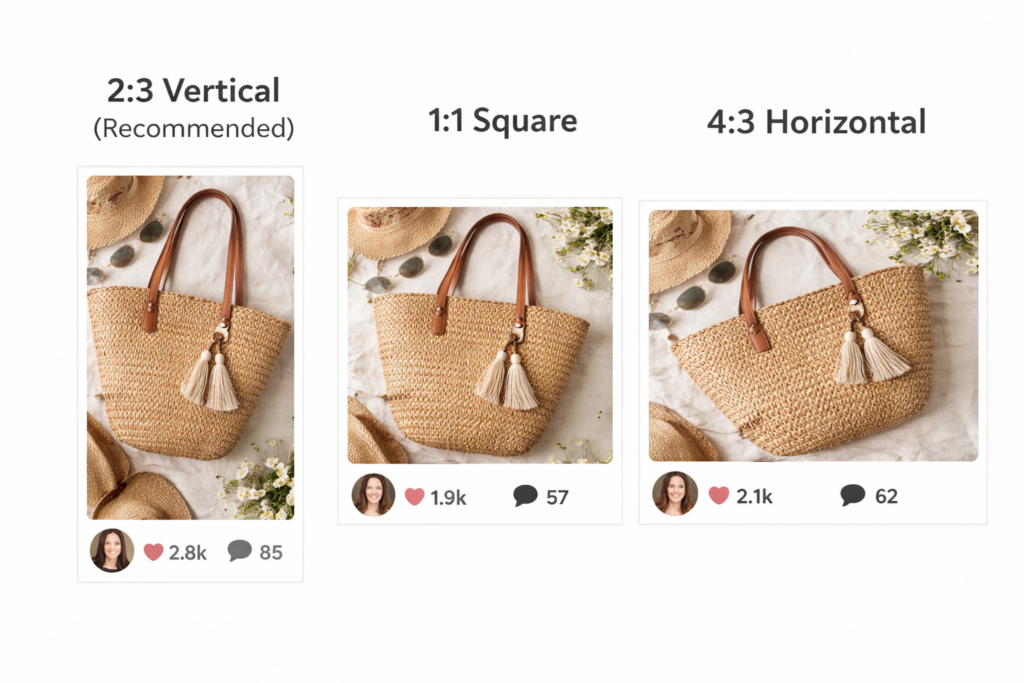
⚠️ Common Image Mistakes:
- Using tiny thumbnails (under 500px)
- Looks pixelated on high-res devices
- Horizontal/landscape images — get cropped awkwardly in Pinterest’s vertical feed
- White background product shots only — lifestyle images typically outperform by 30-50%
- Promotional text overlays — Pinterest’s algorithm deprioritizes ad-like images in organic results
Feed Format and Encoding
A few technical requirements that often cause validation errors:
| Requirement | Specification |
|---|---|
| File format | XML (recommended), CSV, or TSV |
| Encoding | UTF-8 (mandatory) |
| Update frequency | At least every 24 hours |
| Max products | 20 million per catalog |
| Feed URL | Must be publicly accessible HTTPS URL |
💡 Feed Validation: Before submitting to Pinterest, validate your feed using Pinterest’s built-in diagnostics in Business Hub → Catalogs → Data Sources → [Your Feed] → View Issues. Fix errors before they hurt your catalog quality score.
📥 DOWNLOAD: Complete Pinterest Feed Attribute Checklist (PDF)
One-page reference with all required attributes, recommended attributes, custom label ideas, and image specs. Print it out and check off as you configure your feed.
Setting Up Pinterest Tag and Conversion Tracking
Without proper conversion tracking, you’re flying blind. You won’t know which products drive sales, which campaigns perform best, or whether Pinterest is actually generating ROI for your store.
The Pinterest Tag tracks visitor actions on your site and attributes conversions back to your pins and ads. Combined with the Conversions API, you get accurate tracking even with iOS privacy restrictions and browser cookie limitations.
Understanding Pinterest’s Tracking Components
Pinterest offers two complementary tracking methods:
| Component | What It Does | How It Works | Limitations |
|---|---|---|---|
| Pinterest Tag | Tracks user actions via browser | JavaScript pixel fires on page events | Blocked by ad blockers, iOS 14+ restrictions |
| Conversions API (CAPI) | Tracks conversions server-side | Server sends data directly to Pinterest | Requires additional setup |
💡 Best Practice: Use both Pinterest Tag AND Conversions API together. Pinterest calls this “redundant tracking” — the Tag catches what it can client-side, CAPI fills in the gaps server-side. Pinterest reports this combination can improve attributed conversions by 15-25% compared to Tag alone.
Key Events to Track
Pinterest Tag can track multiple event types. For WooCommerce stores, these are the essential ones:
| Event | When It Fires | Why It Matters | Priority |
|---|---|---|---|
| PageVisit | Any page load | Baseline traffic tracking | Required |
| ViewContent | Product page view | Measures product interest | Required |
| AddToCart | Product added to cart | Indicates purchase intent | Required |
| Checkout | Checkout initiated | Shows funnel progression | Recommended |
| Purchase | Order completed | Revenue attribution | Critical |
| Search | Search performed | Tracks on-site search behavior | Optional |
| Lead | Form submission | For lead generation | Optional |
The Purchase event is most important—it’s what Pinterest uses to calculate ROAS and optimize ad delivery.
Method A: Automatic Setup (Official Plugin)
If you’re using the official Pinterest for WooCommerce plugin, the Tag installs automatically:
- Go to Marketing → Pinterest → Settings
- Find the Tracking section
- Verify these settings are enabled:
- Track Conversions — Enables the Pinterest Tag
- Conversions API — Enables server-side tracking
- Enhanced Match — Improves conversion attribution using hashed customer data
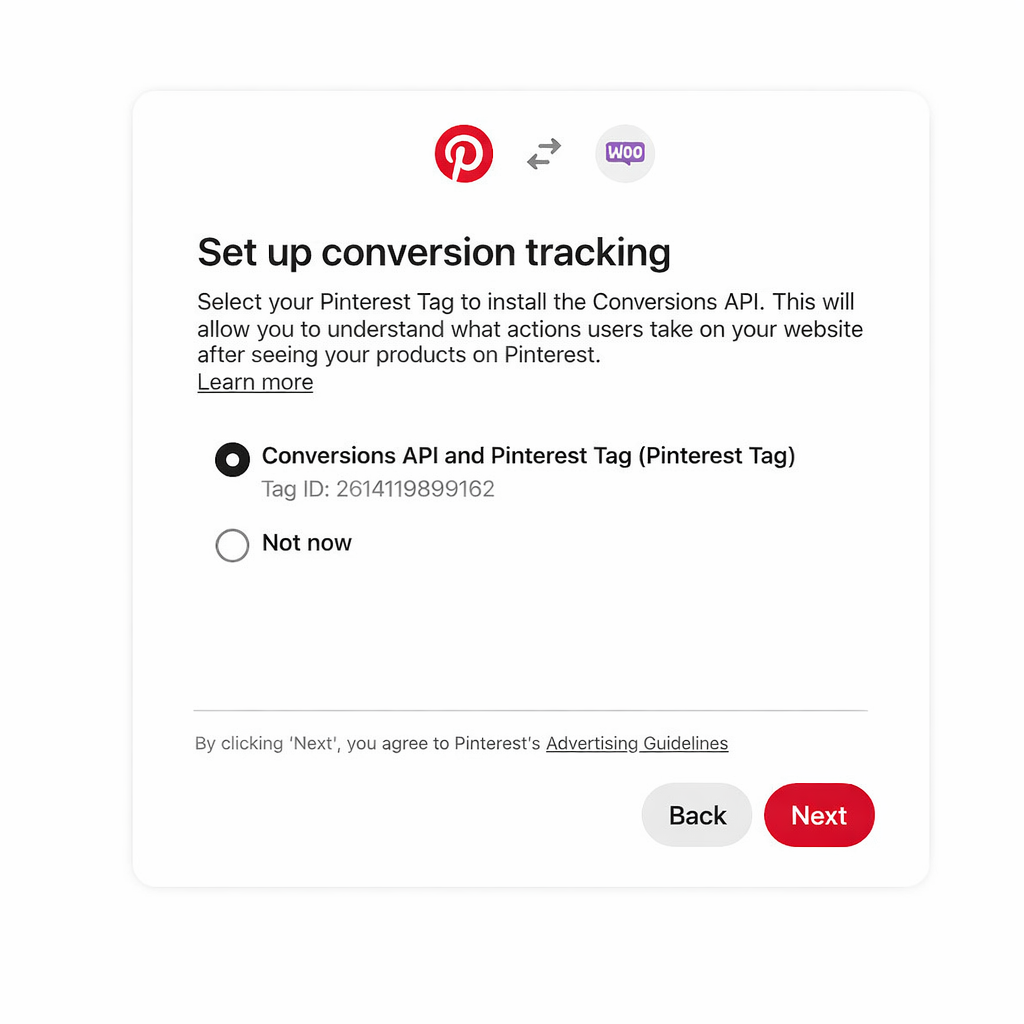
That’s it—the plugin handles Tag installation and event firing automatically.
Method B: Manual Setup via Google Tag Manager
If you’re using CTX Feed Pro or prefer manual control, install the Pinterest Tag through Google Tag Manager (GTM):
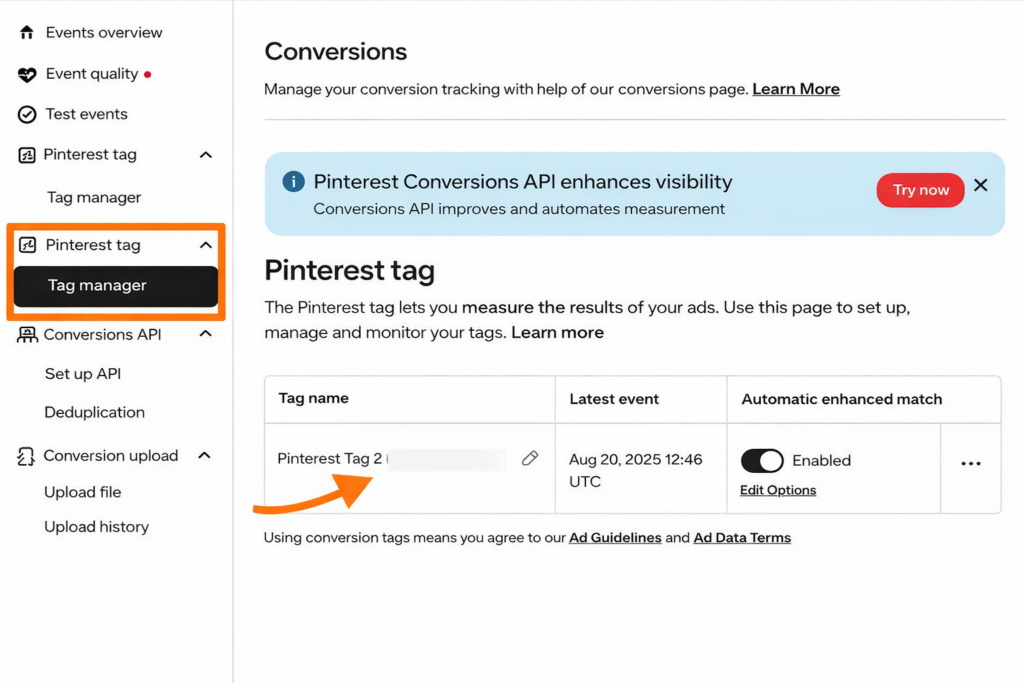
Step 1: Get Your Pinterest Tag ID
- Log into Pinterest Business Hub
- Go to Ads → Conversions
- Click Pinterest Tag in the left menu
- If you don’t have a Tag, click Create Pinterest Tag
- Copy your Tag ID (format: 1234567890123)
Step 2: Add Base Tag in Google Tag Manager
- In GTM, go to Tags → New
- Click Tag Configuration → Custom HTML
- Paste the Pinterest base code:
<!-- Pinterest Tag Base Code -->
<script>
!function(e){if(!window.pintrk){window.pintrk=function(){window.pintrk.queue.push(Array.prototype.slice.call(arguments))};var n=window.pintrk;n.queue=[],n.version="3.0";var t=document.createElement("script");t.async=!0,t.src=e;var r=document.getElementsByTagName("script")[0];r.parentNode.insertBefore(t,r)}}("https://s.pinimg.com/ct/core.js");
pintrk('load', 'YOUR_TAG_ID_HERE');
pintrk('page');
</script>
<noscript>
<img height="1" width="1" style="display:none;" alt="" src="https://ct.pinterest.com/v3/?tid=YOUR_TAG_ID_HERE&noscript=1" />
</noscript>- Replace YOUR_TAG_ID_HERE with your actual Tag ID
- Set Trigger to All Pages
- Save and name the tag “Pinterest – Base Tag”
Step 3: Add Conversion Event Tags
Create separate GTM tags for each conversion event. Here’s the purchase event example:
<script>
pintrk('track', 'checkout', {
  value: {{Transaction Total}},
  currency: 'USD',
  order_id: '{{Transaction ID}}',
  line_items: [
    {
      product_name: {{Product Name}},
      product_id: {{Product ID}},
      product_price: {{Product Price}},
      product_quantity: {{Product Quantity}}
    }
  ]
});
</script>
Set the trigger to fire on your WooCommerce order confirmation page (typically contains /order-received/ in the URL).
⚠️ IMPORTANT: GTM Variable Setup Required. The code above uses GTM variables like {{Transaction Total}} and {{Transaction ID}}. You’ll need to configure a Data Layer in WooCommerce and create corresponding GTM variables. For detailed instructions, see Google’s Enhanced Ecommerce documentation.
Setting Up Conversions API (CAPI)
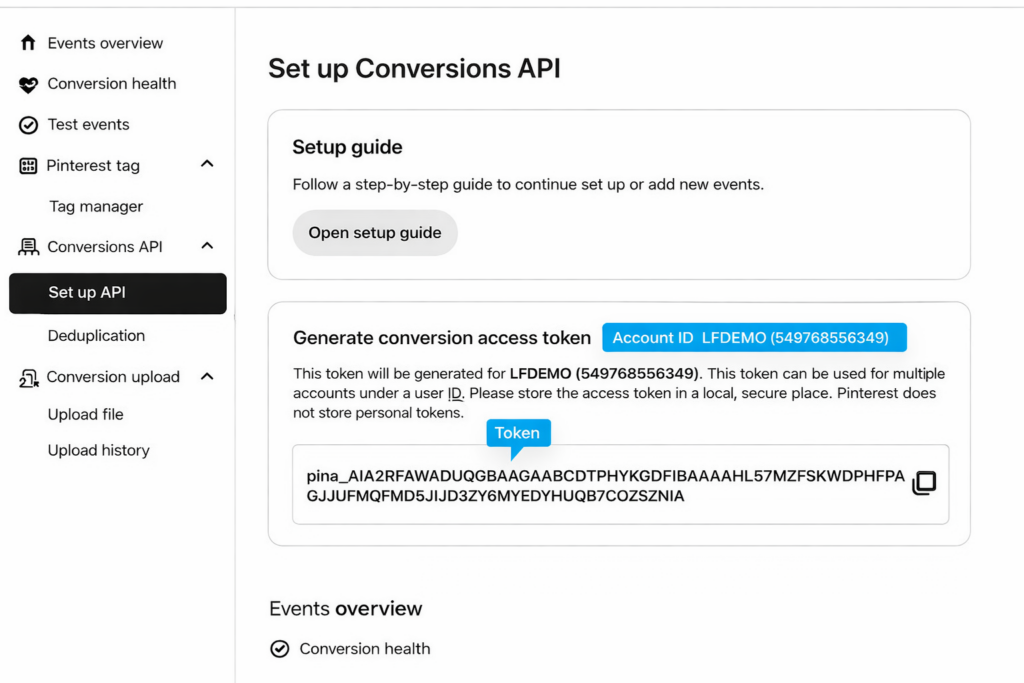
Conversions API sends conversion data directly from your server to Pinterest, bypassing browser limitations.
If using the Official Plugin: Simply enable “Conversions API” in the tracking settings (covered above). The plugin handles everything.
If using CTX Feed Pro / Manual Setup: You have two options:
| Option | Technical Difficulty | Best For |
|---|---|---|
| Official Plugin | None (automatic) | Plugin users |
| CAPI Gateway | Low (no code) | Non-technical users |
| Direct API | High (requires developer) | Custom implementations |
For most WooCommerce stores not using the official plugin, the CAPI Gateway is the easiest path:
- In Pinterest Business Hub, go to Ads → Conversions → Conversions API
- Click Set Up Conversions API
- Select Conversions API Gateway
- Follow the guided setup to connect your Tag and enable server events
Verifying Your Tracking Setup
After installation, verify everything works correctly:
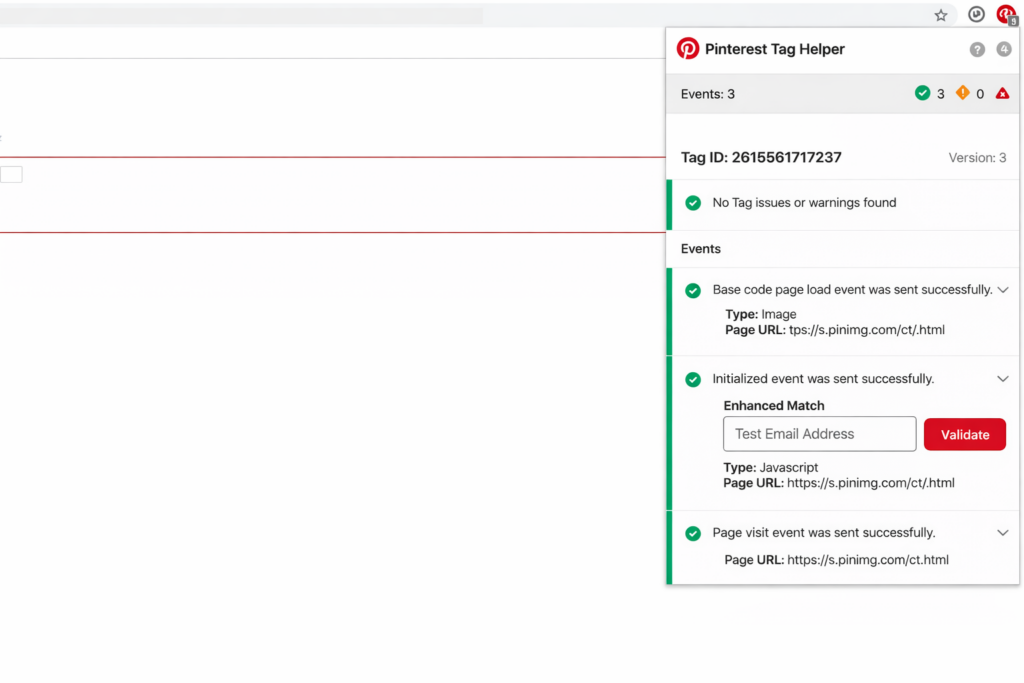
Step 1: Install Pinterest Tag Helper
Download the Pinterest Tag Helper Chrome extension. This shows real-time Tag activity on any page.
Step 2: Test Each Event
Walk through your store as a customer would:
| Page | Expected Event | Tag Helper Shows |
|---|---|---|
| Any page | PageVisit | ✅ Green “page” event |
| Product page | ViewContent | ✅ Green “viewcontent” event |
| After add to cart | AddToCart | ✅ Green “addtocart” event |
| Checkout page | Checkout | ✅ Green “checkout” event |
| Order confirmation | Purchase | ✅ Green “checkout” event with value |
Step 3: Check Pinterest Events Manager
- Go to Pinterest Business Hub → Ads → Conversions → Events Manager
- Verify events are being received (may take 20-30 minutes to appear)
- Check for any error flags
✅ Your tracking is working correctly when you see:
- Pinterest Tag Helper shows green checkmarks on all page types
- Events Manager shows “Receiving Events” status
- Test purchase appears in Events Manager within 30 minutes
- No “Tag Inactive” warnings in Pinterest Business Hub
Troubleshooting Common Pinterest Feed Issues
Pinterest feed problems can tank your catalog performance and waste hours of your time. This section covers the most common issues WooCommerce store owners face—sourced from WordPress.org support forums, Pinterest Community discussions, and our own support tickets.
Bookmark this section. You’ll likely need it.
Issue 1: “Feed Not Syncing” or Timeout Errors
Symptoms: –
- Feed stuck in “Processing” for days
- “Action failed after 300 seconds” in WooCommerce Scheduled Actions
- Pinterest shows outdated product data
Cause: Your server’s PHP settings can’t handle the feed generation workload, especially with large catalogs (500+ products).
🔧 FIX: Increase PHP Limits
Add these lines to your wp-config.php file (before “That’s all, stop editing!”):
set_time_limit(300);
ini_set('memory_limit', '512M');
Or ask your hosting provider to increase:
- max_execution_time → 300 seconds (minimum)
- memory_limit → 512M (minimum)
- post_max_size → 64M
Still timing out? Switch to CTX Feed Pro—it uses batch processing that handles 10,000+ products without server strain.
Issue 2: “Products Not Appearing” in Pinterest Catalog
Symptoms:
- Feed shows as synced, but products don’t appear in the Shop Tab
- Only some products are visible; others are missing
- Pinterest shows fewer products than your WooCommerce store
Cause: Usually, missing the google_product_category or products failing validation silently.
🔧 FIX: Check These Three Things
- Verify Google Product Category is set
- Official Plugin: Edit each product → Pinterest tab → Set category
- CTX Feed Pro: Go to CTX Feed → Category Mapping → Map all categories
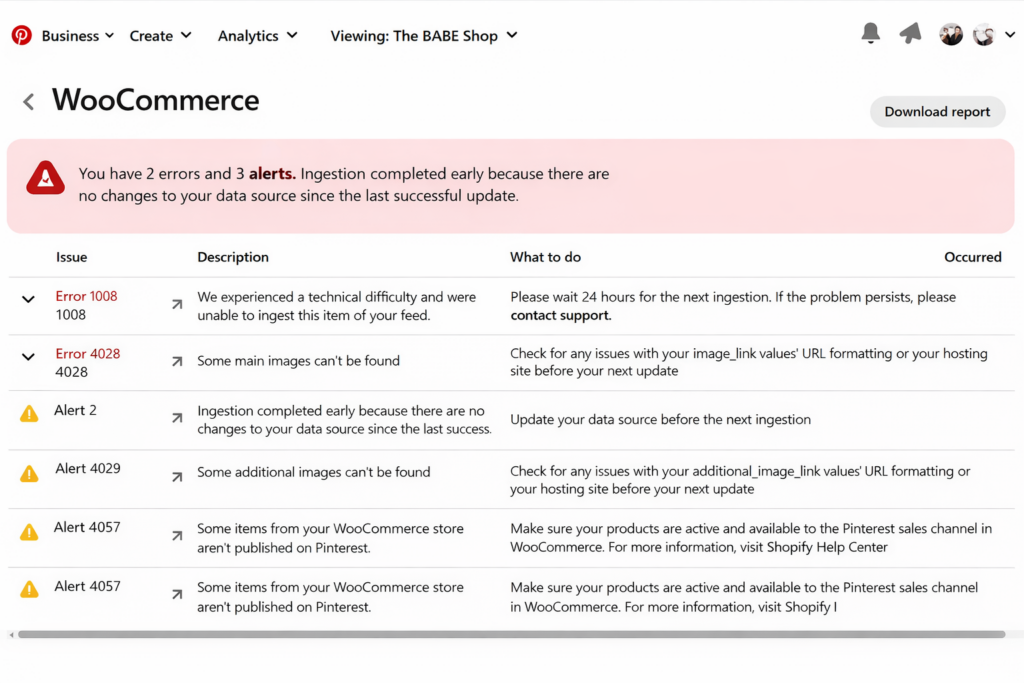
- Check for validation errors in Pinterest
- Go to Business Hub → Catalogs → Data Sources → [Your Feed]
- Click “View Issues” to see specific product errors
- Verify products meet minimum requirements
- Has a title (not empty)
- Has a description (minimum 1 character, recommend 100+)
- Has a valid image URL (HTTPS, accessible, minimum 75x75px)
- Has a price with currency code
- Has availability set
Issue 3: Feed Validation Errors
Symptoms: – Pinterest rejects your feed entirely – “Invalid format” or “Missing required field” errors – Products stuck in “Pending” status
Common Causes and Fixes:
| Error Message | Cause | Solution |
|---|---|---|
| “Image too small.” | Price format incorrect | Add currency code: 29.99 USD not just 29.99 |
| “Missing required field: price.” | HTTP instead of HTTPS | Ensure all image URLs use HTTPS |
| “Description too long.” | Image under 75x75px | Upload larger product images |
| “Invalid availability value” | Typo in availability | Use exact values: in stock, out of stock, preorder |
| “Duplicate product ID” | Same ID used twice | Ensure each product has unique ID/SKU |
| “Invalid URL format” | Broken or malformed link | Check for spaces, special characters in URLs |
| “Description too long” | Over 10,000 characters | Shorten product descriptions |
| “Encoding error” | Non-UTF-8 characters | Save feed file with UTF-8 encoding |
💡 Pro Tip: Before uploading any feed, validate it first. Download your feed file, open in a text editor, and check for obvious issues like missing values or strange characters. CTX Feed Pro shows validation warnings before you even generate the feed.
Issue 4: “Domain Already Claimed” Error
Symptoms: – Can’t verify your domain during setup – Error message: “This domain is already claimed by another user” – Setup wizard won’t proceed
Cause: A previous Pinterest account (yours or someone else’s) already claimed this domain.
🔧 FIX: Unclaim and Reclaim the Domain
If you have access to the old account:
- Log in to the old Pinterest account
- Go to Settings → Claimed Accounts
- Find your domain and click Unclaim
- Log in to your new account and verify again
If you don’t have access to the old account:
- Go to Pinterest Help Center
- Submit a request to unclaim the domain
- Provide proof of domain ownership (DNS records, hosting access)
- Pinterest support typically responds within 3-5 business days
Issue 5: Pinterest Tag Not Firing
Symptoms:
- Pinterest Tag Helper shows no events
- “Tag Inactive” warning in Pinterest Business Hub
- Conversions are not being tracked
Cause: Usually, caching plugins, JavaScript conflicts, or incorrect installation.
🔧 FIX: Systematic Debugging
Step 1: Clear all caches –
- Clear WordPress cache (WP Rocket, W3 Total Cache, etc.)
- Clear CDN cache (Cloudflare, etc.)
- Clear browser cache and test in Incognito mode
Step 2: Check for JavaScript errors
- Open browser Developer Tools (F12) → Console tab
- Look for red error messages
- Common culprit: minification plugins breaking the Tag code
Step 3: Exclude Pinterest Tag from optimization
- In your caching/minification plugin settings
- Exclude pintrk and s.pinimg.com from JavaScript minification
- Exclude Pinterest Tag from defer/delay settings
Step 4: Verify Tag placement –
- View page source (Ctrl+U)
- Search for Pintrk
- The tag should appear in the <head> section
Issue 6: Products Showing Wrong Price or “Out of Stock”
Symptoms: – Pinterest shows old prices after you’ve updated them – Products marked “out of stock” when they’re available – Sale prices not reflecting
Cause: Feed not updating frequently enough, or Pinterest hasn’t re-ingested your feed.
🔧 FIX: Force Feed Refresh
For Official Plugin:
1. Go to WooCommerce → Status → Scheduled Actions
2. Search for “Pinterest.”
3. Find Pinterest for WooCommerce start feed generation
4. Click Run to manually trigger feed regeneration
For CTX Feed Pro:
- Go to CTX Feed → Manage Feeds
- Click Regenerate on your Pinterest feed
- Wait for completion, then check Pinterest in 24 hours
Note: Pinterest only ingests feeds once every 24 hours. Even if your feed updates hourly, Pinterest won’t see changes until its next scheduled fetch.
Issue 7: Variable Products Not Syncing Correctly
Symptoms: – Only parent product appears, not variations – Variations missing images or prices – Wrong variation showing as “default.”
Cause: Variations missing required data, or feed settings not configured for variations.
🔧 FIX: Check Variation Data
Each variation needs its own:
✅ Unique SKU (not inherited from parent)
✅ Price set (not just parent price)
✅ Image uploaded (not just parent image)
✅ Stock status set individually
For CTX Feed Pro: – In feed settings, ensure “Include Variations” is enabled – Use “Variation” as the product type, not “Variable.”
For Official Plugin: – Variations should sync automatically if they have complete data – Check Pinterest tab on each variation for category/condition
Quick Reference: Error Lookup Table
| Problem | Most Likely Cause | Quick Fix |
|---|---|---|
| Feed not syncing | Server timeout | Increase max_execution_time to 300+ |
| Products not appearing | Missing Google Product Category | Map categories in feed settings |
| Feed validation failed | Incorrect attribute format | Check price format, URLs, availability values |
| Domain claimed error | Previous account claim | Unclaim from old account or contact Pinterest |
| Tag not firing | Cache or JS conflict | Clear cache, exclude from minification |
| Wrong prices showing | Stale feed data | Force regenerate feed, wait 24 hours |
| Variations missing | Incomplete variation data | Add SKU, price, image to each variation |
| “Feed name exists” error | Duplicate feed registration | Disconnect, delete feeds in Pinterest, reconnect |
| Slow feed generation | Large catalog + weak server | Use CTX Feed Pro batch processing |
| Random disconnections | Plugin bug (official) | Check weekly, reconnect as needed |
🎯 Tired of troubleshooting feed issues?
CTX Feed Pro eliminates the most common problems with batch processing, automatic validation, and dedicated support.
Get CTX Feed Pro → — 30-day money-back guarantee
Pinterest Feed Optimization Tips
Getting your feed connected is just the starting point. The difference between stores that generate real revenue from Pinterest and those that see minimal results often comes down to feed optimization.
These strategies help your products appear in more searches, earn more saves, and convert more shoppers.
Title Optimization for Pinterest Search
Pinterest is a search engine. Your product titles determine whether shoppers find your products.
| Principle | Bad Example | Good Example | Why It Works |
|---|---|---|---|
| Front-load keywords | SKU-4521 Shirt Blue | Blue Cotton T-Shirt – Men’s Casual Crew Neck | Search terms appear first |
| Include key attributes | Summer Dress | Floral Maxi Dress – Women’s Summer Wedding Guest | Captures long-tail searches |
| Add use case/occasion | Gold Necklace | Gold Layered Necklace – Everyday Minimalist Jewelry | Matches how users search |
| Avoid ALL CAPS | BEST SELLER AMAZING DEAL | Handmade Ceramic Mug – Artisan Coffee Cup 12oz | Looks spammy, hurts CTR |
| Skip promotional language | 50% OFF LIMITED TIME | Linen Throw Pillow Cover – Farmhouse Decor 18×18 | Pinterest deprioritizes ads-like titles |
💡 Character Limit Strategy: Pinterest shows approximately 40-60 characters in most placements. Front-load your most important keywords within the first 40 characters, then add secondary details after.
Title Formula That Works:
[Primary Keyword] + [Key Attribute] – [Secondary Keyword/Use Case]
Examples: – Boho Wall Art Print – Abstract Desert Landscape for Living Room – Wireless Bluetooth Earbuds – Noise Canceling for Workout & Travel – Organic Baby Onesie – Newborn Cotton Bodysuit Gender Neutral
Custom Labels Strategy for Campaign Segmentation
Custom labels transform your Pinterest advertising from “boost everything” to strategic, ROI-focused campaigns.
| Label Slot | Strategy | Values | Campaign Use |
|---|---|---|---|
| custom_label_0 | Profit Margin | high_margin, medium_margin, low_margin | Bid higher on high-margin products |
| custom_label_1 | Seasonality | spring, summer, fall, winter, holiday, evergreen | Seasonal campaign targeting |
| custom_label_2 | Performance | best_seller, new_arrival, trending, slow_mover | Focus budget on winners |
| custom_label_3 | Price Tier | under_25, 25_to_50, 50_to_100, premium | Price-based audience targeting |
| custom_label_4 | Promo Status | full_price, on_sale, clearance | Sale-specific campaigns |
🎯 High-ROAS Campaign Recipe:
Create a Pinterest campaign targeting only products where: – custom_label_0 = high_margin - custom_label_2 = best_seller
This focuses your ad spend on products most likely to generate profit—not just revenue.
CTX Feed Pro Users: You can auto-generate custom labels based on WooCommerce data using dynamic attributes. Set rules like “If price > $50, then custom_label_3 = premium” without manual product editing.
Image Best Practices
On Pinterest, your image IS your ad. Poor images = poor performance, regardless of how good your product is.
| Factor | What to Do | What to Avoid |
|---|---|---|
| Aspect Ratio | Use 2:3 vertical (1000x1500px) | Square or horizontal images |
| Style | None, or under 20% of the image | Plain white background only |
| Quality | High resolution, well-lit | Blurry, dark, or pixelated |
| Composition | Product clearly visible, fills frame | Cluttered, product too small |
| Text Overlay | None, or under 20% of image | Promotional banners, price tags |
| Branding | Subtle or none | Large watermarks, logos |
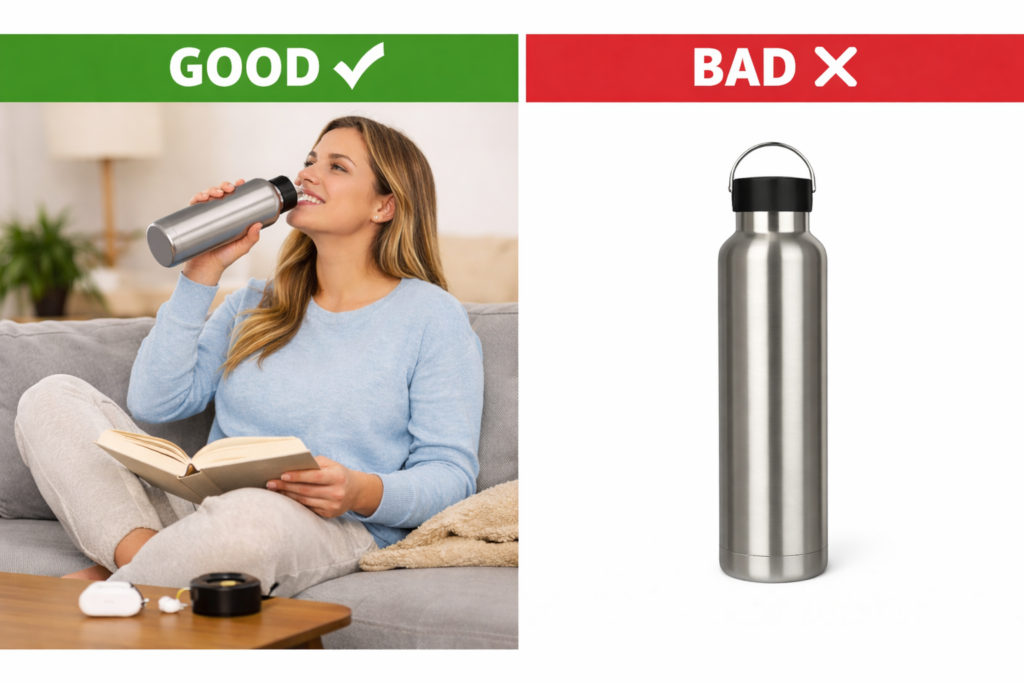
💡 Image Testing Insight: Pinterest’s own data shows lifestyle images outperform plain product shots by 30-50% in engagement. If you only have white-background product photos, consider investing in lifestyle photography for your top 20% of products.
Additional Quick Wins
✅ Feed Optimization Checklist:
- Titles start with primary keywords (not brand name)
- Descriptions are 100+ characters with natural keyword usage
- Google Product Category mapped for all products
- Custom labels assigned for campaign segmentation
- Images are 2:3 vertical ratio (1000x1500px minimum)
- Sale prices are included when products are discounted
- Out-of-stock products are excluded from the feed
- Products without images are excluded from the feed
- Feed updates at least every 24 hours
- Brand field populated for all products
🔗 Learn more about feed filtering: See our guide on WooCommerce Product Feed Filtering — advanced techniques for excluding low-performers and segmenting your catalog.
Pinterest Verified Merchant Program
The Pinterest Verified Merchant Program gives qualifying stores a blue “verified” checkmark, enhanced distribution, and access to exclusive features. It’s Pinterest’s way of highlighting trustworthy merchants—and it can significantly boost your visibility.
Benefits of Verified Merchant Status
| Benefit | What It Means | Impact |
|---|---|---|
| Verified Badge | Blue checkmark on your profile | Builds trust, increases click-through rates |
| Enhanced Distribution | Products shown more prominently | More impressions in Shop Tab and search |
| Shop Tab Priority | Featured placement in shopping surfaces | Higher visibility during purchase-intent moments |
| Merchant Details | Display return policy and values on profile | Reduces purchase hesitation |
| Early Access | New shopping features before general release | Competitive advantage |
💡 Is it worth pursuing? For stores serious about Pinterest as a sales channel, absolutely. Verified merchants report 10-20% higher engagement compared to non-verified stores in the same categories.
Eligibility Requirements
Pinterest evaluates merchants based on these criteria:
✅ To qualify for Verified Merchant status, you need:
- Active product catalog — Connected, syncing with products approved
- Claimed website — Domain verified in Pinterest Business Hub
- Working Pinterest Tag — Installed and receiving events
- Compliant website — Meets Pinterest Merchant Guidelines
- Shipping policy — Clearly visible on your website
- Return/refund policy — Clearly visible on your website
- Contact information — Email or phone number accessible
- Secure checkout — HTTPS on all pages, especially checkout
- Quality product data — Accurate prices, descriptions, and availability
- No policy violations — No history of guideline violations
⚠️ Shipping & Returns Policies: These are the most commonly missed requirements. Pinterest specifically checks for visible policies on your website—not just buried in your terms of service. Add dedicated pages linked from your footer navigation.
How to Apply
The Verified Merchant Program is currently application-based in most regions:
- Ensure you meet all eligibility requirements above
- Go to Pinterest Business Hub → Settings → Claimed Accounts
- Look for the “Verified Merchant Program” section
- Click Apply or Request Verification
- Pinterest reviews applications within 1-2 weeks
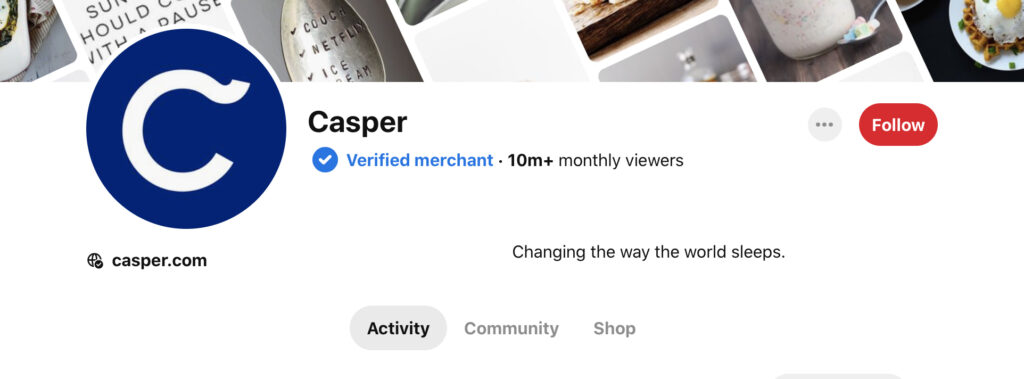
Note: In some regions, Pinterest automatically enrolls eligible merchants. If you meet all requirements but don’t see an application option, your account may already be under review.
What If You’re Rejected?
If your application is declined, Pinterest provides a reason. Common rejection causes:
| Rejection Reason | How to Fix |
|---|---|
| Missing shipping policy | Add a dedicated returns page, link from footer |
| Missing return policy | Add a dedicated returns page, link from the footer |
| Website quality issues | Fix broken links, improve product descriptions |
| Catalog data problems | Fix feed errors in Pinterest Business Hub |
| Policy violations | Review Pinterest Merchant Guidelines, address violations |
After fixing issues, you can reapply after 30 days.
🔗 Official Guidelines: Pinterest Merchant Guidelines — Full policy requirements from Pinterest
Measuring Your Pinterest ROI
Pinterest can drive significant revenue—but only if you’re tracking performance correctly. Many store owners set up a Pinterest account, wait a few weeks, see no obvious spike in sales, and assume it doesn’t work.
The problem usually isn’t Pinterest. It’s a measurement.
Pinterest has a longer attribution window than most channels. Users save pins, return weeks later, and then purchase. If you’re only looking at last-click attribution in Google Analytics, you’re likely missing 40-60% of Pinterest-driven conversions.
Understanding Pinterest Analytics
Pinterest provides analytics at three levels:
| Analytics Level | Where to Find It | What It Shows |
|---|---|---|
| Pinterest Analytics | Business Hub → Analytics | Pin performance, audience insights, top content |
| Conversion Insights | Business Hub → Ads → Conversions | Tag events, attributed conversions, revenue |
| Catalog Analytics | Business Hub → Catalogs | Product performance, feed health, click data |
For e-commerce ROI measurement, Conversion Insights is your primary dashboard.
Key Metrics to Track
Not all metrics matter equally. Focus on these:
| Metric | What It Measures | Why It Matters | Good Benchmark |
|---|---|---|---|
| Impressions | Users are saving pins to boards | Reach and visibility | Trending upward |
| Saves | Users saving pins to boards | Future purchase intent | 2-5% of impressions |
| Outbound Clicks | Clicks to your website | Traffic quality | 0.5-2% of impressions |
| Pin Click Rate (CTR) | Clicks ÷ Impressions | Content relevance | 1-3% |
| Add to Cart | Tag event | Purchase intent | 5-15% of visitors |
| Checkouts | Completed purchases | Revenue | 1-4% of visitors |
| Attributed Revenue | Sales Pinterest influenced | ROI | Varies by niche |
| Users are saving pins to boards | Revenue ÷ Ad Spend | Ad efficiency | 2.0x+ |
💡 Don’t obsess over vanity metrics. Impressions and saves feel good, but don’t pay bills. Focus on outbound clicks, add-to-carts, and attributed revenue. A pin with 100,000 impressions and zero clicks is worthless compared to a pin with 1,000 impressions and 50 purchases.
Pinterest ROAS Benchmarks
What’s “good” performance on Pinterest? Here’s industry data to benchmark against:
| Industry | Average ROAS | Top Performers |
|---|---|---|
| Home Decor | 3.2x | 6-8x |
| Fashion & Apparel | 2.8x | 5-7x |
| Beauty & Skincare | 2.5x | 4-6x |
| Jewelry & Accessories | 2.7x | 5-8x |
| Food & Beverage | 2.2x | 4-5x |
| DIY & Crafts | 3.0x | 5-7x |
| Overall E-commerce Average | 2.7x | 4-6x |
Source: Pinterest Business & industry reports, 2025
📊 Pinterest vs Other Channels: – Pinterest average ROAS: 2.7x – Facebook/Instagram average: 2.0-2.5x – Google Shopping average: 2.5-4.0x
Pinterest often matches or exceeds other channels—with lower CPCs and less competition.
Setting Up Proper Attribution
Pinterest’s default attribution window is 30-day click, 30-day view. This means Pinterest takes credit for conversions that happen within 30 days of someone clicking or viewing your pin.
⚠️ Why This Matters:
If someone sees your pin on January 1st, saves it, and purchases on January 25th, Pinterest attributes that sale to the pin. Google Analytics (last-click) would credit whatever the customer clicked right before purchasing—often Google Search or direct.
Neither is “wrong”—they’re measuring different things. Pinterest shows influence; Google shows last touch.
To get the full picture:
- Trust Pinterest’s Conversion Insights for Pinterest-attributed revenue
- Use UTM parameters to track Pinterest traffic in Google Analytics
- Compare both to understand Pinterest’s true influence
UTM Example for Pinterest:
https://yourstore.com/product/blue-dress?utm_source=pinterest&utm_medium=organic&utm_campaign=spring_catalogROI Calculation Framework
📊 Monthly Pinterest ROI Formula:
Pinterest ROI = (Attributed Revenue – Total Cost) ÷ Total Cost × 100
Example: – Pinterest-attributed revenue: $5,000 – CTX Feed Pro cost: $10/month – Pinterest Ads spend: $500 – Total cost: $510
ROI: ($5,000 – $510) ÷ $510 × 100 = 880% ROI
Even if Pinterest only influenced 50% of that attributed revenue, you’re still at 390% ROI.
📥 DOWNLOAD: Pinterest ROI Calculator (Excel)
Input your traffic, conversion rate, and average order value. The calculator shows projected Pinterest revenue and ROI across conservative, moderate, and aggressive scenarios.
Frequently Asked Questions
Here are answers to the most common questions about connecting WooCommerce to Pinterest. This section is designed for quick reference—use the jump links or Ctrl+F to find what you need.
What is a Pinterest product feed?
A Pinterest product feed is a data file (XML, CSV, or TSV) containing your product information—titles, descriptions, prices, images, and availability. Pinterest uses this feed to automatically create Product Pins that appear in search results, the Shop Tab, and shopping ads.
When someone clicks a Product Pin, they’re taken directly to your WooCommerce product page to complete the purchase.
How many products can I sync to Pinterest?
Pinterest supports up to 20 million products per catalog. For WooCommerce stores, this is rarely a limiting factor—even large stores typically have under 100,000 products.
If you have a very large catalog, the real limitation is usually server resources during feed generation, not Pinterest’s product limits. CTX Feed Pro handles large catalogs through batch processing, avoiding timeout issues that affect other methods.
Does Pinterest support WooCommerce variable products?
Yes. Each product variation (size, color, etc.) can be listed as a separate item in your Pinterest catalog with its own unique ID, price, image, and attributes.
Important: For variations to sync correctly, each variation needs: – A unique SKU (not inherited from the parent product) – Its own price set – Its own image uploaded – Stock status set individually
CTX Feed Pro handles variations automatically. With the official plugin, variations sync if they have complete data.
How often does Pinterest sync product data?
Pinterest fetches your product feed approximately once every 24 hours. This means changes to your products (price updates, stock changes, new products) may take up to 24 hours to appear on Pinterest.
You can’t force Pinterest to fetch more frequently, but you can ensure your feed is always fresh when Pinterest does fetch it by setting your feed to regenerate every 6-12 hours.
Is Pinterest for WooCommerce free?
It depends on which method you use:
| Method | Cost |
|---|---|
| Official Pinterest for WooCommerce plugin | Free |
| CTX Feed (basic version) | Free |
| CTX Feed Pro | From $119/year |
| Manual upload | Free (but time-intensive) |
The official plugin and basic CTX Feed are free but have limitations. CTX Feed Pro is a paid solution offering advanced features, better reliability, and multi-channel support.
What’s the difference between Rich Pins and Product Pins?
This confuses many store owners. Here’s the distinction:
| Feature | Rich Pins | Product Pins |
|---|---|---|
| Source | Website metadata (Open Graph) | Product catalog feed |
| Data synced | Title, description, price | Full product data + inventory |
| Shopping features | Limited | Full (Shop Tab, shopping ads) |
| Best for | Blog content, articles | E-commerce products |
| Recommended for WooCommerce | No | Yes |
For WooCommerce stores, Product Pins via a catalog feed are the recommended approach. Rich Pins were the original method, but Product Pins offer far more functionality for e-commerce.
Why are my products not appearing on Pinterest?
The most common causes are:
- Missing Google Product Category — Map your categories in feed settings
- Feed still processing — Initial sync takes 24-48 hours
- Product validation errors — Check Business Hub → Catalogs → View Issues
- Missing required attributes — Ensure all 7 required fields are present
- Images too small — Minimum 75×75 pixels required
See the Troubleshooting Section above for detailed solutions.
How do I track Pinterest conversions in Google Analytics?
Pinterest conversions tracked by the Pinterest Tag won’t automatically appear in Google Analytics. To track Pinterest traffic in GA:
- Add UTM parameters to your product URLs in the feed
- View in GA under Acquisition → Campaigns
Example UTM structure:
?utm_source=pinterest&utm_medium=organic&utm_campaign=catalog
Note: Google Analytics uses last-click attribution, so it will undercount Pinterest’s influence compared to Pinterest’s own conversion tracking.
Can I use Pinterest if I’m outside the United States?
Yes. Pinterest shopping features are available in 30+ countries including:
United States, United Kingdom, Canada, Australia, Germany, France, Italy, Spain, Netherlands, Brazil, Mexico, Japan, and more.
Check Pinterest’s country availability for the current list, as Pinterest continues expanding to new markets.
How long does it take to see results from Pinterest?
Pinterest is a long-term channel, not an instant traffic source. Typical timeline:
| Timeframe | What to Expect |
|---|---|
| Week 1-2 | Feed synced, products appearing |
| Month 1 | Initial impressions and saves |
| Month 2-3 | Traffic building, first conversions |
| Month 4-6 | Consistent traffic, measurable ROI |
| Month 6+ | Compounding results, optimized performance |
Unlike paid ads that stop when you stop paying, Pinterest content continues driving traffic for months or years. Patience in the early months pays dividends later.
Start Selling on Pinterest Today
Pinterest offers WooCommerce store owners something rare: access to 570 million high-intent shoppers, lower advertising costs than most channels, and content that keeps driving traffic months after you publish it.
But the opportunity only matters if you execute correctly.
Quick Recap: Your Pinterest Integration Checklist
✅ Before you go, make sure you have:
- Pinterest Business account created and verified
- Domain claimed in Pinterest Business Hub
- Integration method chosen (CTX Feed Pro recommended)
- Product feed created with all required attributes
- Google Product Category mapped for all products
- Pinterest Tag installed and verified
- Conversions API enabled for accurate tracking
- Feed updating automatically (every 6-24 hours)
- Shipping and returns policies visible on your site
- Pinterest Analytics bookmarked for ongoing monitoring
Choosing Your Path Forward
Based on everything we’ve covered:
| Your Situation | Recommended Action |
|---|---|
| Serious about Pinterest as a sales channel | Start with CTX Feed Pro — reliability, control, multi-channel ready |
| Testing Pinterest with small catalog (<500 products) | Try the official plugin first, upgrade if you hit limitations |
| Already using the official plugin with issues | Switch to CTX Feed Pro to eliminate sync problems |
| Selling on multiple channels (Google, Facebook, Pinterest) | CTX Feed Pro — one plugin for all your feeds |
Ready to Get Started?
🎯 Get CTX Feed Pro — The Reliable Way to Sell on Pinterest
- Pre-built Pinterest Catalog template
- Batch processing for large catalogs (no timeouts)
- Advanced filtering and custom labels
- 100+ channel templates included
- Dedicated support team
- 30-day money-back guarantee
Get CTX Feed Pro → Or try the free version to explore basic features.
Continue Learning
🔗 Explore More Pinterest & Feed Resources:
- Pinterest Product Feed: Complete Attribute Guide — Deep dive into feed optimization
- Pinterest Tag Setup: Installation & Troubleshooting — Advanced tracking configurations
- Pinterest Shopping Ads for WooCommerce — Paid campaign strategies
- WooCommerce Google Shopping Feed Guide — Multi-channel selling
- CTX Feed Pro Documentation — Complete plugin guides
Final Thought
Pinterest rewards stores that show up consistently with quality products and optimized feeds. The stores seeing 4x, 6x, even 8x ROAS aren’t using magic—they’re using the strategies in this guide.
Your products deserve to be discovered. Now you have everything you need to make it happen.