
You can remove out-of-stock products from your WooCommerce product feeds by filtering them out with a feed plugin like CTX Feed, hiding them at the catalog level through WooCommerce’s native inventory settings, or excluding them with custom code. Each method controls a different part of your store: the feed plugin controls what reaches Google Shopping, Facebook, and other channels; the native setting controls what shoppers see on your storefront; custom code gives you full control over both.
Out-of-stock listings that stay live in your feed waste ad spend, since every click on a sold-out product is a click you paid for and can’t convert. This guide covers three practical methods, starting with the fastest one.
How to Remove Out-of-Stock Products Using WordPress Plugin
The fastest way to exclude out-of-stock items from a WooCommerce product feed is a dedicated feed plugin, since it can filter by stock status, schedule automatic updates, and match each channel’s format requirements without manual exports. CTX Feed is a widely used option for this, supporting Google Shopping, Facebook Catalog, TikTok Shop, and 220+ other channels as of 2026.
Step 1: Install and Activate CTX Feed
You will need the pro version for removing out of stock products. However, both the free and pro version needs to be installed and activated.
- Go to Plugins > Add Plugin.
- Search, install, and activate the CTX Feed free version.
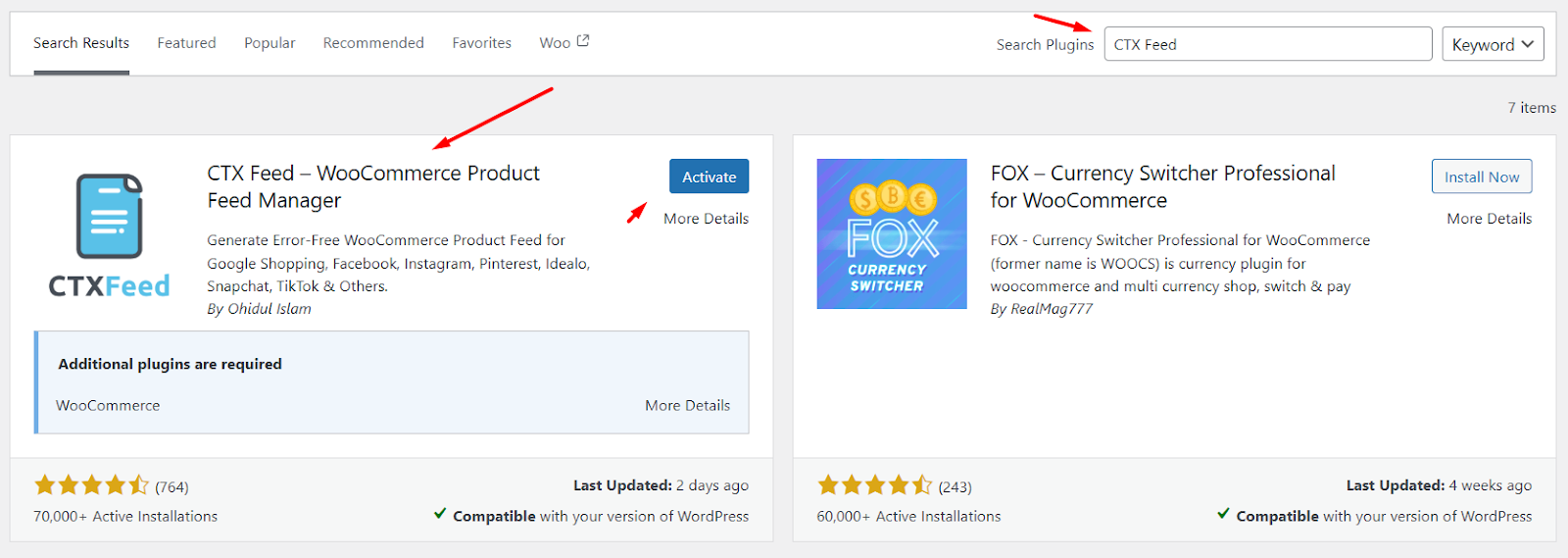
- Again, go to Plugins > Add Plugin and click on Upload Plugin.
- Upload the pro version zip file and activate.
Step 2: Create or Edit Your Feed
- Navigate to CTX Feed > Manage Feeds.
- Either click New Feedto create a feed for a platform (Google, Facebook, etc.) or click Edit to modify an existing feed.
Step 3: Set Up Basic Feed Details
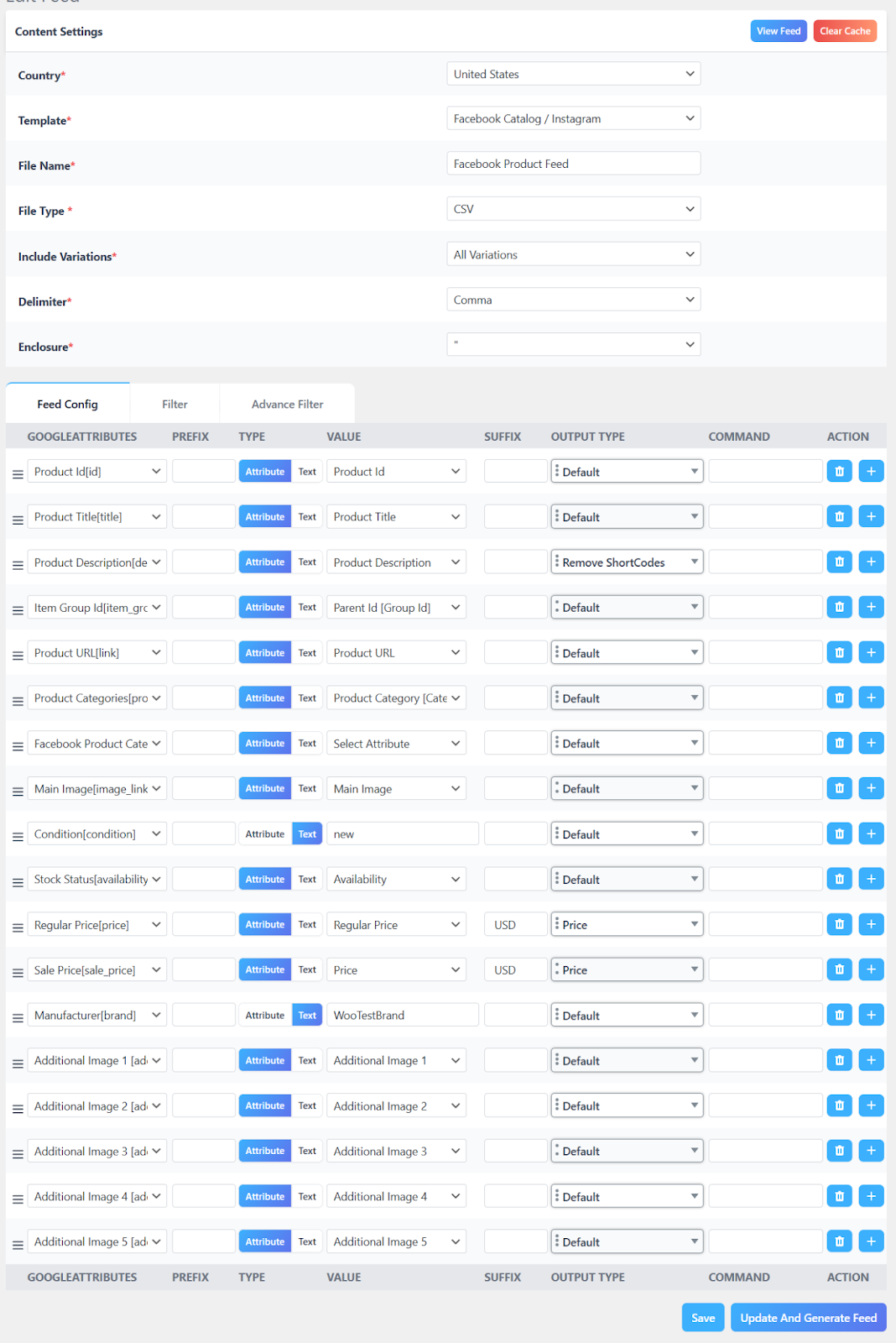
- Choose your Feed Template(e.g., Google Shopping). This will automatically populate necessary attributes.
- Name your feed (e.g., “Google Shopping Feed”).
- Select the File Typefrom the dedicated dropdown.
Map & Customize Attributes
- Review the Feed Config section to ensure required fields (ID, Title, Price, Stock Status) are correctly assigned.
- Add any custom fields or dynamic values as needed for your chosen channel.
Step 4: Configure the Exclusion Filter
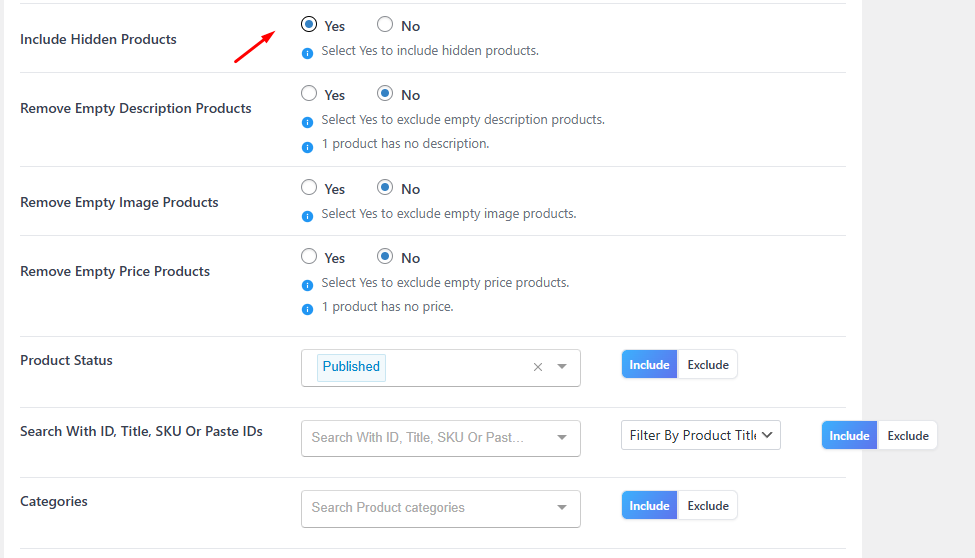
- Switch to the Filters tab.
- Remove Out Of Stock Products? → Select Yes
- This tells CTX Feed to automatically exclude any product whose WooCommerce Stock Status is “outofstock.”
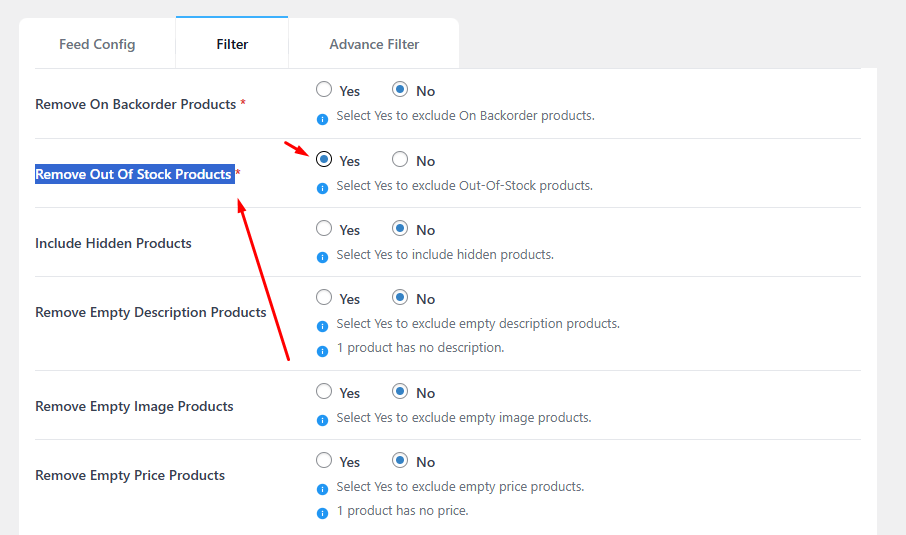
- Include Hidden Products? → No
- This ensures products set to “Hidden” under WooCommerce › Settings › Products › Inventory › Hide out of stock items from the catalog are also omitted.
- (Optional) Include Hidden Products for Special Campaigns
- If you run a private or members‑only collection that’s hidden from your storefront but should appear in a specific feed:
- Include Hidden Products? → Yes
- Add a Category or Tag filter:
- Taxonomy: Category (or Tag)
- Condition: IN
- Value: your_special_collection_slug
- Now only items in that category/tag will flow into this feed, even though they’re hidden on your main site.
- If you run a private or members‑only collection that’s hidden from your storefront but should appear in a specific feed:
Step 5: Set an Update Schedule
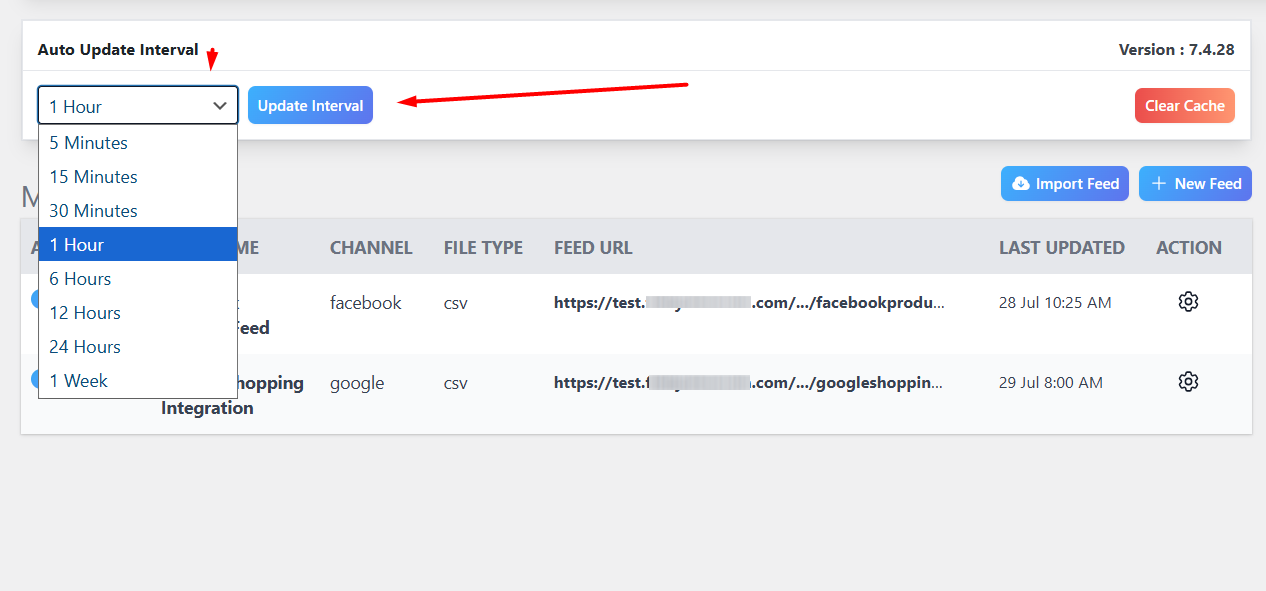
- From Manage Feeds, you can set Update Interval (e.g., 1 Hour – checks your store every hour for changes and updates the feed) so the feed automatically regenerates and always reflects current stock.
Step 6: Preview, Test, and Publish
- Under Manage Feeds, click the gear icon and View to inspect the first 50 lines—confirm no “out of stock” or hidden items appear.
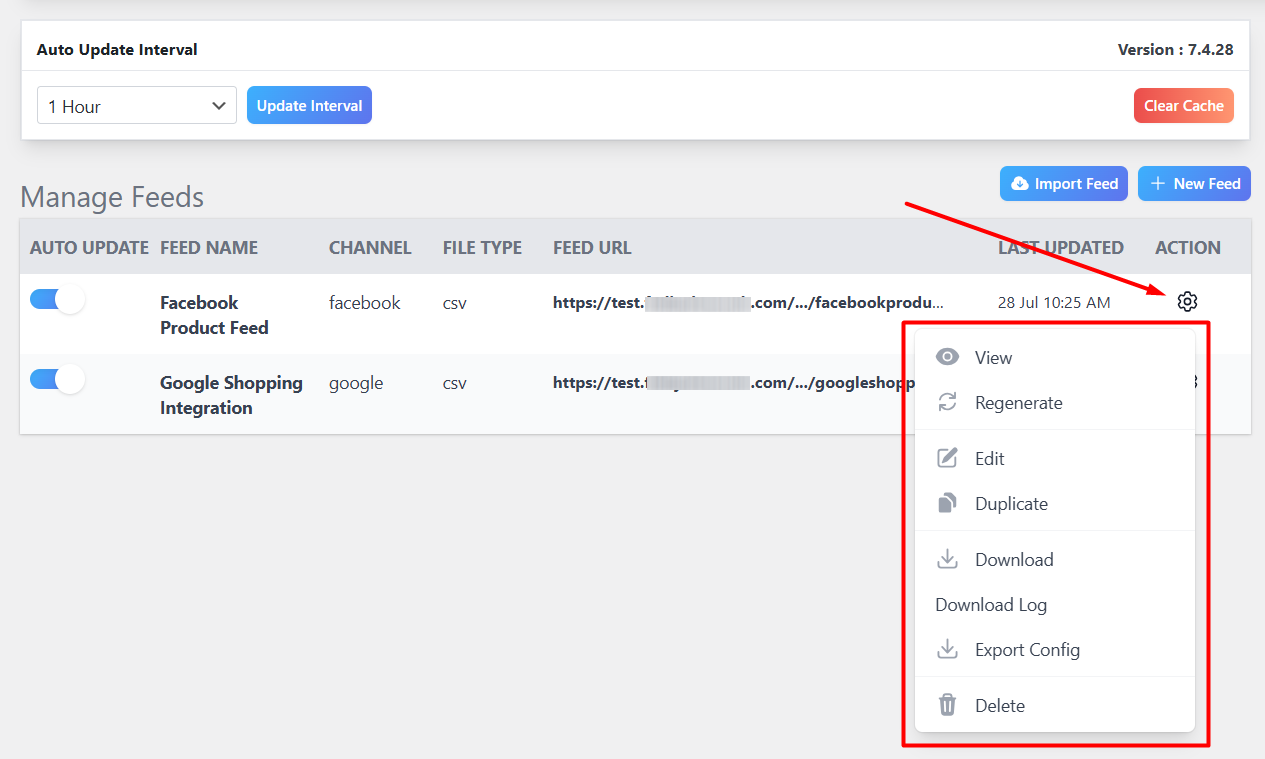
- If everything looks correct, use the Download button or copy the Feed URL.
- Submit this URL to your platform (e.g., Google Merchant Center, Facebook Business Manager).
By following these detailed CTX Feed steps, you ensure that every time your feed runs, only in-stock and appropriately visible products are included, maximizing ad efficiency and maintaining a flawless shopping experience. This is how you disable out-of-stock products in Google Merchant Center in the quickest way as well.
Plugins like CTX Feed also help in troubleshooting feed errors from different platforms, such as Google Merchant Center, Meta Commerce Manager, etc.
How to Hide Out-of-Stock Products in WooCommerce Using Native Settings
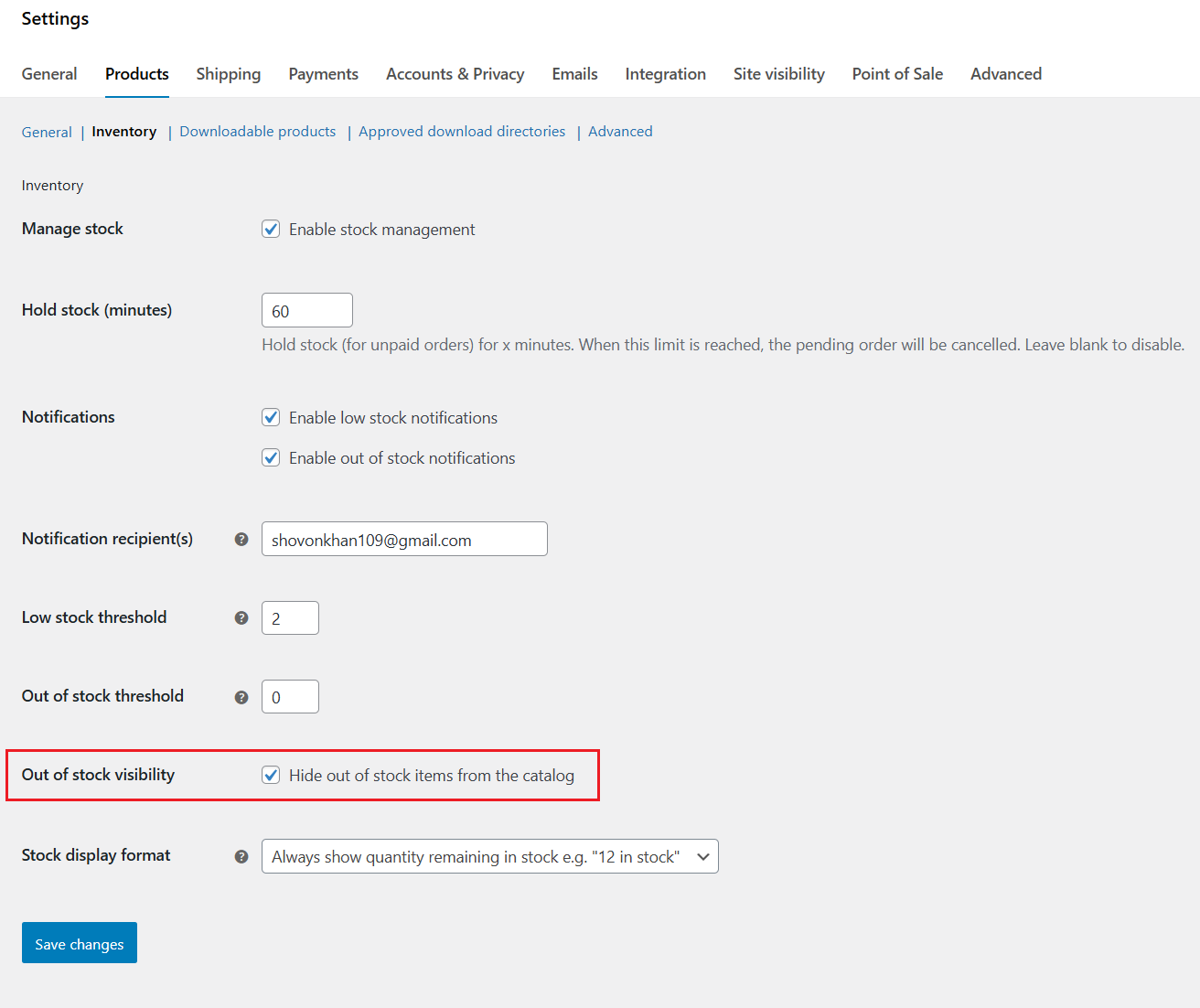
WooCommerce’s built-in inventory setting hides out-of-stock products from your storefront and, for simple feed setups, from the feed itself.
Go to WooCommerce > Settings > Products > Inventory, check “Hide out of stock items from the catalog,” and click Save Changes.
How to Exclude Out-of-Stock Products from a WooCommerce Feed with Custom Code
Custom code is worth using when you need filtering logic no plugin offers, want to avoid the overhead of an extra plugin, or prefer to hook directly into WooCommerce’s query process. This requires comfort with PHP. Work in a child theme, keep a recent backup, and test on staging before touching your live store.
Step 1: Prepare Your Environment
Verify your child theme is active so customizations survive updates, enable WP_DEBUG in wp-config.php to catch errors, and back up your files and database.
Step 2: Hook into the Query
WooCommerce feeds run on WP_Query. The pre_get_posts action fires before any query executes, allowing you to modify its parameters before products are pulled into the feed.
Step 3: Detect the Feed Context
Inside your function, confirm you’re only modifying the feed you intend to change. Use is_feed() to catch any RSS or XML feed, and check $_GET['feed'] or the URL path if you’re targeting one specific feed.
Step 4: Add the Stock-Status Filter
Add this to your child theme’s functions.php:
add_action( 'pre_get_posts', 'exclude_outofstock_from_feed' );

function exclude_outofstock_from_feed( $query ) {

    if ( is_admin() || ! $query->is_main_query() || ! is_feed() ) {
        return;
    }

    $meta_query = (array) $query->get( 'meta_query' );

    $meta_query[] = [
        'key'     => '_stock_status',
        'value'   => 'outofstock',
        'compare' => '!=',
    ];

    $query->set( 'meta_query', $meta_query );
}
This excludes any product whose _stock_status meta value equals “outofstock” before the feed is built, since the filter runs on the query itself rather than on the finished output.
Step 5: Test and Verify
Regenerate your feed URL, or view your RSS or XML output, and confirm that no out-of-stock entries remain. Spot-check a few in-stock products to make sure they’re still present.
Best Practices for Keeping Feeds Clean
Update your feed on a schedule. Sync at least once a day, more often if stock changes frequently. Google Merchant Center recommends frequent updates for accurate availability, particularly for local inventory feeds; check the current requirements on Google’s help center before finalizing your schedule.
Handle variations separately. A variable product can stay listed if the parent is “in stock” while every variation is sold out. CTX Feed Pro can exclude sold-out variations automatically; if you’re filtering with custom code, apply the _stock_status check at the variation level, not just the parent product, to keep individual out-of-stock variants out of feeds like Google Shopping.
Decide how to treat discontinued products. For items you’ll restock, use a back-in-stock notification or a pre-order label instead of full exclusion, since removing them from the feed loses future demand signals. For items that are permanently discontinued, exclude them from the feed and set up a 301 redirect from the product page to a relevant alternative, which preserves SEO value and avoids 404 errors for anyone who still lands on the old URL.
Check feed diagnostics after every update. Google Merchant Center’s Diagnostics tab flags mismatched availability, missing attributes, and other errors at the product and feed level. Reviewing it after each sync catches problems before they cause disapprovals or wasted spend.
Monitor performance before and after filtering. Track click-through rate, conversion rate, and return on ad spend using Google Analytics or your ad platform’s reporting. A drop after adding stock filters can indicate you’ve over-filtered and removed items that were still sellable.
Best WooCommerce Feed Plugin for Filtering Out-of-Stock Items: CTX Feed
CTX Feed manages WooCommerce product feeds for Google Shopping, Facebook, TikTok Shop, and 220+ other shopping and marketing channels, with built-in filtering to exclude out-of-stock and hidden products automatically. It’s maintained by WebAppick and is listed as 2026-compliant with current Google Merchant Center requirements, including support for subscription products.
The free version covers feed creation for a single channel. The Pro version adds the out-of-stock exclusion filter, advanced conditional filtering, and scheduled auto-sync. Pricing for CTX Feed Pro starts at around $119 per year for a single site; check the official pricing page for current plans before purchasing.
Key Features
- One-click exclusion of out-of-stock items through the Filters tab.
- Advanced filtering by stock quantity, category, tag, or custom field.
- Scheduled auto-sync so feeds regenerate on a set interval.
- Support for XML, CSV, TSV, JSON, and other formats across 220+ channels.
- Variation-level controls to include or exclude specific product variants.
Frequently Asked Questions
How do I exclude out-of-stock products from my shopping feeds?
Use a feed plugin’s filter settings to exclude products by stock status. In CTX Feed, open the Filters tab on your feed and set Remove Out Of Stock Products? to Yes. This removes any product whose WooCommerce stock status is “outofstock” from that specific feed without affecting your storefront.
How do I hide out-of-stock products in the WooCommerce catalog without touching my feeds?
Go to WooCommerce > Settings > Products > Inventory and enable “Hide out of stock items from the catalog.” This hides sold-out items from shop pages and search on your storefront. It won’t affect advanced feed plugins unless they’re set to respect catalog visibility.
Can I exclude specific product variants from my Google Shopping feed?
Yes. Variable products can still appear if the parent is “in stock” while individual variations are sold out. CTX Feed Pro can exclude sold-out variations automatically, and custom code can filter on the _stock_status meta at the variation level for the same result.
Why does a product still show as out of stock in my feed even though it’s in stock on my site?
This usually means the feed hasn’t synced since the stock status changed, or a parent-variation mismatch is confusing the export. Check your feed’s update interval, regenerate it manually, and confirm the specific variation’s stock status directly rather than relying on the parent product.
How do I stop discontinued products from appearing in my WooCommerce feed?
Exclude discontinued products the same way you exclude out-of-stock ones: through your feed plugin’s filter settings or a custom stock-status query. Also set up a 301 redirect from the discontinued product’s page to a relevant alternative so you don’t lose the page’s existing SEO value.
What does “no source items with the in stock status” mean in Google Merchant Center?
It means Google can’t find any items in your submitted feed marked as available, usually because a filter excluded everything or a stock status mapping is misconfigured. Check your feed’s stock status field mapping and confirm at least some products are correctly marked “in stock” before resubmitting.
Key Takeaways
- CTX Feed’s Filters tab lets you exclude out-of-stock products from a specific feed with a single toggle, without changing what shoppers see on your storefront.
- WooCommerce’s native “Hide out of stock items from the catalog” setting controls storefront visibility and works for simple feed exports, but advanced feed plugins need their own exclusion filter set separately.
- Variable products need extra attention, since a parent product can stay listed even after every variation sells out.
- Custom code using
pre_get_postsand the_stock_statusmeta key gives full control for stores with filtering that needs no plugin covers. - Treat discontinued and temporarily out-of-stock items differently: redirect discontinued product pages, but keep restockable items visible with a back-in-stock notice.
- Check Google Merchant Center’s Diagnostics tab after every feed update to catch availability mismatches before they cause disapprovals.

Free version on WordPress.org. Every Pro licence includes a 30-day money-back guarantee.

