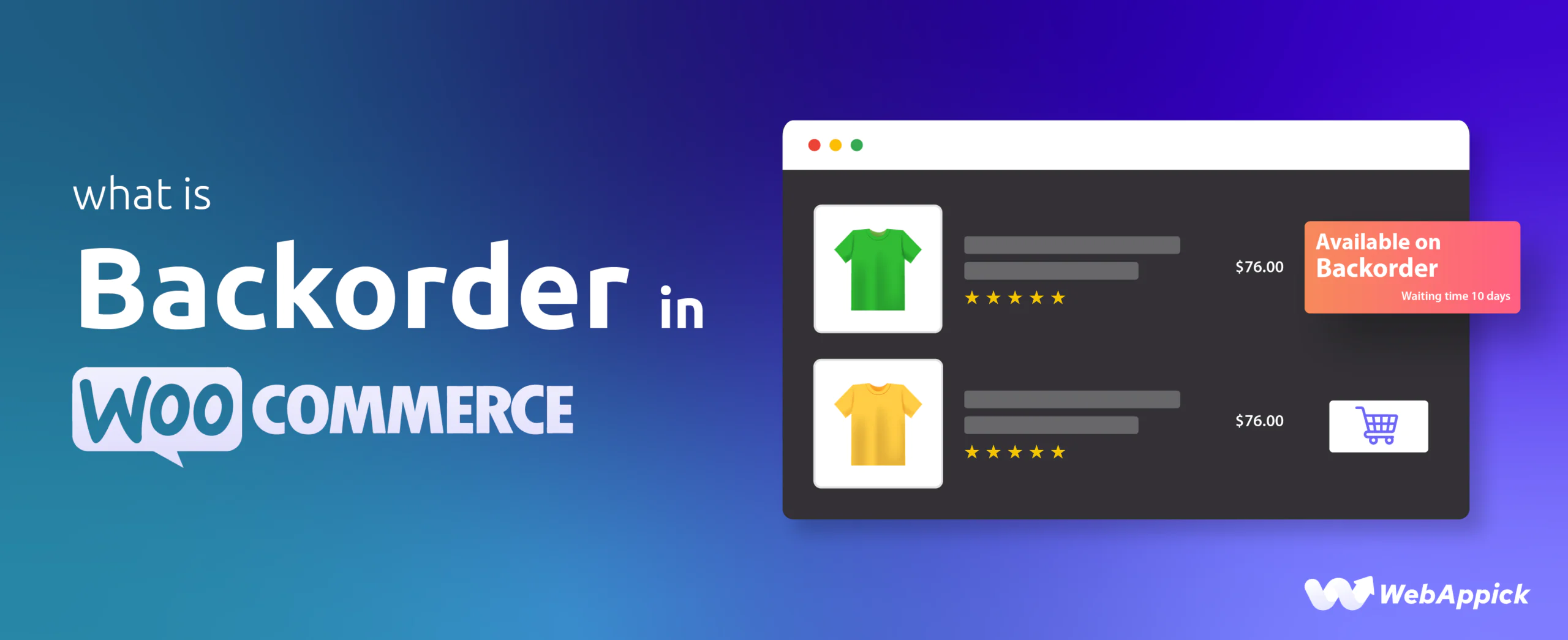
For a WooCommerce store owner, a backorder is a strategic inventory setting that enables customers to purchase products even when the physical stock level reaches zero. Instead of displaying a restrictive “Out of Stock” message, this feature keeps the Add to Cart button active, allowing your business to capture revenue immediately while the inventory is being replenished.
In simple words, WooCommerce backorders let you sell products that are temporarily unavailable but expected to return to stock.
This helps you prevent lost sales, manage inventory gaps, and keep customers from leaving your store when a product is temporarily out of stock.
Managing backorders effectively requires more than just enabling the option. You need to understand how the backorder process works, what “Available on Backorder” means, how WooCommerce stock statuses work, and when it is better to use backorders instead of marking a product as out of stock.
Understanding WooCommerce Backorder
In WooCommerce, a backorder is a feature that allows customers to purchase products even when they are temporarily out of stock. Unlike “out-of-stock” products, which prevent sales until inventory is replenished, backorders ensure you don’t lose potential sales by keeping the buying process active.
But how, you ask? Well, have a look at this example.
For example:
- If a customer wants to buy a product that is currently unavailable, they can place an order, and you’ll fulfill it once the item is back in stock.
- Customers are usually notified of the delay, and WooCommerce lets you manage how these notifications appear.
This feature is particularly useful for businesses that experience high demand or deal with supply chain delays.
Interpreting “Available on Backorder” Status
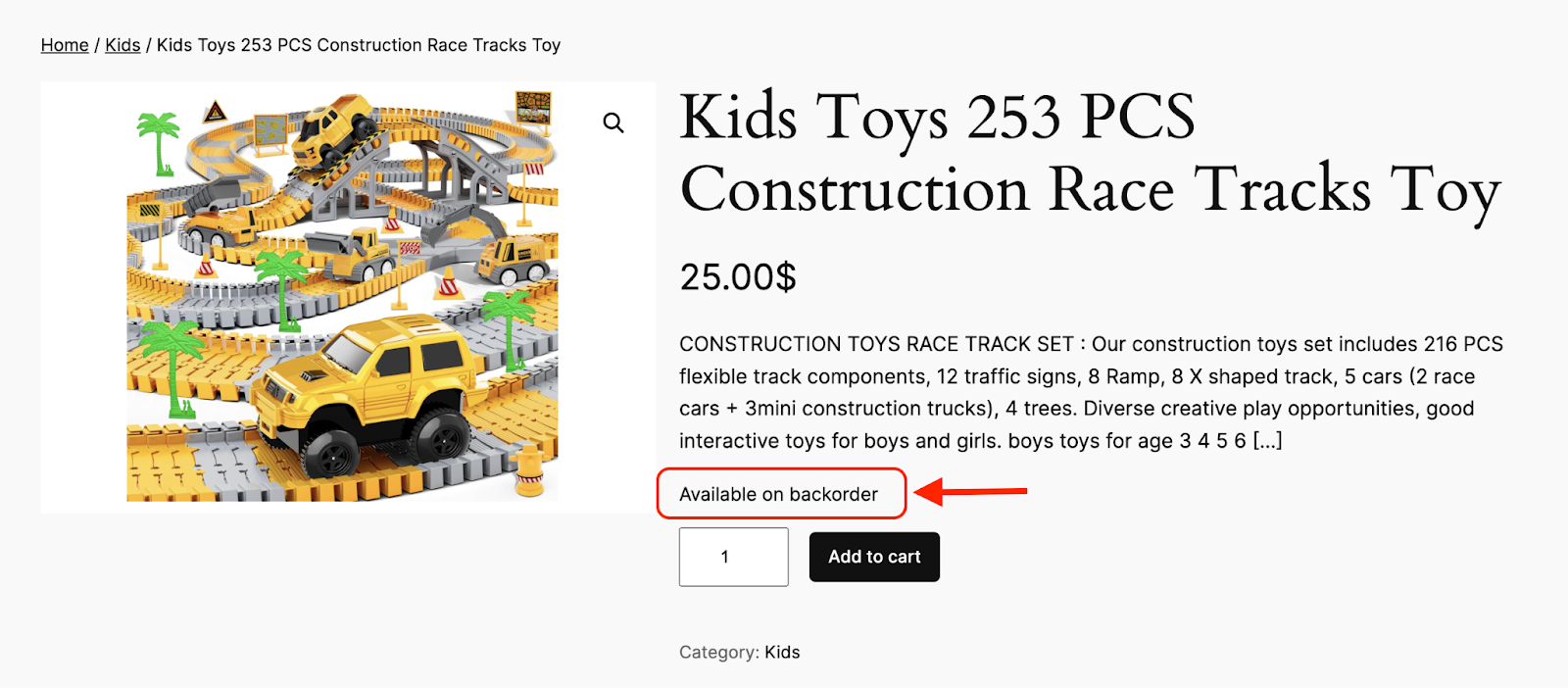
When a customer sees the “Available on Backorder” message on a product page, it communicates four important points:
- Availability: The product is not currently available for immediate shipping.
- Restock Intent: The store expects to restock the item.
- Purchase Ability: The customer can still complete the purchase.
- Fulfillment Expectation: The item will ship after new stock arrives.
This message is important because it helps customers understand that the product can be ordered now, but delivery will take longer than usual.
Real-World WooCommerce Backordering Examples
To better understand how to apply this feature to your specific business model, let’s look at four common scenarios where backordering can be either a strategic advantage or a risk.
1. High-Demand Electronics: Bridging the Gap
- Scenario: You sell wireless headphones, and a sudden surge in demand causes the product to run out of stock. Your supplier confirms a restock in 7 days.
- Strategy: Instead of losing momentum, you enable backorders.
- Result: You capture the customer’s order immediately, securing the sale before they look for another brand.
2. Seasonal Apparel: Capturing Peak Traffic
- Scenario: It’s mid-winter, and your most popular jacket size is sold out. New stock is already in transit.
- Strategy: Keep the product “Available on Backorder.”
- Result: You capitalize on seasonal traffic. Since the customer is already in buying mode for winter gear, they may be willing to wait a few extra days for the right size.
3. Custom & Made-to-Order Goods: Managing Production
- Scenario: You sell personalized jewelry or custom furniture where items are finished only after an order is placed.
- Strategy: Use the backorder status as part of your regular fulfillment workflow.
- Result: This aligns with customer expectations. Since custom goods naturally have longer lead times, the backorder status works as a clear acknowledgment of the production phase.
4. Limited-Edition Items: When NOT to Backorder
- Scenario: You are selling a one-time-only collector’s item or a discontinued product line.
- Strategy: Disable backorders and mark the product as “Out of Stock.”
- Risk: Allowing a backorder here is risky. If the item never returns to stock, you may need to issue refunds, lose transaction fees, and deal with customer dissatisfaction.
Expert Tip: When using backorders for custom or made-to-order products, consider using the “Allow, but notify customer” setting. This ensures the customer understands the production timeline before reaching the final checkout page.
WooCommerce Stock Status Comparison
WooCommerce uses three primary stock statuses to manage product availability on the front end and inventory logic in the back end:
| Status | Meaning | Purchase Ability |
|---|---|---|
| In Stock | Item is available for immediate shipping | Allowed |
| On Backorder | Item is sold out but available for future shipping | Allowed |
| Out of Stock | Item is unavailable and cannot be purchased | Disabled |
These stock statuses help WooCommerce decide whether customers can buy a product, whether a product should show as available, and how inventory should be managed.
Backorder vs. Out of Stock
The fundamental difference lies in the sales opportunity.
- Backorder: Designed for products that are part of a continuous supply chain. It allows you to capture revenue while waiting for stock.
- Out of Stock: Designed for discontinued items or products with no clear restock date. It prevents customers from paying for something that may not arrive soon.
So, if you know the product will return soon, backordering can be a smart option. But if the restock date is uncertain, marking the product as out of stock is usually safer.
Backorder vs. Pre-Order
While often confused, backorders and pre-orders serve two different stages of a product’s lifecycle.
- Backorder: Applies to existing catalog items that are temporarily missing from stock.
- Pre-Order: Applies to new products that have not yet been officially released or launched.
In simple words, backorder is for a product that already exists but is temporarily unavailable. Pre-order is for a product that is coming soon but has not launched yet.
How to Add Backorder in WooCommerce? Easy Steps
WooCommerce easily lets you enable the Backorder for your products. Here are the steps you need to follow.
Step 1: Access to Product Editing
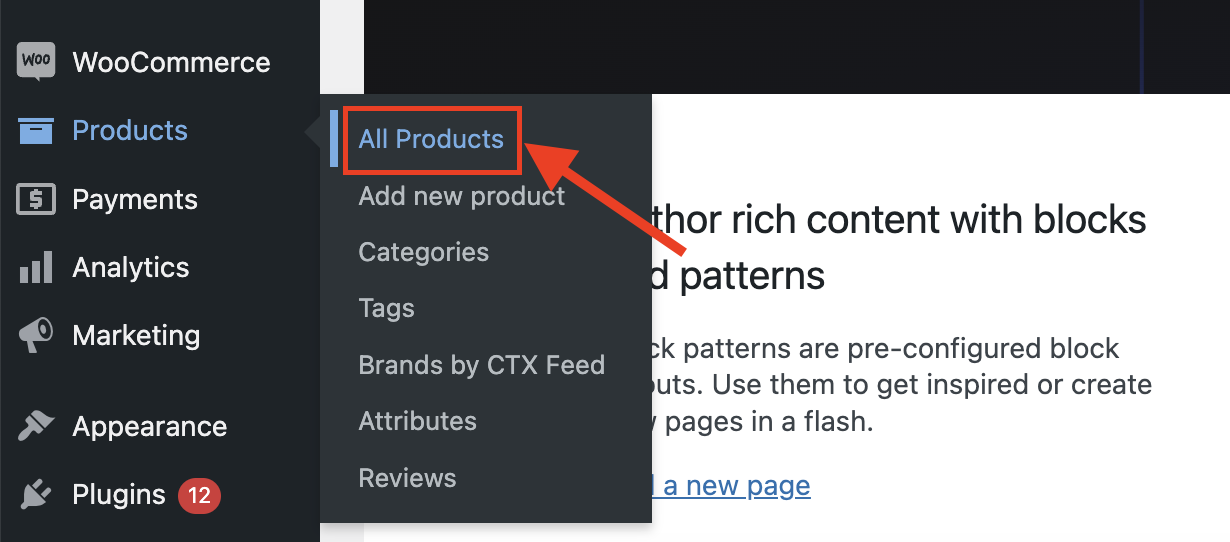
From your WordPress Dashboard, go to Products>>All Products.
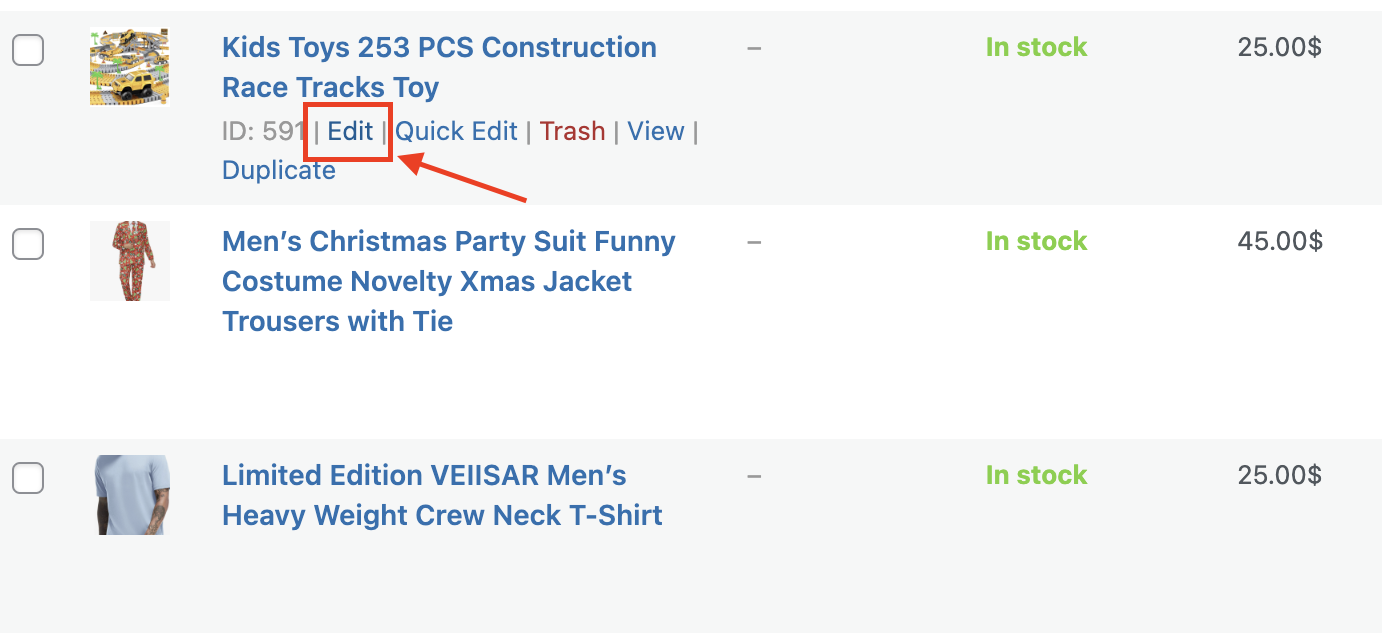
Then, Select the product you want to edit.
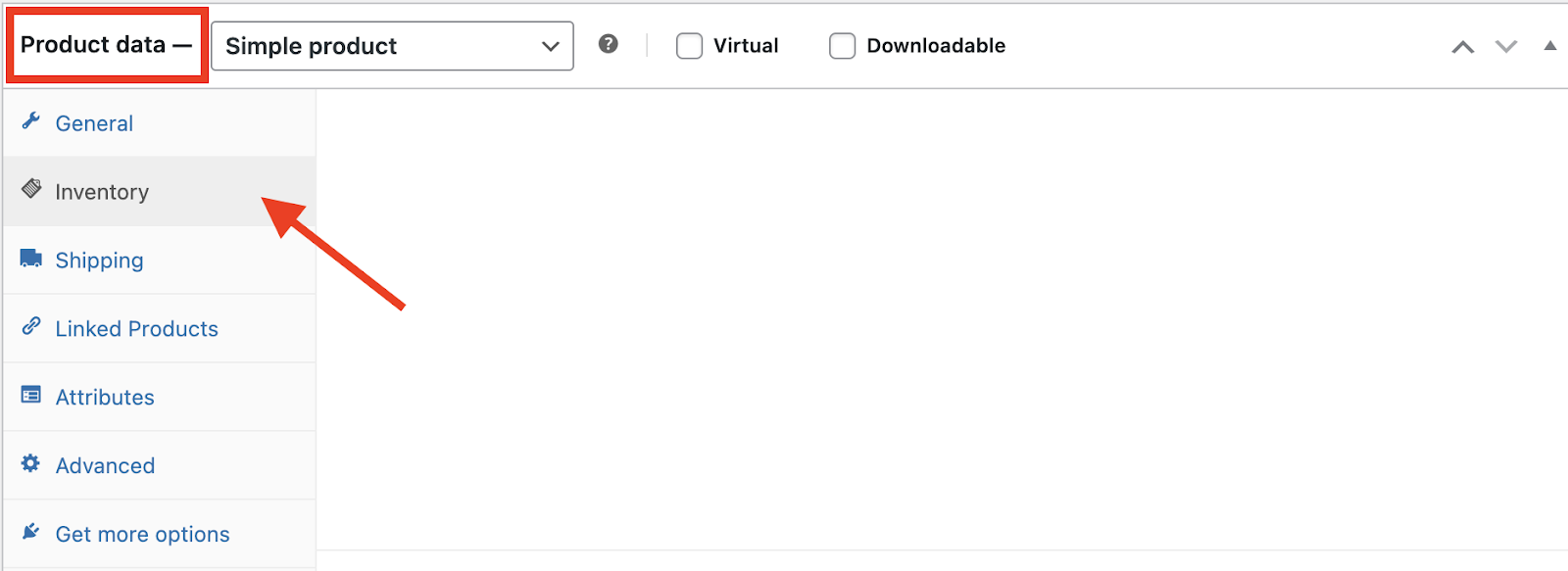
Step 2: Go to the Inventory Section
Scroll down below and get to the “Product Data” section. There, you will find the Inventory tab. Select it.
Step 3: Setting the Stock Order on Backorder
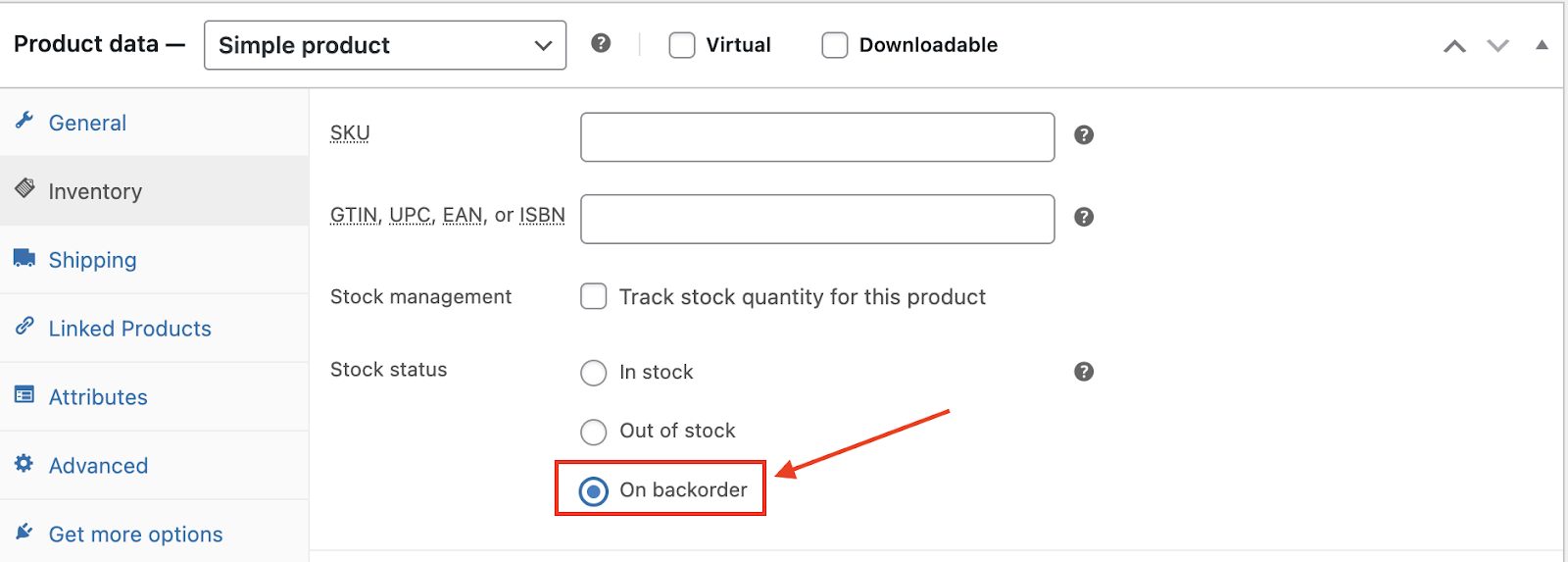
In the “Inventory” tab, you will find the “stock status” option. Here, set it on the “On Backorder” option.
Step 4: Notifying Customers about Backorder
Wait up, it’s not done yet! Once you are done with changing the stock status you get to customize your WooCommerce backorder management. But how?
Well, first enable the “Stock Management” option. You should specify the current stock quantity in the Stock Quantity field (even if the value is zero).
Now, in the Allow Backorders dropdown menu, you’ll see three options:
- Do not allow: Backorders are disabled. Customers cannot purchase the product if it’s out of stock.
- Allow, but notify customer: Backorders are enabled, and customers will see a notification during checkout, indicating the item is on backorder.
- Allow: Backorders are enabled, but no notification is provided to the customer.
Choose the option that best suits your store’s needs. For transparency, it’s recommended to select Allow, but notify customer to set clear expectations.

Step 5: Save Your Changes
After configuring the backorder settings, click the Update button to save the changes for that product. Your product is now configured to accept backorders when it’s out of stock.
WooCommerce Backorders Values: No, Notify, and Yes
If you work with product imports, custom fields, or developer-level WooCommerce settings, you may see backorder values in product meta.
WooCommerce backorders commonly use these values:
| Meta Value | Meaning |
|---|---|
| no | Backorders are not allowed |
| notify | Backorders are allowed, but customers are notified |
| yes | Backorders are allowed without customer notification |
These values are useful when you are importing products in bulk, updating inventory through a plugin, or managing WooCommerce product data programmatically.
For example, if you are using a product import tool, the _backorders meta value may need to be set as no, notify, or yes, depending on how you want backorders to work.
Which Businesses Need WooCommerce Backorders?
Not every business will benefit from enabling backorders in WooCommerce, but for some, it can be a game-changer. Here’s a look at the types of businesses that can gain the most from using this feature:
1. Businesses Selling High-Demand Products
Here’s a simple thing! If your store frequently experiences stock shortages due to high demand for certain items, backorders are essential.
Also, products like trendy fashion items, electronics, or limited-edition merchandise can benefit immensely. So, if you are selling these items then make sure to allow backorders in WooCommerce if you need to.
2. Small Businesses with Limited Storage
For businesses that operate with limited storage capacity, backorders allow them to manage inventory efficiently. Instead of overstocking and taking up valuable space, they can replenish stock based on actual customer orders.
3. Custom or Made-to-Order Products
Businesses offering customizable or made-to-order products can use backorders to manage orders while the items are being crafted. Like what, you say?
For instance, furniture stores or stores selling personalized jewelry can keep sales flowing without maintaining large inventories.
4. Seasonal Product Sellers
Seasonal businesses often see a surge in demand during specific times of the year, such as holidays or special events.
Now, backorders in WooCommerce can help capture sales during these peaks even if inventory runs low.
Take, for example, a store selling holiday decorations or winter clothing that can continue accepting orders without turning away customers.
5. Niche or Specialty Product Sellers
Stores dealing with niche products that are hard to source or have long manufacturing cycles benefit hugely from backorders.
These businesses can maintain customer interest. Also, they can secure sales without needing large upfront inventory investments.
6. Businesses Testing New Products
Here’s something many people ignore. If you are running a store introducing new products or want to gauge customer interest in a specific item, backorders act as a low-risk strategy.
So, by allowing backorders, you can assess demand before committing to large-scale production or inventory investments.
How Soon Should You Fulfill a WooCommerce Backorder?
You should always aim to fulfill a WooCommerce backorder as quickly as possible. Ideally, restock and ship back-ordered items within 7–14 days to ensure customer satisfaction and maintain trust.
The ideal timeframe for backorder fulfillment largely depends on two key factors:
- The nature of your products (e.g., essential vs. luxury items).
- The expectations you set with your customers during the ordering process.
Always try to keep your customers updated with expected timelines via automated emails or notifications to manage their expectations effectively. Remember that timely fulfillment helps prevent frustration, strengthens trust, and encourages repeat purchases.
In cases of extended delays, offering alternatives such as refunds, store credits, or substitute products can help maintain a positive customer experience.
5 Best Practices for Managing Backorders in WooCommerce
Do you want to make backorders work smoothly? Then it’s crucial to implement key strategies that ensure efficiency and customer satisfaction. Check out these best practices will help you manage backorders like a pro.
1. Set Customer Expectations
Always notify customers about backorders and provide estimated delivery dates. This reduces confusion and builds trust.
2. Monitor Backorder Limits
Avoid over-committing by setting a manageable limit on back-ordered items.
3. Communicate Delays Promptly
If there are unexpected delays in restocking, inform your customers immediately to maintain transparency.
4. Offer Partial Shipments
If an order contains both in-stock and back-ordered items, consider shipping the available products first.
5. Use Backorder Notifications
WooCommerce allows you to send email updates to customers about the status of their backordered items.
WooCommerce Backorder Notification Example
Clear communication is the key to managing backorders properly.
Here’s a simple WooCommerce backorder notification example you can use:
- “Your order contains backorder products. It will be shipped once all items become available. We’ll notify you as soon as your backordered item is ready to dispatch.”
- You can also make it more friendly:
- “Thanks for your order! One or more items are currently on backorder. We’re working to restock them as soon as possible and will update you when your order is ready to ship.”
This kind of message helps reduce confusion and gives customers confidence that their order is being handled.
What are the Challenges of Backorder in WooCommerce?
While backorders can boost sales and retain customers, they also come with potential challenges.
Being aware of these hurdles can help you address them effectively.
Customer Dissatisfaction
If delays aren’t communicated clearly, customers may grow frustrated.
Overcommitment
Promising backorders without proper inventory management can lead to cancellations and refunds.
Cash Flow Risks
If suppliers delay stock replenishment, it can strain your business finances.
Shipping Confusion
Customers may not understand whether their full order will ship together or separately.
Inventory Mistakes
Incorrect stock quantity or stock status can make products appear available when they should not be.
Common Backorder Problems in WooCommerce
WooCommerce backorders can sometimes cause issues.
The good news is that most of them can be fixed by checking your product inventory settings.
Products Stuck on Backorder
This usually happens when:
- Stock quantity is incorrect
- Stock status is not updating
- Product inventory is not synced properly
- The product is still marked as on backorder after restocking
To fix this, check the stock quantity, stock status, and product-level inventory settings.
Backorder Notifications Not Showing
Check:
- Product inventory settings
- Theme compatibility
- Cache plugins
- Checkout message settings
- WooCommerce email settings
If customers are not seeing backorder messages, make sure you selected Allow, but notify customers.
Stock Sync Issues
Third-party inventory plugins may conflict with WooCommerce stock management.
If you use ERP tools, product feed tools, inventory sync plugins, or external stock management systems, check whether they are overwriting stock quantity or stock status.
Variable Product Issues
Variation inventory settings can override parent product settings.
Always configure variations individually.
For example, a parent product may allow backorders, but one variation may still be out of stock or set to Do not allow. So, check each variation carefully.
Best WooCommerce Backorder Tools to Keep Your Business Running Smoothly
WooCommerce has built-in backorder support, but plugins can help if you need better customer communication, waitlists, or preorder features.
Native WooCommerce Backorders
Best for:
- Basic inventory management
- Small stores
- Standard backorder workflows
- Simple product-level backorder settings
If you only need to allow customers to buy out-of-stock products, WooCommerce’s built-in feature may be enough.
Waitlist Plugins
Useful for:
- Collecting customer interest
- Sending restock notifications
- Building demand before restocking
- Notifying users when products become available again
Waitlist plugins are helpful when you don’t want to accept payment upfront but still want to capture customer interest.
Back-in-Stock Notification Plugins
These plugins notify customers when products become available again.
Popular features include:
- Email alerts
- SMS notifications
- Waitlists
- Restock reminders
- Customer interest tracking
Back-in-stock notification plugins are especially useful when you don’t want to allow backorders but still want to bring customers back when inventory returns.
Preorder Plugins
Ideal for:
- Upcoming product launches
- Limited releases
- Advance booking
- Products with a fixed release date
Preorder plugins are not the same as backorder plugins, but they can be useful if you sell upcoming products.
Should I Allow Backorders in WooCommerce?
You should allow backorders in WooCommerce if the product is popular, restockable, and you have a clear fulfillment plan.
Backorders are a good idea when:
- The product will be restocked soon
- Customers are willing to wait
- You can provide clear delivery expectations
- You can manage supplier timelines
- You want to avoid losing sales
But backorders may not be ideal when:
- You don’t know when the product will return
- Supplier timelines are unreliable
- The product is discontinued
- Customers expect fast delivery
- You cannot handle delayed shipping communication
So, before enabling backorders, ask yourself one thing:
- Can I fulfill this order within a reasonable time and keep the customer informed?
If the answer is yes, backorders can be a smart option.
Frequently Asked Questions
What happens if an item is on backorder in WooCommerce?
The customer can still place an order, and the product will be shipped once it’s restocked.
What does available on backorder mean?
Available on backorder means the product is currently out of stock, but the customer can still buy it. The store will ship the item once inventory is replenished.
How do backorders affect shipping times?
Shipping is delayed until the back-ordered item is back in stock.
Can I enable backorders for specific products only?
Absolutely. Backorders can be enabled on a per-product basis through inventory settings.
How do backorders affect shipping times?
Shipping is delayed until the back-ordered item is back in stock.
What is the difference between backorder and out of stock?
Backorder means customers can still place an order even though the product is not currently available. Out of stock means customers cannot buy the product until inventory is available again.
What is the difference between backorder and preorder?
A backorder is for an existing product that is temporarily out of stock. A preorder is usually for a product that has not been released yet.
What are WooCommerce backorders values?
WooCommerce backorders commonly use no, notify, and yes values. no means backorders are disabled, notify means backorders are allowed with customer notification, and yes means backorders are allowed without notification.
Why is my WooCommerce product stuck on backorder?
This can happen because of incorrect stock quantity, wrong stock status, variation-level inventory settings, cache issues, or conflicts with inventory plugins.
Should I notify customers about backorders?
Yes, you should. The best option is usually Allow, but notify customer because it keeps the buying process active while setting clear expectations.
Final Thought
Backorders in WooCommerce are a powerful way to manage inventory gaps without losing sales.
By allowing customers to purchase out-of-stock items, you can improve customer retention, boost sales, and manage inventory more effectively.
Now that you know all about backorder in WooCommerce, you can use it more strategically.
Just remember one thing: backorders work best when customers know what is happening. So, set clear expectations, use proper backorder notifications, monitor your stock quantity, and fulfill orders as quickly as possible.
With the tips and best practices outlined in this guide, you’re ready to enable and manage backorders effectively.
Start using backorders today to enhance your WooCommerce store’s performance and keep your customers satisfied!

Free version on WordPress.org. Every Pro licence includes a 30-day money-back guarantee.