

To hide out-of-stock products in WooCommerce, go to WooCommerce > Settings > Products > Inventory and check the “Hide out-of-stock items from the catalog” option. This removes out-of-stock items from your shop pages, category pages, and search results automatically without deleting them.
If you need more control, you can also hide specific products manually or remove them programmatically using custom code.
This guide covers all three methods, plus how to handle out-of-stock product variations, customize the out-of-stock message, and recover sales from unavailable items.
The Difference Between Hiding and Deleting Out-of-Stock Products
Before choosing a method, understand what each action does:
- Hide products: Removed from shop pages and search results, but saved in your database for restocking
- Delete products: Permanently removed and unrecoverable unless restored from trash
In most cases, hiding is the right choice. It keeps your catalog clean while preserving product data for when you restock.
Method 1: Hide Out-of-Stock Products Using WooCommerce Settings
The fastest way to hide out-of-stock products is through WooCommerce’s built-in catalog visibility setting. This applies globally to all out-of-stock products at once.
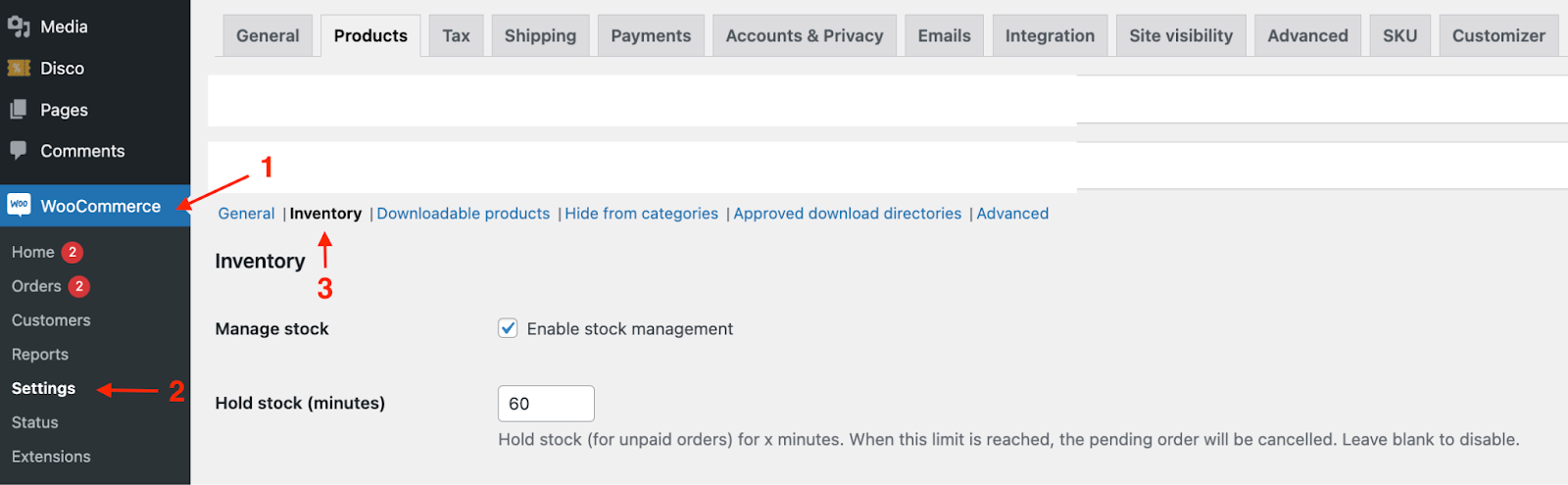
Step 1: Go to WooCommerce Inventory Settings
Log in to your WordPress admin dashboard. Navigate to WooCommerce > Settings > Products > Inventory.
Step 2: Enable Stock Management
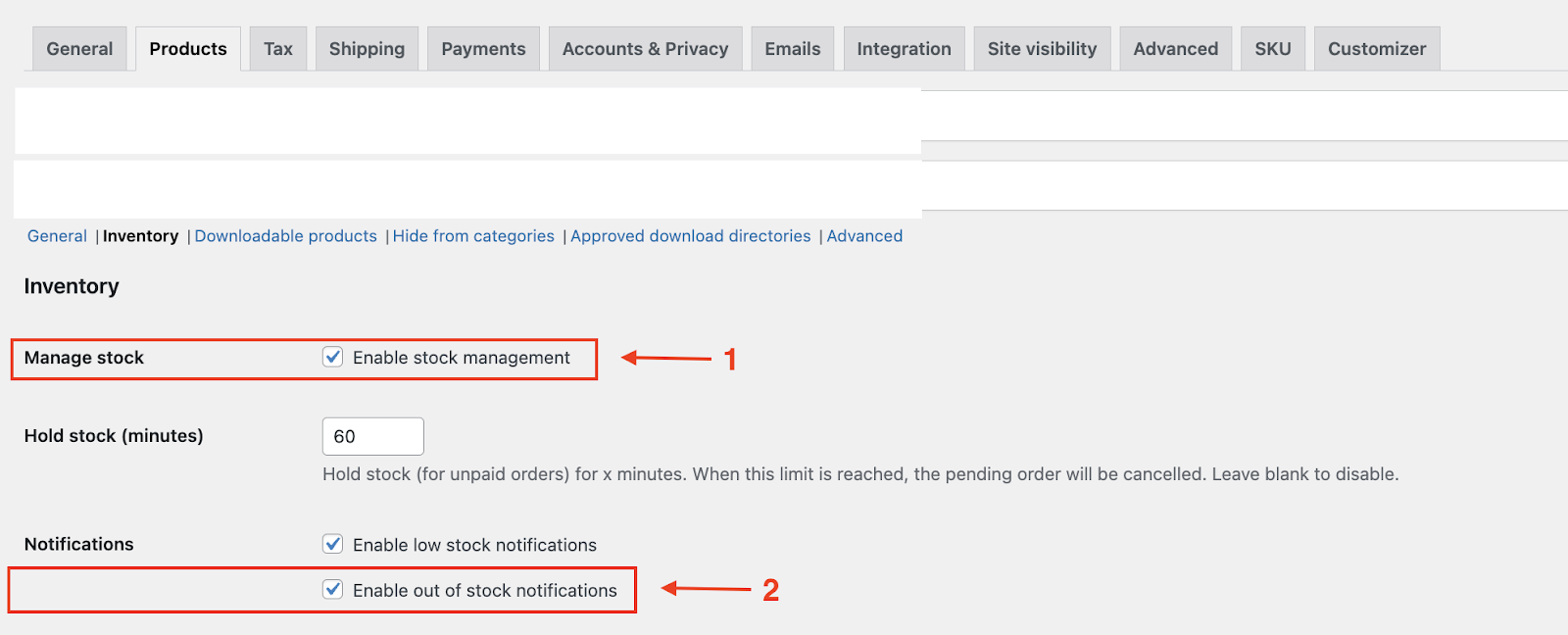
Make sure the “Enable stock management” checkbox is checked. If stock management is off, the hide option will not appear.
You can also check “Enable out-of-stock notifications” here to receive email alerts when products go out of stock.
Step 3: Hide Out-of-Stock Items from the Catalog
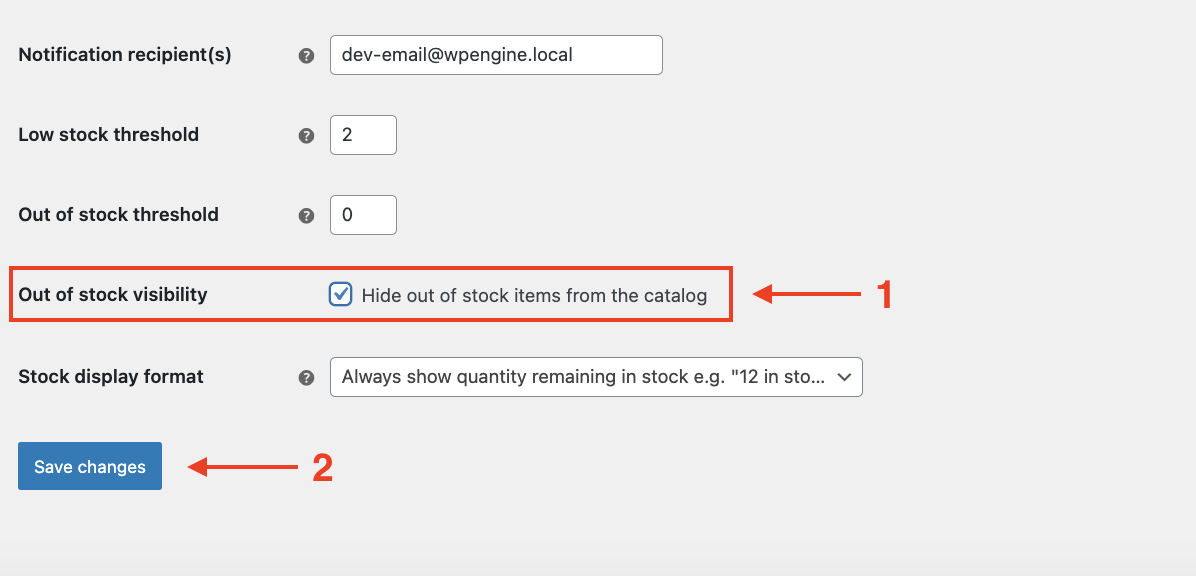
Scroll down to find the “Hide out-of-stock items from the catalog” option and check the box. Click Save changes.
Once saved, out-of-stock products will automatically disappear from your Shop page, Category pages, and Search results. They will reappear automatically the moment you update their stock level back to in-stock.
Note: This setting applies to all out-of-stock products site-wide. To hide only specific products, use Method 2.
Method 2: Manually Hide or Delete Specific Out-of-Stock Products
Use this method when you want to remove individual out-of-stock products, or bulk delete products you will never restock.
Step 1: Go to Your Product List
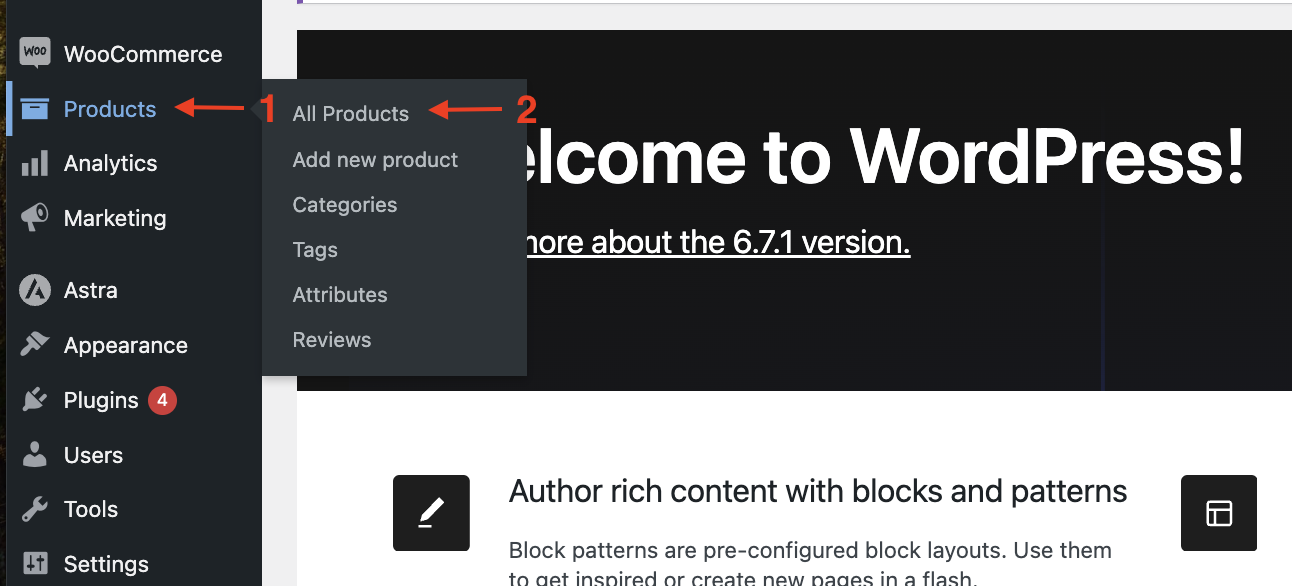
From the WordPress dashboard, navigate to Products > All Products.
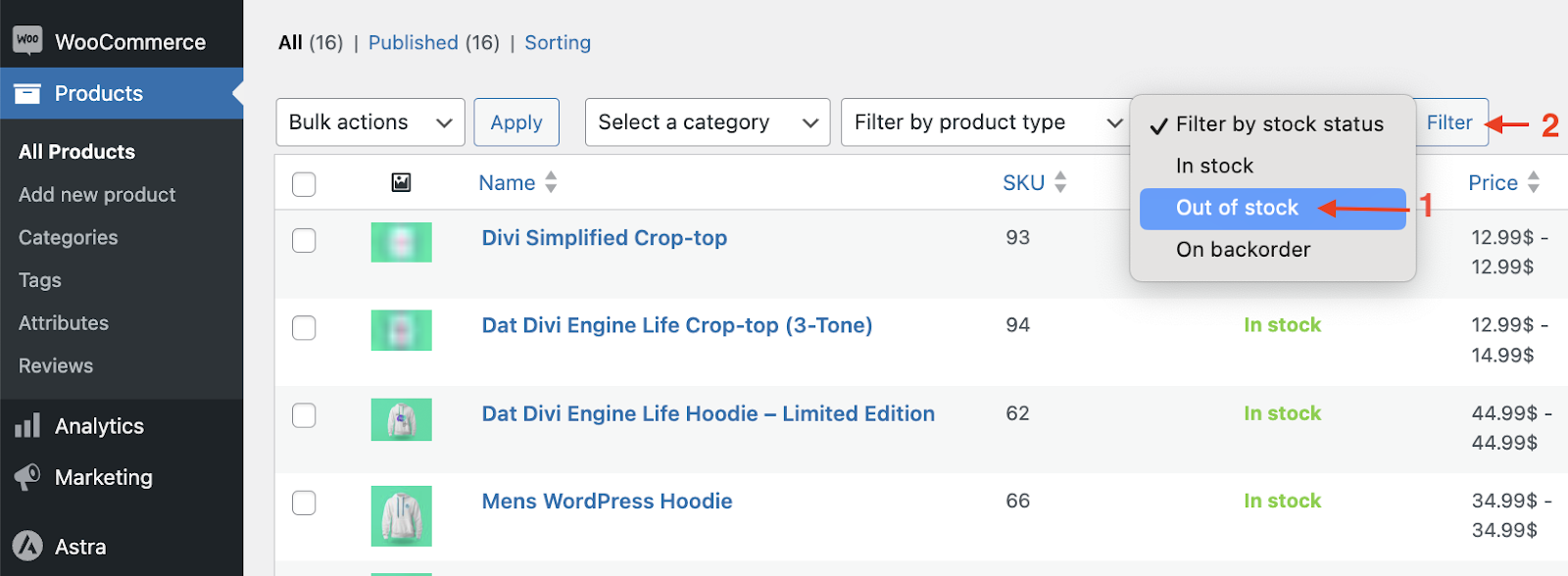
Step 2: Filter by Out-of-Stock Status
Look for the “Filter by stock status” dropdown above the product list. Select “Out of stock” and click Filter. The list will now show only your out-of-stock products.
Step 3: Select and Remove Products
To remove individual products, hover over the product row and click Trash.
To bulk delete all filtered out-of-stock products:
- Check the box in the column header to select all items on the page
- Open the Bulk actions dropdown and select Move to Trash
- Click Apply
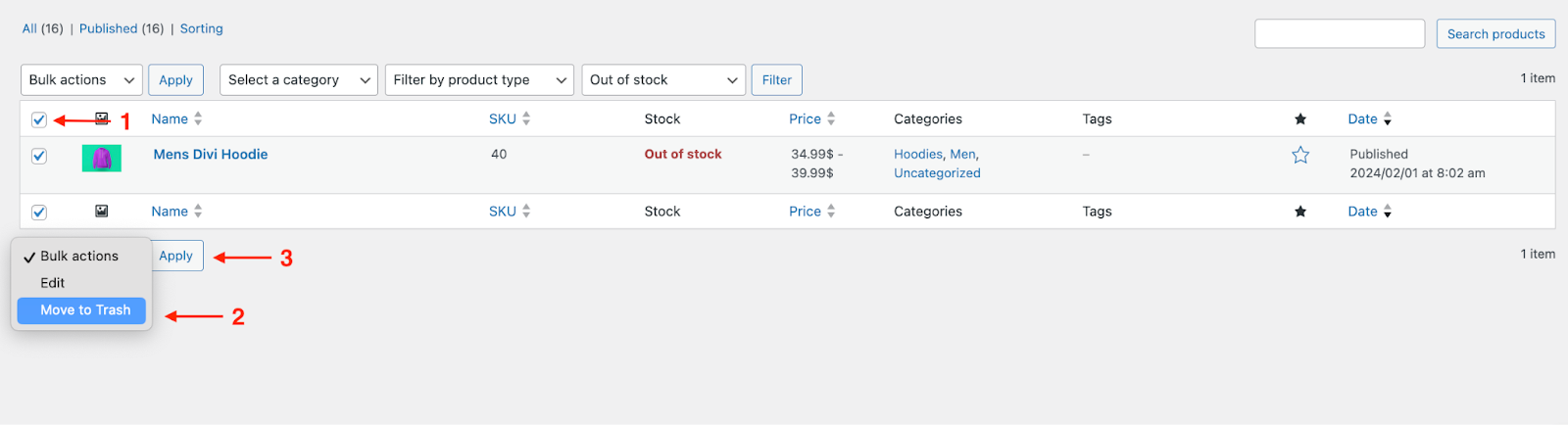
So, your stock-out products are removed from your WooCommerce store.
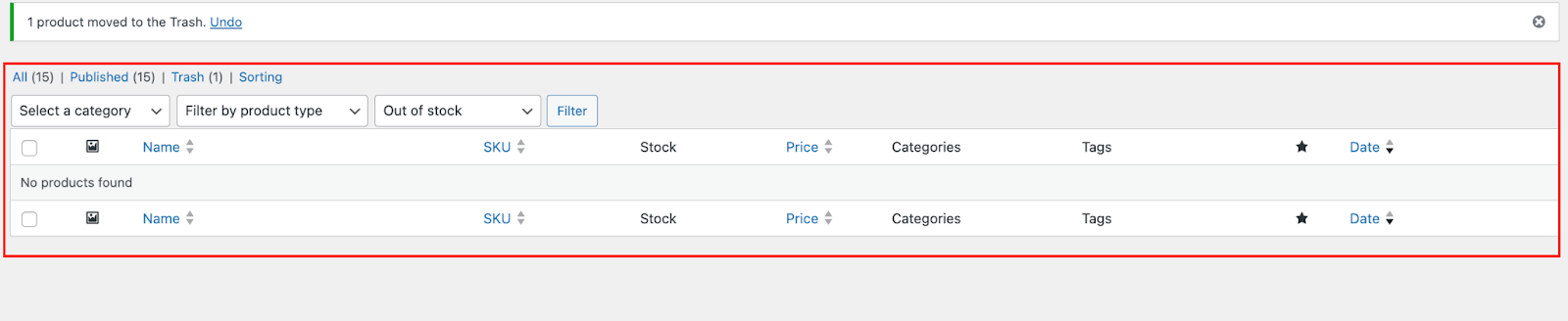
Note: Moving to trash permanently removes the products unless you restore them from Products > Trash before emptying it.
Method 3: Hide Out-of-Stock Products Programmatically
This method uses a custom code snippet to automatically hide out-of-stock products from your shop and category pages. It gives you more control than the global setting for example, you can extend the logic to apply only to specific product categories.
Warning: Edit your theme files carefully. Always back up your site before adding custom code. Use a child theme to prevent changes from being overwritten during theme updates.
Step 1: Open the Theme File Editor
In your WordPress dashboard, go to Appearance > Theme File Editor. Open the functions.php file of your active (or child) theme.
Step 2: Add the Custom Code
Paste the following snippet into functions.php:
// Hide out-of-stock products from WooCommerce shop and catalog pages
add_action( 'pre_get_posts', 'hide_out_of_stock_products' );

function hide_out_of_stock_products( $query ) {
    if ( ! is_admin() && $query->is_main_query() && ( is_shop() || is_product_category() || is_product_tag() ) ) {
        $meta_query = $query->get( 'meta_query' );

        if ( ! is_array( $meta_query ) ) {
            $meta_query = [];
        }

        $meta_query[] = [
            'key'     => '_stock_status',
            'value'   => 'outofstock',
            'compare' => '!=',
        ];

        $query->set( 'meta_query', $meta_query );
    }
}
Step 3: Save and Test
Click Update File to save. Then visit your shop or a category page and confirm that out-of-stock products no longer appear.
To verify it works both ways, temporarily set an in-stock product to “Out of Stock” in its inventory settings and refresh the page.
Developer tip: To check stock status in custom templates, use $product->is_in_stock() instead of querying meta directly. It is faster and respects WooCommerce’s internal stock logic.
How to Hide Out-of-Stock Variations in WooCommerce
If you sell variable products (for example, a shirt with size and color options), individual variations can go out of stock while the parent product stays active. By default, WooCommerce grays out unavailable variations rather than hiding them.
To hide out-of-stock variations completely, add this code to your functions.php file:
// Hide out-of-stock variations from variable product pages
add_filter( 'woocommerce_variation_is_visible', 'hide_out_of_stock_variations', 10, 4 );

function hide_out_of_stock_variations( $visible, $variation_id, $product_id, $variation ) {
    if ( ! $variation->is_in_stock() ) {
        return false;
    }
    return $visible;
}
This removes unavailable options from the dropdown on the product page, which reduces confusion for shoppers and eliminates the “Sorry, this combination is unavailable” message.
How to Change the Out-of-Stock Text in WooCommerce
Instead of hiding products entirely, you can replace the default “Out of stock” message with something more engaging. A well-written message keeps shoppers on the page and signals that the product will be available again.
Add this snippet to your functions.php file:
add_filter( 'woocommerce_get_availability_text', function( $text, $product ) {
    if ( ! $product->is_in_stock() ) {
        return 'Back Soon – Join the Waitlist Below';
    }
    return $text;
}, 10, 2 );
Replace the return string with whatever message fits your brand. Common options include:
- Back Soon – Stay Tuned
- Temporarily Unavailable – Restocking Shortly
- Sold Out – Notify Me When Back
This approach pairs well with a waitlist plugin so the message links directly to a signup form.
How to Recover Sales from Out-of-Stock Products
Hiding products removes the friction of unavailable items but it also removes the sale opportunity. These two tactics turn out-of-stock situations into future revenue.
Enable Backorders
WooCommerce has a built-in backorder setting that lets customers buy a product before it is restocked.
- Open the product in Products > All Products
- Go to the Inventory tab under Product Data
- Set Allow Backorders to “Allow, but notify customer”
This notifies the buyer at checkout that the item will ship later and lets you collect payment immediately.
Use a Waitlist Plugin
A waitlist plugin replaces the “Out of Stock” button with an email signup field. When you restock the product, the plugin sends an automated notification to everyone on the list.
WooCommerce Product Stock Alert is a widely used option for this. It handles list management, email sending, and restock triggers without custom code.
Troubleshooting: “Hide Out-of-Stock” Option Not Working
If the setting is not visible or products are still showing after you save, check the following:
- Stock management is off: The hide option only appears when “Enable stock management” is checked at the top of the Inventory settings page.
- Theme or page builder override: Some premium themes apply their own catalog query filters that override WooCommerce settings. Check your theme’s product display or catalog options.
- Caching: A caching plugin may be serving a cached version of the shop page. Clear your site cache and CDN cache after saving the settings.
- Third-party inventory plugin conflict: Plugins that sync or manage stock from external sources (like a POS or ERP system) can reset stock status. Temporarily deactivate them to test.
Frequently Asked Questions
How do I hide out-of-stock products in WooCommerce?
Go to WooCommerce > Settings > Products > Inventory and check “Hide out-of-stock items from the catalog.” Save the changes. This removes out-of-stock items from shop pages, category pages, and search results site-wide. Products reappear automatically when you restock them.
How do I show out-of-stock products in WooCommerce?
Uncheck the “Hide out-of-stock items from the catalog” option in WooCommerce > Settings > Products > Inventory and save. Out-of-stock products will immediately reappear in your catalog with their stock status visible.
How do I hide out-of-stock variations in WooCommerce?
WooCommerce grays out unavailable variations by default. To hide them completely, add a custom filter using woocommerce_variation_is_visible to your functions.php file. See the “How to Hide Out-of-Stock Variations” section above for the full code snippet.
Why does WooCommerce say “This product is currently out of stock and unavailable”?
This message appears on the product page when a product’s stock status is set to “Out of Stock” and backorders are not allowed. To remove it, either restock the product, enable backorders, or hide the product from the catalog using the setting in WooCommerce > Settings > Products > Inventory.
How do I change the out-of-stock text in WooCommerce?
Use the woocommerce_get_availability_text filter in your functions.php file to replace the default “Out of stock” label with a custom message. See the “How to Change the Out-of-Stock Text” section above for a ready-to-use code snippet.
How do I turn off out-of-stock notifications in WooCommerce?
Go to WooCommerce > Settings > Products > Inventory. Uncheck “Enable low stock notifications” and “Enable out-of-stock notifications.” Click Save changes.
Can I bulk delete out-of-stock products in WooCommerce?
Yes. Go to Products > All Products, filter by “Out of stock” using the stock status dropdown, select all results, and use the Bulk Actions dropdown to choose Move to Trash. Apply the action to remove them all at once.
Key Takeaways
- The quickest way to hide out-of-stock products in WooCommerce is through WooCommerce > Settings > Products > Inventory using the built-in catalog visibility setting.
- Hiding products keeps them in your database for restocking; deleting them removes the data permanently.
- Out-of-stock product variations can be hidden separately using the
woocommerce_variation_is_visiblefilter in functions.php. - The programmatic method using
pre_get_postsgives you granular control, such as hiding out-of-stock items in specific categories only. - Customizing the out-of-stock message with
woocommerce_get_availability_textand pairing it with a waitlist plugin can recover sales that hiding alone would miss. - If the hide setting is not working, check that global stock management is enabled and that no theme or caching layer is overriding the catalog query.

Free version on WordPress.org. Every Pro licence includes a 30-day money-back guarantee.

