%22%2F%3E%0A%3Cpath%20d%3D%22M59.8894%2016.6974C60.1689%2016.9331%2060.5416%2017.1216%2060.9142%2017.0745C61.5664%2017.0273%2061.8925%2016.6031%2061.6596%2015.7547C61.5198%2014.4349%2061.4267%2013.1623%2061.2869%2011.8425C61.1006%209.72149%2060.8211%207.55331%2060.5881%205.38512L60.1689%201.70863C60.0757%200.81307%2059.6099%200.294591%2058.7713%200.106053C58.4918%20-0.0353509%2058.2123%20-0.0353509%2057.9328%200.106053C57.7931%200.106053%2057.6999%200.106053%2057.6067%200.153187C56.5353%200.483129%2055.4172%200.81307%2054.3458%201.19015C53.5073%201.47295%2052.6222%201.75576%2051.7371%202.03857C50.2929%202.50991%2048.8488%203.02839%2047.4047%203.49974C46.4264%203.82967%2045.4016%204.1596%2044.3768%204.48952L44.3767%204.48956C43.6313%204.72523%2043.3518%205.24371%2043.6313%205.85646C43.7711%206.13927%2044.004%206.32781%2044.2369%206.46921C44.7028%206.79915%2045.2152%207.08196%2045.6811%207.4119C45.8674%207.55331%2046.0537%207.69471%2045.8208%208.02465C45.7276%208.21319%2045.5879%208.35459%2045.4481%208.54313L45.355%208.73167L44.5164%2010.0986L43.9108%2010.9941L43.3052%2011.8897L43.2121%2011.9839L42.1406%2013.5865L44.5867%2019.8706C45.5713%2022.1447%2048.6357%2026.5713%2052.552%2023.6277L53.9265%2022.2593L54.3458%2021.5523C54.3924%2021.458%2054.4856%2021.3637%2054.5321%2021.2694L54.5787%2021.2223C55.2309%2020.1854%2055.883%2019.1956%2056.5352%2018.2059L56.5353%2018.2057C57.0477%2017.4044%2057.5601%2016.6503%2058.0726%2015.849C58.2123%2015.6604%2058.3055%2015.6133%2058.4918%2015.7076C58.9577%2016.0375%2059.4235%2016.4146%2059.8894%2016.6974Z%22%20fill%3D%22%233D89D0%22%2F%3E%0A%3Cpath%20d%3D%22M28.0259%2022.0232C27.9793%2022.0703%2027.9793%2022.1175%2027.9327%2022.1646C27.9793%2022.1175%2028.0259%2022.0703%2028.0259%2022.0232Z%22%20fill%3D%22url(%23paint1_linear)%22%2F%3E%0A%3Cpath%20d%3D%22M53.9265%2022.3064C53.7402%2022.5892%2053.5538%2022.872%2053.3675%2023.202C53.0414%2023.7204%2052.7153%2024.1918%2052.3892%2024.7103C51.3178%2026.4071%2050.1531%2027.9625%2048.4295%2029.0938C46.9388%2030.0365%2045.4015%2030.6021%2043.6779%2030.8849C42.1872%2031.1206%2040.7896%2030.9791%2039.3921%2030.5549C37.6219%2030.0365%2036.038%2029.1409%2034.687%2027.8211C33.7088%2026.8784%2032.9634%2025.7944%2032.3578%2024.616C32.0317%2023.9561%2031.7988%2023.2491%2031.4727%2022.5421C31.0534%2021.5522%2030.1683%2019.2427%2030.1218%2019.1012C30.0752%2019.0541%2030.0752%2018.9598%2030.0286%2018.9127C29.9354%2018.7242%2029.8422%2018.5828%2029.7957%2018.3942C29.6559%2018.0172%2029.4696%2017.6401%2029.3298%2017.2159C29.2366%2017.0273%2029.1901%2016.8388%2029.0969%2016.6503C28.9571%2016.3674%2028.864%2016.0846%2028.7242%2015.7547C28.5845%2015.3776%2028.4447%2015.0005%2028.2584%2014.6235C28.1652%2014.3407%2028.0254%2014.0579%2027.9323%2013.775C27.9323%2013.7279%2027.9323%2013.7279%2027.8857%2013.6808C27.7925%2013.4922%2027.7459%2013.3037%2027.6528%2013.1152C27.4664%2012.5967%2027.2335%2012.1253%2027.0006%2011.6069C27.0006%2011.5597%2026.954%2011.5126%2026.9074%2011.4655C26.8142%2011.2769%2026.7211%2011.1355%2026.5813%2010.947C26.5347%2010.8998%2026.4882%2010.8527%2026.4882%2010.8056C26.4416%2010.7584%2026.395%2010.7113%2026.395%2010.6642C26.3484%2010.617%2026.3018%2010.5699%2026.2552%2010.5228C26.2086%2010.4756%2026.2086%2010.4285%2026.1621%2010.4285L26.1155%2010.3814C26.0689%2010.3342%2026.0223%2010.2871%2026.0223%2010.2871C25.9291%2010.1928%2025.8826%2010.1457%2025.7894%2010.0514C25.7428%2010.0043%2025.6962%209.95715%2025.6496%209.95715C25.603%209.91002%2025.5565%209.91002%2025.5099%209.86288C25.4167%209.81575%2025.3701%209.76861%2025.277%209.67435C25.2304%209.62721%2025.1838%209.62721%2025.1372%209.58008C25.0906%209.53294%2025.044%209.53294%2024.9974%209.48581C24.9509%209.48581%2024.9043%209.43867%2024.9043%209.43867C24.8577%209.39154%2024.8111%209.39154%2024.7645%209.3444C24.7179%209.3444%2024.7179%209.29727%2024.6714%209.29727C24.5782%209.25014%2024.485%209.203%2024.3918%209.15587C22.9943%208.59025%2021.1775%208.77879%2020.1992%209.10873C19.2675%209.43867%2018.2893%2010.3342%2018.2427%2010.4285C18.6619%209.72148%2019.0812%208.96733%2019.547%208.26031C20.1526%207.36475%2020.7117%206.4692%2021.3638%205.62078C22.3887%204.63095%2023.4602%203.78253%2024.6714%203.07551C27.0006%201.75575%2029.4696%201.52007%2032.0317%201.89715C33.3361%202.08569%2034.5939%202.60417%2035.7585%203.35832C36.9231%204.06534%2037.9014%204.96089%2038.7399%206.04499C39.2989%206.79914%2039.8114%207.60043%2040.1374%208.49598C40.6033%209.67435%2041.1623%2010.8056%2041.5816%2011.9839C41.7679%2012.5496%2042.0008%2013.068%2042.2338%2013.6336C42.2338%2013.6336%2042.2338%2013.6336%2042.2338%2013.6808V13.7279L45.0288%2019.8554C45.4015%2020.8452%2045.9139%2021.6465%2046.7059%2022.3535C47.2183%2022.872%2047.8705%2023.1548%2048.5227%2023.3905C48.5693%2023.3905%2048.6158%2023.4376%2048.6624%2023.4376C49.7805%2023.7676%2051.2246%2023.3905%2052.3426%2023.0134C53.088%2022.6835%2053.6936%2022.4007%2053.9265%2022.3064Z%22%20fill%3D%22url(%23paint2_linear)%22%2F%3E%0A%3Cpath%20d%3D%22M28.0255%2022.0238C27.9789%2022.0709%2027.9789%2022.118%2027.9324%2022.1652C27.9324%2022.1652%2027.9324%2022.1652%2027.9324%2022.2123C27.7926%2022.448%2027.6063%2022.6836%2027.4665%2022.9664C25.8826%2025.8416%2024.4385%2028.1512%2021.6434%2029.6595C19.3142%2030.9793%2016.8452%2031.215%2014.2831%2030.8379C14.1433%2030.8379%2014.0501%2030.7908%2013.9104%2030.7908C12.7458%2030.6022%2011.5812%2030.0838%2010.4165%2029.2825C8.78607%2028.1512%207.52829%2026.5958%206.64318%2024.8047L6.17733%2023.9091L5.01272%2021.5524L0.726927%2012.6911C0.447419%2012.0784%200.214496%2011.4656%200.121327%2010.8529C-0.437689%207.8834%200.95985%204.77252%203.80151%203.35849C5.43198%202.51007%207.24878%202.4158%208.87924%202.93428C10.6029%203.45276%2012.1402%204.67825%2013.0253%206.46937L13.1184%206.6579L14.7489%209.95732C14.7955%2010.0516%2014.7955%2010.1459%2014.8421%2010.2401C15.075%2010.8529%2015.8204%2012.4083%2016.426%2013.5867C16.4725%2013.6809%2016.5191%2013.7752%2016.5657%2013.8223C16.6123%2013.9638%2016.7055%2014.1052%2016.752%2014.1994C16.7986%2014.2937%2016.8452%2014.3408%2016.8452%2014.4351C16.8452%2014.4822%2016.8918%2014.4822%2016.8918%2014.5294C16.9384%2014.5765%2016.9384%2014.6708%2016.985%2014.7179C16.985%2014.765%2017.0316%2014.765%2017.0316%2014.8122C17.0316%2014.8593%2017.0781%2014.8593%2017.0781%2014.9064C17.0781%2014.9536%2017.1247%2015.0007%2017.1247%2015.0478C17.1247%2015.095%2017.1713%2015.095%2017.1713%2015.1421C17.3111%2015.4249%2017.4042%2015.7549%2017.544%2016.0377C17.6372%2016.2262%2017.6837%2016.4147%2017.7769%2016.6504C17.9632%2017.1689%2018.1962%2017.6402%2018.3825%2018.1587C18.5223%2018.4415%2018.6154%2018.7715%2018.7552%2019.0543C18.8018%2019.1485%2018.8484%2019.29%2018.8949%2019.3842C18.9881%2019.5728%2019.0347%2019.7613%2019.1279%2019.9498C19.3608%2020.5154%2019.5937%2021.0811%2019.9664%2021.5995C20.1993%2021.8823%2020.3857%2022.1652%2020.6652%2022.4008C22.3888%2023.9563%2024.9975%2023.862%2028.0255%2022.0238Z%22%20fill%3D%22url(%23paint3_linear)%22%2F%3E%0A%3Cpath%20d%3D%22M68.0888%2024.8694L68%207.88696H71.9963L71.8187%2018.4448L76.8806%207.88696H80.6548L81.3209%2018.3999L85.5392%207.88696H89.713L82.4754%2024.8694H78.1683L77.5466%2013.9072L72.3959%2024.8694H68.0888Z%22%20fill%3D%22%230D5293%22%2F%3E%0A%3Cpath%20d%3D%22M92.7771%2025.1385C89.2693%2025.1385%2086.7383%2022.6675%2086.7383%2019.2081C86.7383%2015.3893%2089.8021%2012.1545%2093.4431%2012.1545C96.6402%2012.1545%2098.8603%2014.4458%2098.8603%2017.7704C98.8603%2018.5342%2098.8159%2019.1182%2098.7271%2019.6124H90.4237C90.6457%2021.0501%2091.7114%2022.0385%2093.2211%2022.0385C94.1536%2022.0385%2094.9528%2021.724%2095.5301%2021.095L97.617%2023.4762C96.0185%2024.6443%2094.5976%2025.1385%2092.7771%2025.1385ZM90.6457%2017.411H95.4857C95.3081%2016.0632%2094.4644%2015.2545%2093.2211%2015.2545C92.0666%2015.2096%2091.0898%2016.0632%2090.6457%2017.411Z%22%20fill%3D%22%230D5293%22%2F%3E%0A%3Cpath%20d%3D%22M105.965%2024.9589C104.411%2024.9589%20103.167%2024.24%20102.368%2022.8473L101.924%2024.869H98.1499L101.791%207.52717L105.698%206.89819L104.322%2013.5923C105.166%2012.7836%20106.32%2012.2894%20107.519%2012.2894C110.139%2012.2894%20112.181%2014.8054%20112.181%2018.0401C112.226%2021.814%20109.428%2024.9589%20105.965%2024.9589ZM103.789%2016.3778L102.945%2020.4212C103.478%2021.185%20104.366%2021.6792%20105.388%2021.6792C107.208%2021.6792%20108.54%2020.2415%20108.54%2018.3097C108.54%2016.6474%20107.43%2015.4793%20105.92%2015.4793C105.077%2015.4793%20104.411%2015.7937%20103.789%2016.3778Z%22%20fill%3D%22%230D5293%22%2F%3E%0A%3Cpath%20d%3D%22M120.44%207.88696H125.058L127.899%2024.8694H123.725L123.193%2020.8259H117.154L114.978%2024.8694H110.582L120.44%207.88696ZM122.704%2017.5912L121.949%2011.9304L118.886%2017.5463H122.704V17.5912Z%22%20fill%3D%22%230D5293%22%2F%3E%0A%3Cpath%20d%3D%22M131.23%2012.3347H135.004L134.782%2013.5927C135.626%2012.7391%20136.736%2012.2449%20137.935%2012.2449C140.555%2012.2449%20142.597%2014.7608%20142.597%2017.9955C142.597%2021.8143%20139.8%2024.9592%20136.336%2024.9592C134.782%2024.9592%20133.539%2024.2853%20132.828%2022.9824L131.274%2030.0809H127.456L131.23%2012.3347ZM134.205%2016.3332L133.317%2020.5114C133.85%2021.2303%20134.738%2021.6796%20135.715%2021.6796C137.535%2021.6796%20138.867%2020.2419%20138.867%2018.31C138.867%2016.6477%20137.757%2015.4796%20136.247%2015.4796C135.493%2015.4796%20134.827%2015.7492%20134.205%2016.3332Z%22%20fill%3D%22%230D5293%22%2F%3E%0A%3Cpath%20d%3D%22M144.595%2012.3347H148.369L148.147%2013.5927C148.99%2012.7391%20150.101%2012.2449%20151.299%2012.2449C153.919%2012.2449%20155.962%2014.7608%20155.962%2017.9955C155.962%2021.8143%20153.164%2024.9592%20149.701%2024.9592C148.147%2024.9592%20146.904%2024.2853%20146.193%2022.9824L144.683%2030.0809H140.865L144.595%2012.3347ZM147.57%2016.3332L146.682%2020.5114C147.214%2021.2303%20148.102%2021.6796%20149.079%2021.6796C150.9%2021.6796%20152.232%2020.2419%20152.232%2018.31C152.232%2016.6477%20151.122%2015.4796%20149.612%2015.4796C148.857%2015.4796%20148.191%2015.7492%20147.57%2016.3332Z%22%20fill%3D%22%230D5293%22%2F%3E%0A%3Cpath%20d%3D%22M159.115%2024.8694H155.296L158.005%2012.3347H161.824L159.115%2024.8694ZM158.449%208.47099C158.449%207.1681%20159.559%206%20160.847%206C161.912%206%20162.8%206.85361%20162.8%207.93186C162.8%209.27967%20161.69%2010.4029%20160.358%2010.4029C159.248%2010.4029%20158.449%209.54924%20158.449%208.47099Z%22%20fill%3D%22%230D5293%22%2F%3E%0A%3Cpath%20d%3D%22M169.727%2020.6909L171.592%2023.1619C170.304%2024.4648%20168.572%2025.1387%20166.752%2025.1387C163.466%2025.1387%20161.068%2022.7126%20161.068%2019.388C161.068%2015.3446%20164.088%2012.1099%20167.862%2012.1099C170.082%2012.1099%20171.947%2013.0983%20173.013%2014.7606L170.304%2017.0069C169.727%2015.9736%20168.927%2015.4794%20167.773%2015.4794C166.13%2015.4794%20164.842%2017.0518%20164.842%2019.0286C164.842%2020.6909%20165.819%2021.6793%20167.329%2021.6793C168.261%2021.7243%20169.016%2021.4098%20169.727%2020.6909Z%22%20fill%3D%22%230D5293%22%2F%3E%0A%3Cpath%20d%3D%22M175.722%207.52717L179.629%206.89819L177.365%2017.6807L182.426%2012.3344H187L180.517%2018.6691L184.691%2024.869H180.162L177.009%2019.5676L175.899%2024.869H172.081L175.722%207.52717Z%22%20fill%3D%22%230D5293%22%2F%3E%0A%3Cdefs%3E%0A%3ClinearGradient%20id%3D%22paint0_linear%22%20x1%3D%2223.1831%22%20y1%3D%2224.7007%22%20x2%3D%2223.3049%22%20y2%3D%228.44851%22%20gradientUnits%3D%22userSpaceOnUse%22%3E%0A%3Cstop%20stop-color%3D%22%23327ACD%22%2F%3E%0A%3Cstop%20offset%3D%221%22%20stop-color%3D%22%234696D2%22%2F%3E%0A%3C%2FlinearGradient%3E%0A%3ClinearGradient%20id%3D%22paint1_linear%22%20x1%3D%2227.9436%22%20y1%3D%2222.0876%22%20x2%3D%2228.0428%22%20y2%3D%2222.0876%22%20gradientUnits%3D%22userSpaceOnUse%22%3E%0A%3Cstop%20offset%3D%220.2029%22%20stop-color%3D%22%234C51BF%22%20stop-opacity%3D%220.9%22%2F%3E%0A%3Cstop%20offset%3D%221%22%20stop-color%3D%22%235A67D8%22%20stop-opacity%3D%220.9%22%2F%3E%0A%3C%2FlinearGradient%3E%0A%3ClinearGradient%20id%3D%22paint2_linear%22%20x1%3D%2232.4583%22%20y1%3D%222.22148%22%20x2%3D%2239.8371%22%20y2%3D%2230.0298%22%20gradientUnits%3D%22userSpaceOnUse%22%3E%0A%3Cstop%20offset%3D%220.3367%22%20stop-color%3D%22%2342B9FF%22%2F%3E%0A%3Cstop%20offset%3D%220.7818%22%20stop-color%3D%22%233B97E1%22%2F%3E%0A%3Cstop%20offset%3D%221%22%20stop-color%3D%22%233784D1%22%2F%3E%0A%3C%2FlinearGradient%3E%0A%3ClinearGradient%20id%3D%22paint3_linear%22%20x1%3D%2211.252%22%20y1%3D%220.972585%22%20x2%3D%2215.8771%22%20y2%3D%2225.7529%22%20gradientUnits%3D%22userSpaceOnUse%22%3E%0A%3Cstop%20offset%3D%220.3367%22%20stop-color%3D%22%2342B9FF%22%2F%3E%0A%3Cstop%20offset%3D%220.7818%22%20stop-color%3D%22%233B97E1%22%2F%3E%0A%3Cstop%20offset%3D%221%22%20stop-color%3D%22%233784D1%22%2F%3E%0A%3C%2FlinearGradient%3E%0A%3C%2Fdefs%3E%0A%3C%2Fsvg%3E%0A)


Discount Rules for WooCommerce: A Complete Guide
 Fadiyah Sameh
 WooCommerce discount rules let you automatically reduce prices based on conditions such as quantity, cart total, user role, category, or payment method, without customers needing to enter a coupon code. The built-in coupon tool covers basic percentage and fixed discounts, but a dedicated discount plugin adds conditional logic, tiered pricing, and automatic application at checkout.
This guide covers every major discount rule type, how to set each one up, and when to use the native coupon tool instead of a plugin.
Types of Discount Rules You Can Configure in WooCommerce
We can divide discount rules for WooCommerce into two categories.
- Basic Discount Rules
- Advanced Discount Rules
Let’s discuss these discount types in detail.
Basic Discount Rules
These rules cover simple, easy-to-implement discounts. Here are some of the types:
- Percentage Discounts: Offer a percentage reduction on the product price.
- Fixed Amount Discounts: Deduct a fixed value from the product price or cart total.
- Buy One Get One (BOGO) Discounts: BOGO deals are widely popular. In these rules, you encourage purchases by offering a free or discounted item when a customer buys one.
- Free Shipping Discounts: Waive shipping fees when certain criteria are met.
- Quantity Discounts: Reward customers with discounts for buying a specific quantity of products.
Advanced Discount Rules
- Conditional Discounts: Based on cart total, product, payment method, or shipping method (e.g., 10% off orders over $100, or 5% off for PayPal payments).
- Tiered Discounts: Different discount levels based on purchase volume (e.g., 10% for 5 items, 15% for 10 items).
- Bundle Discounts: Discounted pricing when specific products are purchased together.
- Role-Based Discounts: Tailored discounts for wholesale buyers, VIP customers, or logged-in users.
- Category-Specific Discounts: Applied only to certain categories, such as 15% off all electronics.
- First-Time Purchase Discounts: Exclusive discounts for new customers.
- Cart Condition Discounts: Based on the number of unique products in the cart.
- Spend-Based Discounts: Progressive discounts for higher cart values.
- Membership Discounts: Offered only to members of a loyalty or subscription program, with tiered levels.
- Date/Time-Sensitive Discounts: Flash sales, early bird pricing, or holiday-specific rules.
- Geolocation-Based Discounts: Based on the customer’s country, state, or city.
- Purchase History Discounts: Based on a customer’s past spending or order count.
How to Setup Discount Rules for WooCommerce (Step-by-Step)
WooCommerce has a coupon tool that comes built-in with the core plugin. You can create digital coupons to offer discounts based on cart amount, category, or specific products.
However, the options are quite limited, and you cannot apply dynamic discounts or advanced pricing strategies using the core features. To unlock the full potential of discount rules, you’ll need a dedicated WooCommerce discount rules plugin.
These plugins offer advanced features like conditional discounts, tiered pricing, and more. For a detailed look at the best discount plugins for WooCommerce, check out our in-depth review in the following article.
In the following step-by-step guide, we’ll demonstrate how to set up a simple percentage-based discount rule in WooCommerce using the free Disco plugin.
Disco is a user-friendly plugin that offers flexible discount features. It’s a perfect solution for store owners looking to implement custom discount rules without needing advanced technical knowledge.
With Disco, you can create various discount strategies, including bulk pricing, percentage discounts, and more, all from your WooCommerce dashboard. Let’s get into action; we are creating a 20% storewide discount in WooCommerce.
Step 1: Install WooCommerce Discount Plugin – Disco
Go to Plugins >> Add New in your WordPress dashboard, search for Disco, and then install and activate it.
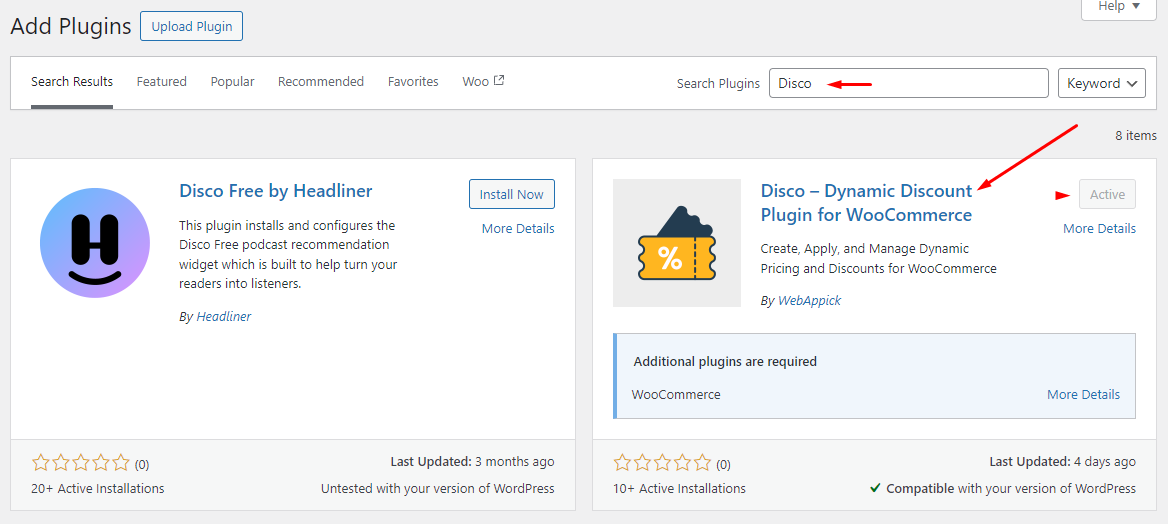
Step 2: Create a New Discount Rule
After activation, access Disco from the left sidebar. From the Disco dashboard, click Create a Discount.
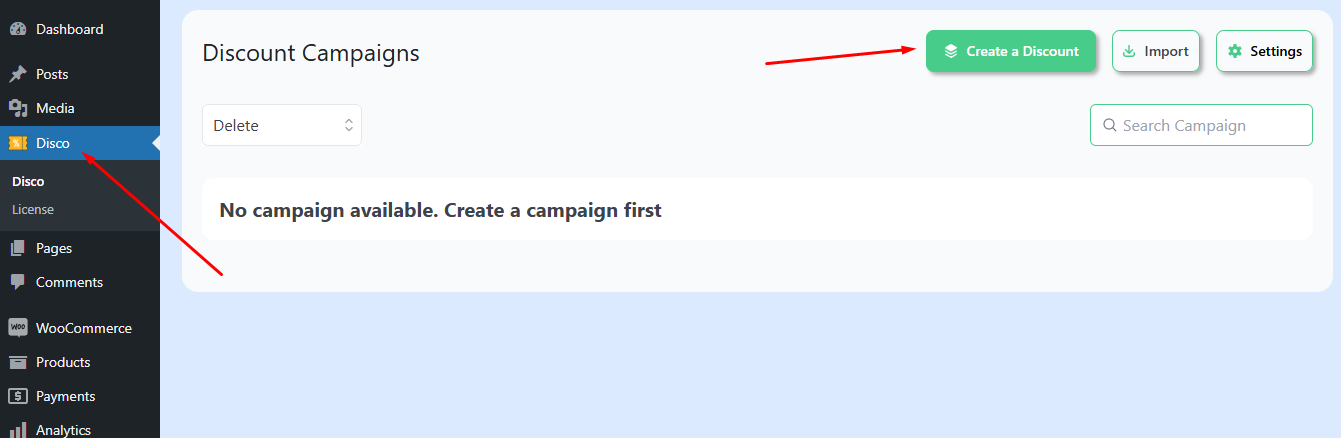
Step 3: Configure the Discount
- Name it “20% Storewide Discount.”
- Set Discount Intent to Product.
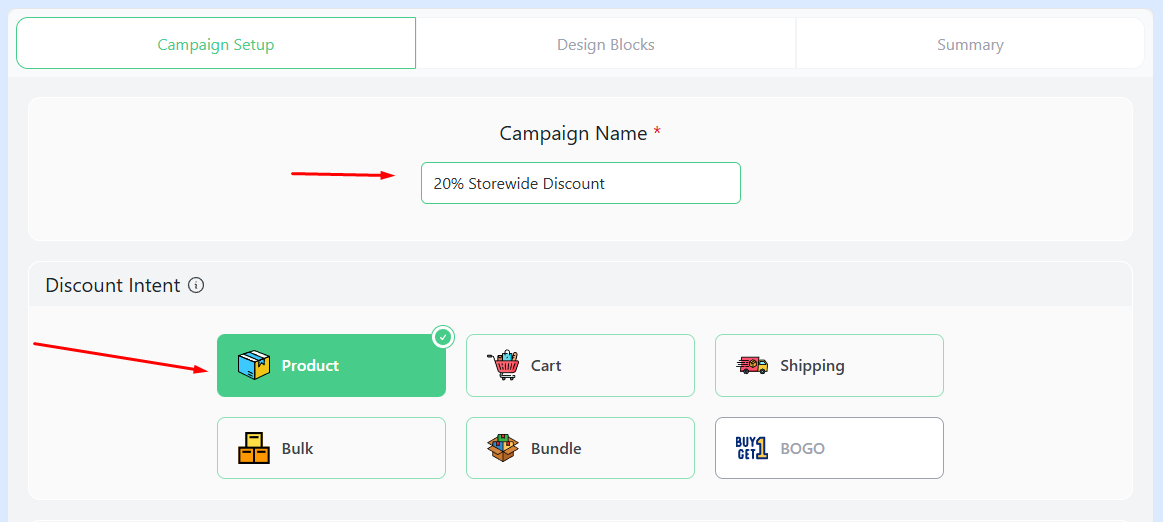
- Set it to apply to All Products.
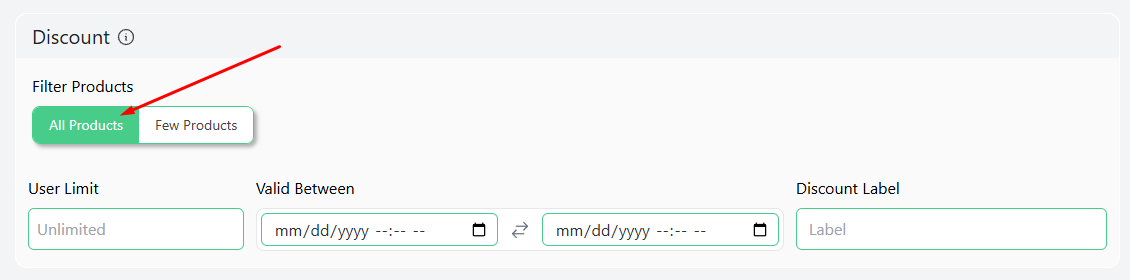
- Choose Percentage and enter “20” as the value.
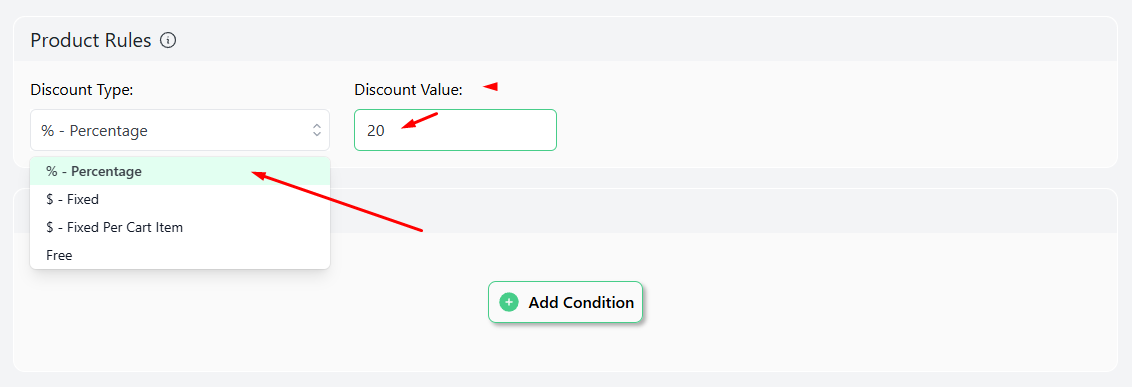
Step 4: Save & Verify
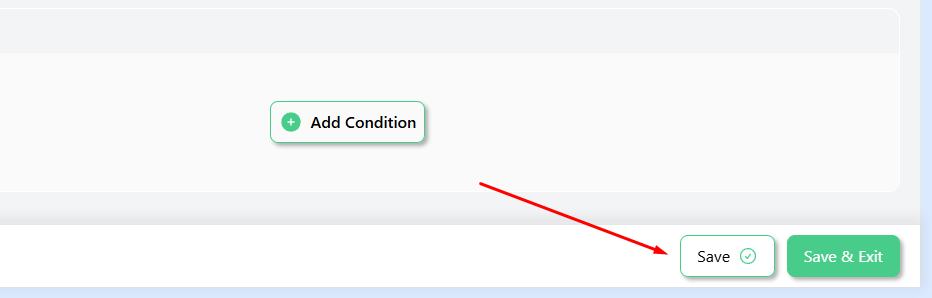
Click Save, then visit your store’s front end to ensure the 20% discount is applied to all products correctly.

This method ensures a smooth, automatic 20% storewide discount for all your products. Thus, you can quickly configure WooCommerce discount rules using Disco and boost sales with minimal effort.
Creating Different Discount Rules for WooCommerce
The above is the simplest example of a discount rule. However, to truly maximize your store’s sales potential, you’ll want to offer more personalized discounts based on your customer’s behavior, needs, and purchase patterns.
Disco makes it possible for you. Whether it’s offering “Buy One Get One” (BOGO) deals, applying bulk pricing, or providing exclusive discounts for specific customer groups, Disco makes it easy to set up and manage advanced discount rules.
In the following sections, we’ll walk you through a variety of discount rules you can set up in WooCommerce using Disco, complete with examples and step-by-step instructions to help you configure each rule.
How to Create Fixed Amount Discounts on Specific Products?
Example: Apply a $20 discount on the selected products.
WooCommerce fixed-product discount lets you offer reduced prices on your targeted products. This can help you clear slow-moving stocks and boost your conversions.
Here are the steps:
- Select the Product intent from the top.
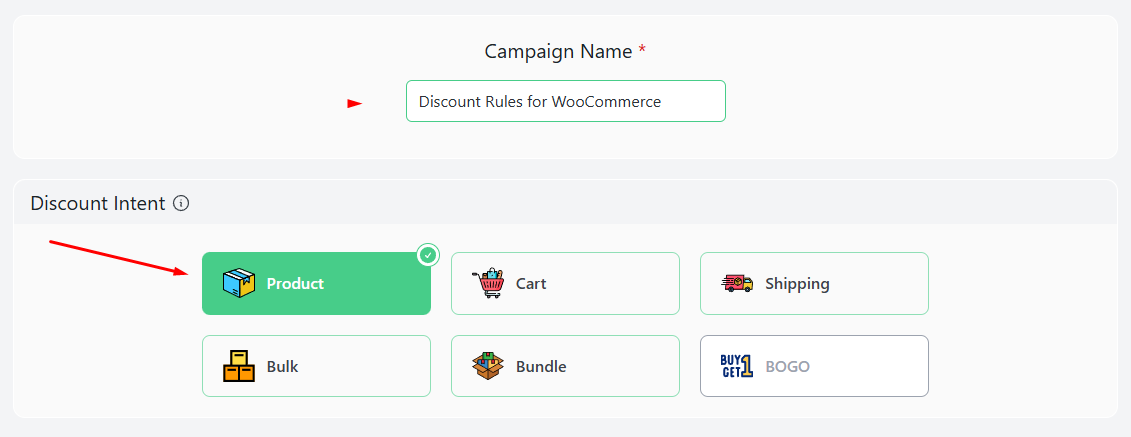
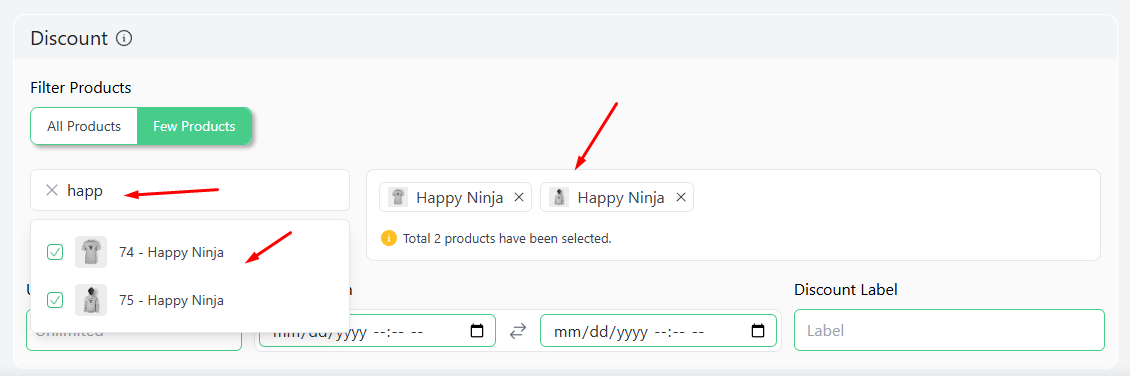
- From the Discount section, click on the Few Products option.
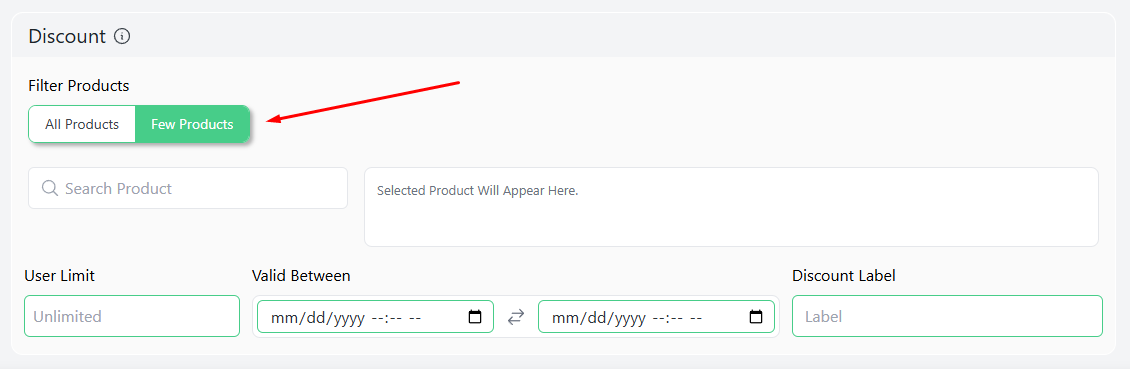
- Type in or search and select your target product/products.
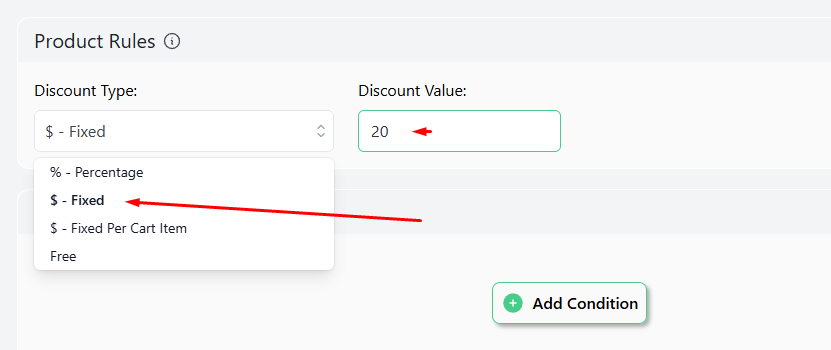
- Select the Fixed option from the Discount Type dropdown and enter 20 as the value.
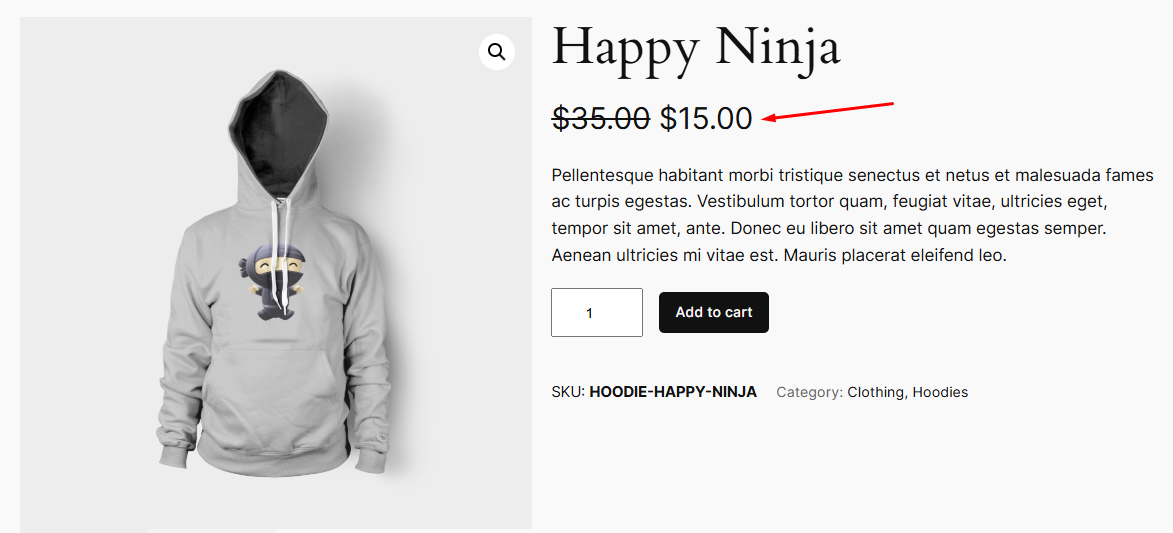
- Save your discount rules for WooCommerce. Your selected products should already show the discounted price at the front.
How to Create Category-Based Discount Rules for WooCommerce?
Example: Offer a 25% discount on the category “Summer Collection.”
WooCommerce category-based discounts are a simple yet effective way to boost sales and manage inventory. By applying discounts to specific product categories, you can encourage customers to buy more and help clear out slow-moving items.
In this example, we will introduce you to Disco conditions. This is a powerful feature within the plugin that allows you to apply discounts based on specific rules and criteria.
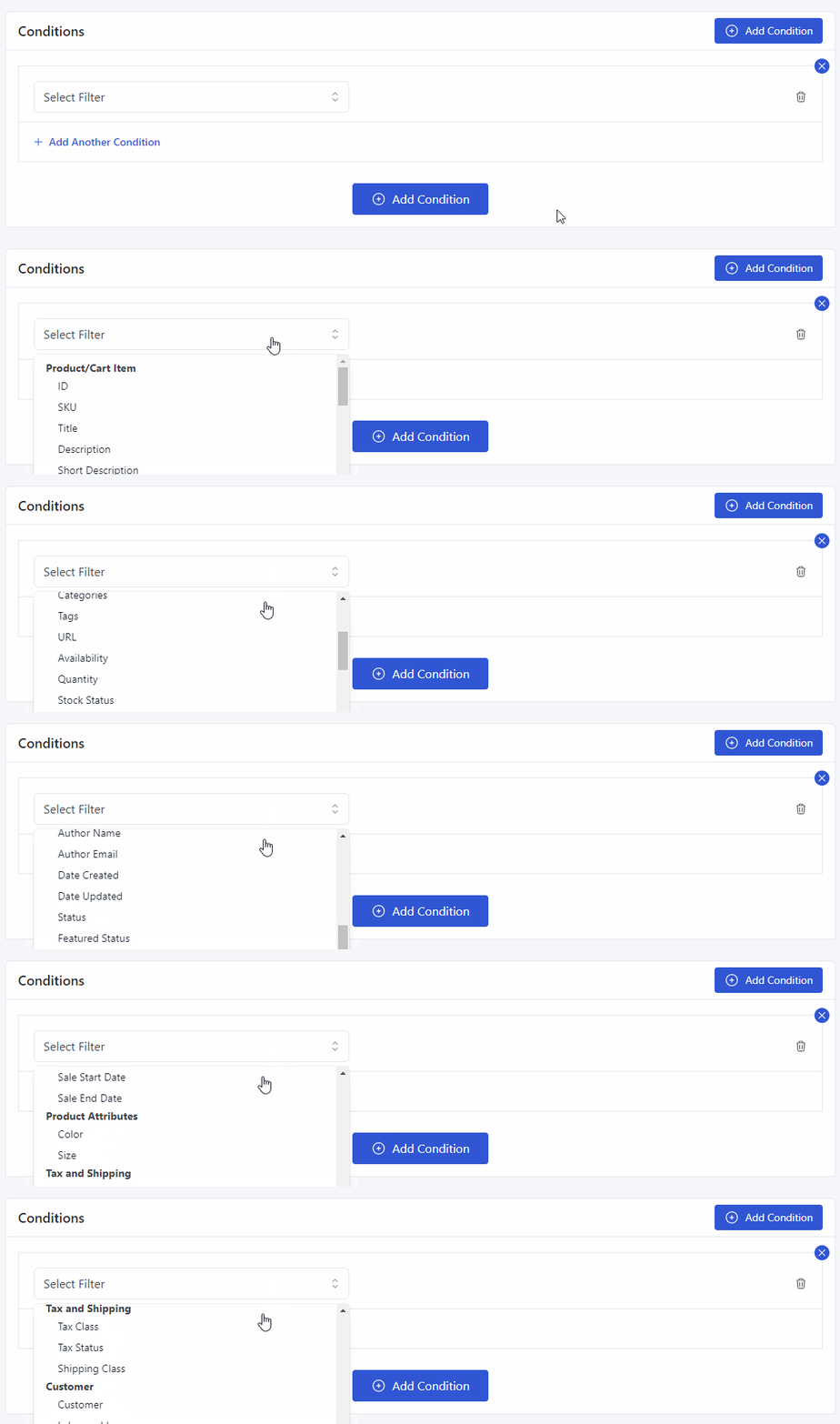
Disco conditions enable you to tailor your discounts to match particular customer behaviors, purchase history, product categories, and even specific payment methods. This flexibility lets you create highly customized discount strategies for your store.
Here are the steps you will need to follow to create category-based discounts:
- Select the Product or Cart intent from the Discount Intent.
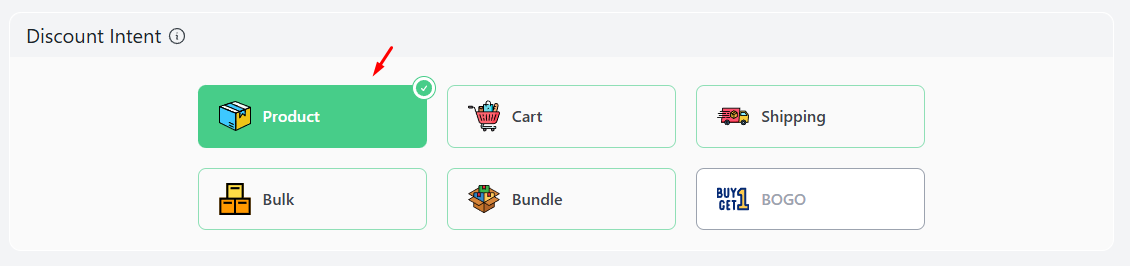
- To offer the discount across all products from the target category, select All Products.
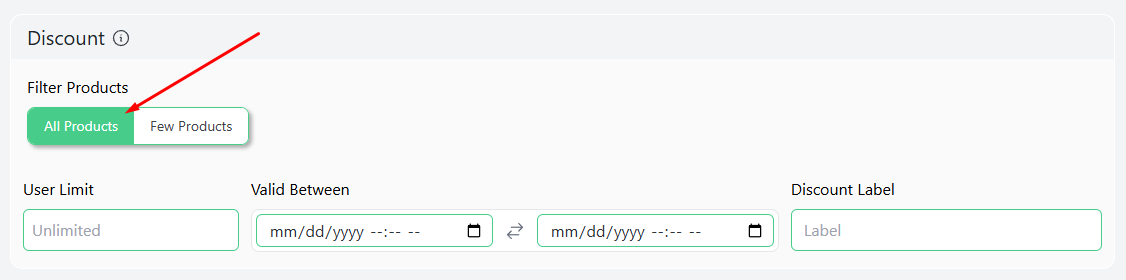
- Select the Percentage option and enter your value.
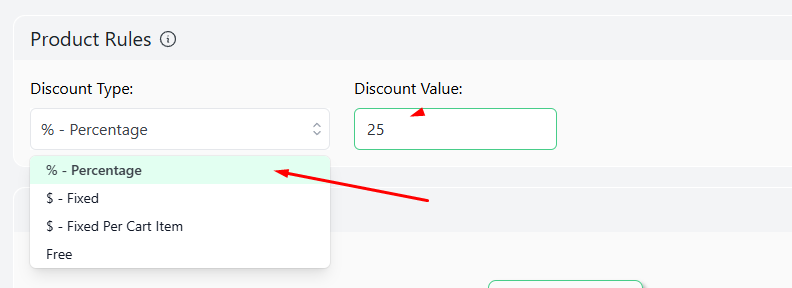
- Next, hit the Add Condition button.
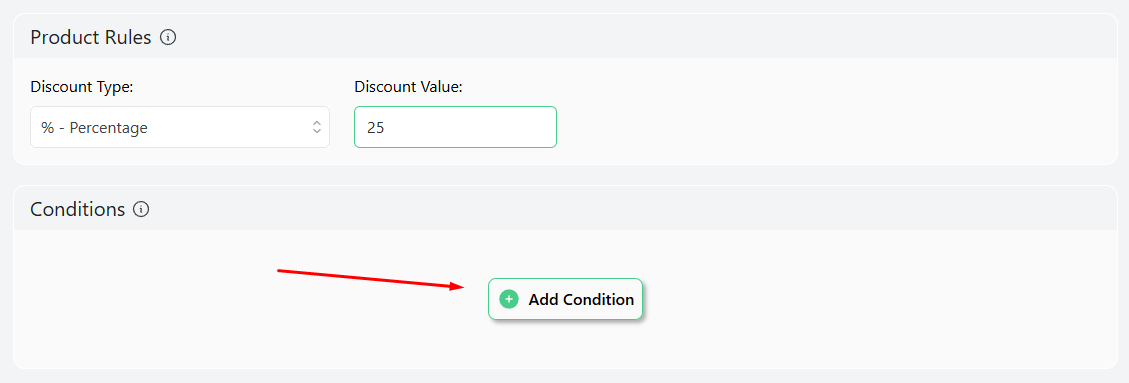
- Select the Categories condition from the filters.
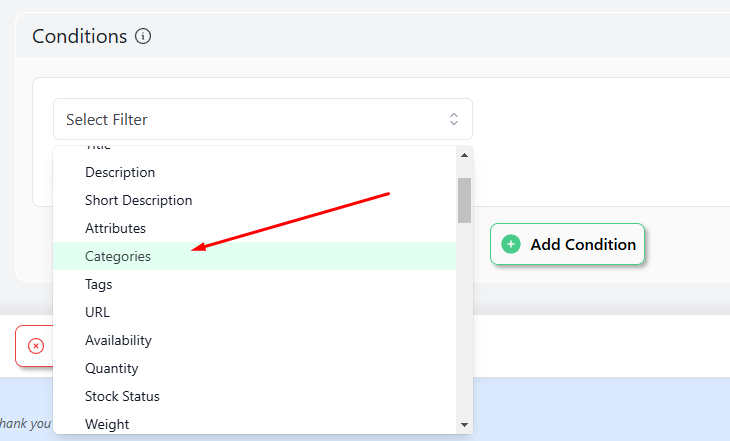
- Search and select the “Summer Collection” category.
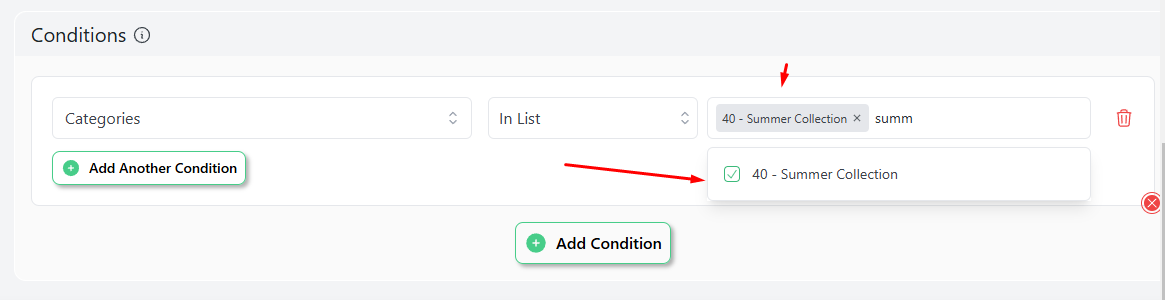
- Save and check your storefront. The pages should already be showing the discounted rates.
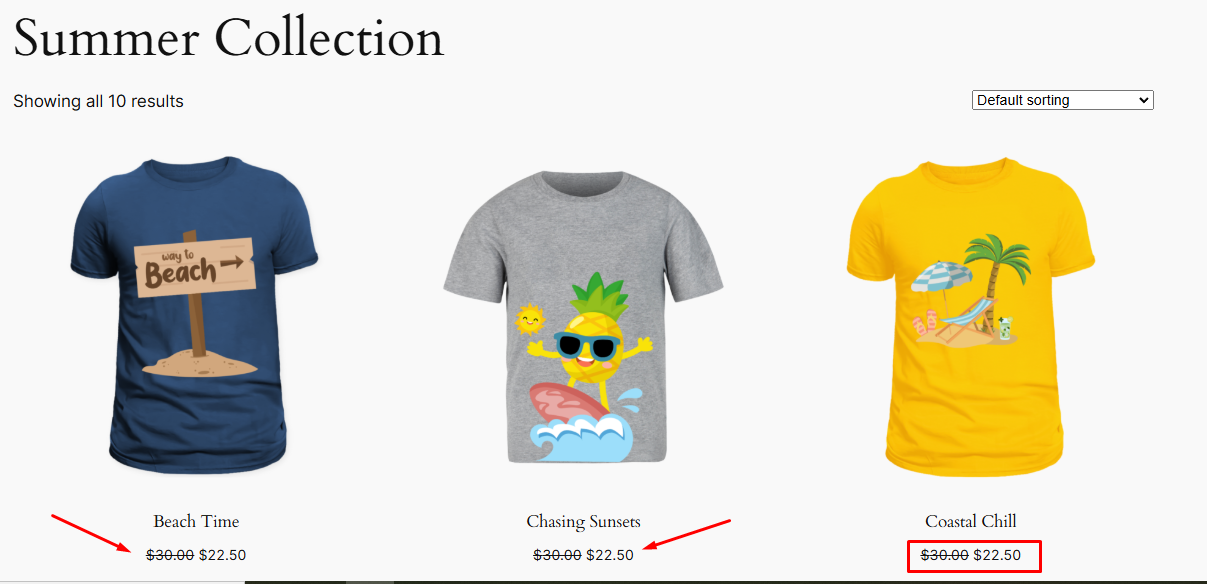
How to Set Tiered Pricing for Bulk Purchases Discount Rules for WooCommerce?
Example:
- Buy 3-5 Items: Get 10% off
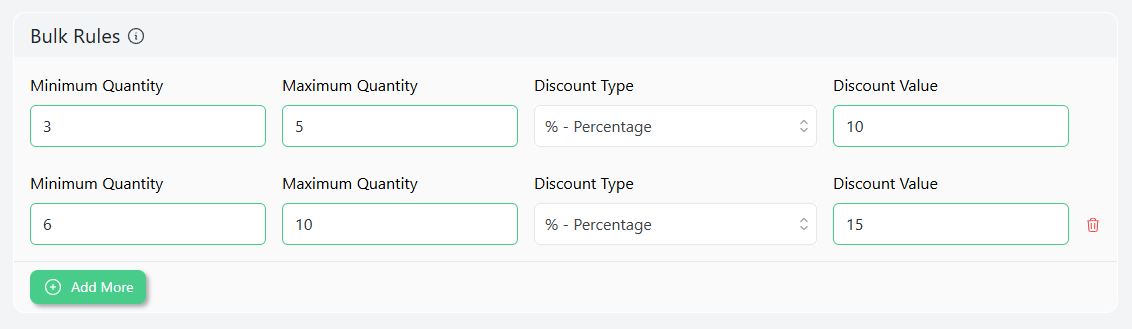
- Buy 6-10 Items: Get 15% off
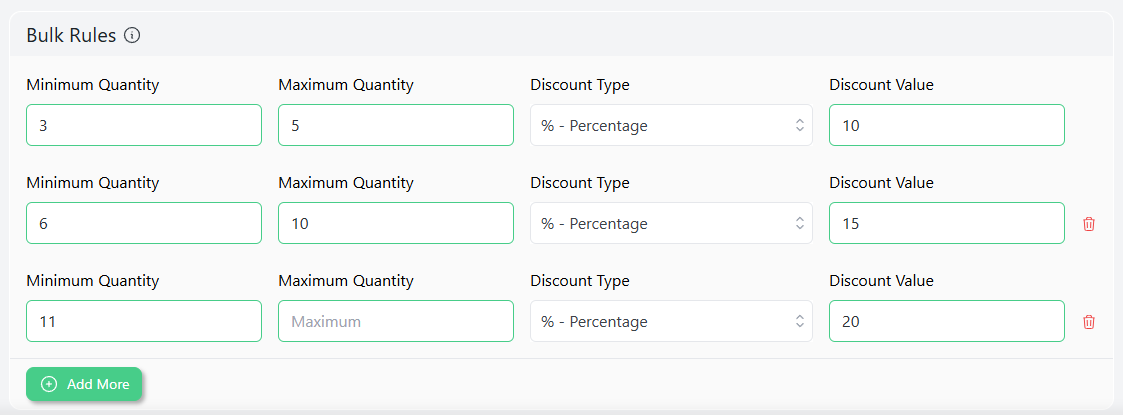
- Buy 11+ Items: Get 20% off
WooCommerce tiered pricing discounts can incentivize customers to buy more and increase overall revenue. These types of bulk quantity discounts can also help significantly clear out seasonal stocks or slow-moving products.
Here’s how you set these discount rules for WooCommerce:
- This time, we need to select the Bulk option.
- Next, select your products.
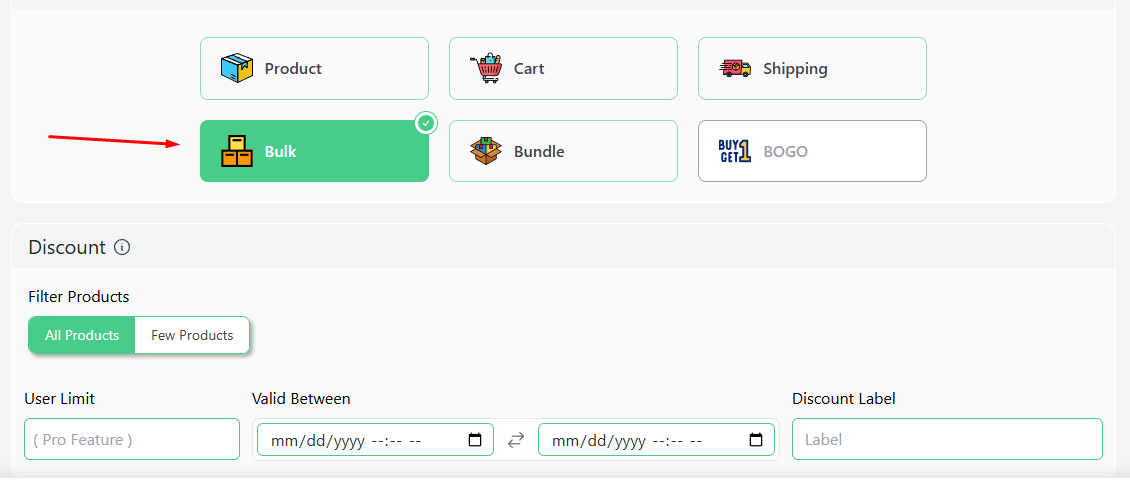
- In the Bulk Rules, input your first set of values. Enter 3 in the Minimum and 5 in the Maximum Quantity field.
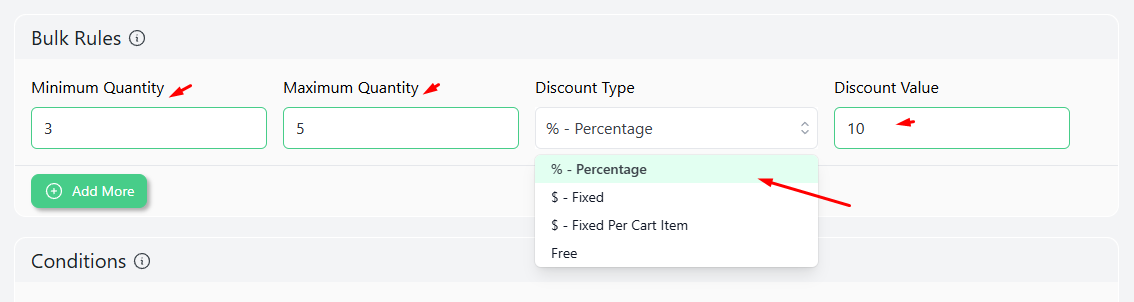
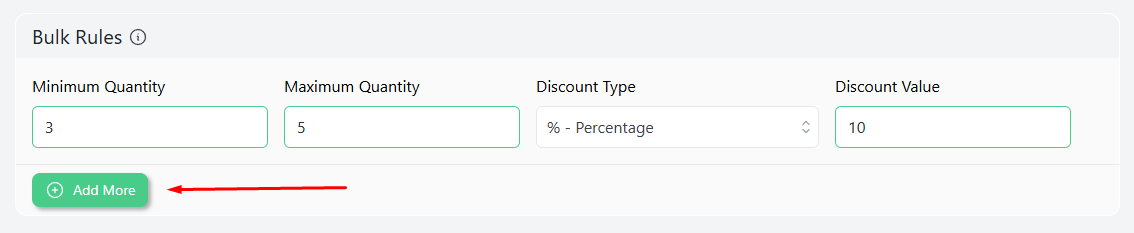
After that, select the Percentage option and insert the value 10. Next, click on the Add More button to add a new row.
- Configure your next set of values as per your strategy.
- For the last set, keep the Maximum Quantity field empty so that it counts as unlimited.
Let’s check if the rule works at the front end per our configuration. Add products between the 3-5 ranges.
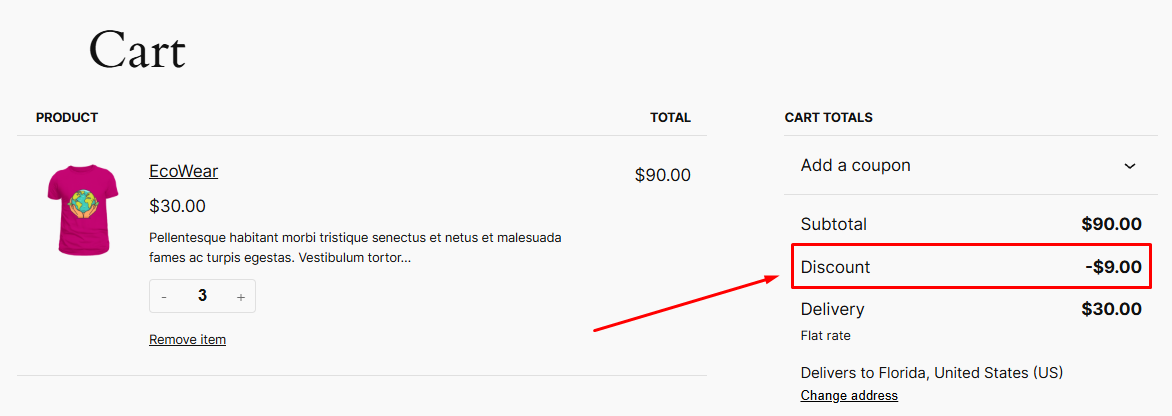
Working as per our set rule. Next, add more than 5 products.
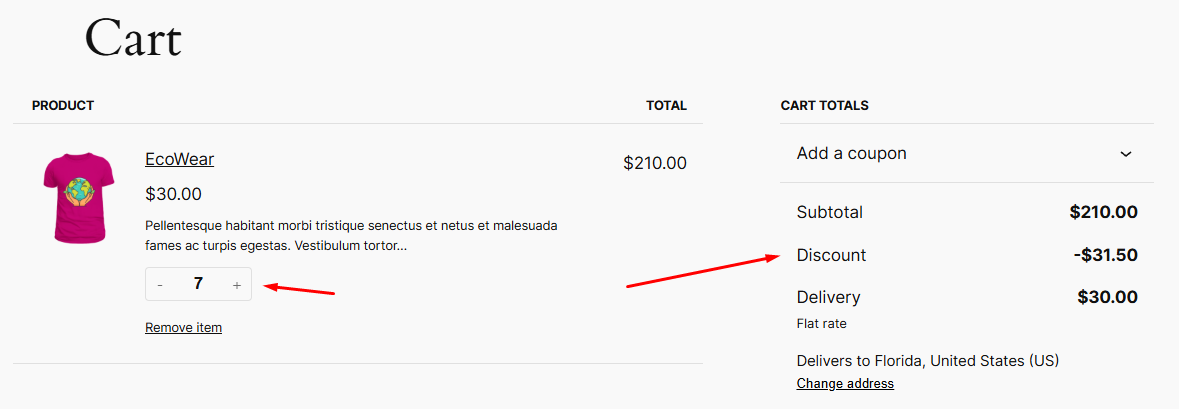
Finally, try with 11 or more products.
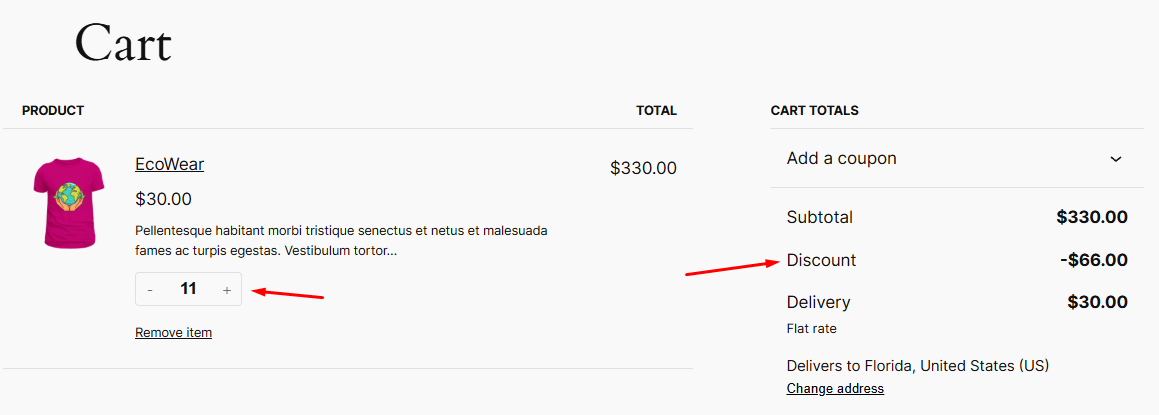
How to Create Role-Based Discount Rules for WooCommerce?
Example: Offer a 15% discount to specific user roles.
Role-based discounts in WooCommerce offer a powerful way to reward loyal customers and incentivize specific customer segments. You can foster stronger relationships, increase sales, and streamline your pricing strategy by granting discounts to particular customer groups, such as wholesalers, affiliates, or VIP members.
These discount rules are particularly useful when you have a WooCommerce membership website offering subscription plans to customers. For this example, we will offer a 15% discount to logged-in users with a “Wholesale Customer” user role.
- Select the Cart/Product from the top and All Products to offer the discount storewide.
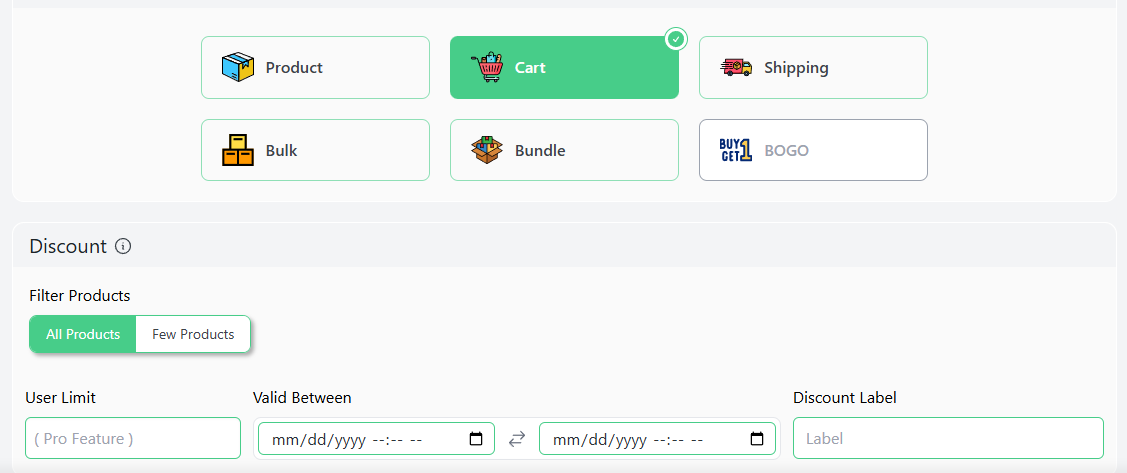
- Configure the value.
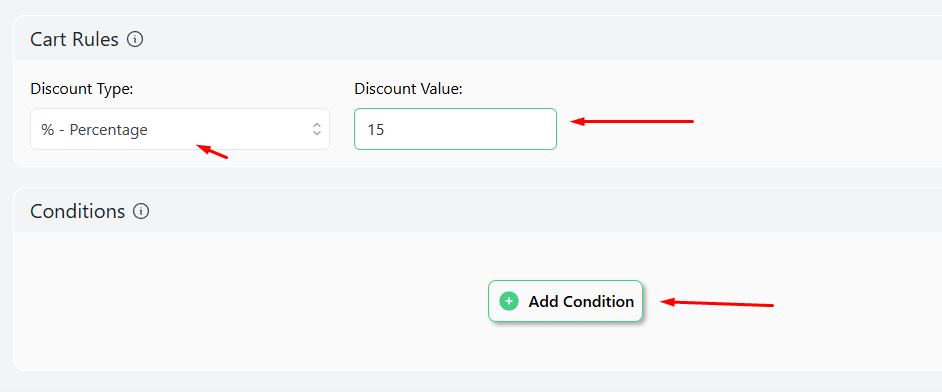
- Add the User Role condition.
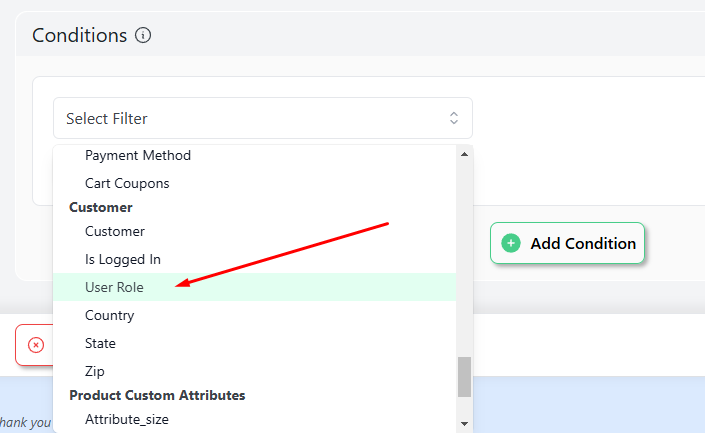
- Type in or select the target user role and save the rule.
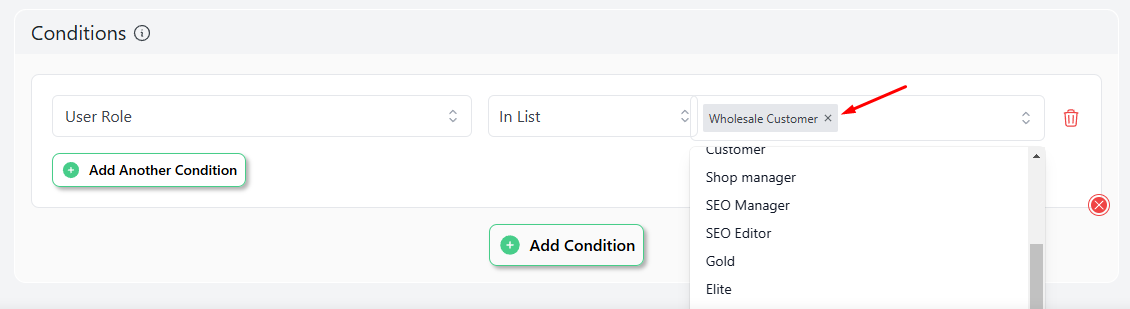
From now on, your wholesale members can enjoy 15% off on their following purchases.
How to Create Time-Limited Flash Sale Discount Rules for WooCommerce?
Example: Set up a 30% discount on all products, but only for 24 hours.
Time-limited discounts are by far the most commonly used discount rules for WooCommerce and eCommerce in general. Store owners use these time-specific offers throughout the year for various purposes, such as boosting sales during seasonal events, clearing out excess inventory, attracting more customers during holidays, and encouraging faster purchases by creating a sense of urgency.
Disco makes it incredibly easy to set time-based discounts through its Valid Between fields.
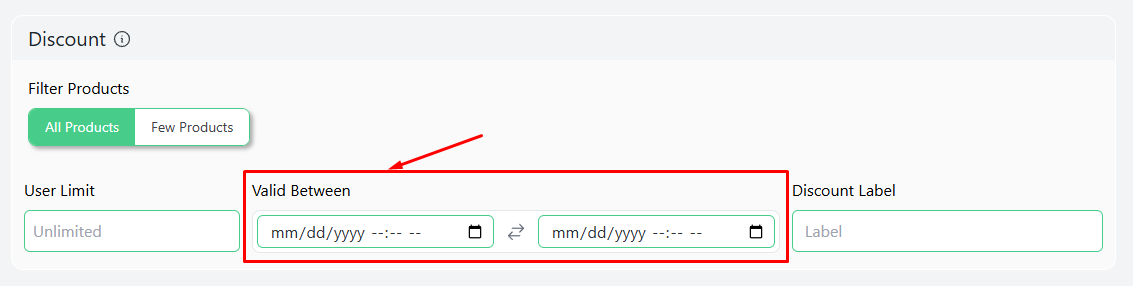
Here are steps for setting up a Flash Sale rule.
- Select any of the discount intents at the top.
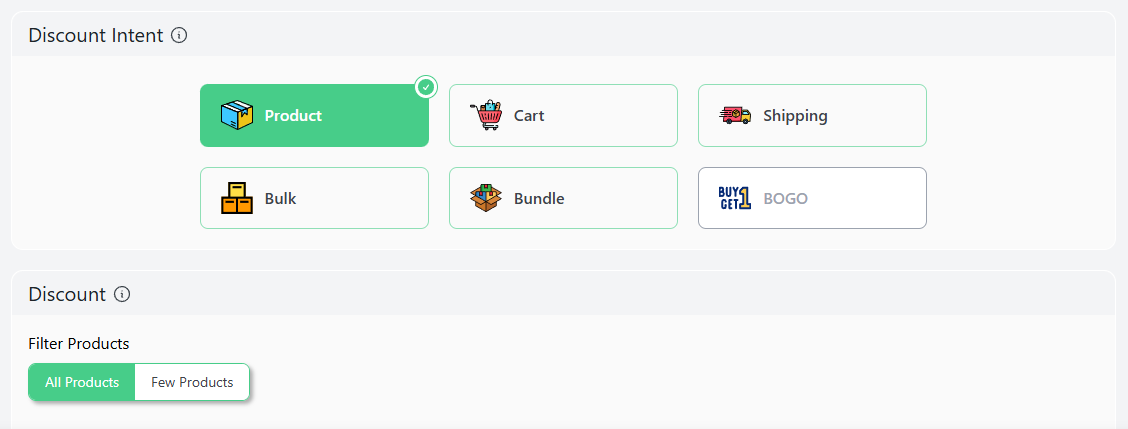
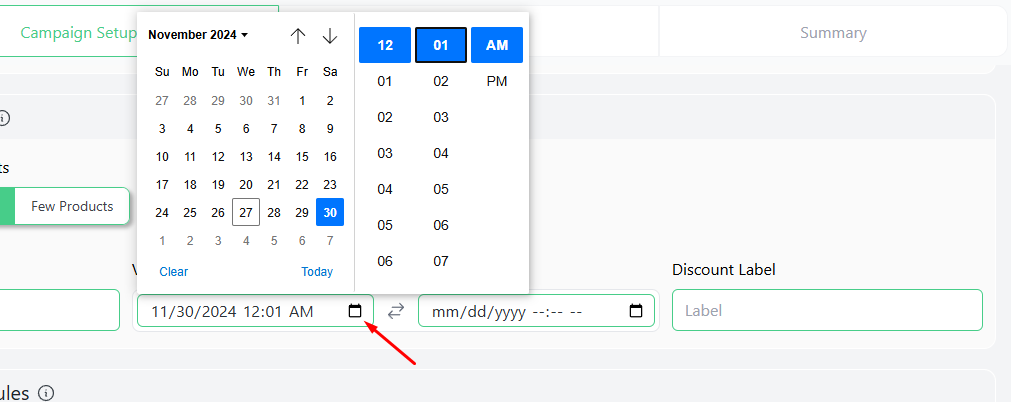
- Select All Products. Find and set your start time for the discount in the first field.
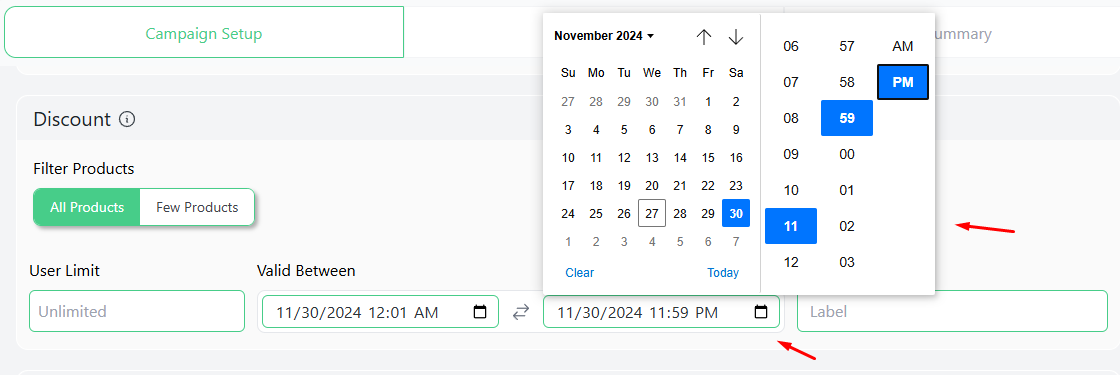
- Set the end date and time for the discount.
- Input your percentage value and save the discount.
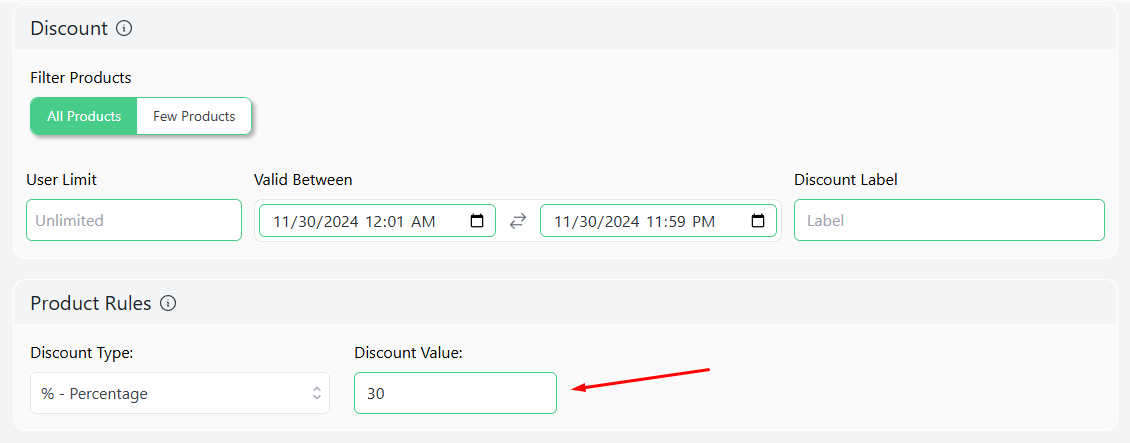
Disco will automatically activate and deactivate the discount in your store at the time and day you configured.
How to Create a Minimum Purchase Discount in WooCommerce?
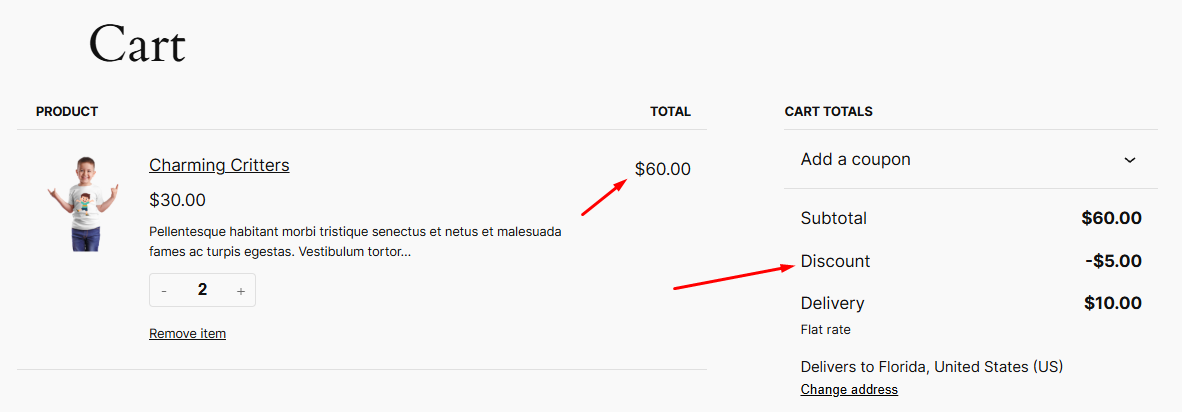
Example: Apply a $5 discount for orders of $50 or more.
This type of discount is known as a cart-based discount. You offer a discount based on the cart elements.
WooCommerce cart discount encourages customers to add more items to their cart to meet the minimum threshold, increasing your average order value. Additionally, it can help you clear out your slow-moving inventory by strategically setting the threshold.
Disco allows you to offer cart discounts based on –
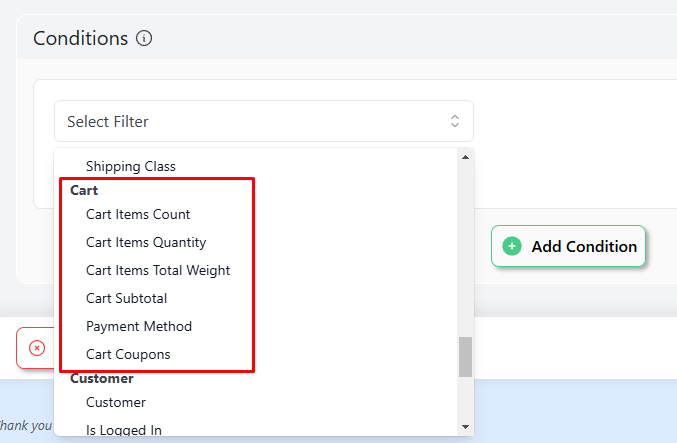
- Cart Items Count
- Cart Items Quantity
- Cart Items Total Weight
- Cart Subtotal
Let’s check out the steps.
- Select the Cart option from the Discount Intent section and specify your products.
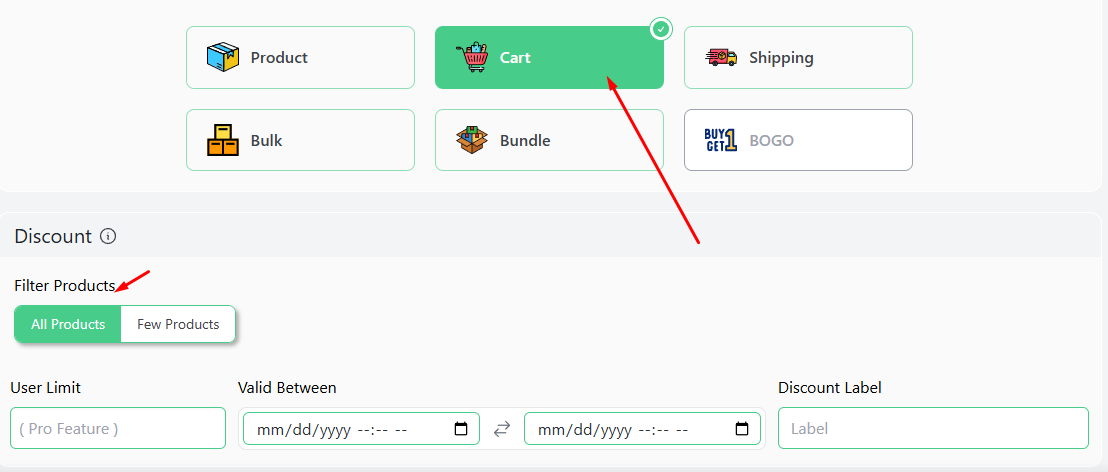
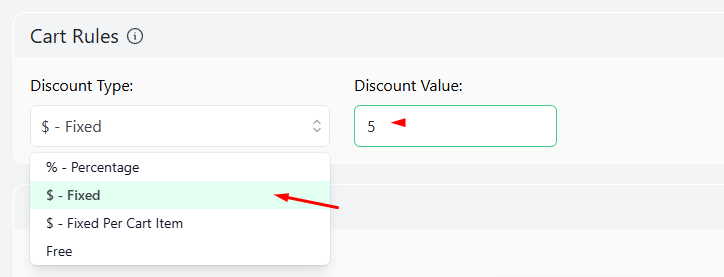
- Select Fixed and input your value.
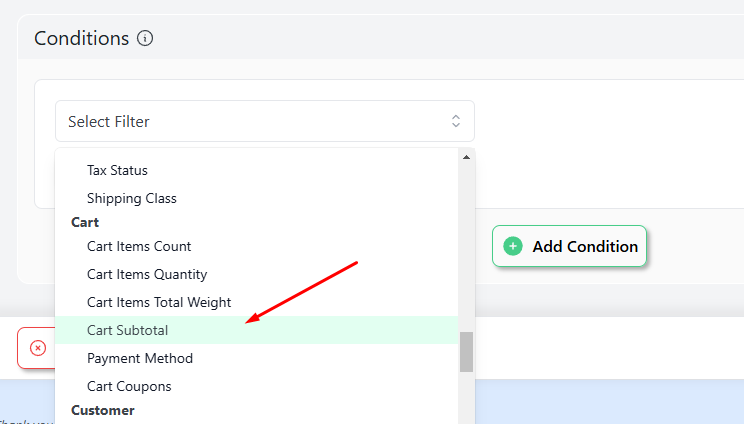
- For this example, we will need the Cart Subtotal condition.
- Our strategy is $5 off on $50 or more, so we must select the Greater Than Or Equal option and insert our value.
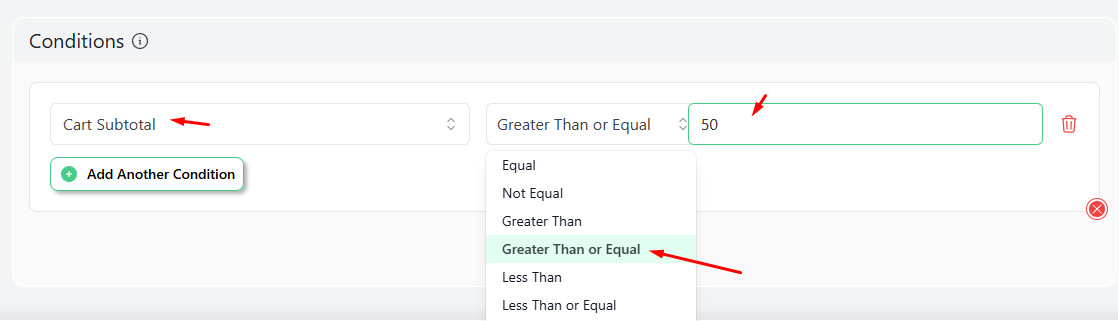
Add $50 worth of products to the cart and check if your conditional discount rules for WooCommerce checkout are working or not.
How to Create Free Shipping on Orders Above a Certain Value?
Example: Offer free shipping on orders above $150.
Shipping costs are the primary reason people abandon carts, which is the worst nightmare for any store owner. Offering free shipping discounts can significantly decrease your cart abandonment rate and increase conversions.
To set shipping discount rules for WooCommerce using Disco, follow these steps.
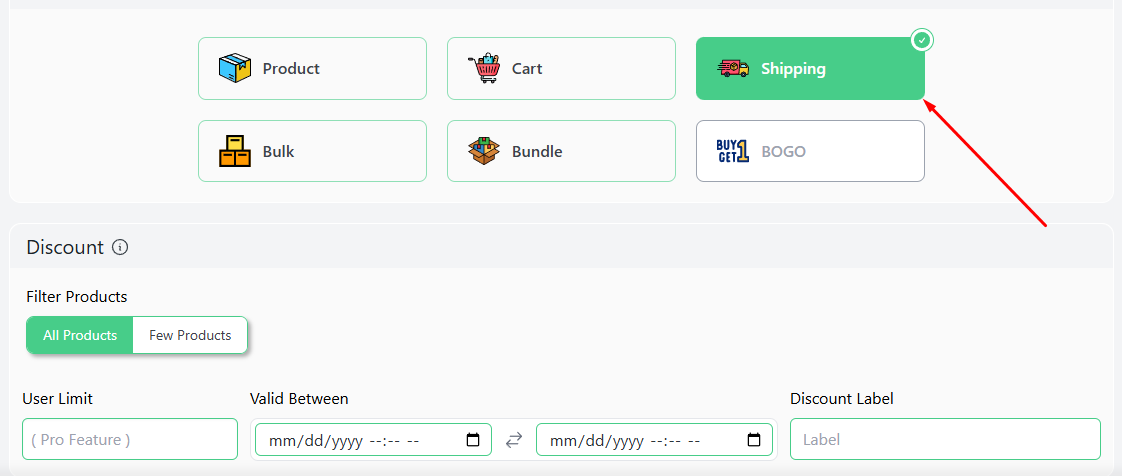
- Select the Shipping option from the top and specify your products.
- Add the Cart Subtotal condition.
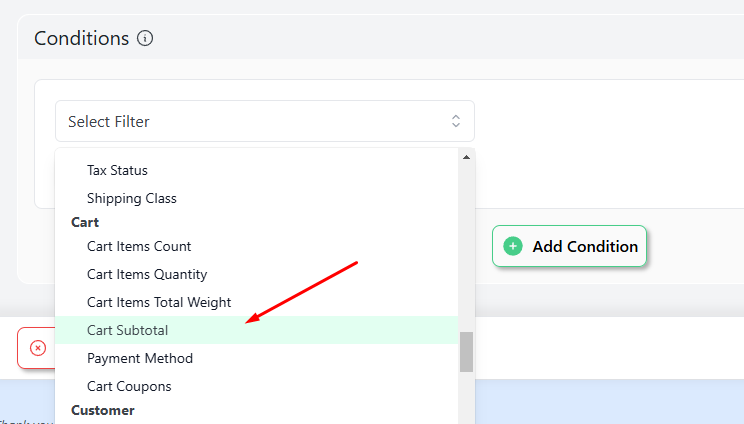
- This time, as per our strategy, we will need to use the Greater Than option and enter our value.
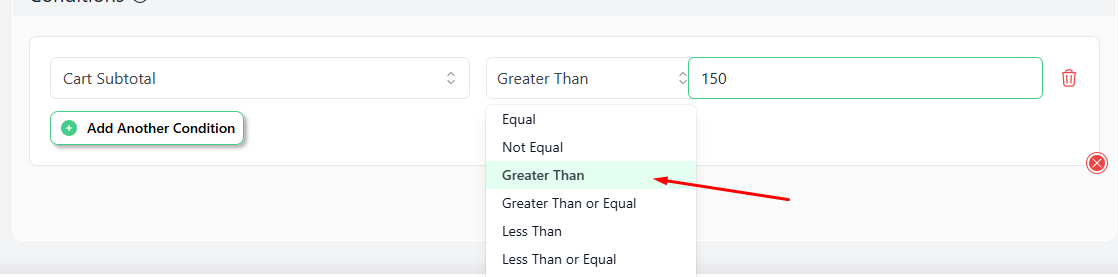
Test the rule from the front by adding over $150 worth of products.
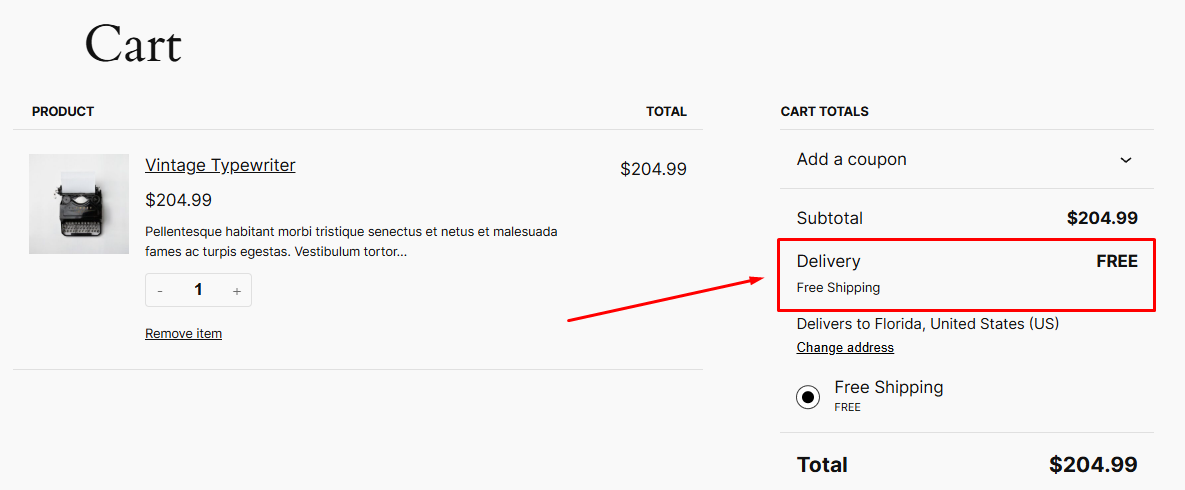
These are just a few examples of what you can achieve with Disco. In addition, you can create an extensive array of discount rules for WooCommerce using this plugin.
How to Create a Discount Coupon in WooCommerce Using the Coupon Tool?
As we stated earlier, WooCommerce comes with a built-in coupon tool that allows store owners to create and manage discount coupons. It’s simple to use and perfect for creating basic and category-specific discounts.
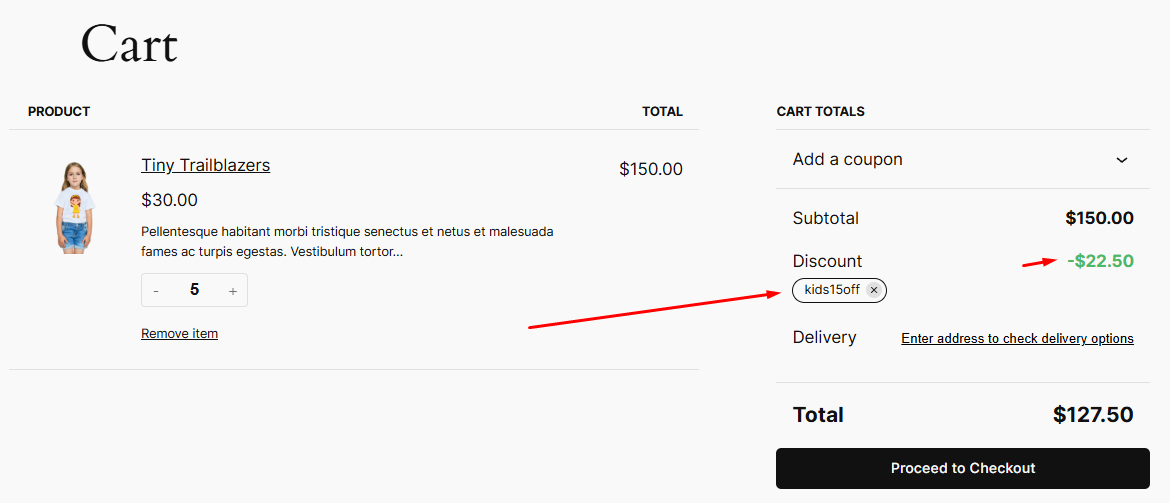
In this example, we’ll create a 15% discount coupon for the Kids category, applicable when the cart total is $150 or more. Here are the steps you need to follow.
Step 1: Enable Coupons in WooCommerce
- Go to your WordPress dashboard.
- Navigate to WooCommerce >> Settings >> General.
- Ensure the “Enable the use of coupon codes” option is checked.
- Save changes.
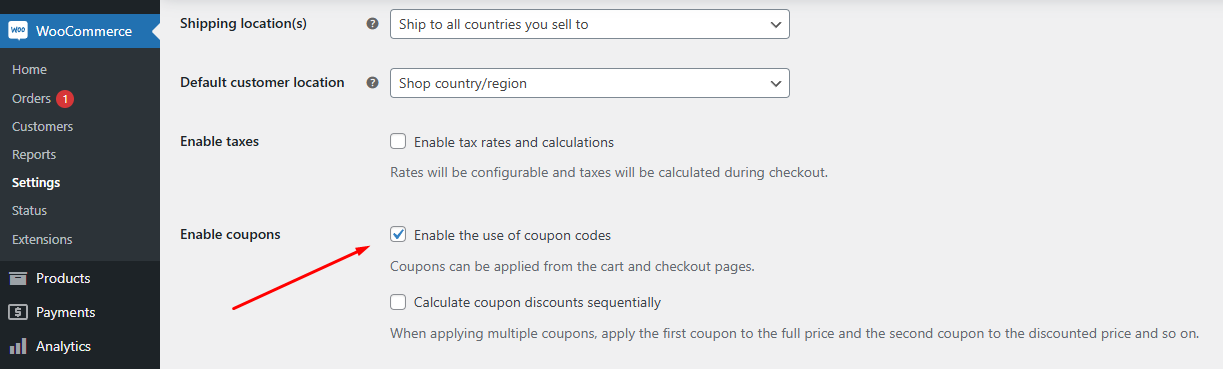
Step 2: Create a New Coupon
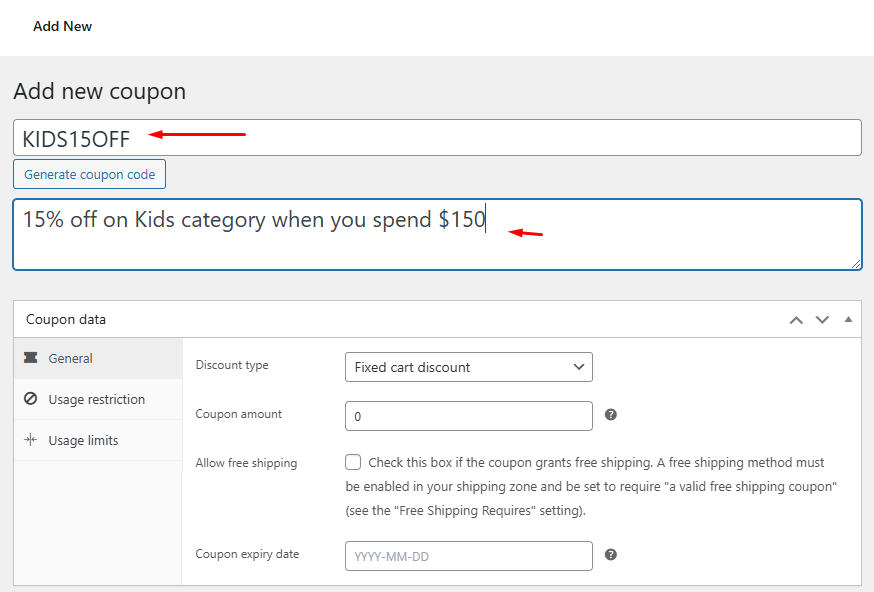
Navigate to Marketing >> Coupons. Click on Add Coupon.
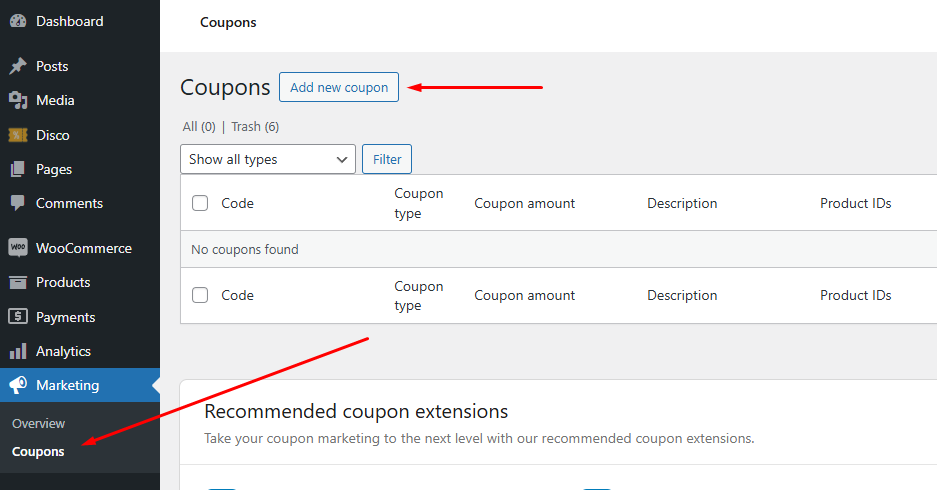
Enter a coupon code, e.g., KIDS15OFF.
Add a description like “15% off on Kids category when you spend $150.”
Step 3: Configure the Discount
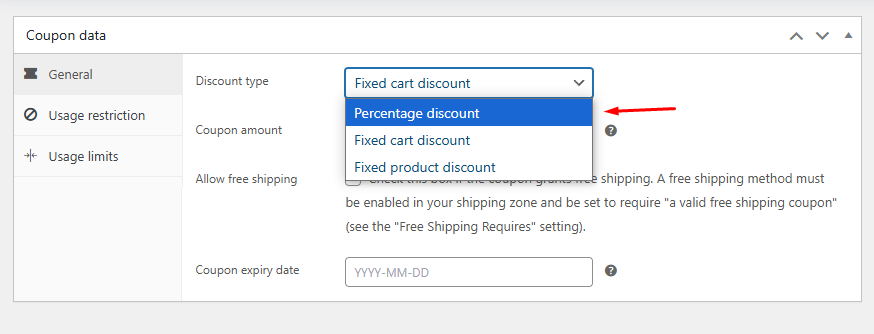
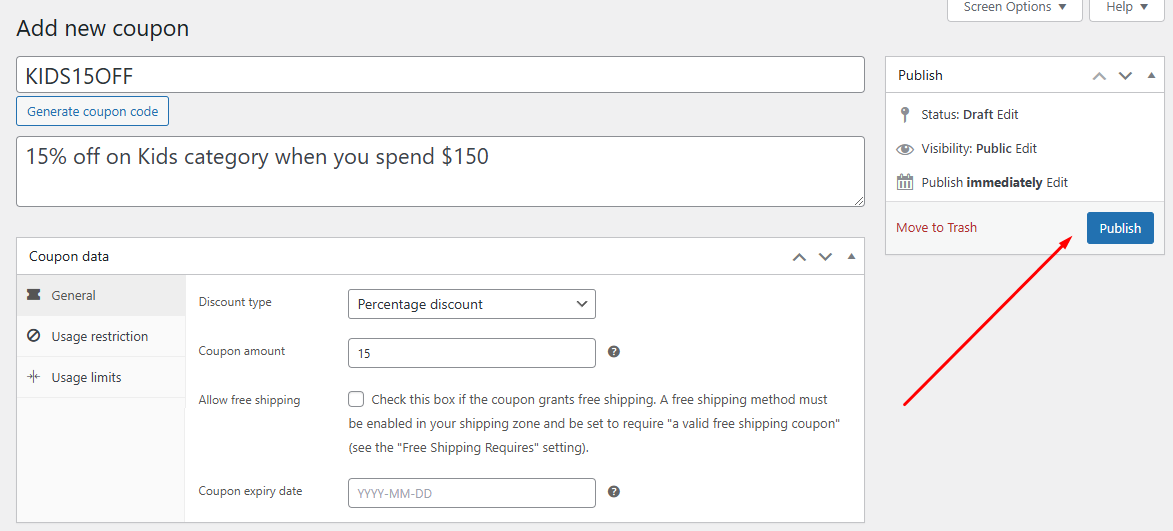
- General Settings:
- Discount Type: Percentage Discount.
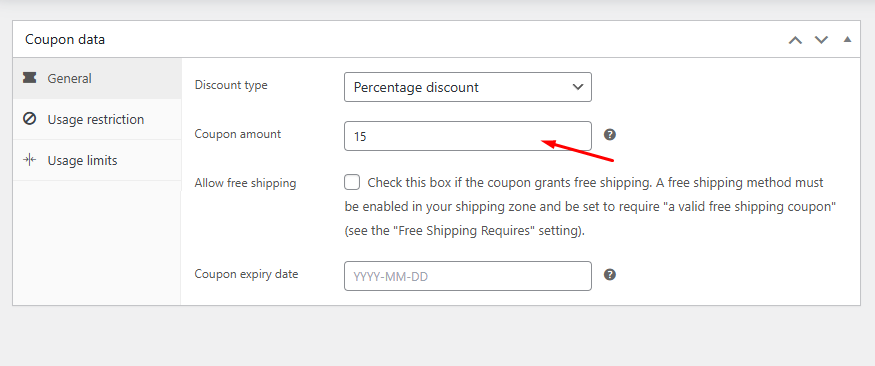
- Coupon Amount: Enter 15 (for 15%).
- You can also set a coupon expiration date if you require it.
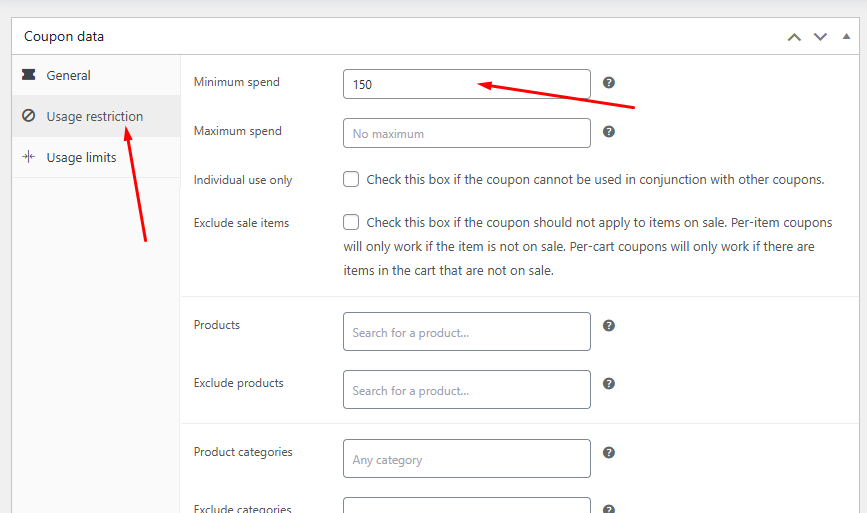
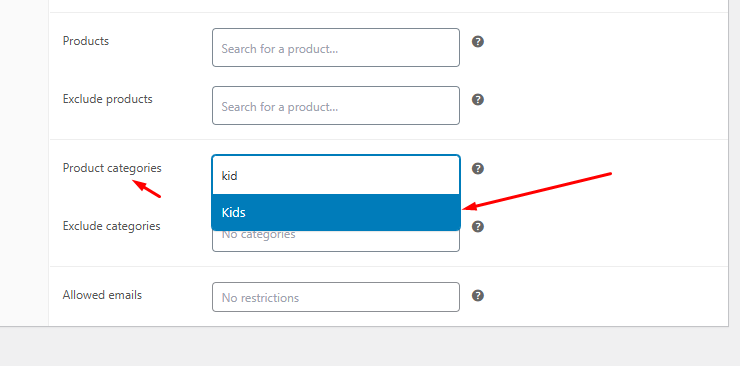
- Usage Restrictions:
Click on the Usage Restrictions tab to set the following conditions.- Minimum Spend: Enter 150.
- Product Categories: Select Kids.
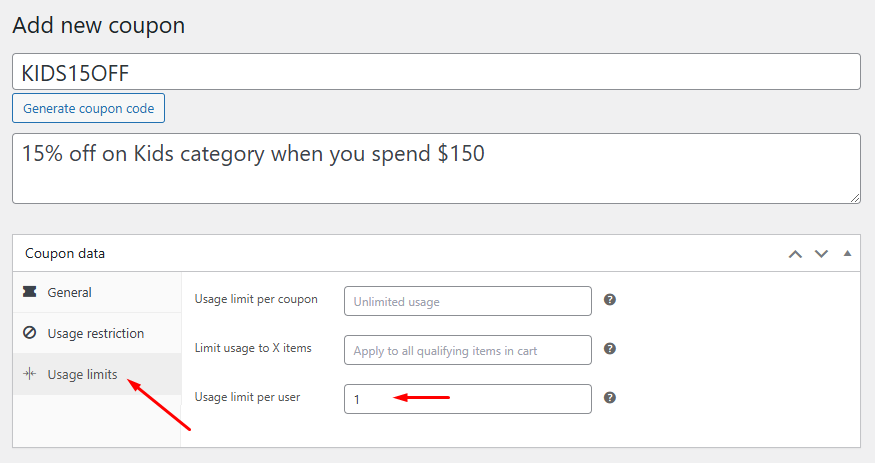
- Usage Limits (Optional):
- Limit usage to 1 per customer from the Usage Limits tab if needed.
Step 4: Publish the Coupon
Review all settings to ensure accuracy. Click Publish to activate the coupon.
Step 5: Test the Coupon
Add products from the Kids category to the cart and ensure the total is over $150.
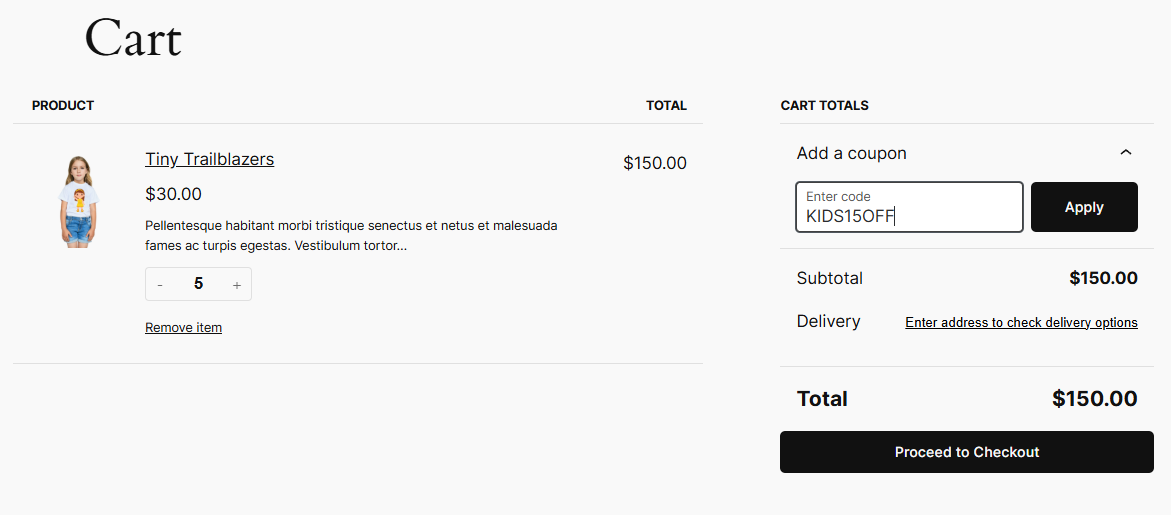
Apply the coupon code to confirm it works correctly.
Why Use a Plugin Instead of the Native Coupon Tool
The coupon tool works for basic, code-based discounts, but every rule requires a customer to find and enter a code. Disco applies discounts automatically once conditions are met, with no code to distribute or remember. It covers six discount types: product, cart, bulk, bundle, BOGO, and free shipping, using condition filters for categories, user roles, payment methods, cart value, and purchase history.
A free version of Disco is available and covers most of the rule types in this guide. Some display customizations, such as advanced bulk pricing table layouts, are part of Disco Pro. Check the current feature comparison on discoplugin.com before deciding which version fits your store.
Best Practices for Discount Rules
- Set a clear goal first. Decide whether the rule is meant to boost sales, clear inventory, attract new customers, or reward existing ones, and build the rule around that goal.
- Target the right segment. Base the discount on customer type, purchase history, or product category rather than applying it storewide by default.
- Protect your margins. Choose a discount amount that motivates purchases without cutting too far into profit.
- Limit how long a discount runs. Time-boxed offers create urgency; running too many at once dilutes that effect and trains customers to wait for the next sale.
- Track results and adjust. Review sales and conversion data for each rule, retire underperforming ones, and test variations rather than repeating the same discount indefinitely.
Frequently Asked Questions
What is a conditional discount at WooCommerce checkout?
A conditional discount at checkout applies only when specific criteria are met, such as cart subtotal, payment method, shipping method, or user role. Instead of one flat discount for every order, the store owner sets rules like “10% off for PayPal payments” or “free shipping over $150,” and the discount applies automatically once the condition is satisfied.
What is a minimum spend discount?
A minimum spend discount applies once a customer’s cart total reaches a set threshold, such as $5 off orders of $50 or more. It encourages customers to add more items to qualify, which raises average order value. In Disco, this is configured using the Cart Subtotal condition with a Greater Than or Equal filter.
What is a fixed amount discount?
A fixed amount discount deducts a set dollar value from a product price or cart total, rather than a percentage. For example, $20 off a specific product regardless of its original price. It’s useful for clearing specific inventory or running flat-rate promotions that are easy for customers to understand.
Can I offer a discount based on payment methods in WooCommerce?
Yes. Disco’s condition filters include payment methods, so you can apply a discount, such as 5% off, only when a customer pays with a specific method like PayPal or direct bank transfer. This works the same way as other conditional rules: set the discount value, then add the payment method condition.
How do I offer a quantity-based discount in WooCommerce?
Quantity-based discounts, also called bulk or tiered discounts, reward customers for buying more units. In Disco, this is set up under the Bulk discount type, where you define quantity ranges (such as 3 to 5 items) and the discount that applies at each range.
Is there a free discount rules plugin for WooCommerce?
Yes. Disco has a free version that covers percentage, fixed, BOGO, bulk, and cart-based discounts, along with condition filters for categories and user roles. More advanced display customizations are available in Disco Pro.
Can I offer discounts based on a customer’s purchase history?
Yes. Purchase history discounts reward customers based on past behavior, such as lifetime spend or total orders placed. This is configured as a condition filter alongside other rules, such as combining purchase history with a minimum cart value for a layered offer.
Where can I find documentation for WooCommerce discount rules plugins?
Disco’s complete documentation and video tutorials are available on discoplugin.com. WooCommerce’s native coupon documentation is available through WooCommerce.com’s official docs.
Key Takeaways
- WooCommerce discount rules are split into basic types (percentage, fixed, BOGO, free shipping, quantity) and advanced types (conditional, tiered, role-based, geolocation, purchase history).
- The built-in coupon tool works for simple, code-based discounts but can’t apply conditional or dynamic pricing automatically.
- Disco applies discounts automatically at checkout, with no code for customers to enter, and covers six discount types: product, cart, bulk, bundle, BOGO, and free shipping.
- Category, tiered, role-based, time-limited, minimum-spend, and free-shipping rules can all be configured using Disco’s condition filters.
- A free version of Disco covers most rule types in this guide; check current pricing before choosing Pro features.
- Set a clear goal and target segment before creating a rule, and track performance rather than leaving discounts running indefinitely.