

To offer a WooCommerce user role discount, you either add pricing logic to your theme’s functions.php file or install a discount plugin like Disco and build a rule that targets a specific role. This guide covers both, plus how to combine a role condition with a cart minimum for tiered pricing.
Role-based pricing lets you charge wholesale, VIP, or membership customers a different price than regular shoppers, without managing separate coupon codes for each group. The code method works, but it breaks on theme updates and gets messy past three or four roles. The plugin method takes about five minutes per role and handles stacked conditions automatically, which is why it’s the one most stores end up using.
WooCommerce’s core coupon tool can restrict a discount to specific email addresses, which covers one-off customer-specific deals. It doesn’t touch role-based pricing, since coupons aren’t tied to WordPress user roles at all.
How to set up WooCommerce user role discounts using custom code
Say you run a loyalty program with Silver, Gold, and Platinum tiers, and you want to give each tier 10%, 20%, and 30% off respectively. Here’s how to wire that up directly in code.
Step 1: Set Up User Roles
First, ensure your customers are assigned to the appropriate user roles (Silver, Gold, Platinum). You can easily create membership plans and user roles for a membership website. Alternatively, you can use a plugin such as “User Role Editor” to create and manage these roles.
Step 2: Backup Your Site / Create a Child Theme
Playing with codes always has the risk of breaking your site or certain features not working. You can create a separate child theme to insert custom codes to save your running store from breakdowns.
If you are not familiar with child themes and want to directly add codes to your core theme file, you must backup your entire website.
Step 3: Add Custom Code to Your Theme’s functions.php File
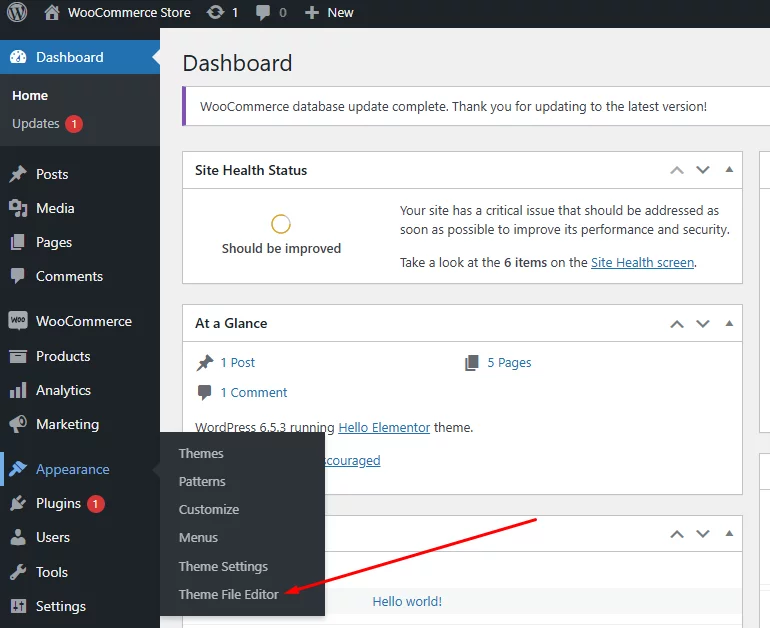
We will directly edit the theme file instead of editing a child theme. Go to Appearance >> Theme Editor.
Click on the functions.php and scroll to the bottom. Hit enter to create some empty spaces for your codes.
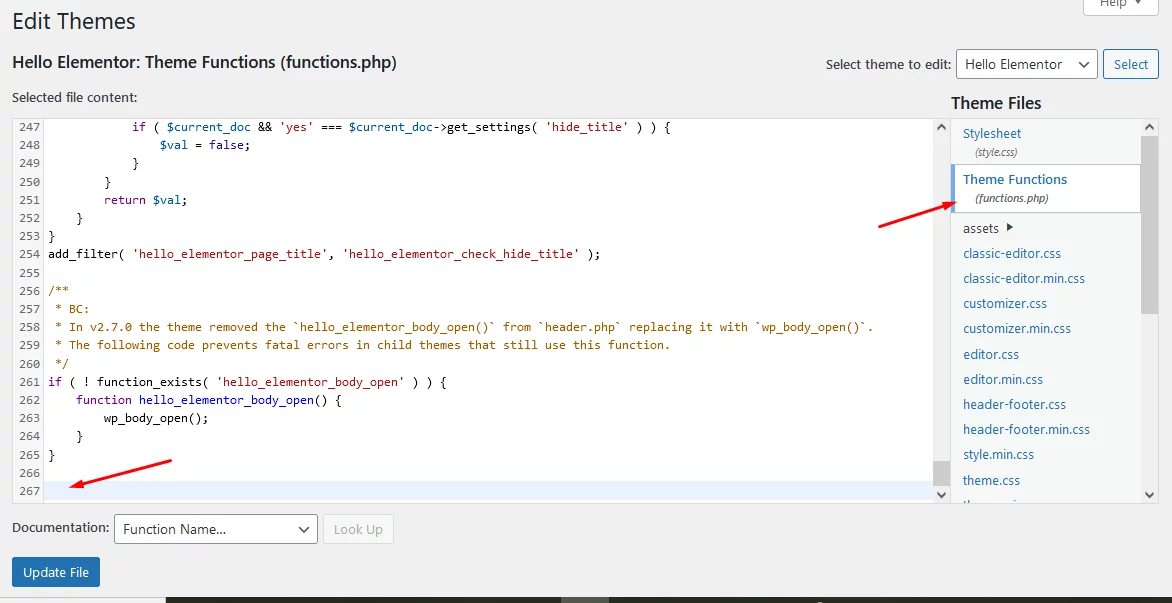
Add the following code to your theme’s functions.php file. This code will apply a WooCommerce discount per user role.
// Apply discount based on user role

add_action('woocommerce_cart_calculate_fees', 'apply_membership_discounts', 20, 1);

function apply_membership_discounts($cart) {

if (is_admin() && !defined('DOING_AJAX')) return;

$user = wp_get_current_user();

// Check if the user is logged in and has one of the membership roles

if (in_array('silver', (array) $user->roles)) {

     $discount = $cart->subtotal * 0.10; // 10% discount for Silver members

     $cart->add_fee('Silver Member Discount', -$discount);

} elseif (in_array('gold', (array) $user->roles)) {

     $discount = $cart->subtotal * 0.20; // 20% discount for Gold members

     $cart->add_fee('Gold Member Discount', -$discount);

} elseif (in_array('platinum', (array) $user->roles)) {

     $discount = $cart->subtotal * 0.30; // 30% discount for Platinum members

     $cart->add_fee('Platinum Member Discount', -$discount);

}

}
Code Explanation
- Hook: The code hooks into woocommerce_cart_calculate_fees to apply the discount when the cart totals are calculated.
- Role Check: It checks the current user’s roles against the defined roles (‘silver’, ‘gold’, ‘platinum’).
- Discount Calculation: Depending on the user’s role, it calculates a discount as a percentage of the cart subtotal.
- Add Fee: It applies the discount as a negative fee, which WooCommerce interprets as a discount.
Step 4: Test the Discounts:
You can create some demo customers and assign them your new user roles.
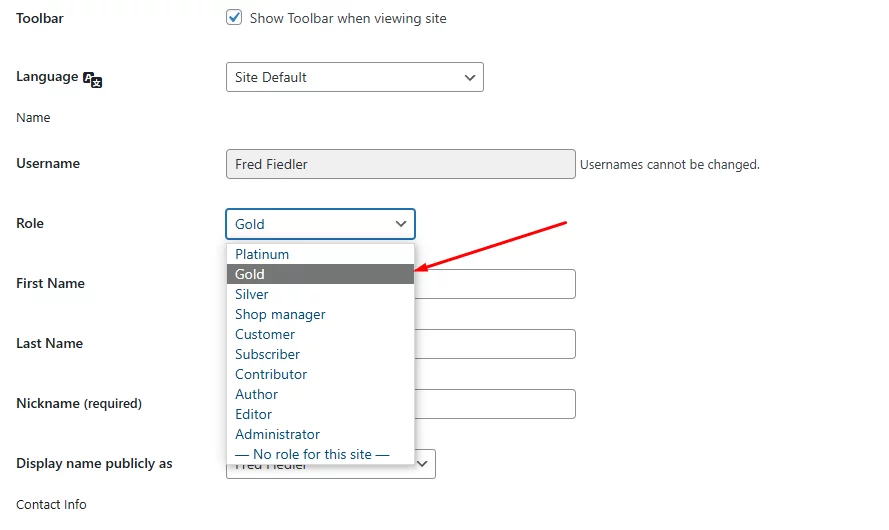
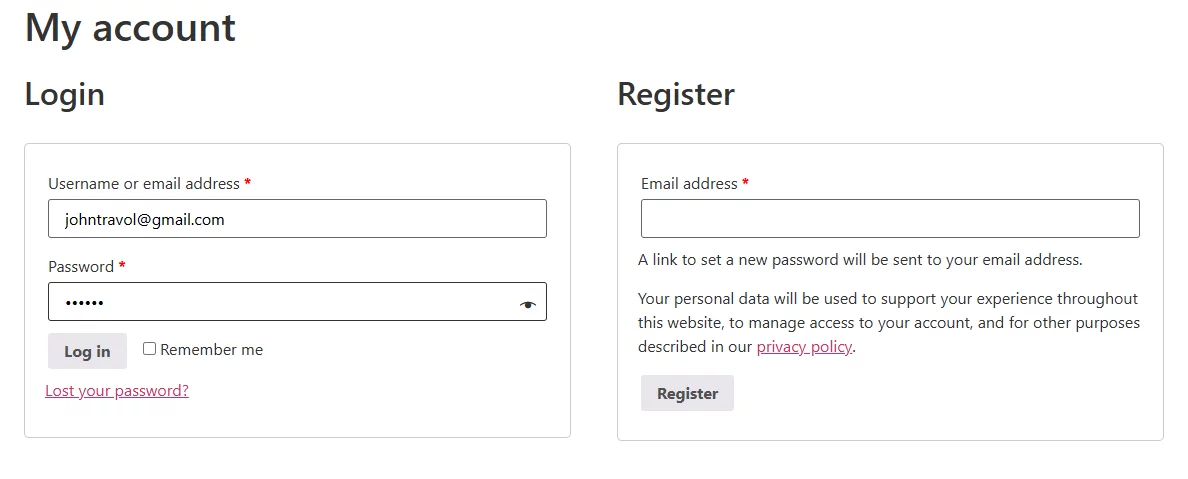
Log in as a user with each role (Silver, Gold, Platinum). Let’s start with a Silver customer.
Add some products and jump to the cart page.
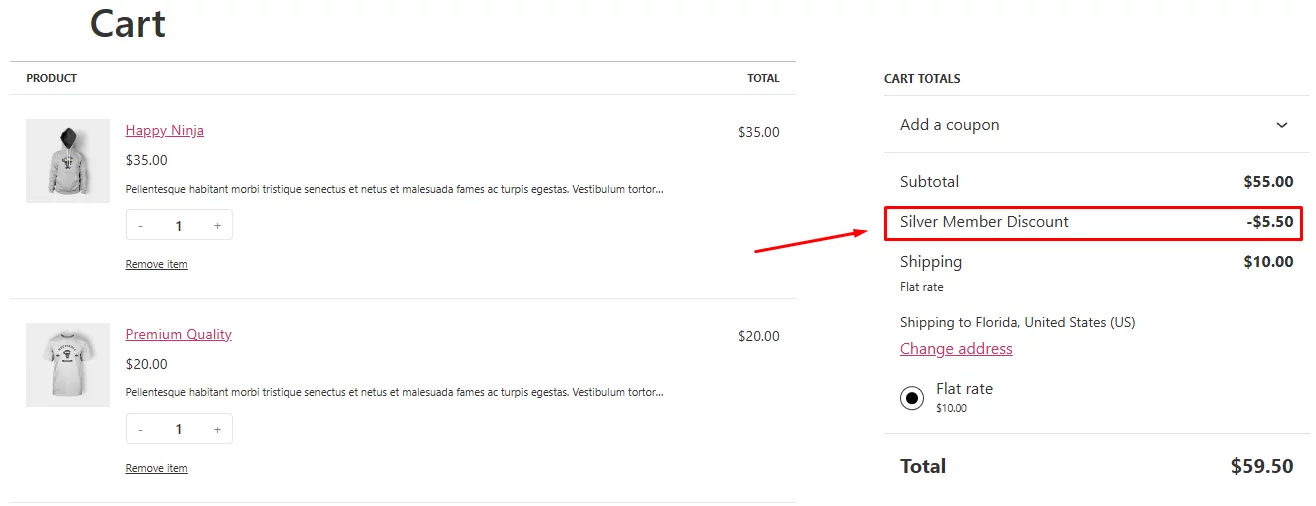
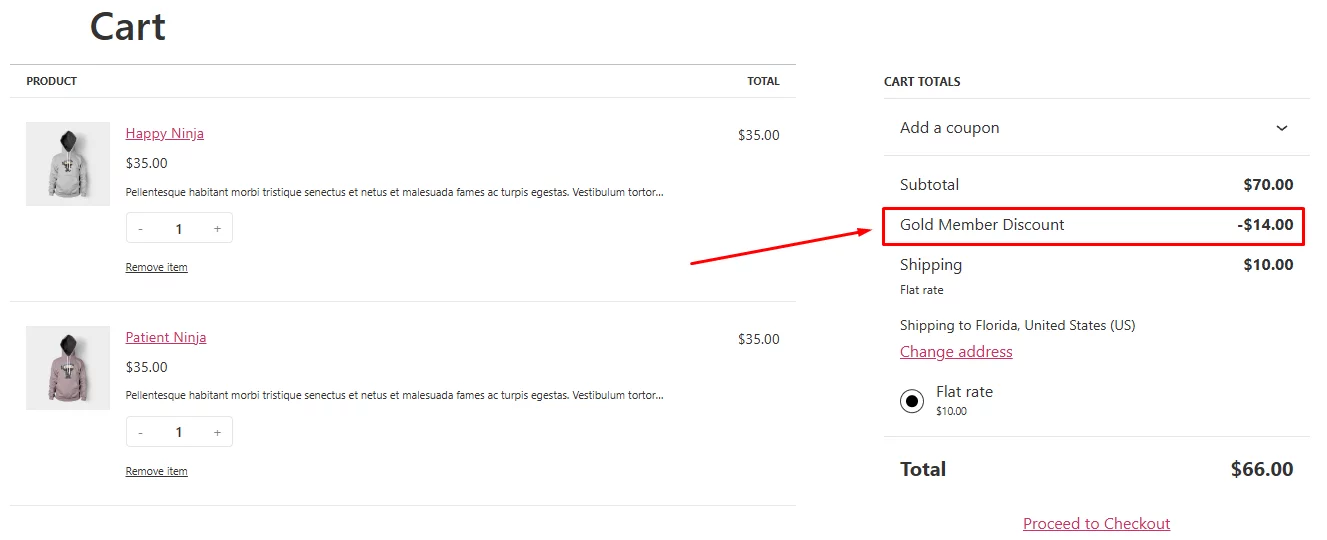
As you can see, the system applied a 10% WooCommerce user role discount as per our set code. Let’s log in to a Gold member’s account and add some products.
Here’s how the cart page displays the WooCommerce discount by user role.
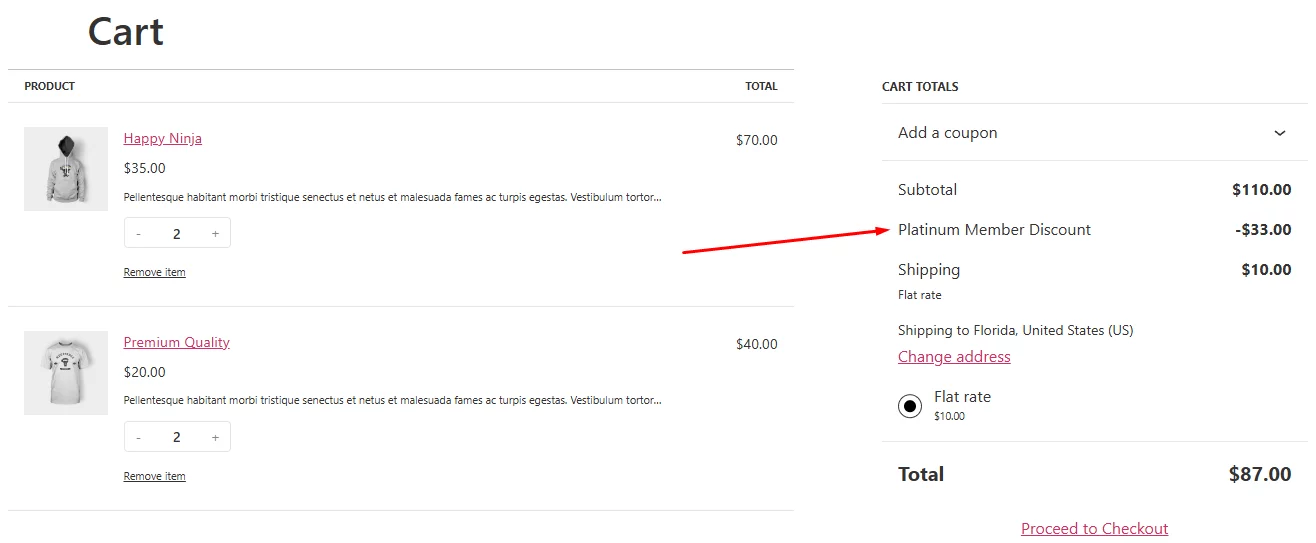
Repeat the process for a Platinum member and check the result.
How to set up WooCommerce user role discounts using Disco
Custom code is fine for a single test rule, but it’s not something you’d want to maintain across a live store with more than a couple of tiers. A dedicated discount plugin skips the code entirely and adds a UI for managing every rule.
Disco (Dynamic Discount Plugin for WooCommerce) is free, actively maintained, and includes a user role condition out of the box.

We have tested several discount plugins, including premium ones, for writing a wide range of discount-related articles in our blog. And we can safely say that this free plugin beats all of them by a big margin.
It has all the premium features you only find in a paid plugin—and, of course, for absolutely free! Whether you are looking to create complex conditional discounts, bundle discounts, or lucrative BOGO deals, this plugin packs it all.
Creating WooCommerce User Role Discount Using Disco
Install and activate the plugin from the WordPress repository.
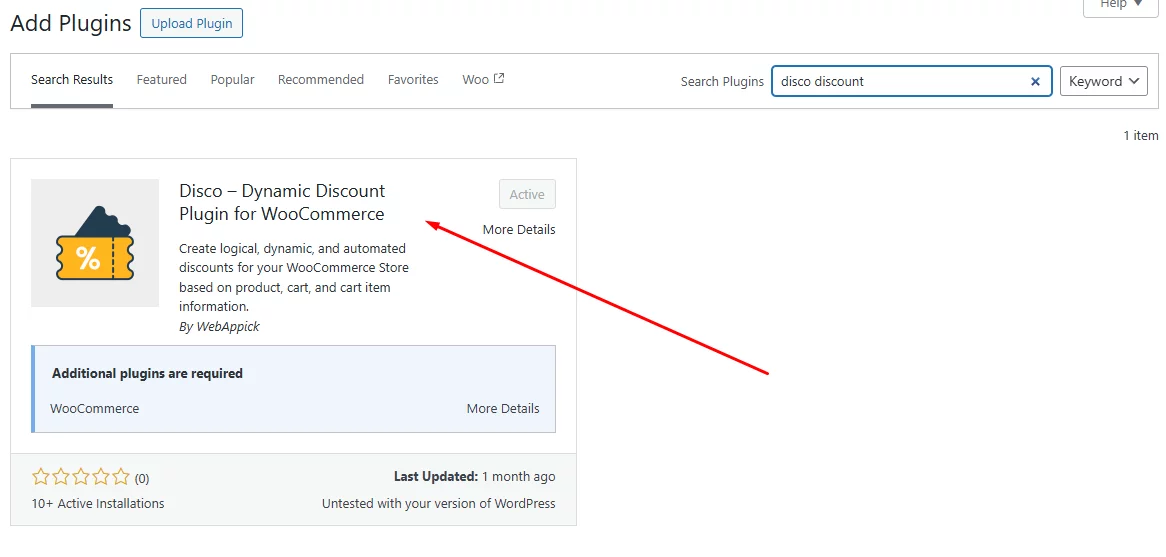
It will create a Disco menu in the admin panel. Click on it.
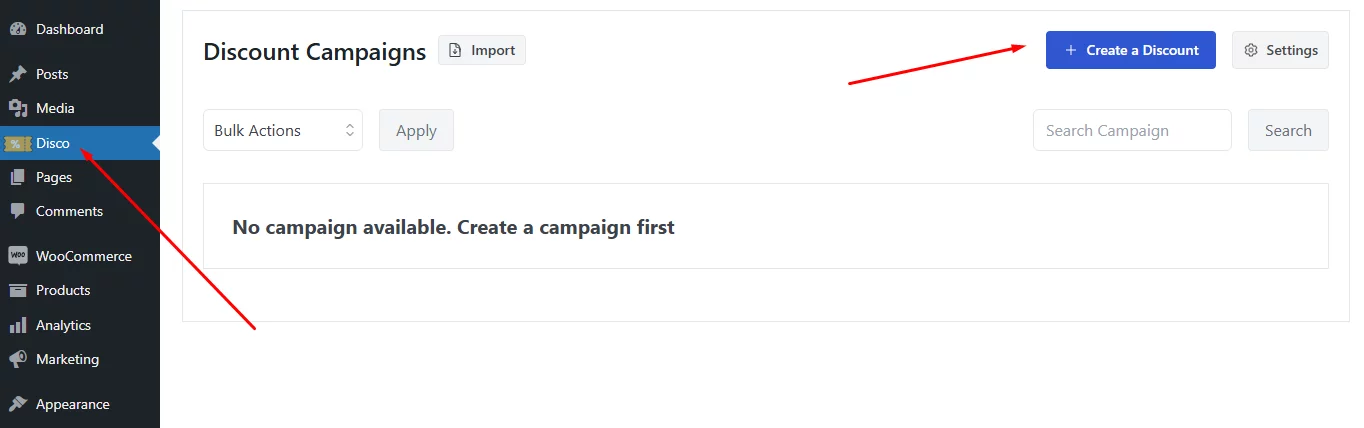
Let’s create a WooCommerce user role discount campaign. Click the Create a Discount button.
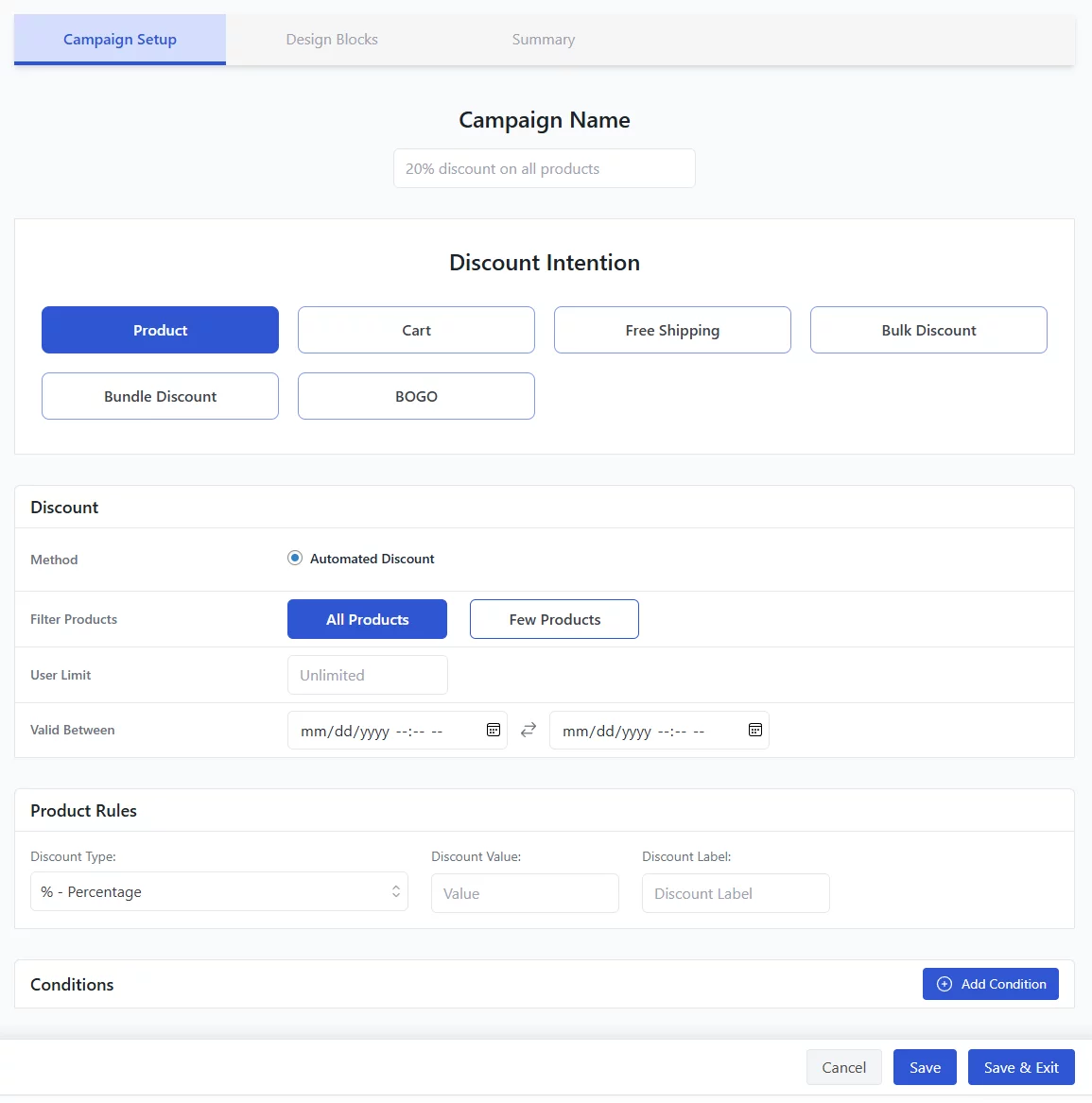
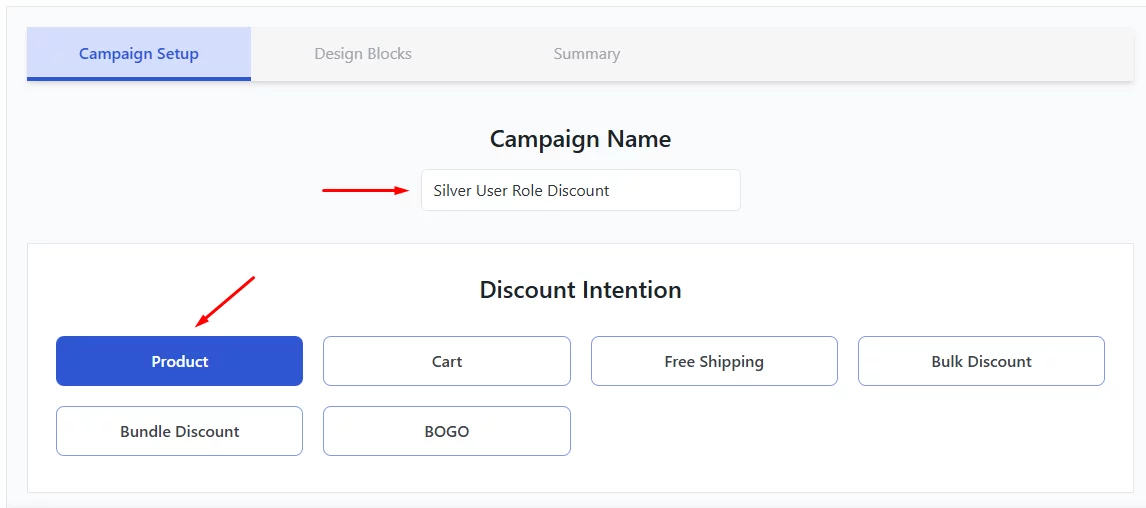
First, name your campaign and select the Discount Intention. We will go with the Product one.
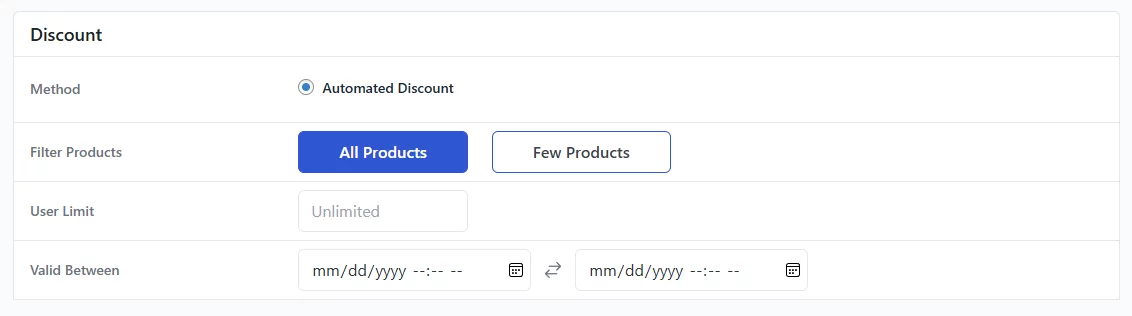
We want to offer this discount for all products.
Select your discount type from the Product Rules tab and enter your value.
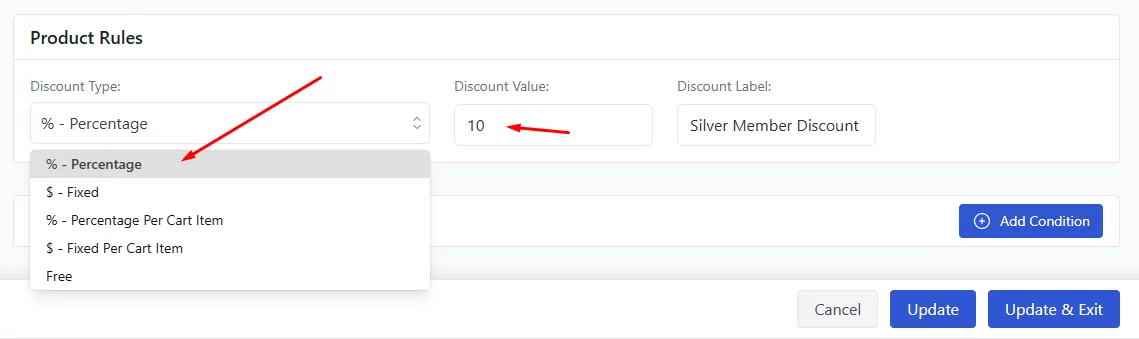
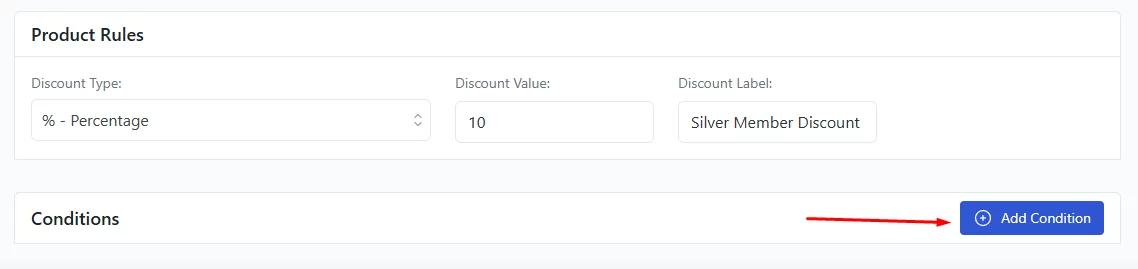
The Conditions tab is the treasure trove that lets you generate a plethora of discount types. Hit the button to get started.
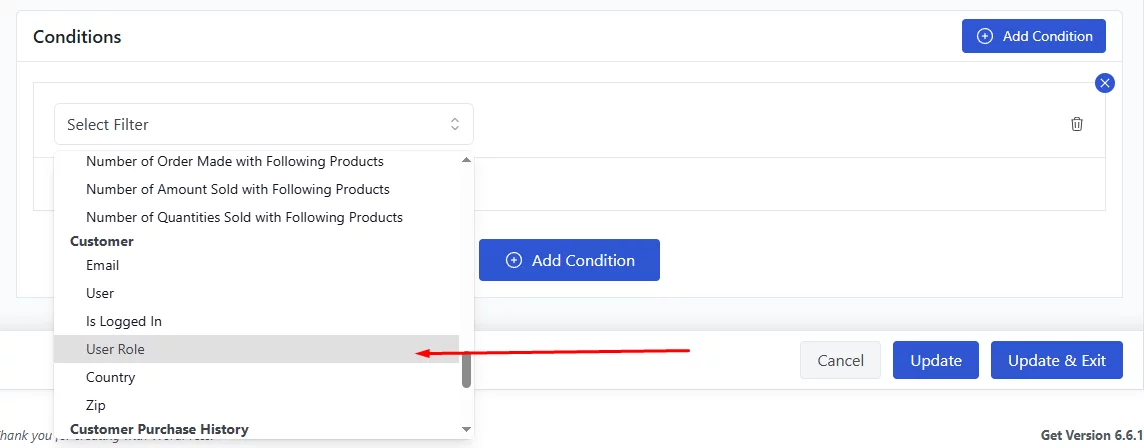
For this article, we will need the User Role option. Scroll down the Filter field to find and select it.
Scroll and select your User Role, or type it and hit enter.
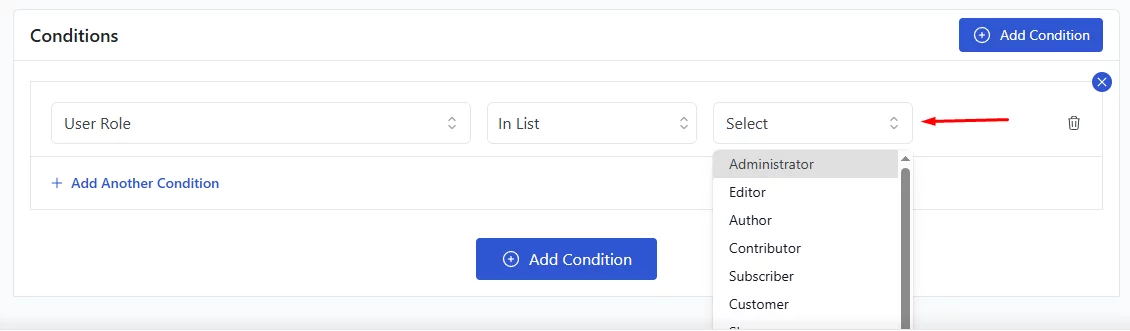
Here’s what WooCommerce user role discount you have set up.
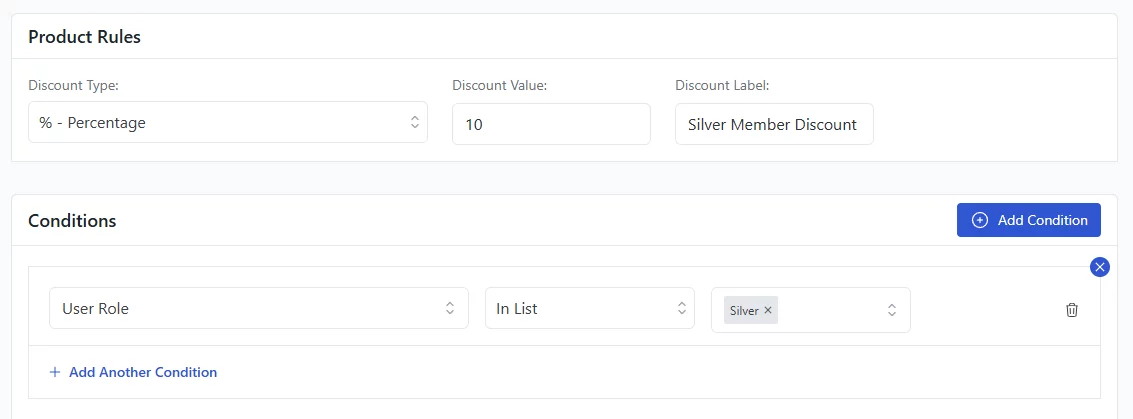
Save the discount campaign. Log in as a demo Silver member from a different browser and check if this discount rule works.
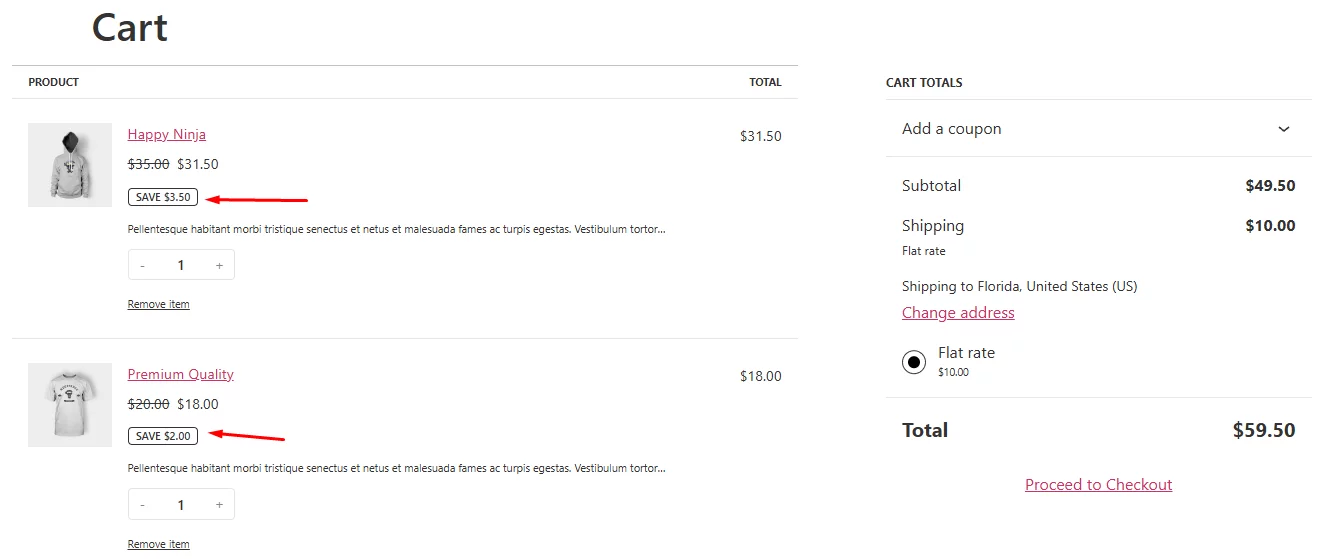
As you can see, the cart page automatically applies discounts to the added products. For other user roles, you need to create separate discount campaigns following the above steps.
You can also quickly duplicate an existing discount campaign from the Disco campaign list.
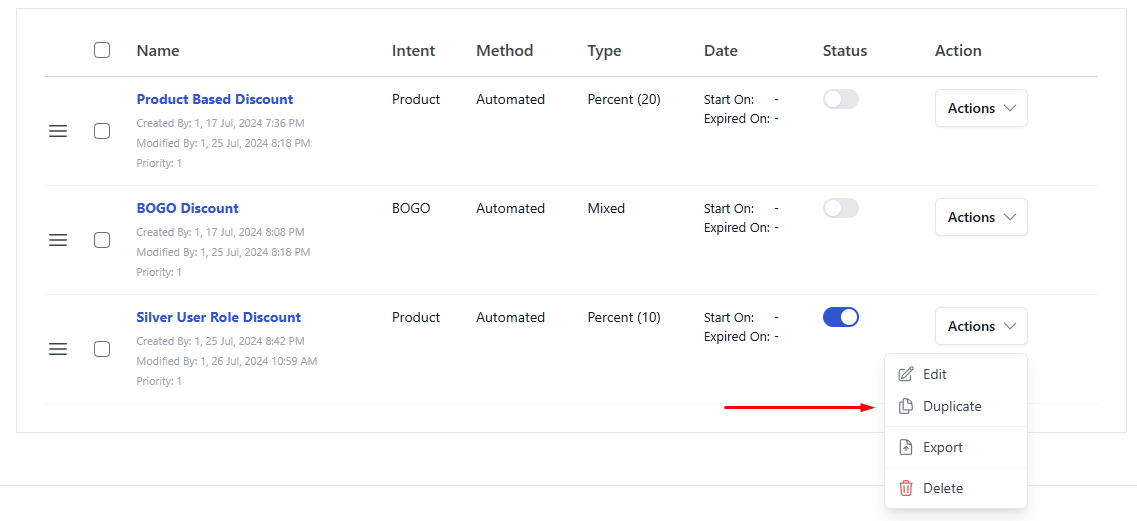
After that, edit the necessary fields.
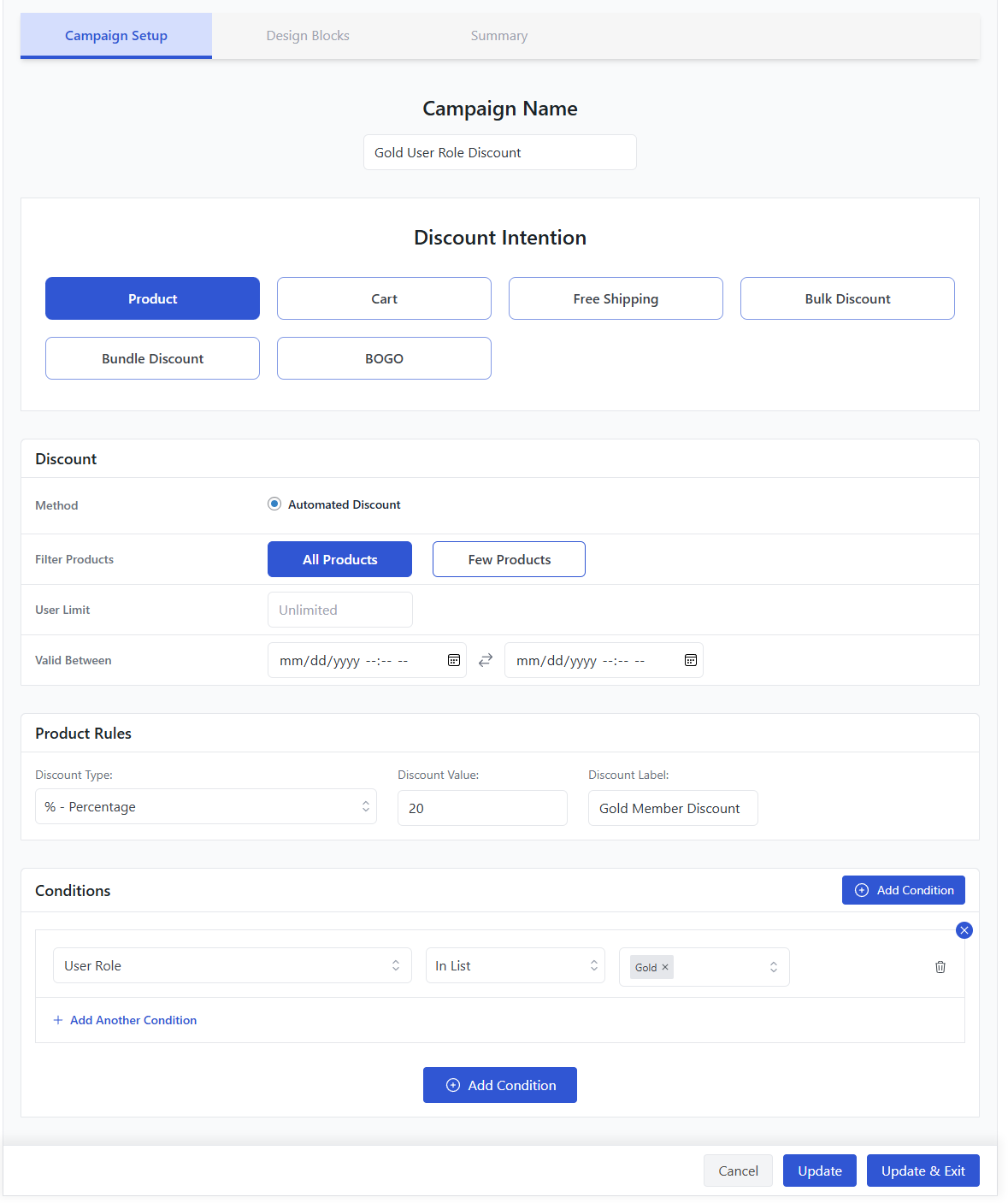
You can also apply multiple conditions to a discount campaign to further personalize it. For example, let’s say you want to offer a 20% discount to Gold members only when their cart total is over $200.
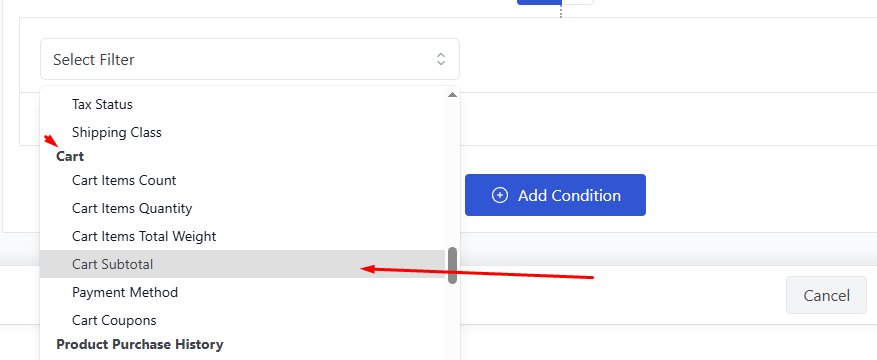
Add another condition and scroll to the Cart section. Select the Cart Subtotal option.
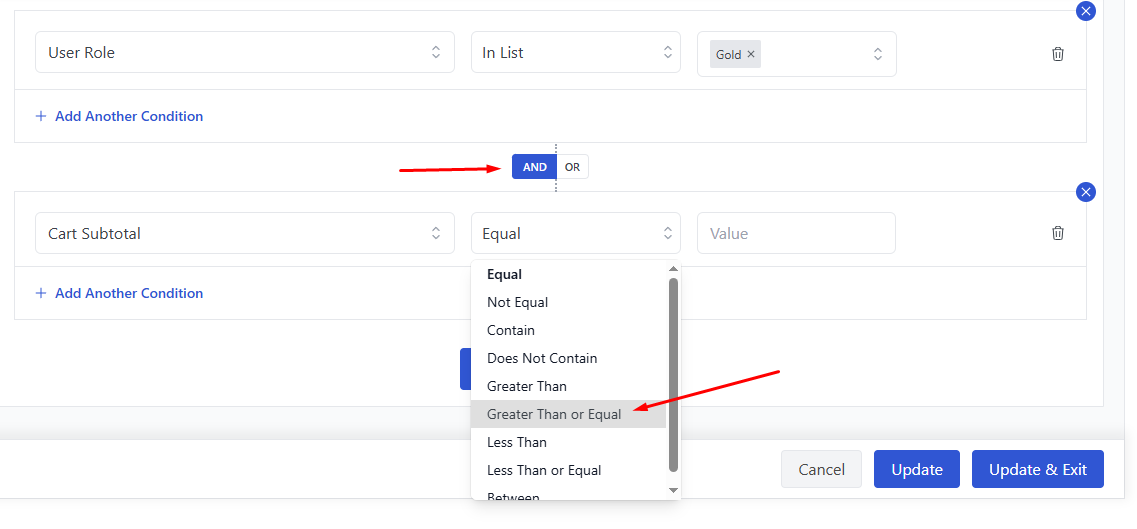
Set the relation of the condition with the primary user role condition and set the equation.
Here’s the final setup.
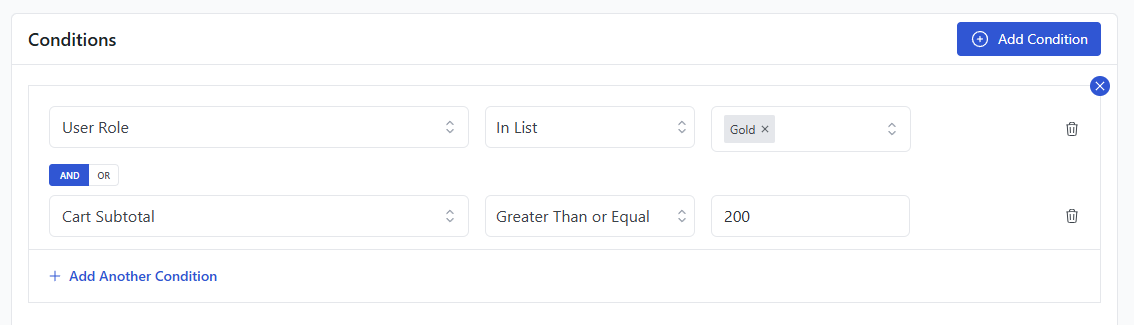
Now, if you check from a Gold member account, the discount will only apply when the two conditions are met.
Example: stacking a user role with a cart minimum
Disco lets you combine multiple conditions on one campaign. Say you want Gold members to get 20% off, but only when their cart total is over $200.
Add a second condition under the Cart section and select Cart Subtotal. Set the relation between the two conditions to AND, then enter 200 as the subtotal threshold. Save the campaign.
Now the 20% discount only fires for a Gold-tier account when both conditions are true: the correct roll, and a cart subtotal above $200. Anyone in that role with a smaller cart pays full price.
Best WooCommerce plugin for user role discounts: Disco
Disco is a free discount rules plugin built for WooCommerce stores that need conditional pricing without writing code. It currently supports six campaign types: product, cart, bulk, bundle, free shipping, and BOGO (BOGO is a Pro-only feature).
For user role pricing specifically, Disco’s condition system lets you filter by role directly, then stack that with cart, quantity, or date-range rules for more targeted campaigns. Pricing starts from free for the core plugin; check the official pricing page for current Pro plan rates before publishing anything time-sensitive.
Key features:
- Six campaign types: Product, cart, bulk, bundle, free shipping, and BOGO discounts from one plugin.
- User role targeting: Apply different prices to any WordPress or custom user role, including wholesale and membership tiers.
- Condition stacking: Combine role, cart subtotal, and quantity conditions on a single campaign using AND/OR logic.
- No-code setup: Every rule is built through the admin UI, so there’s nothing to touch in your theme files.
- Multi-currency support: Works alongside multi-currency plugins like Aelia’s currency switcher for stores selling internationally.
Frequently Asked Questions
How can I set discounts for specific user roles in WooCommerce?
Use custom code or a discount plugin. Code works for a quick test but needs to live in a child theme to survive updates. For anything beyond one or two roles, Disco handles role-based product and cart discounts through its Conditions tab, with no code needed.
What’s the difference between a WooCommerce coupon and a user role discount?
A coupon applies to whoever enters the code, or whoever’s email you’ve restricted it to. A user role discount applies automatically based on the customer’s account type, with no code to enter or forget. Role-based discounts are the better fit for ongoing pricing tiers like wholesale or membership levels.
Is there a free plugin for WooCommerce user-role-based discounts?
Yes. Disco’s free version includes a user role condition alongside product, cart, bulk, bundle, and free shipping discount types. BOGO deals require the Pro version.
Can I offer store-wide or product-specific discounts based on user roles?
Yes. Disco lets you scope a role-based discount to your entire catalog, a single category, or specific products, depending on which Product Rules you set when building the campaign.
Key takeaways
- WooCommerce user role discounts let you charge wholesale, VIP, or membership customers different prices without separate coupon codes.
- Custom code works for a one-off test but needs a child theme and doesn’t scale past a few roles.
- Disco applies role-based discounts automatically through its Conditions tab, with no code required.
- You can stack a role condition with a cart subtotal or quantity rule for tiered pricing, like 20% off for Gold members spending over $200.
- Duplicate an existing Disco campaign and swap the role condition instead of rebuilding each discount from scratch.

Free version on WordPress.org. Every Pro licence includes a 30-day money-back guarantee.

