%22%2F%3E%0A%3Cpath%20d%3D%22M59.8894%2016.6974C60.1689%2016.9331%2060.5416%2017.1216%2060.9142%2017.0745C61.5664%2017.0273%2061.8925%2016.6031%2061.6596%2015.7547C61.5198%2014.4349%2061.4267%2013.1623%2061.2869%2011.8425C61.1006%209.72149%2060.8211%207.55331%2060.5881%205.38512L60.1689%201.70863C60.0757%200.81307%2059.6099%200.294591%2058.7713%200.106053C58.4918%20-0.0353509%2058.2123%20-0.0353509%2057.9328%200.106053C57.7931%200.106053%2057.6999%200.106053%2057.6067%200.153187C56.5353%200.483129%2055.4172%200.81307%2054.3458%201.19015C53.5073%201.47295%2052.6222%201.75576%2051.7371%202.03857C50.2929%202.50991%2048.8488%203.02839%2047.4047%203.49974C46.4264%203.82967%2045.4016%204.1596%2044.3768%204.48952L44.3767%204.48956C43.6313%204.72523%2043.3518%205.24371%2043.6313%205.85646C43.7711%206.13927%2044.004%206.32781%2044.2369%206.46921C44.7028%206.79915%2045.2152%207.08196%2045.6811%207.4119C45.8674%207.55331%2046.0537%207.69471%2045.8208%208.02465C45.7276%208.21319%2045.5879%208.35459%2045.4481%208.54313L45.355%208.73167L44.5164%2010.0986L43.9108%2010.9941L43.3052%2011.8897L43.2121%2011.9839L42.1406%2013.5865L44.5867%2019.8706C45.5713%2022.1447%2048.6357%2026.5713%2052.552%2023.6277L53.9265%2022.2593L54.3458%2021.5523C54.3924%2021.458%2054.4856%2021.3637%2054.5321%2021.2694L54.5787%2021.2223C55.2309%2020.1854%2055.883%2019.1956%2056.5352%2018.2059L56.5353%2018.2057C57.0477%2017.4044%2057.5601%2016.6503%2058.0726%2015.849C58.2123%2015.6604%2058.3055%2015.6133%2058.4918%2015.7076C58.9577%2016.0375%2059.4235%2016.4146%2059.8894%2016.6974Z%22%20fill%3D%22%233D89D0%22%2F%3E%0A%3Cpath%20d%3D%22M28.0259%2022.0232C27.9793%2022.0703%2027.9793%2022.1175%2027.9327%2022.1646C27.9793%2022.1175%2028.0259%2022.0703%2028.0259%2022.0232Z%22%20fill%3D%22url(%23paint1_linear)%22%2F%3E%0A%3Cpath%20d%3D%22M53.9265%2022.3064C53.7402%2022.5892%2053.5538%2022.872%2053.3675%2023.202C53.0414%2023.7204%2052.7153%2024.1918%2052.3892%2024.7103C51.3178%2026.4071%2050.1531%2027.9625%2048.4295%2029.0938C46.9388%2030.0365%2045.4015%2030.6021%2043.6779%2030.8849C42.1872%2031.1206%2040.7896%2030.9791%2039.3921%2030.5549C37.6219%2030.0365%2036.038%2029.1409%2034.687%2027.8211C33.7088%2026.8784%2032.9634%2025.7944%2032.3578%2024.616C32.0317%2023.9561%2031.7988%2023.2491%2031.4727%2022.5421C31.0534%2021.5522%2030.1683%2019.2427%2030.1218%2019.1012C30.0752%2019.0541%2030.0752%2018.9598%2030.0286%2018.9127C29.9354%2018.7242%2029.8422%2018.5828%2029.7957%2018.3942C29.6559%2018.0172%2029.4696%2017.6401%2029.3298%2017.2159C29.2366%2017.0273%2029.1901%2016.8388%2029.0969%2016.6503C28.9571%2016.3674%2028.864%2016.0846%2028.7242%2015.7547C28.5845%2015.3776%2028.4447%2015.0005%2028.2584%2014.6235C28.1652%2014.3407%2028.0254%2014.0579%2027.9323%2013.775C27.9323%2013.7279%2027.9323%2013.7279%2027.8857%2013.6808C27.7925%2013.4922%2027.7459%2013.3037%2027.6528%2013.1152C27.4664%2012.5967%2027.2335%2012.1253%2027.0006%2011.6069C27.0006%2011.5597%2026.954%2011.5126%2026.9074%2011.4655C26.8142%2011.2769%2026.7211%2011.1355%2026.5813%2010.947C26.5347%2010.8998%2026.4882%2010.8527%2026.4882%2010.8056C26.4416%2010.7584%2026.395%2010.7113%2026.395%2010.6642C26.3484%2010.617%2026.3018%2010.5699%2026.2552%2010.5228C26.2086%2010.4756%2026.2086%2010.4285%2026.1621%2010.4285L26.1155%2010.3814C26.0689%2010.3342%2026.0223%2010.2871%2026.0223%2010.2871C25.9291%2010.1928%2025.8826%2010.1457%2025.7894%2010.0514C25.7428%2010.0043%2025.6962%209.95715%2025.6496%209.95715C25.603%209.91002%2025.5565%209.91002%2025.5099%209.86288C25.4167%209.81575%2025.3701%209.76861%2025.277%209.67435C25.2304%209.62721%2025.1838%209.62721%2025.1372%209.58008C25.0906%209.53294%2025.044%209.53294%2024.9974%209.48581C24.9509%209.48581%2024.9043%209.43867%2024.9043%209.43867C24.8577%209.39154%2024.8111%209.39154%2024.7645%209.3444C24.7179%209.3444%2024.7179%209.29727%2024.6714%209.29727C24.5782%209.25014%2024.485%209.203%2024.3918%209.15587C22.9943%208.59025%2021.1775%208.77879%2020.1992%209.10873C19.2675%209.43867%2018.2893%2010.3342%2018.2427%2010.4285C18.6619%209.72148%2019.0812%208.96733%2019.547%208.26031C20.1526%207.36475%2020.7117%206.4692%2021.3638%205.62078C22.3887%204.63095%2023.4602%203.78253%2024.6714%203.07551C27.0006%201.75575%2029.4696%201.52007%2032.0317%201.89715C33.3361%202.08569%2034.5939%202.60417%2035.7585%203.35832C36.9231%204.06534%2037.9014%204.96089%2038.7399%206.04499C39.2989%206.79914%2039.8114%207.60043%2040.1374%208.49598C40.6033%209.67435%2041.1623%2010.8056%2041.5816%2011.9839C41.7679%2012.5496%2042.0008%2013.068%2042.2338%2013.6336C42.2338%2013.6336%2042.2338%2013.6336%2042.2338%2013.6808V13.7279L45.0288%2019.8554C45.4015%2020.8452%2045.9139%2021.6465%2046.7059%2022.3535C47.2183%2022.872%2047.8705%2023.1548%2048.5227%2023.3905C48.5693%2023.3905%2048.6158%2023.4376%2048.6624%2023.4376C49.7805%2023.7676%2051.2246%2023.3905%2052.3426%2023.0134C53.088%2022.6835%2053.6936%2022.4007%2053.9265%2022.3064Z%22%20fill%3D%22url(%23paint2_linear)%22%2F%3E%0A%3Cpath%20d%3D%22M28.0255%2022.0238C27.9789%2022.0709%2027.9789%2022.118%2027.9324%2022.1652C27.9324%2022.1652%2027.9324%2022.1652%2027.9324%2022.2123C27.7926%2022.448%2027.6063%2022.6836%2027.4665%2022.9664C25.8826%2025.8416%2024.4385%2028.1512%2021.6434%2029.6595C19.3142%2030.9793%2016.8452%2031.215%2014.2831%2030.8379C14.1433%2030.8379%2014.0501%2030.7908%2013.9104%2030.7908C12.7458%2030.6022%2011.5812%2030.0838%2010.4165%2029.2825C8.78607%2028.1512%207.52829%2026.5958%206.64318%2024.8047L6.17733%2023.9091L5.01272%2021.5524L0.726927%2012.6911C0.447419%2012.0784%200.214496%2011.4656%200.121327%2010.8529C-0.437689%207.8834%200.95985%204.77252%203.80151%203.35849C5.43198%202.51007%207.24878%202.4158%208.87924%202.93428C10.6029%203.45276%2012.1402%204.67825%2013.0253%206.46937L13.1184%206.6579L14.7489%209.95732C14.7955%2010.0516%2014.7955%2010.1459%2014.8421%2010.2401C15.075%2010.8529%2015.8204%2012.4083%2016.426%2013.5867C16.4725%2013.6809%2016.5191%2013.7752%2016.5657%2013.8223C16.6123%2013.9638%2016.7055%2014.1052%2016.752%2014.1994C16.7986%2014.2937%2016.8452%2014.3408%2016.8452%2014.4351C16.8452%2014.4822%2016.8918%2014.4822%2016.8918%2014.5294C16.9384%2014.5765%2016.9384%2014.6708%2016.985%2014.7179C16.985%2014.765%2017.0316%2014.765%2017.0316%2014.8122C17.0316%2014.8593%2017.0781%2014.8593%2017.0781%2014.9064C17.0781%2014.9536%2017.1247%2015.0007%2017.1247%2015.0478C17.1247%2015.095%2017.1713%2015.095%2017.1713%2015.1421C17.3111%2015.4249%2017.4042%2015.7549%2017.544%2016.0377C17.6372%2016.2262%2017.6837%2016.4147%2017.7769%2016.6504C17.9632%2017.1689%2018.1962%2017.6402%2018.3825%2018.1587C18.5223%2018.4415%2018.6154%2018.7715%2018.7552%2019.0543C18.8018%2019.1485%2018.8484%2019.29%2018.8949%2019.3842C18.9881%2019.5728%2019.0347%2019.7613%2019.1279%2019.9498C19.3608%2020.5154%2019.5937%2021.0811%2019.9664%2021.5995C20.1993%2021.8823%2020.3857%2022.1652%2020.6652%2022.4008C22.3888%2023.9563%2024.9975%2023.862%2028.0255%2022.0238Z%22%20fill%3D%22url(%23paint3_linear)%22%2F%3E%0A%3Cpath%20d%3D%22M68.0888%2024.8694L68%207.88696H71.9963L71.8187%2018.4448L76.8806%207.88696H80.6548L81.3209%2018.3999L85.5392%207.88696H89.713L82.4754%2024.8694H78.1683L77.5466%2013.9072L72.3959%2024.8694H68.0888Z%22%20fill%3D%22%230D5293%22%2F%3E%0A%3Cpath%20d%3D%22M92.7771%2025.1385C89.2693%2025.1385%2086.7383%2022.6675%2086.7383%2019.2081C86.7383%2015.3893%2089.8021%2012.1545%2093.4431%2012.1545C96.6402%2012.1545%2098.8603%2014.4458%2098.8603%2017.7704C98.8603%2018.5342%2098.8159%2019.1182%2098.7271%2019.6124H90.4237C90.6457%2021.0501%2091.7114%2022.0385%2093.2211%2022.0385C94.1536%2022.0385%2094.9528%2021.724%2095.5301%2021.095L97.617%2023.4762C96.0185%2024.6443%2094.5976%2025.1385%2092.7771%2025.1385ZM90.6457%2017.411H95.4857C95.3081%2016.0632%2094.4644%2015.2545%2093.2211%2015.2545C92.0666%2015.2096%2091.0898%2016.0632%2090.6457%2017.411Z%22%20fill%3D%22%230D5293%22%2F%3E%0A%3Cpath%20d%3D%22M105.965%2024.9589C104.411%2024.9589%20103.167%2024.24%20102.368%2022.8473L101.924%2024.869H98.1499L101.791%207.52717L105.698%206.89819L104.322%2013.5923C105.166%2012.7836%20106.32%2012.2894%20107.519%2012.2894C110.139%2012.2894%20112.181%2014.8054%20112.181%2018.0401C112.226%2021.814%20109.428%2024.9589%20105.965%2024.9589ZM103.789%2016.3778L102.945%2020.4212C103.478%2021.185%20104.366%2021.6792%20105.388%2021.6792C107.208%2021.6792%20108.54%2020.2415%20108.54%2018.3097C108.54%2016.6474%20107.43%2015.4793%20105.92%2015.4793C105.077%2015.4793%20104.411%2015.7937%20103.789%2016.3778Z%22%20fill%3D%22%230D5293%22%2F%3E%0A%3Cpath%20d%3D%22M120.44%207.88696H125.058L127.899%2024.8694H123.725L123.193%2020.8259H117.154L114.978%2024.8694H110.582L120.44%207.88696ZM122.704%2017.5912L121.949%2011.9304L118.886%2017.5463H122.704V17.5912Z%22%20fill%3D%22%230D5293%22%2F%3E%0A%3Cpath%20d%3D%22M131.23%2012.3347H135.004L134.782%2013.5927C135.626%2012.7391%20136.736%2012.2449%20137.935%2012.2449C140.555%2012.2449%20142.597%2014.7608%20142.597%2017.9955C142.597%2021.8143%20139.8%2024.9592%20136.336%2024.9592C134.782%2024.9592%20133.539%2024.2853%20132.828%2022.9824L131.274%2030.0809H127.456L131.23%2012.3347ZM134.205%2016.3332L133.317%2020.5114C133.85%2021.2303%20134.738%2021.6796%20135.715%2021.6796C137.535%2021.6796%20138.867%2020.2419%20138.867%2018.31C138.867%2016.6477%20137.757%2015.4796%20136.247%2015.4796C135.493%2015.4796%20134.827%2015.7492%20134.205%2016.3332Z%22%20fill%3D%22%230D5293%22%2F%3E%0A%3Cpath%20d%3D%22M144.595%2012.3347H148.369L148.147%2013.5927C148.99%2012.7391%20150.101%2012.2449%20151.299%2012.2449C153.919%2012.2449%20155.962%2014.7608%20155.962%2017.9955C155.962%2021.8143%20153.164%2024.9592%20149.701%2024.9592C148.147%2024.9592%20146.904%2024.2853%20146.193%2022.9824L144.683%2030.0809H140.865L144.595%2012.3347ZM147.57%2016.3332L146.682%2020.5114C147.214%2021.2303%20148.102%2021.6796%20149.079%2021.6796C150.9%2021.6796%20152.232%2020.2419%20152.232%2018.31C152.232%2016.6477%20151.122%2015.4796%20149.612%2015.4796C148.857%2015.4796%20148.191%2015.7492%20147.57%2016.3332Z%22%20fill%3D%22%230D5293%22%2F%3E%0A%3Cpath%20d%3D%22M159.115%2024.8694H155.296L158.005%2012.3347H161.824L159.115%2024.8694ZM158.449%208.47099C158.449%207.1681%20159.559%206%20160.847%206C161.912%206%20162.8%206.85361%20162.8%207.93186C162.8%209.27967%20161.69%2010.4029%20160.358%2010.4029C159.248%2010.4029%20158.449%209.54924%20158.449%208.47099Z%22%20fill%3D%22%230D5293%22%2F%3E%0A%3Cpath%20d%3D%22M169.727%2020.6909L171.592%2023.1619C170.304%2024.4648%20168.572%2025.1387%20166.752%2025.1387C163.466%2025.1387%20161.068%2022.7126%20161.068%2019.388C161.068%2015.3446%20164.088%2012.1099%20167.862%2012.1099C170.082%2012.1099%20171.947%2013.0983%20173.013%2014.7606L170.304%2017.0069C169.727%2015.9736%20168.927%2015.4794%20167.773%2015.4794C166.13%2015.4794%20164.842%2017.0518%20164.842%2019.0286C164.842%2020.6909%20165.819%2021.6793%20167.329%2021.6793C168.261%2021.7243%20169.016%2021.4098%20169.727%2020.6909Z%22%20fill%3D%22%230D5293%22%2F%3E%0A%3Cpath%20d%3D%22M175.722%207.52717L179.629%206.89819L177.365%2017.6807L182.426%2012.3344H187L180.517%2018.6691L184.691%2024.869H180.162L177.009%2019.5676L175.899%2024.869H172.081L175.722%207.52717Z%22%20fill%3D%22%230D5293%22%2F%3E%0A%3Cdefs%3E%0A%3ClinearGradient%20id%3D%22paint0_linear%22%20x1%3D%2223.1831%22%20y1%3D%2224.7007%22%20x2%3D%2223.3049%22%20y2%3D%228.44851%22%20gradientUnits%3D%22userSpaceOnUse%22%3E%0A%3Cstop%20stop-color%3D%22%23327ACD%22%2F%3E%0A%3Cstop%20offset%3D%221%22%20stop-color%3D%22%234696D2%22%2F%3E%0A%3C%2FlinearGradient%3E%0A%3ClinearGradient%20id%3D%22paint1_linear%22%20x1%3D%2227.9436%22%20y1%3D%2222.0876%22%20x2%3D%2228.0428%22%20y2%3D%2222.0876%22%20gradientUnits%3D%22userSpaceOnUse%22%3E%0A%3Cstop%20offset%3D%220.2029%22%20stop-color%3D%22%234C51BF%22%20stop-opacity%3D%220.9%22%2F%3E%0A%3Cstop%20offset%3D%221%22%20stop-color%3D%22%235A67D8%22%20stop-opacity%3D%220.9%22%2F%3E%0A%3C%2FlinearGradient%3E%0A%3ClinearGradient%20id%3D%22paint2_linear%22%20x1%3D%2232.4583%22%20y1%3D%222.22148%22%20x2%3D%2239.8371%22%20y2%3D%2230.0298%22%20gradientUnits%3D%22userSpaceOnUse%22%3E%0A%3Cstop%20offset%3D%220.3367%22%20stop-color%3D%22%2342B9FF%22%2F%3E%0A%3Cstop%20offset%3D%220.7818%22%20stop-color%3D%22%233B97E1%22%2F%3E%0A%3Cstop%20offset%3D%221%22%20stop-color%3D%22%233784D1%22%2F%3E%0A%3C%2FlinearGradient%3E%0A%3ClinearGradient%20id%3D%22paint3_linear%22%20x1%3D%2211.252%22%20y1%3D%220.972585%22%20x2%3D%2215.8771%22%20y2%3D%2225.7529%22%20gradientUnits%3D%22userSpaceOnUse%22%3E%0A%3Cstop%20offset%3D%220.3367%22%20stop-color%3D%22%2342B9FF%22%2F%3E%0A%3Cstop%20offset%3D%220.7818%22%20stop-color%3D%22%233B97E1%22%2F%3E%0A%3Cstop%20offset%3D%221%22%20stop-color%3D%22%233784D1%22%2F%3E%0A%3C%2FlinearGradient%3E%0A%3C%2Fdefs%3E%0A%3C%2Fsvg%3E%0A)


How to Set Up WooCommerce Fixed Cart Discount (Easy Setup)
 Fadiyah Sameh
 To set up a WooCommerce fixed cart discount, create a cart-level discount rule, choose a fixed discount amount, and add conditions such as minimum cart subtotal, product category, customer role, or purchase history. You can do this with a WooCommerce cart discount plugin, or with the built-in WooCommerce coupon tool for manual coupon-based discounts.
In this guide, we will show both methods. You will learn how to create fixed cart discounts for minimum purchases, first-time shoppers, seasonal campaigns, product categories, bulk purchases, returning customers, and newsletter subscribers.
How to Create a WooCommerce Fixed Cart Discount Using a Plugin?
The easiest way to create a WooCommerce fixed cart discount is to use a WooCommerce cart discount plugin like Disco. It lets you create automatic cart-level discount rules, set a fixed discount amount, and apply discount conditions based on cart subtotal, product category, user role, customer purchase history, cart item quantity, or discount validity date.
This method is more flexible than the default WooCommerce coupon system because the discount can apply automatically on the cart page or checkout page when the customer meets the rule conditions. You can use it for minimum purchase discounts, storewide cart discounts, seasonal promotions, first-order discounts, returning customer offers, and bulk purchase discounts.
For this example, we will create this cart total discount rule:
Offer: Get $20 off orders over $150.
Step 1: Install and Activate Disco
From your WordPress dashboard, go to Plugins > Add New.
Search for Disco – WooCommerce Dynamic Pricing & Discount Rules Plugin.
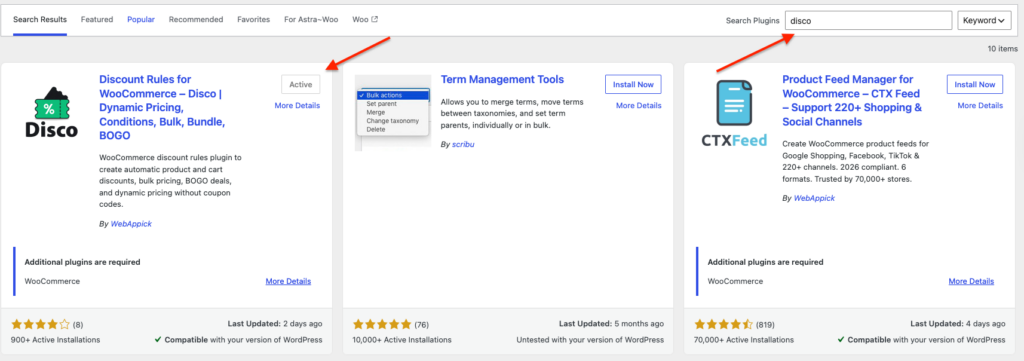
Install and activate the plugin. Once activated, Disco will add its own menu inside your WordPress admin panel.
Step 2: Create a New Discount Rule
Go to the Disco dashboard and click the button to create a new discount.
Add a clear discount name. For example:
$20 Off Orders Over $150
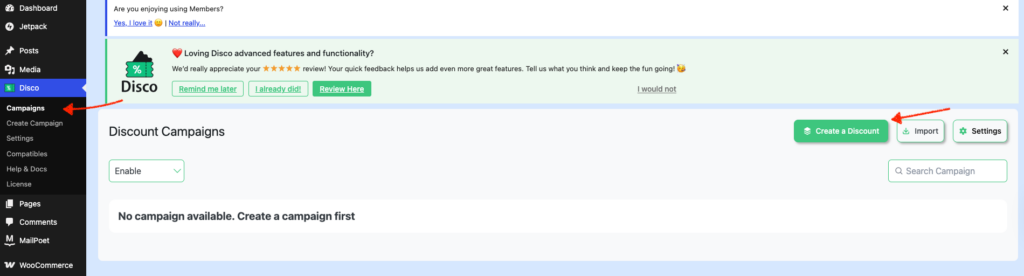
This name helps you identify the discount rule later, especially if you run multiple WooCommerce cart discounts.
Step 3: Select Cart as the Discount Intent
Choose Cart as the discount intent.
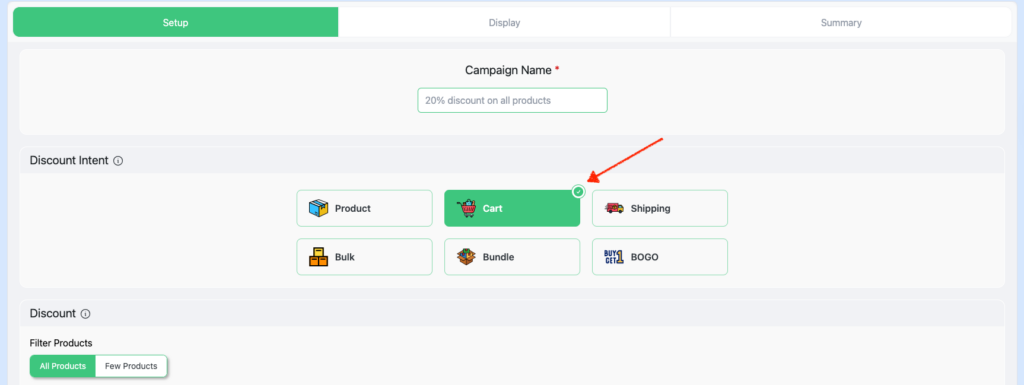
This tells Disco that the discount should apply to the customer’s cart total, not to a single product price.
Step 4: Choose the Products the Discount Applies To
Select All Products if the discount should work across your full store.
Use this option for storewide cart discounts, such as:
- $20 off orders over $150
- $25 off during a holiday sale
- $50 off bulk purchases
If you want the discount to apply only when certain products are in the cart, you can select specific products or use category-based conditions later.
Step 5: Set the Fixed Cart Discount Amount
In the cart rules area, select Fixed as the discount type.
Then enter the discount amount.
For this example, enter:
20
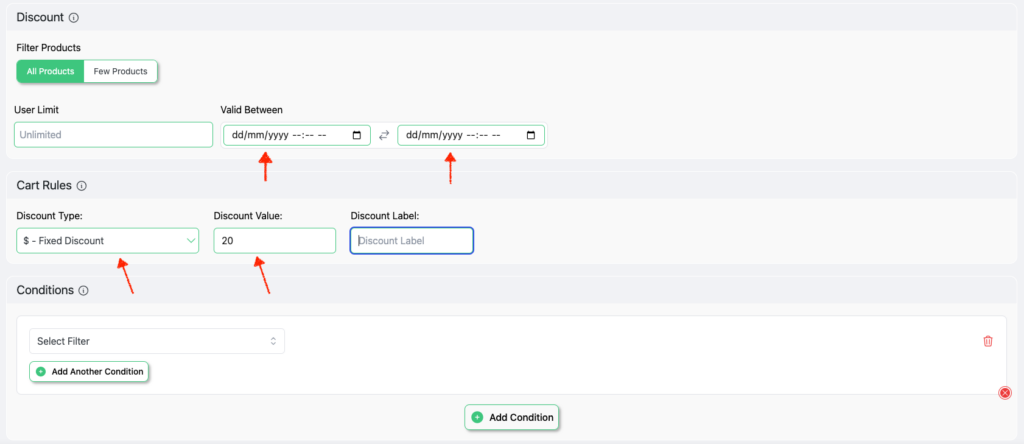
This creates a fixed $20 discount on the cart when the rule conditions are met.
Note: Also select Discount Valid Date.
Step 6: Add a Cart Subtotal Condition
A fixed cart discount becomes more useful when it has a condition.
For this example, customers should only get the discount if their cart subtotal is over $150.
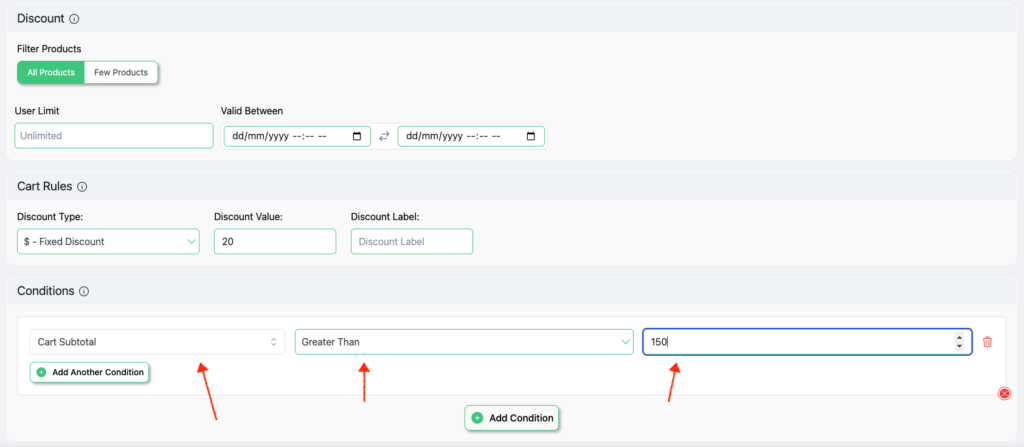
Add a condition and choose Cart Subtotal.
Set the condition like this:
| Field | Value |
|---|---|
| Condition | Cart Subtotal |
| Operator | Greater Than |
| Value | 150 |
This means the customer must add more than $150 worth of products to qualify for the discount.
Step 7: Save and Test the Discount
Save the discount rule.
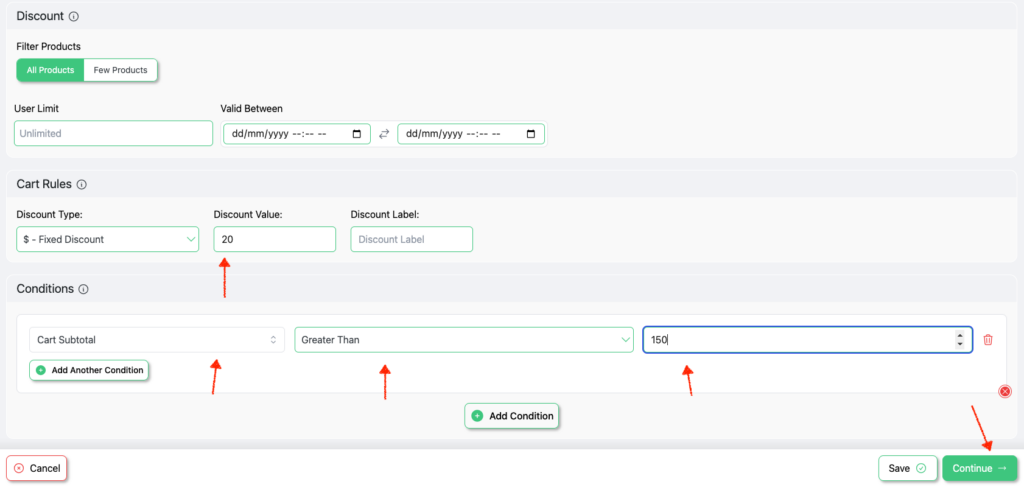
Then visit your store from the front end and add products worth more than $150 to the cart.
The $20 fixed cart discount should apply automatically once the cart subtotal matches the condition.
If the discount does not appear, check the discount amount, product selection, subtotal condition, date settings, and whether another coupon or discount rule is conflicting with it.
WooCommerce Fixed Cart Discount Examples
You can use the same basic setup to create different types of WooCommerce cart discounts. The main difference is the condition you add to the rule.
Fixed Cart Discount on Minimum Purchase
Scenario: Offer a WooCommerce cart discount fixed amount when the cart total exceeds a certain amount.
Example: “Get $20 off on orders over $150.”
This means if the customer’s cart total is, say, $160, they will automatically get $20 off, reducing the total to $140.
You already know what button to click on the Disco dashboard to start creating WooCommerce fixed cart discount rules.
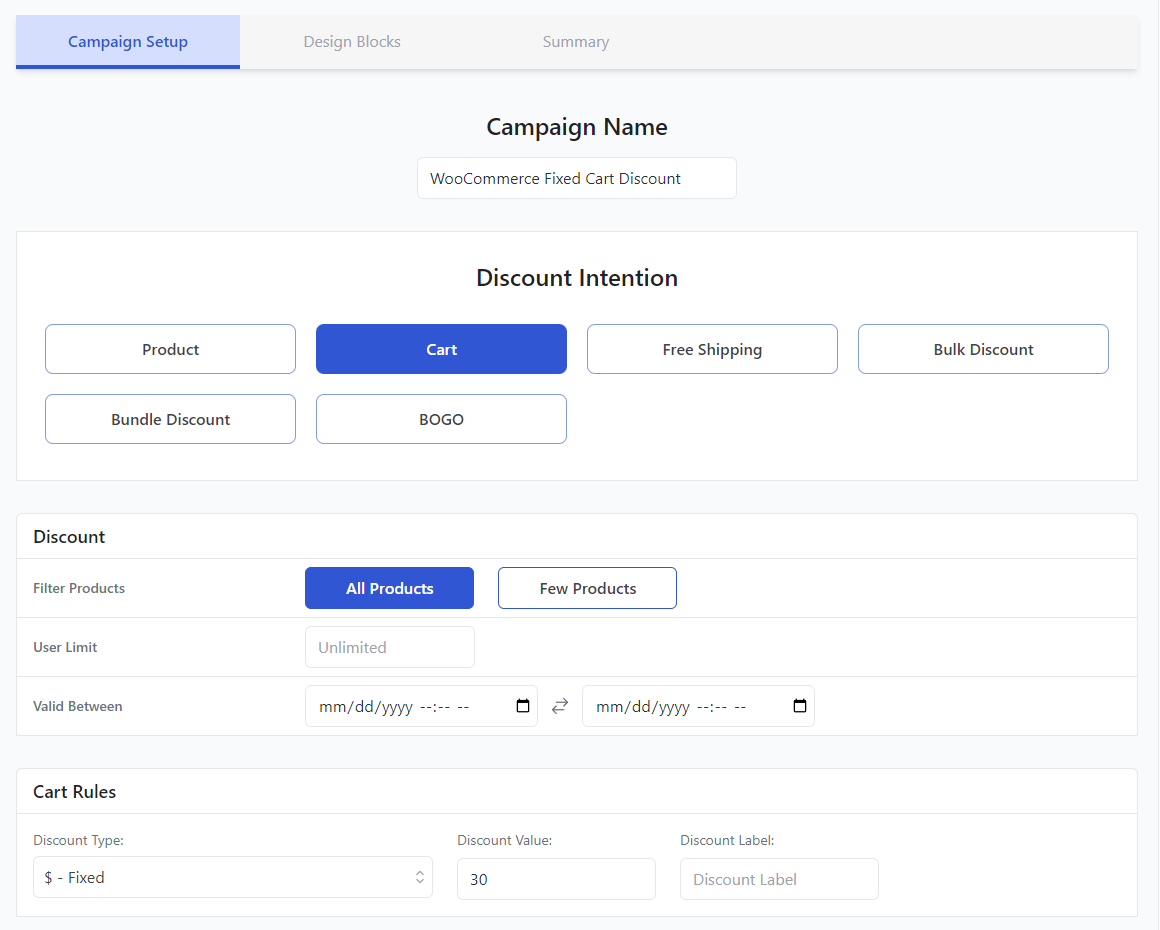
Input your discount name and select the Cart option.
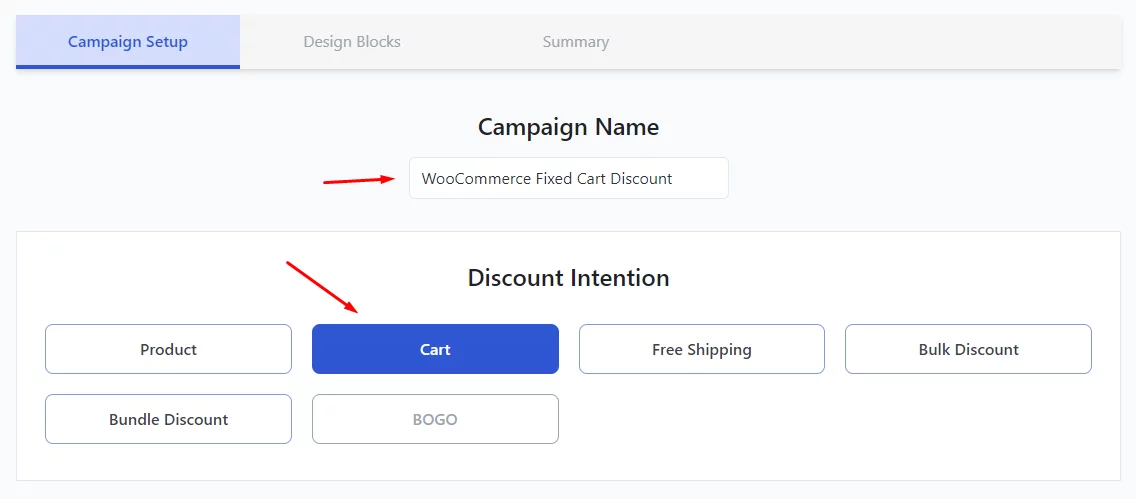
We are offering this to all products regardless of categories and product types. Therefore, select All Products in the Discount box.
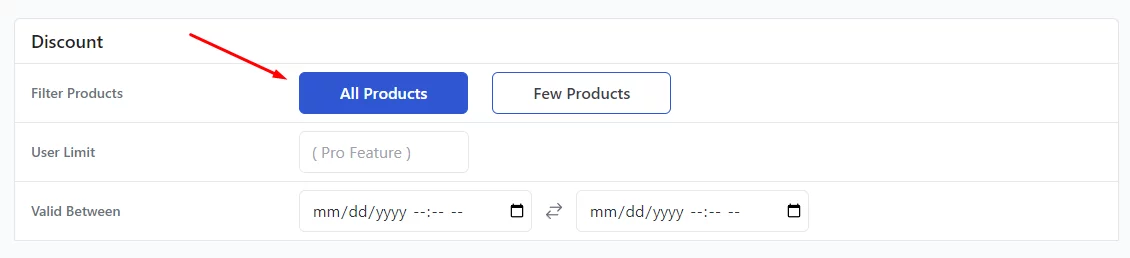
If you want to set this discount for a specific period, you can set the date and time from the Valid Between fields.
To set a WooCommerce fixed cart discount of $20, select the Fixed option in the Cart Rules section and input your value.
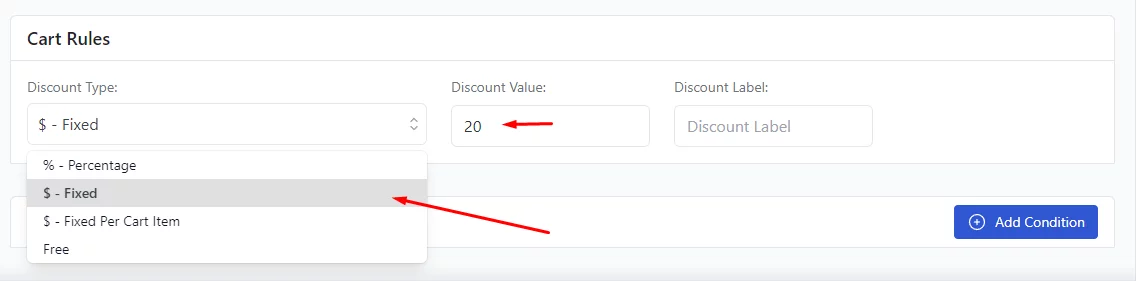
Now, we are not offering a $20 on anything. Customers still need to add a minimum of $151 worth of products. For that, we need to add a condition.
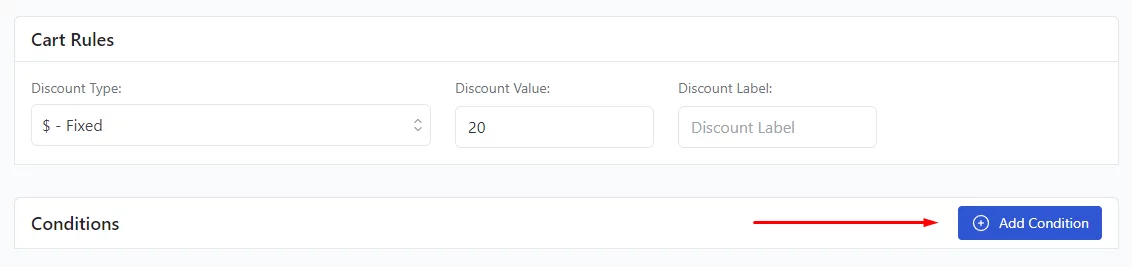
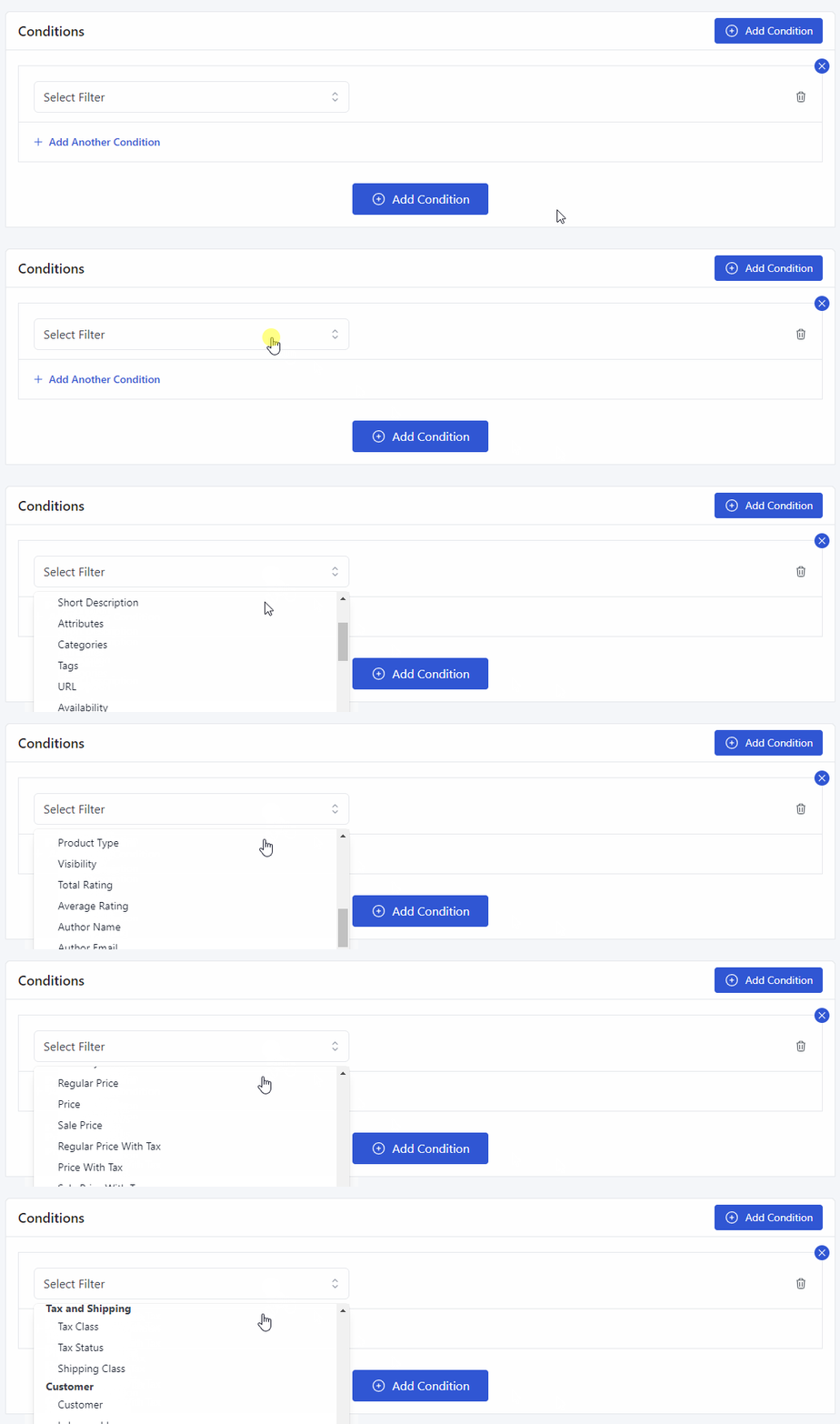
Conditions are what make this fixed cart discount plugin WooCommerce a powerful tool to enhance your discount strategies. Disco allows you to add a wide range of conditions to your discount rules.
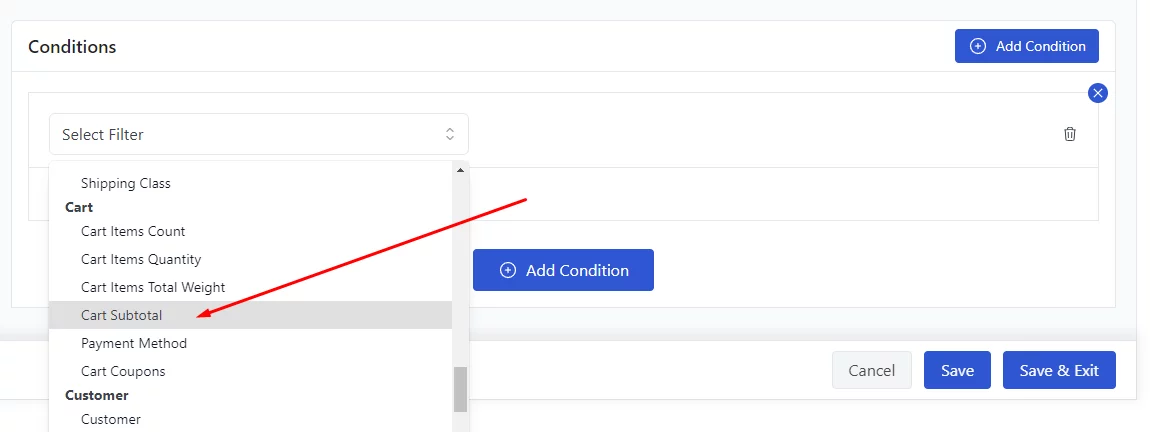
For this example, you will need the Cart Subtotal condition.
To offer a discount over $150, you need to select the Greater Than option. Insert your minimum amount in the value box.
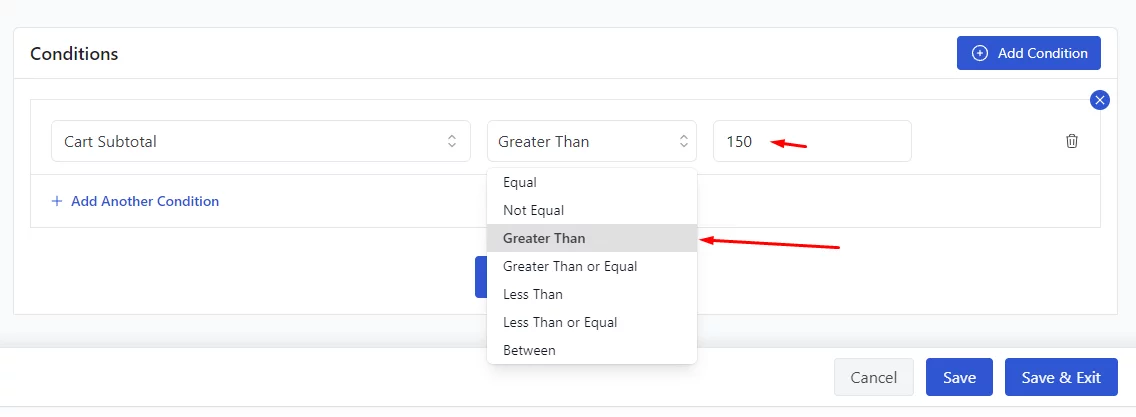
Save your discount and test it out from your front end. Add some products to the cart that is over $150 in total.
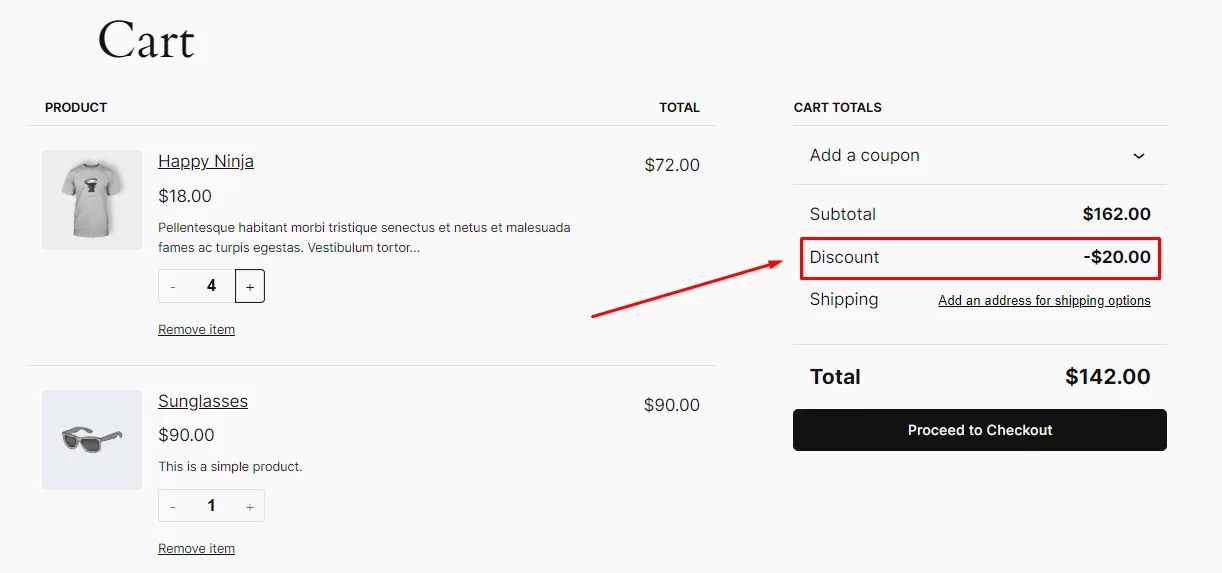
As soon as the cart subtotal crosses the 150 mark, it will automatically apply fixed cart discount WooCommerce.
Fixed Cart Discount for First-Time Shoppers?
Scenario: Encourage new customers to make their first purchase by offering a fixed cart discount.
Example: “Welcome offer! Get $15 off your first purchase.”
A customer who is making their first order will get $15 off their total cart value. Select the Cart option and All Products again.
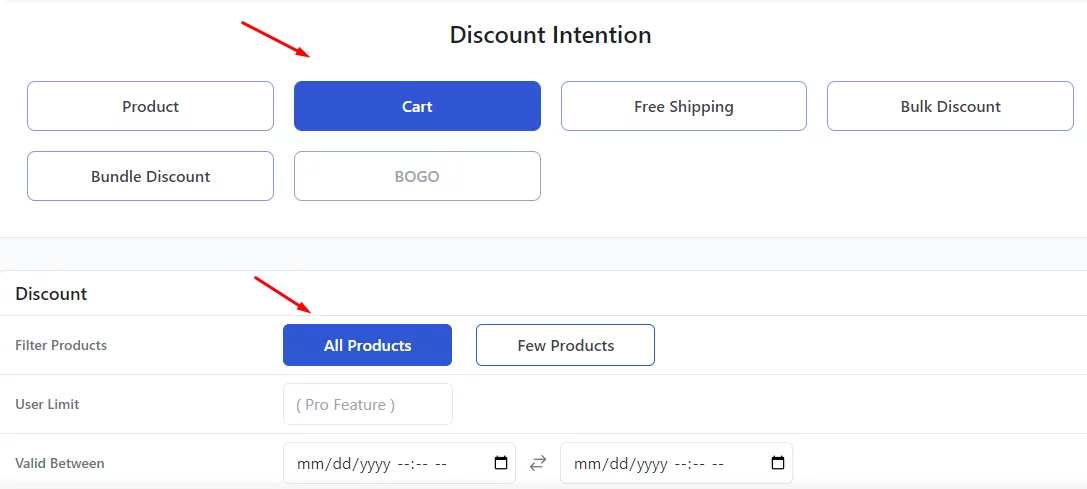
Set $15 as your fixed discount value.
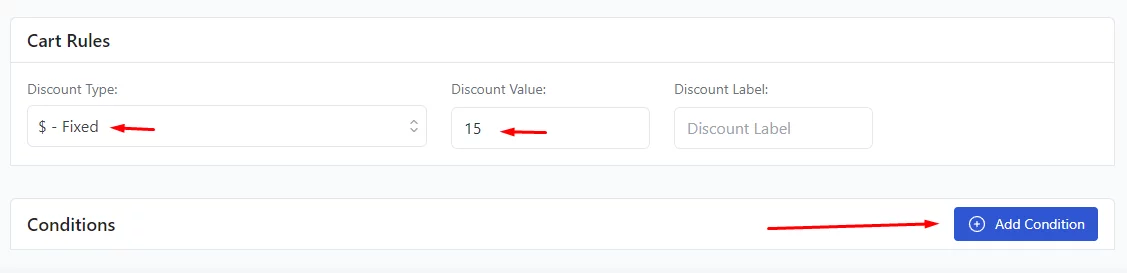
Next, we must add a condition to set it as a WooCommerce first-order discount. We must mention that the following condition is a Pro-only feature.
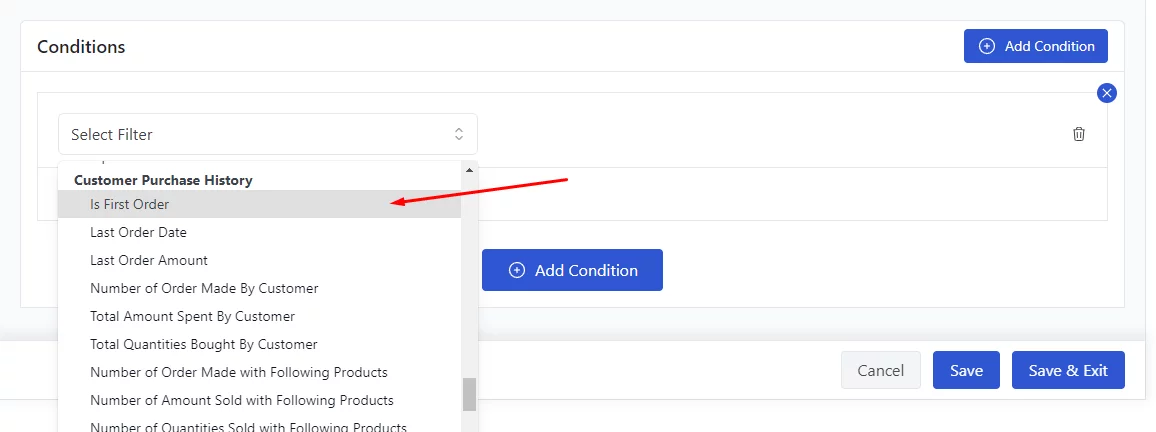
Select the Is First Order condition from the filters.
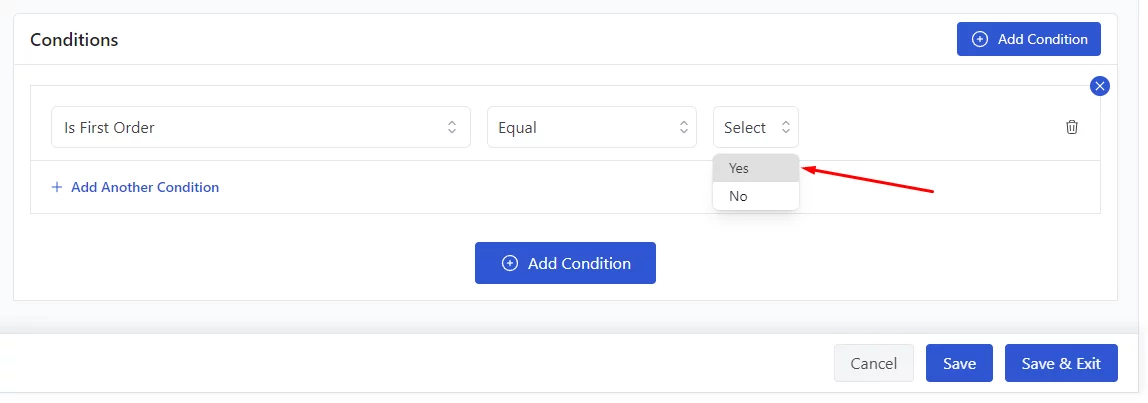
Select Yes and save your discount rule. From now on, your new customers can enjoy a $15 off of their first order.
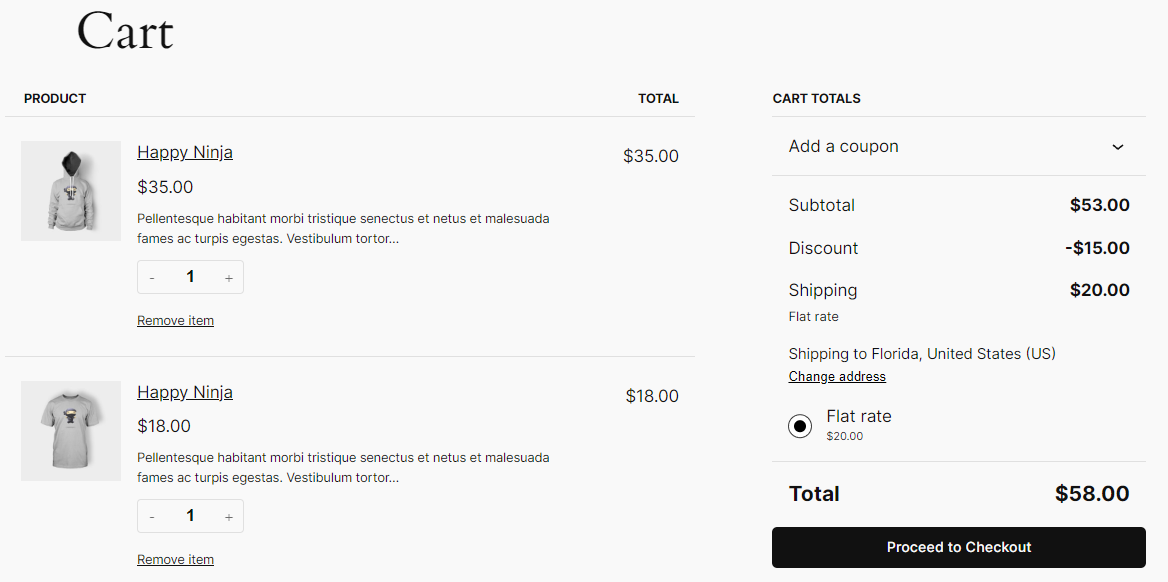
Your first-time customers can now enjoy a $15 off of their first order.
Seasonal or Holiday WooCommerce Fixed Cart Discount
Scenario: Provide a fixed discount during holidays or sales seasons to drive more traffic.
Example: “Holiday Sale: Get $25 off any order during December.”
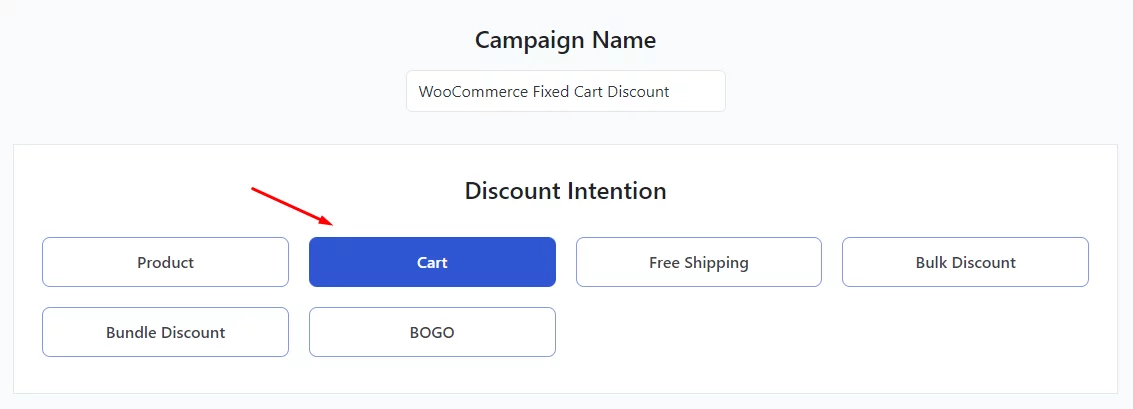
Any order placed in December will automatically receive a $25 discount. Start by selecting the Cart option in the Discount Intent box.
If you are offering this discount on all products, then select the appropriate option. However, if you want to offer this discount to specific products, select the Few Products option and select them through search and select.
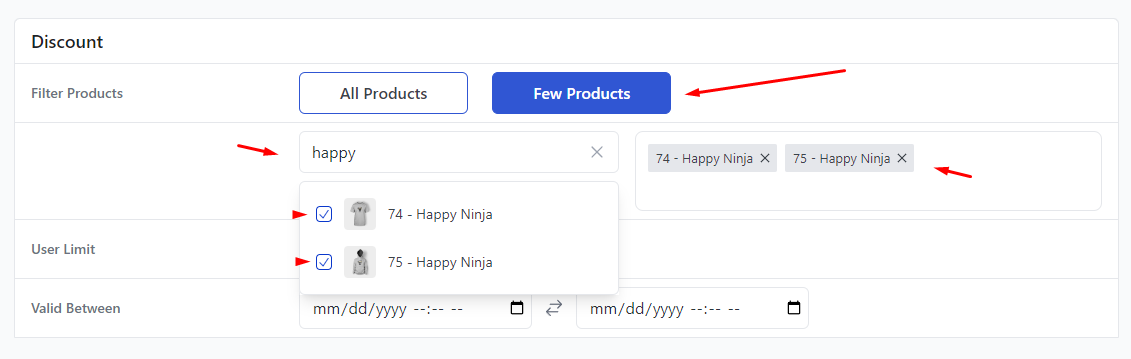
We will continue with all products. This WooCommerce fixed cart discount is valid on specific date and month.
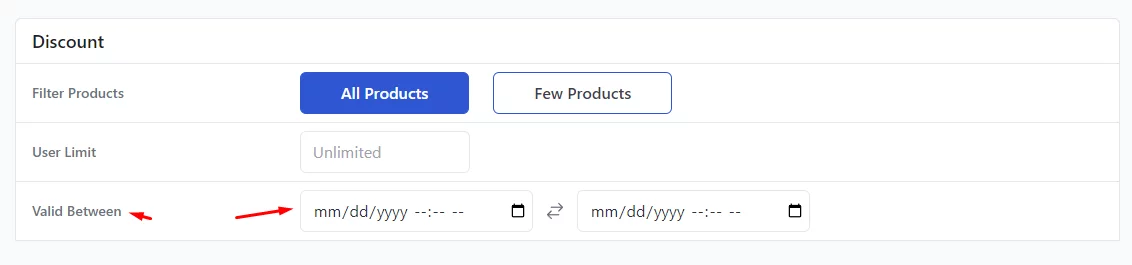
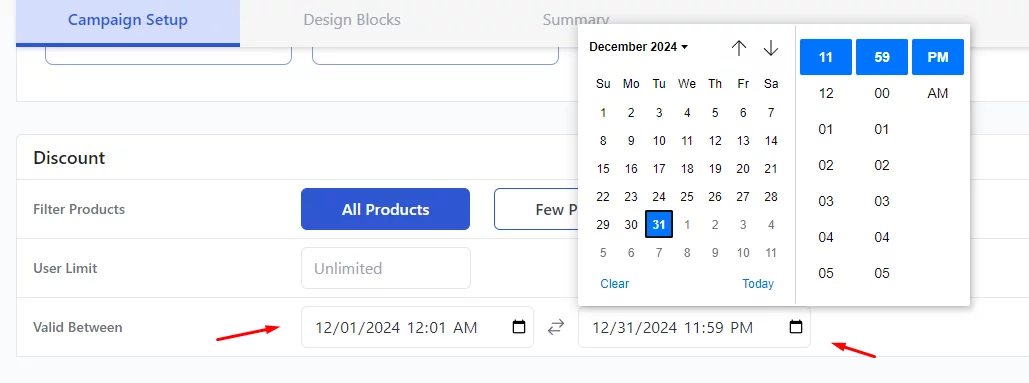
Therefore, we need to set the date and time. You can do it from the Valid Between fields.
Set the start and end dates from the respective fields.
Finally, set your fixed cart discount value in the Cart Rules box.
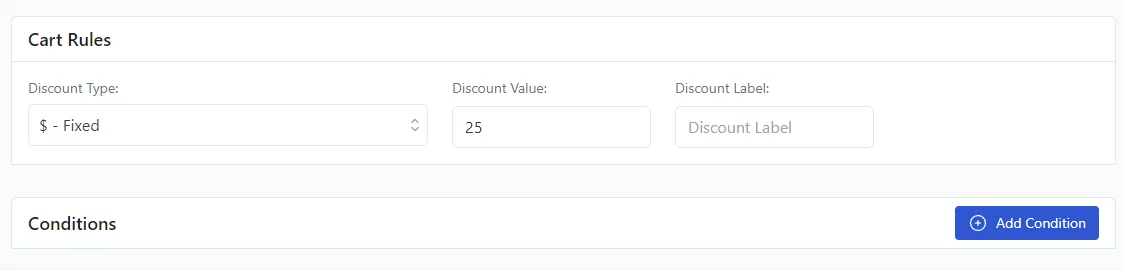
Now, your customers will enjoy a $25 fixed discount on their orders throughout December.
Fixed Cart Discount on Specific Product Categories
Scenario: Offer a fixed discount when customers purchase from a particular product category.
Example: “Get $10 off when you buy from the ‘Hoodies’ category.”
If the cart contains hoodies worth $100, the cart total will be reduced to $90 after the $10 discount is applied.
The top WooCommerce fixed discount cart settings will be similar. Start by selecting the Cart and All Products options from the top.
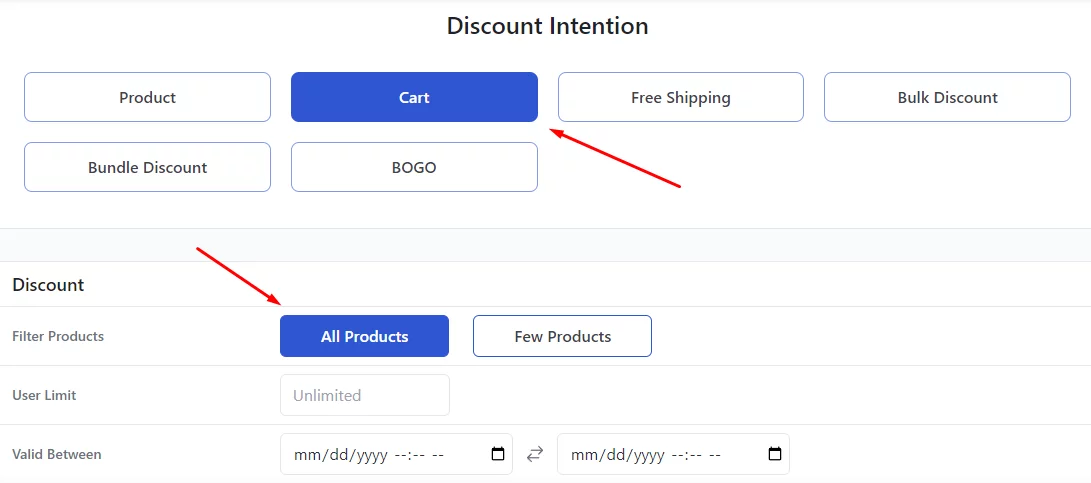
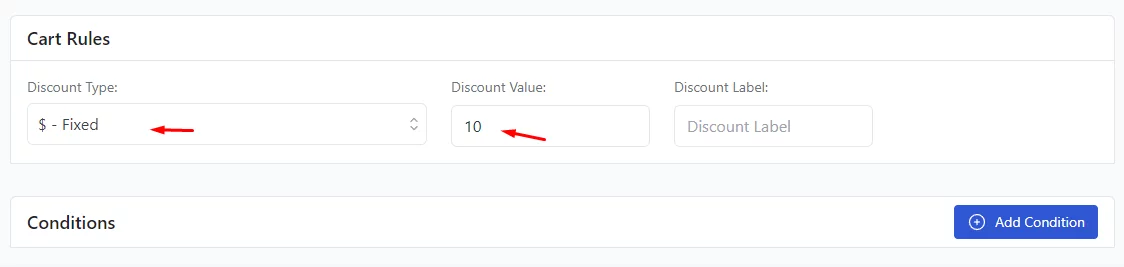
Set your fixed discount value.
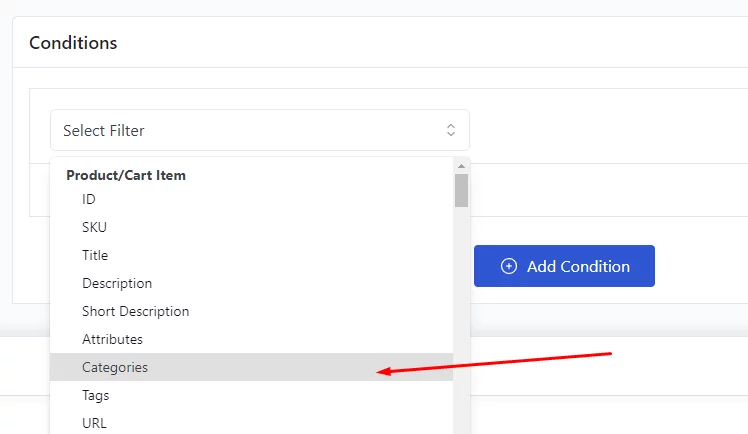
Next, you need to add a condition. Select the Categories condition from the filters dropdown.
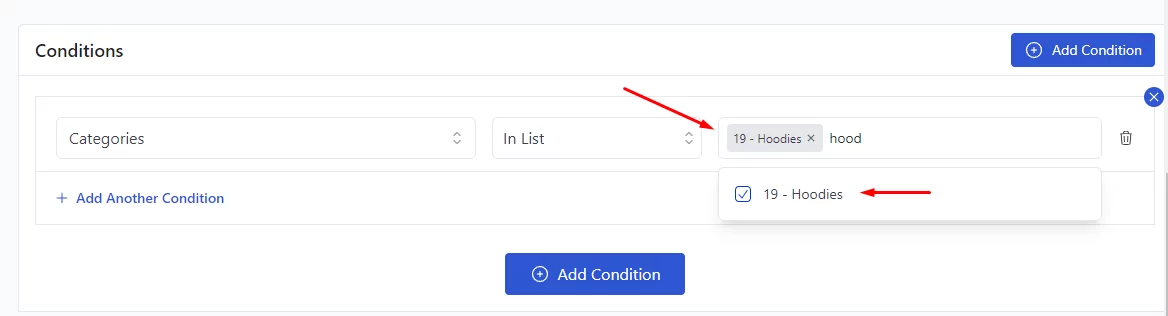
Search and select your target category.
Save the discount rule and add some products from the Hoodie category in the front end.
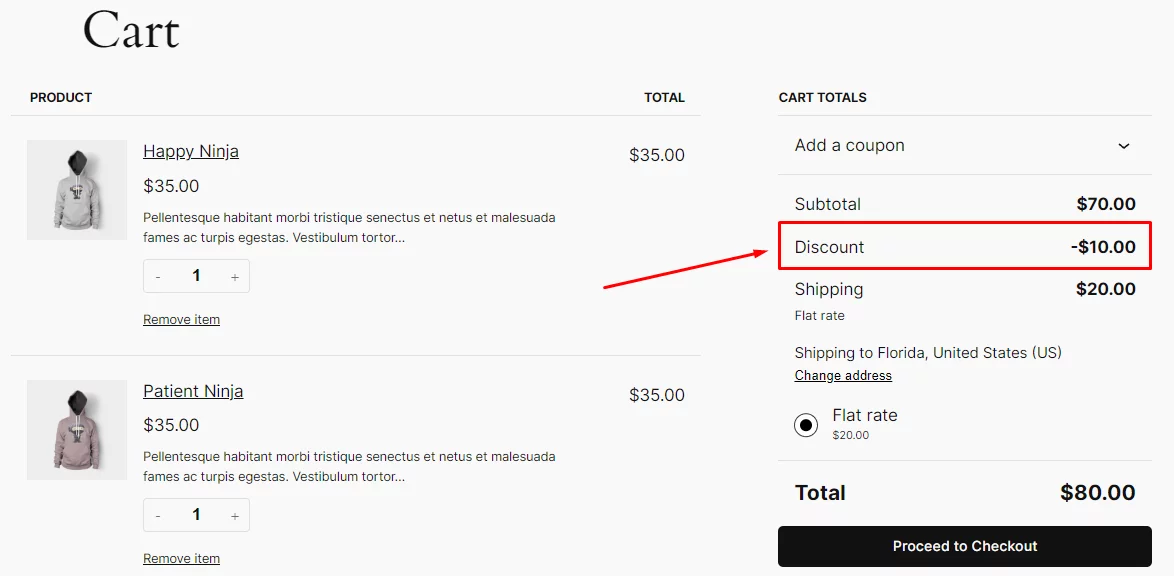
The system will automatically apply a $10 discount on the cart.
Fixed Cart Discount for Bulk Purchases
Scenario: Apply a Fixed cart discount for bulk purchases WooCommerce when customers buy a minimum quantity of items.
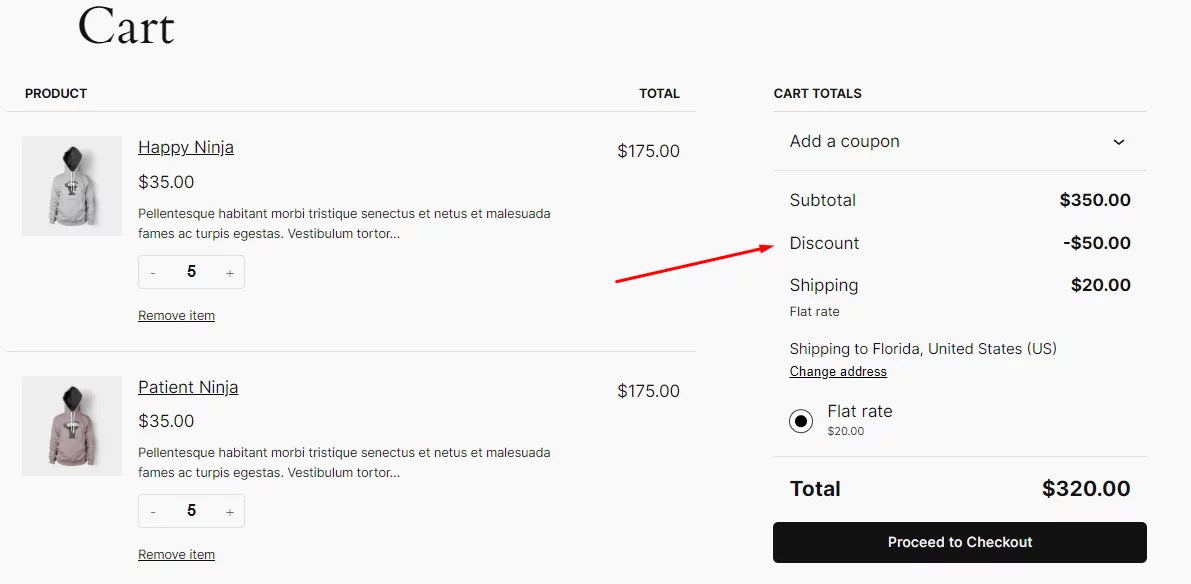
Example: “Buy 10 or more items and get $50 off.”
If the customer buys at least 10 products, they receive a $50 discount on their total cart. As you know by now, start with the Cart option and select All Products.
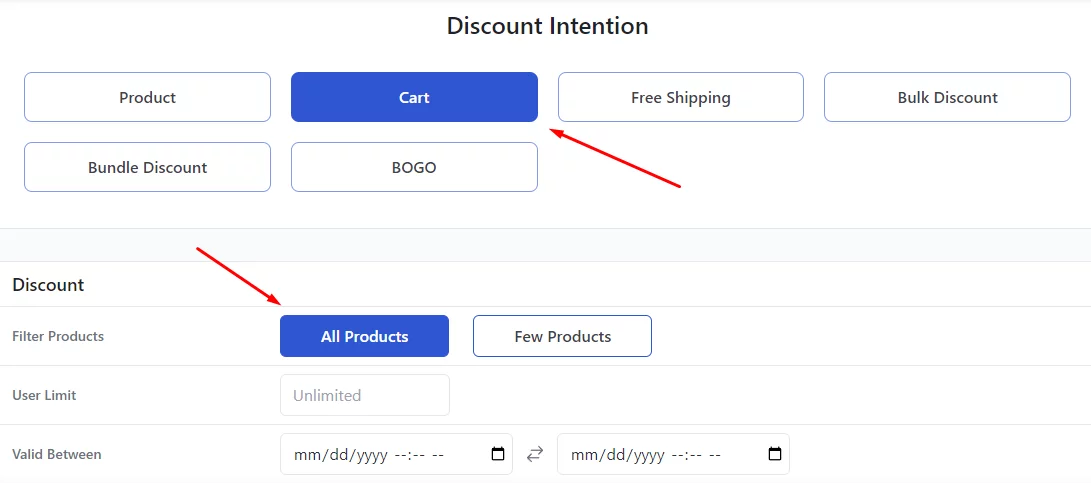
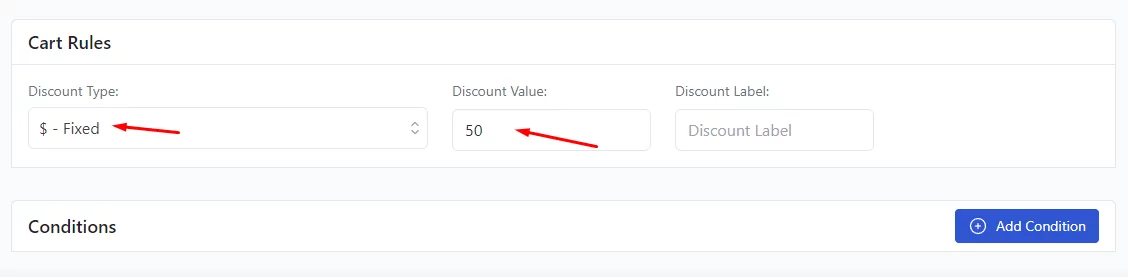
Along with those, set your WooCommerce fixed cart discount value.
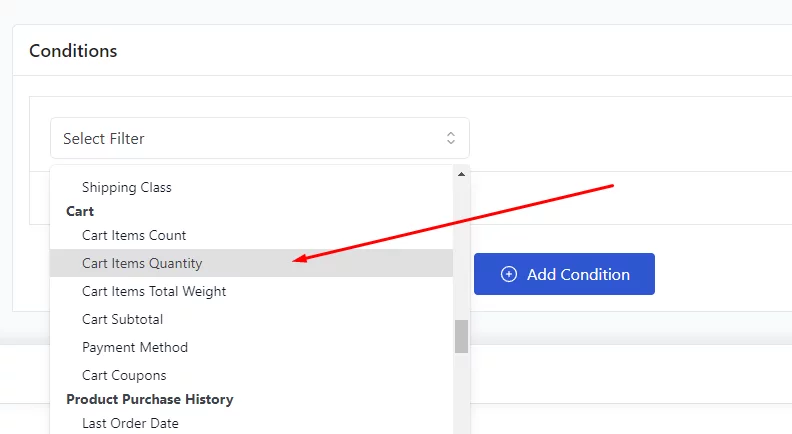
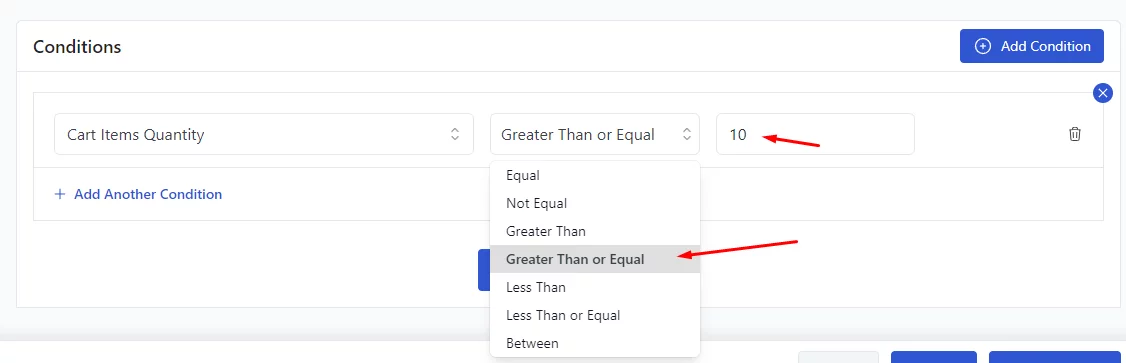
After that, add the condition Cart Item Quantity from the condition filters.
We are setting the discount for 10 or more products. Therefore, you need to select the Greater Than or Equal option along with the value.
Here’s how your WooCommerce cart page will apply the discount when item quantity is 10 or above.
Fixed Cart Discount for Returning Customers
Scenario: Reward loyal customers with a fixed discount for repeat purchases.
Example: “Get $30 off your next purchase as a loyal customer who has a decent purchasing history.”
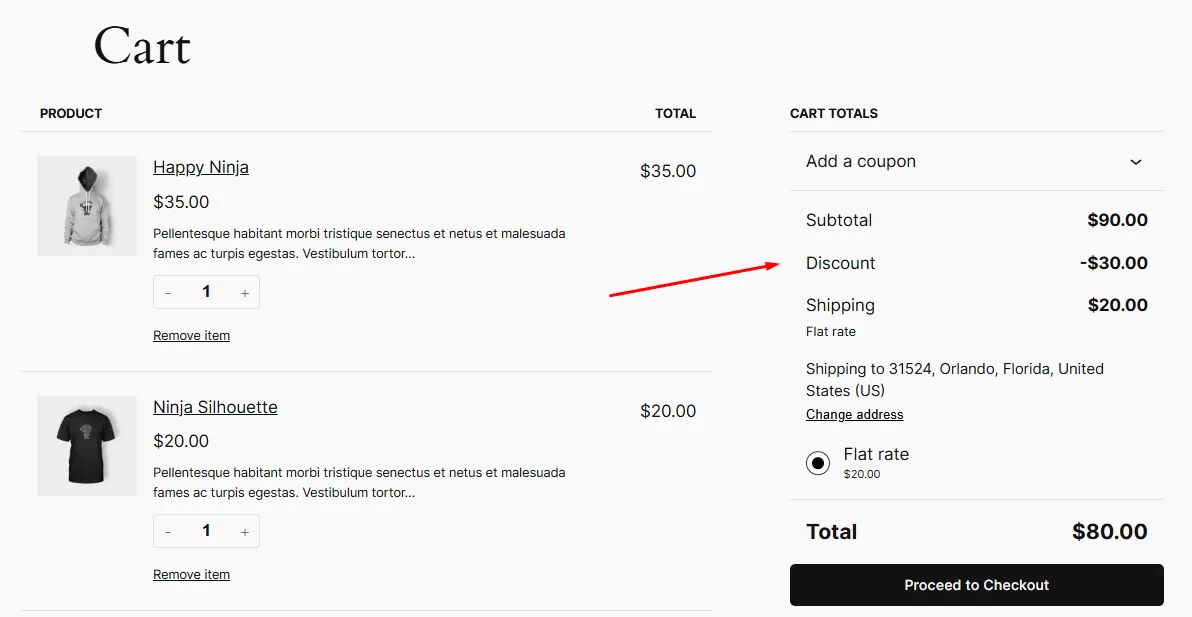
Let’s say a loyal customer who have spent over $500 on your store will get $30 discount on their next purchase.
The top settings will be the same as before. Also, enter your fixed discount value.
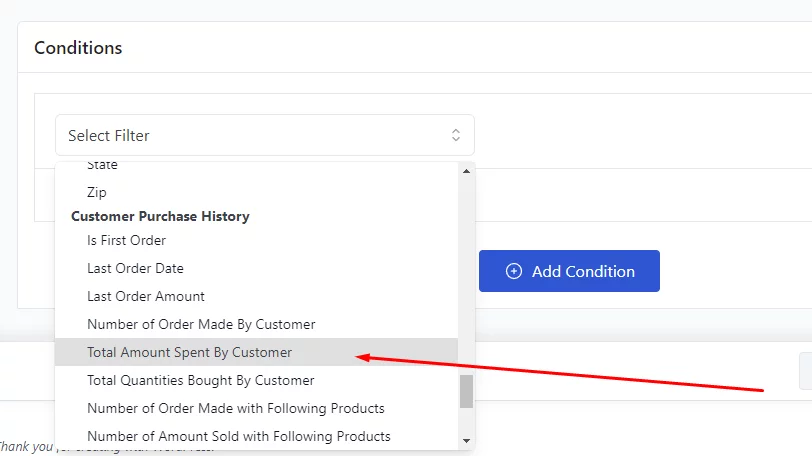
Add the condition Total Amount Spent By Customer.
Select Greater Than or Equal and enter 500 as your minimum value.
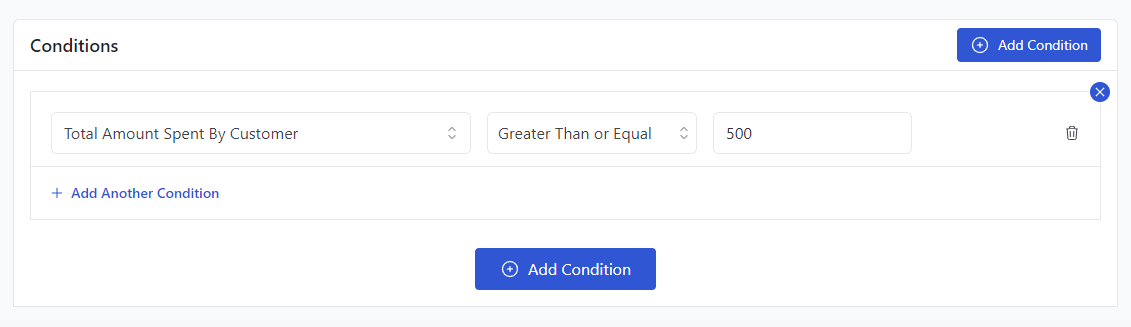
Now, your loyal customers who have spent $500 or more previously will enjoy a $30 WooCommerce fixed cart discount on their next purchase.
Fixed Cart Discount for Newsletter Subscribers
Scenario: Offer a fixed cart discount as an incentive for signing up for your newsletter.
Example: “Subscribe to our newsletter and get $10 off your next purchase.”
After subscribing, the customer receives a $10 discount on their next cart purchase. You know the drill.
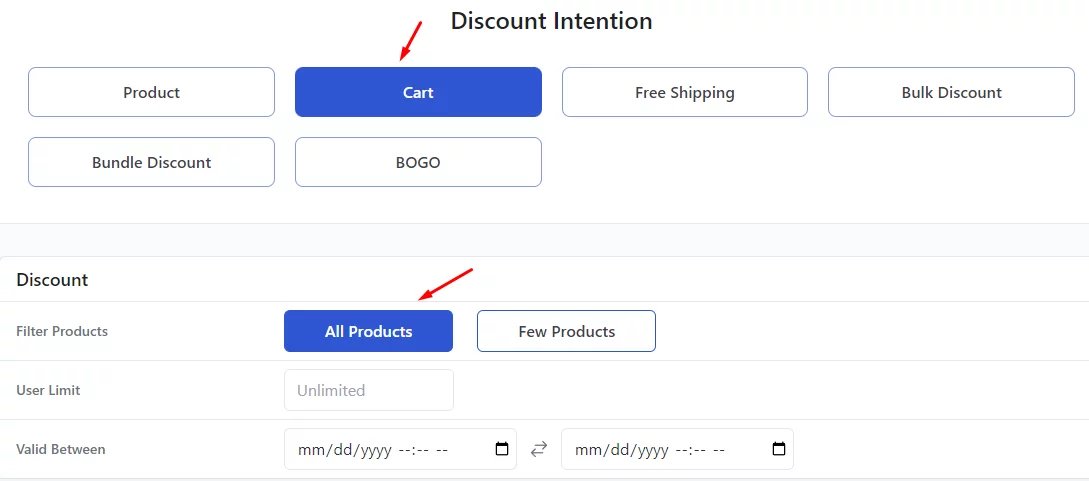
Set the discount value.

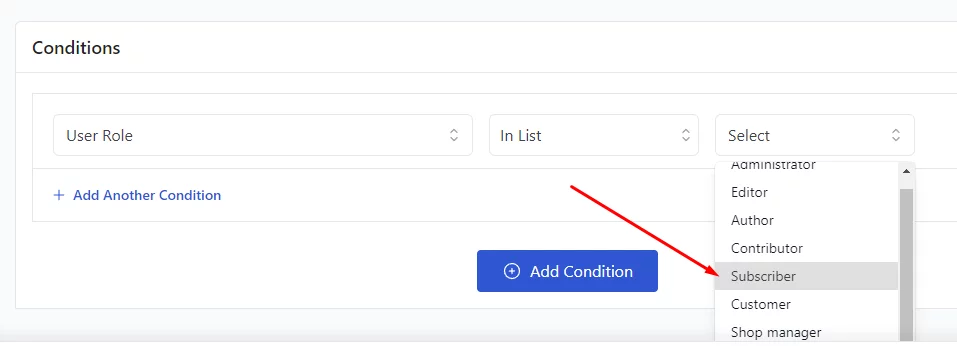
Select the User Role condition.
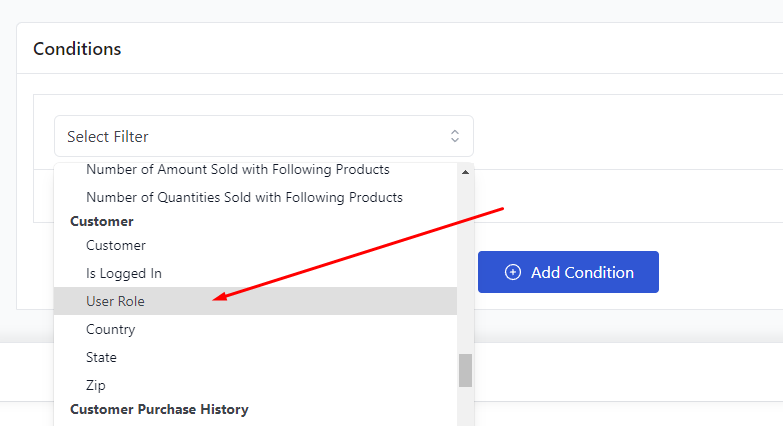
From the user role list, select the Subscriber option. Now, your new subscribers should get a $10 discount on their following purchases.
How to Set Up a Fixed Cart Discount Using WooCommerce Coupons
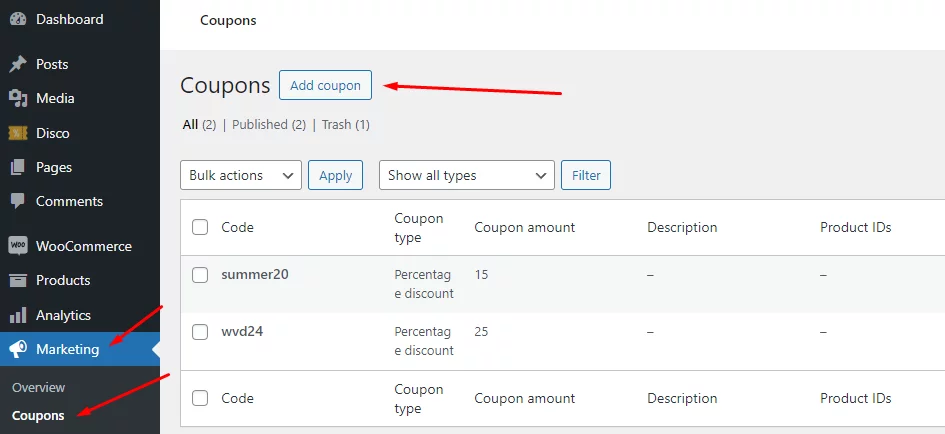
We will now use the coupon tool WooCommerce packs built-in. To create a WooCommerce coupon fixed cart discount, go to Marketing >> Coupon >> Add Coupon.
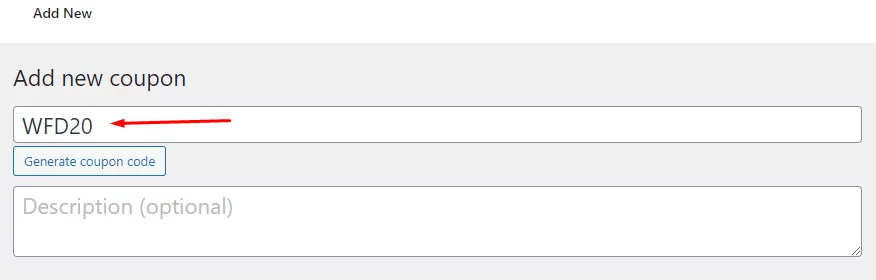
Set your WooCommerce fixed cart discount code at the top. Let’s say we want to offer a $20 discount on $100 or more for Hoodie purchases.
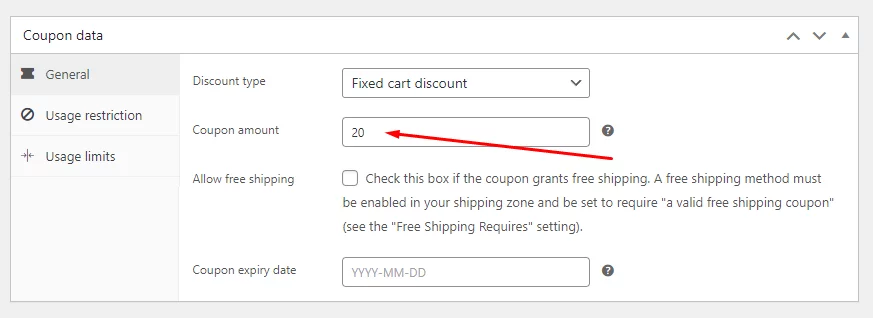
Select the Fixed Cart Discount option from the Discount Type dropdown.
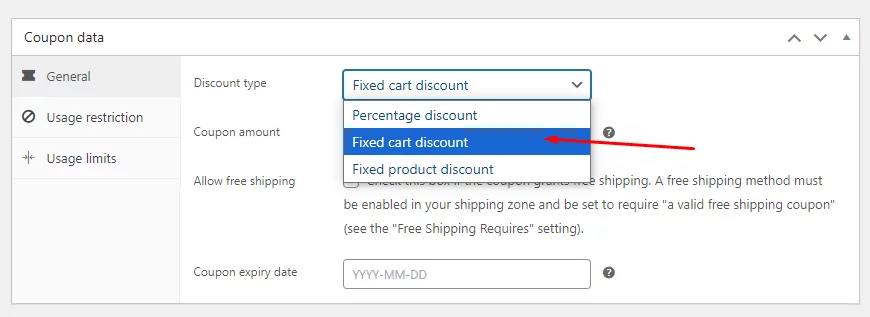
Set your WooCommerce fixed cart discount value.
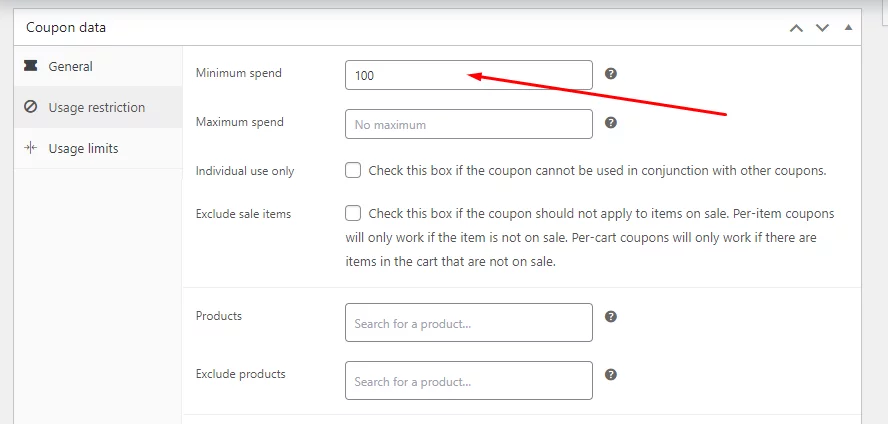
Next, go to the Usage Restrictions tab and set the minimum spend value to 100.
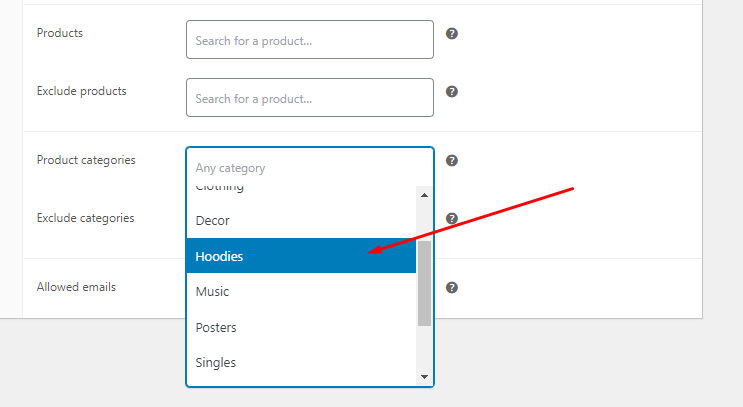
After that, we need to select the Hoodie category. Click on the Product category field and select the hoodie category.
Finally, publish the coupon. Customers need to manually insert the coupon code to avail of the discount.
Add some products from the Hoodie category, and make sure the cart subtotal is at least $100. Then, click the Add a Coupon link on the cart page.
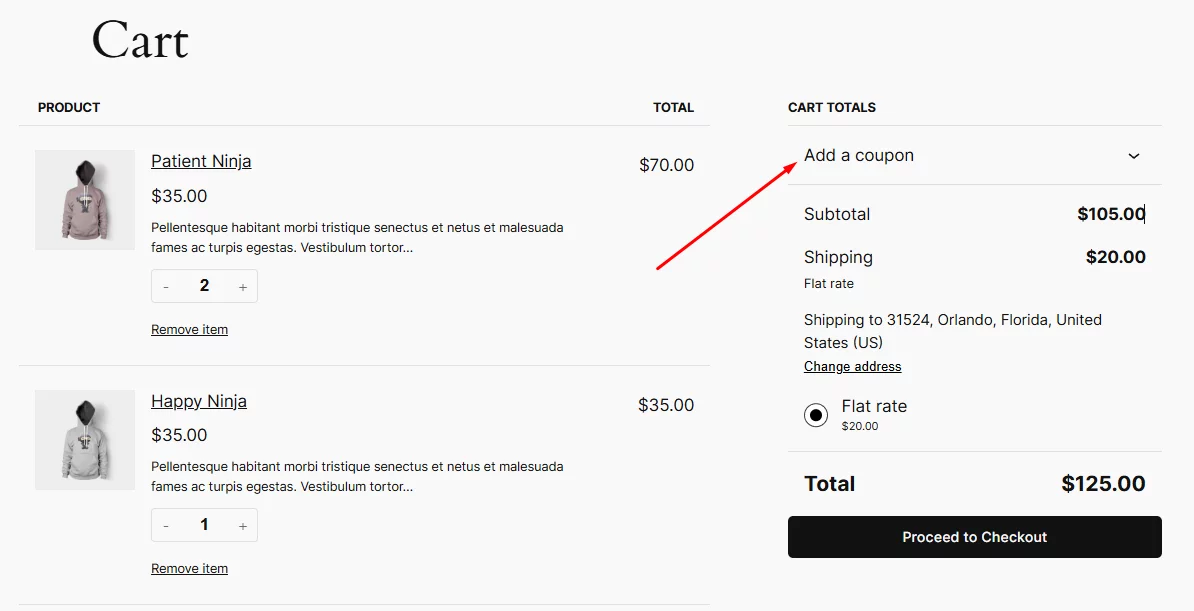
Insert the code and click the apply button.
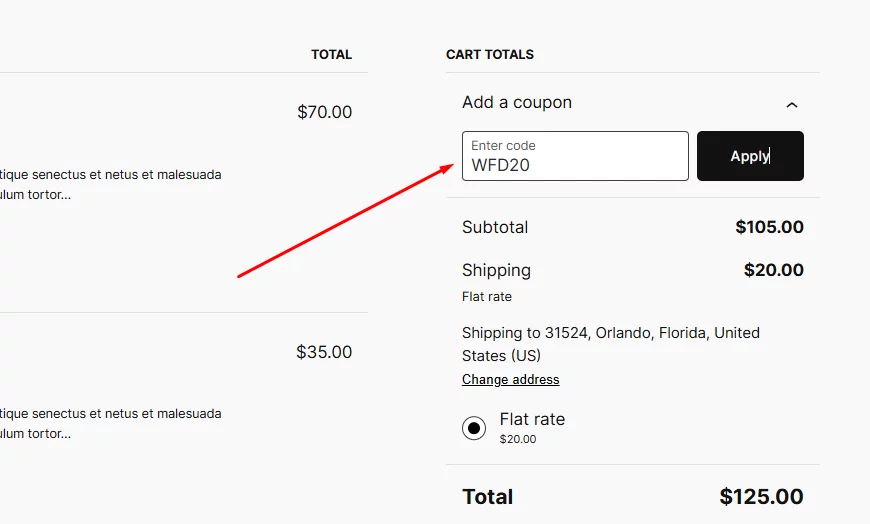
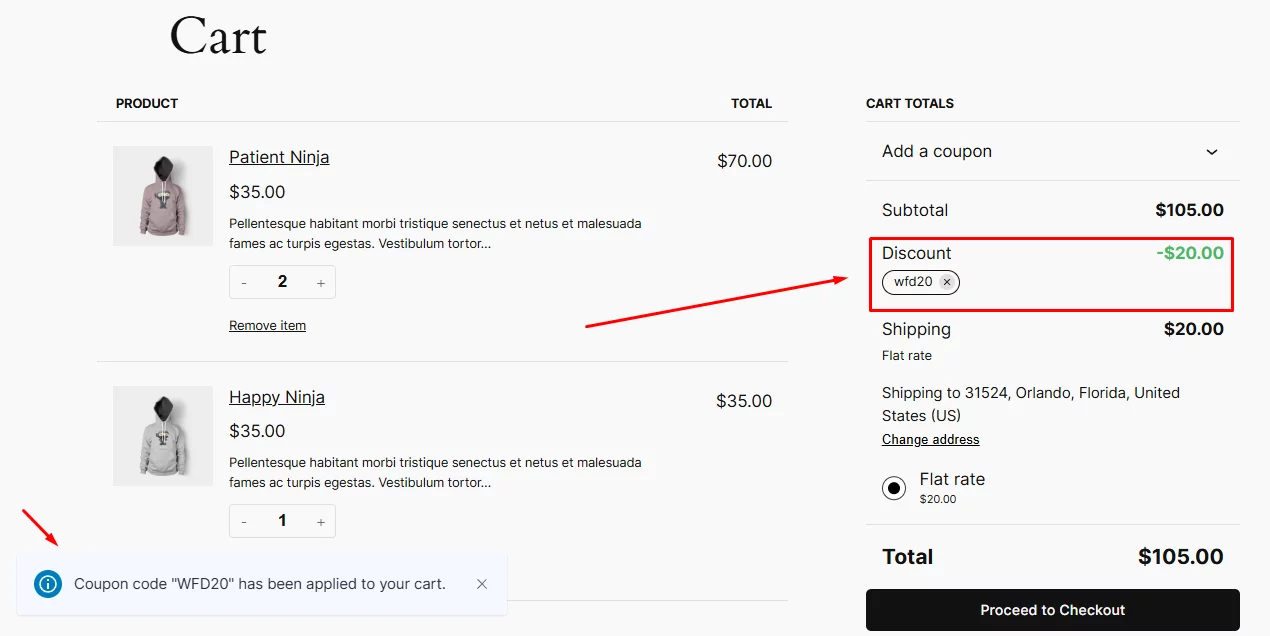
A fixed $20 discount will be applied, as you can see below.
Plugin Rule vs WooCommerce Coupon: Which Method Should You Use?
Both methods can create WooCommerce fixed cart discounts, but they work differently.
Use this table to choose the right method:
| Method | Works Best For | Customer Action Needed |
|---|---|---|
| Disco cart discount rule | Automatic discounts, advanced conditions, scheduled campaigns | No coupon code needed |
| WooCommerce coupon | Simple coupon campaigns and manual promo codes | Customer must enter coupon code |
- Use a plugin rule when you want the discount to apply automatically.
- Use a WooCommerce coupon when you want to share a promo code through email, ads, social media, or influencer campaigns.
WooCommerce Fixed Cart Discount vs Percentage Discount
A fixed cart discount deducts a set amount from the cart total. A percentage discount deducts a percentage of the cart total.
Here’s the simple difference:
| Discount Type | Example | Cart Total | Discount |
|---|---|---|---|
| Fixed cart discount | $20 off | $160 | $20 |
| Percentage discount | 20% off | $160 | $32 |
- Use a fixed cart discount when you want the offer to feel clear and predictable.
- Use a percentage discount when you want the discount amount to increase with the cart value. For example, $20 off orders over $150 is easy to understand. But 20% off may look more attractive when customers buy higher-priced products.
Fixed Cart Discount vs Fixed Product Discount
A fixed cart discount applies to the total cart. A fixed product discount applies to individual products.
Here is the difference:
| Discount Type | Applies To | Example |
|---|---|---|
| Fixed cart discount | Full cart total | $20 off the whole order |
| Fixed product discount | Product price | $5 off each selected product |
- Use a fixed cart discount when your goal is to reduce the total order amount.
- Use a fixed product discount when your goal is to discount specific products.
Why Your WooCommerce Cart Discount May Not Show
If your WooCommerce cart discount does not show on the cart page, check the rule settings first.
Common reasons include:
- The cart subtotal does not meet the minimum amount.
- The selected product category is not in the cart.
- The discount rule is outside the scheduled date range.
- The customer does not match the user role or first-order condition.
- Another coupon or discount rule is conflicting with the offer.
- The coupon code was not entered correctly.
- The discount applies only to selected products, not the full cart.
After updating the rule, test the discount from a fresh browser session or an incognito window.
Best WooCommerce Cart Discount Plugin for Fixed Cart Discounts: Disco
Disco is a WooCommerce cart discount plugin that helps you create fixed cart discounts, percentage discounts, cart subtotal rules, quantity-based offers, category-based discounts, user role discounts, first-order discounts, and scheduled campaigns from your WordPress dashboard.
It is useful when you want discounts to apply automatically based on cart conditions instead of asking customers to enter coupon codes manually.
Key Features
- Create fixed cart discounts for WooCommerce.
- Set cart subtotal conditions.
- Apply discounts to all products or selected products.
- Create category-based cart discounts.
- Set quantity-based discount rules.
- Schedule discounts with start and end dates.
- Create customer-specific and user role-based discounts.
- Build first-order and returning-customer discount campaigns.
- Run cart-level discount rules without code.
Disco is a good fit if you want more control than the default WooCommerce coupon system offers.
Frequently Asked Questions
What is a fixed cart discount in WooCommerce?
A fixed cart discount in WooCommerce is a set amount taken off the customer’s cart total. For example, a $20 fixed cart discount reduces a $160 cart to $140 before taxes, shipping, or other extra charges are applied.
How do I create a cart discount in WooCommerce?
You can create a cart discount in WooCommerce by using the built-in coupon tool or a discount plugin. For a basic coupon, go to Marketing > Coupons, choose Fixed cart discount, enter the amount, add usage restrictions, and publish the coupon.
What is a cart-level discount?
A cart-level discount applies to the total cart value instead of a single product. For example, “Get $20 off orders over $150” is a cart-level discount because the discount is based on the cart subtotal.
What is the difference between a fixed cart discount and a percentage discount?
A fixed cart discount deducts the same amount every time, such as $20 off. A percentage discount deducts a percentage of the cart total, such as 20% off. Fixed discounts are easier to understand, while percentage discounts scale with higher cart values.
Can I create a WooCommerce discount on total order?
Yes. You can create a WooCommerce discount on total order by setting a cart-level discount rule. Choose a fixed or percentage discount type, then add a cart subtotal condition such as “greater than $150.”
Can I restrict a WooCommerce coupon to first-time customers?
WooCommerce coupons can be limited through usage restrictions, but first-time customer targeting usually needs a plugin or custom setup. A discount plugin can help you create a first-order discount rule based on customer purchase history.
Key Takeaways
- A WooCommerce fixed cart discount takes a set amount off the total cart value.
- Use a WooCommerce cart discount plugin when you want automatic rules with subtotal, quantity, category, user role, or customer history conditions.
- Use the built-in WooCommerce coupon tool when you want customers to enter a manual promo code.
- Fixed cart discounts work well for offers like $20 off orders over $150, holiday discounts, first-order discounts, and bulk purchase offers.
- Percentage discounts are better when you want the discount amount to grow with the cart value.
- Always test the discount on the cart page before publishing the campaign.