%22%2F%3E%0A%3Cpath%20d%3D%22M59.8894%2016.6974C60.1689%2016.9331%2060.5416%2017.1216%2060.9142%2017.0745C61.5664%2017.0273%2061.8925%2016.6031%2061.6596%2015.7547C61.5198%2014.4349%2061.4267%2013.1623%2061.2869%2011.8425C61.1006%209.72149%2060.8211%207.55331%2060.5881%205.38512L60.1689%201.70863C60.0757%200.81307%2059.6099%200.294591%2058.7713%200.106053C58.4918%20-0.0353509%2058.2123%20-0.0353509%2057.9328%200.106053C57.7931%200.106053%2057.6999%200.106053%2057.6067%200.153187C56.5353%200.483129%2055.4172%200.81307%2054.3458%201.19015C53.5073%201.47295%2052.6222%201.75576%2051.7371%202.03857C50.2929%202.50991%2048.8488%203.02839%2047.4047%203.49974C46.4264%203.82967%2045.4016%204.1596%2044.3768%204.48952L44.3767%204.48956C43.6313%204.72523%2043.3518%205.24371%2043.6313%205.85646C43.7711%206.13927%2044.004%206.32781%2044.2369%206.46921C44.7028%206.79915%2045.2152%207.08196%2045.6811%207.4119C45.8674%207.55331%2046.0537%207.69471%2045.8208%208.02465C45.7276%208.21319%2045.5879%208.35459%2045.4481%208.54313L45.355%208.73167L44.5164%2010.0986L43.9108%2010.9941L43.3052%2011.8897L43.2121%2011.9839L42.1406%2013.5865L44.5867%2019.8706C45.5713%2022.1447%2048.6357%2026.5713%2052.552%2023.6277L53.9265%2022.2593L54.3458%2021.5523C54.3924%2021.458%2054.4856%2021.3637%2054.5321%2021.2694L54.5787%2021.2223C55.2309%2020.1854%2055.883%2019.1956%2056.5352%2018.2059L56.5353%2018.2057C57.0477%2017.4044%2057.5601%2016.6503%2058.0726%2015.849C58.2123%2015.6604%2058.3055%2015.6133%2058.4918%2015.7076C58.9577%2016.0375%2059.4235%2016.4146%2059.8894%2016.6974Z%22%20fill%3D%22%233D89D0%22%2F%3E%0A%3Cpath%20d%3D%22M28.0259%2022.0232C27.9793%2022.0703%2027.9793%2022.1175%2027.9327%2022.1646C27.9793%2022.1175%2028.0259%2022.0703%2028.0259%2022.0232Z%22%20fill%3D%22url(%23paint1_linear)%22%2F%3E%0A%3Cpath%20d%3D%22M53.9265%2022.3064C53.7402%2022.5892%2053.5538%2022.872%2053.3675%2023.202C53.0414%2023.7204%2052.7153%2024.1918%2052.3892%2024.7103C51.3178%2026.4071%2050.1531%2027.9625%2048.4295%2029.0938C46.9388%2030.0365%2045.4015%2030.6021%2043.6779%2030.8849C42.1872%2031.1206%2040.7896%2030.9791%2039.3921%2030.5549C37.6219%2030.0365%2036.038%2029.1409%2034.687%2027.8211C33.7088%2026.8784%2032.9634%2025.7944%2032.3578%2024.616C32.0317%2023.9561%2031.7988%2023.2491%2031.4727%2022.5421C31.0534%2021.5522%2030.1683%2019.2427%2030.1218%2019.1012C30.0752%2019.0541%2030.0752%2018.9598%2030.0286%2018.9127C29.9354%2018.7242%2029.8422%2018.5828%2029.7957%2018.3942C29.6559%2018.0172%2029.4696%2017.6401%2029.3298%2017.2159C29.2366%2017.0273%2029.1901%2016.8388%2029.0969%2016.6503C28.9571%2016.3674%2028.864%2016.0846%2028.7242%2015.7547C28.5845%2015.3776%2028.4447%2015.0005%2028.2584%2014.6235C28.1652%2014.3407%2028.0254%2014.0579%2027.9323%2013.775C27.9323%2013.7279%2027.9323%2013.7279%2027.8857%2013.6808C27.7925%2013.4922%2027.7459%2013.3037%2027.6528%2013.1152C27.4664%2012.5967%2027.2335%2012.1253%2027.0006%2011.6069C27.0006%2011.5597%2026.954%2011.5126%2026.9074%2011.4655C26.8142%2011.2769%2026.7211%2011.1355%2026.5813%2010.947C26.5347%2010.8998%2026.4882%2010.8527%2026.4882%2010.8056C26.4416%2010.7584%2026.395%2010.7113%2026.395%2010.6642C26.3484%2010.617%2026.3018%2010.5699%2026.2552%2010.5228C26.2086%2010.4756%2026.2086%2010.4285%2026.1621%2010.4285L26.1155%2010.3814C26.0689%2010.3342%2026.0223%2010.2871%2026.0223%2010.2871C25.9291%2010.1928%2025.8826%2010.1457%2025.7894%2010.0514C25.7428%2010.0043%2025.6962%209.95715%2025.6496%209.95715C25.603%209.91002%2025.5565%209.91002%2025.5099%209.86288C25.4167%209.81575%2025.3701%209.76861%2025.277%209.67435C25.2304%209.62721%2025.1838%209.62721%2025.1372%209.58008C25.0906%209.53294%2025.044%209.53294%2024.9974%209.48581C24.9509%209.48581%2024.9043%209.43867%2024.9043%209.43867C24.8577%209.39154%2024.8111%209.39154%2024.7645%209.3444C24.7179%209.3444%2024.7179%209.29727%2024.6714%209.29727C24.5782%209.25014%2024.485%209.203%2024.3918%209.15587C22.9943%208.59025%2021.1775%208.77879%2020.1992%209.10873C19.2675%209.43867%2018.2893%2010.3342%2018.2427%2010.4285C18.6619%209.72148%2019.0812%208.96733%2019.547%208.26031C20.1526%207.36475%2020.7117%206.4692%2021.3638%205.62078C22.3887%204.63095%2023.4602%203.78253%2024.6714%203.07551C27.0006%201.75575%2029.4696%201.52007%2032.0317%201.89715C33.3361%202.08569%2034.5939%202.60417%2035.7585%203.35832C36.9231%204.06534%2037.9014%204.96089%2038.7399%206.04499C39.2989%206.79914%2039.8114%207.60043%2040.1374%208.49598C40.6033%209.67435%2041.1623%2010.8056%2041.5816%2011.9839C41.7679%2012.5496%2042.0008%2013.068%2042.2338%2013.6336C42.2338%2013.6336%2042.2338%2013.6336%2042.2338%2013.6808V13.7279L45.0288%2019.8554C45.4015%2020.8452%2045.9139%2021.6465%2046.7059%2022.3535C47.2183%2022.872%2047.8705%2023.1548%2048.5227%2023.3905C48.5693%2023.3905%2048.6158%2023.4376%2048.6624%2023.4376C49.7805%2023.7676%2051.2246%2023.3905%2052.3426%2023.0134C53.088%2022.6835%2053.6936%2022.4007%2053.9265%2022.3064Z%22%20fill%3D%22url(%23paint2_linear)%22%2F%3E%0A%3Cpath%20d%3D%22M28.0255%2022.0238C27.9789%2022.0709%2027.9789%2022.118%2027.9324%2022.1652C27.9324%2022.1652%2027.9324%2022.1652%2027.9324%2022.2123C27.7926%2022.448%2027.6063%2022.6836%2027.4665%2022.9664C25.8826%2025.8416%2024.4385%2028.1512%2021.6434%2029.6595C19.3142%2030.9793%2016.8452%2031.215%2014.2831%2030.8379C14.1433%2030.8379%2014.0501%2030.7908%2013.9104%2030.7908C12.7458%2030.6022%2011.5812%2030.0838%2010.4165%2029.2825C8.78607%2028.1512%207.52829%2026.5958%206.64318%2024.8047L6.17733%2023.9091L5.01272%2021.5524L0.726927%2012.6911C0.447419%2012.0784%200.214496%2011.4656%200.121327%2010.8529C-0.437689%207.8834%200.95985%204.77252%203.80151%203.35849C5.43198%202.51007%207.24878%202.4158%208.87924%202.93428C10.6029%203.45276%2012.1402%204.67825%2013.0253%206.46937L13.1184%206.6579L14.7489%209.95732C14.7955%2010.0516%2014.7955%2010.1459%2014.8421%2010.2401C15.075%2010.8529%2015.8204%2012.4083%2016.426%2013.5867C16.4725%2013.6809%2016.5191%2013.7752%2016.5657%2013.8223C16.6123%2013.9638%2016.7055%2014.1052%2016.752%2014.1994C16.7986%2014.2937%2016.8452%2014.3408%2016.8452%2014.4351C16.8452%2014.4822%2016.8918%2014.4822%2016.8918%2014.5294C16.9384%2014.5765%2016.9384%2014.6708%2016.985%2014.7179C16.985%2014.765%2017.0316%2014.765%2017.0316%2014.8122C17.0316%2014.8593%2017.0781%2014.8593%2017.0781%2014.9064C17.0781%2014.9536%2017.1247%2015.0007%2017.1247%2015.0478C17.1247%2015.095%2017.1713%2015.095%2017.1713%2015.1421C17.3111%2015.4249%2017.4042%2015.7549%2017.544%2016.0377C17.6372%2016.2262%2017.6837%2016.4147%2017.7769%2016.6504C17.9632%2017.1689%2018.1962%2017.6402%2018.3825%2018.1587C18.5223%2018.4415%2018.6154%2018.7715%2018.7552%2019.0543C18.8018%2019.1485%2018.8484%2019.29%2018.8949%2019.3842C18.9881%2019.5728%2019.0347%2019.7613%2019.1279%2019.9498C19.3608%2020.5154%2019.5937%2021.0811%2019.9664%2021.5995C20.1993%2021.8823%2020.3857%2022.1652%2020.6652%2022.4008C22.3888%2023.9563%2024.9975%2023.862%2028.0255%2022.0238Z%22%20fill%3D%22url(%23paint3_linear)%22%2F%3E%0A%3Cpath%20d%3D%22M68.0888%2024.8694L68%207.88696H71.9963L71.8187%2018.4448L76.8806%207.88696H80.6548L81.3209%2018.3999L85.5392%207.88696H89.713L82.4754%2024.8694H78.1683L77.5466%2013.9072L72.3959%2024.8694H68.0888Z%22%20fill%3D%22%230D5293%22%2F%3E%0A%3Cpath%20d%3D%22M92.7771%2025.1385C89.2693%2025.1385%2086.7383%2022.6675%2086.7383%2019.2081C86.7383%2015.3893%2089.8021%2012.1545%2093.4431%2012.1545C96.6402%2012.1545%2098.8603%2014.4458%2098.8603%2017.7704C98.8603%2018.5342%2098.8159%2019.1182%2098.7271%2019.6124H90.4237C90.6457%2021.0501%2091.7114%2022.0385%2093.2211%2022.0385C94.1536%2022.0385%2094.9528%2021.724%2095.5301%2021.095L97.617%2023.4762C96.0185%2024.6443%2094.5976%2025.1385%2092.7771%2025.1385ZM90.6457%2017.411H95.4857C95.3081%2016.0632%2094.4644%2015.2545%2093.2211%2015.2545C92.0666%2015.2096%2091.0898%2016.0632%2090.6457%2017.411Z%22%20fill%3D%22%230D5293%22%2F%3E%0A%3Cpath%20d%3D%22M105.965%2024.9589C104.411%2024.9589%20103.167%2024.24%20102.368%2022.8473L101.924%2024.869H98.1499L101.791%207.52717L105.698%206.89819L104.322%2013.5923C105.166%2012.7836%20106.32%2012.2894%20107.519%2012.2894C110.139%2012.2894%20112.181%2014.8054%20112.181%2018.0401C112.226%2021.814%20109.428%2024.9589%20105.965%2024.9589ZM103.789%2016.3778L102.945%2020.4212C103.478%2021.185%20104.366%2021.6792%20105.388%2021.6792C107.208%2021.6792%20108.54%2020.2415%20108.54%2018.3097C108.54%2016.6474%20107.43%2015.4793%20105.92%2015.4793C105.077%2015.4793%20104.411%2015.7937%20103.789%2016.3778Z%22%20fill%3D%22%230D5293%22%2F%3E%0A%3Cpath%20d%3D%22M120.44%207.88696H125.058L127.899%2024.8694H123.725L123.193%2020.8259H117.154L114.978%2024.8694H110.582L120.44%207.88696ZM122.704%2017.5912L121.949%2011.9304L118.886%2017.5463H122.704V17.5912Z%22%20fill%3D%22%230D5293%22%2F%3E%0A%3Cpath%20d%3D%22M131.23%2012.3347H135.004L134.782%2013.5927C135.626%2012.7391%20136.736%2012.2449%20137.935%2012.2449C140.555%2012.2449%20142.597%2014.7608%20142.597%2017.9955C142.597%2021.8143%20139.8%2024.9592%20136.336%2024.9592C134.782%2024.9592%20133.539%2024.2853%20132.828%2022.9824L131.274%2030.0809H127.456L131.23%2012.3347ZM134.205%2016.3332L133.317%2020.5114C133.85%2021.2303%20134.738%2021.6796%20135.715%2021.6796C137.535%2021.6796%20138.867%2020.2419%20138.867%2018.31C138.867%2016.6477%20137.757%2015.4796%20136.247%2015.4796C135.493%2015.4796%20134.827%2015.7492%20134.205%2016.3332Z%22%20fill%3D%22%230D5293%22%2F%3E%0A%3Cpath%20d%3D%22M144.595%2012.3347H148.369L148.147%2013.5927C148.99%2012.7391%20150.101%2012.2449%20151.299%2012.2449C153.919%2012.2449%20155.962%2014.7608%20155.962%2017.9955C155.962%2021.8143%20153.164%2024.9592%20149.701%2024.9592C148.147%2024.9592%20146.904%2024.2853%20146.193%2022.9824L144.683%2030.0809H140.865L144.595%2012.3347ZM147.57%2016.3332L146.682%2020.5114C147.214%2021.2303%20148.102%2021.6796%20149.079%2021.6796C150.9%2021.6796%20152.232%2020.2419%20152.232%2018.31C152.232%2016.6477%20151.122%2015.4796%20149.612%2015.4796C148.857%2015.4796%20148.191%2015.7492%20147.57%2016.3332Z%22%20fill%3D%22%230D5293%22%2F%3E%0A%3Cpath%20d%3D%22M159.115%2024.8694H155.296L158.005%2012.3347H161.824L159.115%2024.8694ZM158.449%208.47099C158.449%207.1681%20159.559%206%20160.847%206C161.912%206%20162.8%206.85361%20162.8%207.93186C162.8%209.27967%20161.69%2010.4029%20160.358%2010.4029C159.248%2010.4029%20158.449%209.54924%20158.449%208.47099Z%22%20fill%3D%22%230D5293%22%2F%3E%0A%3Cpath%20d%3D%22M169.727%2020.6909L171.592%2023.1619C170.304%2024.4648%20168.572%2025.1387%20166.752%2025.1387C163.466%2025.1387%20161.068%2022.7126%20161.068%2019.388C161.068%2015.3446%20164.088%2012.1099%20167.862%2012.1099C170.082%2012.1099%20171.947%2013.0983%20173.013%2014.7606L170.304%2017.0069C169.727%2015.9736%20168.927%2015.4794%20167.773%2015.4794C166.13%2015.4794%20164.842%2017.0518%20164.842%2019.0286C164.842%2020.6909%20165.819%2021.6793%20167.329%2021.6793C168.261%2021.7243%20169.016%2021.4098%20169.727%2020.6909Z%22%20fill%3D%22%230D5293%22%2F%3E%0A%3Cpath%20d%3D%22M175.722%207.52717L179.629%206.89819L177.365%2017.6807L182.426%2012.3344H187L180.517%2018.6691L184.691%2024.869H180.162L177.009%2019.5676L175.899%2024.869H172.081L175.722%207.52717Z%22%20fill%3D%22%230D5293%22%2F%3E%0A%3Cdefs%3E%0A%3ClinearGradient%20id%3D%22paint0_linear%22%20x1%3D%2223.1831%22%20y1%3D%2224.7007%22%20x2%3D%2223.3049%22%20y2%3D%228.44851%22%20gradientUnits%3D%22userSpaceOnUse%22%3E%0A%3Cstop%20stop-color%3D%22%23327ACD%22%2F%3E%0A%3Cstop%20offset%3D%221%22%20stop-color%3D%22%234696D2%22%2F%3E%0A%3C%2FlinearGradient%3E%0A%3ClinearGradient%20id%3D%22paint1_linear%22%20x1%3D%2227.9436%22%20y1%3D%2222.0876%22%20x2%3D%2228.0428%22%20y2%3D%2222.0876%22%20gradientUnits%3D%22userSpaceOnUse%22%3E%0A%3Cstop%20offset%3D%220.2029%22%20stop-color%3D%22%234C51BF%22%20stop-opacity%3D%220.9%22%2F%3E%0A%3Cstop%20offset%3D%221%22%20stop-color%3D%22%235A67D8%22%20stop-opacity%3D%220.9%22%2F%3E%0A%3C%2FlinearGradient%3E%0A%3ClinearGradient%20id%3D%22paint2_linear%22%20x1%3D%2232.4583%22%20y1%3D%222.22148%22%20x2%3D%2239.8371%22%20y2%3D%2230.0298%22%20gradientUnits%3D%22userSpaceOnUse%22%3E%0A%3Cstop%20offset%3D%220.3367%22%20stop-color%3D%22%2342B9FF%22%2F%3E%0A%3Cstop%20offset%3D%220.7818%22%20stop-color%3D%22%233B97E1%22%2F%3E%0A%3Cstop%20offset%3D%221%22%20stop-color%3D%22%233784D1%22%2F%3E%0A%3C%2FlinearGradient%3E%0A%3ClinearGradient%20id%3D%22paint3_linear%22%20x1%3D%2211.252%22%20y1%3D%220.972585%22%20x2%3D%2215.8771%22%20y2%3D%2225.7529%22%20gradientUnits%3D%22userSpaceOnUse%22%3E%0A%3Cstop%20offset%3D%220.3367%22%20stop-color%3D%22%2342B9FF%22%2F%3E%0A%3Cstop%20offset%3D%220.7818%22%20stop-color%3D%22%233B97E1%22%2F%3E%0A%3Cstop%20offset%3D%221%22%20stop-color%3D%22%233784D1%22%2F%3E%0A%3C%2FlinearGradient%3E%0A%3C%2Fdefs%3E%0A%3C%2Fsvg%3E%0A)


WooCommerce Google Shopping Feed Not Working? Here’s How to Fix It
 Fadiyah Sameh
 If your WooCommerce Google Shopping feed isn’t working, it’s usually due to issues like incorrect product data, missing attributes, or feed configuration errors. You can quickly fix this by checking your Google Merchant Center, validating the feed setup in your CTX Feed plugin, and ensuring all required fields meet Google Shopping feed standards.
You’ve set up your WooCommerce store. Connected it to Google Shopping. Hit “upload.”
But your products? Nowhere to be seen.
No ads. No traffic. Sales? Poof.
It’s maddening.
Google Shopping drives over 85% of eCommerce clicks for retailers—yet 7% of all product feeds get flat-out rejected for critical errors. Your feed fails, and your visibility flatlines.
Here’s the gut punch:
- Half of you (48%!) are fighting invalid GTIN errors.
- 44% hit policy violations that freeze your feed.
- 40% get slapped for “promotional overlays” on images.
One misstep, and Google hides your products. No explanations. Just silence.
This guide fixes that.
We’ll troubleshoot your WooCommerce Google Shopping feed not working like a pro, covering why it broke, how to fix it in minutes, and ways to bulletproof it.
Let’s get started.
Top 7 Google Shopping Feed Not Working + Fixes
You can come across several WooCommerce Google Merchant Center feed issues if you haven’t created the feed properly or haven’t perfectly done WooCommerce Google Shopping feed optimization.
The key is to find out the problems on time and improve WooCommerce product feed quality accordingly. To find the errors or issues for the reasons WooCommerce Google Shopping feed not working,
- Go to Google Merchant Center Next and navigate to Your Business > Products > Needs Attention. Formerly, it was called Diagnostics.
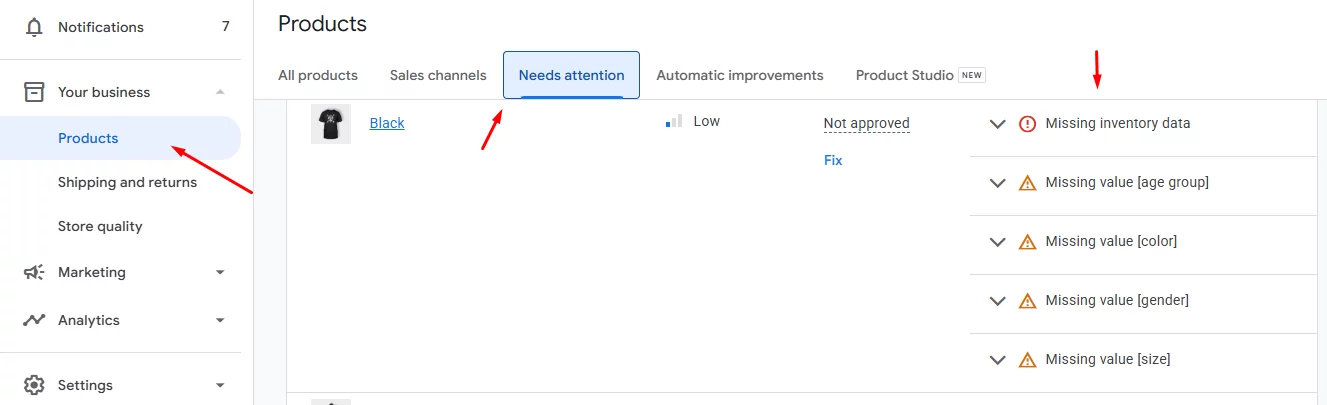
Let’s explore some of the most common WooCommerce Google Shopping feed errors and how to fix them.
1. “Feed Not Syncing” Error
What’s happening: You update products in WooCommerce, but nothing changes in Google Merchant Center.
Why it happens: Often, your scheduled task (cron job) didn’t run, or your server cut off the process before it finished.
How to fix the WooCommerce feed not syncing with Merchant Center:
- Run a manual sync via WP-CLI – this bypasses cron and forces an immediate update.
- Check your server’s timeout and memory limits; ask your webhost to raise them if needed, so large feeds can finish exporting.
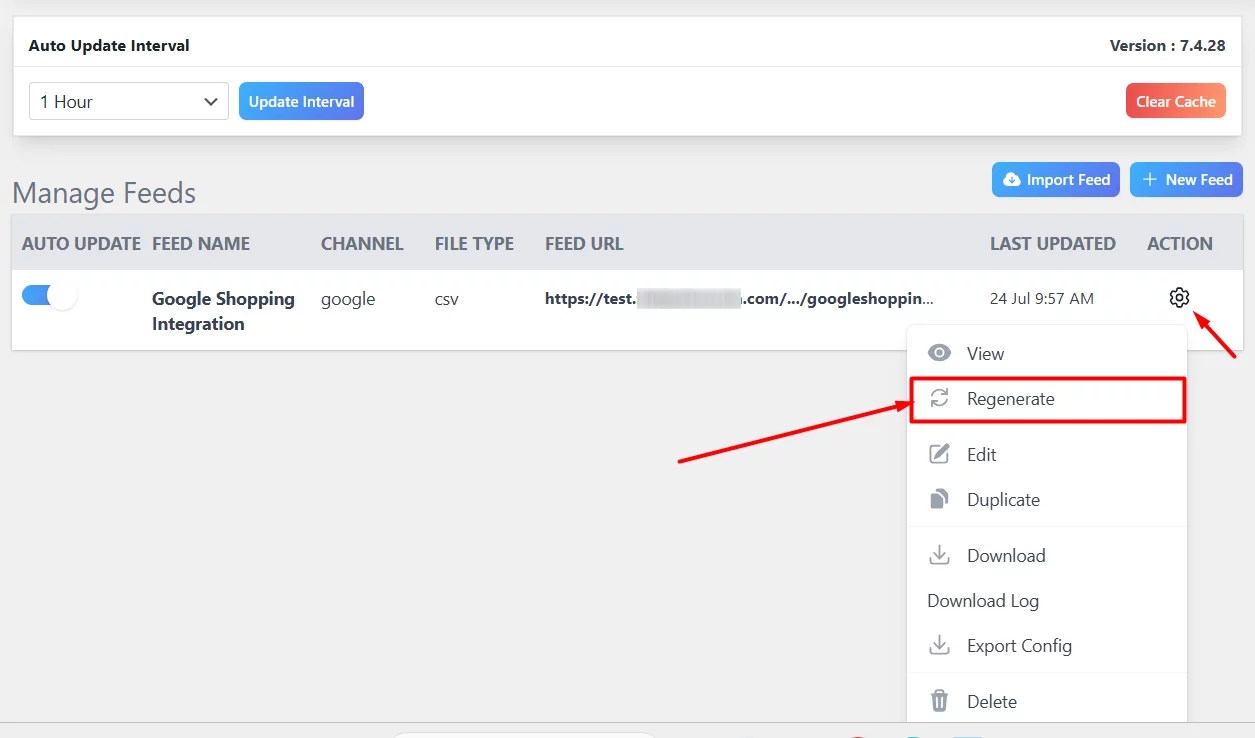
Simple Solution: If you’re using the CTX feed WooCommerce Google Shopping plugin, click “Regenerate” on your Google for WooCommerce feed settings page (CTX Feed > Manage Feeds) to trigger a full rebuild without waiting for the next schedule. This should immediately fix this WooCommerce Google Shopping feed not working error.
2. Price & Availability Mismatches
When Google sees a different price or stock status in your feed than on your site, it flags those products—and often disapproves them outright.
Why this happens:
- Currency conversion errors. If you use a multi‑currency plugin or switcher, your feed may export the base price (e.g. USD) while your store shows a converted price (e.g. EUR). Merchants on WordPress.org report that disabling the switcher often clears the mismatch error immediately.
- Caching plugins. Aggressive page or object caching can serve an out-of-date feed file to Google, so even after you update a price or stock level, Merchant Center still sees the old data.
How to fix it:
- Align your decimals. In WooCommerce > Settings > General, set “Number of decimals” to 2 so prices export exactly as Google expects (e.g., 19.99, not 19.9).
- Exclude your feed from caching. In your caching plugin’s settings (WP Rocket, W3 Total Cache, WP Fastest Cache, etc.), add your feed URL (usually /feed/google_product_feed/ or similar) to the “never cache” list. This ensures Google always fetches the latest data.
- Use a plugin that supports multi-currency feed generation. CTX Feed Pro is compatible with all popular multi-currency plugins and allows you to generate multi-currency feeds. As a result, your customers will see their preferred currencies across all your channels.
By matching your site’s live prices and stock levels exactly in your feed, you’ll avoid WooCommerce Google feed price mismatch and WooCommerce Google feed availability error flags—and keep your products live in Google Shopping.
3. Missing GTIN/MPN Attributes
Google uses unique product identifiers like GTIN (Global Trade Item Number) and MPN (Manufacturer Part Number) to match your items with existing catalog data. We have already mentioned WooCommerce Google feed invalid GTIN MPN is one of the most common errors resulting in rejection.
- What are GTIN and MPN?
- GTIN is the number printed below a barcode on retail products (UPC, EAN, ISBN, etc.). Google requires a valid GTIN for any product that already has one, so it can verify exactly what you’re selling and avoid duplicate listings.
- MPN is the code assigned by the product’s manufacturer. If your item doesn’t have a GTIN (for example, a store‑brand or handmade product), Google asks for both MPN and Brand instead.
- Why WooCommerce alone can’t help
Out of the box, WooCommerce product pages don’t include fields for GTIN or MPN. Adding them manually means writing custom code or installing an extra custom‑fields plugin, and then mapping those fields into your feed. That can get technical fast, especially if you have dozens or hundreds of products.
How to Fix It with CTX Feed
No PHP snippets or custom‑field plugins required to fix this WooCommerce Google Shopping Feed not working error. CTX Feed comes packed with Google’s identifier fields right into its settings panel:
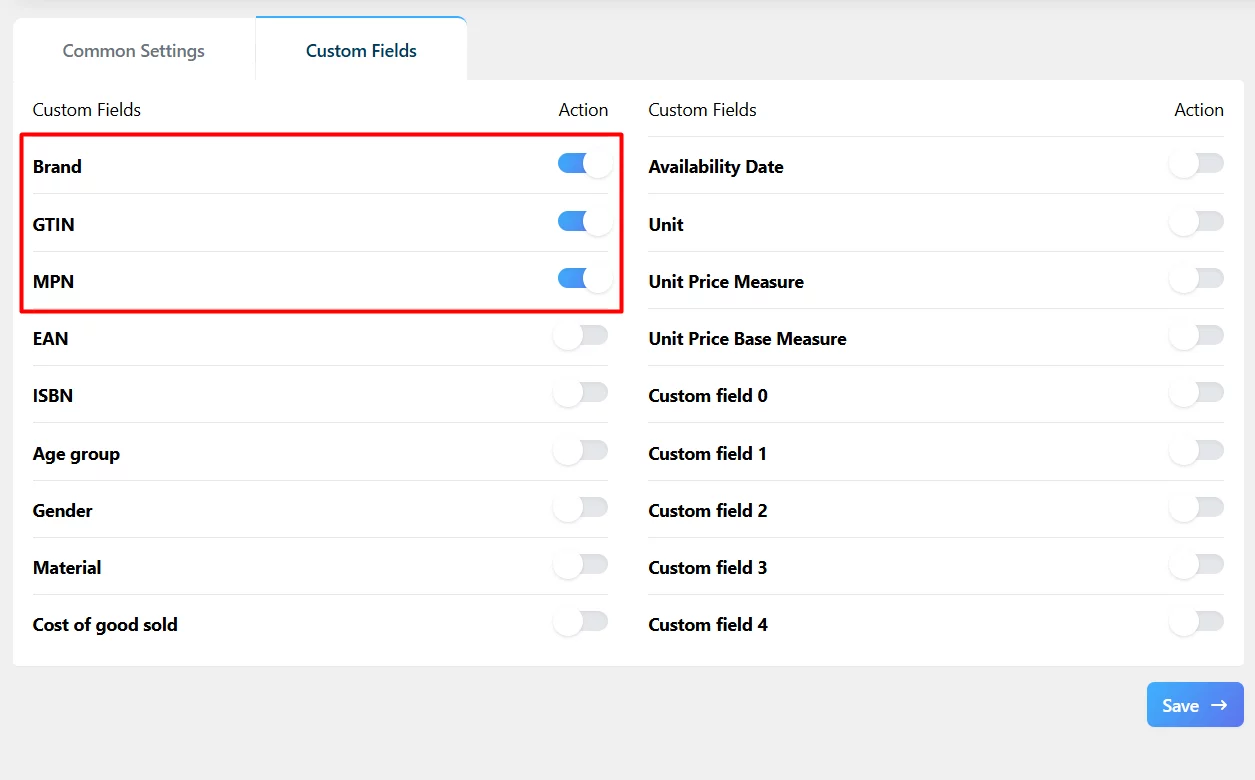
- Enable the fields
- In your WordPress dashboard, go to CTX Feed > Settings.
- Click the Custom Fields tab.
- Toggle on GTIN, MPN, or any other identifier you need, then click Save.
- Enter your values
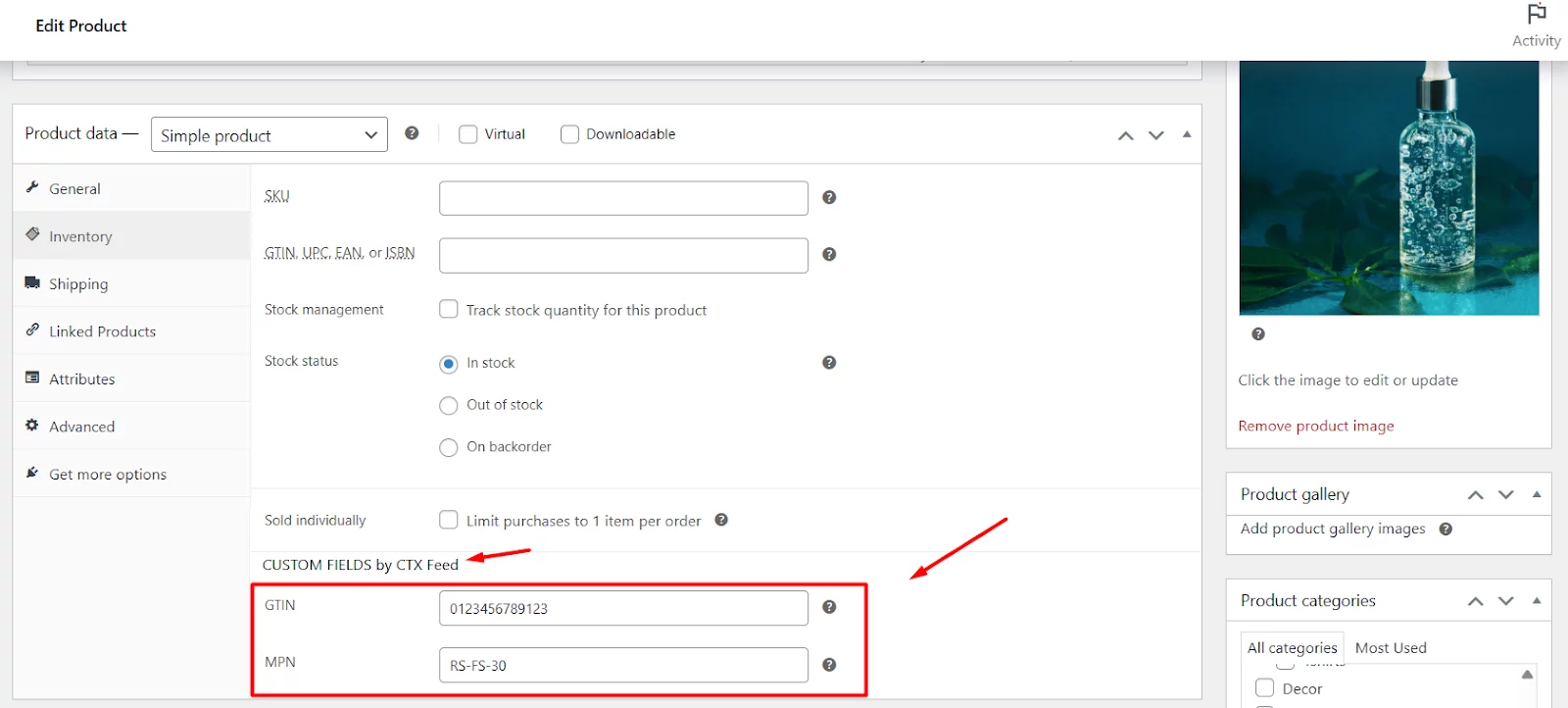
- Open any product from Products > All Products and inside the edit window, scroll to Product Data > Inventory > CUSTOM FIELDS by CTX Feed.
- Type in each product’s GTIN or MPN value and update the product.
- Automatic feed inclusion
- CTX Feed will now pull those custom‑field values into your XML/CSV feed automatically—no extra mapping steps needed.
- When Google fetches your feed, it sees the correct identifiers and stops disapproving for missing GTIN or MPN.
With CTX Feed handling the heavy lifting, you get full compliance with Google’s product‑identifier requirements in minutes, no coding required to fix the WooCommerce Google Shopping feed error.
4. Image Link Failures (HTTPS / 404 Errors)
If Google can’t fetch your product images, those items get disapproved, and without pictures, your Shopping ads won’t show.
How to spot this WooCommerce Google Shopping feed not working problem:
- Bulk image‑URL checker—tools like Screaming Frog SEO Spider let you crawl your store and sort by “Status Code” to find 4xx errors on image URLs. Simply run a site crawl, switch to the “Images” tab, sort by status, and flag any URLs returning 404 or other errors.
- Merchant Center diagnostics—in the Google Merchant Center “to Your Business > Products > Needs Attention” page, filter by “image_link” issues to see exactly which SKUs are failing.
Common causes:
- HTTP > HTTPS mismatches. If your site enforces SSL but your feed still lists http:// URLs, Google’s crawler will refuse the insecure links.
- Deleted or moved files. When you delete images from your Media Library—or change their folder structure—old URLs break.
- Unsupported formats or bad filenames. Google only accepts JPEG, PNG, GIF, BMP, TIFF, WebP images, or filenames with special characters can be rejected.
- Promotional overlays. If an image has price badges or text on top of the product, Merchant Center flags it as a policy violation.
How to fix it:
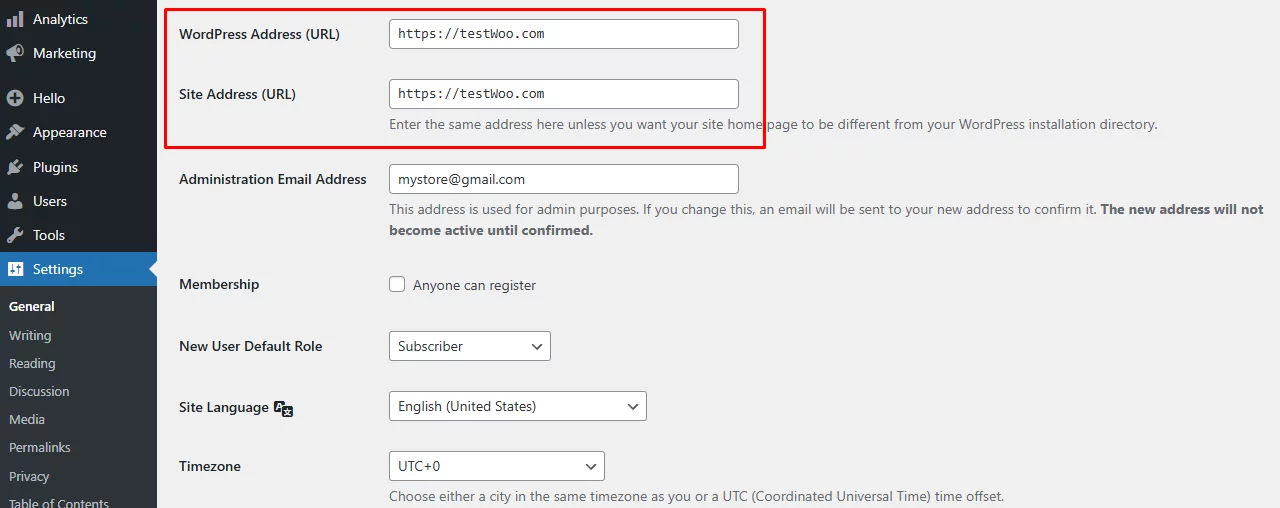
- Enforce HTTPS site-wide.
- In WordPress > Settings > General, ensure your “WordPress Address (URL)” and “Site Address (URL)” both use https://.
- Install a plugin like Really Simple SSL or add a redirect rule in your .htaccess to forward all http:// requests to https://.
- Clean up your Media Library.
- Use the “Regenerate Thumbnails” plugin to rebuild missing sizes and repair broken paths.
- Delete unused or broken attachments in Media > Library, then re-upload if necessary.
- Bulk‑replace old URLs in your feed.
- If you migrated to HTTPS, add a search‑and‑replace rule in your feed plugin (or use the Better Search Replace plugin) to swap http:// for https:// across all image_link fields.
- Remove overlays & convert formats.
- Replace any images containing promotional text or stickers.
- Convert unsupported formats (e.g. WebP) to JPEG or PNG before uploading.
By crawling for broken links, enforcing SSL, and cleaning up your library, you’ll eliminate WooCommerce Google feed image link errors and keep your listings live and compliant.
5. Products Stuck in “Pending Initial Review”
When you first upload your products, Google holds them in a “Pending Initial Review” state while it checks that your data and website meet its policies. If this status drags on—especially beyond the expected 3–5 business days—it can stall your entire Shopping campaign.
What Google is checking:
- Website claim & verification. You must both verify and claim your site URL in Merchant Center so Google knows you own the domain.
- Shipping settings. For countries that require it, you need shipping rules defined at the account or item level.
- Feed setup. A correctly configured product feed targeted to your country is required.
- Business contact info. Your Merchant Center account needs a verified phone number and postal address.
- Tax settings (US only). If you sell in the United States, set up tax rates at the account or item level before products can be reviewed.
Why delays happen:
- Missing or incorrect settings. Forgetting to claim your domain or leaving shipping rules blank blocks the review from even starting.
- Policy violations. If Google finds disallowed content—banned words in titles, promotional overlays on images, or forbidden products—it pauses approval until you fix the issue.
- Frequent feed resubmissions. Every time you upload a new feed, the clock resets. If you schedule daily fetches, your items may never get past “Pending.”
Checklist for faster approval:
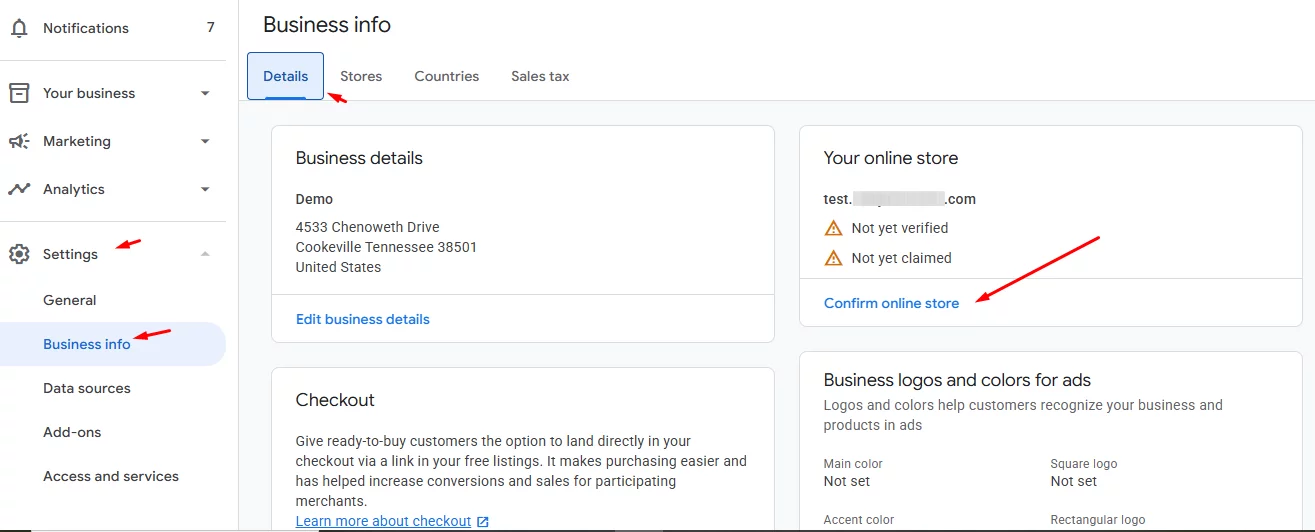
- Verify & claim your website: In Merchant Center, go to Settings > Business information > Details > Your online store, then click the Confirm Online Store button and follow the verification steps.
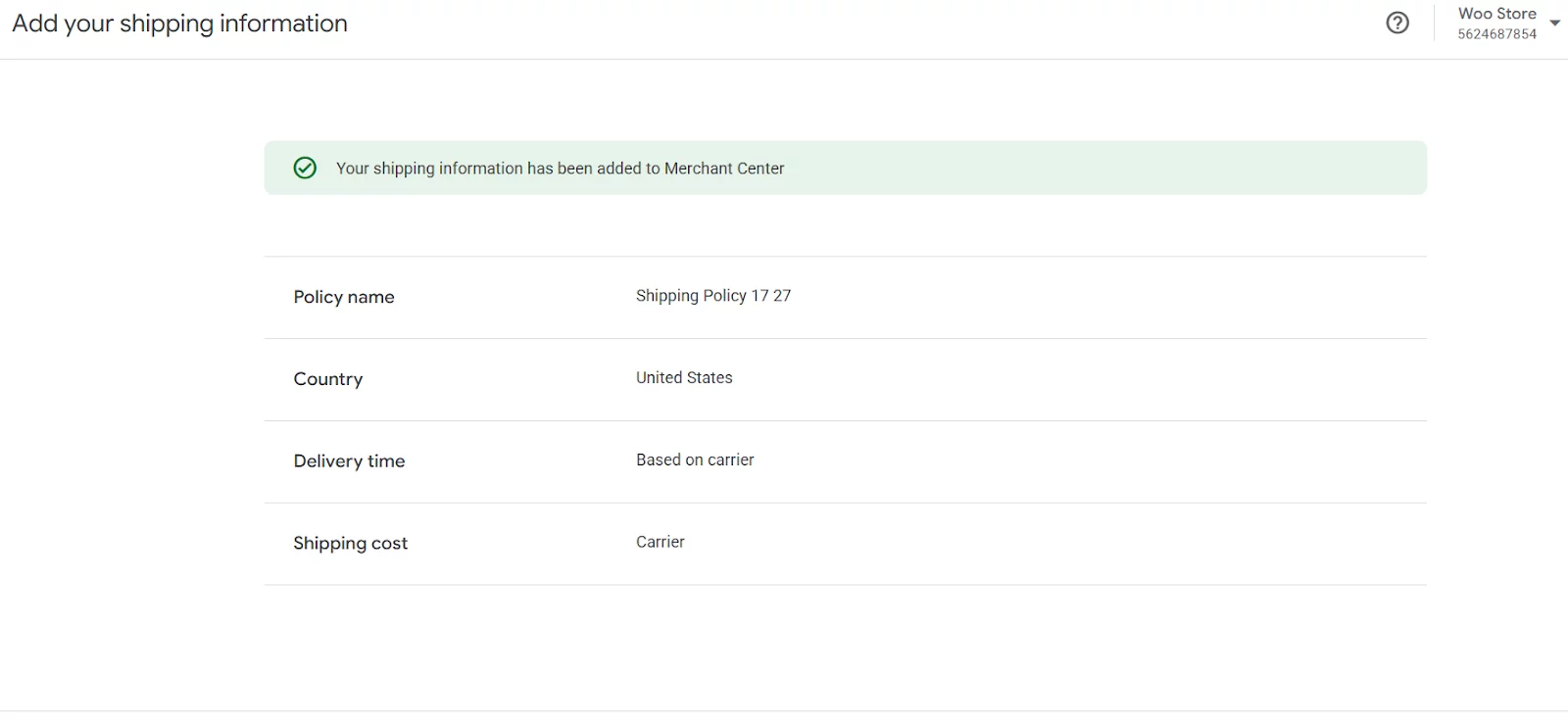
- Set up shipping: Under Your Business > Shipping and returns, add a shipping service that matches what you charge on your site.
- Configure your feed properly: Make sure your feed is live, targets the correct country, and uses the right file format (XML, CSV, TXT).
- Confirm contact details: In Settings > Business information, double‑check your business address and phone number are marked “Verified.”
- Limit resubmissions: Switch your fetch schedule to weekly or monthly during the initial review period so you don’t keep restarting the process.
If your products stay in “Pending Initial Review” for more than a week after completing these steps, reach out to Google Merchant Center Support for a manual review. Once approved, your items will move to “Approved” or “Eligible”, and your ads can start running.
Keeping this checklist in order ensures your feed sails smoothly through Google’s initial inspection—and into shoppers’ search results.
6. XML / CSV Formatting Errors
Your product feed file must follow Google’s exact syntax rules. Even a single stray character can break the entire import, so it pays to validate and clean your feed before you hit “Upload.”
Common Triggers:
- Special characters. Smart quotes (“ ”), em‑dashes (—), and other Unicode symbols often sneak in when you copy‑paste product titles or descriptions. These characters can break XML parsers or throw off CSV column alignment.
- Encoding mismatches. If your server exports the feed in UTF‑8 but your CMS or plugin saves it as ISO‑8859‑1 (or vice versa), you’ll see garbled text or an “Invalid character” error.
How to catch them:
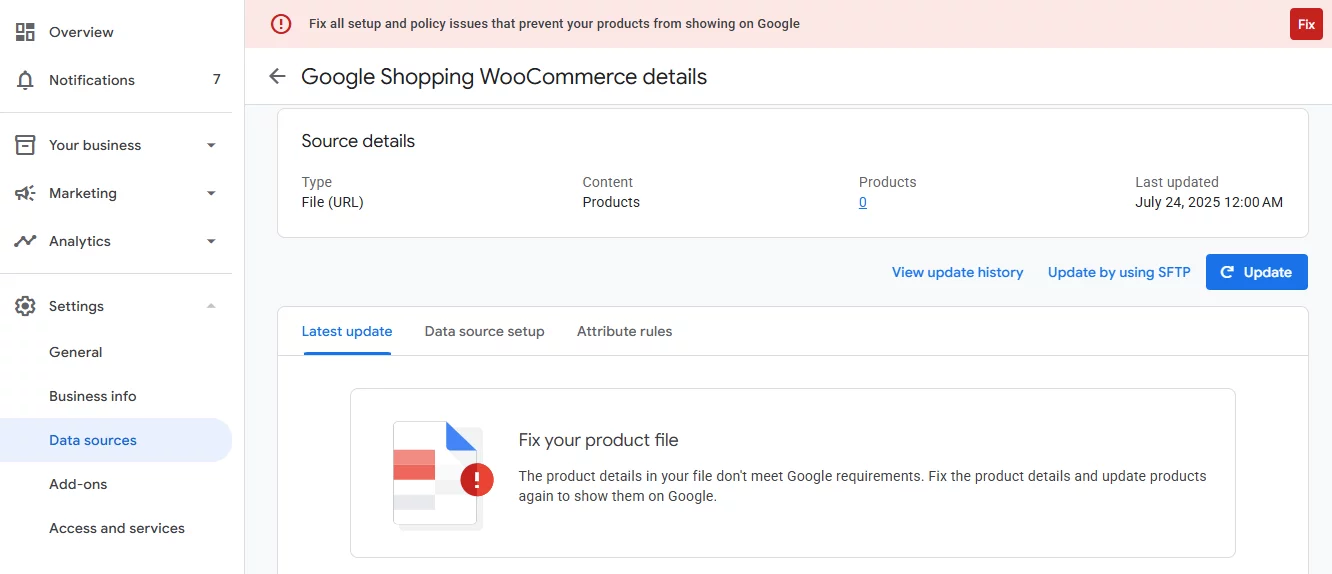
- Google Feed Rules in Merchant Center. Under Settings > Data Sources, you can preview your file and spot formatting errors before Google even tries to process it. Look for red flags like “unexpected token” or “malformed XML.”
- External validators. Tools such as XML‑sitemaps.com’s XML validator or free CSV linting sites let you upload your feed and run a full syntax check. They’ll highlight exactly which line and column contain the problem, so you can jump straight to the fix.
Fixing the issues:
- Normalize your quotes and dashes. Search your feed file (or use a mass‑find tool) to replace smart quotes with straight quotes, and convert em‑dashes to a simple hyphen (-).
- Enforce UTF‑8 encoding. In your FTP client or hosting control panel, ensure the feed file is saved as UTF‑8 without BOM. If you see a Byte Order Mark (BOM) at the start of your XML, remove it—Google’s parser hates hidden characters.
- Clean up unexpected tags. Sometimes plugins inject HTML comments or analytics tags into your feed. Scan for <!– or <script> snippets and strip them out so only valid <item>, <g:price>, and other Google tags remain.
CTX Feed’s automatic fix
CTX Feed supports a number of formats, including CSX, XML, TXT, etc. It includes built-in encoding correction—every export is forced to UTF-8, and common problematic characters are sanitized on the fly.
It means you no longer need to wrestle with your server settings or open your feed in a text editor. Just generate the feed, run it through Google’s Feed Rules once, and you’re ready to go.
By validating early, cleaning your syntax, and relying on CTX Feed’s built‑in encoding safeguards, you’ll avoid the dreaded “Malformed XML” or “Invalid CSV” WooCommerce Google Shopping feed not working errors—and keep your product updates flowing smoothly.
7. Category & Attribute Mapping Conflicts
Every WooCommerce store has its own category structure. For example, you might list a product under:
/ Clothing / T-shirts
But Google Shopping expects a different taxonomy for the same product:
/ Apparel & Accessories / Clothing / Shirts & Tops /
This mismatch creates a problem. If your products are placed in the wrong category—or have no category at all—Google Merchant Center will flag them, leading to disapprovals or poor visibility.
This is where Category Mapping comes in. It ensures your store categories align with Google’s official taxonomy so your products show up in the right place for the right audience.
How to Fix It with CTX Feed
The good news? You don’t need to manually rewrite your categories or edit your feed file. CTX Feed makes this simple:
- Go to CTX Feed > Category Mapping.
- Click New Category Mapping.
- Select your target merchant (in this case, Google Shopping).
- On the left, you’ll see your existing WooCommerce categories. On the right, search and select the closest Google Shopping categories.
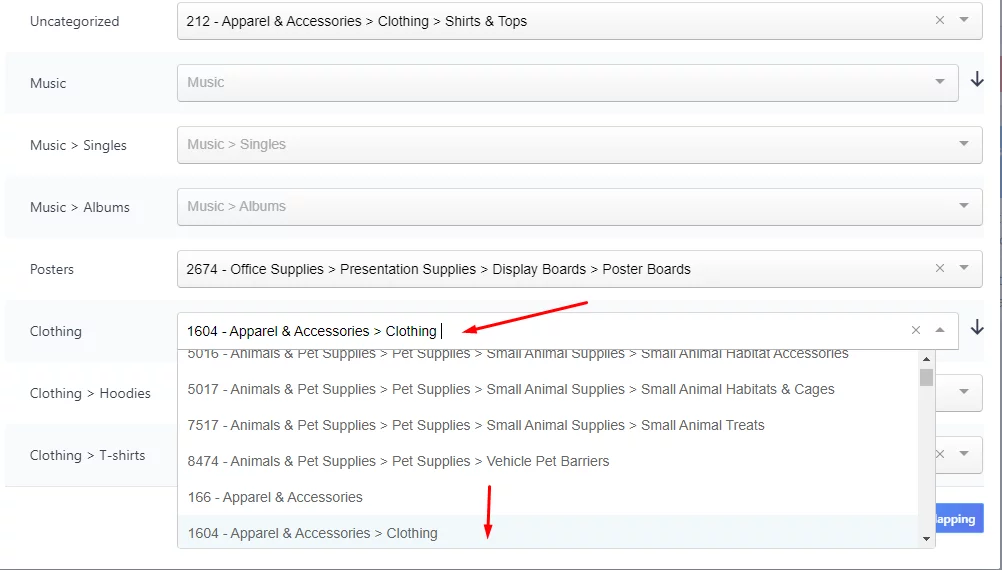
- Save your mapping.
Once done, CTX Feed will automatically replace your WooCommerce categories with the appropriate Google categories whenever you generate or update your feed.
Note: For a complete category mapping and Google Shopping WooCommerce integration, check out this article.
Mapping Other Attributes
It’s not just categories. Google also requires other key attributes like:
- Product Type (g:product_type)
- Condition (g:condition)
- Brand, MPN, GTIN
With CTX Feed, you can map attributes as well.
- Go to CTX Feed > Attribute Mapping.
- Click Add New Rule and choose your WooCommerce attribute (e.g. your existing category path or custom field like “Season”).
- Map it to product_type (select g:product_type in CTX).
- Save your rule and regenerate the feed.
Now your custom values—such as “Clothing > Women’s > Summer Dresses”—will correctly appear in the product_type field in your feed.
8. Invalid Price, Description & Image Errors
When your feed file has missing or malformed data—like blank prices, no descriptions, or broken image links—Google will flag those items and won’t show them in Shopping ads.
- Why it happens:
- You copy a description that’s too short or dumps HTML tags, making Google reject it.
- An image URL in your feed doesn’t match what’s in your Media Library, causing a 404.
- A product is missing a price field or uses a non‑numeric character, so Google can’t read it.
- How to fix it:
- In Google Merchant Center > Your Business > Products > Needs Attention, download the CSV report of errors.
- Open the CSV, correct each row so that:
- Price is a valid number (e.g. 29.99), with no currency symbols or commas.
- Description is plain text, between 1 and 5,000 characters, no HTML tags.
- image_link points to a live URL ending in .jpg, .png, or .gif.
- Re‑upload the fixed file (or reconnect your feed URL) and re‑run Diagnostics to confirm the issues are cleared.
CTX Feed Pro Easy Fix
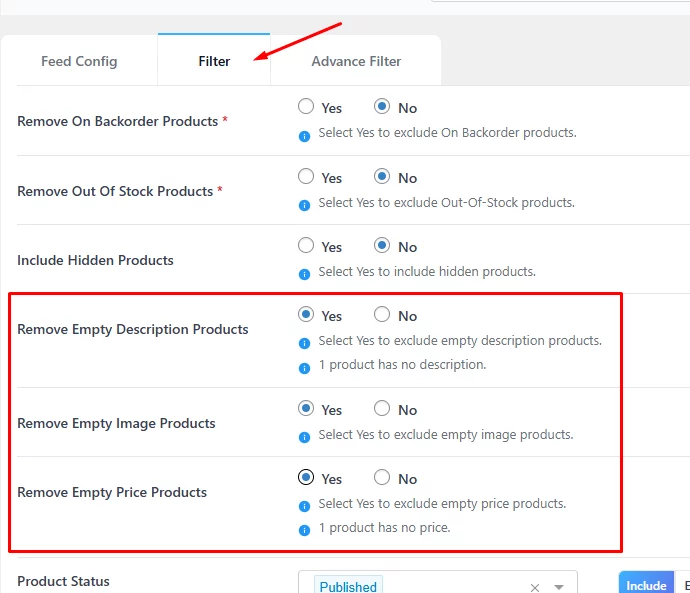
Use the Filters to exclude incomplete products automatically—those missing price, description, or image—so they never make it into your feed. Just check the boxes for “Remove Empty Price Products,” “Remove Empty Description Products,” or “Remove Empty Image Products” when you build your feed.
9. Out‑of‑Stock & Sale‑Price Mismatches
If you run a sale on your WooCommerce site but your feed still shows the old price (or lists out‑of‑stock items as available), Google will disapprove those listings—or worse, show wrong information to shoppers.
- Why it happens:
- Your sale campaign ends, but the feed doesn’t update to remove the sale_price or update the price.
- Products go out of stock, yet your feed continues to list them as “in stock.”
- How to fix it:
- In Merchant Center ‘Needs Attention’, look for “price mismatch” or “availability error.”
- If you’re manually updating feeds, download the error CSV, correct the price and availability columns (instock, outofstock, preorder), then re‑upload.
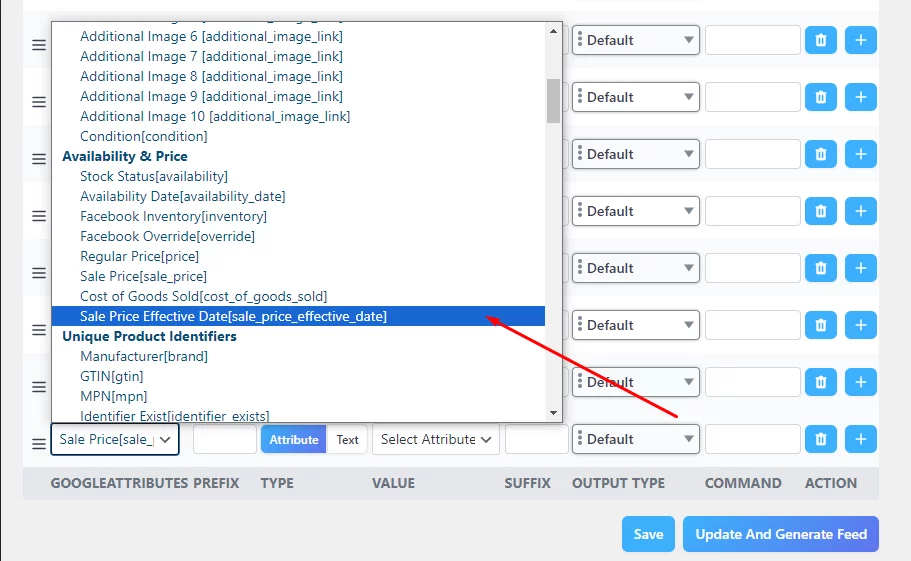
- For sale campaigns, include the sale_price_effective_date field with start/end timestamps (e.g. 2025-07-01T00:00:00/2025-07-07T23:59:59).
CTX Feed Pro Quick Fix
- Exclude out‑of‑stock products automatically by ticking the “Remove Out Of Stock Products” filter.
- Auto‑fetch sale dates by adding sale_price_effective_date attribute in your feed config window, and the plugin pulls your WooCommerce sale start and end dates straight into the feed so Google always has the right price window.
Wrap Up
Fixing a WooCommerce Google Shopping feed not working issue doesn’t have to feel like wrestling with code all day. By walking through diagnostics in Merchant Center, validating your product data, and making sure your categories and attributes line up with Google’s requirements, you can get your products back in front of shoppers quickly.
Remember these key takeaways:
- Diagnose first—use Merchant Center’s ‘Needs Attention’ tab to pinpoint exactly what’s wrong.
- Clean your data—check prices, descriptions, images, and identifiers so everything meets Google’s specs.
- Map smartly—align your WooCommerce categories and attributes (like product_type) with Google’s taxonomy to avoid “required attribute” errors.
- Automate with CTX Feed—use its built-in tools (Force Regenerate, Custom Fields, Advanced Filters, Attribute & Category Mapping) to handle common fixes without extra plugins or code.
Once your feed is healthy, set up a regular audit routine—weekly or monthly—to catch any new issues before they impact your campaigns. With your feed running smoothly, you’ll unlock better visibility in Google Shopping and keep your ad spend working harder for you.
Got questions on WooCommerce Google product feed troubleshooting or still stuck? Drop a comment below or reach out to us—let’s get your products back online and selling!