
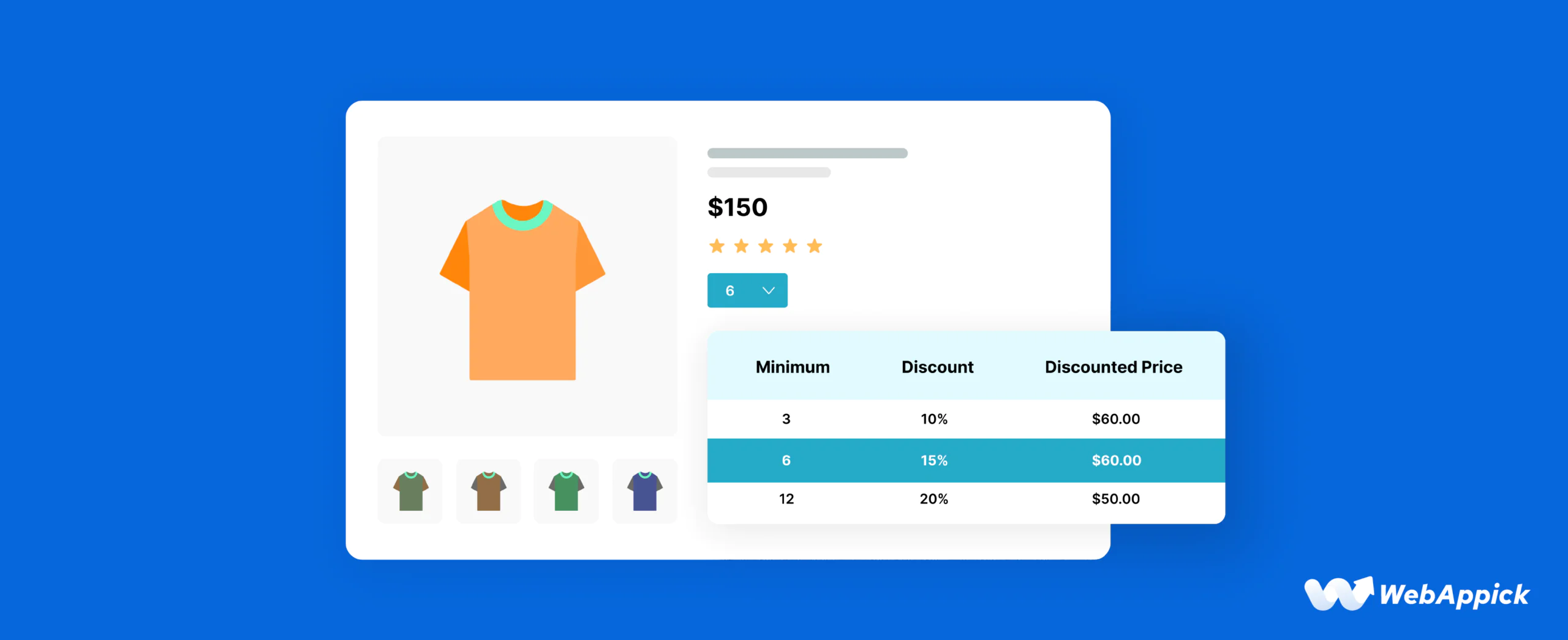
A WooCommerce quantity discount lowers the price per unit when a customer buys more of a product. It can be a fixed amount off, a percentage off, or a tiered rate that increases with volume. WooCommerce does not include this pricing logic by default, so you need a plugin or custom code to set one up.
This guide covers the basic setup, several discount variations for different scenarios, and a code-based method.
How to Set Up Discounts for Quantity on WooCommerce?
Say you want to offer 10% off when a customer adds 3 or more products to their cart. Here’s how to build that rule with Disco.
Step 1: Install the Disco Plugin
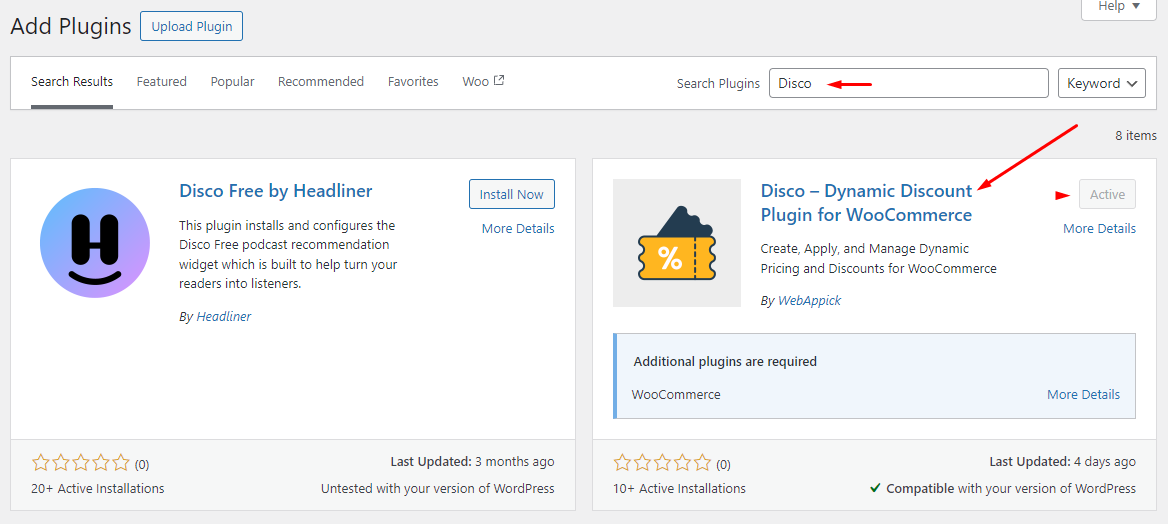
First things first, install the plugin. Login to your WordPress admin panel and install & activate the plugin from the Plugins repository.
Step 2: Access the Disco Menu
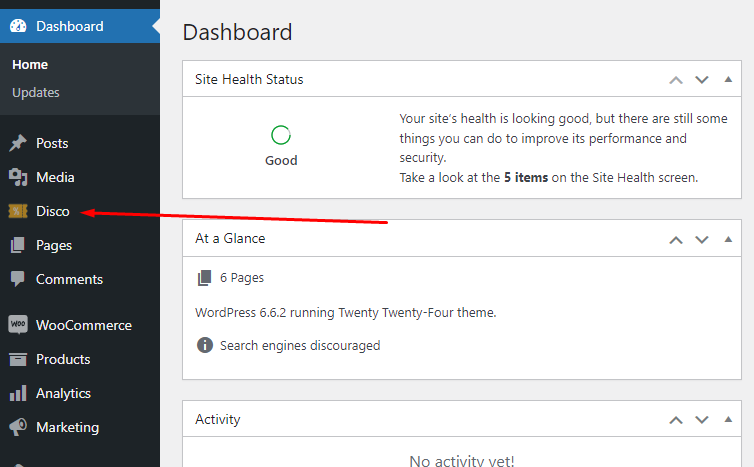
Disco generates its own dedicated menu.
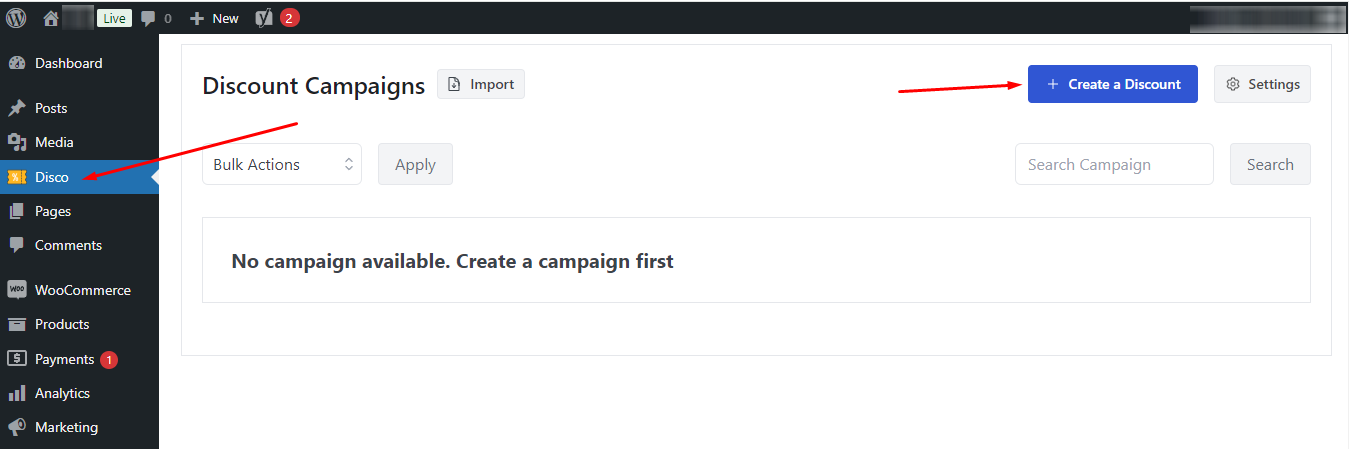
To create a WooCommerce discount for quantity, click the Create a Discount button on the Disco dashboard.
Step 3: Set Discount Type
Clicking the create button will lead you to the following page.
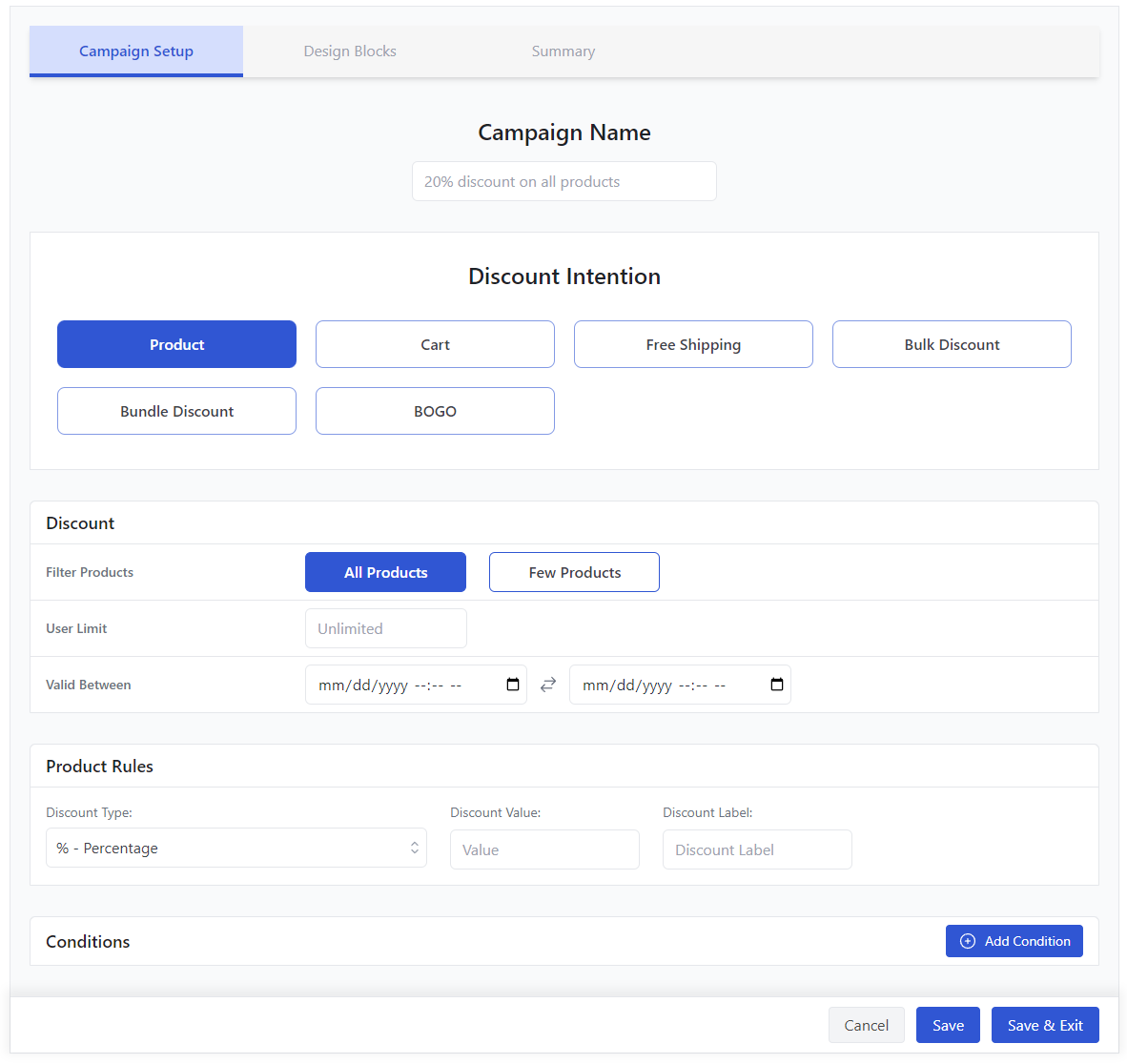
As we have mentioned, quantity discount is a fundamental discount type; you can choose any discount intention type and create discount based on quantity WooCommerce strategies.
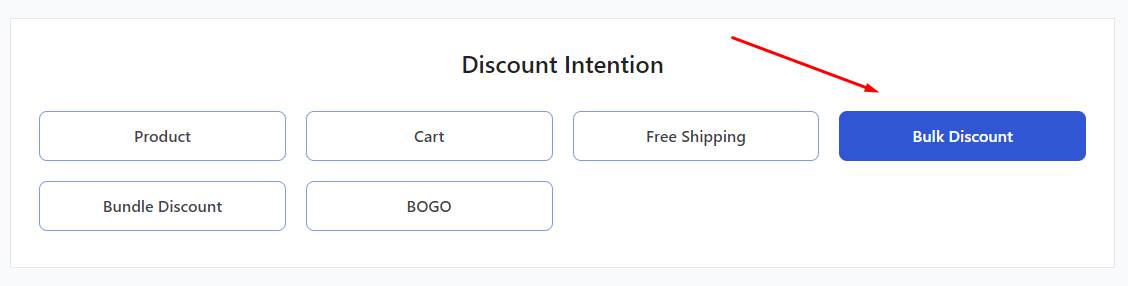
For our example – “10% WooCommerce quantity discounts on 3 or more products”- let’s use the Bulk Discount option in the Discount Intention section.
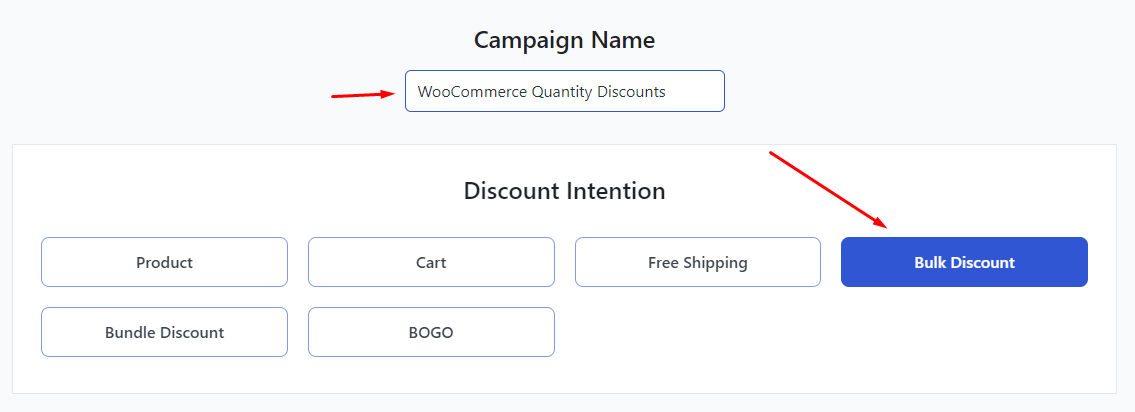
Step 4: Apply Discount to Products
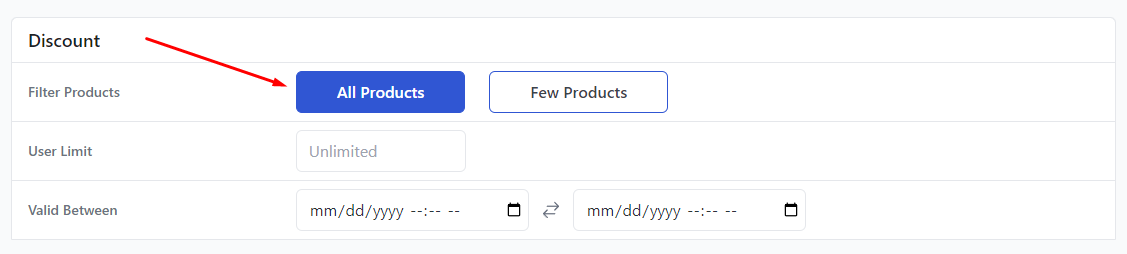
We are offering this discount on all products. Therefore, select All Products.
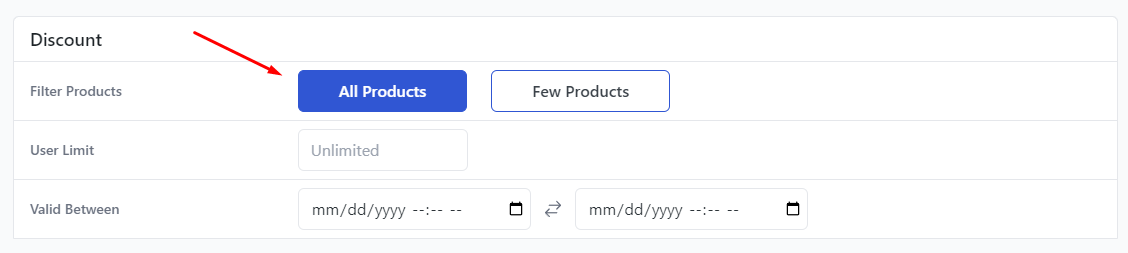
You can also set discount expiry dates from this section.
Step 5: Set Bulk Rules
Next, you need to set Bulk Rules. This is where you set your quantity discount values.
Input 3 on the Minimum Quantity and leave the Maximum empty. Empty means this discount is valid for any quantity above 3.
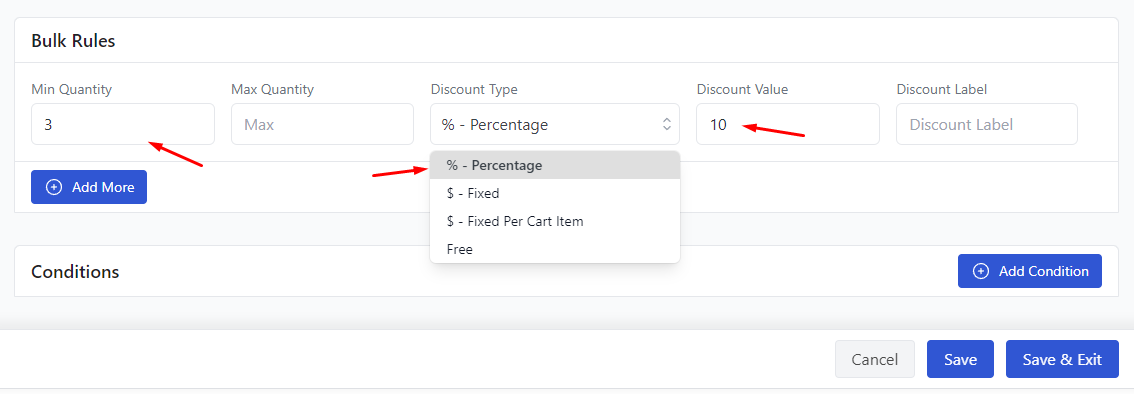
Select the Percentage option and input your discount value, which is 10.
Step 6: Save & Test
Finally, save your quantity discounts & pricing for WooCommerce rule. Let’s test the discount’s impact from the front end.
Add 3 or more products to the cart and check out the cart page.
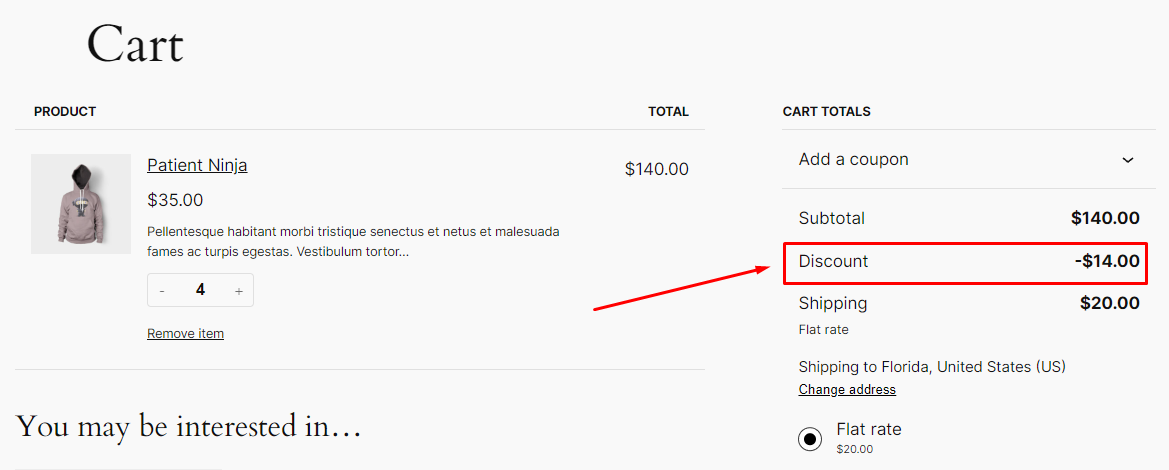
WooCommerce applied the quantity discount as per your set rule.
WooCommerce Quantity Discount Strategies for Different Scenarios
Here are some creative strategies to implement WooCommerce discount price per quantity that cater to different scenarios and customer preferences:
Tiered Bulk Quantity Discounts
- Example: 10% off when purchasing 3-5 items, 15% off for 6-10 items, and 20% off for 11 or more.
We have already demonstrated a basic Woo bulk discount based on quantity above. This time, we are looking to offer a tiered quantity discount.
Start by selecting the Bulk Discount option again.
We are offering WooCommerce quantity discounts for all products.
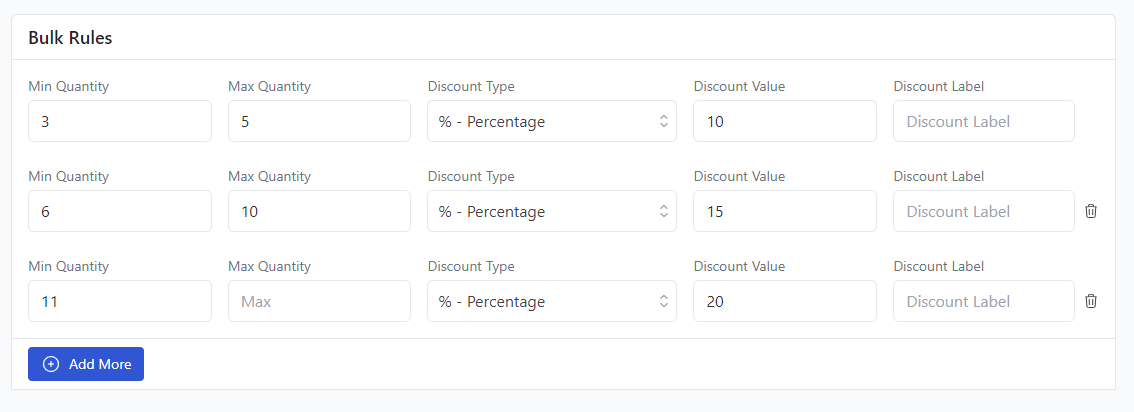
Next, we need to set the following bulk rules as per our example:
- 3-5 Items: 10% discount
- 6-10 Items: 15% discount
- 11+ Items: 20% discount
Input the first set of values in the appropriate boxes. After that, click the Add More button.
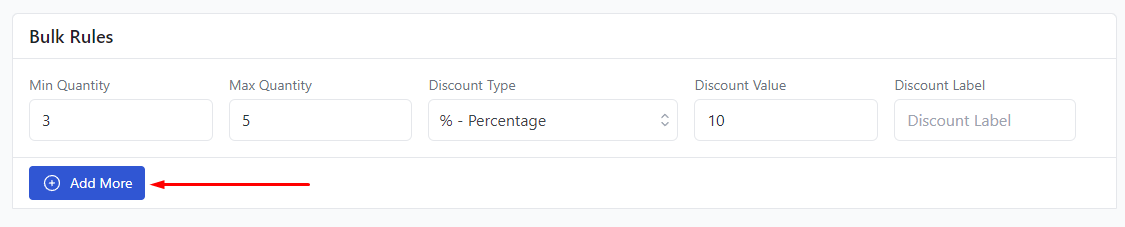
Enter your second set of values and add another row for the final set.
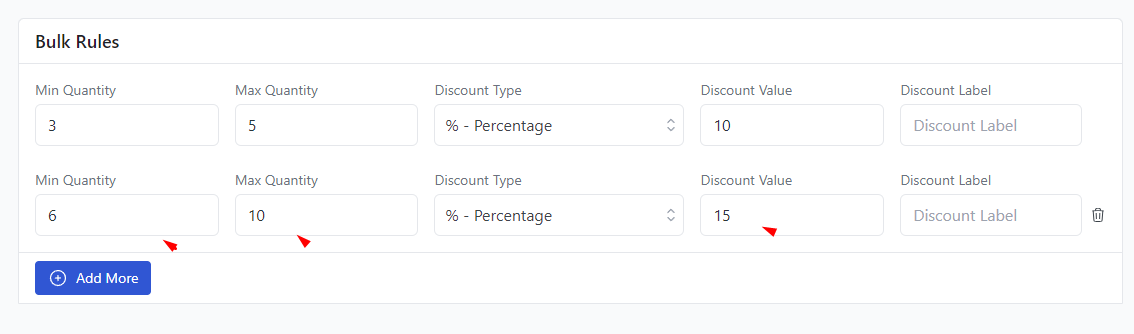
Save your discount rule after you input your final set of values.
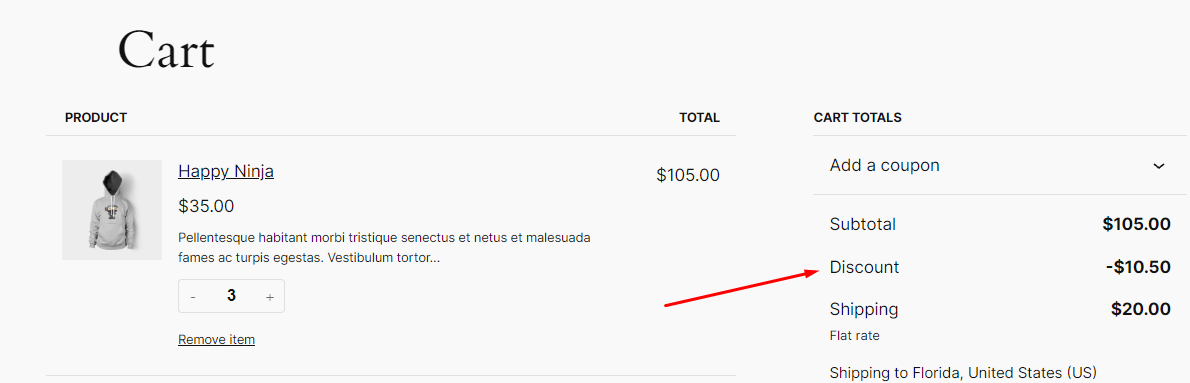
Let’s check the front for 3-5 item results.
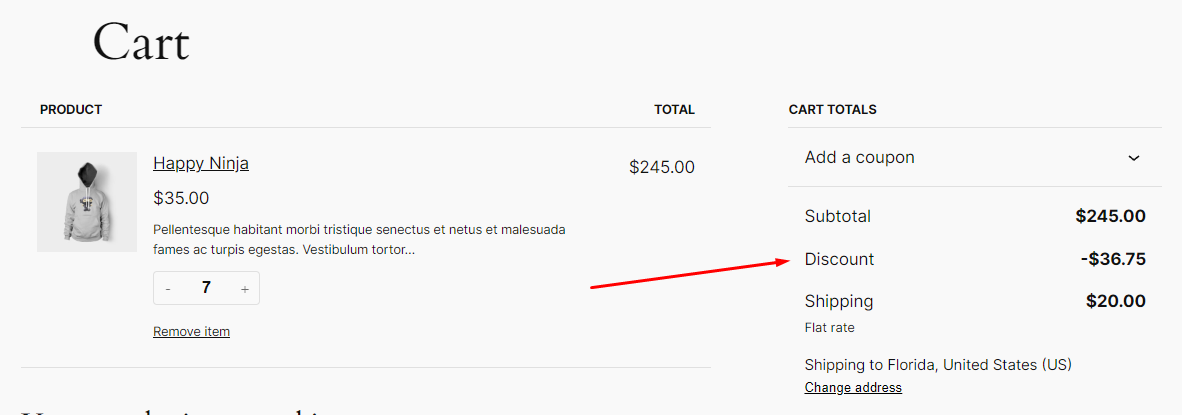
For 6-10 products, here’s how the discount is applied.
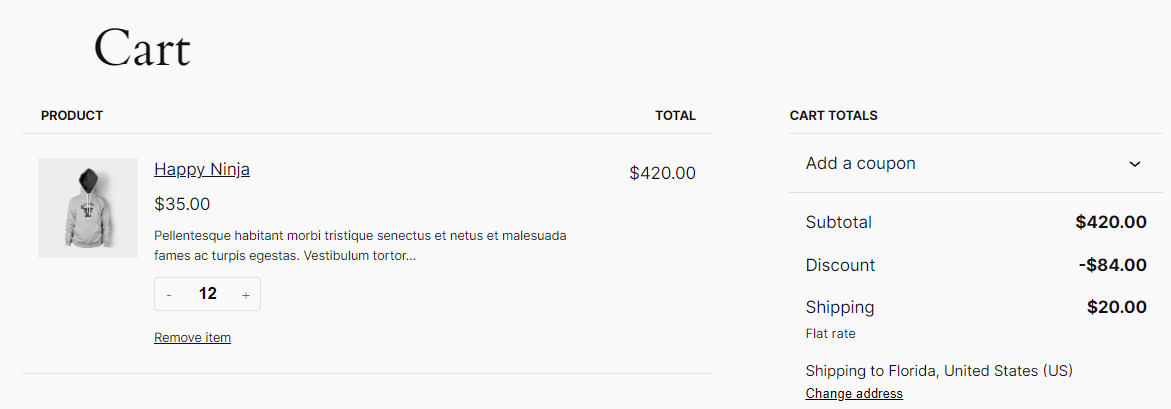
For 11+ items, WooCommerce should apply a 20% discount on the total cart.
Seasonal Quantity Discounts
- Example: 30% off on all items when buying 7 or more during Black Friday.
Like any other store, you want to boost your sales during the holiday season. This is a time when customers actively seek discounts, regardless of their previous purchases from your store.
Black Friday is by far the most awaited day for shoppers, as it marks the beginning of the holiday shopping season with massive discounts and deals. It’s the perfect opportunity for your store to capitalize on this buying frenzy by offering quantity discounts.
Let’s say you want to offer a massive 30% discount when your customers add 7 or more items to the cart, specifically for Black Friday on November 29th. To create this discount, we will again use the Bulk Discount option.
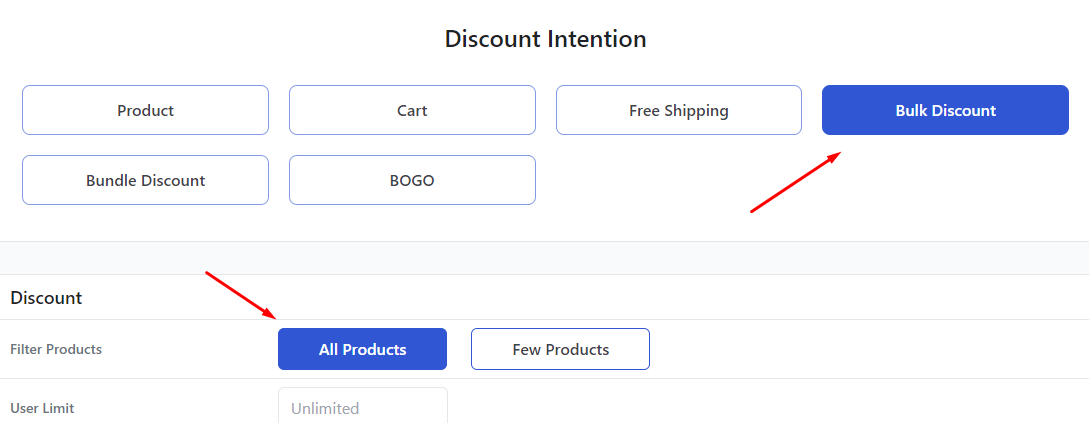
If you are offering this for all products, select the appropriate option.
This time, we are creating the discount rule for a specific date. Therefore, we need to specify that in the Valid Between fields.
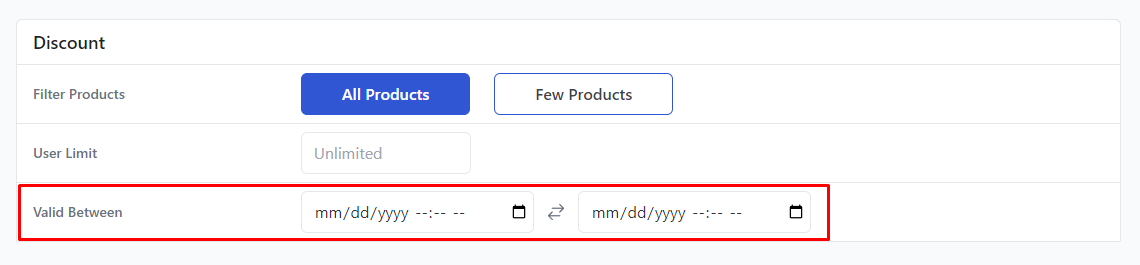
Select and set the date and time from the following fields.
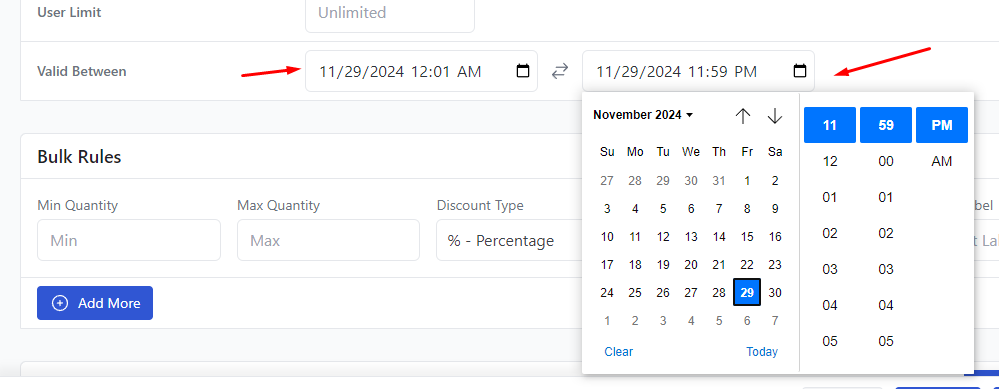
Input your quantity and percentage value.
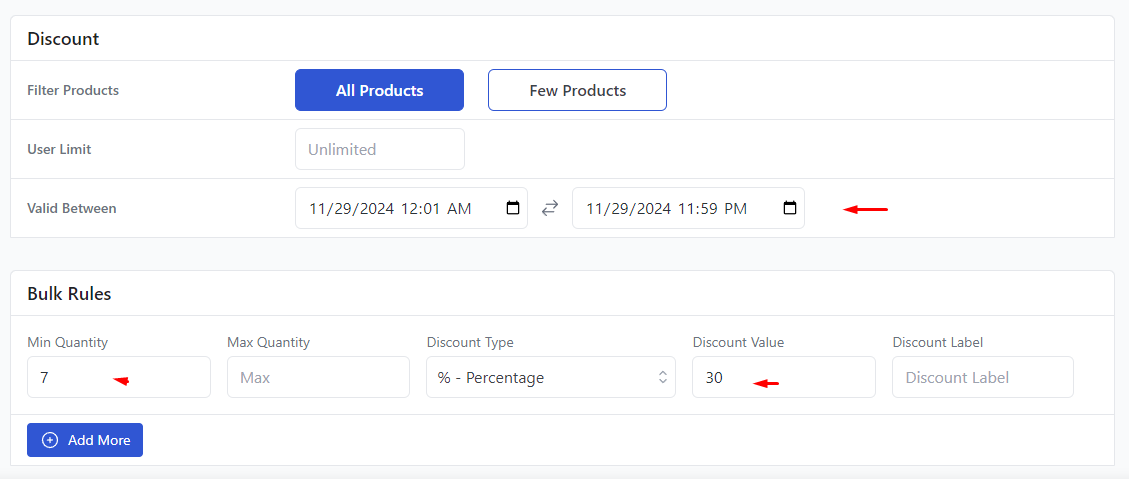
After you save and set this quantity discount, your customers can avail of 30% discounts on 7 or more items on the coming Black Friday.
Similarly, you can set time-based discounts for other occasions as well. For example, you can set WooCommerce quantity discounts for the entire holiday season period.
BOGO Quantity Discounts (Disco Pro)
- Example: Buy 2, Get 1 Free on Select Products
WooCommerce buy one get one or BOGO deals, in general, are one of the most popular and enticing discounts to shoppers around the globe. This promotion encourages customers to make a purchase by offering a free or heavily discounted second item when they buy one.
Let’s say you want to offer a special discount on your newly launched product, the “Happy Ninja T-shirt.” Customers who buy two will get one free.
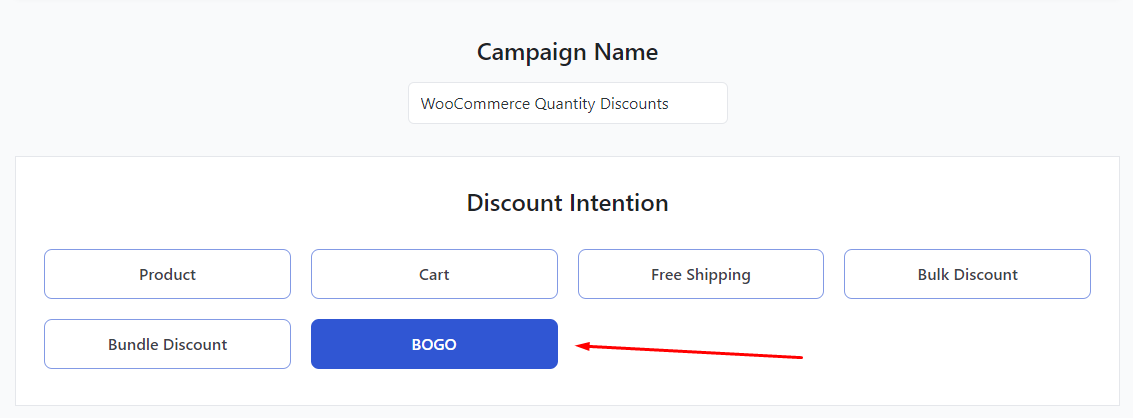
To create this discount strategy, select the BOGO option.
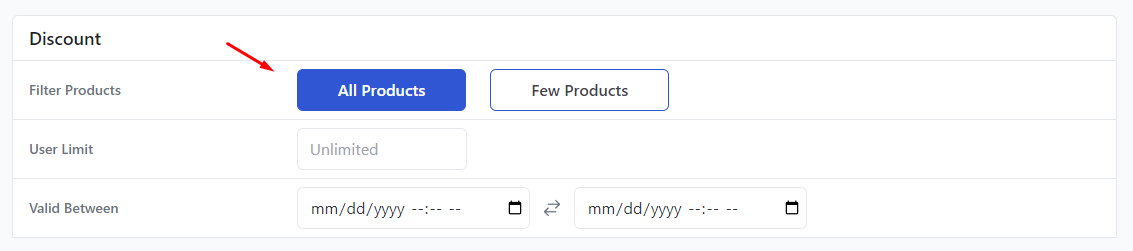
Now, there’s catch here in the Discount section. If you want to offer a free Happy Ninja t-shirt on any 2 other product purchases, select the All Products option.
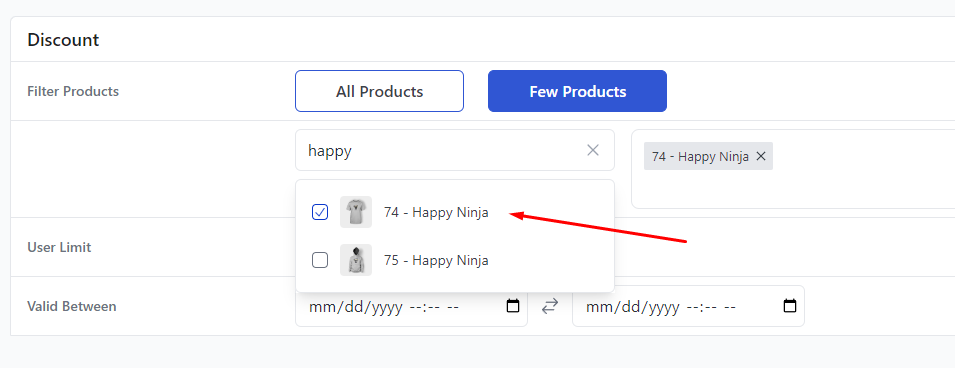
However, if you want to offer the free t-shirt only on 2 purchases of Happy Ninja t-shirt product specifically, then select the Few Products option. Search and select your product.
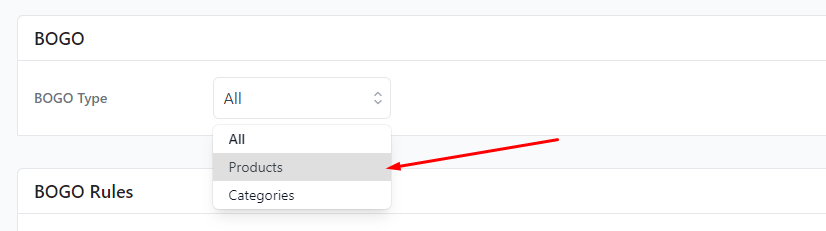
From BOGO Type, select Products.
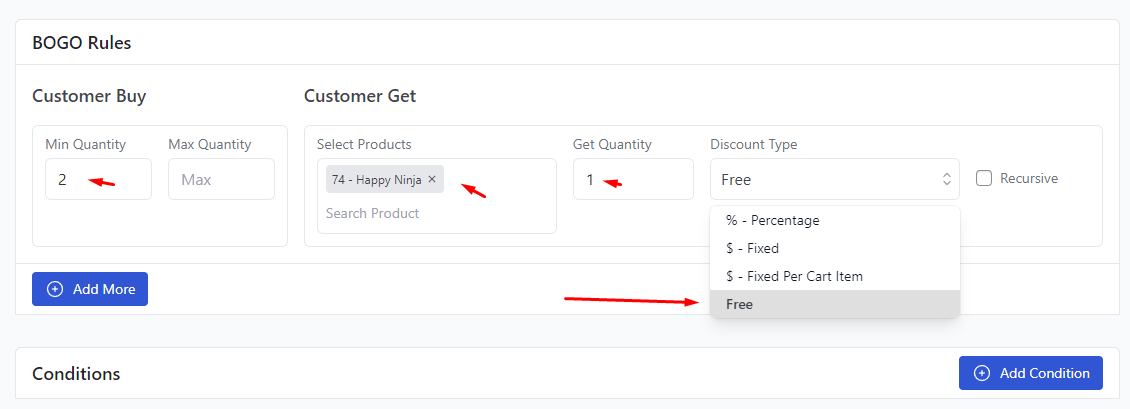
Set minimum quantity, offering product, get quantity, and discount type as you can see below.
How to Create Free Shipping Based WooCommerce Quantity Discounts?
- Example: Free shipping on orders of 5 or more items.
Shipping charges are one of the primary reasons for shoppers abandoning carts. Offering Free Shipping can reduce cart abandonments and improve your overall conversion rates.
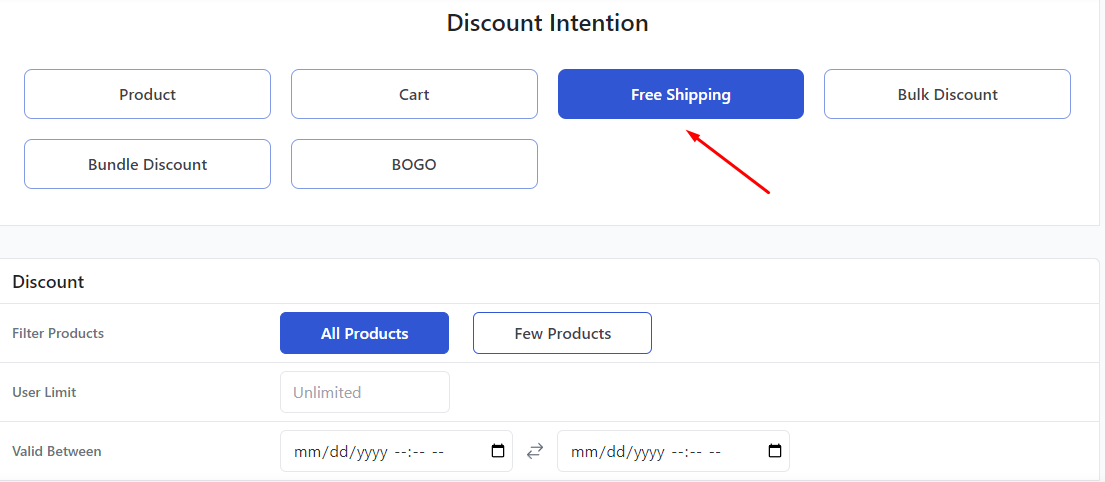
Select the Free Shipping option from the Discount Intention box. We are offering this discount on all products.
This time, we will add and use conditions to the discount rule. Disco allows you to apply a plethora of conditions to extensively personalize your discount strategies to cater to your specific needs.
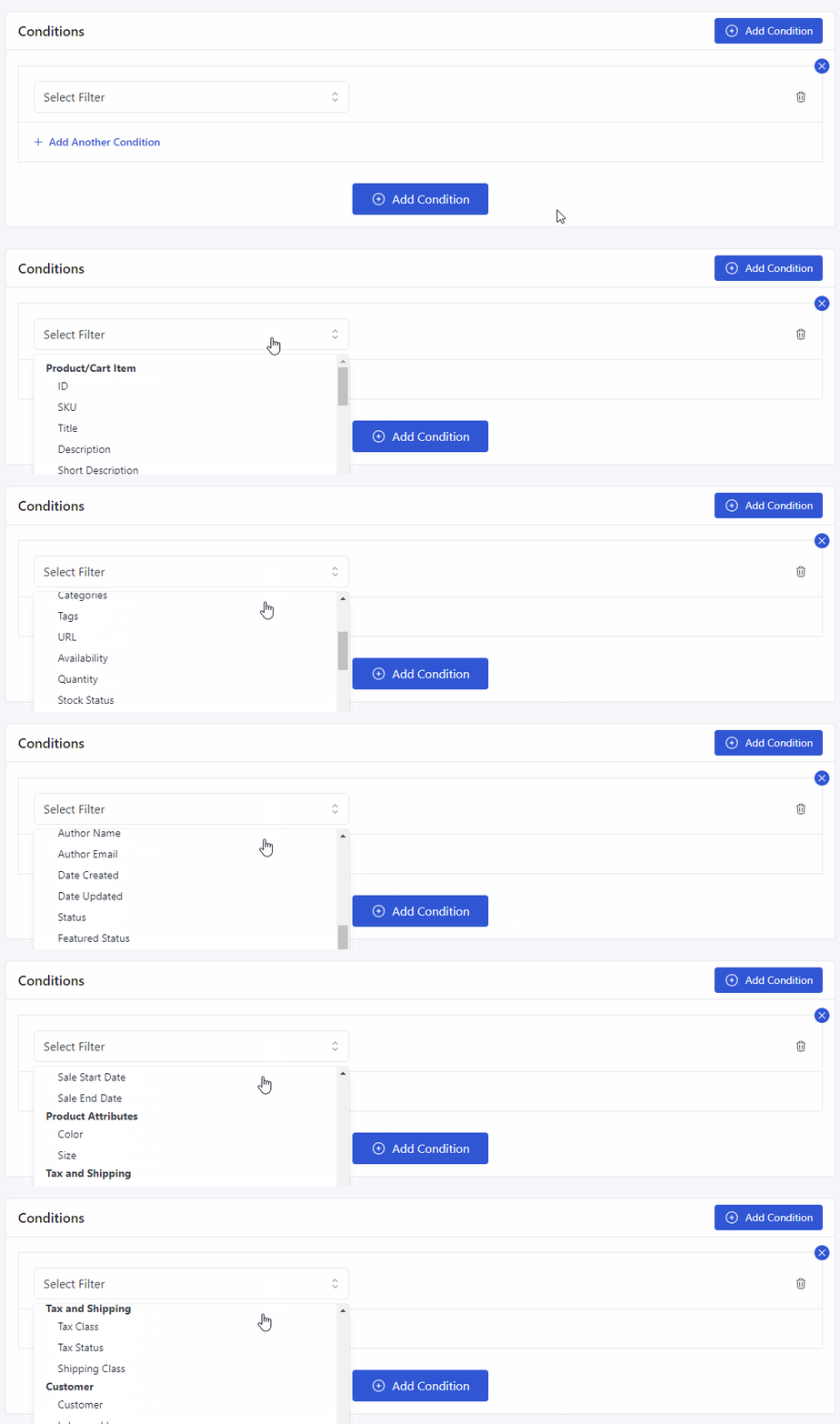
To add a condition, click the following button.
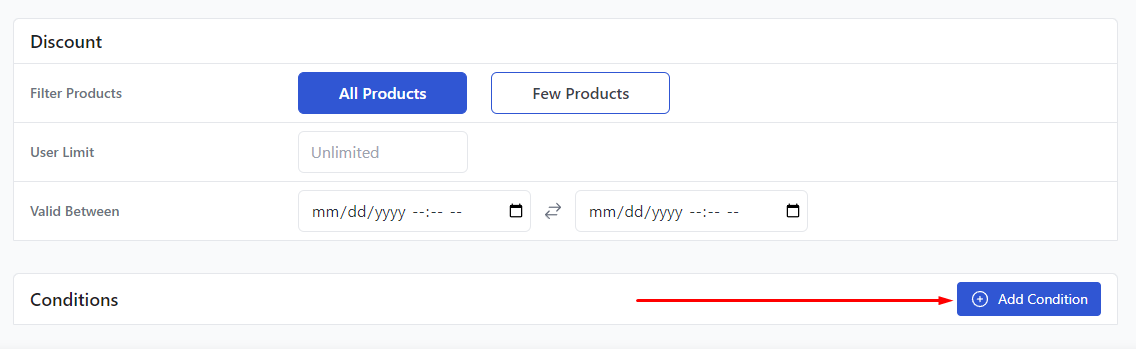
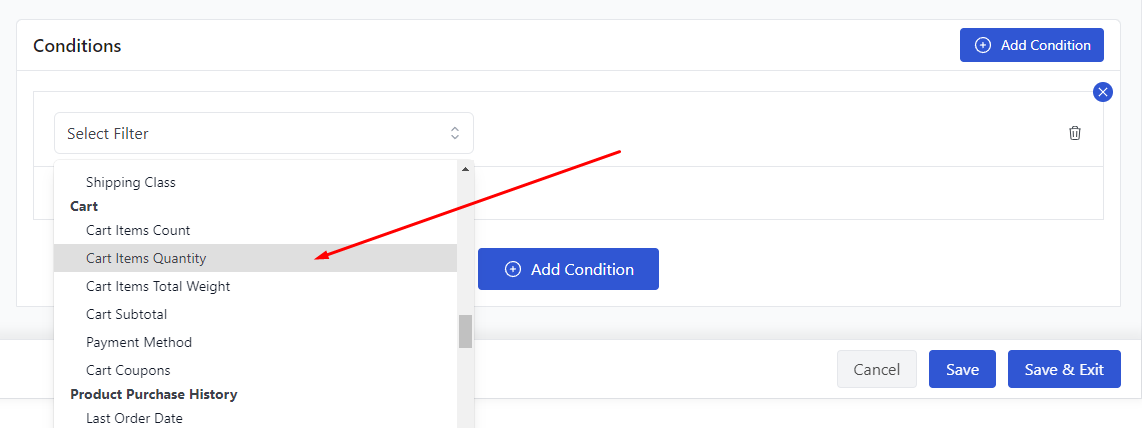
Select the Cart Item Quantity condition from the Filters field.
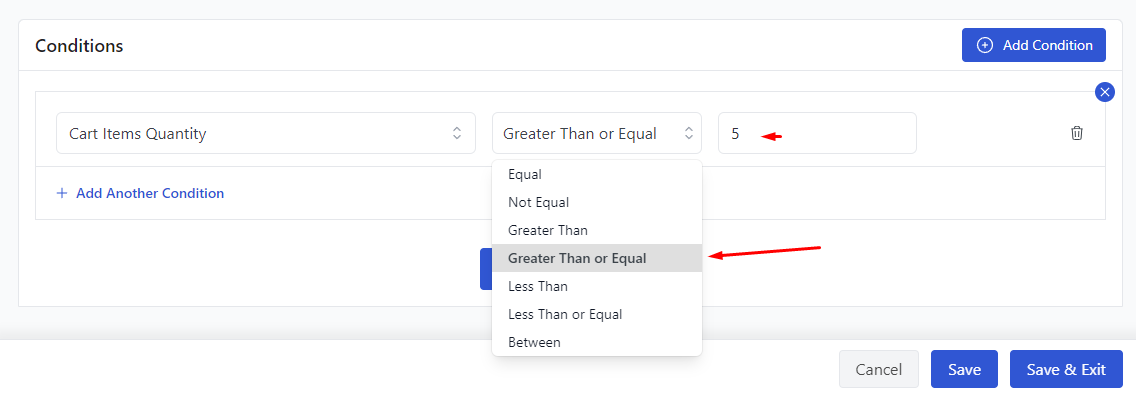
We mentioned the discount is valid for 5 or more products. Therefore, select Greater Than or Equal and input the quantity.
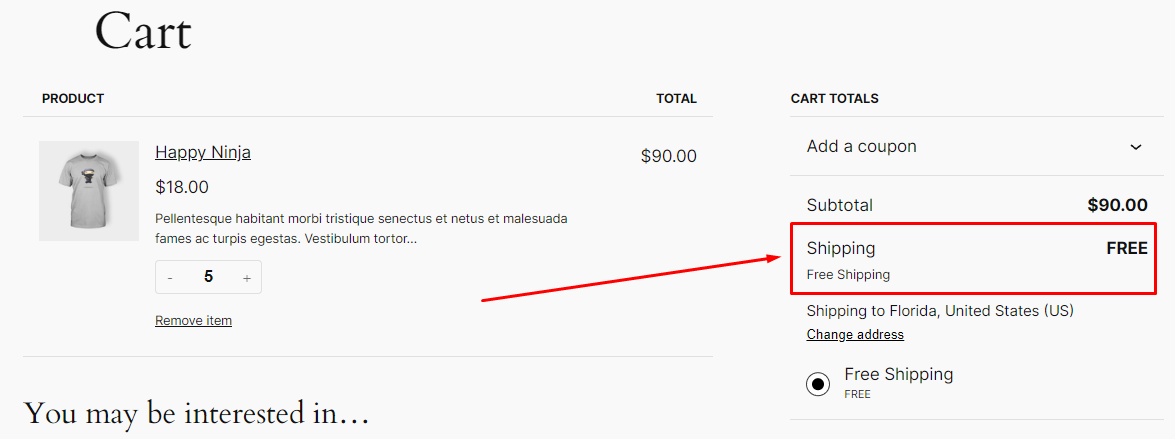
Save the discount rule, then add 5 or more products to the front site. Free shipping will be applied once the threshold is met.
Free Shipping Based on Cart Quantity
- Example: Customers who have previously spent at least $500 will get a 20% discount on their next purchase of three or more products.
Rewarding loyal customers will help you retain them, and WooCommerce quantity discounts can encourage them to buy more from your store and stay loyal to your brand.
We will now create a purchase history-based discount. Let’s take a different approach this time and base this discount rule solely on conditions.
Select the Cart option to make it a WooCommerce cart discount based on quantity and select all products.
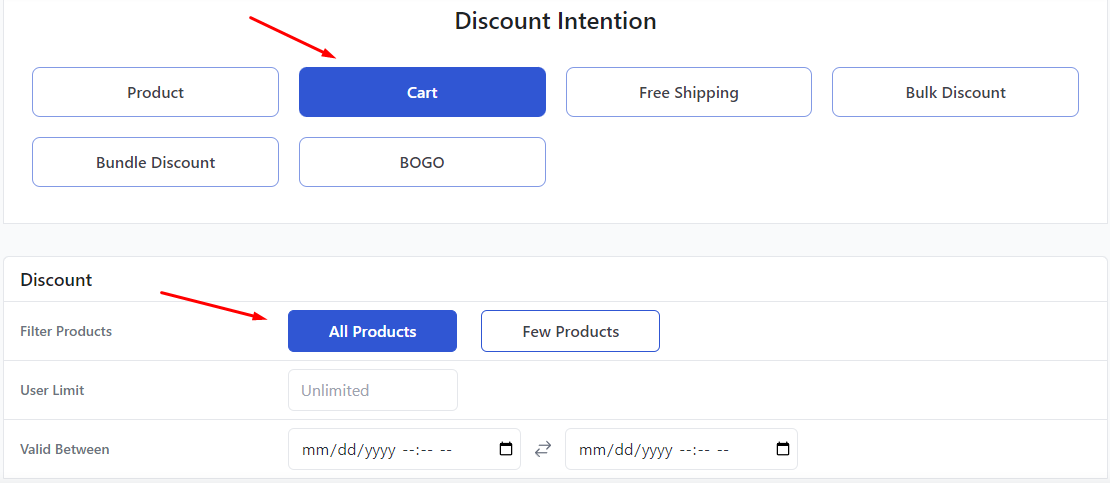
Select the percentage discount type and input the percentage value in the Cart Rules section.
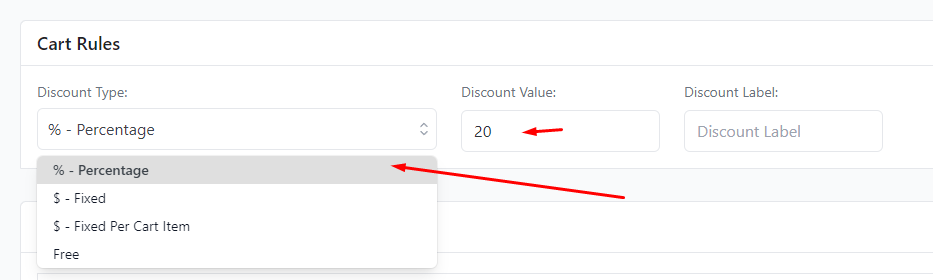
Now, we will add both minimum quantity and minimum purchase amount as conditions. Select the Cart Items Quantity and set it the way we set up in the previous example.
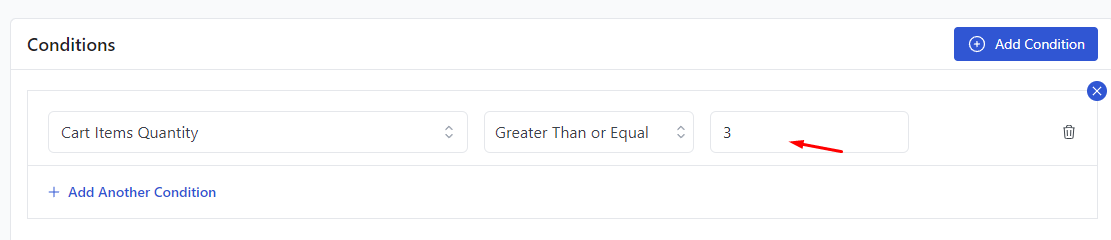
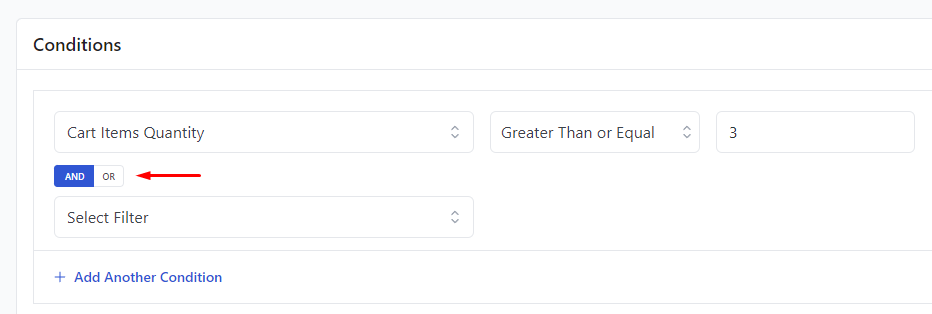
Click on the following link to add another condition.
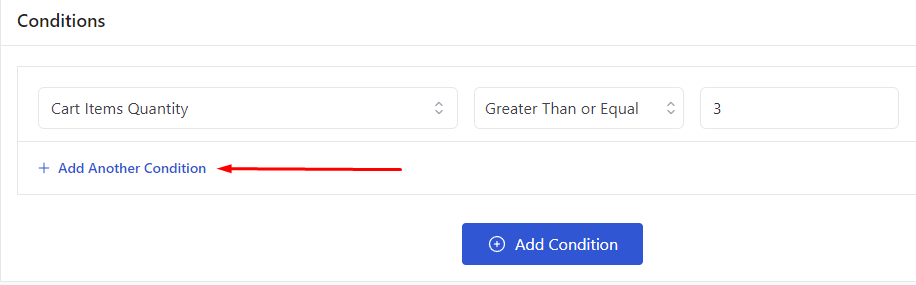
Disco supports both AND and OR types of conditions. Using AND means users must meet both conditions, while OR requires only one condition to be met.
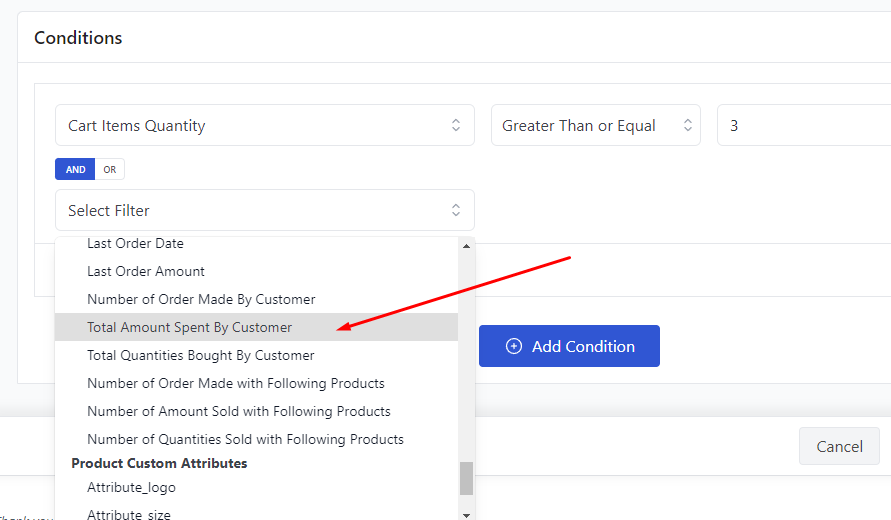
To set WooCommerce quantity discounts based on the $500 previous purchase history, you need to select the Total Amount Spent By Customer condition.
After that, you can set the minimum spent amount along with the Greater Than or Equal option.
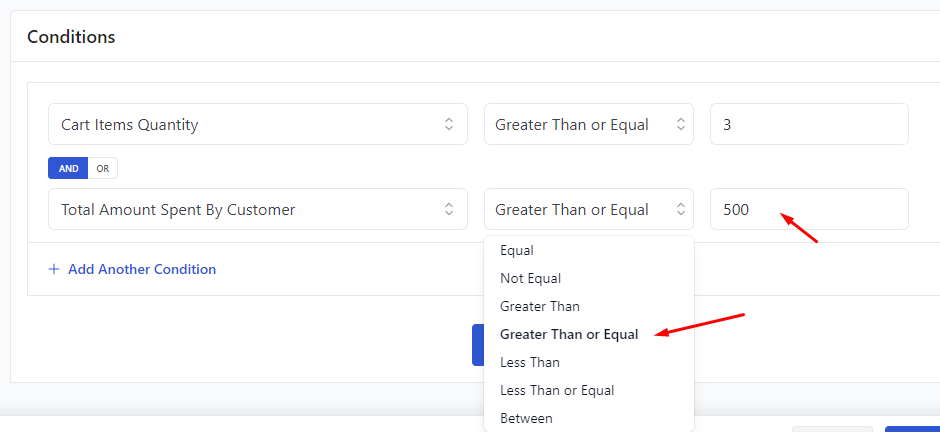
Now, your loyal spending customers can enjoy a 20% discount on their next purchase of three or more products.
Loyalty Discounts Based on Purchase History (Disco Pro)
- Example: 10 USD off for purchasing 5 or more items in the “Hoodie” category.
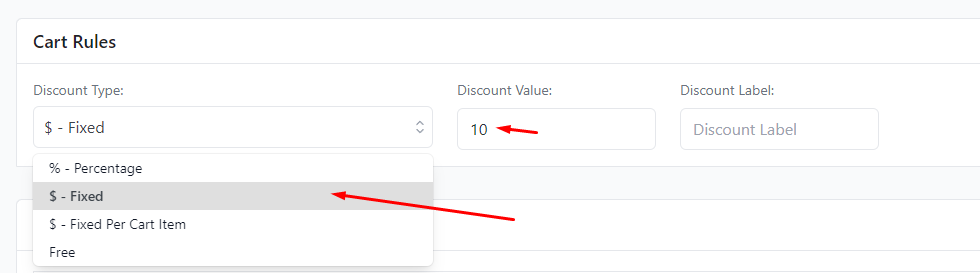
In this case, we want to offer a WooCommerce fixed cart discount based on a fixed quantity and category. Start with the Cart option.
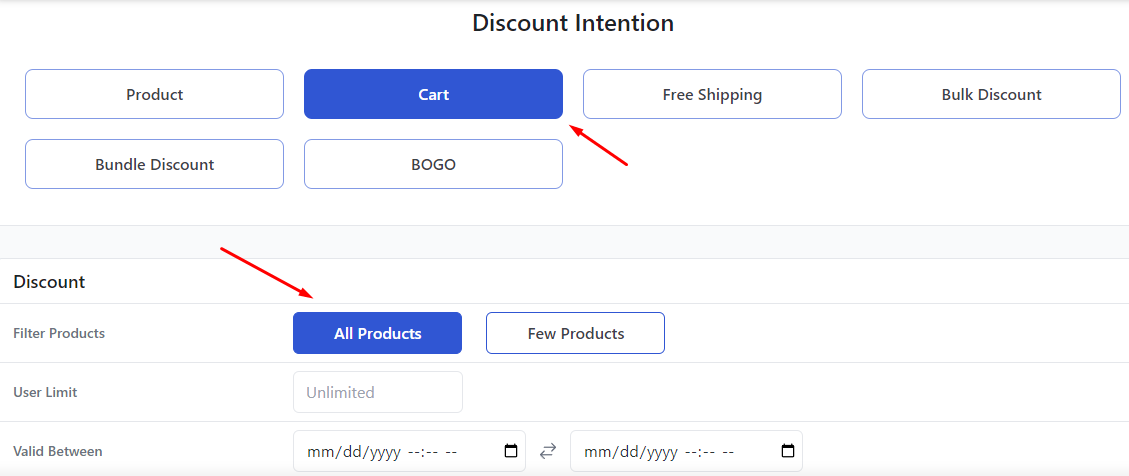
Select the Fixed discount type and enter the discount value in the following section.
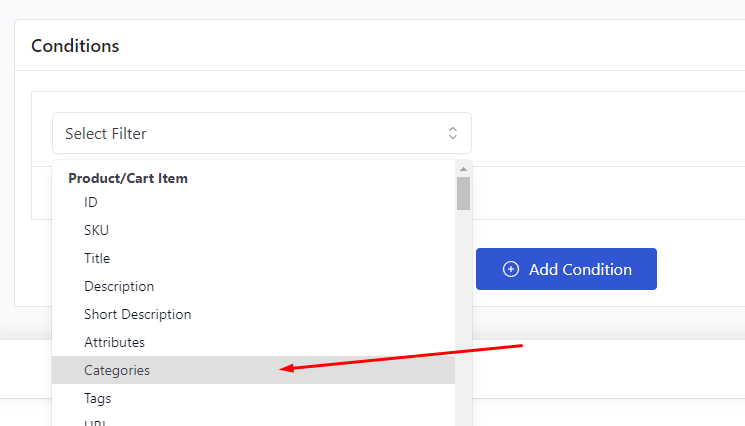
Next, select the Categories condition from the filters.
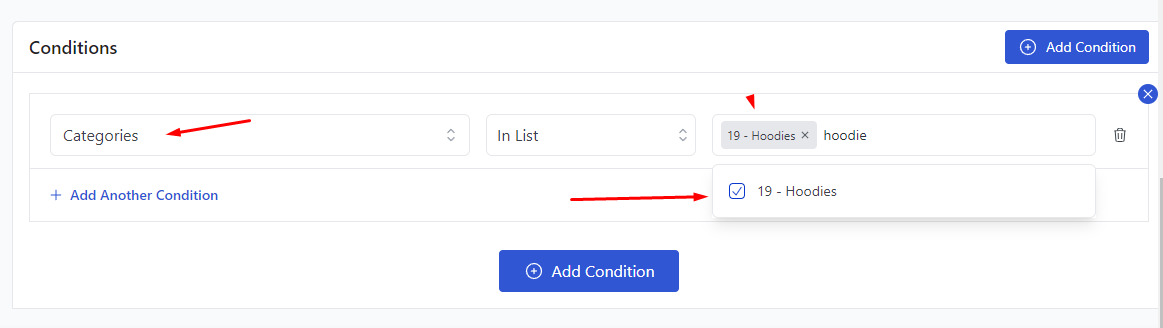
Search and select the ‘’Hoodie’’ category.
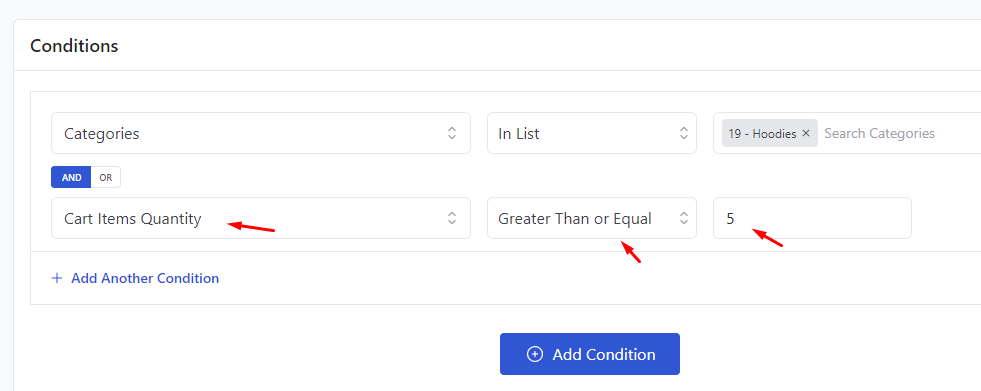
Add the Cart Item Quantity condition and set your minimum quantity.
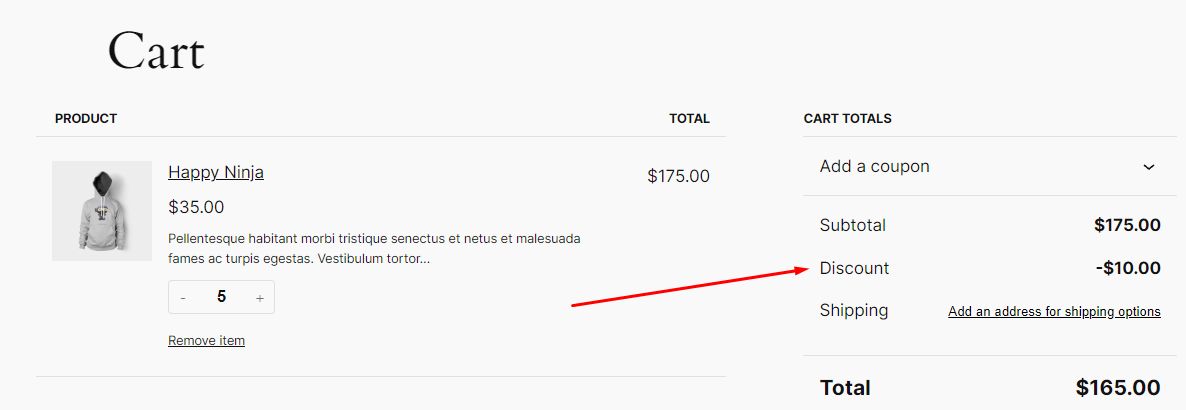
Add some products from the target category in your front store. It should apply the WooCommerce discount product with quantity when all conditions are met.
Category-Based Quantity Discounts
Example: $10 off for buying 5 or more items in the Hoodie category.
Select the Cart discount intention, choose Fixed as the discount type, and enter the discount value. Add a Categories condition and select the target category, then add a Cart Item Quantity condition with your minimum quantity. Save and test by adding qualifying products from that category to the cart.
How to Create WooCommerce Quantity Discounts with Custom Codes?
To offer WooCommerce quantity discounts, you can use custom codes in combination with WooCommerce hooks. Before attempting this method, you must back up your files or use a child theme.
Here’s a step-by-step process to achieve this:
Step 1: Access Your WordPress Admin Panel
- Log in to your WooCommerce WordPress admin panel.
Step 2: Edit the Theme’s Functions File
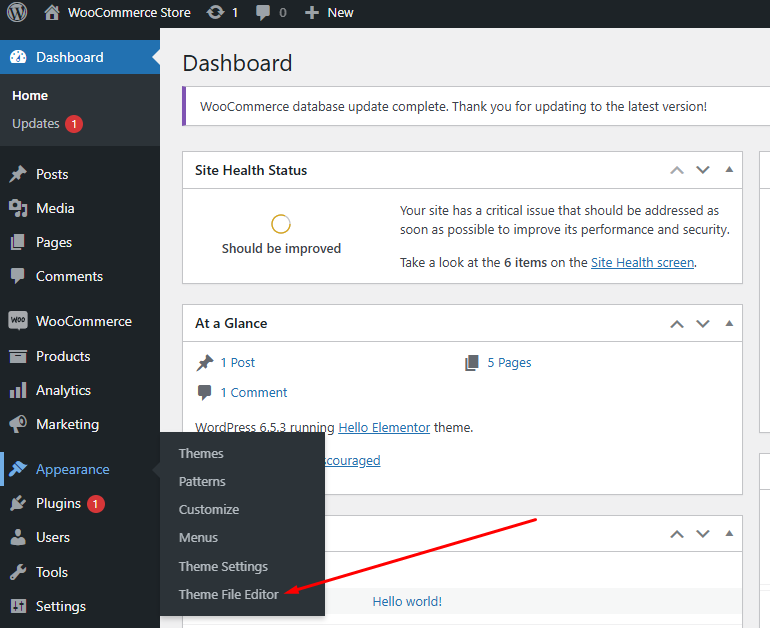
Navigate to Appearance > Theme File Editor.
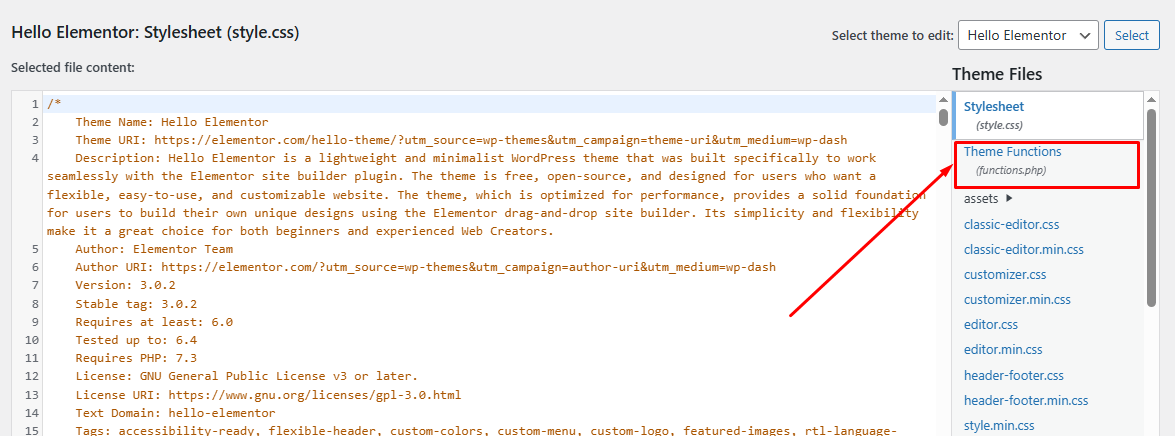
Select the functions.php (Theme Functions) file from the right-hand side.
Step 3: Add Custom Code
Scroll down to the bottom and paste your code to create WooCommerce discount price per quantity and save your changes.
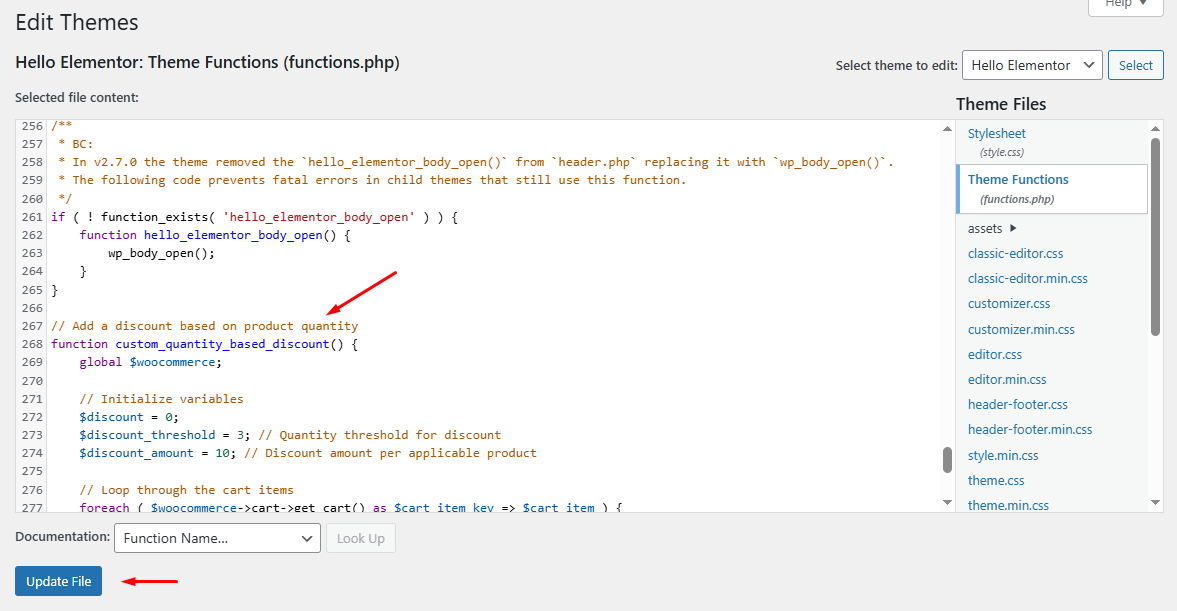
Custom code for WooCommerce discount per quantity
Here’s the code we used –
// Add a discount based on product quantity

function custom_quantity_based_discount() {

global $woocommerce;

// Initialize variables

$discount = 0;

$discount_threshold = 3; // Quantity threshold for discount

$discount_amount = 10; // Discount amount per applicable product

// Loop through the cart items

foreach ( $woocommerce->cart->get_cart() as $cart_item_key => $cart_item ) {

     $quantity = $cart_item['quantity'];

     // Check if quantity meets or exceeds the threshold

     if ( $quantity >= $discount_threshold ) {

         // Calculate discount

         $discount += $discount_amount * floor($quantity / $discount_threshold);

     }

}

// Apply discount if applicable

if ( $discount > 0 ) {

     $woocommerce->cart->add_fee( 'Quantity Discount', -$discount );

}

}

add_action( 'woocommerce_cart_calculate_fees', 'custom_quantity_based_discount' );
Explanation of the Code:
- Initialize Variables: The $discount_threshold variable sets the minimum quantity required to trigger the discount. The $discount_amount variable sets the discount amount for each set of products that meets the threshold.
- Loop Through Cart Items: The code loops through each item in the cart to check the quantity.
- Check Quantity: If the quantity of an item meets or exceeds the threshold, the discount is calculated.
- Apply Discount: The calculated discount is applied to the cart as a negative fee, effectively reducing the total cart amount.
Step 4: Save and Test the WooCommerce Quantity Discount Code
Let’s jump to the front end to test our code. Add 3 products or 3 quantities of any specific product in the cart.
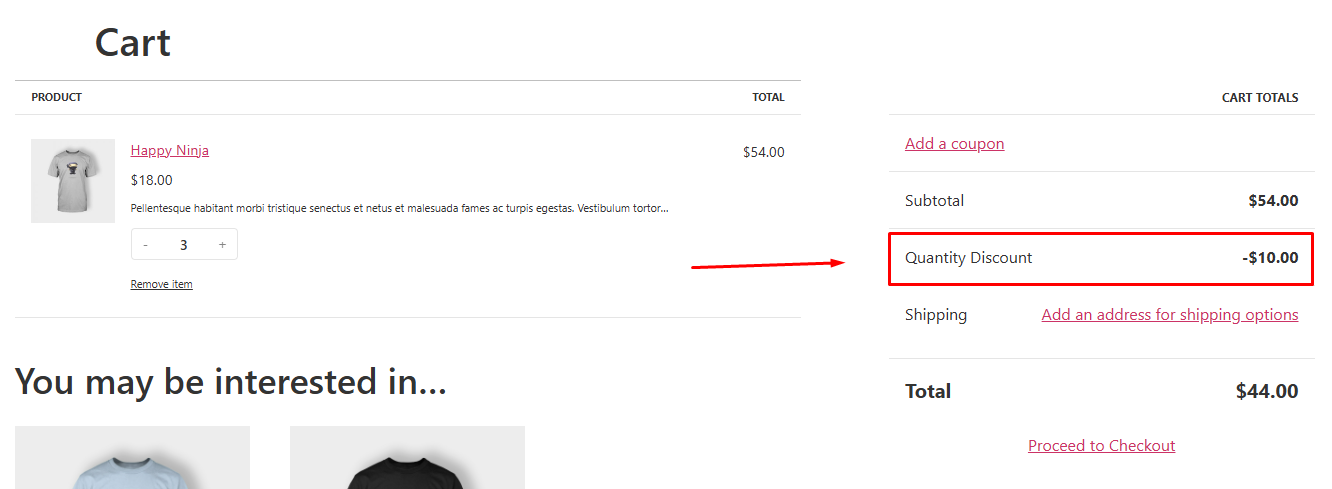
As you can see, a WooCommerce discount for quantity is automatically applied when 3 items are added to the cart. The discount will apply to every 3 items added to the cart.
For example –
- If a customer buys 3 items: They get a $10 discount.
- If a customer buys 6 items: They get a $20 discount.
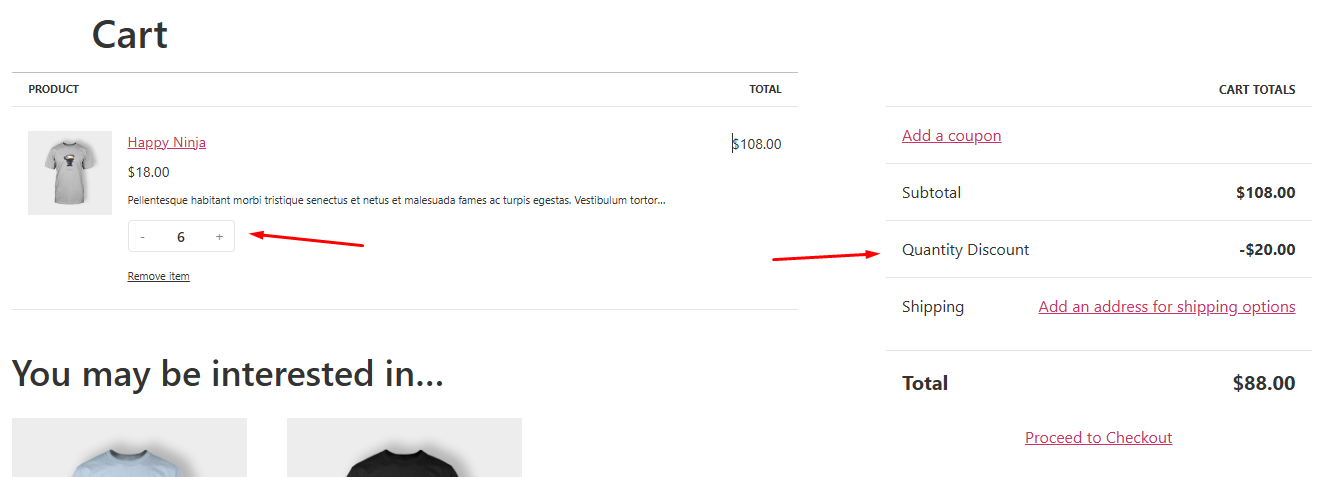
- If a customer buys 9 items: They get a $30 discount.
Best Practices for WooCommerce Quantity Discounts
- Set a realistic margin. Calculate the discount relative to your product cost and competitors’ pricing before publishing a tier, so the offer remains profitable at your highest discount level.
- Cap or limit usage where it matters. For high-margin-risk discounts, limit usage per customer or set a maximum discount amount per order to prevent abuse. In Disco, usage limits are a Pro feature.
- Pair discounts with upsell opportunities. Offer a quantity discount on a product alongside a related item, such as ink when a customer buys a printer, to lift average order value further.
- Track performance before scaling. Monitor sales, average order value, and cart abandonment for a discount rule before extending it to other categories or making it permanent.
- Avoid over-reliance on discounts. Recurring deep discounts can train customers to wait for a sale and erode margins in the long term. Treat quantity discounts as one lever, not the default pricing strategy.
Best WooCommerce Quantity Discount Plugin
Disco is a WooCommerce discount rules plugin that applies discounts automatically based on conditions you set, without requiring customers to enter a coupon code. It handles product, cart, bulk, bundle, and free shipping discounts in its free version, with BOGO deals and customer-history-based conditions available in Disco Pro.
Key Features:
Bulk and tiered quantity discounts: Percentage or fixed discounts across quantity ranges, free.
Cart-based conditions: Discounts based on cart subtotal, item count, or total quantity, free.
Category and product targeting: Apply discounts to specific products, categories, tags, or the whole catalog, free.
Free shipping rules: Conditional free shipping based on cart value or quantity, free.
BOGO and customer-history discounts: Buy-one-get-one deals and purchase-history-based conditions, available in Disco Pro.
At the time of writing, Disco has 700+ active installations on WordPress.org. Check discoplugin.com for current pricing before publishing.
Frequently Asked Questions
What is a quantity discount?
A quantity discount is a price reduction applied when a customer buys a larger amount of a product. It can be a fixed amount, a percentage, or a tiered rate that grows with volume, and it’s typically set up through a plugin like Disco or custom code since WooCommerce doesn’t include this pricing logic natively.
What’s the difference between a quantity discount and a cash discount?
A quantity discount reduces the price based on the number of units a customer buys. A cash discount reduces the price based on the payment method or how quickly an invoice is paid, such as an early-payment discount, and has nothing to do with order volume.
Is the WooCommerce quantity discount feature free?
Yes, for bulk and tiered quantity discounts. Disco’s free version covers bulk, tiered, cart, product, category, and free shipping discounts. BOGO deals and discounts based on a customer’s purchase history require Disco Pro.
Can I set different discount tiers for different quantities in WooCommerce?
Yes. Disco’s Bulk Discount option lets you add multiple quantity ranges, each with its own percentage or fixed discount, using the Add More button when creating the rule.
Does WooCommerce support volume discounts without a plugin?
Not natively. You can add a custom function to your theme’s functions.php file to apply a fee reduction based on cart quantity, as shown above, but this requires editing theme code and testing carefully.
Key Takeaways
- Quantity discounts reduce per-unit price as purchase volume increases, using fixed, percentage, or tiered pricing.
- WooCommerce has no native quantity discount feature. Use a plugin like Disco or a custom code snippet.
- Disco’s free version covers bulk, tiered, cart, category, and free shipping discounts. BOGO and purchase-history-based discounts need Disco Pro.
- Tiered discounts, seasonal promotions, category-based rules, and loyalty discounts can all be built from the same Bulk or Cart discount intentions.
- Set realistic discount margins and usage limits before scaling a rule store-wide.
- Custom code offers a no-plugin alternative but requires a backup and careful testing.

Free version on WordPress.org. Every Pro licence includes a 30-day money-back guarantee.

