You can set a Minimum Order Quantity (MOQ) in WooCommerce by using a plugin or custom code to define the lowest number of items a customer must buy before checkout. This helps store owners maintain profit margins, manage bulk sales, and control inventory effectively.
Tired of customers ordering single socks? Set minimum orders and say goodbye to pocket-change purchases!
Think of Minimum Order Quantity (MOQ) as your store’s “no small fries” rule. It’s the fewest items (or the lowest dollar amount) customers must buy to check out. Why bother?
- Stops money-losing tiny orders: Protects your margins from transaction fees and fulfillment labor.
- Encourages bigger baskets: Effortlessly raises your Average Order Value (AOV).
- Simplifies shipping & packing headaches: Makes box sizes and courier rates highly predictable.
Unfortunately, core WooCommerce does not include built-in settings to configure minimum order quantities per product out of the box. Thankfully, the platform is incredibly flexible.
You can set an MOQ in your WooCommerce store in three ways:
- Using a free WooCommerce quantity manager plugin
- Writing stable custom PHP codes
- Offering dynamic “buy more, save more” bulk incentives
Method 1: Use a Free WooCommerce Min/Max Plugin
Using a plugin is the safest and fastest option for non-technical merchants. For this demonstration, we will use the free plugin Min Max Control (Min Max Quantity & Step Control for WooCommerce).
Step 1: Install the Plugin
To install the WooCommerce min max quantity plugin free,
- Navigate to Plugins > Add Plugin from your WordPress dashboard.
- Search for the plugin.
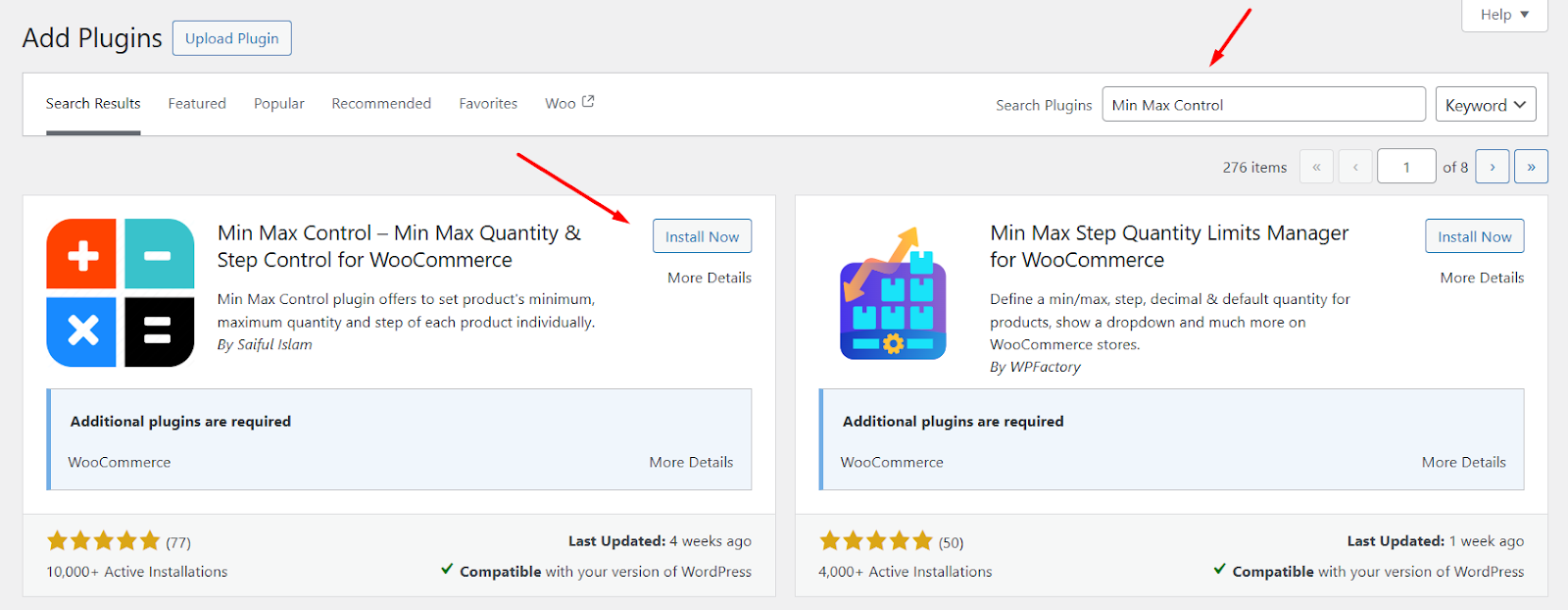
- Install and then activate it.
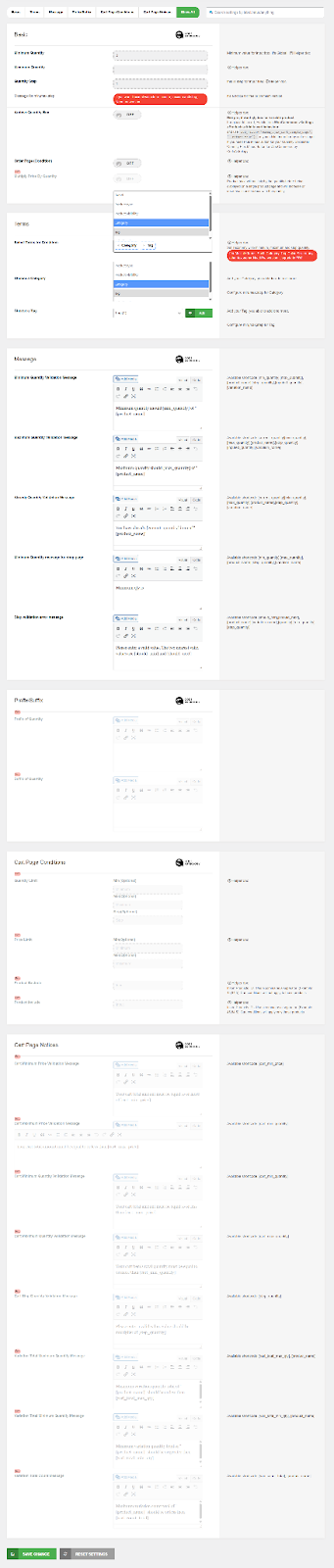
Step 2: Configure Global Minimum Order Quantity
- Go to the Min Max Control menu from the dashboard.
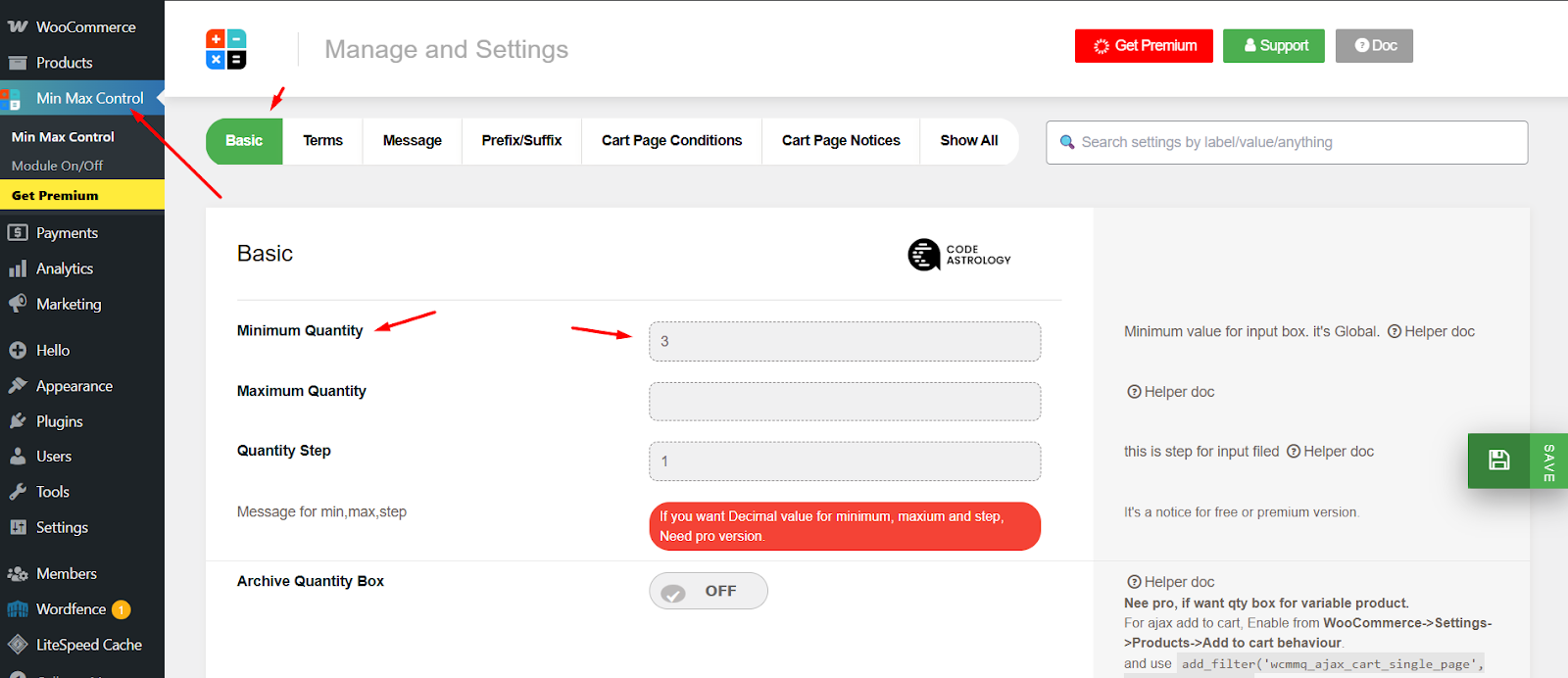
- Input your target minimum quantity in the dedicated Minimum Quantity box. For example, we have input 3.
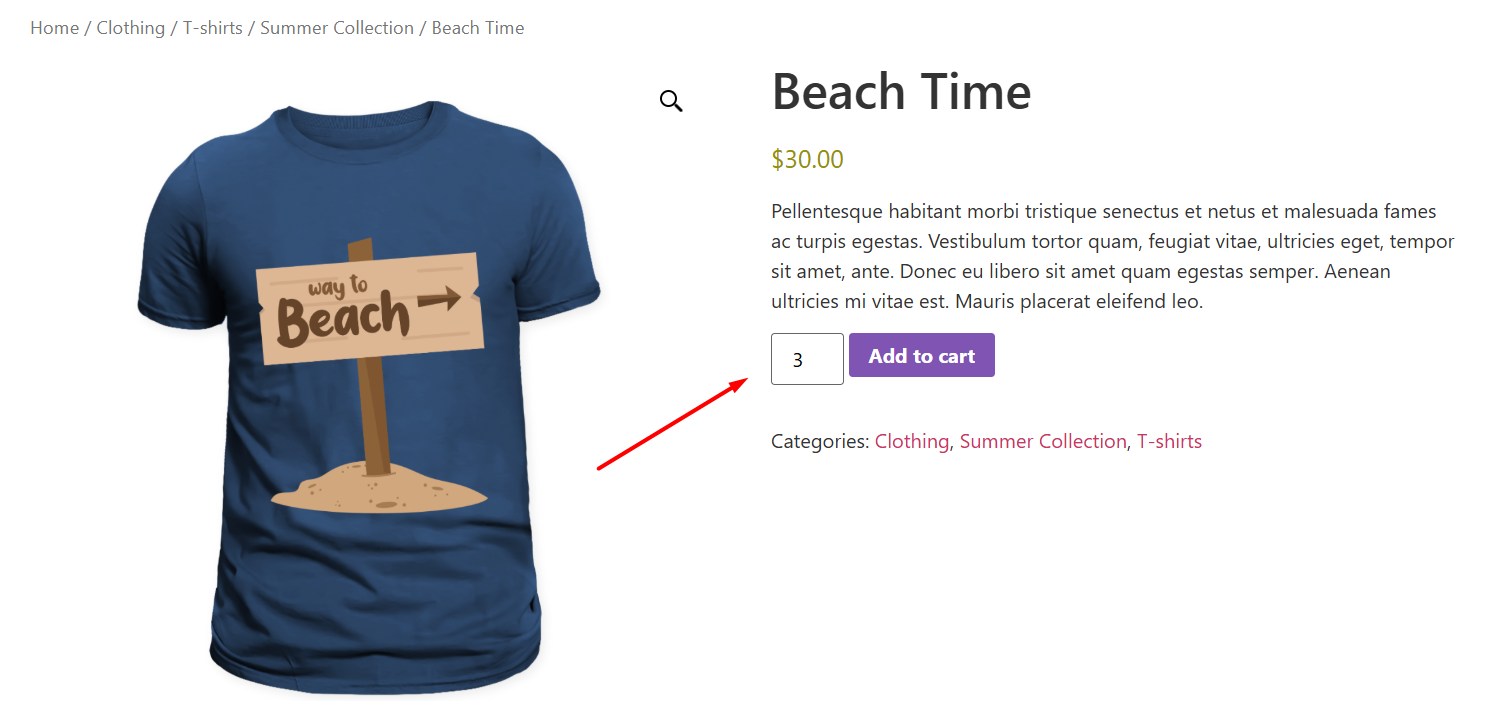
- Save and jump to any product page. It should be set to display a minimum quantity of 3 by default.
- In the Quantity Step field, you can define how the quantity increases. For example, if you set it to 2, customers will only be able to select quantities in increments of 2, such as 3, 5, 7, and so on.
- You can set WooCommerce max quantity per product programmatically using the Maximum Quantity box.
- Additionally, you can filter your target products by different terms and set min max default quantity WooCommerce messages.
Step 3: Set Minimum Order Quantity in WooCommerce for Individual Product
- Go to your target product page and get inside the edit window.
- Scroll down to the Product Data section and click the Min Max & Step tab.
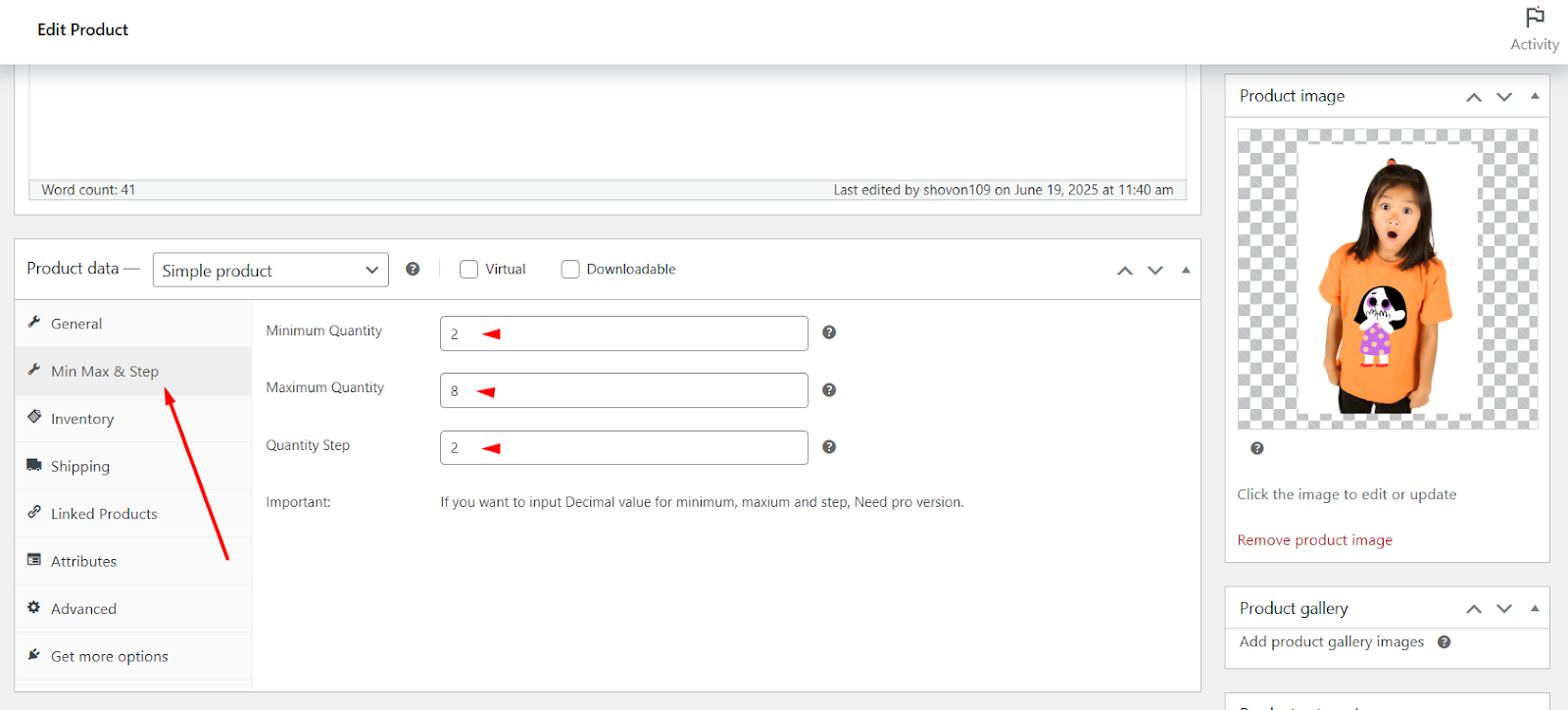
- Enter your minimum, maximum, and step quantity for that product.
- Update the product and test from the front.
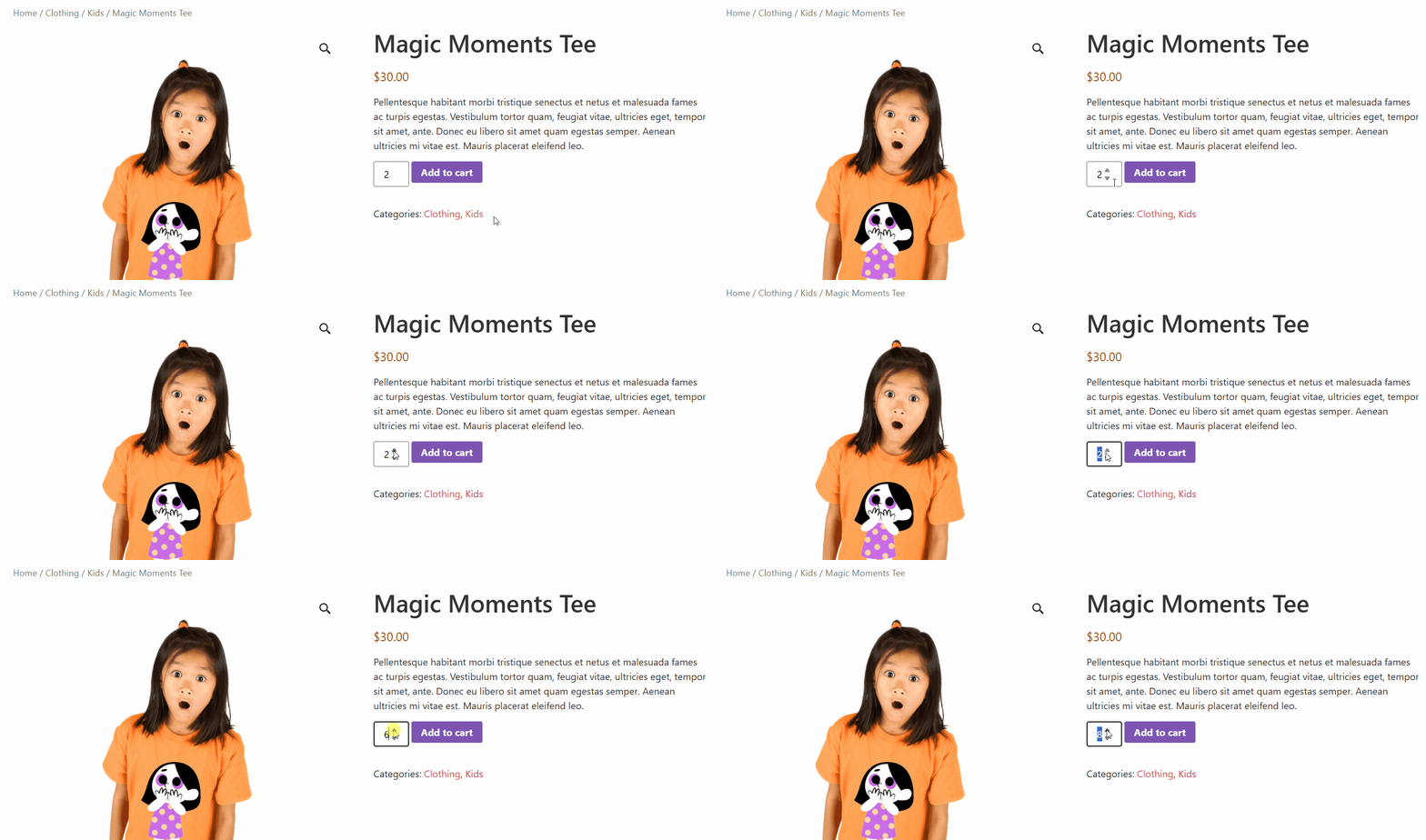
That’s it. This is how to set minimum order quantity in WooCommerce. Pretty simple, right?
However, for advanced features like cart-based conditions, you will need to buy the pro version of the plugin. But, there’s one way that doesn’t cost you anything, yet you can achieve all advanced and custom features as per your needs.
Custom coding – that’s what we will cover next.
Method 2: Set Minimum Order Limits Using Custom Code
Applying custom code instead of an MOQ plugin gives you absolute control over your store’s performance without adding plugin bloat.
Important: Most code snippets found online only show a visual message using wc_add_notice(), but they fail to actually block the purchase! The production-ready snippets below hook directly into both woocommerce_check_cart_items and woocommerce_checkout_process to completely stop a user from finalizing an illegal order.
Paste these snippets at the bottom of your child theme’s functions.php file or via a code snippets plugin:
Step 1: Back Up/ Create a Child Theme
- If you insert code directly in your theme file (not recommended), make sure you back up your entire site. In case the site breaks due to code, you can restore it.
- The best method is to create a child theme. If you are familiar with the process, create a child theme.
Step 2: Add Custom Code
First, we will apply a code that requires customers to add minimum 5 items to the cart, regardless of product type or category. This means customers must add any five items from your store to complete the purchase.
- Go to Appearance > Theme File Editor > functions.php or your child theme’s functions.php.
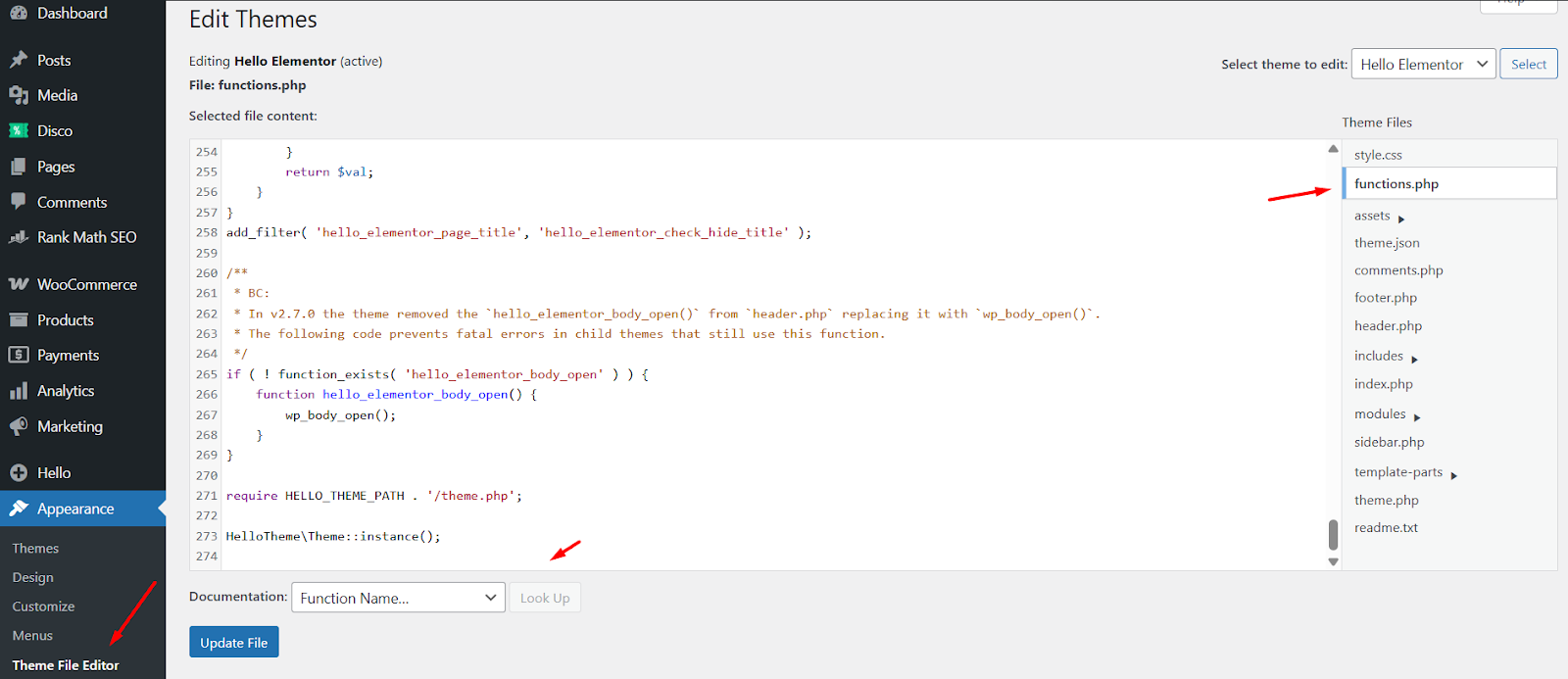
- Insert the following code at the bottom.
// Set global minimum quantity in WooCommerce cart

add_action('woocommerce_check_cart_items', 'custom_minimum_order_quantity');

function custom_minimum_order_quantity() {

$min_quantity = 5; // Minimum total quantity required

$cart_quantity = WC()->cart->get_cart_contents_count();

if ($cart_quantity < $min_quantity) {

     wc_add_notice(

         sprintf(__('You must order at least %s items to proceed to checkout.', 'woocommerce'), $min_quantity),

         'error'

     );

}

}
What it does:
This code checks if the total cart quantity is below your minimum (5 in this example). If so, it shows an error message and prevents checkout.
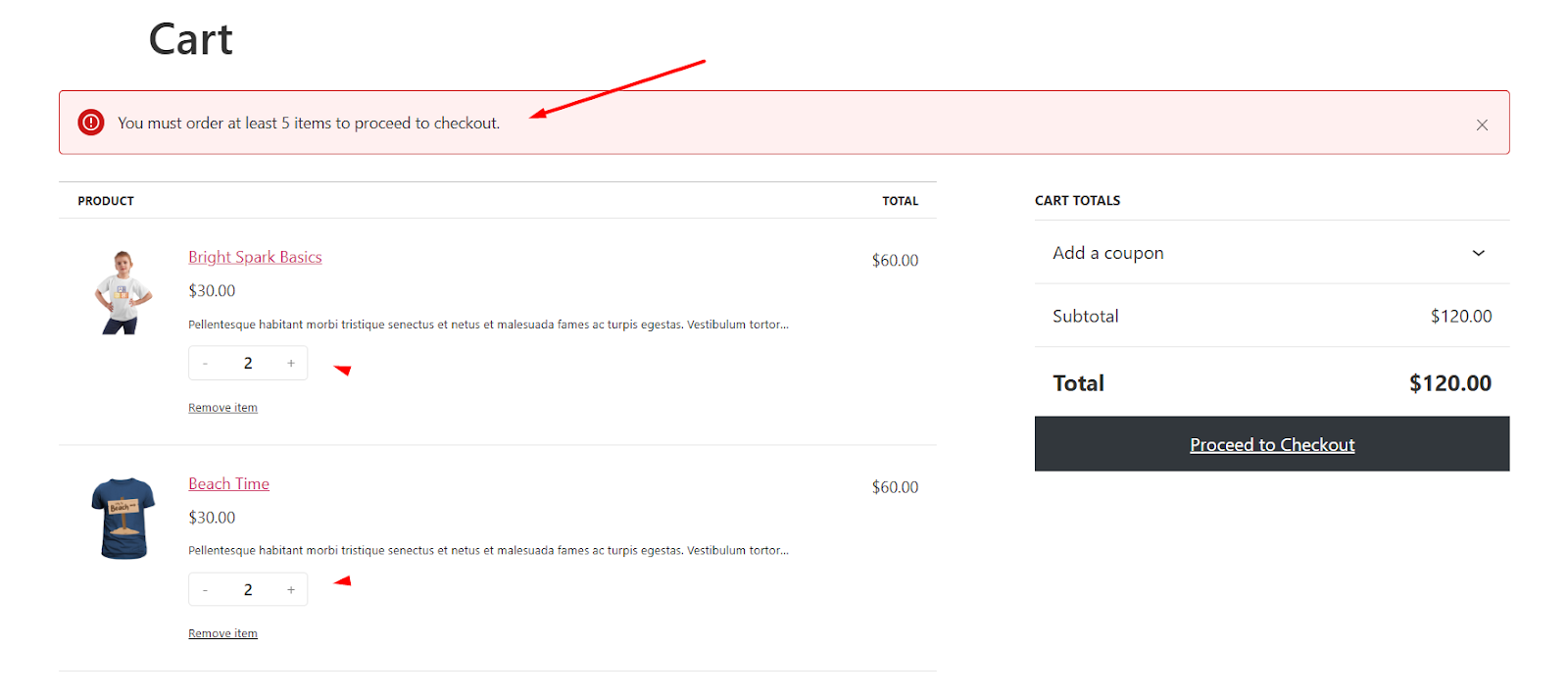
Step 3: Set Minimum Quantity Per Product
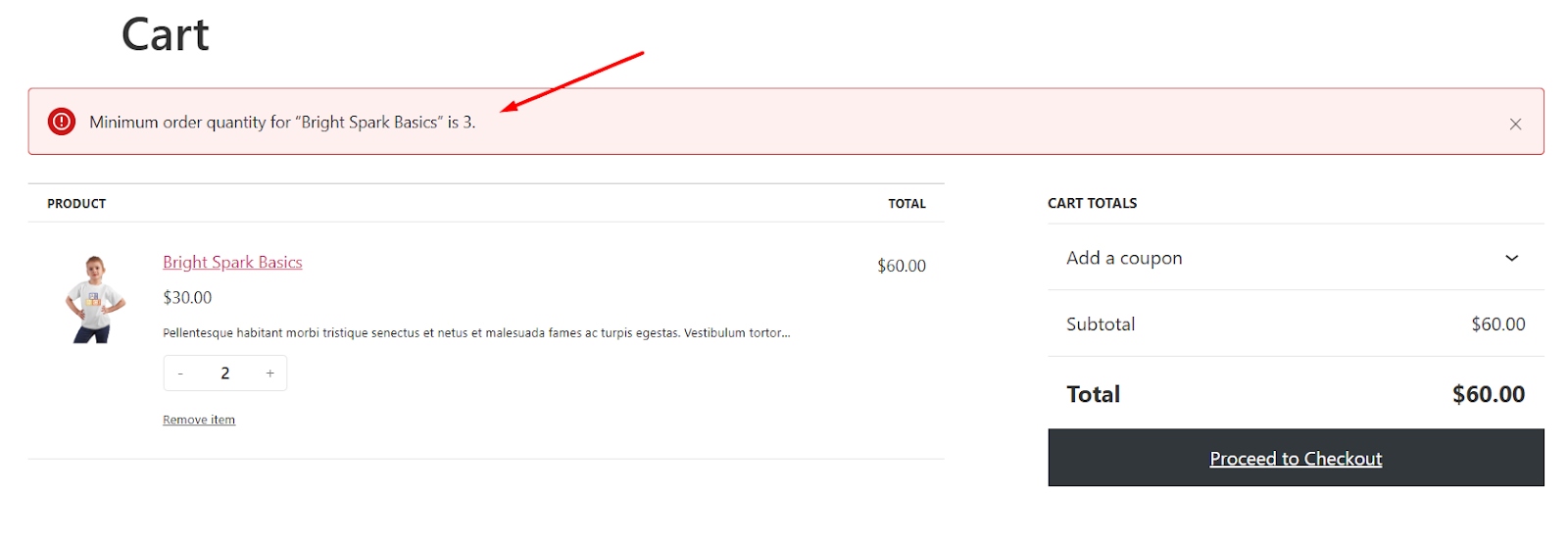
This time, we will use code that applies the MOQ rule to individual products, not to the cart quantity total, like what was applied with the plugin. To enforce a WooCommerce minimum order quantity per product (not cart-wide), use this version:
// Enforce minimum quantity per product

add_action('woocommerce_check_cart_items', 'custom_min_quantity_per_product');

function custom_min_quantity_per_product() {

foreach (WC()->cart->get_cart() as $cart_item) {

     $product_id = $cart_item['product_id'];

     $product_name = $cart_item['data']->get_name();

     $quantity = $cart_item['quantity'];

     $min_quantity = 3; // Set minimum per product

     if ($quantity < $min_quantity) {

        wc_add_notice(

             sprintf(__('Minimum order quantity for "%s" is %d.', 'woocommerce'), $product_name, $min_quantity),

             'error'

         );

     }

}

}
This helps when you want to create bulk rules for B2B customers or enforce rules like a minimum purchase for specific products.
Step 4: Combine Quantity Rules with Steps (Increments)
Remember the ‘Step’ in plugin settings? (You define how the quantity increases.)
Want to enforce quantities in steps like 2, 4, 6? Add this filter:
// Enforce quantity step of 2

add_filter('woocommerce_quantity_input_args', 'custom_quantity_step', 10, 2);

function custom_quantity_step($args, $product) {

$args['step'] = 2; // Only allow increments of 2

return $args;

}
Now, quantity fields on product pages and the cart will follow this rule. That’s pretty much how to set minimum order quantity in WooCommerce using code.
Advanced Strategies & Tips
1. Combine Per-Product + Global Rules
- Enforce both per-product minimums and a global minimum cart quantity.
- Be careful to avoid double notices; use has_notice() to suppress duplicates.
2. Apply Role-Based Minimums for Wholesale
// Set minimum quantity only for wholesaler roles

add_action('woocommerce_check_cart_items', 'wholesale_min_quantity');

function wholesale_min_quantity() {

if (current_user_can('wholesaler')) {

     $min_quantity = 20;

     $cart_quantity = WC()->cart->get_cart_contents_count();

     if ($cart_quantity < $min_quantity) {

         wc_add_notice('Wholesalers must order at least 20 units.', 'error');

     }

}

}
Simulates what plugins like WooCommerce WholesaleX Minimum Order Quantity do.
3. Customize Error Messages
Personalize the feedback using product titles, category names, or user roles.
4. Dynamic Quantity Rules by Category
Loop through cart items and apply different rules based on category (e.g., books need 10+, electronics need 2+).
5. Min/Max Default Quantity on Product Pages
add_filter('woocommerce_quantity_input_args', 'set_min_max_quantity', 10, 2);

function set_min_max_quantity($args, $product) {

$args['min_value'] = 5; // Default minimum

$args['max_value'] = 100;

return $args;

}
Final Testing Checklist
- Cart shows an error when quantity is below minimum
- Error disappears after adjusting quantity
- Works with variable products
- Doesn’t interfere with discount rules or coupons
- Compatible with your WooCommerce Quantity Manager plugin or other installed extensions.
Method 3: The Discount Alternative (Swap Force for Incentives)
Forcing customers to buy a specific quantity can sometimes feel like a rigid “buy bulk or get out” ultimatum. For retail stores, this can hurt conversions and spike your cart abandonment rates.
The Solution? Incentives. Instead of blocking checkouts, allure them into bulk sizes by introducing tiered discounts. For this strategy, we use the free plugin (Discount Rules for WooCommerce). It transforms strict rules into an automated “buy more, save more” event.
Target Promotional Setup:
Let’s say you want to offer the following MOQ based discount.
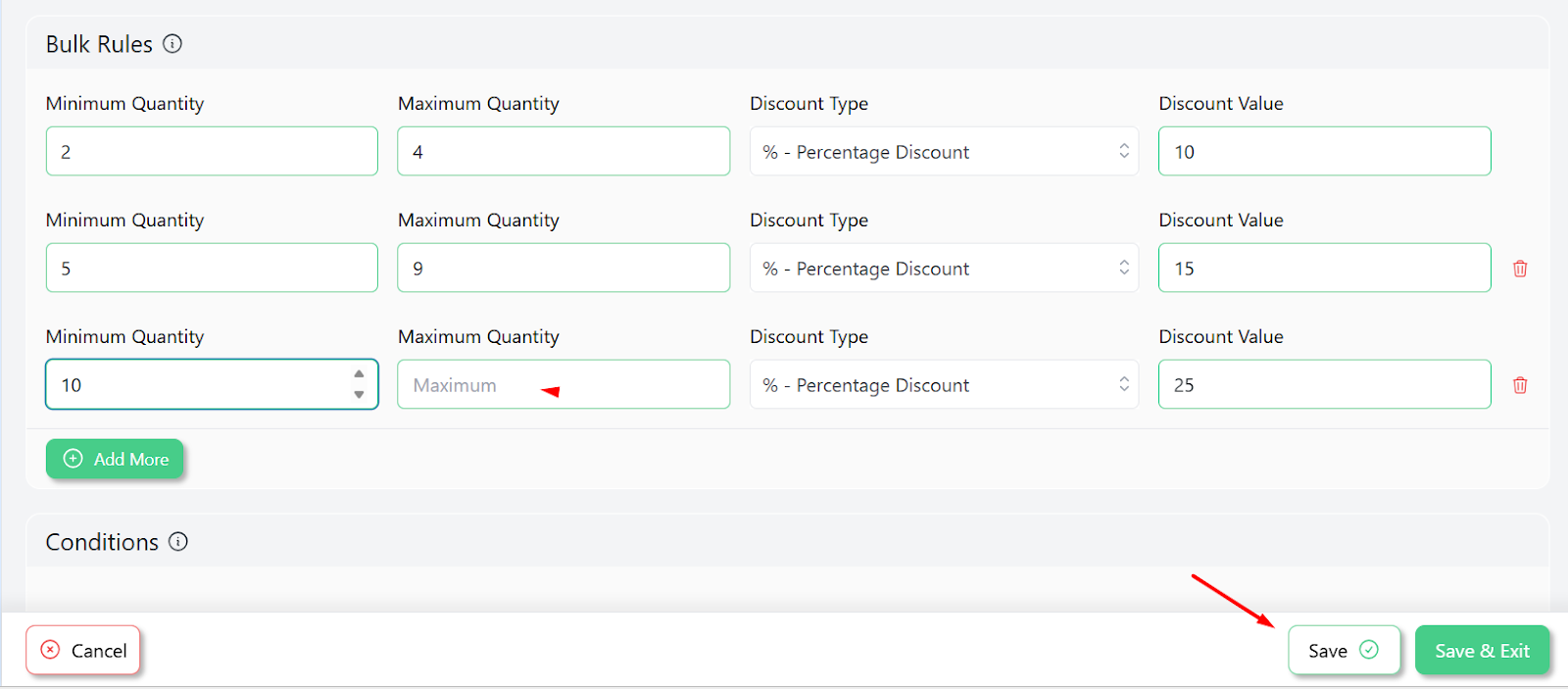
- Buy 2–4 items: Get 10% Off
- Buy 5–9 items: Get 15% Off
- Buy 10+ items: Get 25% Off
To offer such a rule, first install the plugin from the WordPress repository.
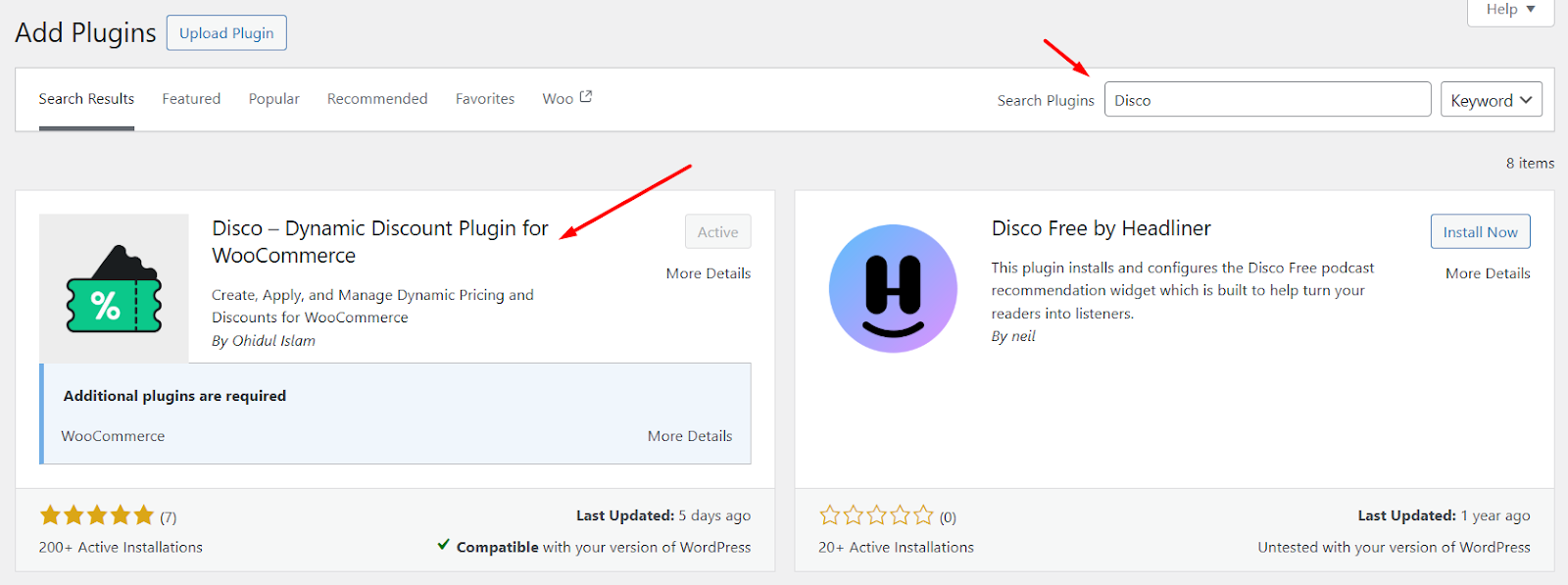
After that, follow these steps.
Step 1: Create a New Discount Campaign
- Go to the Disco dashboard and click the Create a Discount button.
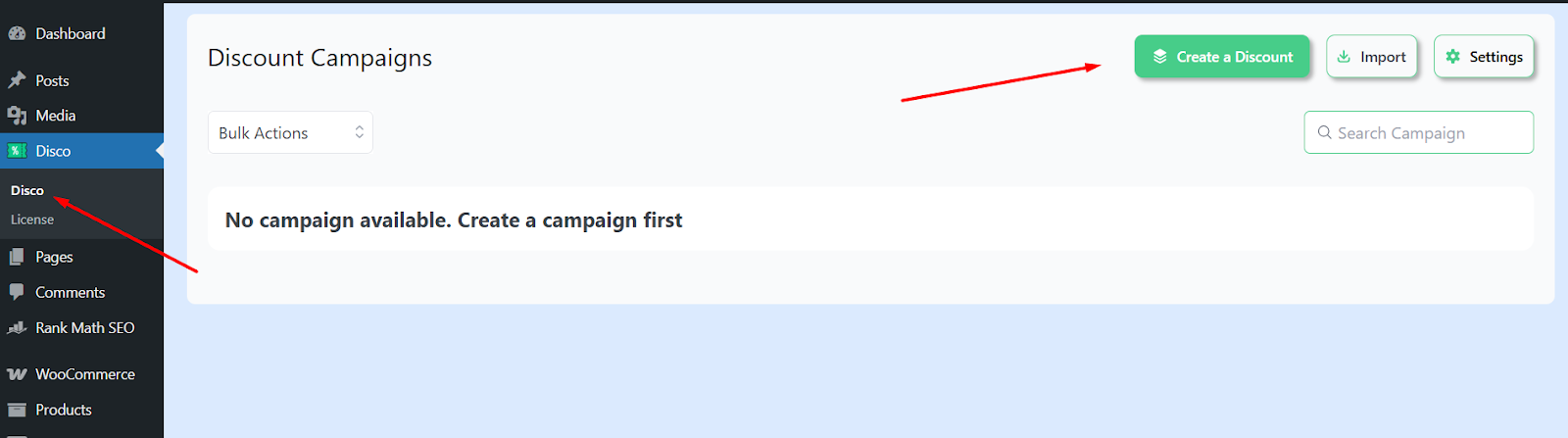
- Select the Bulk discount intent.
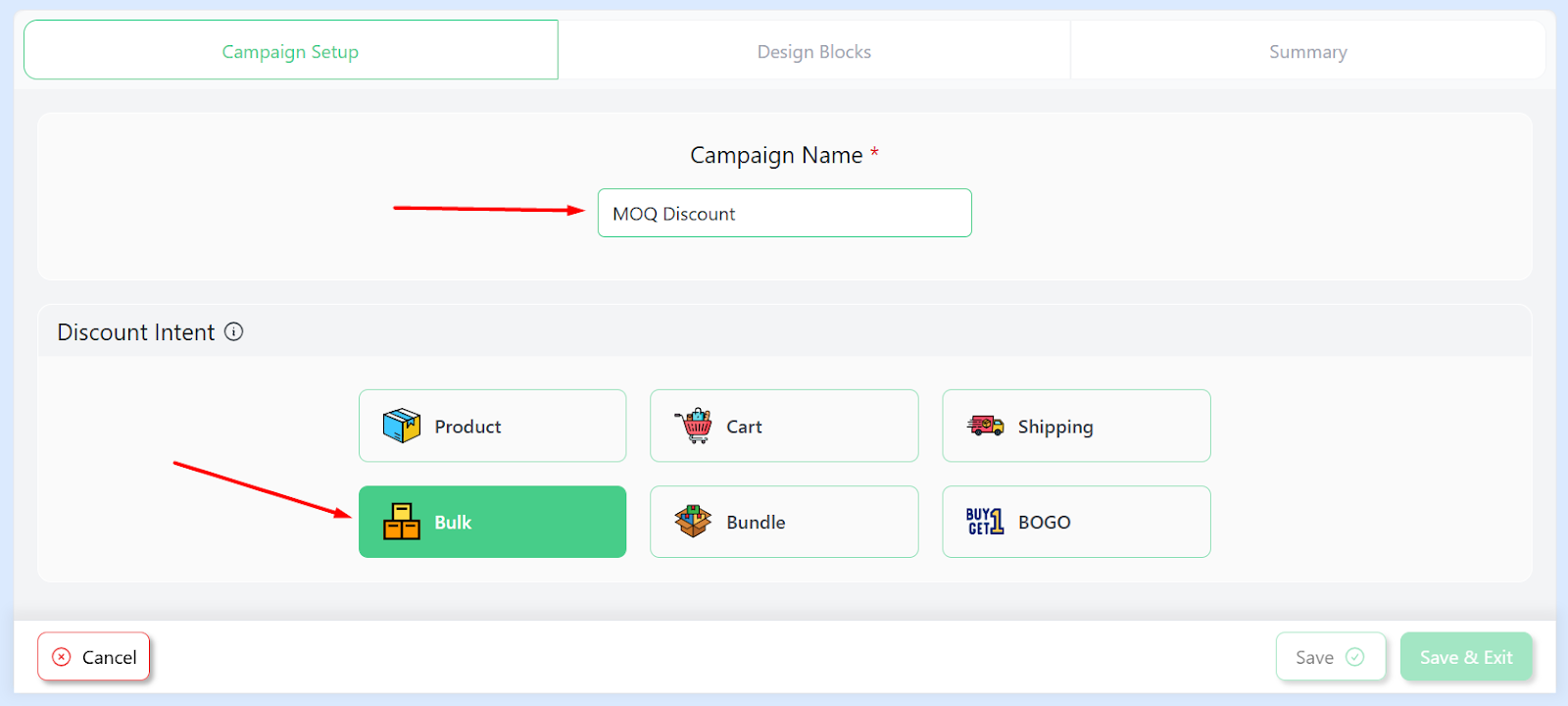
- Give your MOQ discount campaign a name.
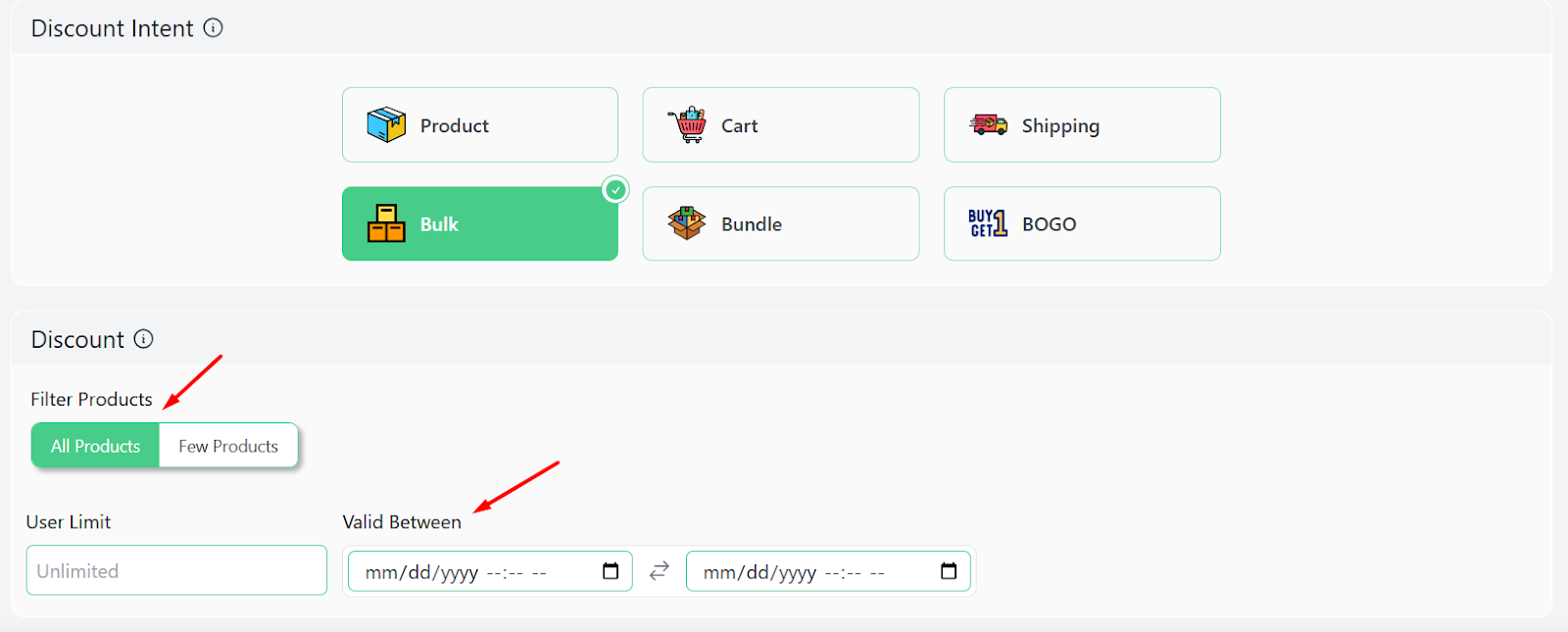
- Specify the products and discount expiry date if you need to.
Step 2: Configure MOQ Rules
- Under Bulk Rules, input 2 in the Minimum Quantity field and 4 in the Maximum Quantity field as per our strategy.
- Select the Percentage discount type and enter the value.
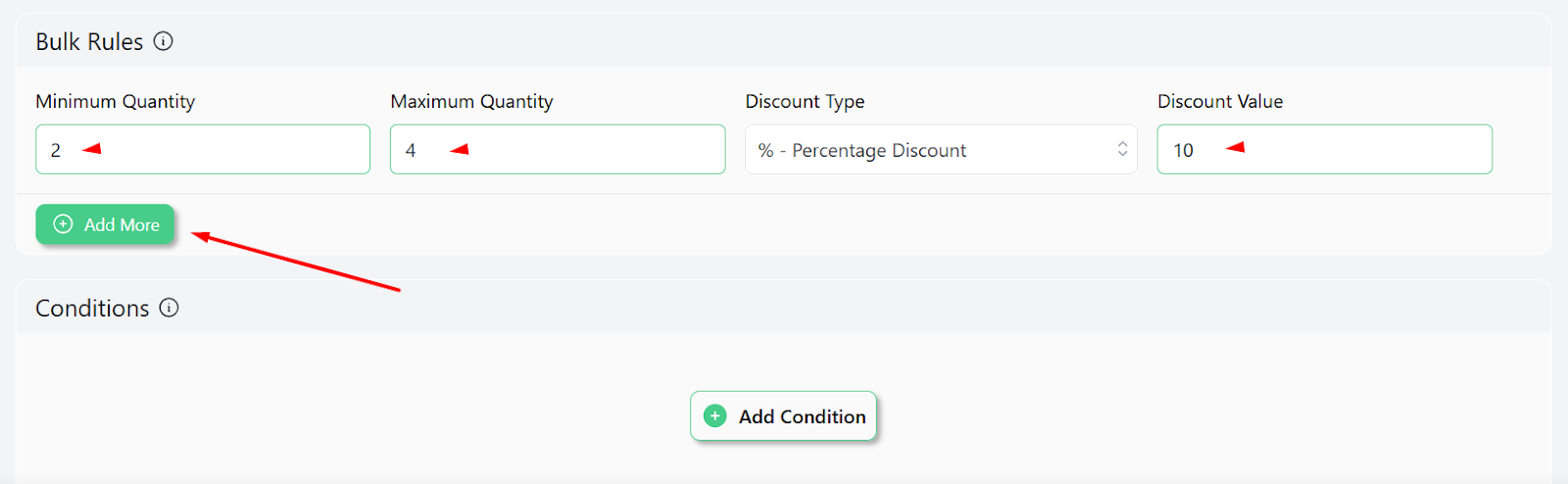
- Click Add More twice to add 2 new rows.
- Enter the rest of the values.
Step 3: Save and Test
- Click the Save button to enable your discount rule.
- Test by adding products to your cart. Here’s the result for 2-4 products.
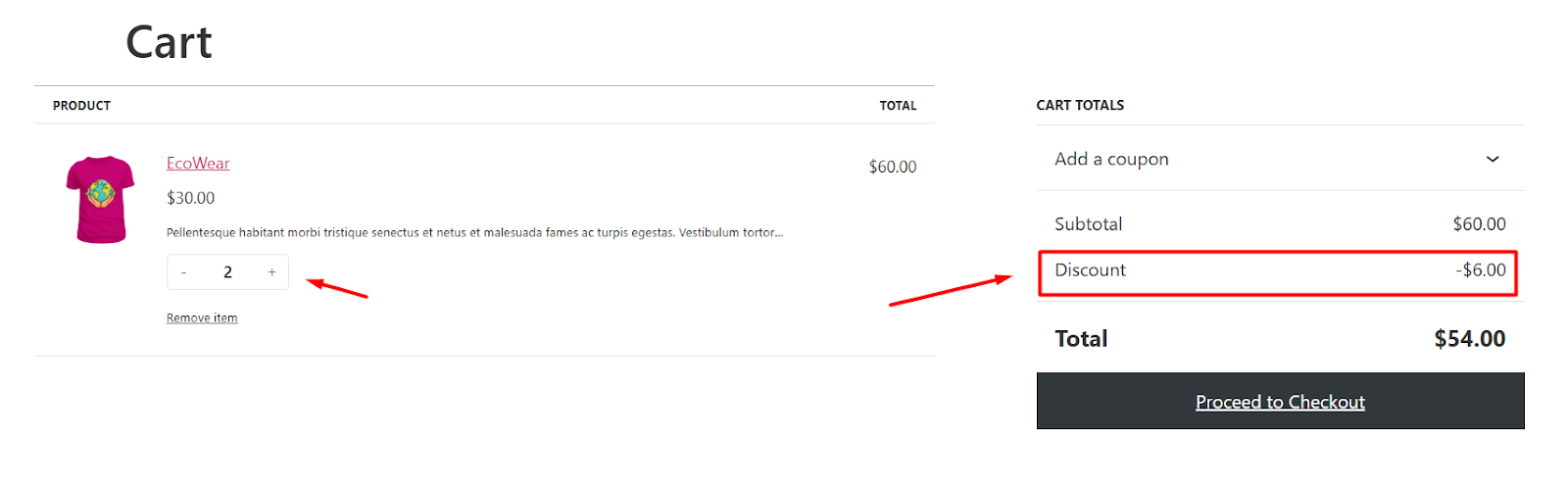
- For 5-9 products –
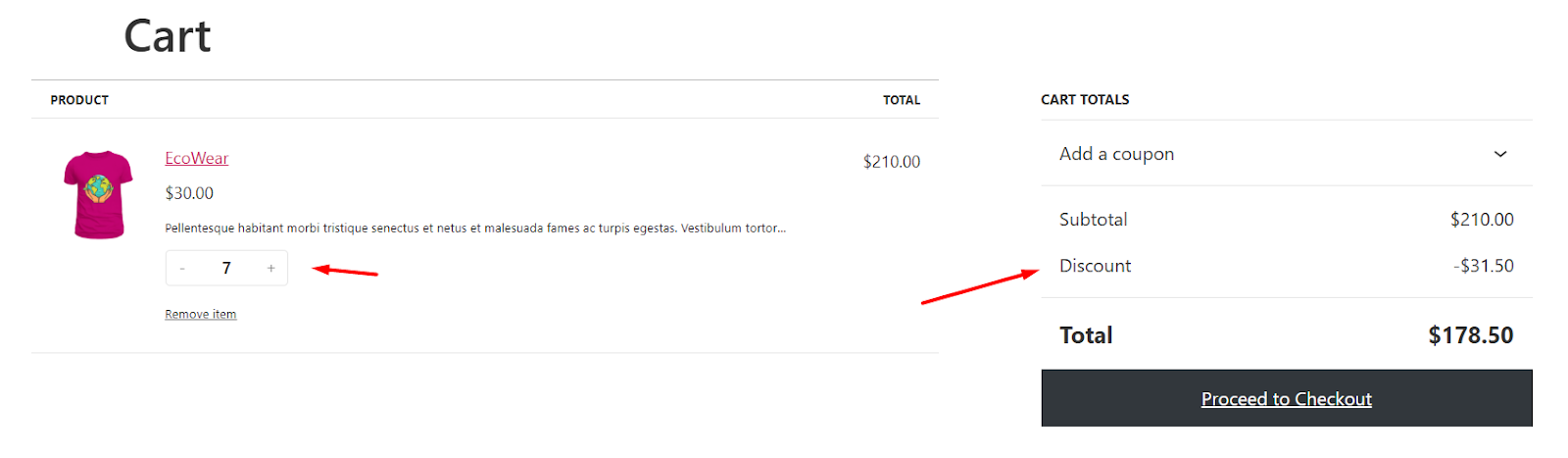
- Finally, for 10 or more products, it should apply a 25% discount.
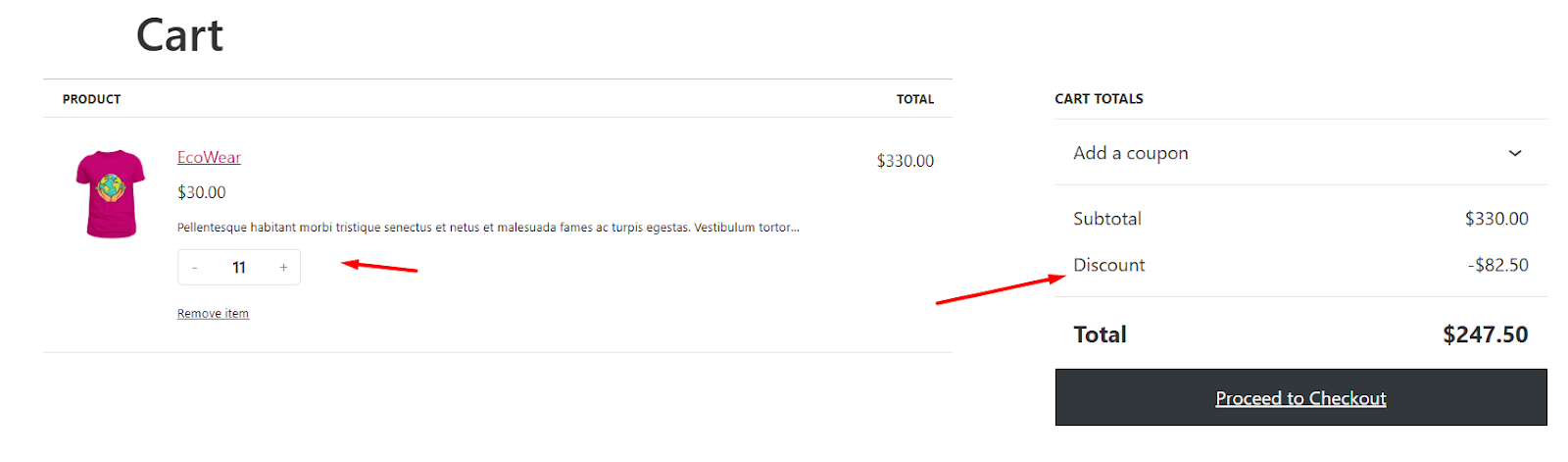
You can also apply a range of conditions to create advanced rules using Disco, such as set a minimum order amount for WooCommerce, WooCommerce minimum order for shipping, WooCommerce minimum order amount per shipping zone, etc.
Best Plugins for Setting Minimum Order Quantity in WooCommerce
If you prefer a plugin-based solution over manual coding, several specialized tools can handle these rules for you. While many options exist, these top-rated plugins provide the best balance of performance and ease of use for growing stores.
| Plugin Name | Key Strength | Ideal For |
|---|---|---|
| Min Max Control | Layered global, category, and variation logic. | General stores wanting basic, dependable limits. |
| WC Min Max Quantities (by PluginEver) | Incredible control over multi-vendor setups. | Complex wholesale networks and marketplaces. |
| Min and Max Quantity (by BeRocket) | Advanced group product parameters and custom tax limits. | High-volume inventories with strict tax/shipping divisions. |
Choosing the right tool depends on whether you need simple site-wide restrictions or complex, role-based rules for wholesale tiers. Most of these plugins offer free versions that cover basic MOQ needs, with premium upgrades available for advanced logistics and cart-wide value thresholds.
Why Does Your WooCommerce Store Need an MOQ Rule?
Setting a Minimum Order Quantity (MOQ) in WooCommerce isn’t about turning customers away; it’s about building a store that actually pays its own bills. Here is why smart sellers implement them:
- Eliminate Micro-Transaction Losses: A $5 checkout sounds fine until credit card merchant baseline fees ($0.30 + 3%), custom box cardboard packing ($0.80), and logistics handling drain your entire margin. MOQs keep you out of the red.
- Maximize Shipping Efficiencies: Absorbing shipping fees on cheap single items kills profitability. Enforcing baseline limits makes free shipping options economically sustainable for your company.
- Nudge Up Your Average Order Value: When a customer realizes they are just $4 short of checking out or hitting a discount tier, they naturally search your shop for an extra low-cost accessory to push over the finish line.
Frequently Asked Questions
Can I set different minimum order quantities for wholesale vs. retail customers in WooCommerce?
Yes, you can set separate wholesale and retail minimum order quantities by utilizing user role-based custom code hooks or premium quantity extensions. By targeting specific user roles during the checkout validation process, you can enforce high volume counts (e.g., a 20-unit minimum) for wholesale accounts while keeping standard retail accounts completely unrestricted.
Will setting an MOQ affect my Google Shopping or product data feeds?
Enforcing a minimum order quantity can trigger Google Merchant Center policy violations if the product feed price does not match the actual minimum purchase price on your landing page. To prevent product disapproval, ensure your product pages dynamically update the default quantity block and total cost transparently, and update your data feed attributes to reflect the structural minimum requirement.
Can I set a minimum order amount for specific WooCommerce shipping zones?
Yes, WooCommerce supports zone-specific minimum order amounts natively through its built-in shipping settings without requiring a third-party plugin. By navigating to WooCommerce > Settings > Shipping, you can assign a “Free Shipping” or flat-rate restriction that dynamically activates only when a customer’s cart value meets a specific dollar threshold inside that designated geographic zone.
How do I handle variable products when enforcing WooCommerce minimum quantity rules?
Handling variable products requires quantity rules to evaluate individual item variations rather than the parent product ID. When using custom PHP filters like woocommerce_quantity_input_args, the script must pull the specific variation data to apply custom limits to a specific color or size while keeping other variants unrestricted.
What happens if a coupon code drops a customer below the minimum order amount threshold?
Whether a coupon breaks an order threshold depends on whether your validation rules check the pre-discount cart subtotal or the post-discount final total. To protect your profit margins, configure your quantity manager or custom logic to validate the cart total after discounts are applied, which ensures the final transaction amount covers your hard fulfillment costs.
Conclusion
Protecting your store’s time and packing assets is all about choosing the strategy that best matches your customer base.
Use Min Max Control for raw speed and simplicity. Deploy Custom Code Hooks if you want lightweight performance with no third-party plugin bloat. Or, pivot to Disco if you want to turn rigid restrictions into high-converting sales incentives. Start small by establishing your new rule thresholds just above your fulfillment break-even line, and scale up as your volume grows!
How do you plan on managing your store’s shipping costs alongside these new quantity limits?

Free version on WordPress.org. Every Pro licence includes a 30-day money-back guarantee.