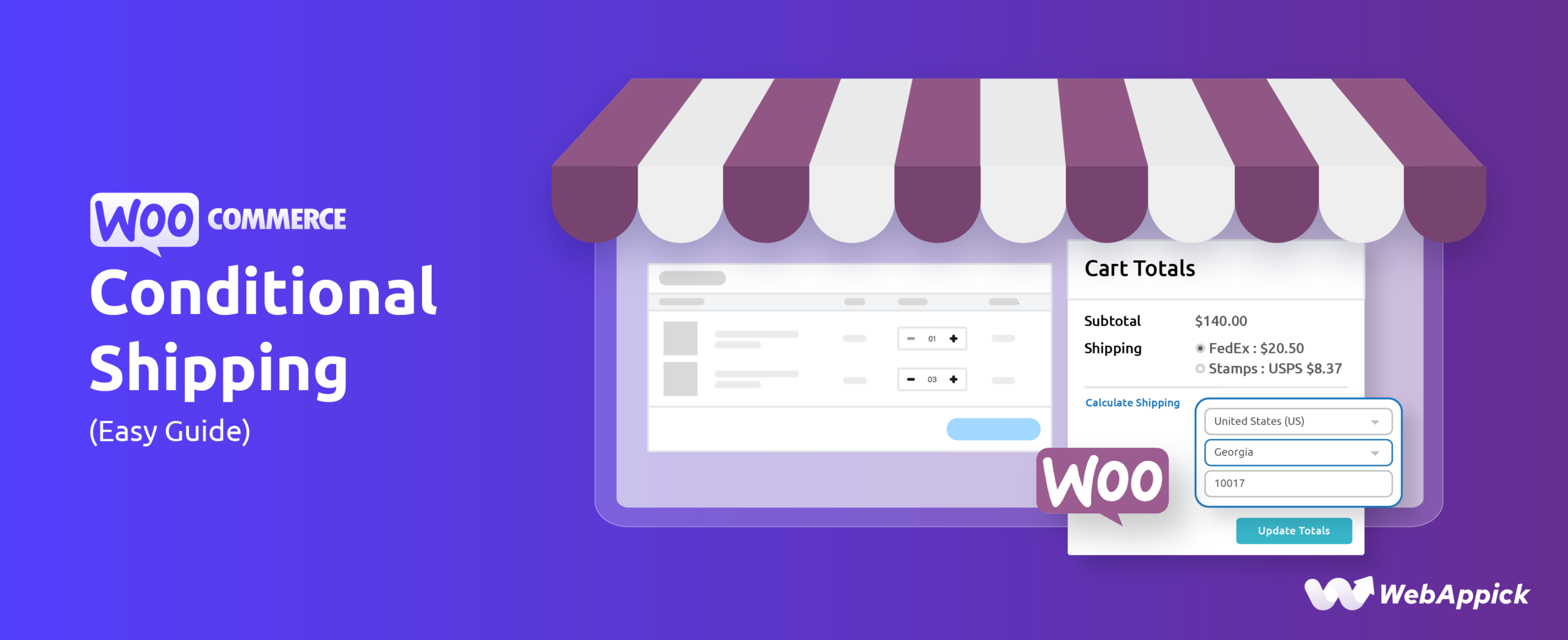
WooCommerce doesn’t include rule-based or dynamic shipping logic out of the box. Setting up conditional shipping means extending WooCommerce with a rules engine, using a plugin like ReachShip. Conditional shipping ties your shipping methods, and in some plugins your payment methods too, to specific conditions: cart value, product category, shipping class, or customer address. Only the rates that make sense for that particular order show up at checkout.
This guide walks through setting up conditional shipping with ReachShip, a free plugin, then rounds up the other plugins worth considering if you also need to restrict payment gateways.
Install ReachShip and add it as a shipping method
Download ReachShip from the WordPress plugin repository or the ReachShip website, then install and activate it like any other plugin. Once it’s active, go to WooCommerce > Settings > Shipping and click Add Shipping Zone. Give the zone a name and set its location, then click Add Shipping Method and select ReachShip from the list.
Create your first conditional shipping rule
With ReachShip added as a shipping method, go to ReachShip > Conditional Shipping and click Add New Rule. Name the rule, then choose a condition type under the Condition Type dropdown: Any Condition triggers the rule if one condition matches, All Condition requires every condition to match. ReachShip supports five condition types: item-based, product category-based, cart value-based, shipping class-based, and shipping address-based. Which one you need depends on what you’re trying to control, so the sections below cover each one with its own setup.
Restrict shipping by item or product
Pick this when you want to assign a shipping rate to a handful of specific products rather than a whole category. Select Item-Based as the condition type, choose the products the rule applies to, then enable the flat rate option and enter a fixed amount or a percentage. Save the rule and test it from the front end: add one of the targeted products to the cart, and the custom rate appears automatically at checkout.
Restrict shipping by product category
Once you’re past a handful of products, category-based rules save you from maintaining a long item list. Select Product Category-Based, choose the relevant categories, and set a flat rate or percentage. For example, a 15% shipping rate applied to a category calculates automatically based on each product’s price when a customer adds an item from that category.
Restrict shipping by cart value
Cart-value rules are the standard way to push customers toward a free-shipping threshold. Select Cart Value-Based, set the comparison to greater-than-or-equal-to, and enter your target amount, say $100. Enable the flat rate option and set it to 0. Once a customer’s cart hits that value, the cart page shows free shipping automatically.
Restrict shipping by shipping class
Shipping classes work well when different products genuinely need different handling, fragile items versus standard stock, for instance. First assign shipping classes to your products under Product Data > Shipping. Then, back in ReachShip’s rule builder, select the shipping class condition, pick the class (say, Express), and set a flat rate for it.
Restrict shipping by address or postcode
WooCommerce’s built-in zone settings can technically do location-based shipping, but you end up switching between zones and shipping methods to manage it. ReachShip’s address-based condition handles it from one screen: select Shipping Address-Based, then enter the countries, states, or zip codes the rule should apply to.
Restrict shipping by carrier
If you’ve connected multiple carriers to your ReachShip account, you can tie a rule to a specific one. Set up your ReachShip account first and connect the API for real-time rates from carriers like FedEx, UPS, USPS, or DHL. Then create a rule as usual, select a condition (product category, for example), and choose the carrier account the rule should use. Customers who add a matching product get real-time rates from that specific carrier.
Reorder and prioritize multiple rules
Once you have more than one rule active, order matters. On the Conditional Shipping page, drag and drop rules to set their priority, since the rule at the top of the list takes precedence. You can also toggle any rule on or off without deleting it, and clicking the plus button on a rule lets you stack multiple conditions into one.
Example use cases
A few scenarios show where each rule type earns its keep. Reward bigger orders with a cart-value rule that unlocks free shipping past a set threshold, nudging customers to add one more item to qualify. Handle international restrictions with an address-based rule if certain products can’t legally or cost-effectively ship to specific countries. Give registered customers a shipping perk over guest checkouts using a user-role condition, which doubles as an incentive to create an account. Mix oversized and lightweight products under one shipping class rule so bulky items get a flat surcharge while small items ship free. Run a time-boxed free-shipping promotion by scheduling a rule’s active window instead of remembering to disable it manually.
Best WooCommerce conditional shipping and payment plugins
ReachShip covers most shipping-only conditional rules for free, but if you also need to restrict payment gateways, or want a different feature set, these are worth comparing.
ReachShip WooCommerce Multi-Carrier & Conditional Shipping. Free, and the conditional/table-rate feature runs independently of any API connection. Beyond conditional rules, it adds real-time rates from FedEx, UPS, USPS, DHL, Sendle, and Australia Post, plus label printing and order sync to a central dashboard. Good starting point if shipping is your only concern and you don’t need payment restrictions.
Conditional Shipping Methods (Octolize). Focused specifically on showing or hiding shipping methods, rather than setting custom rates. Rules run on cart weight, shipping class, product tags or categories, and whether a customer already qualifies for free shipping. Useful if your goal is decluttering the checkout rather than pricing it differently.
Extendons Conditional Shipping and Payment Methods. This is the plugin previously sold as Woo’s own “Conditional Shipping and Payments” extension. It’s now developed and sold by Extendons on the WooCommerce Marketplace at $49 a year, with rules for both shipping methods and payment gateways: restrict by product, category, cart total, weight, coupon, location, or user role, and it’s compatible with the Cart and Checkout blocks. This is the one to reach for if payment-gateway restriction is actually what you need, not just shipping.
Table Rate Shipping Pro (PluginHive). Built for stores that need rate tables rather than simple flat-fee rules, weight slabs, ZIP code wildcards, and combinations of shipping zones with custom conditions. Overkill if you just want to hide a shipping method under certain conditions, but it’s the deeper option once flat-rate logic stops covering your pricing model.
Pricing, features, and version numbers change; check each plugin’s own page before buying.
Frequently Asked Quesitons
What is WooCommerce conditional shipping and payments?
It’s the practice of showing, hiding, or re-pricing shipping methods and payment gateways at checkout based on rules you set, cart value, product category, shipping class, or customer location. WooCommerce doesn’t include this natively, so it requires a plugin like ReachShip for shipping rules or Extendons for combined shipping and payment rules.
How do I restrict a shipping method for specific products in WooCommerce?
Use an item-based condition in a conditional shipping plugin. In ReachShip, create a new rule, set the condition type to item-based, select the products, and set a flat rate or percentage for that rule. The custom rate applies automatically whenever one of those products is in the cart.
How do I restrict shipping by postcode or ZIP code in WooCommerce?
Use a shipping address-based condition rather than manually configuring WooCommerce shipping zones. In ReachShip, select the address-based condition, then enter the countries, states, or ZIP codes you want the rule to apply to.
How do I set up different shipping rates for different product categories?
Create a product category-based rule. Select the categories the rate should apply to, then set a flat amount or percentage. WooCommerce calculates the rate automatically at checkout whenever a product from that category is in the cart.
What are effective ways to offer free shipping based on conditions?
The most common approach is a cart-value rule: set the condition to greater-than-or-equal-to a target amount, then set the shipping rate to 0. Offering free shipping only above a threshold tends to push average order value up, since customers add items to qualify.
Key takeaways
- WooCommerce has no native rule-based shipping logic; a plugin is required for conditional shipping.
- ReachShip covers item, category, cart value, shipping class, and address-based conditions for free, with no API dependency for the table-rate feature.
- If you need to restrict payment gateways as well as shipping methods, look at Extendons Conditional Shipping and Payment Methods rather than a shipping-only plugin.
- Cart-value rules that unlock free shipping past a threshold are one of the more reliable levers for increasing average order value.
- Rule priority matters once you have more than one active rule; higher-priority rules should sit at the top of the list.
- Always verify current pricing and plugin ownership before recommending or buying, since marketplace listings do get rebranded or change hands.

Free version on WordPress.org. Every Pro licence includes a 30-day money-back guarantee.