To remove free shipping in WooCommerce, go to WooCommerce → Settings → Shipping → Shipping Zones, open the zone, locate Free Shipping, click Edit, disable it, and save changes. You can also remove it using a custom PHP code snippet in your theme.
This can be done in two ways: using WooCommerce settings (recommended) or using code for advanced control.
What is the fastest way to remove free shipping in WooCommerce?
The fastest way is using built-in WooCommerce settings:
- Go to WooCommerce → Settings → Shipping
- Open your Shipping Zone
- Find Free Shipping
- Click Edit → Disable → Save Changes
This removes free shipping immediately for that zone.
Method 1: Remove Free Shipping Using WooCommerce Settings (Recommended)
The easiest way to remove free shipping in WooCommerce is by using the WooCommerce built-in settings. Here are the 3 simple steps you need to follow:
Step 1: Access WooCommerce Shipping Settings
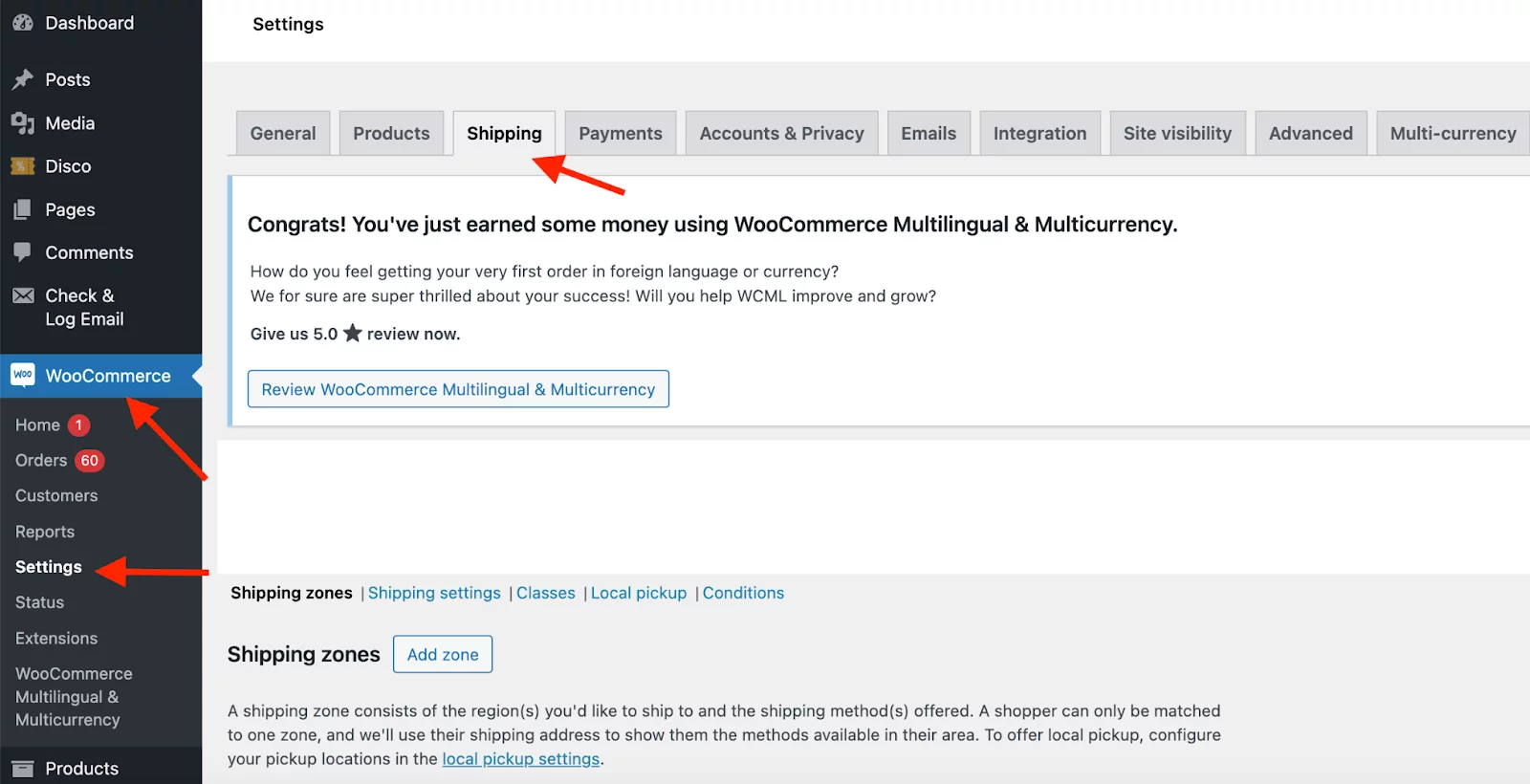
Go to the WordPress Admin Dashboard. Now, from the sidebar, click on WooCommerce > Settings. Then, navigate to the Shipping tab.
Step 2: Edit Shipping Zones
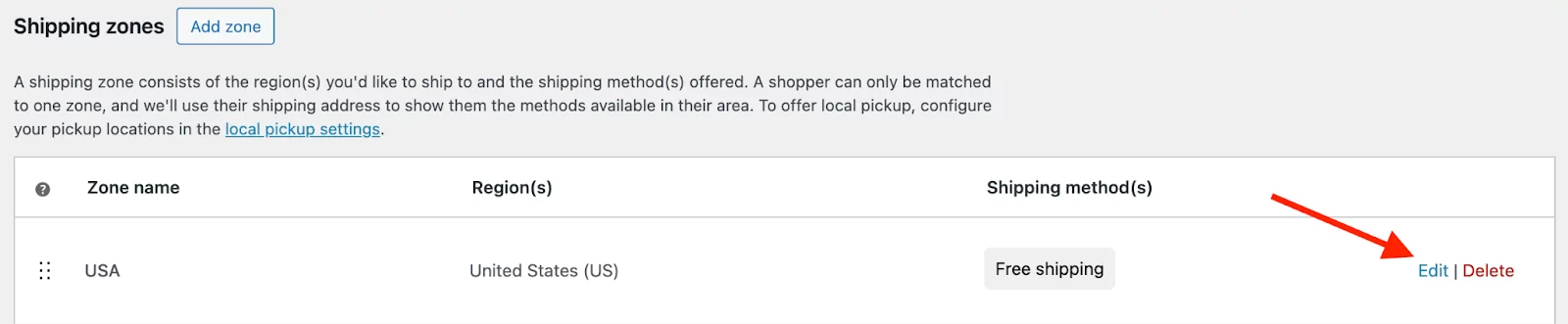
Down below in the Shipping Zones section, you’ll see a list of regions you’ve defined for your store. Find the zone where free shipping is enabled and click on Edit.
Step 3: Remove Free Shipping Method
Once you’re inside the Shipping Zone settings, you’ll see a list of shipping methods, including Free Shipping. If free shipping is enabled for that zone, it will appear in the list. Just toggle the enable option and disable it.
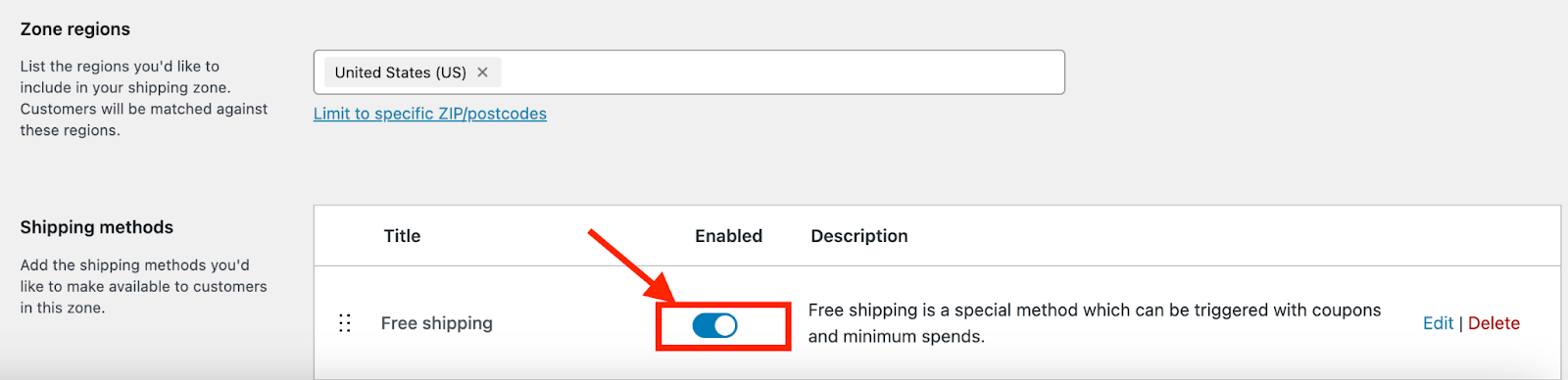
It is all done. Just click on “Save Changes” and it will be removed.
Method 2: Remove Free Shipping Using Code (Advanced)
Another simple way to properly remove the free shipping is by using custom codes. Now, don’t get scared just by hearing about codes. It contains 5 easy steps and you can do it in just a couple of minutes. Have a look.
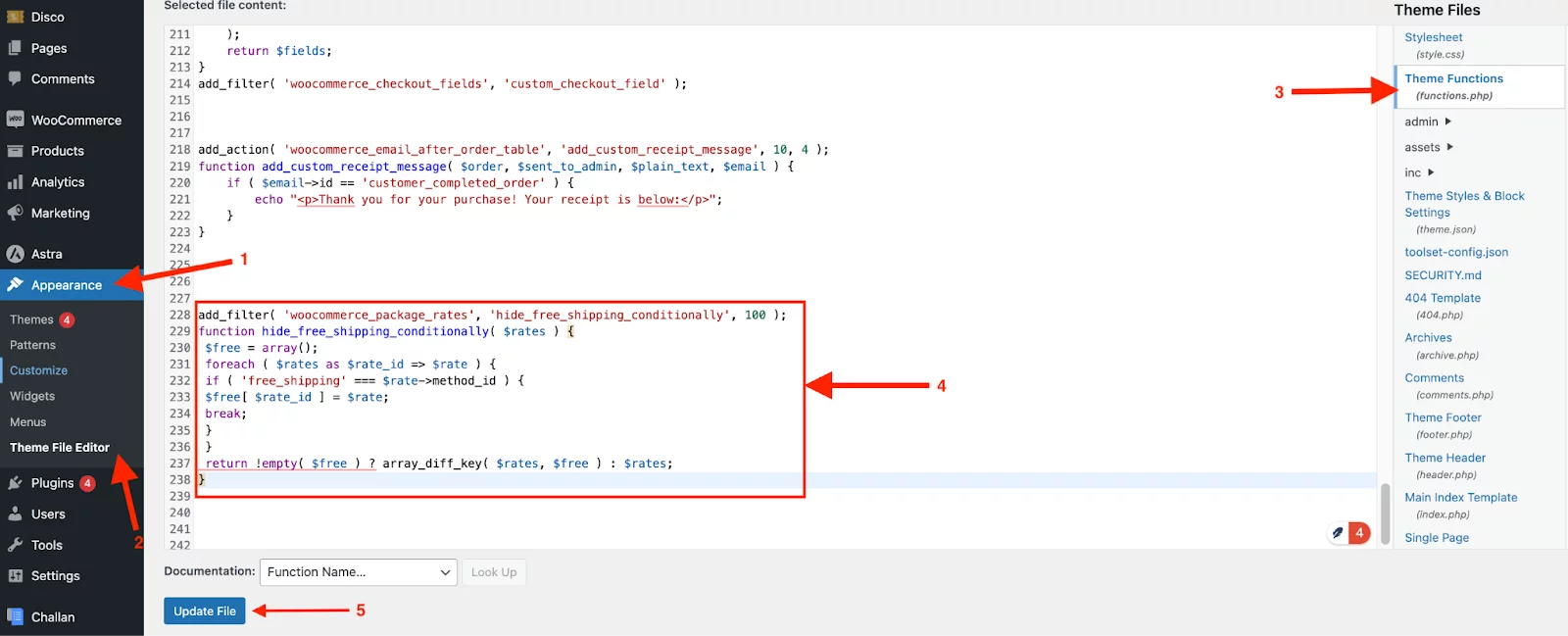
1. First, from your WordPress Dashboard go to Appearance.
2. Click on Theme File Editor.
3. Now, from the right-hand side open the functions.php file of your active theme.
4. Worried about the code? Well, don’t be. Just copy and paste the code snippet at the bottom of the file.
add_filter( 'woocommerce_package_rates', 'hide_free_shipping_conditionally', 100 );

function hide_free_shipping_conditionally( $rates ) {

 $free = array();

 foreach ( $rates as $rate_id => $rate ) {

 if ( 'free_shipping' === $rate->method_id ) {

 $free[ $rate_id ] = $rate;

 break;

 }

 }

 return !empty( $free ) ? array_diff_key( $rates, $free ) : $rates;

}
5. Once you’ve added the code, click the Update File button at the bottom of the page. Here’s how the overall process would look.
Troubleshooting: Free Shipping Still Showing?
If free shipping still appears after removal, check the following:
- Clear your cache: Your store might be displaying cached data, so make sure to clear your website cache after making changes.
- Check for conflicting plugins: Some plugins may override your WooCommerce shipping settings. Disable any conflicting plugins to see if that resolves the issue.
- Double-check shipping zone settings: Ensure that free shipping has been completely removed from all applicable zones.
- Test Multiple Scenarios: Simulate checkout processes for different products, regions, and cart values to confirm that free shipping has been removed across all configurations.
- Inspect Custom Code: If you’ve added custom code to remove free shipping, verify that the syntax is correct and doesn’t conflict with other functions in your theme.
Understanding WooCommerce Shipping Settings
Before removing free shipping, it’s important to understand how WooCommerce shipping works:
- Shipping Zones → Define where you ship (countries, regions, cities)
- Shipping Methods → Options like free shipping, flat rate, or local pickup
- Shipping Classes → Used to set different rates for different products
Free shipping is added as a shipping method inside each zone.
Frequently Asked Questions
How do I re-enable free shipping in WooCommerce?
To re-enable free shipping, go to WooCommerce > Settings > Shipping, select the shipping zone, click Edit on Free Shipping, check the Enabled option, and save the changes.
Can I offer free shipping for some customers and not others?
Yes, you can offer free shipping for specific customers using this WooCommerce Discount Plugin.
What happens if I disable free shipping and no other shipping methods are available?
If you disable free shipping and do not have any other shipping methods set up, customers will not see any shipping options at checkout. Ensure you have alternative shipping methods, like flat rate or local pickup, enabled.
How do I remove free shipping for certain shipping zones?
To disable free shipping for specific shipping zones, go to the Shipping Zones section, select the zone, and either remove or disable the Free Shipping method for that zone.
Final Thought
To remove free shipping in WooCommerce, you can either use the built-in shipping settings or apply a custom code solution. The settings method is best for beginners, while code gives more flexibility for advanced control.
Both methods ensure your shipping strategy aligns with your business goals without affecting checkout performance.

Free version on WordPress.org. Every Pro licence includes a 30-day money-back guarantee.