
To automatically send shipment tracking emails in WooCommerce, the most efficient method is to use the free Advanced Shipment Tracking (AST) plugin. Once installed, WooCommerce will automatically attach clickable tracking links to your standard “Completed Order” or “Shipped” customer emails the moment you add a tracking number.
How Order Tracking Enhances the Post-Purchase Experience
Adding tracking numbers transforms order fulfillment from a manual task into a data-driven customer experience. Key benefits include:
- Reduced WISMO Queries: “Where Is My Order?” tickets often make up 50% of support volume. Providing WooCommerce shipment tracking can cut these inquiries by 40–60%, significantly lowering operational costs.
- Higher Retention Rates: Customers track orders an average of 4.6 times per purchase. Leveraging these touchpoints builds “post-purchase trust,” which can increase repeat purchase rates by up to 20%.
- Chargeback Protection: Providing a verifiable “paper trail” to gateways like PayPal and Stripe reduces “Item Not Received” disputes and protects store revenue.
- Better Customer Order Tracking: A tracking number, shipping provider, and tracking URL help customers check their WooCommerce order tracking status without contacting support. It also helps reduce WISMO (“Where Is My Order?”) support requests by giving customers real-time shipment visibility and delivery updates.
How to Add a Tracking Number in WooCommerce
You can add tracking numbers using a plugin or manually. Here’s how:
Method 1: Using a Plugin
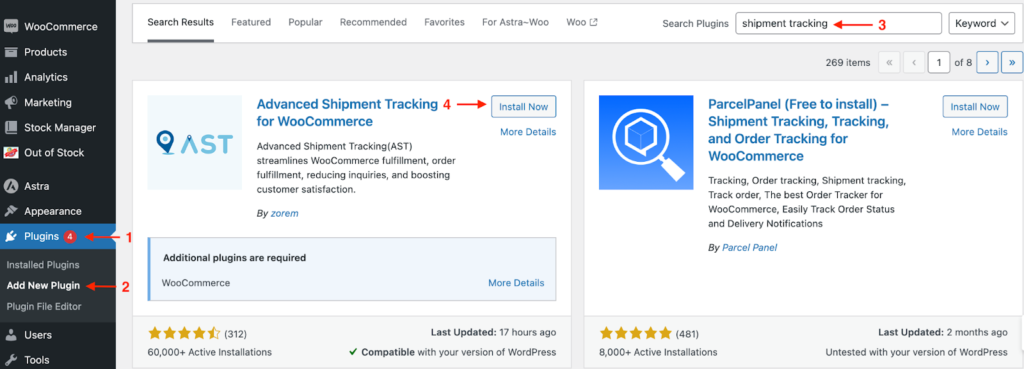
Step 1: Install Advanced Shipment Tracking Plugin
- Go to WooCommerce >> Plugins >> Add New Plugin.
- Search for shipment tracking.
- Install the Advanced Shipment Tracking Plugin & activate it.
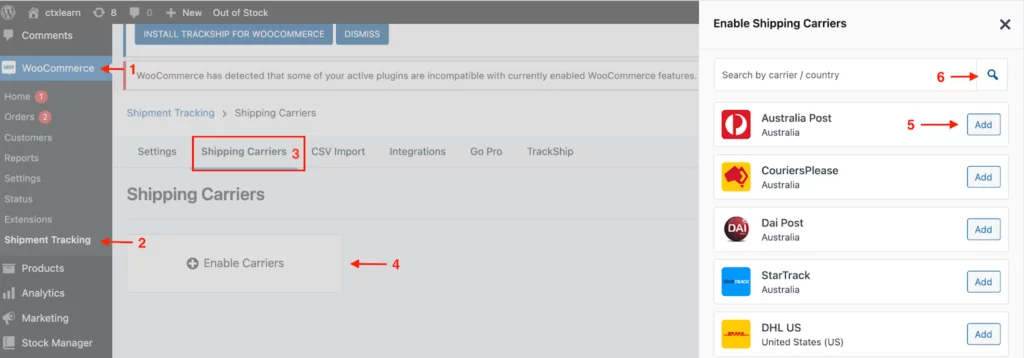
Step 2: Syncing Your Preferred Shipping Carriers
- Navigate to WooCommerce >> Shipment Tracking
- Select the Shipment Carriers tab
- Hit on the Enable Carriers button
- Add shipment carriers according to your shipping preference from the sidebar menu.
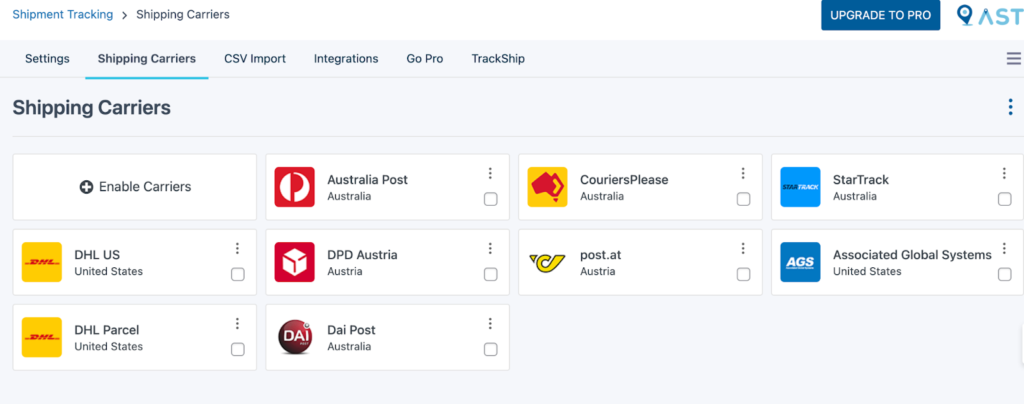
You can connect popular shipping carriers like FedEx, UPS, DHL, USPS, and Royal Mail, depending on your delivery workflow and shipping region.
For now, I’ve added some shipping providers to continue the process of adding tracking numbers to WooCommerce orders.
Bonus Tip:
You can also search for shipment providers based on the carrier name or country in the search bar. Still, if you can’t find your preferred shipment provider, then you can add your carrier to the Add Custom Carrier section inside the navigation bar.
Here, you can also sync the carriers and select them all at a time.

Step 3: Add Tracking Numbers to Orders
- Go to WooCommerce >> Orders.
- On the order page, click on the order for which you want to add the shipment tracking number.
- On the order page, hit Add Tracking Info on the right panel.
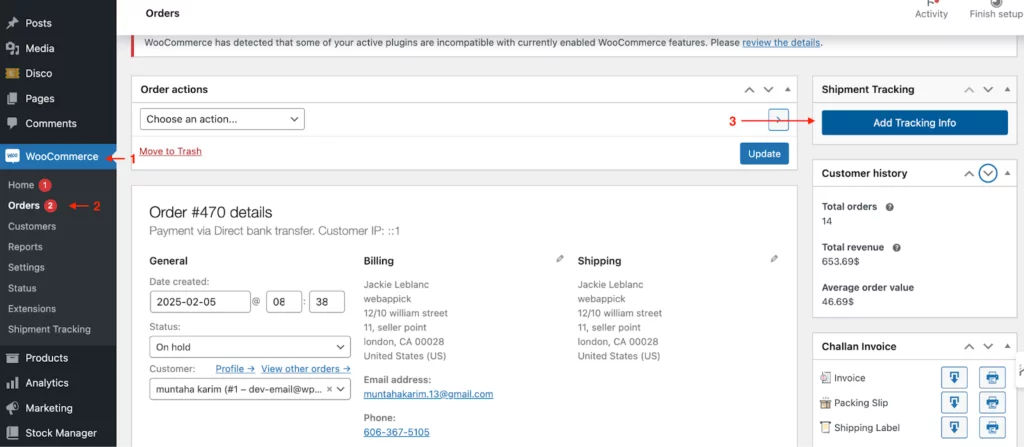
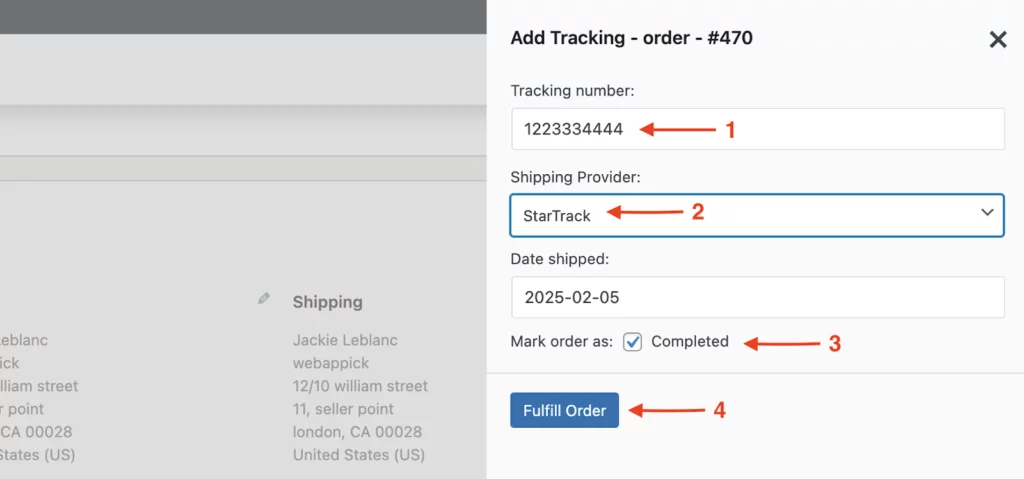
- Now, in the add tracking tab,
- Enter the tracking number for your order.
- Select the shipping provider and shipping date.
- Mark the order as “Completed.”
- Once the tracking information is added and the order status changes from “Processing” to “Completed,” WooCommerce can automatically trigger shipment tracking emails for customers.
Note:
Make sure you enter a unique tracking code for each order to avoid any interruption.
And, if the Mark as Completed box is checked, the order status in your WooCommerce dashboard will automatically update. Additionally, the customer will receive an email with their tracking number and shipping confirmation.
Step 4: Display the Tracking Number On WooCommerce Order Page
When you successfully add the order’s tracking number, the tracking code will be on the order page of your WooCommerce store.
To display the tracking number on your WooCommerce order page,
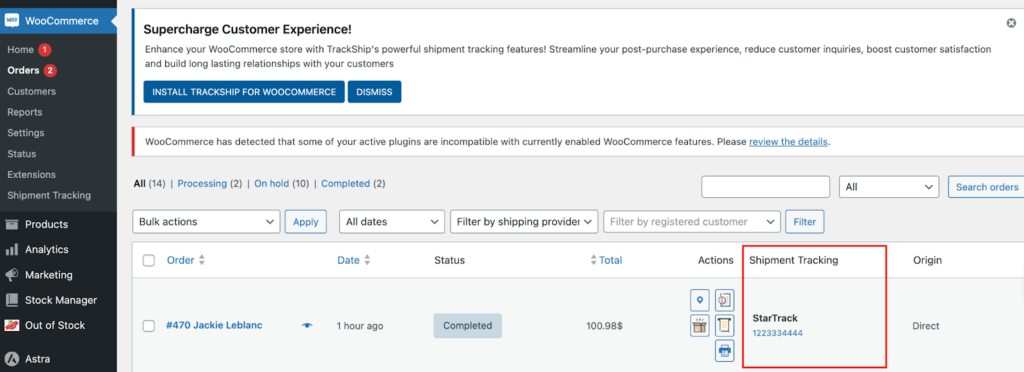
- Go to WooCommerce >> Order.
- In the orders list, there will be a dedicated tab of Shipment Tracking.
- Under this tab, all the tracking numbers for each particular order will be shown.
Bonus Tip:
To make a tracking number link, go to WooCommerce >> Orders. Hit on any order you want to make the tracking number link. In the edit order section, you’ll find the tracking number as a clickable link on the order page.
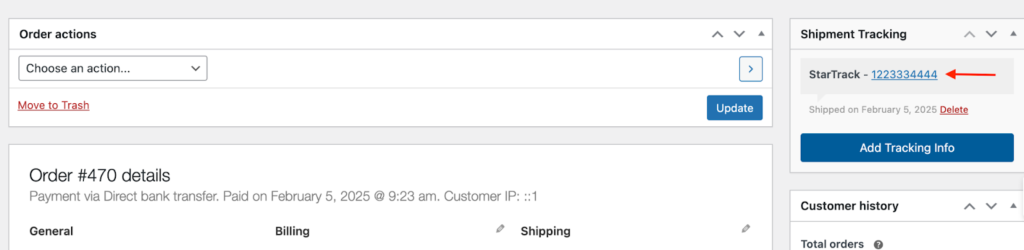
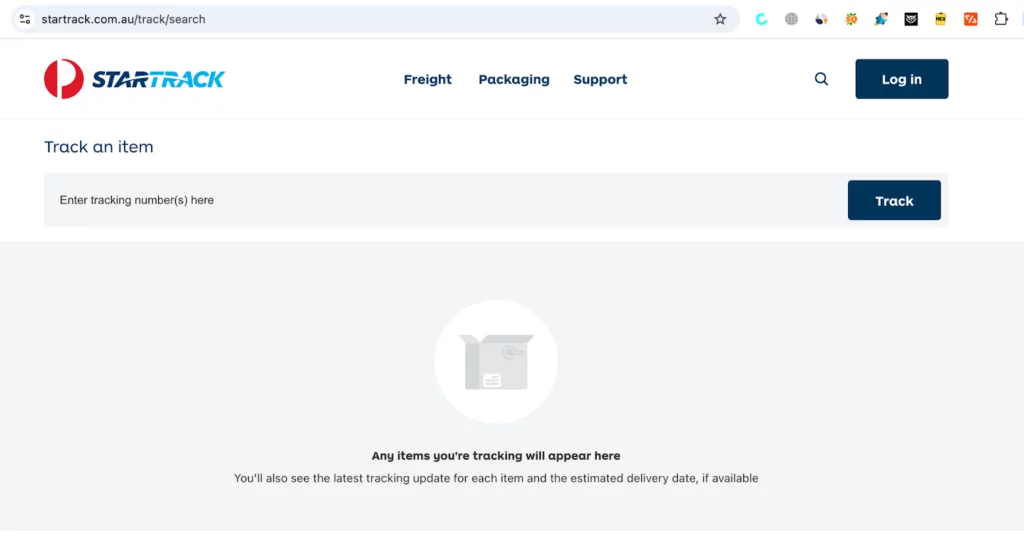
With this tracking number link, you can access the carrier’s tracking page directly.
How to Automate Tracking Emails in WooCommerce
Once the tracking numbers for your WooCommerce orders are set, let’s set up the settings to track the shipment through the tracking code.
Configure Email Triggers
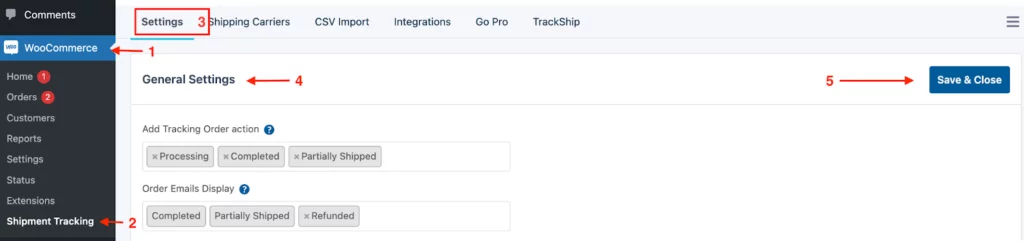
To track orders with the tracking number, go to WooCommerce >> Shipment Tracking >> Settings.
General Settings
- In the ‘Add Tracking Order Action’ section, select order statuses for the WooCommerce Order page.
- In the ‘Order Emails Display’ section, choose which emails include a custom tracking URL.
- Hit Save & Close.
Now, your customers can view their tracking information on the View Order or My Account page. And you can also create custom order statuses with the pro version.
Set Up Status Notifications
Order Statuses & Notifications
Under order status and notification settings, you can select the orders for which the tracking number will be sent via customer order emails.
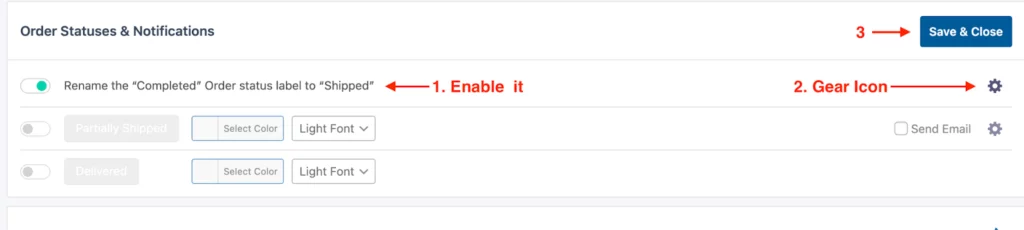
- Order Statuses & Notifications: Change the order status to ‘Completed’ or ‘Shipped’ when the order is finished.
- Edit email notifications: Click the gear icon to adjust WooCommerce email settings.
- Access Email Customizer: The Email Customizer looks like the WordPress Theme Customizer and allows design modifications.
- Modify Email Templates: Customize the design and content of WooCommerce order and shipping emails.
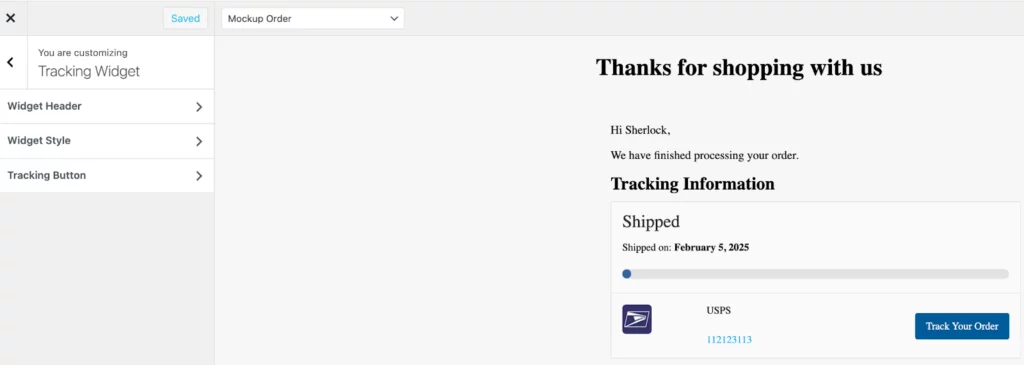
It will automatically send the tracking number in the completed or shipped order emails to customers.
- Shipment Tracking API
The shipment tracking API feature lets you update tracking numbers automatically for your WooCommerce orders and complete orders directly from your store.
It also gives you the option to adjust the shipping date format whenever tracking information is updated from other platforms to keep everything in sync.

- PayPal Tracking
The PayPal Tracking integration for WooCommerce sends tracking numbers, shipping provider, and status to PayPal. This happens when orders are marked “Shipped/Completed.” Here, you can see the details in the PayPal transaction’s shipping section.
At the bottom, you can enable PayPal order tracking, but with only the Pro version of Advanced Shipment Tracking.
- It’ll automatically send tracking codes and statuses from WooCommerce to PayPal
- After editing the settings, click ‘Save & Close’ to save your changes.
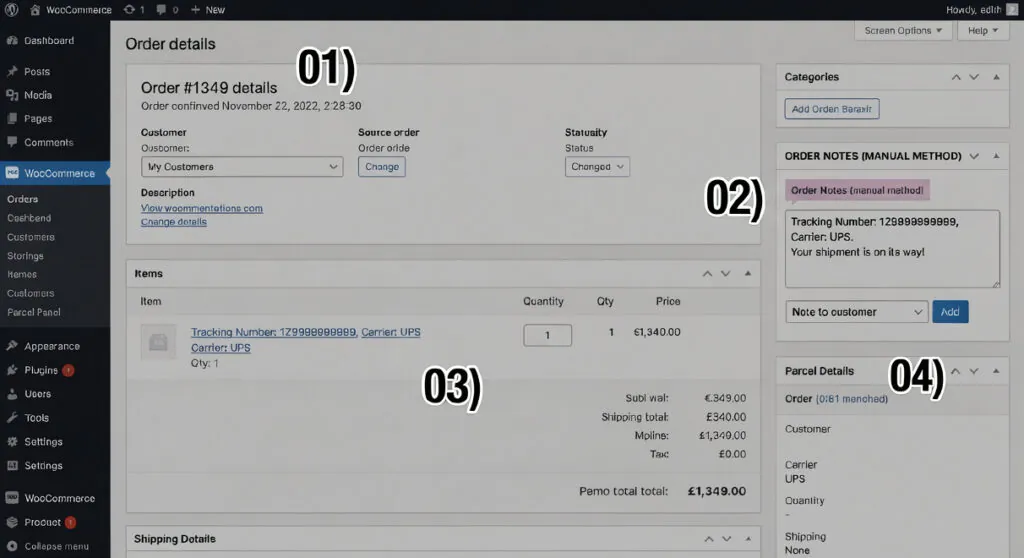
Method 2: Adding Tracking Data Manually (Best for Low Volume)
If you’d rather not use a plugin, you can enter tracking details yourself:
01) Open the Order
- Navigate to WooCommerce → Orders and choose the relevant order.
02) Update Order Details
- In the Order Details section, click Add Note.
03) Add Tracking Information
- Type in the tracking number along with the shipping carrier.
04) Notify the Customer
- Select Note to Customer, then click Add to send them the tracking update.
How to Bulk Add Tracking Numbers in WooCommerce?
If you have a large inventory, it’s not possible to manually add each tracking number to all your WooCommerce orders. Then, you can create a CSV spreadsheet of your orders with their tracking information and bulk import this file into the Advanced Shipment Tracking panel.
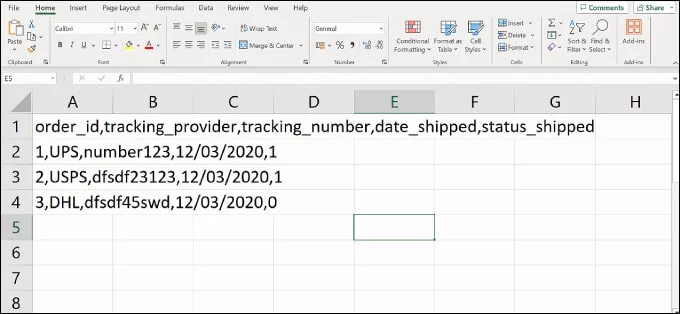
Before proceeding, ensure your CSV file includes the following shipping tracking information:
- Order ID
- Shipping service
- Tracking number
- Order delivery date
- Shipped status (1 for shipped, 0 for not shipped)
This is the proper CSV file format for bulk adding tracking numbers:
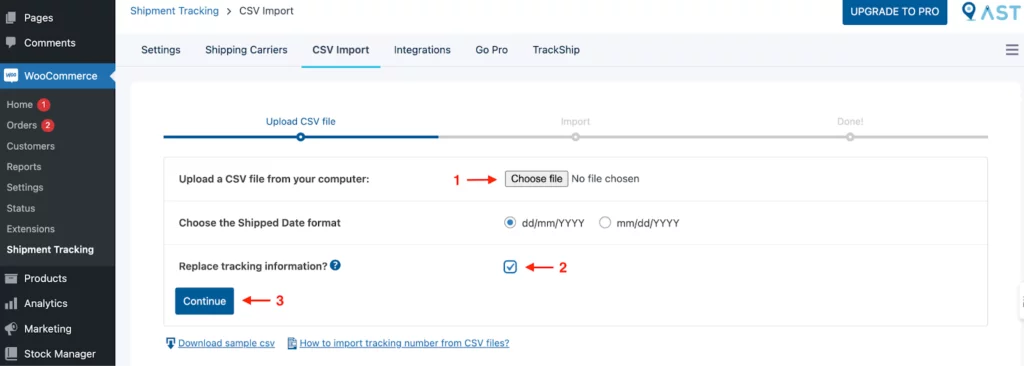
To bulk add tracking number to WooCommerce orders,
- Go to WooCommerce >> Shipment Tracking.
- Click on the CSV Import tab.
- Click the ‘Choose File’ button and select your spreadsheet.
- Pick your preferred date format for the tracking information.
- To replace existing tracking details, tick the ‘Replace tracking information?’ box.
- Click the ‘Continue’ button to start importing the file.
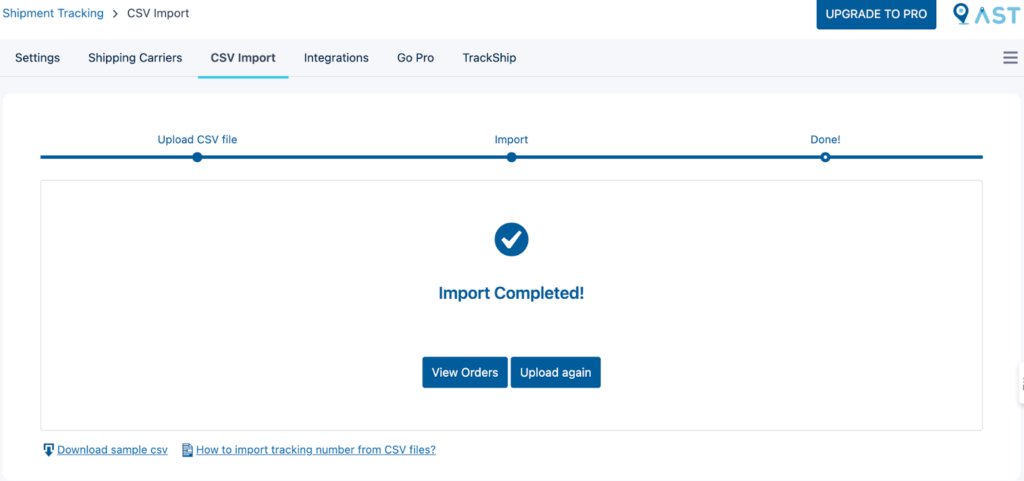
After submitting the tracking.csv file properly, you can view the bulk tracking number uploaded in your orders. If still there’s any issue, you can download the sample csv file to check the formatting.
Common WooCommerce Shipment Tracking Mistakes to Avoid
Even with a WooCommerce shipment tracking plugin, small mistakes in the fulfillment workflow can create delivery confusion and customer support issues. Here are some common problems to avoid:
- Selecting the Wrong Shipping Carrier: Choosing the wrong carrier can break the tracking link or show incorrect shipment updates.
- Adding Incorrect or Duplicate Tracking Numbers: Always use a valid and unique tracking number for each WooCommerce order to avoid delivery confusion.
- Not Updating the Order Status: If the order status is not marked as “Shipped” or “Completed,” customers may not receive tracking emails.
- Broken Tracking Links in Emails: Incorrect carrier settings or custom email templates can prevent tracking URLs from working properly.
- Managing Tracking Manually for Large Stores: Manual tracking works for small stores, but bulk orders usually require CSV import or shipment tracking API integration.
- Not Syncing Tracking Data With PayPal or Shipping Platforms: Unsynced tracking information can cause fulfillment issues and “Item Not Received” disputes.
- Ignoring the Post-Purchase Experience: Customers expect real-time order tracking, shipping updates, and easy access to tracking information after checkout.
Bulk Import vs Manual Tracking: Which WooCommerce Workflow Scales Better?
Manual tracking works well for small WooCommerce stores with a low order volume. You can quickly add tracking numbers, update order statuses, and send tracking emails directly from the order page.
However, as your store grows, manually managing shipment tracking can slow down the fulfillment workflow and increase the risk of tracking errors.
For high-volume stores, bulk CSV imports and shipment tracking API integrations provide a more scalable solution. These workflows help automate tracking updates, sync shipping data faster, and improve the post-purchase customer experience.
If your WooCommerce store regularly processes multiple daily orders, using automated shipment tracking workflows can save time and reduce manual shipping management.
Frequently Asked Questions
How do I automatically generate a tracking number for WooCommerce orders?
To automatically generate tracking numbers for WooCommerce orders, you can use plugins like Advanced Shipment Tracking (AST) or WooCommerce Shipment Tracking. These plugins integrate with shipping carriers and automatically generate unique tracking numbers for each order.
Can I send a tracking number via email in WooCommerce?
Yes, you can send a tracking number via email in WooCommerce. For this, you can use plugins like Advanced Shipment Tracking (AST) to automatically send tracking details to customers when their order is marked as “Shipped” or “Completed.”
How do I add tracking numbers to a WooCommerce order?
To add tracking number to WooCommerce order, install the Advanced Shipment Tracking plugin, go to WooCommerce >> Orders, open the order, click Add Tracking Info, enter the tracking number, choose the shipping provider, and save the tracking details.
What is the best free WooCommerce shipment tracking plugin?
Advanced Shipment Tracking for WooCommerce is one of the best free WooCommerce shipment tracking plugin options. It supports tracking numbers, carriers, tracking emails, order tracking display, and CSV import.
Can WooCommerce send a shipping confirmation email with a tracking number?
Yes, WooCommerce can send a shipping confirmation email with a tracking number when you use a shipment tracking plugin. The tracking information can be added to the completed order email or shipped order email.
What is the Difference Between a WooCommerce Order Number and a Tracking Number?
The difference is that a WooCommerce order number identifies the order inside your store, while a tracking number identifies the shipment inside the carrier’s tracking system. The order number is used inside your store to identify the order, while the tracking number is used by the shipping carrier to track the shipment.
Can I bulk import tracking numbers in WooCommerce?
Yes, you can bulk import tracking numbers in WooCommerce using the CSV Import option in the Advanced Shipment Tracking plugin. You need to upload order ID, shipping service, tracking number, delivery date, and shipped status.
Conclusion
The best way to add a tracking number to WooCommerce is with the free Advanced Shipment Tracking (AST) plugin. With features like carrier integration, bulk import of tracking numbers, shipment tracking API, clickable tracking links, and customizable email notifications, you can simplify order tracking management for both store owners and customers.
If you only need to add one tracking number, you can do it manually from WooCommerce order notes. But if you want to send tracking updates, display tracking information on the order page, and automate WooCommerce shipment tracking, using a free tracking plugin is the better option.

Free version on WordPress.org. Every Pro licence includes a 30-day money-back guarantee.


Helpful
Informative post.