%22%2F%3E%0A%3Cpath%20d%3D%22M59.8894%2016.6974C60.1689%2016.9331%2060.5416%2017.1216%2060.9142%2017.0745C61.5664%2017.0273%2061.8925%2016.6031%2061.6596%2015.7547C61.5198%2014.4349%2061.4267%2013.1623%2061.2869%2011.8425C61.1006%209.72149%2060.8211%207.55331%2060.5881%205.38512L60.1689%201.70863C60.0757%200.81307%2059.6099%200.294591%2058.7713%200.106053C58.4918%20-0.0353509%2058.2123%20-0.0353509%2057.9328%200.106053C57.7931%200.106053%2057.6999%200.106053%2057.6067%200.153187C56.5353%200.483129%2055.4172%200.81307%2054.3458%201.19015C53.5073%201.47295%2052.6222%201.75576%2051.7371%202.03857C50.2929%202.50991%2048.8488%203.02839%2047.4047%203.49974C46.4264%203.82967%2045.4016%204.1596%2044.3768%204.48952L44.3767%204.48956C43.6313%204.72523%2043.3518%205.24371%2043.6313%205.85646C43.7711%206.13927%2044.004%206.32781%2044.2369%206.46921C44.7028%206.79915%2045.2152%207.08196%2045.6811%207.4119C45.8674%207.55331%2046.0537%207.69471%2045.8208%208.02465C45.7276%208.21319%2045.5879%208.35459%2045.4481%208.54313L45.355%208.73167L44.5164%2010.0986L43.9108%2010.9941L43.3052%2011.8897L43.2121%2011.9839L42.1406%2013.5865L44.5867%2019.8706C45.5713%2022.1447%2048.6357%2026.5713%2052.552%2023.6277L53.9265%2022.2593L54.3458%2021.5523C54.3924%2021.458%2054.4856%2021.3637%2054.5321%2021.2694L54.5787%2021.2223C55.2309%2020.1854%2055.883%2019.1956%2056.5352%2018.2059L56.5353%2018.2057C57.0477%2017.4044%2057.5601%2016.6503%2058.0726%2015.849C58.2123%2015.6604%2058.3055%2015.6133%2058.4918%2015.7076C58.9577%2016.0375%2059.4235%2016.4146%2059.8894%2016.6974Z%22%20fill%3D%22%233D89D0%22%2F%3E%0A%3Cpath%20d%3D%22M28.0259%2022.0232C27.9793%2022.0703%2027.9793%2022.1175%2027.9327%2022.1646C27.9793%2022.1175%2028.0259%2022.0703%2028.0259%2022.0232Z%22%20fill%3D%22url(%23paint1_linear)%22%2F%3E%0A%3Cpath%20d%3D%22M53.9265%2022.3064C53.7402%2022.5892%2053.5538%2022.872%2053.3675%2023.202C53.0414%2023.7204%2052.7153%2024.1918%2052.3892%2024.7103C51.3178%2026.4071%2050.1531%2027.9625%2048.4295%2029.0938C46.9388%2030.0365%2045.4015%2030.6021%2043.6779%2030.8849C42.1872%2031.1206%2040.7896%2030.9791%2039.3921%2030.5549C37.6219%2030.0365%2036.038%2029.1409%2034.687%2027.8211C33.7088%2026.8784%2032.9634%2025.7944%2032.3578%2024.616C32.0317%2023.9561%2031.7988%2023.2491%2031.4727%2022.5421C31.0534%2021.5522%2030.1683%2019.2427%2030.1218%2019.1012C30.0752%2019.0541%2030.0752%2018.9598%2030.0286%2018.9127C29.9354%2018.7242%2029.8422%2018.5828%2029.7957%2018.3942C29.6559%2018.0172%2029.4696%2017.6401%2029.3298%2017.2159C29.2366%2017.0273%2029.1901%2016.8388%2029.0969%2016.6503C28.9571%2016.3674%2028.864%2016.0846%2028.7242%2015.7547C28.5845%2015.3776%2028.4447%2015.0005%2028.2584%2014.6235C28.1652%2014.3407%2028.0254%2014.0579%2027.9323%2013.775C27.9323%2013.7279%2027.9323%2013.7279%2027.8857%2013.6808C27.7925%2013.4922%2027.7459%2013.3037%2027.6528%2013.1152C27.4664%2012.5967%2027.2335%2012.1253%2027.0006%2011.6069C27.0006%2011.5597%2026.954%2011.5126%2026.9074%2011.4655C26.8142%2011.2769%2026.7211%2011.1355%2026.5813%2010.947C26.5347%2010.8998%2026.4882%2010.8527%2026.4882%2010.8056C26.4416%2010.7584%2026.395%2010.7113%2026.395%2010.6642C26.3484%2010.617%2026.3018%2010.5699%2026.2552%2010.5228C26.2086%2010.4756%2026.2086%2010.4285%2026.1621%2010.4285L26.1155%2010.3814C26.0689%2010.3342%2026.0223%2010.2871%2026.0223%2010.2871C25.9291%2010.1928%2025.8826%2010.1457%2025.7894%2010.0514C25.7428%2010.0043%2025.6962%209.95715%2025.6496%209.95715C25.603%209.91002%2025.5565%209.91002%2025.5099%209.86288C25.4167%209.81575%2025.3701%209.76861%2025.277%209.67435C25.2304%209.62721%2025.1838%209.62721%2025.1372%209.58008C25.0906%209.53294%2025.044%209.53294%2024.9974%209.48581C24.9509%209.48581%2024.9043%209.43867%2024.9043%209.43867C24.8577%209.39154%2024.8111%209.39154%2024.7645%209.3444C24.7179%209.3444%2024.7179%209.29727%2024.6714%209.29727C24.5782%209.25014%2024.485%209.203%2024.3918%209.15587C22.9943%208.59025%2021.1775%208.77879%2020.1992%209.10873C19.2675%209.43867%2018.2893%2010.3342%2018.2427%2010.4285C18.6619%209.72148%2019.0812%208.96733%2019.547%208.26031C20.1526%207.36475%2020.7117%206.4692%2021.3638%205.62078C22.3887%204.63095%2023.4602%203.78253%2024.6714%203.07551C27.0006%201.75575%2029.4696%201.52007%2032.0317%201.89715C33.3361%202.08569%2034.5939%202.60417%2035.7585%203.35832C36.9231%204.06534%2037.9014%204.96089%2038.7399%206.04499C39.2989%206.79914%2039.8114%207.60043%2040.1374%208.49598C40.6033%209.67435%2041.1623%2010.8056%2041.5816%2011.9839C41.7679%2012.5496%2042.0008%2013.068%2042.2338%2013.6336C42.2338%2013.6336%2042.2338%2013.6336%2042.2338%2013.6808V13.7279L45.0288%2019.8554C45.4015%2020.8452%2045.9139%2021.6465%2046.7059%2022.3535C47.2183%2022.872%2047.8705%2023.1548%2048.5227%2023.3905C48.5693%2023.3905%2048.6158%2023.4376%2048.6624%2023.4376C49.7805%2023.7676%2051.2246%2023.3905%2052.3426%2023.0134C53.088%2022.6835%2053.6936%2022.4007%2053.9265%2022.3064Z%22%20fill%3D%22url(%23paint2_linear)%22%2F%3E%0A%3Cpath%20d%3D%22M28.0255%2022.0238C27.9789%2022.0709%2027.9789%2022.118%2027.9324%2022.1652C27.9324%2022.1652%2027.9324%2022.1652%2027.9324%2022.2123C27.7926%2022.448%2027.6063%2022.6836%2027.4665%2022.9664C25.8826%2025.8416%2024.4385%2028.1512%2021.6434%2029.6595C19.3142%2030.9793%2016.8452%2031.215%2014.2831%2030.8379C14.1433%2030.8379%2014.0501%2030.7908%2013.9104%2030.7908C12.7458%2030.6022%2011.5812%2030.0838%2010.4165%2029.2825C8.78607%2028.1512%207.52829%2026.5958%206.64318%2024.8047L6.17733%2023.9091L5.01272%2021.5524L0.726927%2012.6911C0.447419%2012.0784%200.214496%2011.4656%200.121327%2010.8529C-0.437689%207.8834%200.95985%204.77252%203.80151%203.35849C5.43198%202.51007%207.24878%202.4158%208.87924%202.93428C10.6029%203.45276%2012.1402%204.67825%2013.0253%206.46937L13.1184%206.6579L14.7489%209.95732C14.7955%2010.0516%2014.7955%2010.1459%2014.8421%2010.2401C15.075%2010.8529%2015.8204%2012.4083%2016.426%2013.5867C16.4725%2013.6809%2016.5191%2013.7752%2016.5657%2013.8223C16.6123%2013.9638%2016.7055%2014.1052%2016.752%2014.1994C16.7986%2014.2937%2016.8452%2014.3408%2016.8452%2014.4351C16.8452%2014.4822%2016.8918%2014.4822%2016.8918%2014.5294C16.9384%2014.5765%2016.9384%2014.6708%2016.985%2014.7179C16.985%2014.765%2017.0316%2014.765%2017.0316%2014.8122C17.0316%2014.8593%2017.0781%2014.8593%2017.0781%2014.9064C17.0781%2014.9536%2017.1247%2015.0007%2017.1247%2015.0478C17.1247%2015.095%2017.1713%2015.095%2017.1713%2015.1421C17.3111%2015.4249%2017.4042%2015.7549%2017.544%2016.0377C17.6372%2016.2262%2017.6837%2016.4147%2017.7769%2016.6504C17.9632%2017.1689%2018.1962%2017.6402%2018.3825%2018.1587C18.5223%2018.4415%2018.6154%2018.7715%2018.7552%2019.0543C18.8018%2019.1485%2018.8484%2019.29%2018.8949%2019.3842C18.9881%2019.5728%2019.0347%2019.7613%2019.1279%2019.9498C19.3608%2020.5154%2019.5937%2021.0811%2019.9664%2021.5995C20.1993%2021.8823%2020.3857%2022.1652%2020.6652%2022.4008C22.3888%2023.9563%2024.9975%2023.862%2028.0255%2022.0238Z%22%20fill%3D%22url(%23paint3_linear)%22%2F%3E%0A%3Cpath%20d%3D%22M68.0888%2024.8694L68%207.88696H71.9963L71.8187%2018.4448L76.8806%207.88696H80.6548L81.3209%2018.3999L85.5392%207.88696H89.713L82.4754%2024.8694H78.1683L77.5466%2013.9072L72.3959%2024.8694H68.0888Z%22%20fill%3D%22%230D5293%22%2F%3E%0A%3Cpath%20d%3D%22M92.7771%2025.1385C89.2693%2025.1385%2086.7383%2022.6675%2086.7383%2019.2081C86.7383%2015.3893%2089.8021%2012.1545%2093.4431%2012.1545C96.6402%2012.1545%2098.8603%2014.4458%2098.8603%2017.7704C98.8603%2018.5342%2098.8159%2019.1182%2098.7271%2019.6124H90.4237C90.6457%2021.0501%2091.7114%2022.0385%2093.2211%2022.0385C94.1536%2022.0385%2094.9528%2021.724%2095.5301%2021.095L97.617%2023.4762C96.0185%2024.6443%2094.5976%2025.1385%2092.7771%2025.1385ZM90.6457%2017.411H95.4857C95.3081%2016.0632%2094.4644%2015.2545%2093.2211%2015.2545C92.0666%2015.2096%2091.0898%2016.0632%2090.6457%2017.411Z%22%20fill%3D%22%230D5293%22%2F%3E%0A%3Cpath%20d%3D%22M105.965%2024.9589C104.411%2024.9589%20103.167%2024.24%20102.368%2022.8473L101.924%2024.869H98.1499L101.791%207.52717L105.698%206.89819L104.322%2013.5923C105.166%2012.7836%20106.32%2012.2894%20107.519%2012.2894C110.139%2012.2894%20112.181%2014.8054%20112.181%2018.0401C112.226%2021.814%20109.428%2024.9589%20105.965%2024.9589ZM103.789%2016.3778L102.945%2020.4212C103.478%2021.185%20104.366%2021.6792%20105.388%2021.6792C107.208%2021.6792%20108.54%2020.2415%20108.54%2018.3097C108.54%2016.6474%20107.43%2015.4793%20105.92%2015.4793C105.077%2015.4793%20104.411%2015.7937%20103.789%2016.3778Z%22%20fill%3D%22%230D5293%22%2F%3E%0A%3Cpath%20d%3D%22M120.44%207.88696H125.058L127.899%2024.8694H123.725L123.193%2020.8259H117.154L114.978%2024.8694H110.582L120.44%207.88696ZM122.704%2017.5912L121.949%2011.9304L118.886%2017.5463H122.704V17.5912Z%22%20fill%3D%22%230D5293%22%2F%3E%0A%3Cpath%20d%3D%22M131.23%2012.3347H135.004L134.782%2013.5927C135.626%2012.7391%20136.736%2012.2449%20137.935%2012.2449C140.555%2012.2449%20142.597%2014.7608%20142.597%2017.9955C142.597%2021.8143%20139.8%2024.9592%20136.336%2024.9592C134.782%2024.9592%20133.539%2024.2853%20132.828%2022.9824L131.274%2030.0809H127.456L131.23%2012.3347ZM134.205%2016.3332L133.317%2020.5114C133.85%2021.2303%20134.738%2021.6796%20135.715%2021.6796C137.535%2021.6796%20138.867%2020.2419%20138.867%2018.31C138.867%2016.6477%20137.757%2015.4796%20136.247%2015.4796C135.493%2015.4796%20134.827%2015.7492%20134.205%2016.3332Z%22%20fill%3D%22%230D5293%22%2F%3E%0A%3Cpath%20d%3D%22M144.595%2012.3347H148.369L148.147%2013.5927C148.99%2012.7391%20150.101%2012.2449%20151.299%2012.2449C153.919%2012.2449%20155.962%2014.7608%20155.962%2017.9955C155.962%2021.8143%20153.164%2024.9592%20149.701%2024.9592C148.147%2024.9592%20146.904%2024.2853%20146.193%2022.9824L144.683%2030.0809H140.865L144.595%2012.3347ZM147.57%2016.3332L146.682%2020.5114C147.214%2021.2303%20148.102%2021.6796%20149.079%2021.6796C150.9%2021.6796%20152.232%2020.2419%20152.232%2018.31C152.232%2016.6477%20151.122%2015.4796%20149.612%2015.4796C148.857%2015.4796%20148.191%2015.7492%20147.57%2016.3332Z%22%20fill%3D%22%230D5293%22%2F%3E%0A%3Cpath%20d%3D%22M159.115%2024.8694H155.296L158.005%2012.3347H161.824L159.115%2024.8694ZM158.449%208.47099C158.449%207.1681%20159.559%206%20160.847%206C161.912%206%20162.8%206.85361%20162.8%207.93186C162.8%209.27967%20161.69%2010.4029%20160.358%2010.4029C159.248%2010.4029%20158.449%209.54924%20158.449%208.47099Z%22%20fill%3D%22%230D5293%22%2F%3E%0A%3Cpath%20d%3D%22M169.727%2020.6909L171.592%2023.1619C170.304%2024.4648%20168.572%2025.1387%20166.752%2025.1387C163.466%2025.1387%20161.068%2022.7126%20161.068%2019.388C161.068%2015.3446%20164.088%2012.1099%20167.862%2012.1099C170.082%2012.1099%20171.947%2013.0983%20173.013%2014.7606L170.304%2017.0069C169.727%2015.9736%20168.927%2015.4794%20167.773%2015.4794C166.13%2015.4794%20164.842%2017.0518%20164.842%2019.0286C164.842%2020.6909%20165.819%2021.6793%20167.329%2021.6793C168.261%2021.7243%20169.016%2021.4098%20169.727%2020.6909Z%22%20fill%3D%22%230D5293%22%2F%3E%0A%3Cpath%20d%3D%22M175.722%207.52717L179.629%206.89819L177.365%2017.6807L182.426%2012.3344H187L180.517%2018.6691L184.691%2024.869H180.162L177.009%2019.5676L175.899%2024.869H172.081L175.722%207.52717Z%22%20fill%3D%22%230D5293%22%2F%3E%0A%3Cdefs%3E%0A%3ClinearGradient%20id%3D%22paint0_linear%22%20x1%3D%2223.1831%22%20y1%3D%2224.7007%22%20x2%3D%2223.3049%22%20y2%3D%228.44851%22%20gradientUnits%3D%22userSpaceOnUse%22%3E%0A%3Cstop%20stop-color%3D%22%23327ACD%22%2F%3E%0A%3Cstop%20offset%3D%221%22%20stop-color%3D%22%234696D2%22%2F%3E%0A%3C%2FlinearGradient%3E%0A%3ClinearGradient%20id%3D%22paint1_linear%22%20x1%3D%2227.9436%22%20y1%3D%2222.0876%22%20x2%3D%2228.0428%22%20y2%3D%2222.0876%22%20gradientUnits%3D%22userSpaceOnUse%22%3E%0A%3Cstop%20offset%3D%220.2029%22%20stop-color%3D%22%234C51BF%22%20stop-opacity%3D%220.9%22%2F%3E%0A%3Cstop%20offset%3D%221%22%20stop-color%3D%22%235A67D8%22%20stop-opacity%3D%220.9%22%2F%3E%0A%3C%2FlinearGradient%3E%0A%3ClinearGradient%20id%3D%22paint2_linear%22%20x1%3D%2232.4583%22%20y1%3D%222.22148%22%20x2%3D%2239.8371%22%20y2%3D%2230.0298%22%20gradientUnits%3D%22userSpaceOnUse%22%3E%0A%3Cstop%20offset%3D%220.3367%22%20stop-color%3D%22%2342B9FF%22%2F%3E%0A%3Cstop%20offset%3D%220.7818%22%20stop-color%3D%22%233B97E1%22%2F%3E%0A%3Cstop%20offset%3D%221%22%20stop-color%3D%22%233784D1%22%2F%3E%0A%3C%2FlinearGradient%3E%0A%3ClinearGradient%20id%3D%22paint3_linear%22%20x1%3D%2211.252%22%20y1%3D%220.972585%22%20x2%3D%2215.8771%22%20y2%3D%2225.7529%22%20gradientUnits%3D%22userSpaceOnUse%22%3E%0A%3Cstop%20offset%3D%220.3367%22%20stop-color%3D%22%2342B9FF%22%2F%3E%0A%3Cstop%20offset%3D%220.7818%22%20stop-color%3D%22%233B97E1%22%2F%3E%0A%3Cstop%20offset%3D%221%22%20stop-color%3D%22%233784D1%22%2F%3E%0A%3C%2FlinearGradient%3E%0A%3C%2Fdefs%3E%0A%3C%2Fsvg%3E%0A)

Sequential Order Numbers for WooCommerce: Top Plugins & Custom Setup (2026)
 Fadiyah Sameh
 When customers place orders in your WooCommerce store, each purchase gets a unique identification number. But here’s the problem most store owners run into: WooCommerce order numbers are not always sequential.
Instead of seeing a clean sequence like #1001, #1002, #1003, you might see #1001, #1005, #1012. This creates confusion, raises concerns about missing orders, and can cause major headaches with accounting and tax compliance.
So why does this happen—and more importantly—how do you fix it? Let’s get straight to the solution first.
Quick Fix: Make WooCommerce Order Numbers Sequential
The fastest way to fix non-sequential order numbers in 2026:
- Install a plugin like Sequential Order Numbers for WooCommerce by WebToffee (Recommend).
- Go to WooCommerce → Settings → Sequential Order Numbers.
- Set your Starting Number (e.g., 1001).
- Choose your Format (add prefixes like “WS-” or date tags).
- Save Changes. Your future orders will now follow a perfect sequence.
Step-by-step process of creating sequential order numbers for WooCommerce
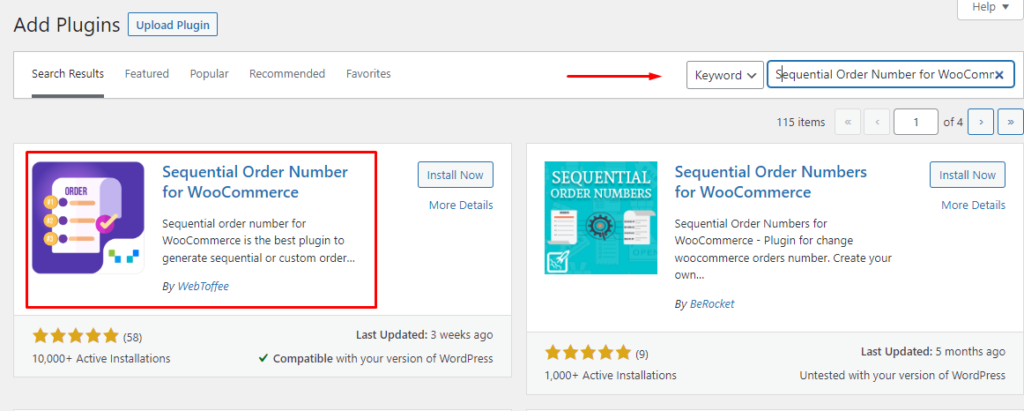
Go to Plugins>>Add New from your WordPress admin panel and type in the plugin name. Install and activate.
Now we need to go to WooCommerce>>Settings and jump to the new dedicated tab for setting sequential order numbers for WooCommerce.
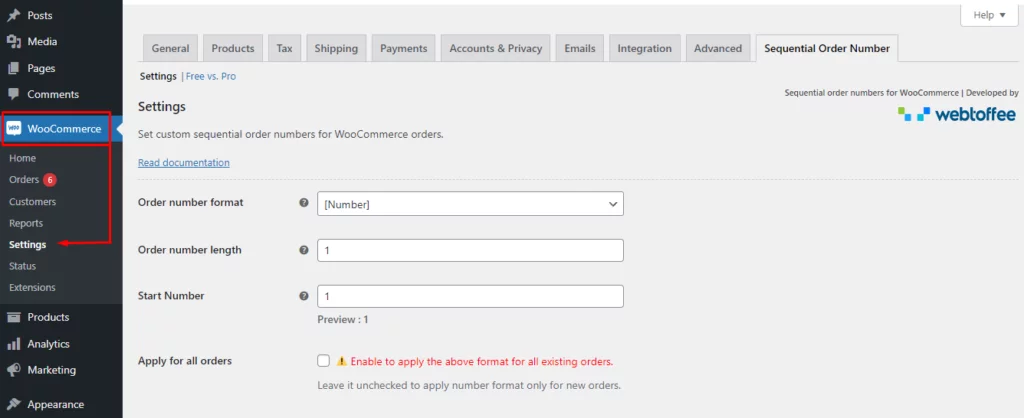
Before we dig deep into the order number format settings, let’s check what we have in the default settings.
Order number length
The default order number length is set to 1. If your order number is 5, it will show 5. If you set the order number length to, let’s say, 7, it will add six 0s before the actual order number. E.g.,0000005.
Start Number
The start number is set to 1 by default. Therefore, your next order will get P.O. number 1. If you set it to, for example, 50, your next order will get the purchase order number 50 and then sequentially increase to 51, 52, 53, etc.
Let’s create a couple of new orders and check if WooCommerce sequential order numbers are applied or not.
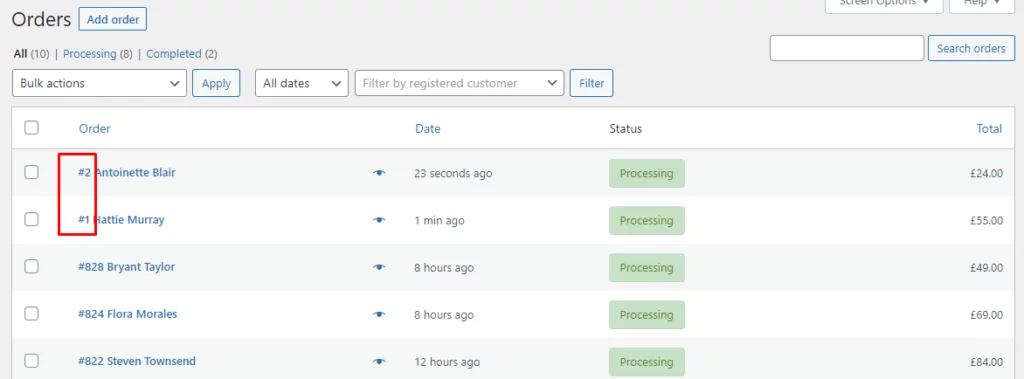
Voilà! It’s done. Now you have sequential order numbers for WooCommerce.
Order number format settings
From the Order number format dropdown, you can choose four different formats.
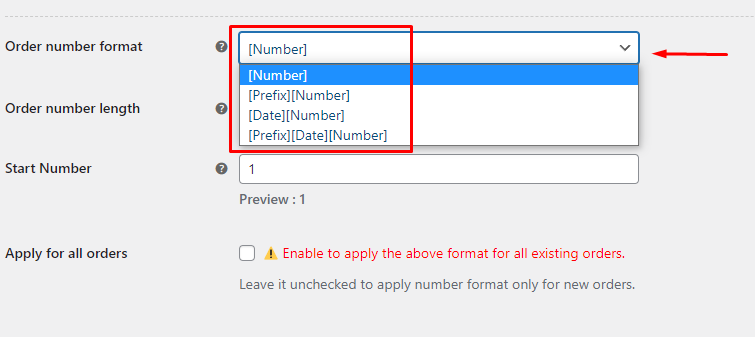
- [Number] – We have already used this one. It only creates P.O. numbers. If your start number is 100, your P.O. numbers will be like – 100, 101, 102…
- [Prefix][Number] – You can add a custom prefix before the purchase order number. For example, if your start number is 100 and you set this prefix – WS, your P.O. numbers will be like – WS 100, WS 101, WS 102…
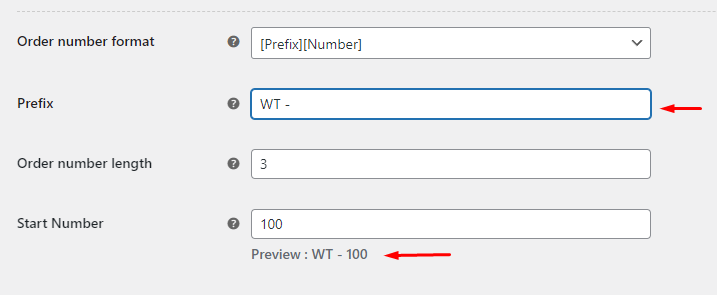
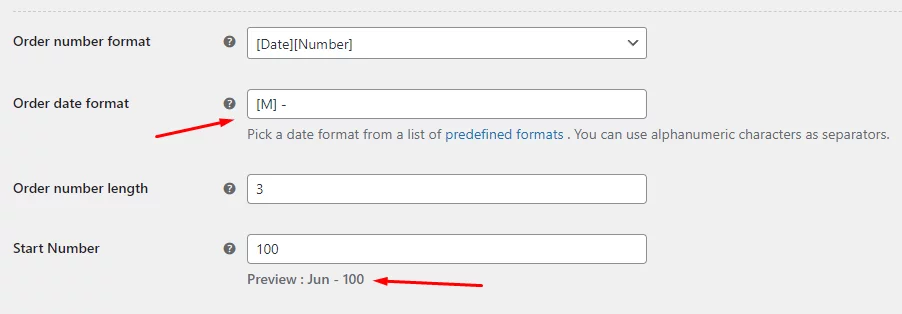
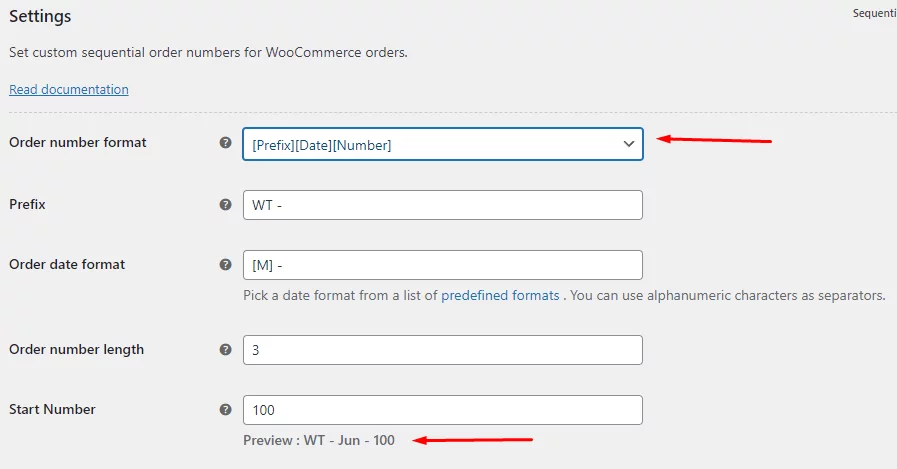
- [Date][Number] – You can set and display dates with your order number. This can help you quickly track which orders were made in which month. For example, if you set the date format [M], which will show the current month and starting number is 100, your P.O. number sequence will look like this – Jun 100, Jun 101, Jun 102…
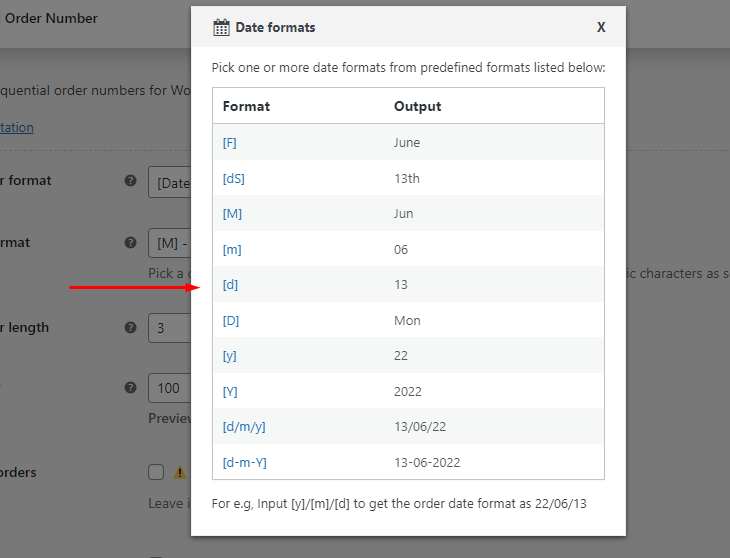
The plugin offers the following predefined date formats.
- [Prefix][Date][Number] – You can combine all of the above order number formats into one. For example, with the previous prefix and date format, your order number sequence should be like this – WT Jun 100, WT Jun 101, WT Jun 102…
Pro features
There are some added features in the pro version of this plugin.
In addition to the previous four order number formats, you get to choose from 6 more different order number formats, a total of 10 formats in the pro version of this plugin.
Another incredibly helpful feature in the pro version is the Reset sequential order number option. You can reset the order of the order numbers based on the chosen interval. If you choose monthly, the order sequence will start over at the start of each month.
For example, if you have selected monthly from the Reset sequential order number dropdown and your starting number is 1 then your sequential order numbers for WooCommerce will be like – Jan 1, Jan 2, Jan 3, and for the next month it will be like – Feb 1, Feb 2, Feb 3…
This helps you find exactly how many orders you received in a month within minutes.
You can create a separate order number sequence for free orders with the pro version of this plugin.
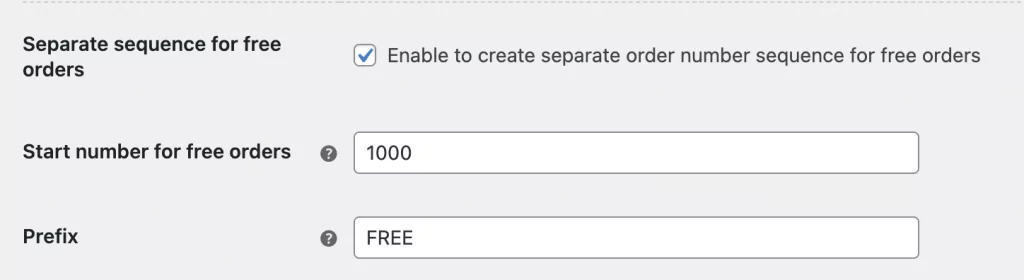
You can set a different prefix and start numbers for the free orders.
Why are sequential order numbers important for WooCommerce?
A purchase order number is one of the essential parts of an invoice. Hence, it carries significant importance for both you and your customers in the purchase process.
Even though WooCommerce functions without them, a consecutive numbering system is essential for:
- Easy Tracking: Quickly locate orders during support requests.
- Legal & Tax Compliance: Many countries require sequential invoice numbers for audits.
- Accurate Records: Instantly spot if an order is missing or skipped.
- Inventory Management: Evaluate stock flow based on order volume at a glance.
Why are WooCommerce Order Numbers Not Sequential?
WooCommerce doesn’t generate order numbers independently; it uses the WordPress database system.
WordPress stores almost everything—blog posts, pages, images, and orders—in a single table called wp_posts. Every time you create anything in WordPress, it grabs the next available ID.
The “Sequence Break” Example:
| Action | ID / Order Number |
|---|---|
| Customer Order | #1001 |
| You upload a Product Image | #1002 (ID used by image) |
| You save a Blog Post draft | #1003 (ID used by post) |
| Next Customer Order | #1004 |
Because IDs #1002 and #1003 were “taken” by the image and the blog post, your order sequence appears to jump from #1001 to #1004.
Note: Even with the adoption of High-Performance Order Storage (HPOS), WooCommerce maintains this ID system for backward compatibility with thousands of plugins.
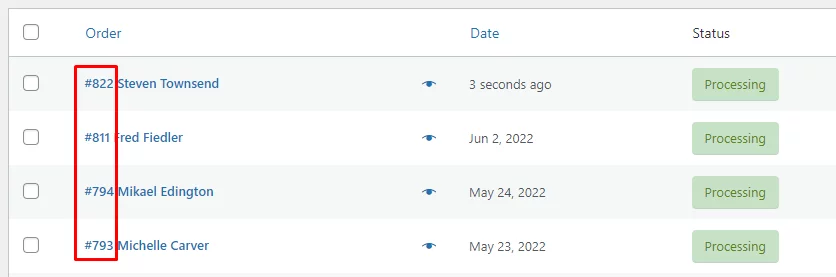
How WooCommerce Order Numbers Are Generated
WooCommerce uses the WordPress database to generate order numbers.
In WordPress, everything—posts, pages, products, images, and orders—is stored in the wp_posts table. Each item gets a unique post ID.
WooCommerce simply uses this post ID as the order number. That’s why WooCommerce order numbers appear to skip—even though nothing is actually missing.
Let’s try and understand the process by creating a new order.
Go and click WooCommerce>>Orders>>Add order. Put customer details, add some products and create the order.
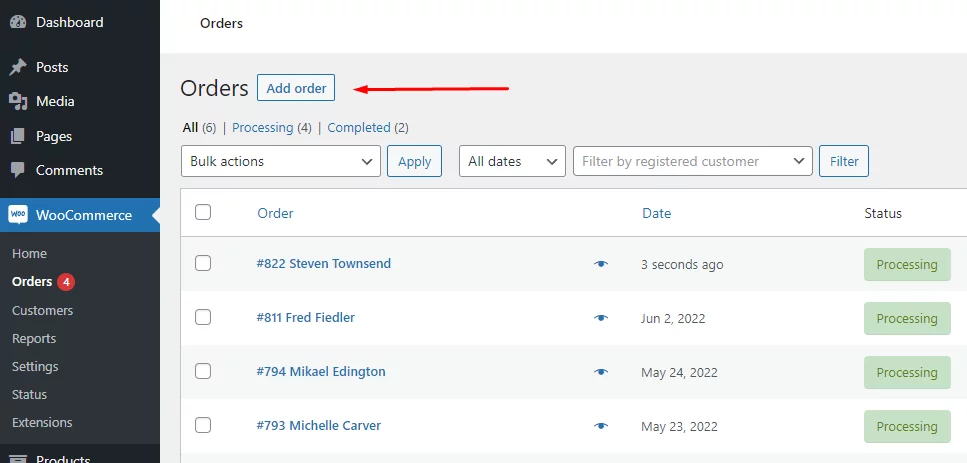
As soon as you enter the order edit page, you will notice WooCommerce has already assigned an order number to the order even before creating it.
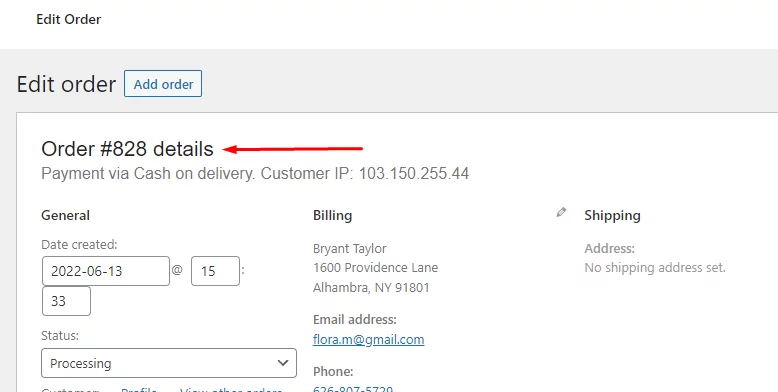
Let’s jump to the WordPress database and check our wp_posts table.
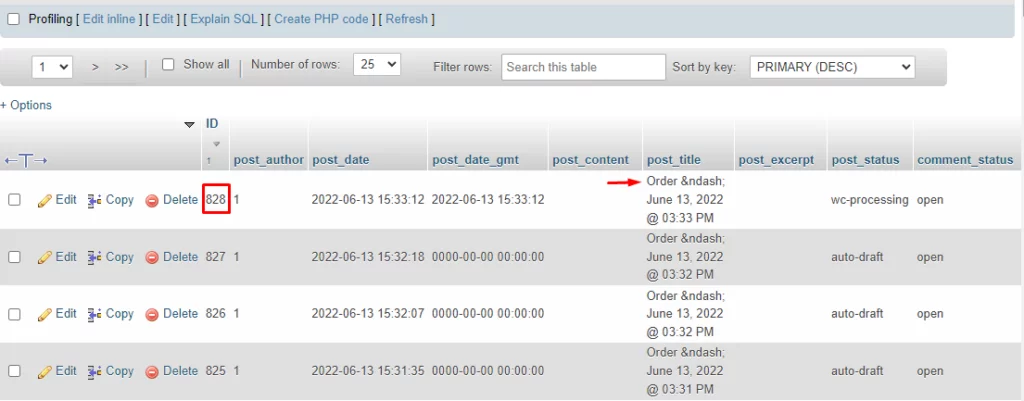
As you can see, the WordPress wp_posts table created a record for the new order and assigned an ID number, and WooCommerce took that same ID and assigned it as the purchase order number.
Let’s create a blog post now. Go to Posts>>Add New and publish the post after entering your contents. Now go back to the wp_posts table and have a look.
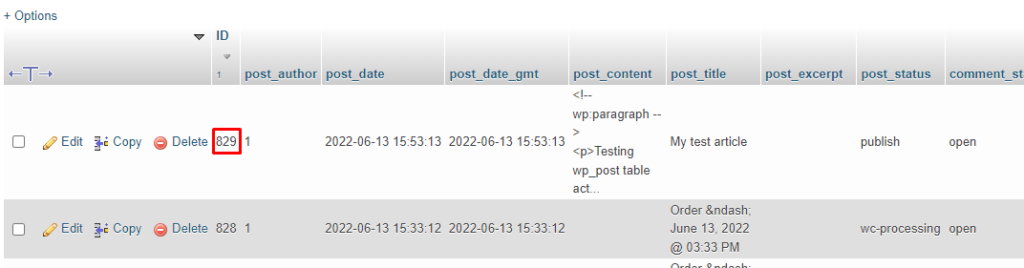
WordPress created a new record for the blog article in the table and assigned the next sequential ID.
Even if you or your customer abandons a cart, the wp_posts table will create a record and assign an ID. And that is why purchase order numbers are not in sequential order in WooCommerce.
So from the above example, we understood that the WordPress database generally creates the ID numbers in consecutive sequences. However, anything you create on your website will be assigned a post ID in the database, as we have seen above.
And that’s how the sequence breaks for WooCommerce orders.
Let’s try and create two orders at a time and check the order, and post ID numbers in the database.
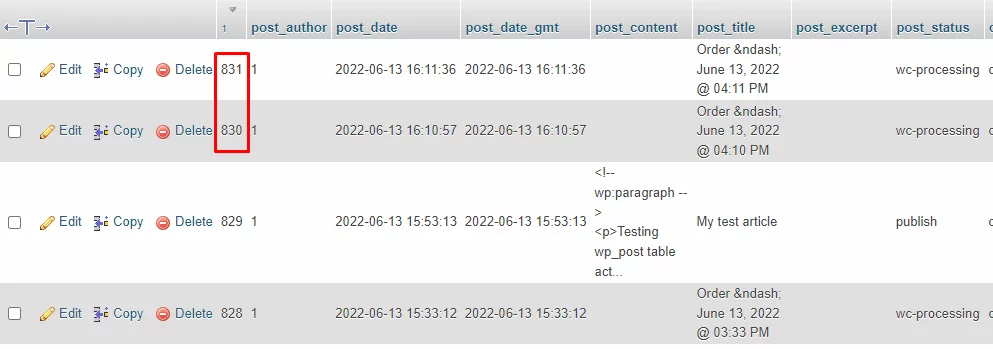
Now they are in consecutive sequence. This is because no other type of posts were created in between these orders.
However, we have no control over the order number sequence in the default WooCommerce setup.
So how can we create WooCommerce sequential order numbers? Let’s find out.
Top Sequential Order Number Plugins for WooCommerce (Challan Compatible)
The Challan Invoicing plugin integrates seamlessly with the following tools. Once installed, you can find extended numbering options directly within Challan’s settings to ensure your invoices and packing slips match your store’s sequence.
1. Sequential Order Numbers By WebToffee (Best All-Rounder)
This is the most popular choice for a quick, “set and forget” solution. It is fully HPOS-compatible for 2026.
- Key Features: Auto-resets sequences from #1 upon installation; supports custom prefixes and date formats.
- Best for: Users needing a simple, reliable fix for skipping numbers.
- Price: Free; Pro version starts at $49/year.
2. Custom Order Numbers By Tyche Softwares (Best for Troubleshooting)
Ideal if you need to fix your historical data or require advanced control over your order counter.
- Key Features: Includes a Renumerate Orders tool to fix existing non-sequential IDs. Offers a reset counter (daily/monthly/yearly) and manual order number overrides.
- Best for: Stores migrating from other platforms or fixing “broken” sequences.
- Price: Free; Pro version starts at $59/year.
3. Sequential Order Numbers Pro by SkyVerge (Best for Custom Formats)
A robust, developer-friendly plugin that works automatically upon activation.
- Key Features: Extremely flexible prefixes/suffixes including time-based variables (hour/minute/second). Allows you to start your sequence from any specific digit (e.g., 10001).
- Best for: High-volume stores requiring highly specific identification formats.
- Price: $49/year (Available via WooCommerce Marketplace).
4. Sequential Order Numbers By BeRocket (Best Free Logic)
If you need complex rules without a premium price tag, BeRocket is the strongest free contender.
- Key Features: Create separate sequences based on conditions like payment method, user role, or specific product categories.
- Best for: Stores that need different numbers for “Free” vs. “Paid” orders.
- Price: Free.
Quick at a Glance
| Plugin | Best For | Reset Feature | HPOS Ready? |
|---|---|---|---|
| WebToffee | General Setup | Yes (Pro) | Yes |
| Tyche Softwares | Fixing Old Orders | Yes (Free) | Yes |
| SkyVerge | Official Support | No | Yes |
| BeRocket | Custom Conditions | Yes | Yes |

Customizing Sequential Numbers in Your Invoices (Challan)
Order numbers are most useful when displayed on professional invoices. Using the Challan PDF Invoice & Packing Slip plugin, you can ensure your new sequential numbers appear correctly for customers.
It allows you to:
- Add prefixes and suffixes (e.g., INV-1001-2026)
- Use sequential numbers from supported plugins
- Create fully customized invoices, packing slips, and shipping labels
- Automatically attach invoices to order emails
Creating custom sequential order numbers for WooCommerce with Challan pro (For invoices)
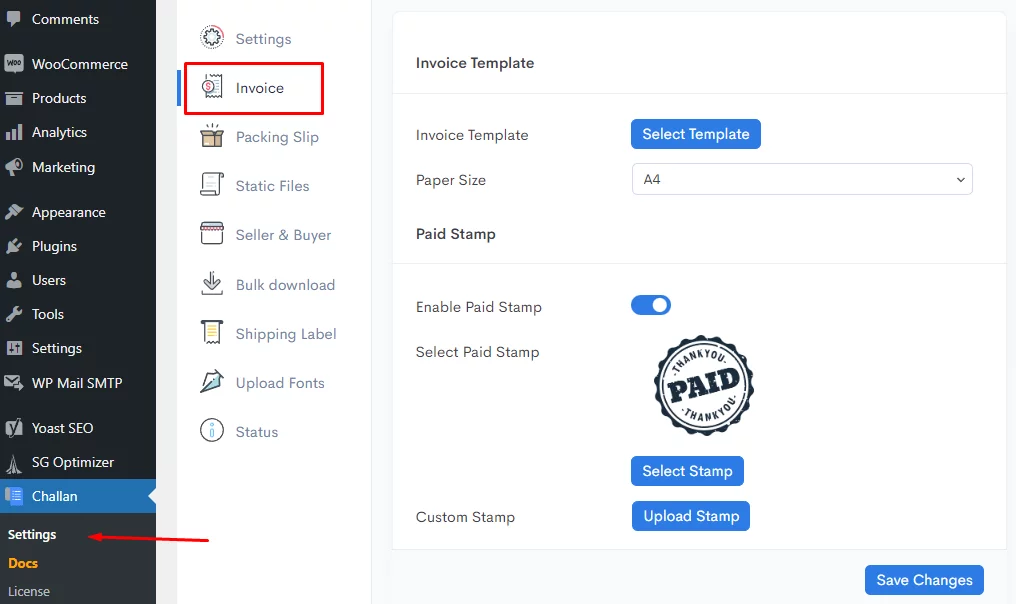
After installing and activating the Challan pro plugin, go to its dedicated menu and click on the Invoice tab.
Scroll down to find the Order Info settings.
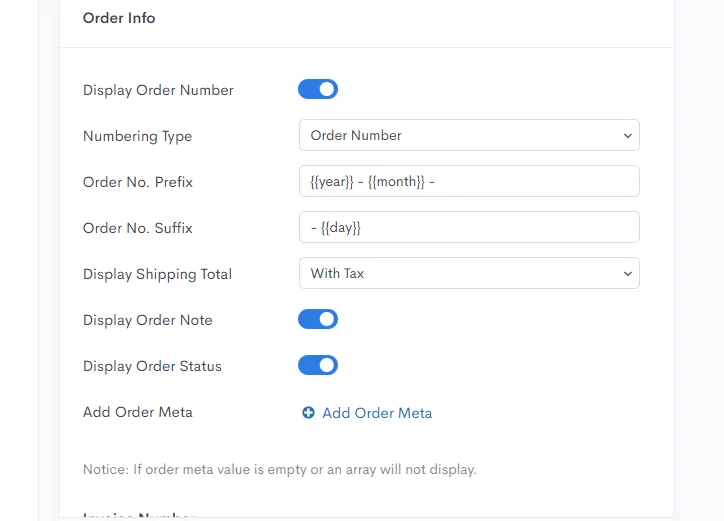
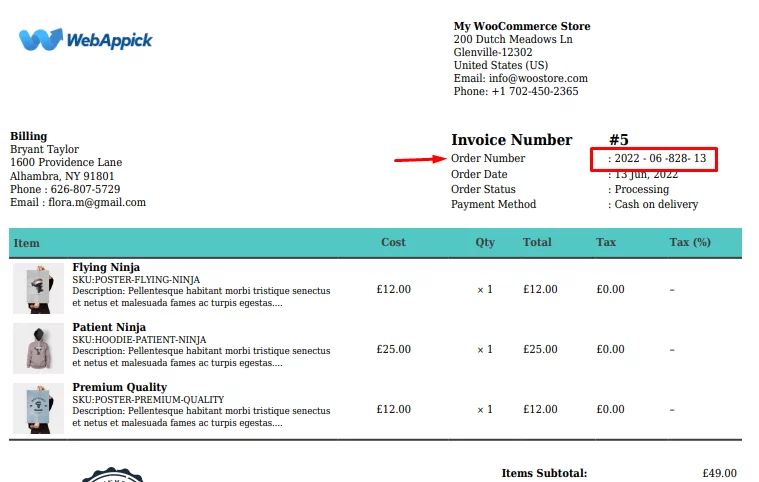
As you can see, you can set prefixes as well as a suffix to your order numbers. With the above settings, your order number in your invoice will look like this –
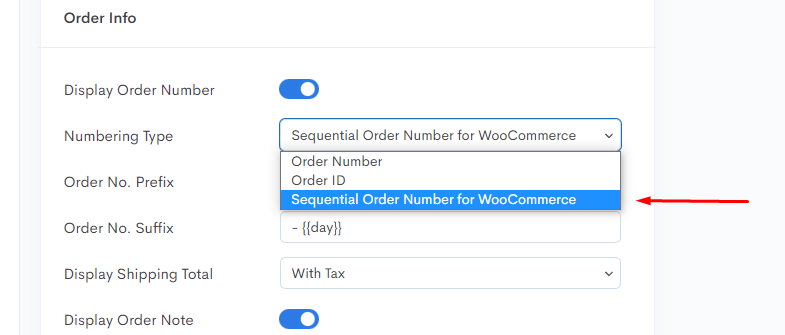
We have already mentioned Challan supports and integrates with WooCommerce sequential order numbers plugins. If you click on the Numbering Type dropdown, you will find the plugin we already have installed and demonstrated above.
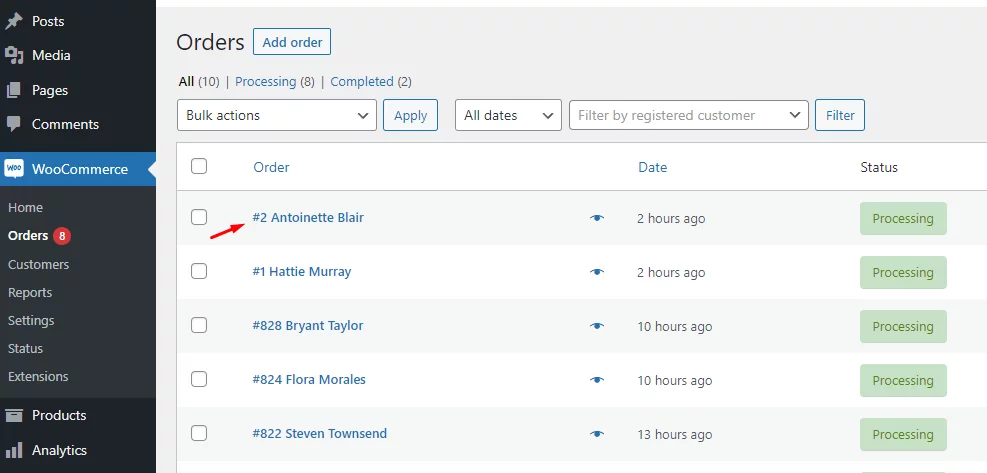
Let’s go back to our orders list and pick an order with a sequential order number we created recently after activating the WebToffee plugin.
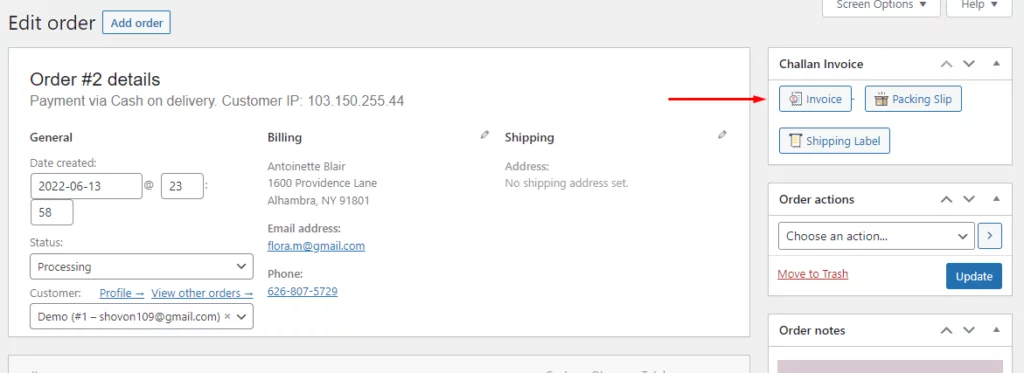
Click on the Invoice button to download the invoice for that order.
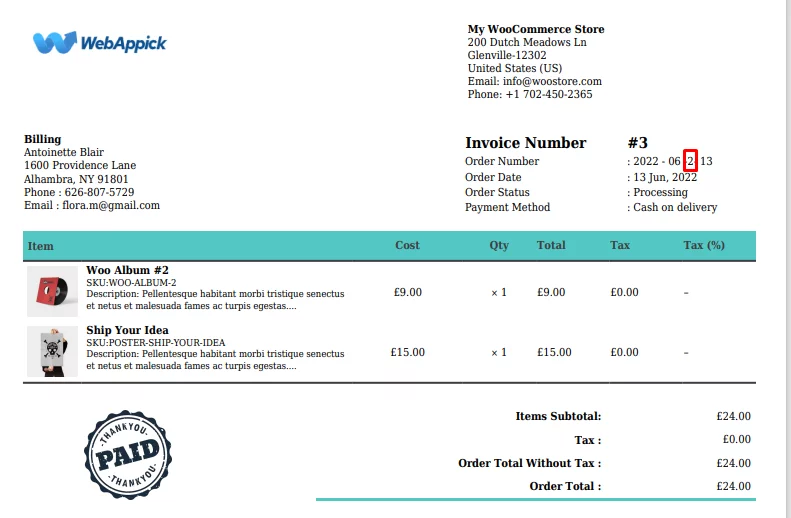
You will find the prefix and suffix along with the WooCommerce sequential order numbers in the invoice.
You can also set different order meta in your invoice with the Challan pro plugin.
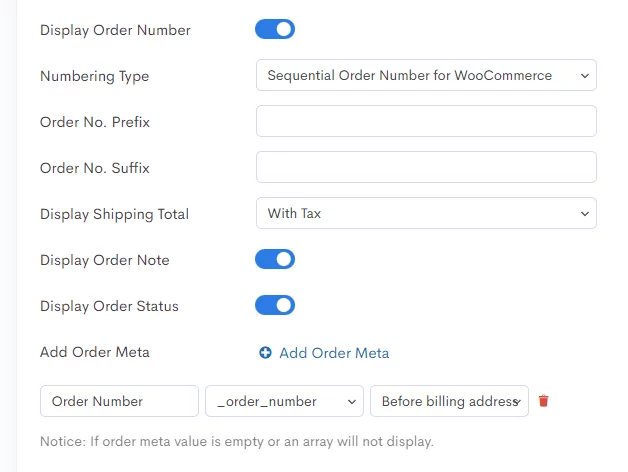
We have removed the prefix and suffix and created an order meta with an order number attribute which we want to place before the billing address. Here’s how it looks now.
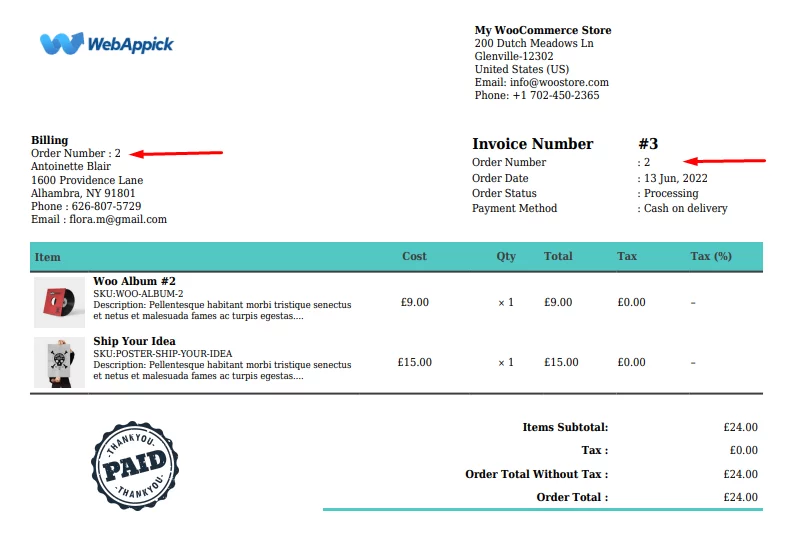
You can play with the Challan settings to further customize the appearance of your sequential order numbers for WooCommerce inside your invoices and packing slips.
Using Challan to sync your sequential numbers is a great start. To ensure your templates are fully optimized, check out our guide on how to create a Professional Invoice in WooCommerce.
Wrap Up
Non-sequential order numbers are a natural part of how WordPress works, but they aren’t ideal for a growing business. By installing a sequential numbering plugin, you gain better tracking, cleaner records, and full legal compliance.
Ready to professionalize your store? Combine a sequential plugin with Challan Pro to create beautiful, compliant PDF invoices automatically.
Frequently Asked Questions (FAQs)
Why are my WooCommerce order numbers not sequential by default?
WordPress uses a shared ID system in its database (wp_posts table). Every time you create a blog post, upload an image, or save a product, WordPress “claims” a unique ID. Since orders also use these IDs, any activity between two orders creates a “gap” in the sequence (e.g., #101, #105, #110).
Will changing to sequential order numbers break my payment gateway (Stripe/PayPal)?
No. Payment gateways and core WooCommerce functions use the Internal Database ID, while sequential plugins only change the Display Order Number. Your transaction syncing, refunds, and shipping labels will continue to work perfectly.
Does this work with WooCommerce High-Performance Order Storage (HPOS)?
Yes. In 2026, all major sequential plugins (WebToffee, Tyche, SkyVerge) are fully compatible with HPOS. They ensure that even though orders are stored in high-performance tables, your custom numbering sequence remains intact and accurate.
Can I reset my order numbers every year?
Yes. Most premium versions of sequential plugins offer an Auto-Reset feature. You can set your sequence to restart at #1 on a daily, monthly, or yearly basis (e.g., 2026-001, 2027-001). This is highly recommended for fiscal year bookkeeping.
Is it possible to give “Free Orders” a different numbering sequence?
Yes. Plugins like Sequential Order Numbers Pro allow you to create a separate sequence for orders with a $0 value. This helps separate your promotional giveaways from your actual revenue-generating transactions in your reports.
How do I fix order numbers for orders that were placed BEFORE I installed the plugin?
Most free plugins only affect new orders. If you need to fix your historical data, use a plugin with a “Renumerate” tool (like Tyche Software). This will scan your old orders and re-assign them into a clean, consecutive sequence.
Can I include the customer’s country or current time in the order ID?
Absolutely. Using placeholders like [Prefix], [Date], and [Number], you can create highly specific formats such as US-2026-1001 or UK-APR-502. This is helpful for stores managing multi-regional tax compliance.