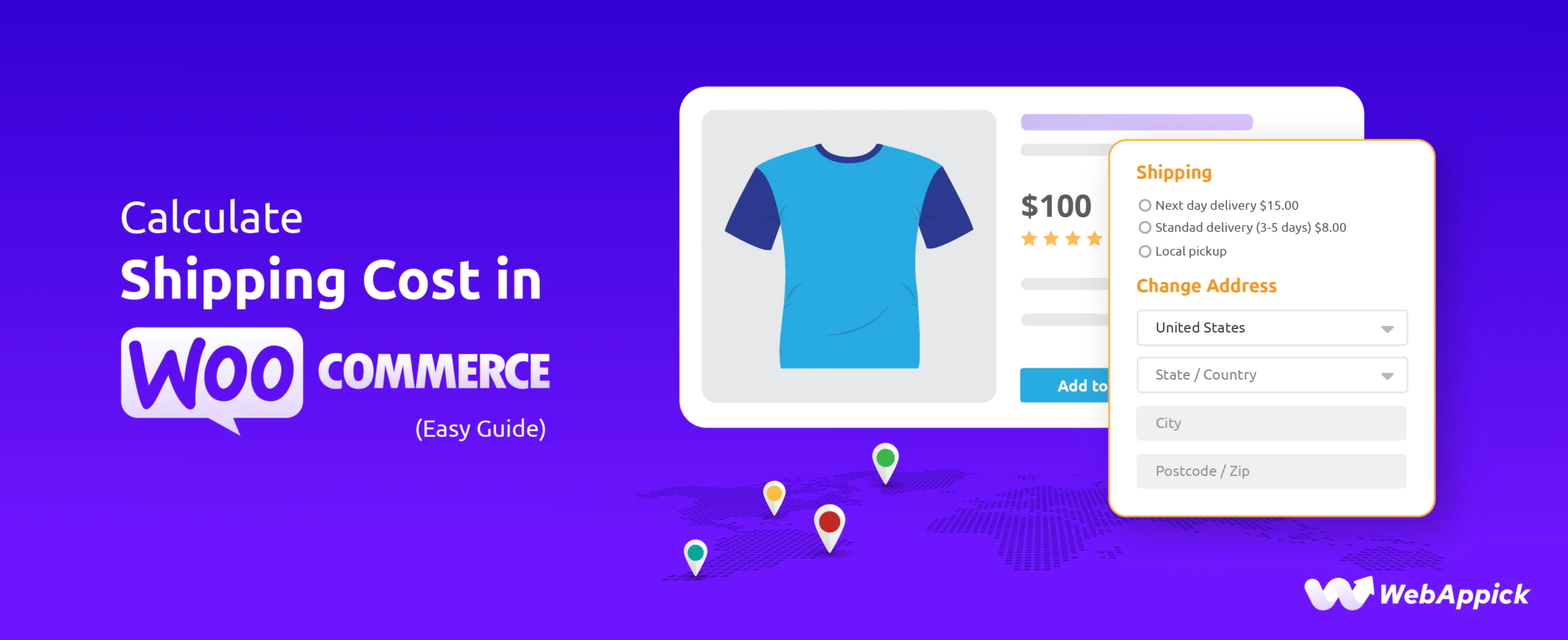
Accurate shipping costs directly affect whether a customer completes checkout. WooCommerce calculates shipping using each product’s weight, dimensions, and shipping class, combined with the customer’s location matched to a shipping zone, then applies whichever shipping method (flat rate, weight-based, or free shipping) you’ve configured for that zone.
This guide covers how that calculation works, how to set it up, which plugins add real-time carrier rates and table-rate pricing, and how to optimize shipping costs for profitability.
How WooCommerce Calculates Shipping Costs
When a customer checks out, WooCommerce works through several factors in order:
- Product information: weight, dimensions, and the shipping class you’ve assigned to each product.
- Customer location: the shipping address, matched by postcode and country.
- Shipping zones: geographic areas you define (countries, states, or custom regions) that the customer’s address is matched against.
- Shipping methods: the options available within that zone, such as flat rate, free shipping, or local pickup.
- Cost calculation: based on the method chosen. Flat rate is a fixed cost regardless of weight. Weight-based cost scales with cart weight. Dimensional weight (length × width × height) is used instead of actual weight when carriers charge based on package size, whichever value is higher.
Getting zones, methods, and classes configured correctly avoids both undercharging (which erodes margin) and overcharging (which drives cart abandonment), and it lets you offer different delivery speeds at different price points within the same zone.
Setting Up WooCommerce’s Built-In Shipping Calculator
WooCommerce’s core shipping settings support three methods per zone: Free Shipping, Flat Rate, and Local Pickup. Using these, you can approximate quantity-based, weight-based, and cart-total-based shipping, and get partway to table-rate shipping, without a plugin.
Configure this from WooCommerce → Settings → Shipping:
- Shipping zones
- Shipping settings (including enabling the cart-page shipping calculator)
- Classes
- Local pickup
Setting up a zone:
- Zone name: a label for the zone.
- Zone regions: the countries, states, or postcodes it covers.
- Shipping methods: the methods available once a customer’s address matches this zone.
Free shipping can be set unconditionally, based on a minimum cart total, or tied to a coupon.
Flat rate shipping supports placeholders so the cost can vary based on cart contents rather than being a single fixed number.
Local pickup lets you set separate rates for customers collecting from a physical location.
Shipping classes let you group products (by weight, fragility, or category) and apply different rules to each group, useful when your catalog has very different shipping needs across products.
For anything beyond this, quantity- and rule-based logic, real-time carrier rates, or true table-rate shipping, you’ll need a dedicated shipping calculator plugin.
Adding Real-Time Carrier Rates and Advanced Rules
Built-in shipping settings use rates you set manually. A shipping calculator plugin can instead pull live rates directly from carriers like FedEx, UPS, and USPS based on the customer’s actual location, cart weight, and selected service, so the price shown reflects what the carrier will actually charge rather than an estimate you configured in advance.
Beyond live rates, these plugins typically add:
- Rule-based conditions: shipping cost that varies by product category, order value, or customer location, beyond what zones and classes alone can do.
- Live checkout updates: shipping cost recalculates instantly as items are added or removed from the cart.
- Automated calculation: removes manual rate-setting and the errors that come with it.
Best Shipping Calculator Plugins for WooCommerce Store
While WooCommerce provides the basic foundational framework for shipping, third-party plugins bridge the gap for more complex logistical needs. When choosing a plugin, it helps to identify which category your store falls into:
ELEX WooCommerce Shipping Calculator, Purchase Shipping Label & Tracking for Customers
ELEX lets customers compare rates across USPS, UPS, FedEx, and Canada Post, then print shipping labels and generate tracking links directly from your site. It’s particularly useful for stores where items ship from the customer, such as repair services, since it gives customers a self-service way to calculate cost, choose a service, and track the shipment.
Key features:
- Multi-carrier rate comparison across USPS, UPS, FedEx, and Canada Post.
- Print shipping labels from the site’s front end.
- Custom packaging options based on item weight and dimensions.
- Bulk package generation via CSV upload.
- Shipping labels and tracking links emailed to both sender and receiver.
- Dedicated calculator page restricted to selected user roles.
- Default from/to addresses to speed up repeat calculations.
Product Page Shipping Calculator for WooCommerce by PI Websolution
A free plugin that shows shipping cost and available methods directly on the product page, before the customer adds anything to their cart, so they’re not surprised at checkout. It runs on Ajax, avoiding full page reloads and working around page caching.
Key features:
- Calculates shipping before add-to-cart.
- Shows available methods based on shipping zones, even without the customer’s address.
- Lets customers change delivery location and see updated cost and methods live.
- Shortcode [pi_shipping_calculator] available if auto-insertion doesn’t work with your theme.
- Supports WPML and Polylang.
- Three display position options, plus a popup location-selection option.
- Can exclude specific products from showing the calculator.
Flat Rate Shipping Plugin for WooCommerce
Offers customizable flat-rate shipping by item, by order, or by weight. Reported install numbers and specific customer counts change over time; check the plugin’s current listing for up-to-date figures before citing a number.
Key features:
- Rule-based shipping by product weight, order total, and destination.
- Unlimited shipping zones, each with its own flat-rate rules.
- Per-item, per-order, or weight-based pricing.
- Location-based rates for specific products.
- Flat rates by product category or tag.
- User-role-based shipping rates.
WooCommerce Table Rate Shipping – Flexible Shipping PRO
A table-rate shipping plugin for defining rules across weight, price, quantity, and more, useful for stores with genuinely complex shipping logic that zones and classes alone can’t express.
Key features:
- Rate rules by weight or dimensional weight.
- Rate rules by cart price.
- Rate rules by quantity or number of unique cart lines.
- Different rates by product, tag, or category.
- Rate rules by total volume or product dimensions.
- Conditional hide/show for shipping methods.
- Rates that vary by customer user role.
- Date- and time-specific rates or method visibility.
- A free-shipping progress notice showing customers how much more to spend.
Adding a Shipping Calculator to Product Pages
By default, WooCommerce only shows shipping cost on the cart page, which means customers have to add a product before finding out what shipping will cost, a common source of cart abandonment. Showing shipping cost on the product page instead lets customers see the full cost upfront.
Using the free Product Page Shipping Calculator plugin:
- Install and activate it; it works out of the box, with settings available under WooCommerce → Shipping Calculator.
- Set up a zone with a flat rate, for example $6 base plus $1 per additional quantity.
- On the product page front end, the calculator box now appears automatically.
- Changing the quantity updates the shipping cost live.
- The calculator only shows costs once the customer’s location matches a configured zone, so make sure zones cover everywhere you ship.
- Remove unneeded fields from the address box under the plugin’s Remove Fields tab, and adjust its appearance under the Design tab.
The Pro version adds estimated delivery dates alongside the cost, which gives customers one more concrete detail before they commit to buying.
Optimizing Shipping Costs
- Negotiate carrier rates: volume-based discounts from carriers become available once you have consistent shipping volume to point to.
- Set a free-shipping threshold: offering free shipping above a calculated minimum order value can increase average order size while protecting margin, provided the threshold is set high enough to stay profitable.
- Package efficiently: right-sized packaging reduces dimensional weight charges on bulky-but-light items.
- Show real-time rates: letting customers choose from live carrier options builds trust and avoids both over- and under-charging.
- Automate the calculation: rule-based plugins remove the ongoing manual work of updating rates as carriers change their pricing.
For genuinely complex needs, table-rate plugins like Flexible Shipping PRO, or third-party rate services like EasyPost or ShipEngine for broader real-time carrier coverage, extend what zones and classes alone can do.
Frequently Asked Questions
Does WooCommerce calculate shipping automatically?
Yes, once you’ve set up zones, methods, and any shipping classes you need. WooCommerce applies the matching zone’s method and cost automatically at checkout; no calculation is manual once configured.
Can I show shipping costs before checkout?
Yes. WooCommerce’s default cart-page display can be enabled in Shipping Settings, and a plugin like Product Page Shipping Calculator can show it even earlier, on the product page itself, before the customer adds anything to their cart.
What’s the difference between flat rate and table rate shipping?
Flat rate is a single fixed cost (or one that scales simply with quantity) per method. Table rate shipping applies different rates based on combinations of conditions, weight, price, quantity, destination, simultaneously, which requires a dedicated table-rate plugin like Flexible Shipping PRO rather than WooCommerce’s built-in flat rate method.
Can I get real-time rates from FedEx, UPS, or USPS in WooCommerce?
Yes, with a plugin built for it, such as ELEX WooCommerce Shipping Calculator, which pulls live rates from multiple carriers based on the customer’s actual cart and location rather than a rate you set manually in advance.
Why does WooCommerce only show shipping cost at the cart page?
That’s the default behavior; WooCommerce doesn’t display shipping costs on individual product pages out of the box. A plugin is required to move that calculation earlier in the shopping journey.
Key Takeaways
- WooCommerce calculates shipping from product weight and dimensions, customer location matched to a zone, and whichever method (flat rate, weight-based, free shipping) is configured for that zone.
- Built-in settings cover flat rate, free shipping, and local pickup; real-time carrier rates and true table-rate logic both require a plugin.
- Showing shipping cost on the product page, rather than waiting until the cart, reduces the chance of a customer abandoning checkout over an unexpected fee.
- Match the plugin to the need: ELEX for live multi-carrier rates and label printing, Product Page Shipping Calculator for early cost visibility, and Flexible Shipping PRO for genuinely complex table-rate logic.

Free version on WordPress.org. Every Pro licence includes a 30-day money-back guarantee.