
You can provide receipts in WooCommerce using three primary methods: configuring built-in WooCommerce email settings, installing a dedicated WooCommerce receipt or PDF invoice plugin, or adding custom PHP code snippets to your WordPress functions.php file. While core WooCommerce sends basic order alerts, scaling an online store requires structured, detailed purchase documents to ensure legal compliance and build customer trust.
Quick Summary of Methods
- Built-In Email Settings: Best for a basic WooCommerce email receipt (e.g., Order Confirmation or Completed Order alerts) without extra extensions.
- WooCommerce Receipt Plugins: Best for generating a professional PDF invoice, adding a VAT/Tax breakdown, issuing unique invoice numbers, or auto-attaching print-ready documents to customer emails.
- Custom Code Snippets: Best for developers who want full control over transactional data using WooCommerce hooks and filters.
Why the Default Setup Isn’t Enough? A proper receipt serves as official proof of purchase, which is vital for financial auditing, tax records, and refund management.
By default, the core WooCommerce platform only provides standard transactional notifications (Processing, Completed, and Customer Invoice emails). While these work as simple confirmations, they typically lack critical enterprise data points such as a transaction ID, paid stamp, legal business information, and customized branding.
To elevate your eCommerce business operations and meet legal auditing requirements, extending your documentation setup is highly recommended.
WooCommerce Receipt vs Invoice vs Order Confirmation
Many store owners use the words receipt, invoice, and order confirmation interchangeably. However, they are not always the same.
- A WooCommerce order confirmation is mainly used to confirm that the customer’s order has been placed successfully. It usually appears after checkout and is also sent through the WooCommerce order email.
- A WooCommerce receipt is a payment record. It confirms that the customer has paid for the order. It usually includes the products purchased, amount paid, payment method, transaction details, tax, and customer information.
- A WooCommerce invoice is usually a more formal document used for billing, accounting, and tax purposes. It may include invoice number, business details, VAT/TAX information, payment status, and legal details.
So, if you only want to confirm the order, the default WooCommerce email may be enough. But if you want to provide a proper payment receipt, PDF invoice, or printable order receipt, a dedicated plugin is the better option.
Can I Use a WooCommerce Order Confirmation Email as a Receipt?
Yes, you can use the WooCommerce order confirmation email as a basic receipt, especially when you only need to provide simple proof of purchase.
WooCommerce sends different order emails based on the order status, such as processing order, completed order, and customer invoice/order details. These emails can include the order summary, billing address, shipping address, payment method, and order total.
However, an order confirmation email and a professional receipt are not always the same thing.
A WooCommerce order confirmation email mainly confirms that the customer’s order has been placed successfully. It usually includes the order summary, product details, billing address, shipping information, payment method, and order total.
A proper WooCommerce receipt, on the other hand, should provide a clearer purchase record. It may include tax details, transaction ID, VAT/TAX information, receipt number, refund policy, store branding, and a downloadable or printable PDF copy.
So, if you only need to acknowledge the order, the default email may be enough. But if you want to provide official receipt-style documentation, tax records, paid status, or branded purchase documents, using a WooCommerce PDF receipt plugin is a better option.
Method 1: Provide a Receipt Using Built-In WooCommerce Features
WooCommerce automatically sends an order confirmation email to customers right after they complete the checkout process. While this email isn’t a full-fledged receipt, it can serve as a simple purchase record. That email contains basic order details. Such as:
- Order summary (items purchased, quantities, prices).
- Customer details (name, email).
- Billing address.
- Payment method and order total.
While this method is quick and requires no additional tools, it lacks branding and detailed customization options. For a more polished and in-depth receipt, you will need to opt for a dedicated WooCommerce invoice download plugin.
However, if you’re okay with the basic built-in receipts, here’s how you can provide a free WooCommerce receipt right from the platform’s feature settings:
Step 1: Navigate to WooCommerce Settings
Navigate to WooCommerce → Settings → Emails from your WordPress dashboard.
Step 2: Select When You Want Your Receipt to Be Generated
Ensure the “Processing Order” and “Completed Order” email templates are enabled.
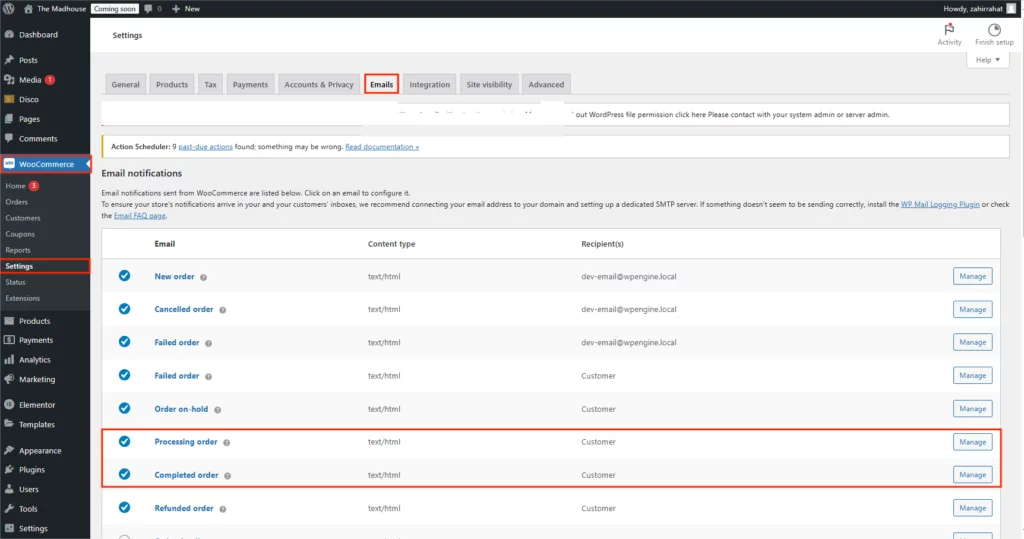
The “Processing order” email will be sent when the order is received, and the “Completed Order” email will be sent when the order is marked complete (can serve as a receipt).
Step 3: Customize your Receipt Further
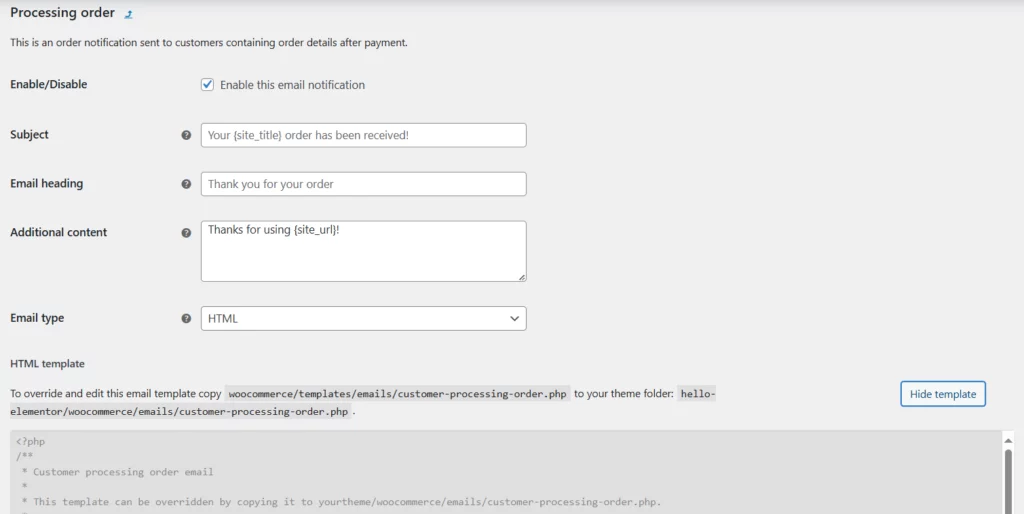
Click “Manage” next to these emails to customize their content, if necessary. You can edit the email subject, heading, body and type of the email based on your requirements.
You can also check out the email template from the “View Template” button.
Step 4: Save the Changes
Once you are happy with the settings, click on the “Save Changes” button below.
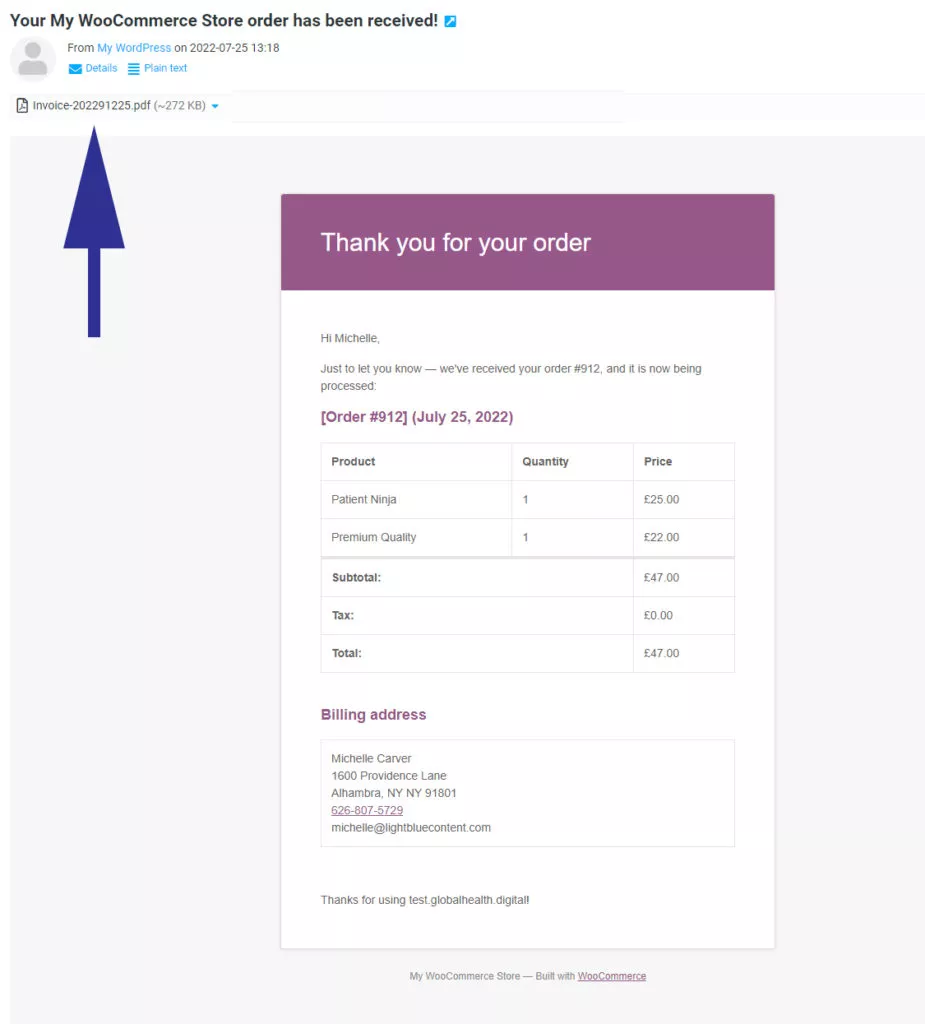
And that’s how you provide a basic WooCommerce receipt automatically using the platform’s built-in settings. Here’s what a standard WooCommerce receipt looks like:
Now, let’s check out how you can provide a customized WooCommerce receipt using a dedicated plugin.
How WooCommerce Sends Receipt Emails
WooCommerce can send customer emails automatically based on order status. For example, when an order is placed or completed, WooCommerce can send the relevant order email to the customer.
For in-person sales, WooCommerce also supports email receipts when the customer email address is added to the order. This makes it useful for stores that sell both online and offline through WooCommerce-supported payment methods.
However, the default WooCommerce email receipt is still limited. It may work as a simple customer receipt, but it does not always provide a professional PDF receipt, invoice number, print-ready layout, paid stamp, business details, or custom branding.
That’s why many WooCommerce store owners use a PDF invoice and receipt plugin to automatically generate invoices, attach PDF receipts to order emails, and provide downloadable purchase documents.
Method 2: Create WooCommerce PDF Receipts Using Plugins
To create fully customizable and professional receipts, WooCommerce plugins are the way to go. These tools allow you to design branded invoices and receipts, automate their delivery, and meet specific legal requirements.
There are several plugins available that can provide a WooCommerce receipt automatically. Some of the most widely used WooCommerce receipt/invoice plugins are:
| Plugin Name | Key Features | Price |
|---|---|---|
| Challan | Generate and automate customized PDF receipts/invoices, packing slips, order notes. | Free / Paid |
| WooCommerce PDF Invoices & Packing Slips | Generate PDF receipts/invoices with custom branding options | Free / Paid |
| WP Invoice System | Customize receipts, add tax compliance | Paid ($59/year) |
| YITH WooCommerce PDF Invoice | Auto-generate receipts for each order | Free / Paid |
When choosing a WooCommerce receipt plugin, make sure it supports the features you actually need. For example, some store owners only need to generate invoices, while others need PDF receipts, packing slips, delivery notes, email attachments, print receipt options, paid stamps, VAT/TAX details, and custom templates.
A good WooCommerce receipt plugin should help you:
- Automatically generate receipts after purchase.
- Attach PDF invoices or receipts to WooCommerce order emails.
- Create printable order receipts.
- Customize receipt design with store logo and branding.
- Add tax, VAT, transaction ID, and payment details.
- Generate receipts for both online and manually created orders.
- Resend customer invoice/order details when needed.
This helps you turn a basic WooCommerce order email into a professional customer receipt system.
Best WooCommerce Receipt PDF Plugins
For our guide today, let’s explore how you can generate and provide a WooCommerce receipt automatically through one of the most robust plugins named “Challan- PDF invoice and Packing Slip for WooCommerce”.
It’s a freemium plugin that automatically generates and attaches WooCommerce receipts with every order confirmation email.
Besides, this plugin also lets you customize your invoice, receipt, packing slip, and delivery note extensively, including your brand elements such as “logo design“, paid stamp, custom background, template, signature, VAT/TAX info, and more.
Step-by-Step Guide to Setting Up a Receipt Plugin
Without any further ado, let’s jump right into exploring how you can generate and provide customized WooCommerce receipt with Challan:
Step 1 — Install and activate the plugin:
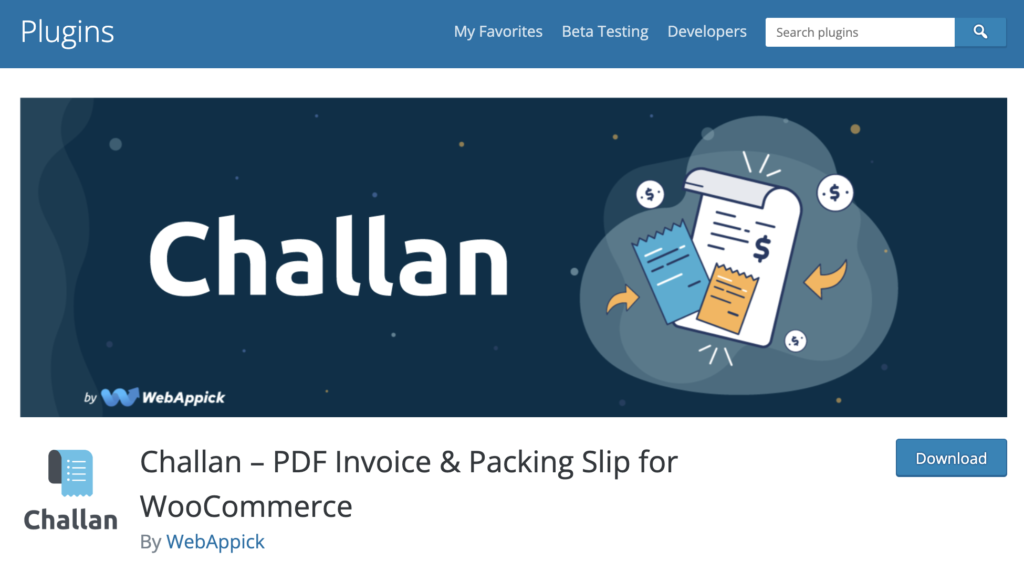
From your WordPress dashboard, go to Plugins > Add New Plugin. Next, search “Challan” on the search bar on the top right corner. Once the plugin shows up, click to download, install, and activate it.
Step 2 — Configure Email Settings:
Now navigate to Challan > Settings for your WordPress dashboard. Click on the “Invoice Attach to Email” switch and select when you want to generate the receipts.
Step 3 — Save the Changes:
There are also a lot of customization options under the setting menu. You can select the template, output type (HTML or PDF), display currency code, add product/order meta, and more.
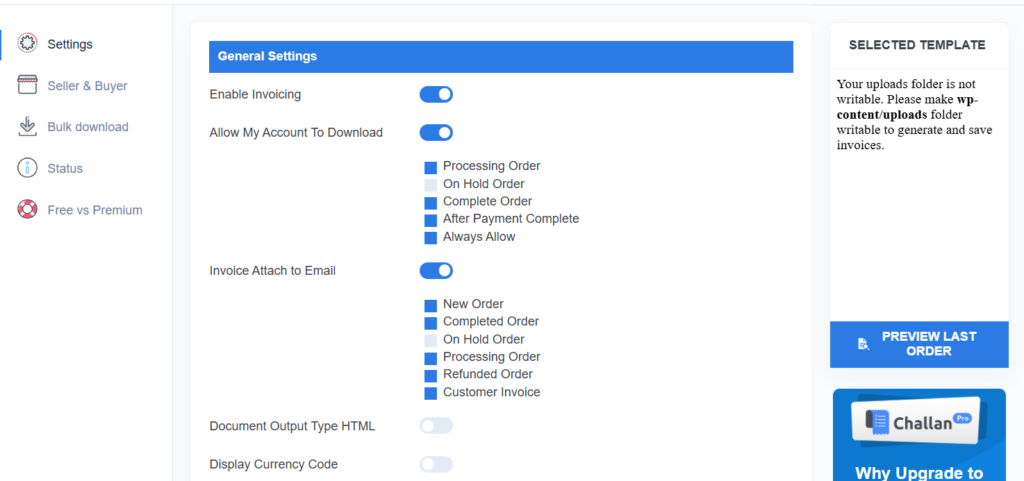
Once you are satisfied with the customization, click on the “Save Changes” Button below.
That’s how you automatically generate WooCommerce receipts with every completed purchase and send it to your customers via online. This method ensures your customers receive polished, professional receipts that reflect your brand identity.
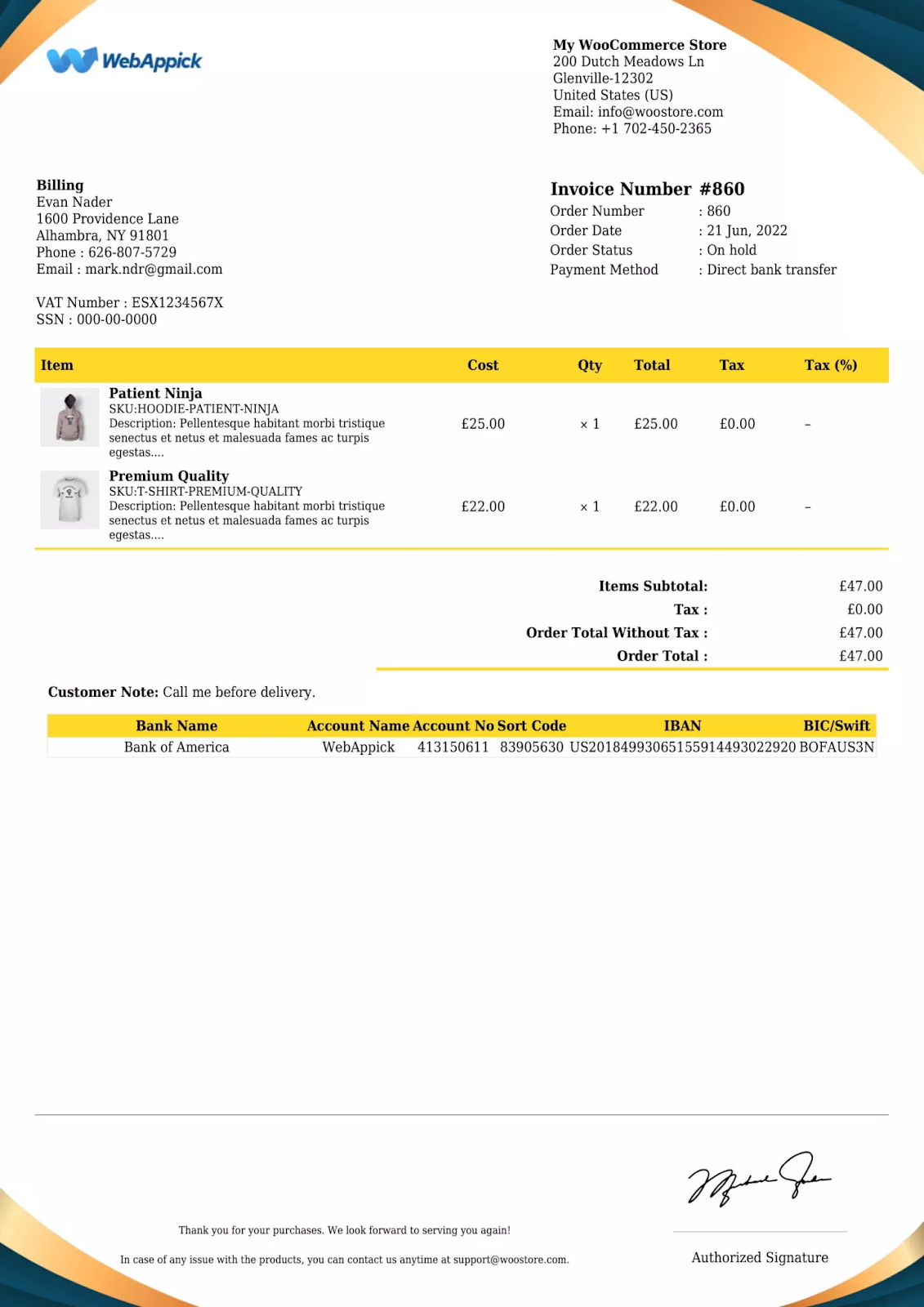
However, if you want to customize your receipt even further, Challan pro gives you the ability to personalize your receipts even further with your brand logo, signatures, paid stamps, VAT/TAX info, premium templates, and much more.
With Challan, here’s what your WooCommerce receipts will look like:
How to Download or Print WooCommerce PDF Receipts
Many store owners also need a WooCommerce print receipt option, especially when they want to keep physical records, provide receipts for local delivery, or include receipts inside shipped packages.
With the default WooCommerce email system, customers can open the order confirmation email and print it manually. But this is not always professional or properly formatted.
A WooCommerce PDF receipt plugin makes this much easier. It allows you to generate a downloadable PDF receipt that can be printed, saved, or attached to the customer’s email automatically.
This is especially useful when you want to provide:
- Printable WooCommerce receipts
- WooCommerce PDF receipts
- Customer invoice/order details
- Packing slips and delivery notes
- Professional purchase documents
- Tax-ready receipt copies
So, if your customers often ask for a receipt download or printable order receipt, using a plugin is the most reliable option.
Method 3: Provide WooCommerce Receipts with Custom Code
But, wait. There is another way you can manually customize your WooCommerce receipt emails using a snippet of PHP code.
If you have sound technical expertise, and are looking for specific design needs, adding custom files to your WooCommerce email receipts is the easiest way to get what you want. This way, you can include additional details like tax numbers, order notes, or a custom thank-you message.
Here’s how you can do it:
Step 1: Locate functions.php file
Locate and open your theme’s functions.php file. Generally, it is located in your theme folder. Navigate to wp-content → themes → yourtheme, and you’ll find the file.
Also, you can add the code snippet directly from your WordPress dashboard. To do this, navigate to Appearance > Theme File Editor.
Step 2: Add a PHP Code Snippet
Add the following PHP snippet to modify the email content:
add_action( 'woocommerce_email_after_order_table', 'add_custom_receipt_message', 10, 4 );
function add_custom_receipt_message( $order, $sent_to_admin, $plain_text, $email ) {
    if ( $email->id == 'customer_completed_order' ) {
        echo "<p>Thank you for your purchase! Your receipt is below:</p>";
    }
}
Step 3: Save and Test The Result
Save your changes and test the updated email by completing a test order. Once saved, trigger a test purchase on your site; you will see your new custom message displayed right inside your inbox confirmation email. However, always back up your site before editing code, and test changes on a staging site.
Key Information to Include in WooCommerce Receipts
A well-designed receipt should provide all the necessary details to ensure clarity and legal compliance. Regardless of the method you choose, you’ll need to provide some key details in your receipt.
Below are the essential elements to include in every WooCommerce receipt:
- Order Information: Product name, quantity, price, variation, order date, and time.
- Customer Information: Name, email, billing, and shipping address.
- Payment Details: Payment method, such as PayPal, credit card, COD, and transaction ID.
- Order Total: Subtotal, tax, discounts, shipping fees, and final payable amount.
- Receipt Number: A unique receipt number or invoice number for tracking and accounting.
- Vat/Tax details: VAT details, tax rate, tax amount, or disclaimers, if applicable.
- Store Branding: Logo, contact information, refund policy, terms and conditions.
- Personalized Note: A custom “Thank You” note, special promotion, or customer message.
A detailed receipt helps customers understand what they purchased, how much they paid, and how the payment was processed. It also makes the receipt more useful for returns, refunds, bookkeeping, and tax records.
Why Providing a Receipt in WooCommerce Is Necessary?
Providing a receipt is one of the simplest yet most effective ways to build trust with your customers. It reassures them that their transaction has been successfully processed and serves as a clear record of the purchase.
It’s not just a nice-to-have; it’s a professional necessity.
Here’s why this is crucial for every eCommerce businesses:
Customer Trust and Transparency
A detailed receipt reassures customers about their purchase. It reduces any ambiguity, ensuring the customer knows exactly what they purchased, how much they paid, and how it was processed.
It also serves as a record that can be used to solve disputes, refund requests, or return issues in the future if necessary. By sending a properly formatted receipt, you demonstrate that your business is organized and values professionalism.
Customers associate polished communication with a trustworthy brand, making them more likely to return for future purchases.
Legal and Tax Requirements
Receipts play a critical role in meeting legal and tax compliance requirements. They are often required for tax calculation, accounting, and business record-keeping.
For businesses operating under strict tax regulations, receipts serve as evidence of transactions and tax payments.
Also, if your WooCommerce store operates internationally, receipts help meet the unique tax requirements of different countries.
As a result, both your store and your customers can benefit from having clear, itemized purchase records.
Brand Image and Professionalism
Sending a well-designed receipt reflects positively on your brand. It demonstrates that your business is organized and values transparency.
You can also use your receipts strategically to reinforce your brand identity and make sure your brand always stays at the top of your client’s mind.
For instance, many businesses overlook the importance of receipts, offering only generic or incomplete records.
Investing in well-crafted, branded receipts can help you set yourself apart from competitors and strengthen your reputation as a trustworthy, professional eCommerce business.
All in all, when customers perceive your business as professional, they are more likely to trust you, recommend your store, and return for future purchases.
WooCommerce Receipt Best Practices
Before you start sending receipts, make sure they are easy to read, accurate, and useful for your customers.
Here are some quick best practices:
- Use a clear receipt or invoice number.
- Add your store logo and contact information.
- Include billing and shipping details.
- Mention payment method and transaction ID.
- Show tax, discount, shipping, and final order total clearly.
- Add a thank-you note to improve customer experience.
- Keep the receipt design clean and printable.
- Test your WooCommerce receipt email before sending it to real customers.
These small details can make your receipt look more professional and help your customers keep a proper purchase record.
Frequently Asked Question
Does WooCommerce send email receipts automatically?
Yes. WooCommerce can automatically send order emails like processing order, completed order, and customer invoice/order details emails. These can work as simple WooCommerce email receipts.
How do I create a PDF receipt in WooCommerce?
Use a WooCommerce PDF receipt or invoice plugin to automatically generate PDF receipts and attach them to customer order emails.
How do I print a WooCommerce receipt?
You can print the WooCommerce order email, but the better option is to use a PDF receipt plugin that creates a clean, print-ready receipt.
Is an order confirmation the same as a receipt?
Not always. An order confirmation confirms that the order was placed, while a receipt confirms payment and works as proof of purchase.
How do I manually send a WooCommerce customer invoice?
Go to WooCommerce → Orders, open the order, select Customer invoice/order details from Order actions, and send it to the customer.
Conclusion
Providing receipts in WooCommerce is essential for improving customer satisfaction, ensuring legal compliance, and showcasing your brand’s professionalism. It shows that you care about every aspect of the customer experience, which builds trust and loyalty in the long run.
That’s why we discussed multiple ways you can generate and provide WooCommerce receipts to your shoppers. Whether you use WooCommerce’s built-in features, a plugin, or custom code, it’s essential to ensure your customers get the accurate information on time.

Free version on WordPress.org. Every Pro licence includes a 30-day money-back guarantee.