%22%2F%3E%0A%3Cpath%20d%3D%22M59.8894%2016.6974C60.1689%2016.9331%2060.5416%2017.1216%2060.9142%2017.0745C61.5664%2017.0273%2061.8925%2016.6031%2061.6596%2015.7547C61.5198%2014.4349%2061.4267%2013.1623%2061.2869%2011.8425C61.1006%209.72149%2060.8211%207.55331%2060.5881%205.38512L60.1689%201.70863C60.0757%200.81307%2059.6099%200.294591%2058.7713%200.106053C58.4918%20-0.0353509%2058.2123%20-0.0353509%2057.9328%200.106053C57.7931%200.106053%2057.6999%200.106053%2057.6067%200.153187C56.5353%200.483129%2055.4172%200.81307%2054.3458%201.19015C53.5073%201.47295%2052.6222%201.75576%2051.7371%202.03857C50.2929%202.50991%2048.8488%203.02839%2047.4047%203.49974C46.4264%203.82967%2045.4016%204.1596%2044.3768%204.48952L44.3767%204.48956C43.6313%204.72523%2043.3518%205.24371%2043.6313%205.85646C43.7711%206.13927%2044.004%206.32781%2044.2369%206.46921C44.7028%206.79915%2045.2152%207.08196%2045.6811%207.4119C45.8674%207.55331%2046.0537%207.69471%2045.8208%208.02465C45.7276%208.21319%2045.5879%208.35459%2045.4481%208.54313L45.355%208.73167L44.5164%2010.0986L43.9108%2010.9941L43.3052%2011.8897L43.2121%2011.9839L42.1406%2013.5865L44.5867%2019.8706C45.5713%2022.1447%2048.6357%2026.5713%2052.552%2023.6277L53.9265%2022.2593L54.3458%2021.5523C54.3924%2021.458%2054.4856%2021.3637%2054.5321%2021.2694L54.5787%2021.2223C55.2309%2020.1854%2055.883%2019.1956%2056.5352%2018.2059L56.5353%2018.2057C57.0477%2017.4044%2057.5601%2016.6503%2058.0726%2015.849C58.2123%2015.6604%2058.3055%2015.6133%2058.4918%2015.7076C58.9577%2016.0375%2059.4235%2016.4146%2059.8894%2016.6974Z%22%20fill%3D%22%233D89D0%22%2F%3E%0A%3Cpath%20d%3D%22M28.0259%2022.0232C27.9793%2022.0703%2027.9793%2022.1175%2027.9327%2022.1646C27.9793%2022.1175%2028.0259%2022.0703%2028.0259%2022.0232Z%22%20fill%3D%22url(%23paint1_linear)%22%2F%3E%0A%3Cpath%20d%3D%22M53.9265%2022.3064C53.7402%2022.5892%2053.5538%2022.872%2053.3675%2023.202C53.0414%2023.7204%2052.7153%2024.1918%2052.3892%2024.7103C51.3178%2026.4071%2050.1531%2027.9625%2048.4295%2029.0938C46.9388%2030.0365%2045.4015%2030.6021%2043.6779%2030.8849C42.1872%2031.1206%2040.7896%2030.9791%2039.3921%2030.5549C37.6219%2030.0365%2036.038%2029.1409%2034.687%2027.8211C33.7088%2026.8784%2032.9634%2025.7944%2032.3578%2024.616C32.0317%2023.9561%2031.7988%2023.2491%2031.4727%2022.5421C31.0534%2021.5522%2030.1683%2019.2427%2030.1218%2019.1012C30.0752%2019.0541%2030.0752%2018.9598%2030.0286%2018.9127C29.9354%2018.7242%2029.8422%2018.5828%2029.7957%2018.3942C29.6559%2018.0172%2029.4696%2017.6401%2029.3298%2017.2159C29.2366%2017.0273%2029.1901%2016.8388%2029.0969%2016.6503C28.9571%2016.3674%2028.864%2016.0846%2028.7242%2015.7547C28.5845%2015.3776%2028.4447%2015.0005%2028.2584%2014.6235C28.1652%2014.3407%2028.0254%2014.0579%2027.9323%2013.775C27.9323%2013.7279%2027.9323%2013.7279%2027.8857%2013.6808C27.7925%2013.4922%2027.7459%2013.3037%2027.6528%2013.1152C27.4664%2012.5967%2027.2335%2012.1253%2027.0006%2011.6069C27.0006%2011.5597%2026.954%2011.5126%2026.9074%2011.4655C26.8142%2011.2769%2026.7211%2011.1355%2026.5813%2010.947C26.5347%2010.8998%2026.4882%2010.8527%2026.4882%2010.8056C26.4416%2010.7584%2026.395%2010.7113%2026.395%2010.6642C26.3484%2010.617%2026.3018%2010.5699%2026.2552%2010.5228C26.2086%2010.4756%2026.2086%2010.4285%2026.1621%2010.4285L26.1155%2010.3814C26.0689%2010.3342%2026.0223%2010.2871%2026.0223%2010.2871C25.9291%2010.1928%2025.8826%2010.1457%2025.7894%2010.0514C25.7428%2010.0043%2025.6962%209.95715%2025.6496%209.95715C25.603%209.91002%2025.5565%209.91002%2025.5099%209.86288C25.4167%209.81575%2025.3701%209.76861%2025.277%209.67435C25.2304%209.62721%2025.1838%209.62721%2025.1372%209.58008C25.0906%209.53294%2025.044%209.53294%2024.9974%209.48581C24.9509%209.48581%2024.9043%209.43867%2024.9043%209.43867C24.8577%209.39154%2024.8111%209.39154%2024.7645%209.3444C24.7179%209.3444%2024.7179%209.29727%2024.6714%209.29727C24.5782%209.25014%2024.485%209.203%2024.3918%209.15587C22.9943%208.59025%2021.1775%208.77879%2020.1992%209.10873C19.2675%209.43867%2018.2893%2010.3342%2018.2427%2010.4285C18.6619%209.72148%2019.0812%208.96733%2019.547%208.26031C20.1526%207.36475%2020.7117%206.4692%2021.3638%205.62078C22.3887%204.63095%2023.4602%203.78253%2024.6714%203.07551C27.0006%201.75575%2029.4696%201.52007%2032.0317%201.89715C33.3361%202.08569%2034.5939%202.60417%2035.7585%203.35832C36.9231%204.06534%2037.9014%204.96089%2038.7399%206.04499C39.2989%206.79914%2039.8114%207.60043%2040.1374%208.49598C40.6033%209.67435%2041.1623%2010.8056%2041.5816%2011.9839C41.7679%2012.5496%2042.0008%2013.068%2042.2338%2013.6336C42.2338%2013.6336%2042.2338%2013.6336%2042.2338%2013.6808V13.7279L45.0288%2019.8554C45.4015%2020.8452%2045.9139%2021.6465%2046.7059%2022.3535C47.2183%2022.872%2047.8705%2023.1548%2048.5227%2023.3905C48.5693%2023.3905%2048.6158%2023.4376%2048.6624%2023.4376C49.7805%2023.7676%2051.2246%2023.3905%2052.3426%2023.0134C53.088%2022.6835%2053.6936%2022.4007%2053.9265%2022.3064Z%22%20fill%3D%22url(%23paint2_linear)%22%2F%3E%0A%3Cpath%20d%3D%22M28.0255%2022.0238C27.9789%2022.0709%2027.9789%2022.118%2027.9324%2022.1652C27.9324%2022.1652%2027.9324%2022.1652%2027.9324%2022.2123C27.7926%2022.448%2027.6063%2022.6836%2027.4665%2022.9664C25.8826%2025.8416%2024.4385%2028.1512%2021.6434%2029.6595C19.3142%2030.9793%2016.8452%2031.215%2014.2831%2030.8379C14.1433%2030.8379%2014.0501%2030.7908%2013.9104%2030.7908C12.7458%2030.6022%2011.5812%2030.0838%2010.4165%2029.2825C8.78607%2028.1512%207.52829%2026.5958%206.64318%2024.8047L6.17733%2023.9091L5.01272%2021.5524L0.726927%2012.6911C0.447419%2012.0784%200.214496%2011.4656%200.121327%2010.8529C-0.437689%207.8834%200.95985%204.77252%203.80151%203.35849C5.43198%202.51007%207.24878%202.4158%208.87924%202.93428C10.6029%203.45276%2012.1402%204.67825%2013.0253%206.46937L13.1184%206.6579L14.7489%209.95732C14.7955%2010.0516%2014.7955%2010.1459%2014.8421%2010.2401C15.075%2010.8529%2015.8204%2012.4083%2016.426%2013.5867C16.4725%2013.6809%2016.5191%2013.7752%2016.5657%2013.8223C16.6123%2013.9638%2016.7055%2014.1052%2016.752%2014.1994C16.7986%2014.2937%2016.8452%2014.3408%2016.8452%2014.4351C16.8452%2014.4822%2016.8918%2014.4822%2016.8918%2014.5294C16.9384%2014.5765%2016.9384%2014.6708%2016.985%2014.7179C16.985%2014.765%2017.0316%2014.765%2017.0316%2014.8122C17.0316%2014.8593%2017.0781%2014.8593%2017.0781%2014.9064C17.0781%2014.9536%2017.1247%2015.0007%2017.1247%2015.0478C17.1247%2015.095%2017.1713%2015.095%2017.1713%2015.1421C17.3111%2015.4249%2017.4042%2015.7549%2017.544%2016.0377C17.6372%2016.2262%2017.6837%2016.4147%2017.7769%2016.6504C17.9632%2017.1689%2018.1962%2017.6402%2018.3825%2018.1587C18.5223%2018.4415%2018.6154%2018.7715%2018.7552%2019.0543C18.8018%2019.1485%2018.8484%2019.29%2018.8949%2019.3842C18.9881%2019.5728%2019.0347%2019.7613%2019.1279%2019.9498C19.3608%2020.5154%2019.5937%2021.0811%2019.9664%2021.5995C20.1993%2021.8823%2020.3857%2022.1652%2020.6652%2022.4008C22.3888%2023.9563%2024.9975%2023.862%2028.0255%2022.0238Z%22%20fill%3D%22url(%23paint3_linear)%22%2F%3E%0A%3Cpath%20d%3D%22M68.0888%2024.8694L68%207.88696H71.9963L71.8187%2018.4448L76.8806%207.88696H80.6548L81.3209%2018.3999L85.5392%207.88696H89.713L82.4754%2024.8694H78.1683L77.5466%2013.9072L72.3959%2024.8694H68.0888Z%22%20fill%3D%22%230D5293%22%2F%3E%0A%3Cpath%20d%3D%22M92.7771%2025.1385C89.2693%2025.1385%2086.7383%2022.6675%2086.7383%2019.2081C86.7383%2015.3893%2089.8021%2012.1545%2093.4431%2012.1545C96.6402%2012.1545%2098.8603%2014.4458%2098.8603%2017.7704C98.8603%2018.5342%2098.8159%2019.1182%2098.7271%2019.6124H90.4237C90.6457%2021.0501%2091.7114%2022.0385%2093.2211%2022.0385C94.1536%2022.0385%2094.9528%2021.724%2095.5301%2021.095L97.617%2023.4762C96.0185%2024.6443%2094.5976%2025.1385%2092.7771%2025.1385ZM90.6457%2017.411H95.4857C95.3081%2016.0632%2094.4644%2015.2545%2093.2211%2015.2545C92.0666%2015.2096%2091.0898%2016.0632%2090.6457%2017.411Z%22%20fill%3D%22%230D5293%22%2F%3E%0A%3Cpath%20d%3D%22M105.965%2024.9589C104.411%2024.9589%20103.167%2024.24%20102.368%2022.8473L101.924%2024.869H98.1499L101.791%207.52717L105.698%206.89819L104.322%2013.5923C105.166%2012.7836%20106.32%2012.2894%20107.519%2012.2894C110.139%2012.2894%20112.181%2014.8054%20112.181%2018.0401C112.226%2021.814%20109.428%2024.9589%20105.965%2024.9589ZM103.789%2016.3778L102.945%2020.4212C103.478%2021.185%20104.366%2021.6792%20105.388%2021.6792C107.208%2021.6792%20108.54%2020.2415%20108.54%2018.3097C108.54%2016.6474%20107.43%2015.4793%20105.92%2015.4793C105.077%2015.4793%20104.411%2015.7937%20103.789%2016.3778Z%22%20fill%3D%22%230D5293%22%2F%3E%0A%3Cpath%20d%3D%22M120.44%207.88696H125.058L127.899%2024.8694H123.725L123.193%2020.8259H117.154L114.978%2024.8694H110.582L120.44%207.88696ZM122.704%2017.5912L121.949%2011.9304L118.886%2017.5463H122.704V17.5912Z%22%20fill%3D%22%230D5293%22%2F%3E%0A%3Cpath%20d%3D%22M131.23%2012.3347H135.004L134.782%2013.5927C135.626%2012.7391%20136.736%2012.2449%20137.935%2012.2449C140.555%2012.2449%20142.597%2014.7608%20142.597%2017.9955C142.597%2021.8143%20139.8%2024.9592%20136.336%2024.9592C134.782%2024.9592%20133.539%2024.2853%20132.828%2022.9824L131.274%2030.0809H127.456L131.23%2012.3347ZM134.205%2016.3332L133.317%2020.5114C133.85%2021.2303%20134.738%2021.6796%20135.715%2021.6796C137.535%2021.6796%20138.867%2020.2419%20138.867%2018.31C138.867%2016.6477%20137.757%2015.4796%20136.247%2015.4796C135.493%2015.4796%20134.827%2015.7492%20134.205%2016.3332Z%22%20fill%3D%22%230D5293%22%2F%3E%0A%3Cpath%20d%3D%22M144.595%2012.3347H148.369L148.147%2013.5927C148.99%2012.7391%20150.101%2012.2449%20151.299%2012.2449C153.919%2012.2449%20155.962%2014.7608%20155.962%2017.9955C155.962%2021.8143%20153.164%2024.9592%20149.701%2024.9592C148.147%2024.9592%20146.904%2024.2853%20146.193%2022.9824L144.683%2030.0809H140.865L144.595%2012.3347ZM147.57%2016.3332L146.682%2020.5114C147.214%2021.2303%20148.102%2021.6796%20149.079%2021.6796C150.9%2021.6796%20152.232%2020.2419%20152.232%2018.31C152.232%2016.6477%20151.122%2015.4796%20149.612%2015.4796C148.857%2015.4796%20148.191%2015.7492%20147.57%2016.3332Z%22%20fill%3D%22%230D5293%22%2F%3E%0A%3Cpath%20d%3D%22M159.115%2024.8694H155.296L158.005%2012.3347H161.824L159.115%2024.8694ZM158.449%208.47099C158.449%207.1681%20159.559%206%20160.847%206C161.912%206%20162.8%206.85361%20162.8%207.93186C162.8%209.27967%20161.69%2010.4029%20160.358%2010.4029C159.248%2010.4029%20158.449%209.54924%20158.449%208.47099Z%22%20fill%3D%22%230D5293%22%2F%3E%0A%3Cpath%20d%3D%22M169.727%2020.6909L171.592%2023.1619C170.304%2024.4648%20168.572%2025.1387%20166.752%2025.1387C163.466%2025.1387%20161.068%2022.7126%20161.068%2019.388C161.068%2015.3446%20164.088%2012.1099%20167.862%2012.1099C170.082%2012.1099%20171.947%2013.0983%20173.013%2014.7606L170.304%2017.0069C169.727%2015.9736%20168.927%2015.4794%20167.773%2015.4794C166.13%2015.4794%20164.842%2017.0518%20164.842%2019.0286C164.842%2020.6909%20165.819%2021.6793%20167.329%2021.6793C168.261%2021.7243%20169.016%2021.4098%20169.727%2020.6909Z%22%20fill%3D%22%230D5293%22%2F%3E%0A%3Cpath%20d%3D%22M175.722%207.52717L179.629%206.89819L177.365%2017.6807L182.426%2012.3344H187L180.517%2018.6691L184.691%2024.869H180.162L177.009%2019.5676L175.899%2024.869H172.081L175.722%207.52717Z%22%20fill%3D%22%230D5293%22%2F%3E%0A%3Cdefs%3E%0A%3ClinearGradient%20id%3D%22paint0_linear%22%20x1%3D%2223.1831%22%20y1%3D%2224.7007%22%20x2%3D%2223.3049%22%20y2%3D%228.44851%22%20gradientUnits%3D%22userSpaceOnUse%22%3E%0A%3Cstop%20stop-color%3D%22%23327ACD%22%2F%3E%0A%3Cstop%20offset%3D%221%22%20stop-color%3D%22%234696D2%22%2F%3E%0A%3C%2FlinearGradient%3E%0A%3ClinearGradient%20id%3D%22paint1_linear%22%20x1%3D%2227.9436%22%20y1%3D%2222.0876%22%20x2%3D%2228.0428%22%20y2%3D%2222.0876%22%20gradientUnits%3D%22userSpaceOnUse%22%3E%0A%3Cstop%20offset%3D%220.2029%22%20stop-color%3D%22%234C51BF%22%20stop-opacity%3D%220.9%22%2F%3E%0A%3Cstop%20offset%3D%221%22%20stop-color%3D%22%235A67D8%22%20stop-opacity%3D%220.9%22%2F%3E%0A%3C%2FlinearGradient%3E%0A%3ClinearGradient%20id%3D%22paint2_linear%22%20x1%3D%2232.4583%22%20y1%3D%222.22148%22%20x2%3D%2239.8371%22%20y2%3D%2230.0298%22%20gradientUnits%3D%22userSpaceOnUse%22%3E%0A%3Cstop%20offset%3D%220.3367%22%20stop-color%3D%22%2342B9FF%22%2F%3E%0A%3Cstop%20offset%3D%220.7818%22%20stop-color%3D%22%233B97E1%22%2F%3E%0A%3Cstop%20offset%3D%221%22%20stop-color%3D%22%233784D1%22%2F%3E%0A%3C%2FlinearGradient%3E%0A%3ClinearGradient%20id%3D%22paint3_linear%22%20x1%3D%2211.252%22%20y1%3D%220.972585%22%20x2%3D%2215.8771%22%20y2%3D%2225.7529%22%20gradientUnits%3D%22userSpaceOnUse%22%3E%0A%3Cstop%20offset%3D%220.3367%22%20stop-color%3D%22%2342B9FF%22%2F%3E%0A%3Cstop%20offset%3D%220.7818%22%20stop-color%3D%22%233B97E1%22%2F%3E%0A%3Cstop%20offset%3D%221%22%20stop-color%3D%22%233784D1%22%2F%3E%0A%3C%2FlinearGradient%3E%0A%3C%2Fdefs%3E%0A%3C%2Fsvg%3E%0A)


How to Upload Products to Google Merchant Center?
 Shuaib Zibran Ahmed
 To upload products to Google Merchant Center (GMC), you can either add items manually, use a Google Sheets feed, or upload a product data feed file (CSV/XML) using CTX Feed – WooCommerce Product Feed Plugin.
Each method relies on accurate Product Attributes—including title, description, price, availability, image link, brand, GTIN/MPN, and other required identifiers defined in Google’s Product Data Specification.
By submitting a clean, structured feed through Products → Feeds, Google can properly process your product listings for Shopping ads and free product listings, ensuring they meet all data quality and policy requirements.
In this guide — a 2026-ready Google Merchant Center product upload guide — you’ll find all modern methods (file, Google Sheets, API, platform sync), up-to-date data requirements, troubleshooting tips, and optimization best practices.
What You Should Set Up Before Uploading Products
Before you dive into feed creation and uploading, ensure your Merchant Center account and store are ready:
- Account setup: You must have a valid GMC account linked to a Google account.
- Website verification & domain claim: Your online store’s domain must be verified and claimed in GMC so that product landing page URLs match.
- Business information: Complete business info, shipping/tax settings, and return policies as required by Google.
- If using ads: Link your GMC account to Google Ads (for Shopping or Performance Max campaigns).
Once those are in place, you’re ready to build and upload your product catalog.
Product Data Specification — What You Need in Your Feed
Your product feed, whether manual, file-based, or via API, must conform to Google’s product data specification. Key attributes are required; others are optional but recommended for best performance.
Required Product Attributes (for most retail products)
At a minimum, each product should include:
- id — Unique identifier or SKU for the product
- title — Concise and accurate product title
- description — Detailed product description
- link — URL of the product’s landing page on your website
- image_link — URL to the main product image
- price — Price including currency (e.g., 29.99 USD)
- availability — e.g. in_stock, out_of_stock, preorder
- condition — e.g., new, used, refurbished
- brand — Manufacturer or brand name
- Product identifier: either GTIN or mpn + brand (if GTIN not available)
Without these, Google may disapprove items or fail to list them.
Recommended / Optional Attributes
For better visibility and performance, include:
- Additional images (additional_image_link)
- sale_price, sale_price_effective_date (if discounting)
- product_type (your internal taxonomy)
- Custom labels (e.g., custom_label_0) — useful for campaign segmentation
- Shipping, tax, size/color (for apparel), google_product_category (to match Google’s taxonomy)
- Any vertical-specific attributes (e.g., size_system, material, color, etc.)
Detailed, rich data helps with better matching in Google Shopping and can reduce disapprovals or warnings.
Supported Feed Formats & Upload Methods in 2026
As of 2026, Google supports multiple methods for uploading your product data — choose the one that best suits your catalog size, update frequency, and technical capabilities.
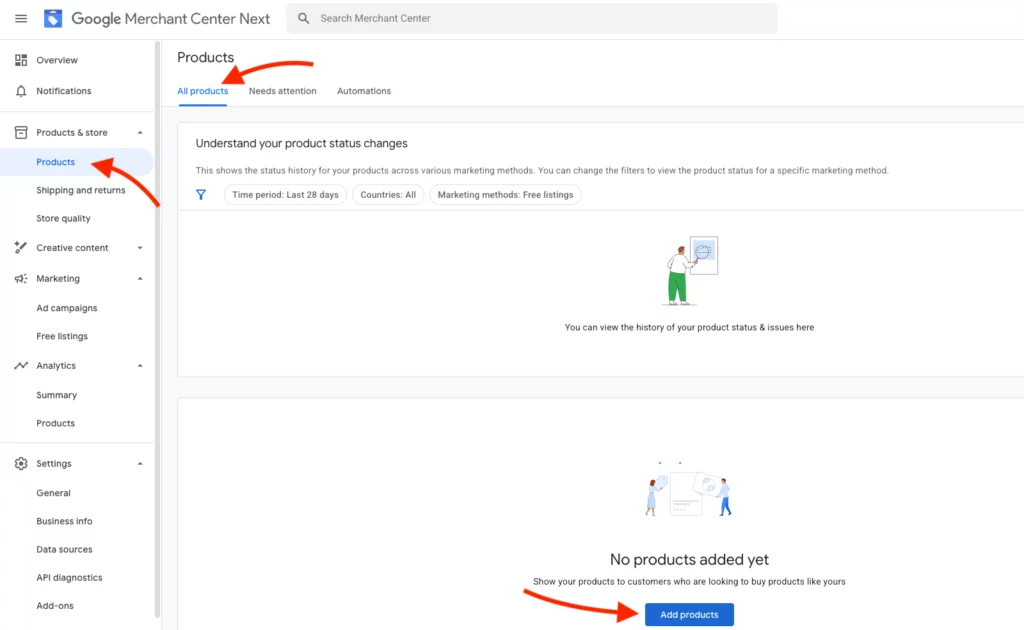
Method 1: Manual Single-Product Upload (Use for Very Small Catalogs)
If you have only a handful of products:
- Log in to your GMC account
- Navigate to Products → All Products → Add product
- Fill out the required product fields manually (title, price, link, image, etc.)
- Save — product will go into review/processing
Method 2: File Upload — TXT / TSV / XML Feed
Most common method for medium-to-large catalogs:
- Create a product feed file in .txt (tab-delimited), .tsv, or .xml format, conforming to Google’s spec.
- In GMC, go to Products → Data Sources (Feeds) → “Add products from a file.”
- Upload the file (up to 4 GB) or host it and use scheduled fetch to have Google automatically import updates.
File feeds are ideal when you export your catalog from a PIM / ERP / marketplace backend or manage via spreadsheets.
Method 3: Google Sheets — Live Synced Spreadsheet Feed
If you prefer spreadsheets and frequent editing:
- Use GMC’s “Google Sheets” feed option — Google provides a template to download.
- Fill in product data (id, title, description, price, link, image, etc.) according to template guidelines
- Set a fetch schedule (e.g., daily) — Google will periodically sync the sheet, so changes reflect automatically
This method combines ease of editing with near-automated synchronization and is especially handy for small- to mid-sized catalogs or those who prefer spreadsheet management.
Method 4: Scheduled Fetch from Hosted Feed URL
Good for dynamically generated feeds or store back-ends that auto-generate feed files:
- Host your feed file (TXT/TSV/XML) on a public or authenticated URL (HTTP, HTTPS, FTP, SFTP are supported)
- In GMC, add a data source → choose Scheduled Fetch → provide the URL, credentials (if needed), fetch schedule, and time zone
- Google will periodically fetch and update your catalog accordingly
This method reduces manual workload and supports frequent updates, which is critical for price/stock-sensitive products.
Method 5: Automatic Sync via E-commerce Platforms (Shopify, WooCommerce, etc.)
For many merchants, the simplest route is using platform integrations:
- Platforms like Shopify, WooCommerce, BigCommerce, etc., often offer an official “Google channel” or plugin that connects to GMC. When configured properly, they sync product data (title, price, images, inventory) automatically.
- Once connected, new products — or changes to existing ones — flow automatically to Google Merchant Center, usually within 24–48 hours.
This is often the easiest and most maintenance-free method for e-commerce stores, especially for small/medium catalogs.
Method 6: API-Based Upload — Content API for Shopping / Merchant API
For developers, large inventories, or dynamic catalogs, Google supports API-based feed management:
- Use the Content API for Shopping (or the latest Merchant API version) to programmatically create, update, or delete product entries.
- Via API, you can send ProductInput resources, including all required product attributes; changes via API are processed in GMC as with manual/ feed-based entries. Via API, you can send ProductInput resources, including all required product attributes; changes via API are processed in GMC as with manual/ feed-based entries.
- For ongoing operations, supplemental feeds (partial updates) are supported — useful if you only need to update price, availability, or other frequently changing attributes without re-uploading all data.
API-based upload is ideal for large catalogs, frequent stock/price changes, or when integrating with backend systems.
Example B: CSV / XML File Upload for Bulk Products
- Export your product catalog from your store/PIM to .txt (tab-delimited), .tsv, or .xml — formatted per Google’s data spec.
- Log in to GMC → go to Products → Data sources → “Add products from a file.”
- Choose the target country and language, then choose the “Upload” method
- Select your file (must be ≤ 4 GB) and upload
- (Optional) Configure scheduled fetch if you host the file somewhere for regular updates
- Save → feed processes and products appear in All Products / Diagnostics
This method is common for large catalogs managed in bulk or by backend systems.
Common Issues & Troubleshooting (2025)
Even with the correct format, many uploads still run into issues. Here are common problems and how to address them:
GTIN / Identifier Errors
If your feed lacks valid product identifiers (GTIN, MPN + brand), products may be disapproved or get limited visibility. Always use correct identifiers, or if selling handmade/custom products, use the attribute to indicate “no identifier.”
Price & Availability Mismatch
If the price or availability in your feed doesn’t match the actual product page on your site — especially important if you update price or stock — Google may disapprove or hide products. Use frequent updates (sheets, scheduled fetch, API sync) to keep data consistent.
Image Issues
Low-quality images, missing images, or images with watermarks/overlays can trigger disapproval or reduce performance. Use clear, high-resolution images with a clean background.
Landing Page & Policy Violations
Ensure that your product’s landing page is live, belongs to the domain you verified, and meets Google’s policies (shipping, returns, accurate information, no disallowed products). Invalid URLs or site policy violations will cause disapproval.
Feed Formatting Errors
Even minor formatting mistakes (wrong delimiters, missing required fields, incorrect currency format) can break the entire feed. Always validate your feed before upload, and if using spreadsheet/XML export — check formatting carefully.
Optimization Tips — Make Your Feed Better Than Just “Valid”
Uploading a feed properly is only half the battle. To get the most out of GMC and Google Shopping/Ads:
- Optimize product titles and descriptions — include brand, key features, specifications, color/size (if applicable), and keywords likely used by shoppers.
- Use all recommended attributes — additional images, sale_price (if applicable), product_type, and custom labels. Rich data helps Google match your products to more queries.
- Schedule frequent updates — especially for price, availability, or fast-changing products to avoid mismatches and disapprovals.
- Use supplemental feeds or API for partial updates — helpful when only some fields (e.g., price, stock, sale price) change often, without re-sending the full feed.
- Monitor Diagnostics & API logs — fix warnings and errors promptly to maintain a clean feed and avoid listing issues.
Final Thought
Uploading products to Google Merchant Center in 2026 is no longer a simple one-time task—it’s an ongoing process that requires the right upload method for your business, whether through Google Sheets, file feeds, scheduled fetch, automated e-commerce integrations, or API-based syncing.
The success of your listings depends on maintaining a feed that meets Google’s product data specifications, includes accurate and complete details, and stays continuously updated with the correct price, availability, and inventory information.
By applying the steps and best practices covered in this guide, you’ll not only upload your products correctly but also establish a reliable system for continuous optimization and synchronization, ensuring that your store remains eligible, visible, and competitive across Google Shopping and Google’s broader commerce ecosystem.