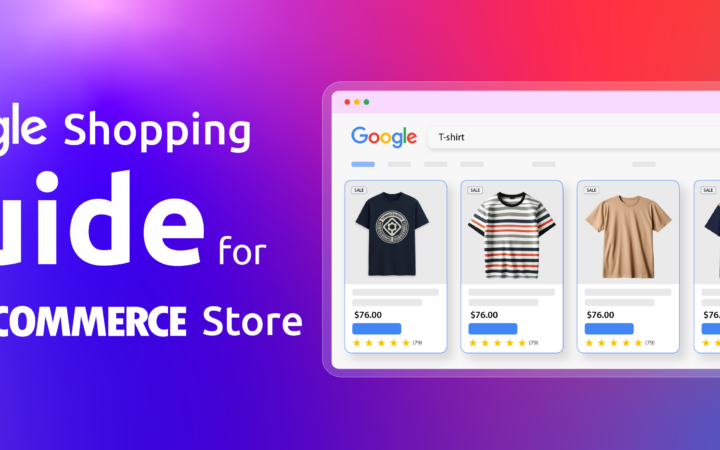
Google Merchant Center (GMC) is a free platform by Google that lets eCommerce store owners upload, manage, and showcase their product data across Google Shopping, Google Search, YouTube, and other Google surfaces. It acts as the central hub connecting your online store to Google Ads, making your products visible to millions of shoppers actively searching for what you sell.
In this guide, you’ll learn exactly what Google Merchant Center is, how it works, what its key features are, how to set it up, and how to connect it to your WooCommerce or Shopify store.
What Is Google Merchant Center (GMC)?
Google Merchant Center commonly abbreviated as GMC is a free marketing platform where online retailers upload structured product data so Google can display it across its network of platforms.
Think of it as your product catalog on Google. Once you submit your product information (title, price, image, availability, and more), GMC makes that data available for Google Shopping ads, free product listings in Search, YouTube Shopping, and Google Images.
GMC sits between your online store and Google Ads. It does not run ads itself, it manages the product data that powers those ads. To run Shopping campaigns, you link GMC to a Google Ads account.
What does “GMC” stand for?
GMC stands for Google Merchant Center. In marketing and eCommerce contexts, GMC refers specifically to this product data management platform not to be confused with other uses of the acronym.
Key Features of Google Merchant Center
Here is a breakdown of the main features that make GMC useful for online retailers.
1. Product Data Management
GMC lets you upload and manage detailed product information including titles, descriptions, pricing, images, availability, brand, identifiers (GTIN/MPN), and dozens of additional attributes. You can upload data via spreadsheets, CSV/TXT/XML files, or feed APIs.
The more accurate and complete your product data, the better Google understands your products and the more likely they are to appear in relevant searches.
2. Product Feed Creation and Optimization
A product feed is a structured file containing all the information about the products you want to advertise. GMC lets you create, upload, and optimize these feeds for Google Shopping and other platforms.
Feed optimization means using the right keywords in titles and descriptions, providing high-quality images, and keeping pricing and stock levels current. An optimized feed improves visibility and drives more qualified clicks.
For WooCommerce stores, plugins like CTX Feed can generate and auto-update product feeds directly from your store’s product data, removing the need to manage files manually.
3. Product Feed Diagnostics
GMC includes a built-in diagnostics tool that scans your product feed for errors, missing attributes, and policy violations. It flags issues by severity so you know what to fix first. Common issues include missing required attributes, incorrect pricing formats, and image quality problems.
If errors are not resolved, Google may disapprove individual products or suspend your account from appearing in Shopping results.
4. Multi-Channel Distribution
Once your product data is uploaded, GMC can distribute your listings across multiple Google surfaces: Google Shopping, Google Search (free listings), Google Images, YouTube Shopping, and Google Maps (for businesses with physical locations).
Your products’ visibility on each platform depends on relevance, feed quality, and compliance with Google’s policies.
5. Custom Labels and Attributes
Custom labels let you tag products with internal categories for example, “New Arrivals,” “Best Sellers,” or “Seasonal Items.” These labels are not visible to shoppers but help you segment and target products in ad campaigns and performance reports.
Custom attributes let you add product details that standard fields do not cover, giving your listings richer information.
6. Free Organic Product Listings
When you upload product data to GMC, Google may show your products as free organic listings in Search results alongside traditional website links. These appear when your product data closely matches a user’s search query.
Free listings require no ad spend; they depend entirely on the quality and relevance of your product data.
7. Dynamic Remarketing
GMC integrates with Google Ads to support dynamic remarketing showing personalized ads to users who previously visited your store and viewed specific products. These ads display the exact products a visitor browsed, reminding them to return and complete their purchase.
Dynamic remarketing campaigns require a linked Google Ads account and may incur advertising costs depending on your campaign setup.
8. Performance Reporting
GMC provides reporting on how your product listings perform across Google’s platforms. Key metrics include impressions, clicks, click-through rate (CTR), conversions, and conversion rate. You can view performance at the product level, product group level, or campaign level to identify what is working and where to improve.
9. Local Inventory Ads
If you have a physical retail location, Local Inventory Ads (LIA) let you show nearby shoppers your in-store inventory in real time. When a shopper clicks the ad, they see a Google-hosted page showing your store’s stock, pricing, and location. This feature is designed for brick-and-mortar retailers and is not relevant for online-only businesses.
10. Google Business Profile Integration
Linking GMC with your Google Business Profile (formerly Google My Business) syncs your store location, business hours, and contact details with your product listings. This helps local customers find your products when searching nearby, and can improve local search visibility.
How Google Merchant Center Works
GMC operates through a four-step cycle: account setup, product feed submission, feed approval, and ongoing performance monitoring.
Step 1 Create Your GMC Account
Go to merchant.google.com and follow the setup process. You will provide your business name, website URL, and country. Google will then ask you to verify ownership of your website using one of four methods:
| Verification Method | How to Use It |
|---|---|
| eCommerce Platform | Use the verification code in your eCommerce platform settings |
| HTML Tag | Add the provided HTML tag to the <head> section of your homepage |
| Google Tag Manager | Insert Tag Manager code into the <head> section |
| Google Analytics | Add tracking code to the <head> section of your homepage |
After verification, you will set up shipping settings, tax rules, and return/refund policies. Your GMC dashboard will then be active.
Step 2 Build Your Product Feed
Click “Add Products” in your GMC dashboard to start adding product data. You can do this by:
- Connecting your website directly (if verified)
- Uploading a CSV, XML, or TXT feed file
- Using a Google Sheets feed template
- Adding products manually one by one
For large inventories, manual entry is not practical. Product feed plugins like CTX Feed (for WooCommerce) automate this process generating feeds, mapping attributes, and keeping data in sync automatically.
Required product attributes per Google’s feed specification include:
- Product ID: Unique identifier for each item
- Title: Clear, keyword-relevant product name
- Description: Description covering features and benefits
- Image URL: High-quality product image link
- Availability: In stock, out of stock, or preorder
- Price: Current selling price including currency
- Category: Google product category classification
- Brand: Manufacturer or brand name
- Identifiers: GTIN, MPN, or brand+MPN combination
Step 3 Submit Your Feed for Approval
After uploading your feed, Google automatically reviews it for errors and policy compliance. This process usually takes a few hours, but can take up to 24 hours.
If your feed has errors, Google will flag them in the Diagnostics tab with color-coded severity levels. You will need to fix the issues in your original feed file, re-upload, and resubmit. Common rejection reasons include missing required attributes, mismatched pricing, and low-quality images.
Step 4 Monitor Performance and Optimize
After your feed is approved, track performance through the Analytics tab in GMC. Key metrics to monitor:
- Impressions how many times your products appeared in results
- Clicks how many times shoppers clicked your listings
- CTR (Click-Through Rate) the percentage of impressions that resulted in a click
- Conversions purchases or other tracked actions after a click
- Conversion Rate the percentage of clicks that resulted in a conversion
Performance monitoring is ongoing. Regularly review which products generate the most clicks, which have low CTR, and where conversion rates can be improved. Update your feed data accordingly.
Is Google Merchant Center Free?
Yes, setting up and using a Google Merchant Center account is completely free. Listing your products on the Google Shopping tab through free organic listings also costs nothing.
However, if you want to run Shopping Ads to promote your products more aggressively, you will pay for those ads through your Google Ads account. Shopping Ads operate on a cost-per-click (CPC) model where you are only charged when someone clicks on your ad.
In short: GMC itself is free. Paid Shopping Ads are optional and billed separately through Google Ads.
How Google Merchant Center Interacts with Google Ads
GMC and Google Ads serve different functions but work closely together. GMC manages your product data and the inventory catalog. Google Ads uses that catalog to build and run Shopping campaigns.
The data flow works like this:
- GMC passes your product inventory data to Google Ads so you can build Shopping campaigns targeting specific products, categories, or price ranges.
- Google Ads passes campaign performance data back to GMC so you can see how your products perform and adjust your feed and bids accordingly.
Without GMC, you cannot run Shopping Ads. Without Google Ads, your products can still appear in free organic listings through GMC, but you will not have paid Shopping campaigns.
How to Connect Google Merchant Center to WooCommerce
If you run a WooCommerce store, the easiest way to connect it to GMC is by using a product feed plugin. CTX Feed is one of the most widely used options for this purpose.
Steps to Connect WooCommerce to GMC Using CTX Feed
- From your WordPress dashboard, go to Plugins > Add New
- Search for “CTX Feed” and click Install Now, then Activate
- Go to CTX Feed > Make Feed from your dashboard
- Select your country, choose Google Shopping as the template, and name your feed
- Select your file type and configure any variation settings
- Click Update and Generate Feed and copy the generated Feed URL
- In your GMC account, go to Products > Add Products > Add Another Product Source
- Paste the Feed URL in the “Enter a Link to Your File” field and click Continue
Your WooCommerce store is now connected to GMC. CTX Feed will keep your product data synced automatically, including price changes, stock updates, and new product additions.
How to Connect Google Merchant Center to Shopify
- From your Shopify dashboard, click Apps
- In the Shopify App Store, search for “Google” and install the Google & YouTube app
- Once installed, open the app and click Connect Google Account
- Grant the required permissions
- Enter your GMC account number in the designated field and click Connect
- Add your products to GMC through the app
If you do not yet have a GMC account, the app will guide you through creating one during this setup.
Google Merchant Center vs. Google Merchant Center Next
In May 2023, Google introduced Google Merchant Center Next, a redesigned version of the platform with a simplified interface and additional automation features. The original GMC has been phased out for most users.
| Feature | Google Merchant Center | Google Merchant Center Next |
|---|---|---|
| Interface | Complex | Simplified and intuitive |
| Campaign Management | Basic tools | Advanced tools |
| Integration Process | More steps | Streamlined |
| Product Management | Functionality-first | Simplicity-first |
| Automatic Image Generation | No | Yes |
| Campaign Creation | Separate tool | Built into dashboard |
| Reporting and Analytics | Standard | Deeper insights |
The core functionality product feed submission, diagnostics, and Shopping integration remains the same in GMC Next. The main changes are in the interface design, reporting depth, and AI-assisted features.
Why Google Merchant Center Matters for eCommerce
Increased Product Visibility
GMC puts your products in front of shoppers on Google Shopping, Search, Images, and YouTube platforms with billions of daily users. Free product listings alone can drive meaningful traffic without ad spend.
Optimized Ad Targeting
By connecting GMC to Google Ads, you can run Shopping campaigns that show your products to users actively searching for items like yours. Google uses your product data to match listings to relevant queries meaning your ads reach people who are already in a buying mindset.
Better Customer Experience
Rich product listings with images, pricing, ratings, and availability give shoppers more information before they click. This reduces friction, builds confidence, and tends to improve conversion rates compared to standard text ads.
Data-Driven Decisions
GMC’s performance reports show which products attract clicks, which convert, and where you are losing potential customers. Combined with Google Ads data, these insights let you allocate your budget more effectively.
Competitive Advantage
Well-optimized GMC listings stand out in Shopping results with high-quality images, accurate pricing, and detailed descriptions. For businesses competing in crowded categories, a clean and complete product feed can directly affect click share.
Common Challenges with Google Merchant Center
Technical Setup
Creating a GMC account, verifying your website, configuring shipping rules, and building a compliant product feed requires technical knowledge. For stores with large inventories, manual feed management is not practical, automating with a feed plugin significantly reduces the effort.
Steep Learning Curve
GMC uses specific terminology (feed attributes, identifiers, diagnostics, custom labels) that can be confusing for new users. Google provides documentation, but understanding how to optimize feeds and interpret performance data takes time.
Strict Policy Compliance
Google has detailed feed specifications that must be met for your products to be approved. Incorrect formatting, missing required attributes, or policy violations will result in product disapprovals or account suspensions. Staying current with Google’s feed requirements is an ongoing responsibility.
Best Plugin for Managing WooCommerce Product Feeds
CTX Feed is a WooCommerce product feed manager plugin that generates, optimizes, and auto-updates product feeds for Google Merchant Center and 220+ other channels.
It handles feed generation for large inventories in seconds, automatically maps WooCommerce product attributes to Google’s required fields, and keeps your feed in sync with your store’s live data. This removes the need to manually manage feed files as your inventory changes.
Key Features
- Generates feeds for Google Shopping, Facebook, Bing, and 220+ channels
- Supports all Google-required attributes including GTIN, MPN, and custom labels
- Auto-updates feed on schedule or triggered by product changes
- Handles variable products and product variations
- Feed diagnostics to catch errors before submission
- Free version available; paid plans listed on the official website
Frequently Asked Questions
What is Google Merchant Center used for?
Google Merchant Center is used to upload and manage product data so your products can appear on Google Shopping, Google Search, YouTube, and other Google platforms. It is the required tool for running Google Shopping Ads and for getting free product listings on Google.
What is a Google Merchant transaction?
“Google Merchant transaction” typically refers to a purchase-related transaction that appears in payment platforms (such as GCash) when a payment is processed through a Google service. It is not directly related to the Google Merchant Center platform. If you see “Google Merchant” as a transaction label in your payment account, it likely refers to a Google payment processor, not the product advertising tool.
What is GMC in Google?
In Google’s context, GMC stands for Google Merchant Center, the platform where retailers manage product data for Google Shopping and related advertising products. In marketing more broadly, GMC refers to the same platform.
Is Google Merchant Center free?
Yes. Creating a GMC account and listing products through free organic listings is free. If you choose to run paid Shopping Ads, those costs are managed through a separate Google Ads account on a cost-per-click basis.
How does Google Merchant Center interact with Google Ads?
GMC passes your product inventory data to Google Ads, enabling you to build Shopping campaigns. Google Ads then passes campaign performance data back to GMC so you can use it to refine your feed and bidding strategy. The two platforms are linked but serve different roles: GMC manages data, Google Ads manages campaigns.
What is the purpose of Google Merchant Center?
The purpose of GMC is to give Google detailed, structured information about your products so Google can match them to relevant shopper searches and display them across its platforms. Without GMC, your products cannot appear in Google Shopping results or Shopping Ads.
How long does Google Merchant Center take to review products?
Product review typically takes a few hours but can take up to 24 hours. If your feed has errors, you will need to fix and resubmit the review clock restarts after resubmission.
Key Takeaways
- Google Merchant Center (GMC) is a free platform where online retailers manage product data for distribution across Google Shopping, Search, YouTube, and other Google surfaces.
- GMC connects your store to Google Ads it manages your product catalog, while Google Ads runs the Shopping campaigns powered by that catalog.
- A well-structured product feed with accurate titles, descriptions, images, pricing, and required identifiers is the foundation of strong GMC performance.
- Free organic product listings through GMC require no ad spend; paid Shopping Ads are optional and billed separately through Google Ads.
- For WooCommerce stores, plugins like CTX Feed automate feed generation and sync, removing the need to manage feed files manually.
- Google Merchant Center Next is the current version of the platform, offering a simplified interface, deeper analytics, and AI-assisted features compared to the original GMC.
- Feed diagnostics, custom labels, dynamic remarketing, and local inventory ads are additional features that help retailers manage, optimize, and scale their presence on Google Shopping.

Free version on WordPress.org. Every Pro licence includes a 30-day money-back guarantee.