%22%2F%3E%0A%3Cpath%20d%3D%22M59.8894%2016.6974C60.1689%2016.9331%2060.5416%2017.1216%2060.9142%2017.0745C61.5664%2017.0273%2061.8925%2016.6031%2061.6596%2015.7547C61.5198%2014.4349%2061.4267%2013.1623%2061.2869%2011.8425C61.1006%209.72149%2060.8211%207.55331%2060.5881%205.38512L60.1689%201.70863C60.0757%200.81307%2059.6099%200.294591%2058.7713%200.106053C58.4918%20-0.0353509%2058.2123%20-0.0353509%2057.9328%200.106053C57.7931%200.106053%2057.6999%200.106053%2057.6067%200.153187C56.5353%200.483129%2055.4172%200.81307%2054.3458%201.19015C53.5073%201.47295%2052.6222%201.75576%2051.7371%202.03857C50.2929%202.50991%2048.8488%203.02839%2047.4047%203.49974C46.4264%203.82967%2045.4016%204.1596%2044.3768%204.48952L44.3767%204.48956C43.6313%204.72523%2043.3518%205.24371%2043.6313%205.85646C43.7711%206.13927%2044.004%206.32781%2044.2369%206.46921C44.7028%206.79915%2045.2152%207.08196%2045.6811%207.4119C45.8674%207.55331%2046.0537%207.69471%2045.8208%208.02465C45.7276%208.21319%2045.5879%208.35459%2045.4481%208.54313L45.355%208.73167L44.5164%2010.0986L43.9108%2010.9941L43.3052%2011.8897L43.2121%2011.9839L42.1406%2013.5865L44.5867%2019.8706C45.5713%2022.1447%2048.6357%2026.5713%2052.552%2023.6277L53.9265%2022.2593L54.3458%2021.5523C54.3924%2021.458%2054.4856%2021.3637%2054.5321%2021.2694L54.5787%2021.2223C55.2309%2020.1854%2055.883%2019.1956%2056.5352%2018.2059L56.5353%2018.2057C57.0477%2017.4044%2057.5601%2016.6503%2058.0726%2015.849C58.2123%2015.6604%2058.3055%2015.6133%2058.4918%2015.7076C58.9577%2016.0375%2059.4235%2016.4146%2059.8894%2016.6974Z%22%20fill%3D%22%233D89D0%22%2F%3E%0A%3Cpath%20d%3D%22M28.0259%2022.0232C27.9793%2022.0703%2027.9793%2022.1175%2027.9327%2022.1646C27.9793%2022.1175%2028.0259%2022.0703%2028.0259%2022.0232Z%22%20fill%3D%22url(%23paint1_linear)%22%2F%3E%0A%3Cpath%20d%3D%22M53.9265%2022.3064C53.7402%2022.5892%2053.5538%2022.872%2053.3675%2023.202C53.0414%2023.7204%2052.7153%2024.1918%2052.3892%2024.7103C51.3178%2026.4071%2050.1531%2027.9625%2048.4295%2029.0938C46.9388%2030.0365%2045.4015%2030.6021%2043.6779%2030.8849C42.1872%2031.1206%2040.7896%2030.9791%2039.3921%2030.5549C37.6219%2030.0365%2036.038%2029.1409%2034.687%2027.8211C33.7088%2026.8784%2032.9634%2025.7944%2032.3578%2024.616C32.0317%2023.9561%2031.7988%2023.2491%2031.4727%2022.5421C31.0534%2021.5522%2030.1683%2019.2427%2030.1218%2019.1012C30.0752%2019.0541%2030.0752%2018.9598%2030.0286%2018.9127C29.9354%2018.7242%2029.8422%2018.5828%2029.7957%2018.3942C29.6559%2018.0172%2029.4696%2017.6401%2029.3298%2017.2159C29.2366%2017.0273%2029.1901%2016.8388%2029.0969%2016.6503C28.9571%2016.3674%2028.864%2016.0846%2028.7242%2015.7547C28.5845%2015.3776%2028.4447%2015.0005%2028.2584%2014.6235C28.1652%2014.3407%2028.0254%2014.0579%2027.9323%2013.775C27.9323%2013.7279%2027.9323%2013.7279%2027.8857%2013.6808C27.7925%2013.4922%2027.7459%2013.3037%2027.6528%2013.1152C27.4664%2012.5967%2027.2335%2012.1253%2027.0006%2011.6069C27.0006%2011.5597%2026.954%2011.5126%2026.9074%2011.4655C26.8142%2011.2769%2026.7211%2011.1355%2026.5813%2010.947C26.5347%2010.8998%2026.4882%2010.8527%2026.4882%2010.8056C26.4416%2010.7584%2026.395%2010.7113%2026.395%2010.6642C26.3484%2010.617%2026.3018%2010.5699%2026.2552%2010.5228C26.2086%2010.4756%2026.2086%2010.4285%2026.1621%2010.4285L26.1155%2010.3814C26.0689%2010.3342%2026.0223%2010.2871%2026.0223%2010.2871C25.9291%2010.1928%2025.8826%2010.1457%2025.7894%2010.0514C25.7428%2010.0043%2025.6962%209.95715%2025.6496%209.95715C25.603%209.91002%2025.5565%209.91002%2025.5099%209.86288C25.4167%209.81575%2025.3701%209.76861%2025.277%209.67435C25.2304%209.62721%2025.1838%209.62721%2025.1372%209.58008C25.0906%209.53294%2025.044%209.53294%2024.9974%209.48581C24.9509%209.48581%2024.9043%209.43867%2024.9043%209.43867C24.8577%209.39154%2024.8111%209.39154%2024.7645%209.3444C24.7179%209.3444%2024.7179%209.29727%2024.6714%209.29727C24.5782%209.25014%2024.485%209.203%2024.3918%209.15587C22.9943%208.59025%2021.1775%208.77879%2020.1992%209.10873C19.2675%209.43867%2018.2893%2010.3342%2018.2427%2010.4285C18.6619%209.72148%2019.0812%208.96733%2019.547%208.26031C20.1526%207.36475%2020.7117%206.4692%2021.3638%205.62078C22.3887%204.63095%2023.4602%203.78253%2024.6714%203.07551C27.0006%201.75575%2029.4696%201.52007%2032.0317%201.89715C33.3361%202.08569%2034.5939%202.60417%2035.7585%203.35832C36.9231%204.06534%2037.9014%204.96089%2038.7399%206.04499C39.2989%206.79914%2039.8114%207.60043%2040.1374%208.49598C40.6033%209.67435%2041.1623%2010.8056%2041.5816%2011.9839C41.7679%2012.5496%2042.0008%2013.068%2042.2338%2013.6336C42.2338%2013.6336%2042.2338%2013.6336%2042.2338%2013.6808V13.7279L45.0288%2019.8554C45.4015%2020.8452%2045.9139%2021.6465%2046.7059%2022.3535C47.2183%2022.872%2047.8705%2023.1548%2048.5227%2023.3905C48.5693%2023.3905%2048.6158%2023.4376%2048.6624%2023.4376C49.7805%2023.7676%2051.2246%2023.3905%2052.3426%2023.0134C53.088%2022.6835%2053.6936%2022.4007%2053.9265%2022.3064Z%22%20fill%3D%22url(%23paint2_linear)%22%2F%3E%0A%3Cpath%20d%3D%22M28.0255%2022.0238C27.9789%2022.0709%2027.9789%2022.118%2027.9324%2022.1652C27.9324%2022.1652%2027.9324%2022.1652%2027.9324%2022.2123C27.7926%2022.448%2027.6063%2022.6836%2027.4665%2022.9664C25.8826%2025.8416%2024.4385%2028.1512%2021.6434%2029.6595C19.3142%2030.9793%2016.8452%2031.215%2014.2831%2030.8379C14.1433%2030.8379%2014.0501%2030.7908%2013.9104%2030.7908C12.7458%2030.6022%2011.5812%2030.0838%2010.4165%2029.2825C8.78607%2028.1512%207.52829%2026.5958%206.64318%2024.8047L6.17733%2023.9091L5.01272%2021.5524L0.726927%2012.6911C0.447419%2012.0784%200.214496%2011.4656%200.121327%2010.8529C-0.437689%207.8834%200.95985%204.77252%203.80151%203.35849C5.43198%202.51007%207.24878%202.4158%208.87924%202.93428C10.6029%203.45276%2012.1402%204.67825%2013.0253%206.46937L13.1184%206.6579L14.7489%209.95732C14.7955%2010.0516%2014.7955%2010.1459%2014.8421%2010.2401C15.075%2010.8529%2015.8204%2012.4083%2016.426%2013.5867C16.4725%2013.6809%2016.5191%2013.7752%2016.5657%2013.8223C16.6123%2013.9638%2016.7055%2014.1052%2016.752%2014.1994C16.7986%2014.2937%2016.8452%2014.3408%2016.8452%2014.4351C16.8452%2014.4822%2016.8918%2014.4822%2016.8918%2014.5294C16.9384%2014.5765%2016.9384%2014.6708%2016.985%2014.7179C16.985%2014.765%2017.0316%2014.765%2017.0316%2014.8122C17.0316%2014.8593%2017.0781%2014.8593%2017.0781%2014.9064C17.0781%2014.9536%2017.1247%2015.0007%2017.1247%2015.0478C17.1247%2015.095%2017.1713%2015.095%2017.1713%2015.1421C17.3111%2015.4249%2017.4042%2015.7549%2017.544%2016.0377C17.6372%2016.2262%2017.6837%2016.4147%2017.7769%2016.6504C17.9632%2017.1689%2018.1962%2017.6402%2018.3825%2018.1587C18.5223%2018.4415%2018.6154%2018.7715%2018.7552%2019.0543C18.8018%2019.1485%2018.8484%2019.29%2018.8949%2019.3842C18.9881%2019.5728%2019.0347%2019.7613%2019.1279%2019.9498C19.3608%2020.5154%2019.5937%2021.0811%2019.9664%2021.5995C20.1993%2021.8823%2020.3857%2022.1652%2020.6652%2022.4008C22.3888%2023.9563%2024.9975%2023.862%2028.0255%2022.0238Z%22%20fill%3D%22url(%23paint3_linear)%22%2F%3E%0A%3Cpath%20d%3D%22M68.0888%2024.8694L68%207.88696H71.9963L71.8187%2018.4448L76.8806%207.88696H80.6548L81.3209%2018.3999L85.5392%207.88696H89.713L82.4754%2024.8694H78.1683L77.5466%2013.9072L72.3959%2024.8694H68.0888Z%22%20fill%3D%22%230D5293%22%2F%3E%0A%3Cpath%20d%3D%22M92.7771%2025.1385C89.2693%2025.1385%2086.7383%2022.6675%2086.7383%2019.2081C86.7383%2015.3893%2089.8021%2012.1545%2093.4431%2012.1545C96.6402%2012.1545%2098.8603%2014.4458%2098.8603%2017.7704C98.8603%2018.5342%2098.8159%2019.1182%2098.7271%2019.6124H90.4237C90.6457%2021.0501%2091.7114%2022.0385%2093.2211%2022.0385C94.1536%2022.0385%2094.9528%2021.724%2095.5301%2021.095L97.617%2023.4762C96.0185%2024.6443%2094.5976%2025.1385%2092.7771%2025.1385ZM90.6457%2017.411H95.4857C95.3081%2016.0632%2094.4644%2015.2545%2093.2211%2015.2545C92.0666%2015.2096%2091.0898%2016.0632%2090.6457%2017.411Z%22%20fill%3D%22%230D5293%22%2F%3E%0A%3Cpath%20d%3D%22M105.965%2024.9589C104.411%2024.9589%20103.167%2024.24%20102.368%2022.8473L101.924%2024.869H98.1499L101.791%207.52717L105.698%206.89819L104.322%2013.5923C105.166%2012.7836%20106.32%2012.2894%20107.519%2012.2894C110.139%2012.2894%20112.181%2014.8054%20112.181%2018.0401C112.226%2021.814%20109.428%2024.9589%20105.965%2024.9589ZM103.789%2016.3778L102.945%2020.4212C103.478%2021.185%20104.366%2021.6792%20105.388%2021.6792C107.208%2021.6792%20108.54%2020.2415%20108.54%2018.3097C108.54%2016.6474%20107.43%2015.4793%20105.92%2015.4793C105.077%2015.4793%20104.411%2015.7937%20103.789%2016.3778Z%22%20fill%3D%22%230D5293%22%2F%3E%0A%3Cpath%20d%3D%22M120.44%207.88696H125.058L127.899%2024.8694H123.725L123.193%2020.8259H117.154L114.978%2024.8694H110.582L120.44%207.88696ZM122.704%2017.5912L121.949%2011.9304L118.886%2017.5463H122.704V17.5912Z%22%20fill%3D%22%230D5293%22%2F%3E%0A%3Cpath%20d%3D%22M131.23%2012.3347H135.004L134.782%2013.5927C135.626%2012.7391%20136.736%2012.2449%20137.935%2012.2449C140.555%2012.2449%20142.597%2014.7608%20142.597%2017.9955C142.597%2021.8143%20139.8%2024.9592%20136.336%2024.9592C134.782%2024.9592%20133.539%2024.2853%20132.828%2022.9824L131.274%2030.0809H127.456L131.23%2012.3347ZM134.205%2016.3332L133.317%2020.5114C133.85%2021.2303%20134.738%2021.6796%20135.715%2021.6796C137.535%2021.6796%20138.867%2020.2419%20138.867%2018.31C138.867%2016.6477%20137.757%2015.4796%20136.247%2015.4796C135.493%2015.4796%20134.827%2015.7492%20134.205%2016.3332Z%22%20fill%3D%22%230D5293%22%2F%3E%0A%3Cpath%20d%3D%22M144.595%2012.3347H148.369L148.147%2013.5927C148.99%2012.7391%20150.101%2012.2449%20151.299%2012.2449C153.919%2012.2449%20155.962%2014.7608%20155.962%2017.9955C155.962%2021.8143%20153.164%2024.9592%20149.701%2024.9592C148.147%2024.9592%20146.904%2024.2853%20146.193%2022.9824L144.683%2030.0809H140.865L144.595%2012.3347ZM147.57%2016.3332L146.682%2020.5114C147.214%2021.2303%20148.102%2021.6796%20149.079%2021.6796C150.9%2021.6796%20152.232%2020.2419%20152.232%2018.31C152.232%2016.6477%20151.122%2015.4796%20149.612%2015.4796C148.857%2015.4796%20148.191%2015.7492%20147.57%2016.3332Z%22%20fill%3D%22%230D5293%22%2F%3E%0A%3Cpath%20d%3D%22M159.115%2024.8694H155.296L158.005%2012.3347H161.824L159.115%2024.8694ZM158.449%208.47099C158.449%207.1681%20159.559%206%20160.847%206C161.912%206%20162.8%206.85361%20162.8%207.93186C162.8%209.27967%20161.69%2010.4029%20160.358%2010.4029C159.248%2010.4029%20158.449%209.54924%20158.449%208.47099Z%22%20fill%3D%22%230D5293%22%2F%3E%0A%3Cpath%20d%3D%22M169.727%2020.6909L171.592%2023.1619C170.304%2024.4648%20168.572%2025.1387%20166.752%2025.1387C163.466%2025.1387%20161.068%2022.7126%20161.068%2019.388C161.068%2015.3446%20164.088%2012.1099%20167.862%2012.1099C170.082%2012.1099%20171.947%2013.0983%20173.013%2014.7606L170.304%2017.0069C169.727%2015.9736%20168.927%2015.4794%20167.773%2015.4794C166.13%2015.4794%20164.842%2017.0518%20164.842%2019.0286C164.842%2020.6909%20165.819%2021.6793%20167.329%2021.6793C168.261%2021.7243%20169.016%2021.4098%20169.727%2020.6909Z%22%20fill%3D%22%230D5293%22%2F%3E%0A%3Cpath%20d%3D%22M175.722%207.52717L179.629%206.89819L177.365%2017.6807L182.426%2012.3344H187L180.517%2018.6691L184.691%2024.869H180.162L177.009%2019.5676L175.899%2024.869H172.081L175.722%207.52717Z%22%20fill%3D%22%230D5293%22%2F%3E%0A%3Cdefs%3E%0A%3ClinearGradient%20id%3D%22paint0_linear%22%20x1%3D%2223.1831%22%20y1%3D%2224.7007%22%20x2%3D%2223.3049%22%20y2%3D%228.44851%22%20gradientUnits%3D%22userSpaceOnUse%22%3E%0A%3Cstop%20stop-color%3D%22%23327ACD%22%2F%3E%0A%3Cstop%20offset%3D%221%22%20stop-color%3D%22%234696D2%22%2F%3E%0A%3C%2FlinearGradient%3E%0A%3ClinearGradient%20id%3D%22paint1_linear%22%20x1%3D%2227.9436%22%20y1%3D%2222.0876%22%20x2%3D%2228.0428%22%20y2%3D%2222.0876%22%20gradientUnits%3D%22userSpaceOnUse%22%3E%0A%3Cstop%20offset%3D%220.2029%22%20stop-color%3D%22%234C51BF%22%20stop-opacity%3D%220.9%22%2F%3E%0A%3Cstop%20offset%3D%221%22%20stop-color%3D%22%235A67D8%22%20stop-opacity%3D%220.9%22%2F%3E%0A%3C%2FlinearGradient%3E%0A%3ClinearGradient%20id%3D%22paint2_linear%22%20x1%3D%2232.4583%22%20y1%3D%222.22148%22%20x2%3D%2239.8371%22%20y2%3D%2230.0298%22%20gradientUnits%3D%22userSpaceOnUse%22%3E%0A%3Cstop%20offset%3D%220.3367%22%20stop-color%3D%22%2342B9FF%22%2F%3E%0A%3Cstop%20offset%3D%220.7818%22%20stop-color%3D%22%233B97E1%22%2F%3E%0A%3Cstop%20offset%3D%221%22%20stop-color%3D%22%233784D1%22%2F%3E%0A%3C%2FlinearGradient%3E%0A%3ClinearGradient%20id%3D%22paint3_linear%22%20x1%3D%2211.252%22%20y1%3D%220.972585%22%20x2%3D%2215.8771%22%20y2%3D%2225.7529%22%20gradientUnits%3D%22userSpaceOnUse%22%3E%0A%3Cstop%20offset%3D%220.3367%22%20stop-color%3D%22%2342B9FF%22%2F%3E%0A%3Cstop%20offset%3D%220.7818%22%20stop-color%3D%22%233B97E1%22%2F%3E%0A%3Cstop%20offset%3D%221%22%20stop-color%3D%22%233784D1%22%2F%3E%0A%3C%2FlinearGradient%3E%0A%3C%2Fdefs%3E%0A%3C%2Fsvg%3E%0A)


Google Shopping Ads: The Complete Guide for WooCommerce Store Owners
 Zahir Rahat
 Google Shopping Ads are product-based ads that appear directly in Google Search results, showcasing your product image, title, price, and store name to high-intent shoppers. Unlike text ads, they are created automatically from your product feed, not from keyword bids.
This guide covers everything you need to know: how Google Shopping Ads work, how to set them up from scratch, how to optimize your campaigns, and how to fix the most common issues.
What are Google Shopping Ads?
Google Shopping Ads are a type of paid ad that displays product listings directly within Google’s search results. When a user searches for a product, Google pulls data from your product feed and shows a visual carousel of matching items, each with an image, price, store name, and rating.
Here’s what a standard Google Shopping Ad looks like in search results:
Unlike traditional text-based ads, which show only a headline and URL, Shopping Ads display rich product details upfront. This lets shoppers compare products at a glance before clicking, which is why they consistently drive stronger conversion rates than standard search ads.
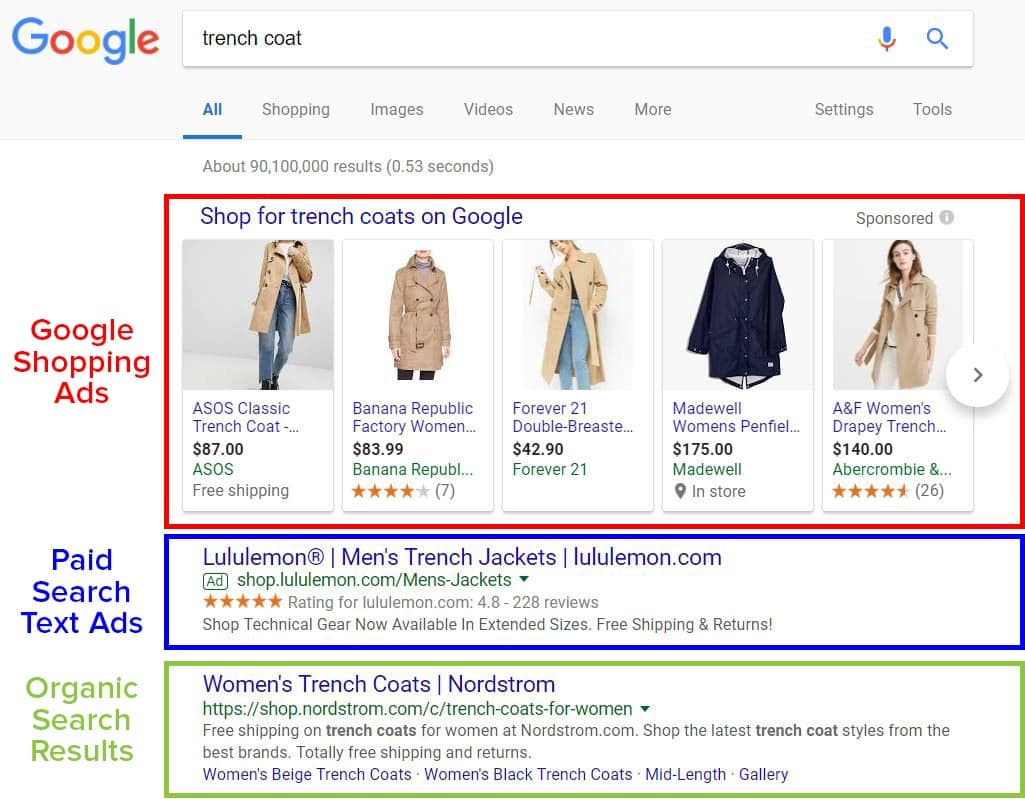
Shopping Ads account for approximately 86% of all clicks across Google Ads and Google Shopping campaigns combined. For eCommerce brands, including WooCommerce store owners, they represent one of the highest-return advertising channels available.
How Do Google Shopping Ads Work?
Google Shopping Ads are driven entirely by your product feed, a structured file you submit to Google Merchant Center containing your product data. Google’s algorithm then reads that feed and matches your products to relevant search queries.
Here’s the process at a high level:
- You generate a product feed (XML or CSV) and submit it to Google Merchant Center.
- Google reviews and approves your feed.
- You link Google Merchant Center to your Google Ads account.
- You create a Shopping campaign in Google Ads.
- Google automatically generates your ads from the feed data.
- When a user searches for a relevant product, Google’s algorithm determines which ads to show and in what order.
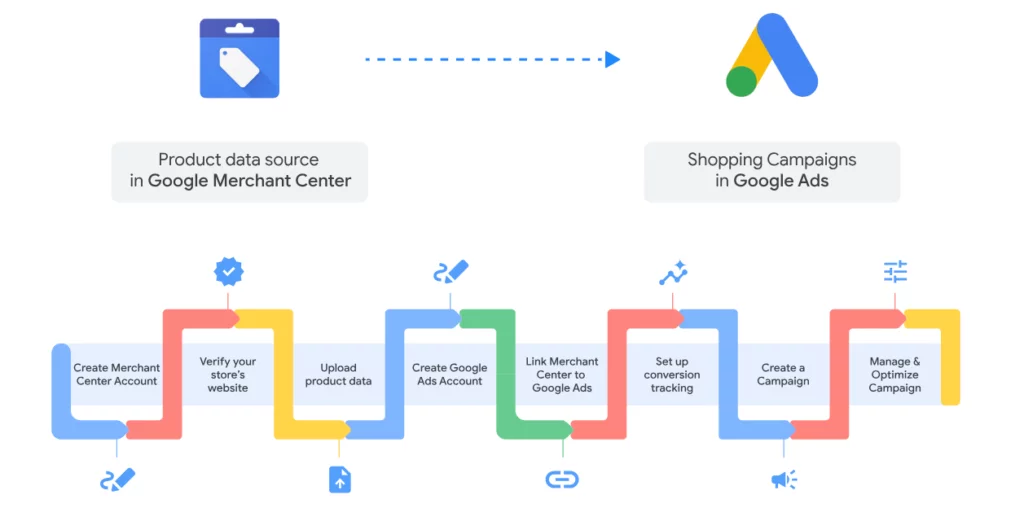
How Google decides which ads to show?
Google’s algorithm factors in several signals:
- Feed quality – accuracy and completeness of your product data
- Keyword relevance – how well your title, description, and attributes match the search query
- Bid amount – your willingness to pay per click
- Ad quality score – overall relevance and visual quality
- Competition – how your products compare to others in the same category
Where do Google Shopping Ads appear?
Standard Shopping Ads can appear in three places:
- Google Search results – at the top of the page, above organic results
- The Google Shopping tab – a dedicated product browsing section
- Google’s Display Network – partner sites including YouTube, Gmail, and Play Store (primarily through Performance Max campaigns)
How Do I Set Up Google Shopping Ads for My WooCommerce Store?
Ready to unleash the power of Google shopping ads for your WooCommerce store?
So far, you probably have a solid idea about why your WooCommerce business needs to utilize Google shopping ads. Now the question is, how to set up a google shopping ad campaign from scratch?
Many of you asked us, “How can I use Google shopping ads for e-commerce?” The section below will walk you through the entire process, from setting up everything to launching your first campaign.
Follow these steps to get your products seen by potential customers right when they’re ready to buy. Use these instructions as your Google shopping checklist for running future online ad campaigns.
Let’s jump right into it!
Step 1: Create a Google Merchant Center Account
The first step in setting up Google shopping ads for your WooCommerce store is to create a Google Merchant Center account.
Now, what exactly is Google Merchant Center, right?
GMC (Google Merchant Center) is an essential marketing platform where you’ll manage and submit your product data. Google will the use this data to create and display your shopping ads.
Here’s how to do this:
- Visit the Google Merchant Center homepage. Currently, it is named as Google Merchant Center Next. It is a streamlined version of the previously known Google Merchant Center (GMC) that features a more straightforward interface and advanced functionalities.
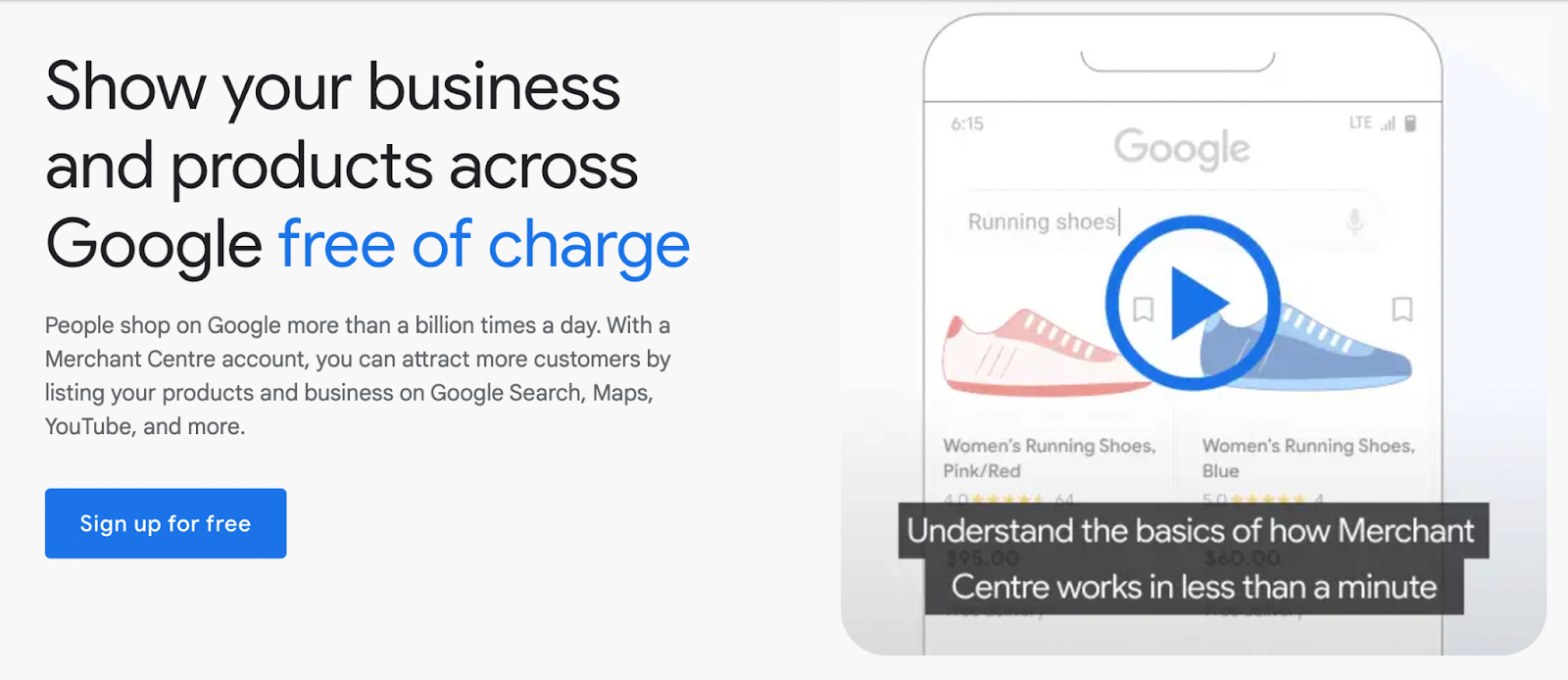
- Click on the ‘Get Started’ button if you’re new, or sign in if you’re an existing user.
- In the next page, enter your business name, country, and time zone. Ensure that the details you provided are accurate, as they will be used in your account settings and billing.
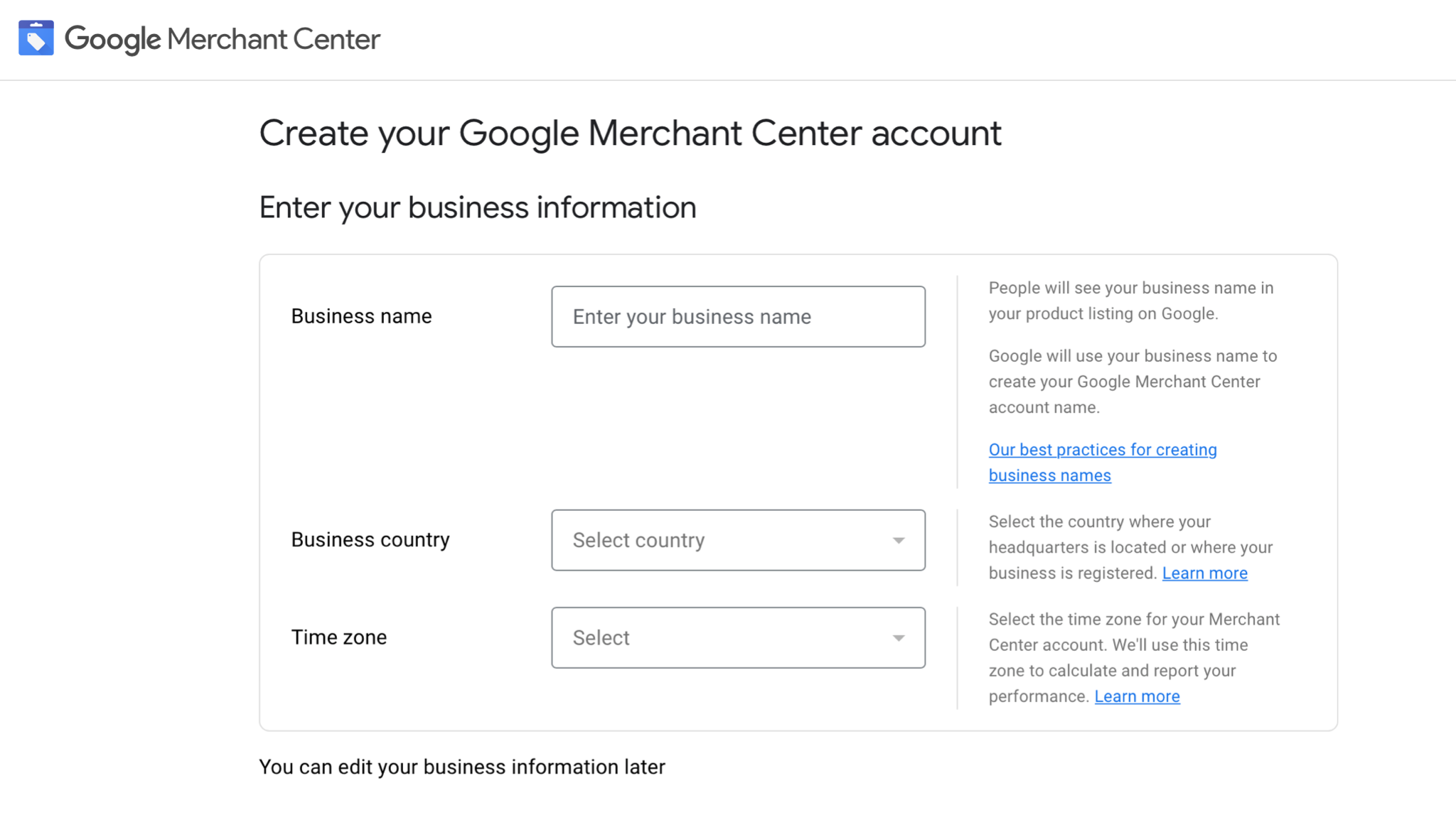
- Next, you’ll need to verify and claim the ownership of your business. This process confirms that you own the domain and allows you to manage product listings associated with it. Google provides several methods to verify your website ownership, such as —
- Business Code: Use your business email to get a verification code from google. Use that code in the designated placeholder to verify your business.
- HTML File/Tag Upload: Download/copy a HTML file/Tag provided by Google, and upload it to the root directory or the <head> section of your website’s homepage.
- Use your eCommerce Platform: You can also get a verification code through the eCommerce platform you use, just like a business code.
- Google Analytics: If you’re using Google Analytics, you can verify your site through your existing tracking code.
- Google Tag Manager: Similarly, if you use Google Tag Manager, you can verify through your GTM setup.
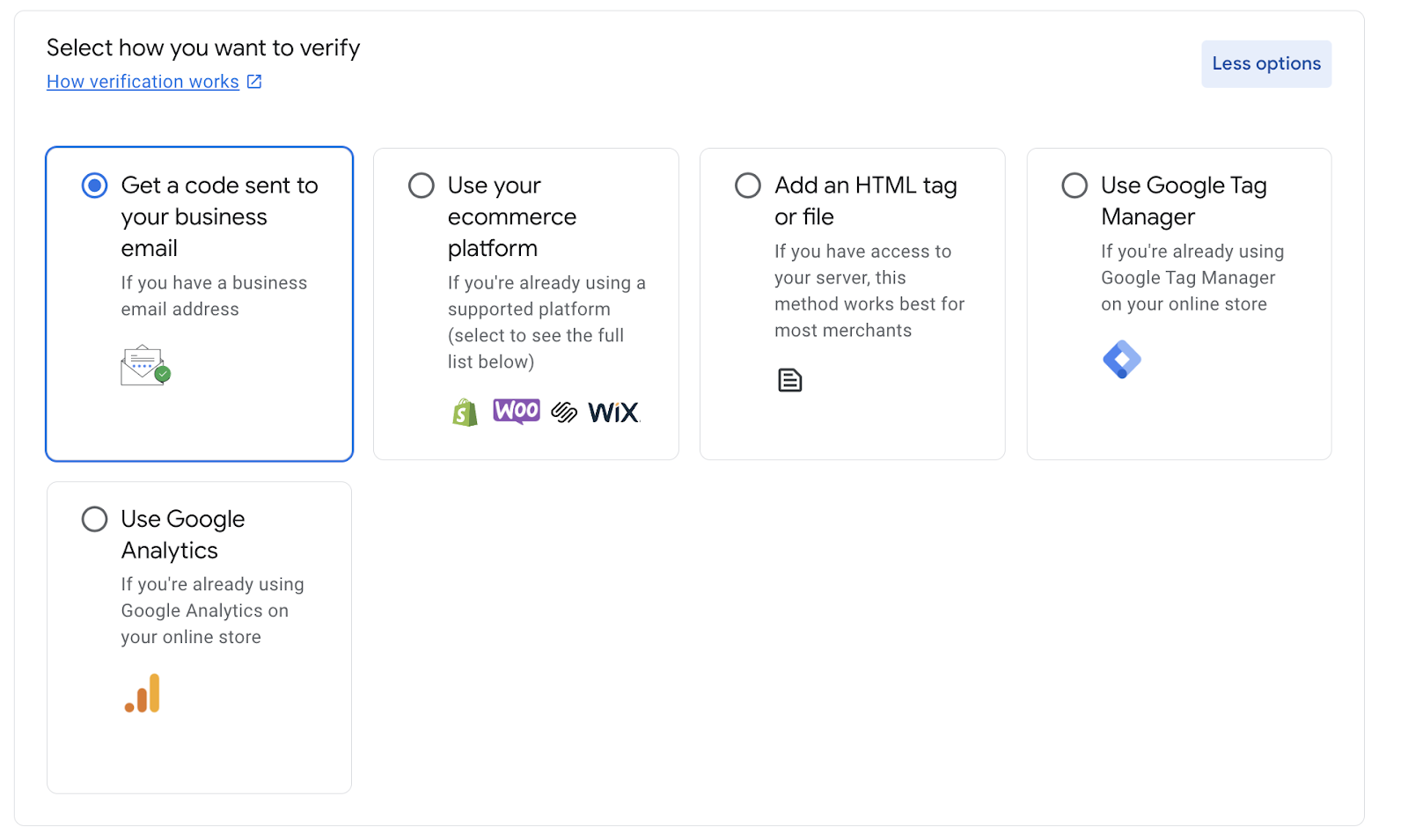
- After implementing one of these methods, click “Verify” in Google Merchant Center to confirm your ownership.
- Once your website is verified, you need to claim it in GMC Next. This step ensures that no other Merchant Center account can use your domain to upload product data.
- To do this, simply click on “Claim URL” after verification is successful. Your website is now linked to your Google Merchant Center account, and you can start uploading product feeds.
- After that, take a moment to configure your Google Merchant Center account settings to ensure everything runs smoothly. The Key information includes:
- Business Information: Ensure your business information (name, address, contact details) is correct and up to date.
- Shipping Settings: Configure your shipping settings in the Merchant Center to reflect how products will be delivered. This information will appear alongside your products in Google shopping ads.
- Tax Settings: Set up tax settings according to the regions you sell in, ensuring compliance with local regulations.
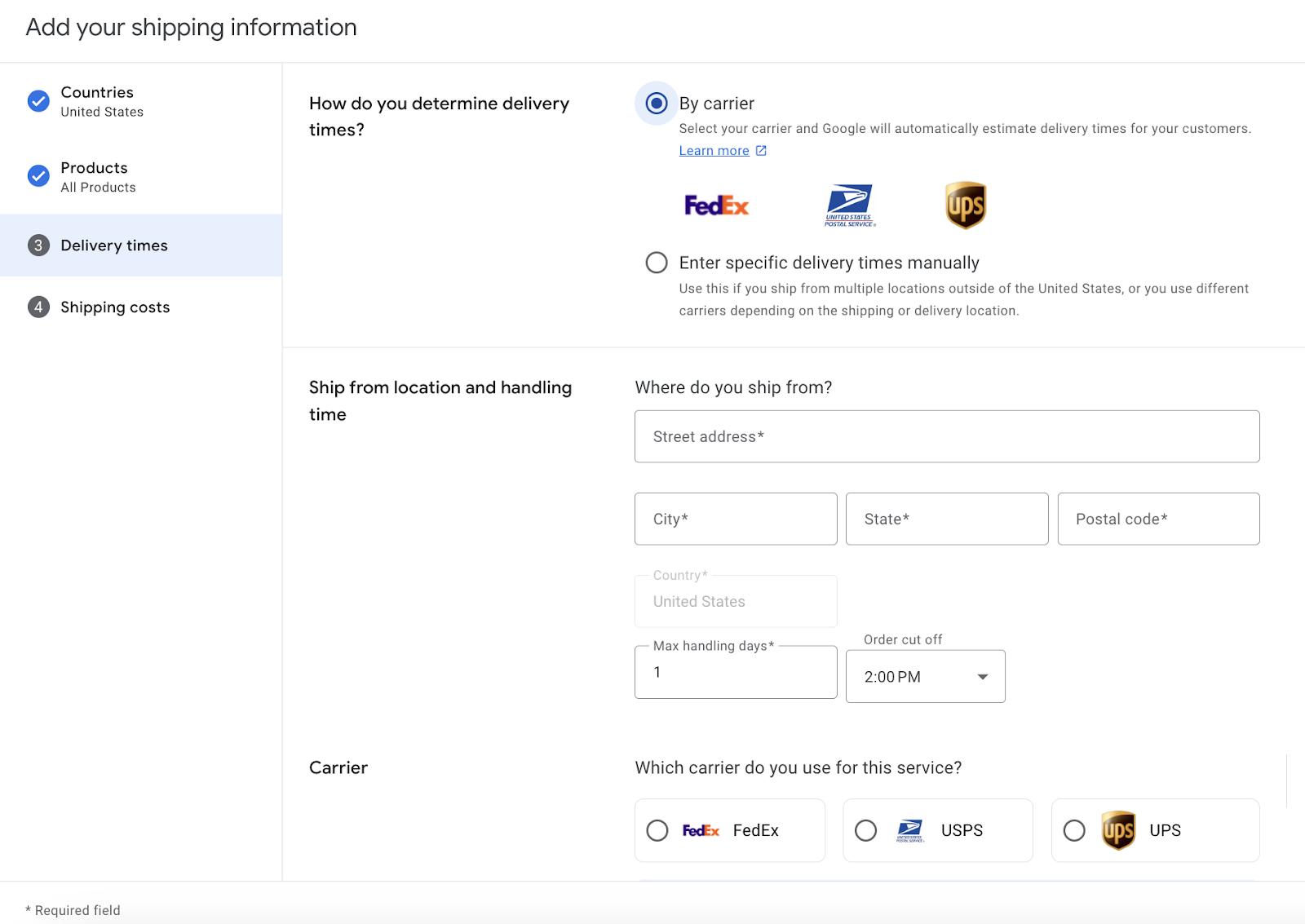
- Lastly, agree to Google Merchant Center’s Terms of Service. The “Create account” button will light up. Click it, and your account is ready to roll!
Bonus Tip: Enable Important Merchant Center Features Like, Automatic Item Updates or Multi-Client Accounts to help you manage your WooCommerce Operation Smoothly.
See? It was not that hard now, was it? Now that your GMC Next account is up and running, it’s time to move onto the next step, generating your WooCommerce Product Feed.
Step 2: Generate and Upload Your Product Feed
The next step is to generate a WooCommerce product feed and submit it for Google’s Approval.
A Product feed is basically a structured file that contains detailed information about each product you want to advertise, including titles, descriptions, images, and other key attributes. This data is used by Google to create and display Shopping Ads to potential customers.
When used in Ecommerce, this gets called as an ECommerce Product Data Feed AKA ECommerce Product Feed. This is how a standard product feed for google ads AKA google ads shopping feed (XML) looks like:
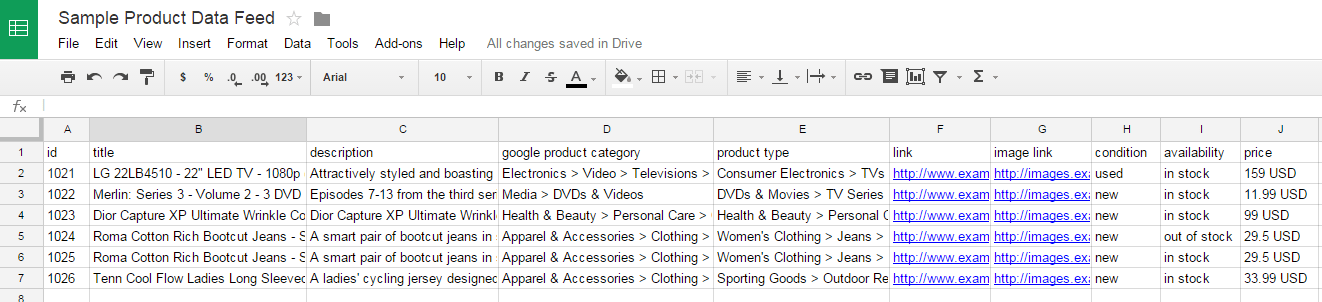
A standard product feed contains key product information, including
- ID
- Title
- Description
- Link/URL
- Image link
- Availability
- Category
- Price
- GTIN [Global Trade Item Number] or MPN [Manufacturer Part Number]
And many more.
But how do I create a product feed for Google shopping ads?
Well, there are multiple options. You can easily generate a product feed manually from WooCommerce’s built in settings. However, it can quickly become tedious, time-consuming, and error-prone, especially if you work with a large inventory.
That’s why we are talking about the easiest way to generate unlimited product feeds in seconds — using a dedicated product feed plugin.
For today’s discussion, we will be talking about a product feed manager plugin named CTX Feed Pro as it automatically generates, optimizes, and uploads hundreds of product feeds in seconds!
This is how you can create unlimited product feeds using CTX Feed:
- Go to your WooCommerce dashboard and navigate to Plugins > Add New. Search for “CTX Feed Pro” and install the plugin. Once installed, activate the plugin to start using it.

- After that, you’ll need to find the CTX Feed settings under the WooCommerce menu. Click on CTX feed and select “Make a feed”.
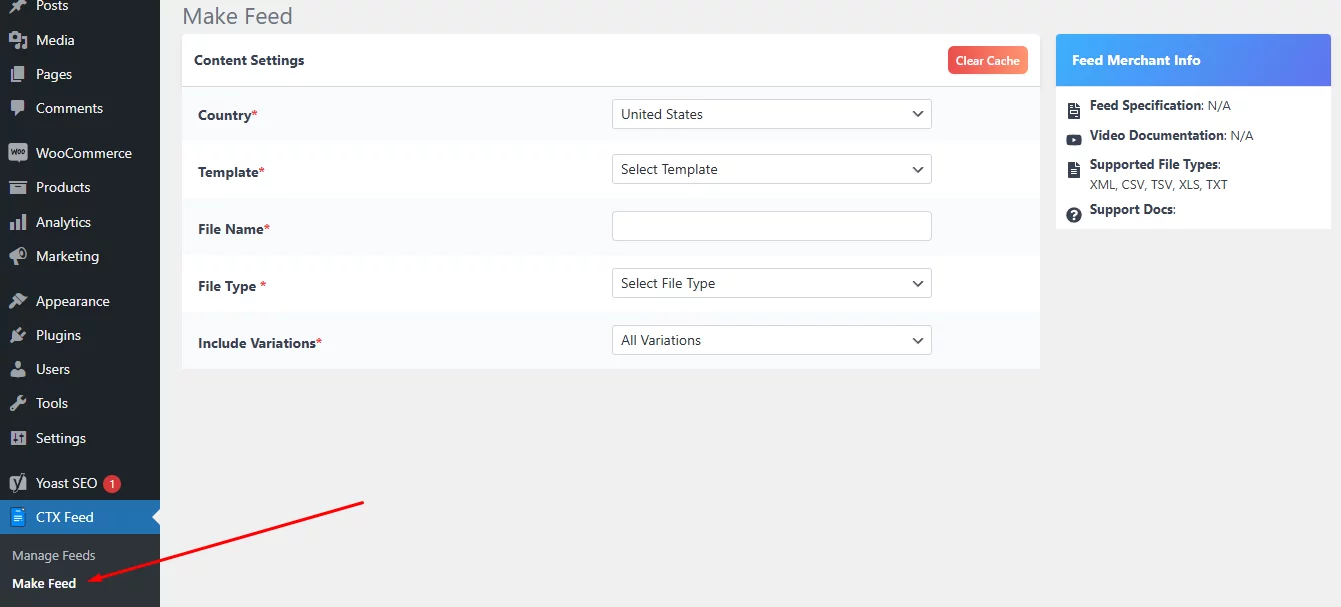
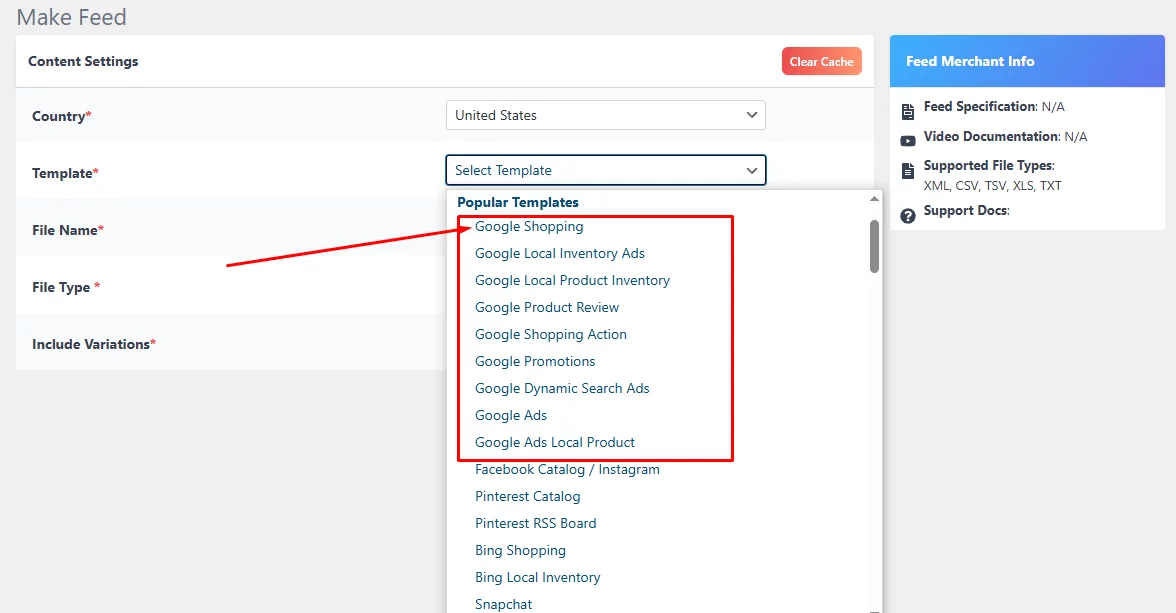
- In the next page, give your product feed a name. Also, select your preferred country for the feed, the template, and the feed type. For our purpose, today, let’s select the “Google Shopping” template.
- The plugin will automatically generate all the necessary fields for Google Shopping. It’ll look something like this:
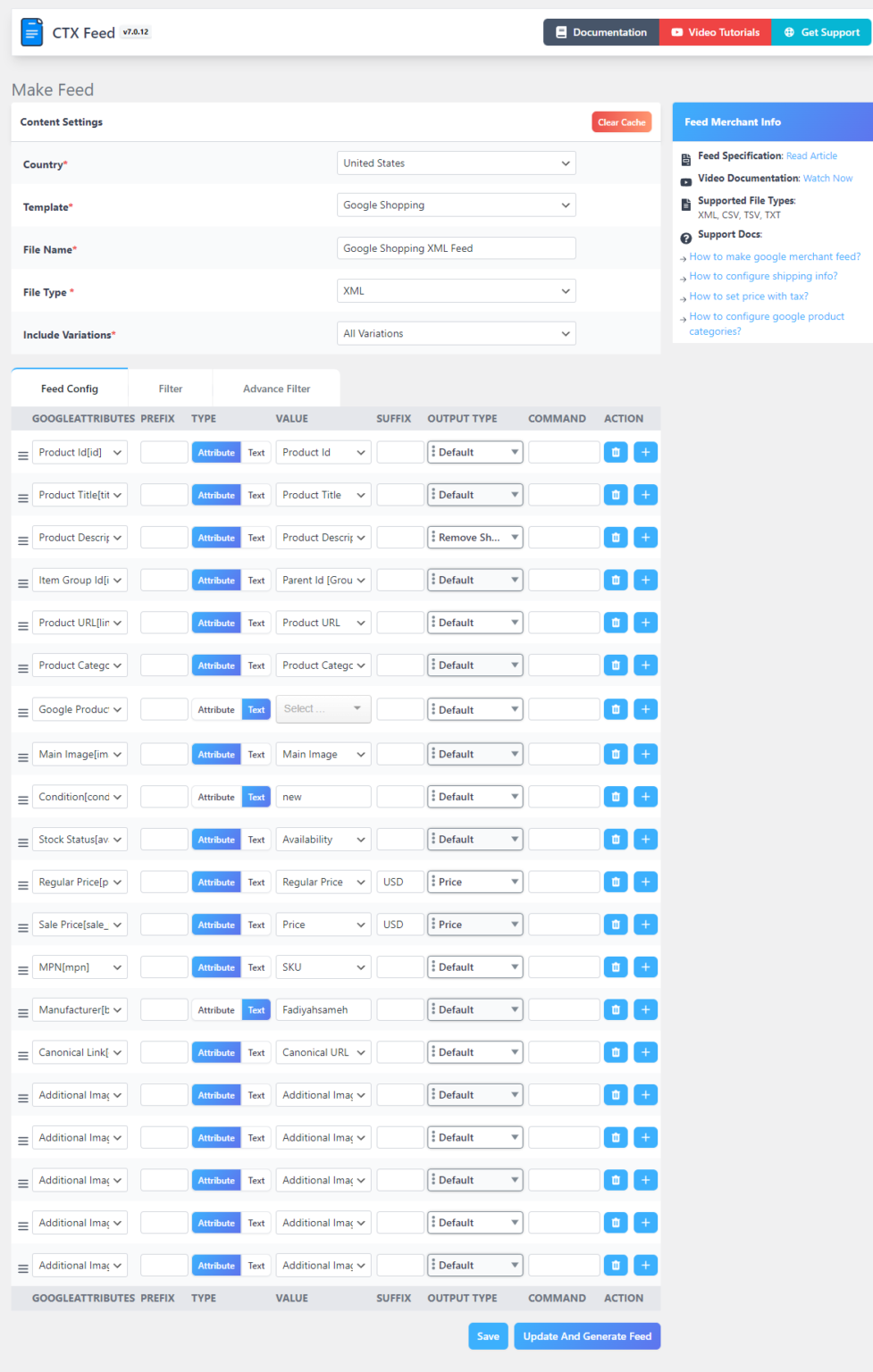
- Double check all the attributes. Make sure to use clear and descriptive titles that include relevant keywords without overstuffing. Use images that meet Google’s image specifications. Optimize the pricing, availability, identifiers (Ex: GTINs, MPNs), and other attributes following GMC’s guideline.
Bonus Tip: Use multiple images with 800x800p or higher resolution that showcase your product from the best angles. Avoid Images that have watermarks or promotional text on them.
Once you’re satisfied with the result, click the “Update and Generate Feed” button in the bottom-right corner.

This’ll instantly generate a product feed URL that you can use to distribute your product information over 130+ major marketing channels. If you want to know more, we have the ultimate WooCommerce Product Feed guide waiting for you.
Step 3: Link Google Merchant Center with Google Ads
Once your product feed is uploaded and verified in Google Merchant Center, the next step is to connect your Google Merchant Center account to your Google Ads account.
This allows Google Ads to access your product data and use it to create Google shopping ad campaigns, ensuring seamless data flow between the two platforms.
Here’s how to complete this linkage and ensure everything runs smoothly:
- Before linking the accounts, make sure you’re logged into both your Google Merchant Center and Google Ads accounts. If you don’t have a Google Ads account yet, you can create one this way:
- Just go to the Google Ads Homepage and click “Start Now. Then, follow the on-screen instructions to set up your advertising account, inputting details like billing information, time zone, and business name.
- To link the two platforms, you’ll need to start from your Google Merchant Center account. From the Merchant Center dashboard, click on Ad campaigns.
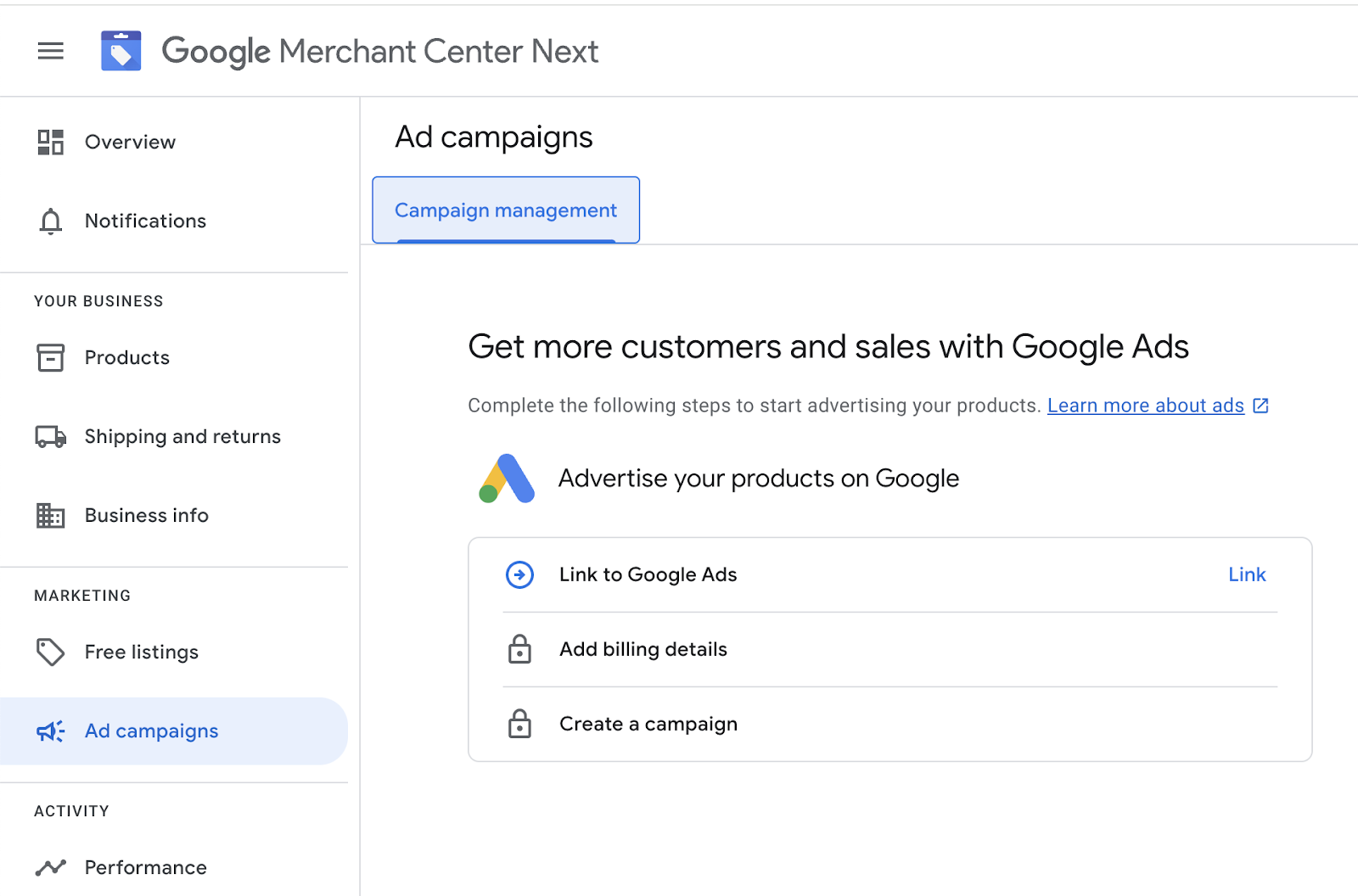
- Within the settings menu, click on Campaign Management. This will bring up a list of all the platforms that can be connected to your Google Merchant Center account, including Google Ads.
- Locate the Google Ads option and click Link Account.
- You’ll be asked to input your Google Ads Customer ID. This is the unique identifier for your Google Ads account, which you can find in the top-right corner of your Google Ads dashboard.
- After entering the Google Ads Customer ID, click “Link Account”. This sends a request from your Google Merchant Center to your Google Ads account.
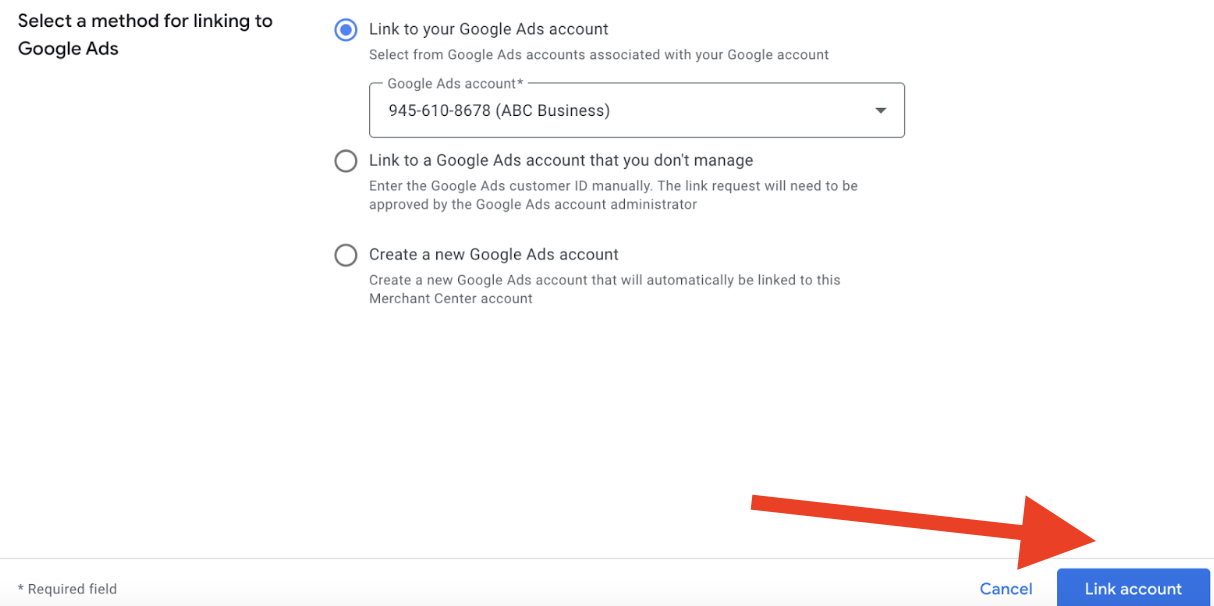
- Now, you’ll need to approve the request in your Google Ads account. Open your Google Ads account and navigate to the Tools & Settings menu.
- Under the “Setup” section, click on Linked Accounts. Locate the request from Google Merchant Center and click Approve to complete the linkage.
And that’s it. Your GMC Next and Google Ads Account are linked now. To check the status, Go back to your Merchant Center account and revisit the Linked Accounts section. You should now see your Google Ads account listed as “Approved” or “Linked.”
Bonus Tip: Ensure that your country of sale, shipping settings, and product availability are consistent across both platforms to avoid product disapproval issues.
As a result, you can now create and manage Shopping campaigns within Google Ads. When you create a Shopping campaign (which we’ll cover in the next step), Google Ads will automatically pull product data from your Merchant Center account to create your ads.
Step 4: Create Your First Google Shopping Campaign
Now that your product feed is uploaded to Google Merchant Center and linked with Google Ads, it’s time to create your first Google Shopping campaign.
All in all, this campaign will allow you to showcase your products to potential customers across Google’s vast network, including search results, Google Shopping, Play Store, and even YouTube or Gmail.
Let’s explore the steps involved in creating a Google Shopping Ad Campaign from scratch:
1. To get started, log into your Google Ads account and navigate to the Campaigns tab on the left-hand side of your dashboard.
2. Click on the blue “+” button to create a new campaign.
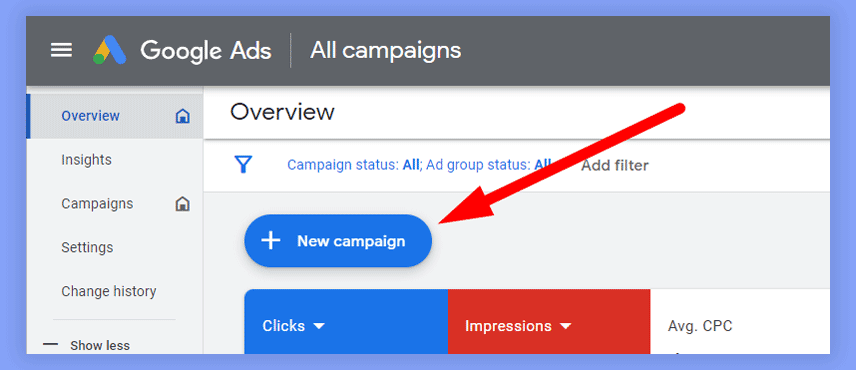
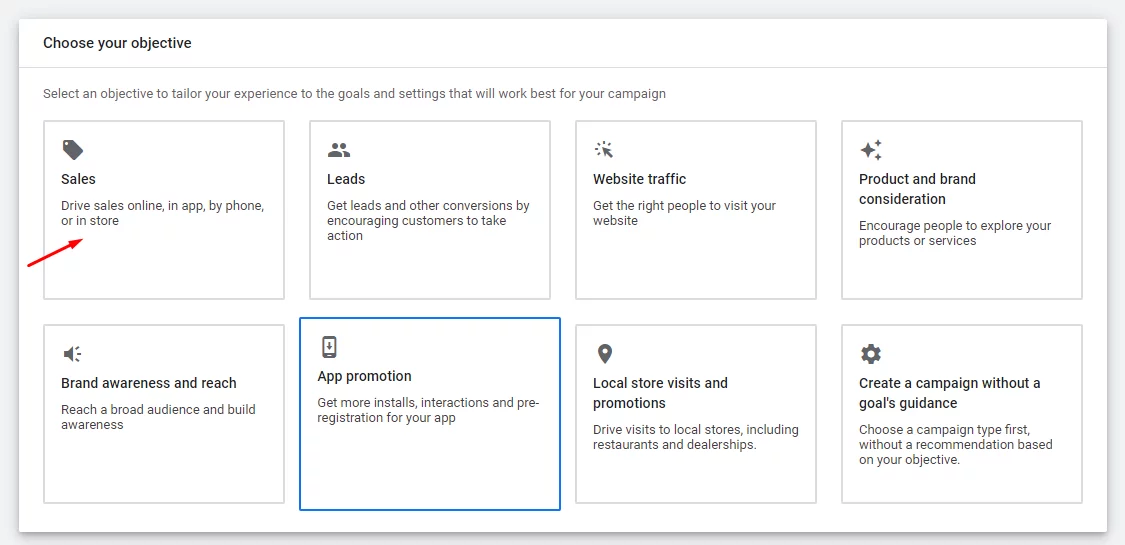
3. Google will prompt you to select a specific goal. Since the purpose of Shopping Ads is typically to drive product sales, choose the Sales goal. Other goals like “Leads” or “Website Traffic” each serve their unique purposes.
4. Next, you’ll need to select the type of campaign you want to run. Under the list of campaign types, select Shopping.

5. Choose Your Merchant Center Account. If you have multiple accounts, you’ll need to select the one that contains your WooCommerce product feed.

6. Google will ask you to choose a target country—the geographic region where your products will be shown.
7. Next, Choose Your Shopping Campaign Type. Google Shopping Ad Campaigns primarily come in two different types – Including:
- Standard Shopping Campaign: This gives you more, granular control over the campaign, allowing you to manually adjust bids, segment product groups, and apply detailed google shopping ads targeting options.
- Performance Max Campaign: This automated option uses Google’s machine learning to optimize your bids, ad placements, and targeting. It combines traditional Shopping ads with different types of Google display ads and is ideal for advertisers looking for a more hands-off approach.

Here are the key differences that sets Google’s standard shopping and performance max campaigns apart:
| Topic | Standard Shopping | Performance Max |
| Ad Placement | Primarily Google’s Search Network (Search Partners) | Google’s Search and DIsplay Network (Maps, YouTube, Gmail & Discovery) |
| Outreach | Limited | Very Widespread |
| Primary Bidding Strategy | Target ROAS, Maximize Clicks, Manual CPC | Maximize Conversions or Maximize Conversion Value |
| Level of control | Very High (Granular) | Comparatively Low (Mostly Automated) |
| Conversion volume requirements | None | Impact on Search Campaigns |
| Optimization potential | Very High | Moderate |
| Dynamic Remarketing Capability | No | Yes |
| Impact on Search campaigns | None | High |
8. The next step involves setting your daily budget and selecting a bidding strategy. You can choose from a few different bidding strategies. We’ll talk more about them later.

Awesome! Now you have covered all the basic steps to create your very first Google Shopping Ad Campaign.
However, this online paid advertising campaign needs to be fine-tuned to your specific business needs to provide the optimum result.
Bonus Tip: For first-time users, start with a Standard Shopping Campaign to have more control and understand how the platform works. Once you gain experience, move onto the Performance Max campaigns.
But how can you configure your Shopping ad campaigns on Google?
Let’s talk about configuring the settings that will bring your ads to life and set you on the path to consistent growth. All the essential configuration settings are described in the section below.
Step 5: Configure Campaign Settings and Launch
Once your product feed is in place and your campaign is set up, the final step is configuring the specific settings that will fine-tune how and where your ads appear.
At this point, you’ll need to define critical parameters like targeting options, bidding strategies, and google shopping ads tracking, ensuring your ads reach the right audience and perform optimally.
Here’s the key configuration settings you should focus at:
- First, you’ll need to configure your Product Groups. By default, Google places all products into one group, but segmenting your products based on ID, categories, or brand can help you fine-tune the performance of your ad campaigns.
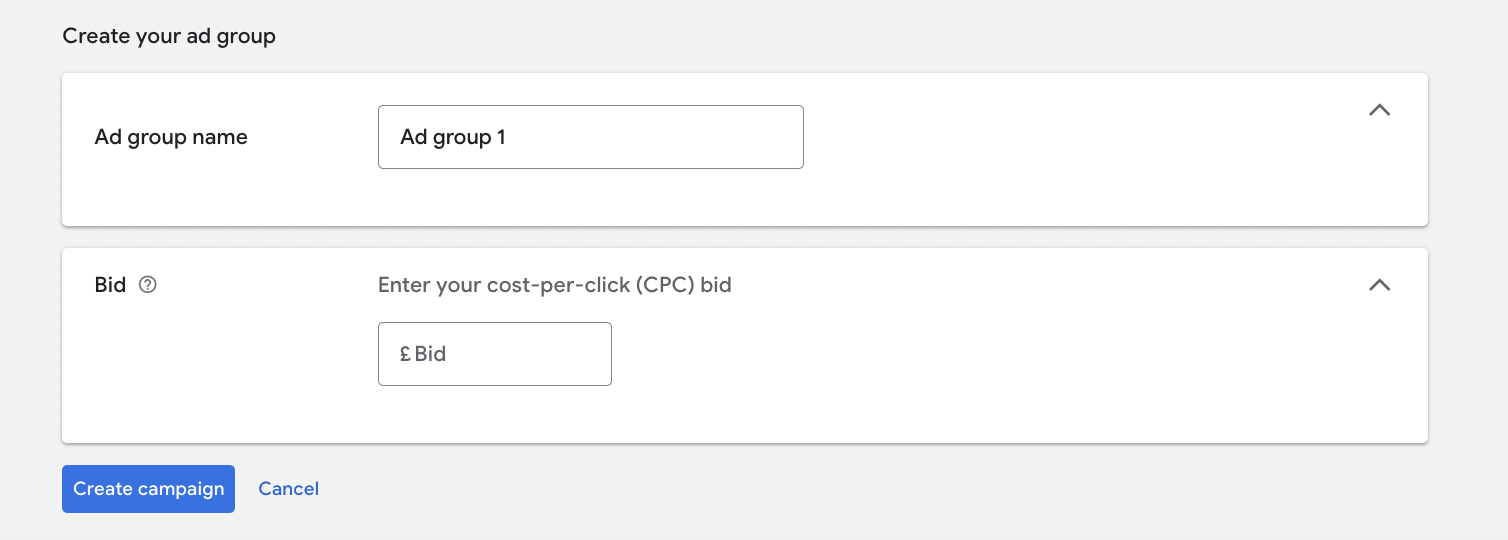
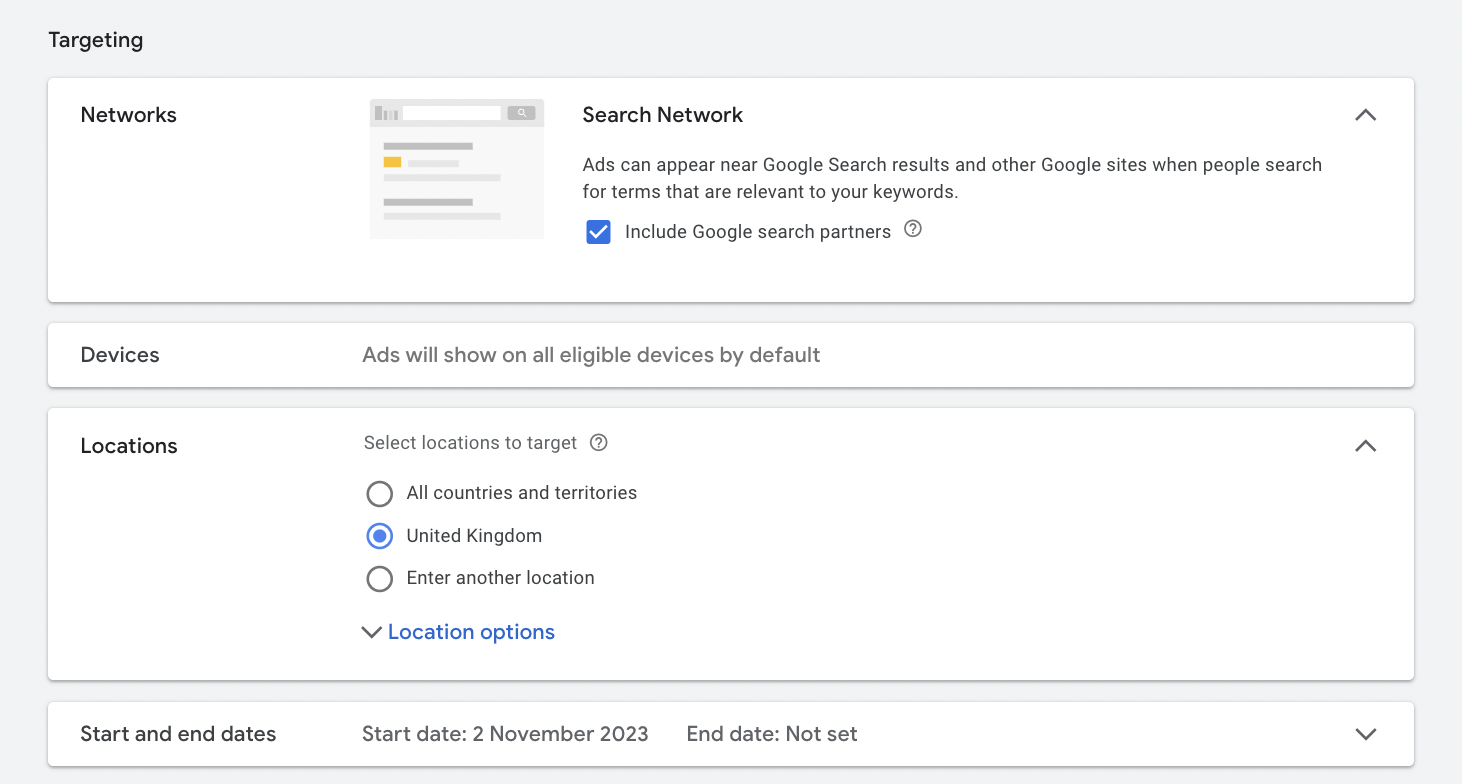
- Moving on, now you’ll need to set your preferred targeting option. While Google shopping ads don’t use keywords like traditional search ads, you can still adjust targeting parameters to ensure your ads reach the right audience. You’ll have the option to target your ads based on geographic locations, specific device/time, and many other options.
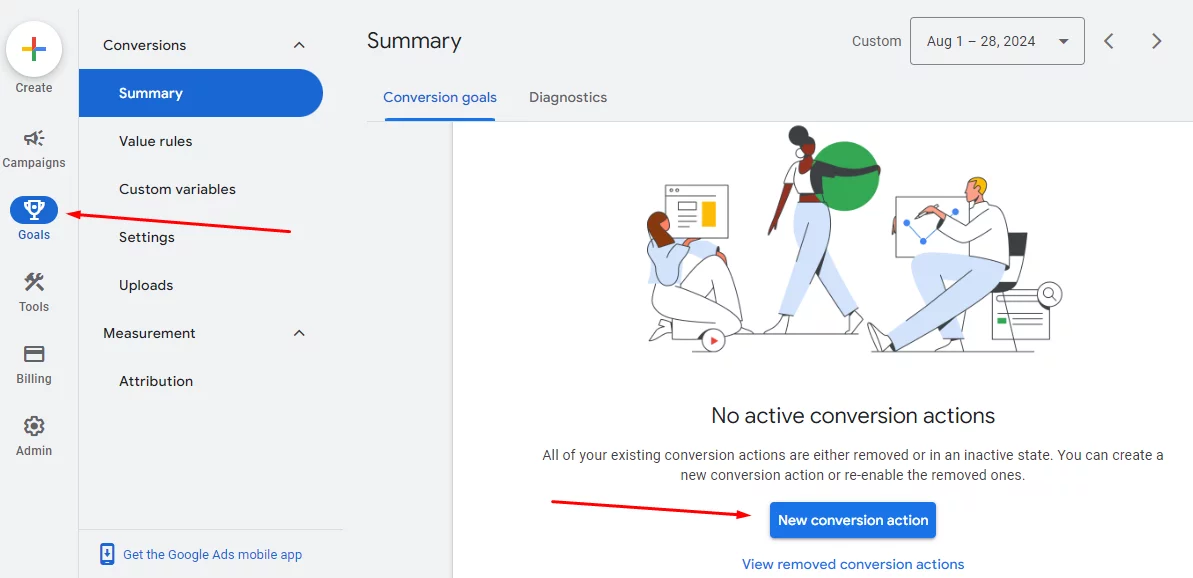
- You’ll also need to set up conversion tracking as this will help you measure the success of your Shopping campaign. Enable Google Ads conversion tracking from the settings menu. You can also use dedicated third-party plugins for more in-depth tracking reports.
- Lastly, before launching your campaign, review all the settings you’ve configured to ensure they align with your goals. Double-check your daily budget, bidding strategy, product groups, and other targeting options.
And That’s about it. Your very first Google shopping ads are ready to amaze your potential clients. Once everything is ready, click Launch Campaign to set your Shopping ads live and start driving traffic to your WooCommerce store!
Bonus Tip: Start with a smaller budget and increase gradually through testing different products or groups. This’ll help you minimize risk and empower you to make more informed decisions.
Meanwhile, Google will start pulling products from your feed and displaying ads to users based on relevant search queries. Keep an eye on your campaign’s performance through Google Ads reporting and be prepared to make adjustments as you gather data.
Step 6: Monitor and Optimize Your Campaign
After your campaign goes live, continuous monitoring is what separates good campaigns from great ones.
Key metrics to track:
| Metric | What It Tells You |
|---|---|
| Impressions | How often your ads appear |
| Clicks | How many users visit your product page |
| CTR | Click-through rate — relevance of your listings |
| Conversions | Purchases attributed to your ads |
| ROAS | Revenue generated per dollar of ad spend |
| Cost per Conversion | Average cost to acquire one sale |
Ongoing optimization actions:
- Adjust bids for high and low-performing product groups
- Update product titles, descriptions, and images regularly
- Use negative keywords to filter irrelevant search queries
- Run A/B tests between Standard Shopping and Performance Max
- Review search term reports to identify new opportunities
If you want a hands-on guide, you can follow this video tutorial:
Google Shopping Ads Optimization: Pro Tips
Setting up a campaign is the start. Sustained performance requires consistent optimization.
1. Optimize Your Product Feeds Regularly
Your product feed is the foundation of every Shopping Ad. Google reads it to match your products to search queries, so feed quality directly determines when and how your ads appear.
Structure product titles for maximum relevance: Brand → Product Type → Key Features.
For example: Adidas Ultra Boost Men’s Running Shoes – Black/White
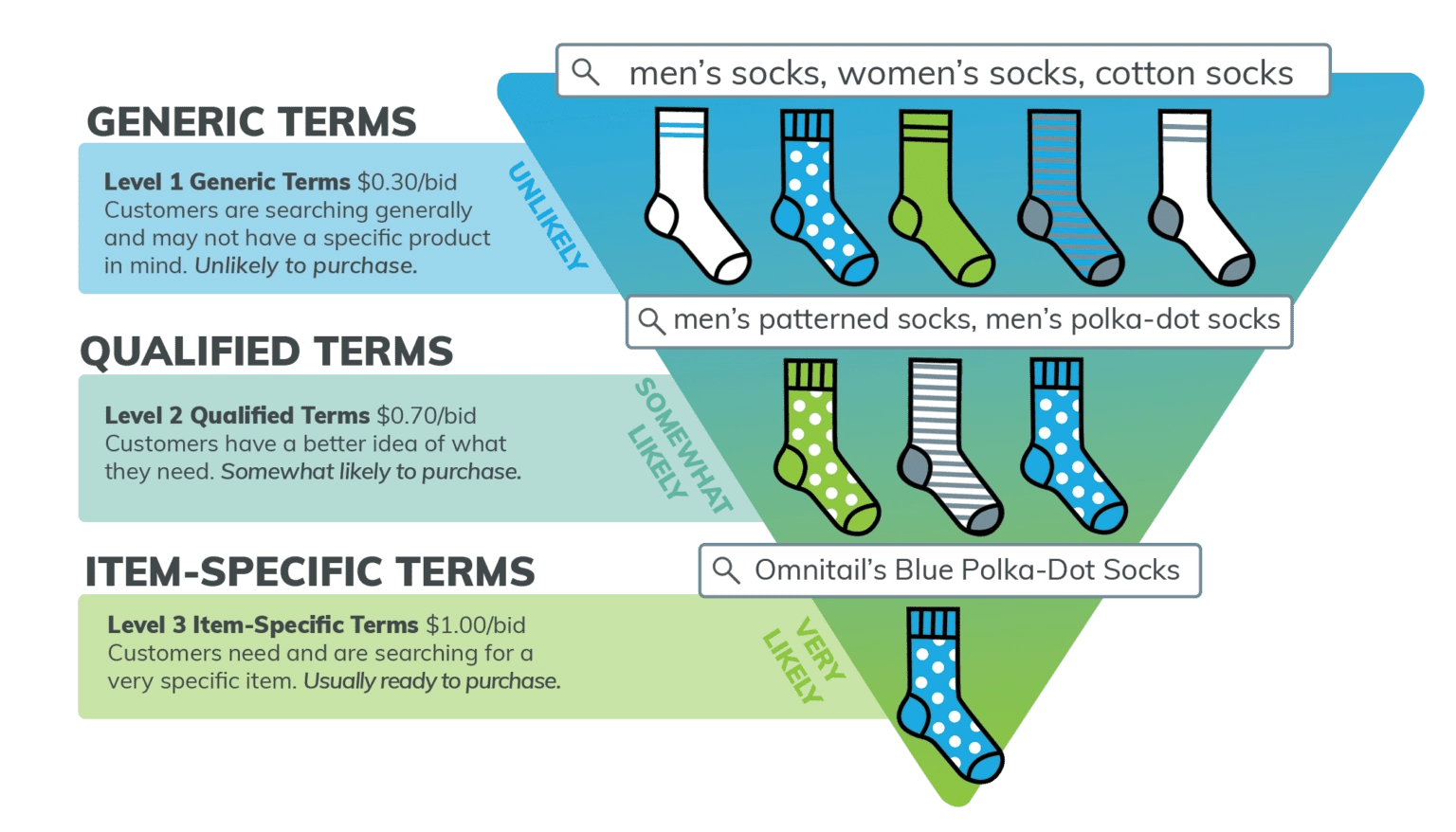
Keep the most important information in the first 70 characters, as that’s typically what’s visible in the ad. Include color, size, material, and other key attributes. Update your feed at least monthly or enable automated updates in the Merchant Center.
2. Use High-Quality Product Images
Your product image is the first thing a shopper sees. A poor image directly reduces CTR, regardless of how competitive your price is.
Requirements and best practices:
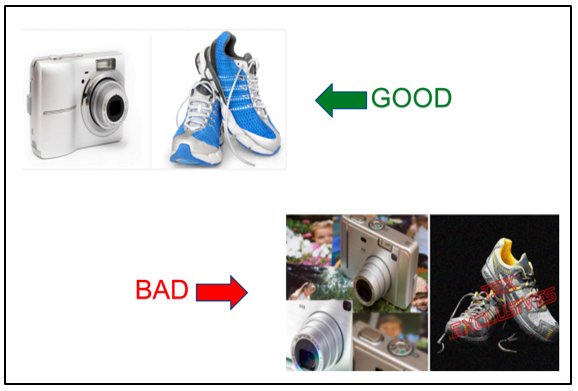
- Minimum resolution: 800×800px (1000×1000px or higher recommended)
- Background: plain white or light neutral
- No watermarks, promotional overlays, or text on the image
- Show the product clearly from the primary angle
- Use multiple images where possible to showcase different angles
3. Segment Products into Groups
When all products share a single campaign group, you can’t allocate budget efficiently or set competitive bids per category.
Segment by:
- Product category (e.g., Running Shoes, Casual Shoes)
- Brand
- Price range (high-margin vs. low-margin products)
- Performance tier (best-sellers, seasonal, new arrivals)
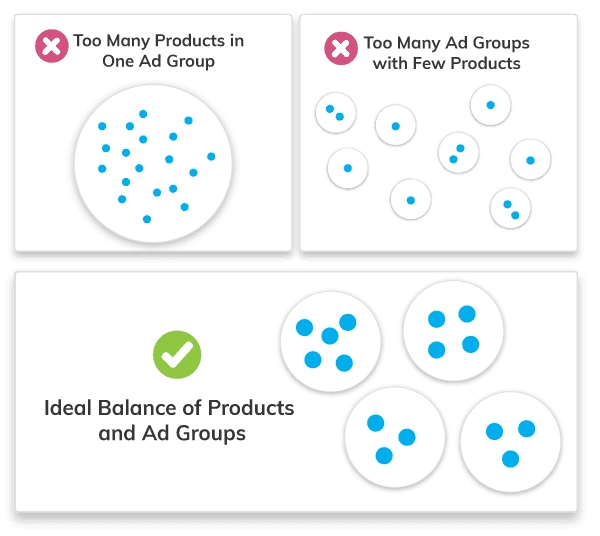
Set higher bids for high-conversion or high-margin groups. Lower or pause bids on products with consistently poor performance.
4. Choose the Right Bidding Strategy
Google’s Smart Bidding uses machine learning to adjust bids in real time based on user signals like device, location, and time of day.
| Strategy | Best For |
|---|---|
| Maximize Clicks | Driving traffic to a new campaign |
| Target ROAS | Focusing on profitability once you have conversion data |
| Maximize Conversions | Increasing purchase volume within a set budget |
| Manual CPC | Full control, best for experienced advertisers |
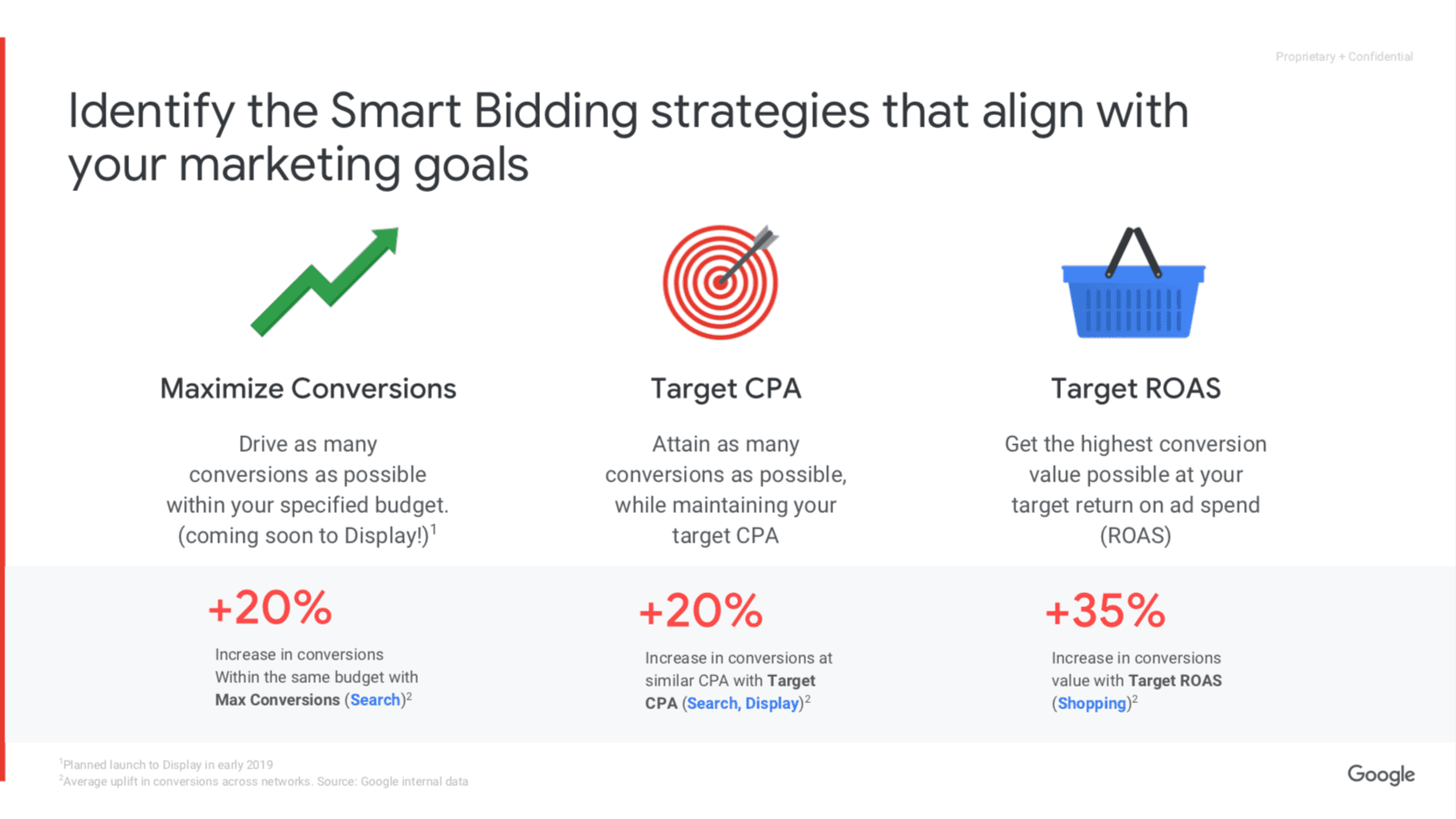
Start new campaigns with Maximize Clicks or Manual CPC to gather data. Switch to Target ROAS once you have at least 30–50 conversions per month for accurate optimization.
5. Leverage Seasonal Promotions
Peak shopping periods, such as Black Friday, Christmas, back-to-school, and similar events, drive significantly higher purchase intent.
- Increase budgets 1–2 weeks before major shopping events
- Apply promotional prices through your product feed using the sale_price attribute
- Use custom labels to tag promotional or seasonal products for easier bid management
- Schedule ads to run during high-traffic hours during key periods
6. Implement Remarketing
Not every shopper converts on the first visit. Remarketing lets you re-engage users who viewed products but didn’t purchase.
Options for Google Shopping Remarketing:
- RLSA (Remarketing Lists for Search Ads) show adjusted bids to past visitors
- Dynamic remarketing show ads featuring the exact products a user previously viewed
- Customer Match target past buyers with Shopping Ads to encourage repeat purchases
Google Shopping Ads Cost: What to Expect
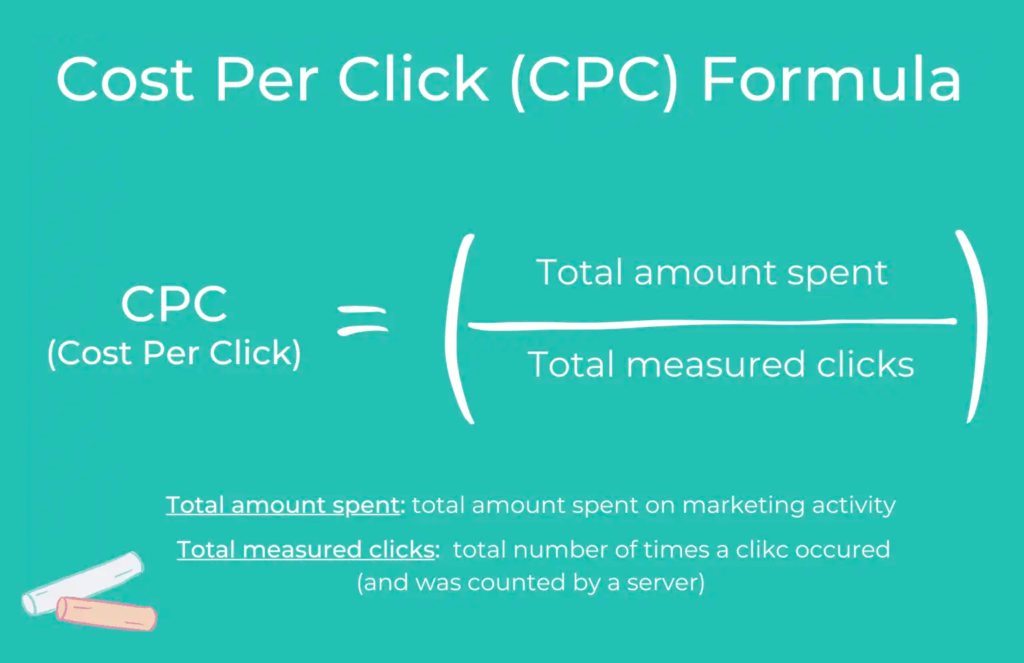
Google Shopping Ads operate on a cost-per-click (CPC) model the listings themselves are free. You only pay when someone clicks your ad.
The average CPC for Google Shopping Ads is approximately $0.66, though costs can range from under $0.10 to over $50 depending on your product category, competition level, and bid strategy. High-competition categories like electronics, fashion, and home goods typically see higher CPCs.
Are Google Shopping Ads worth it?
For most eCommerce businesses, yes particularly because Shopping Ads target users who are actively searching for products, not just browsing. Shoppers who click a Shopping Ad have already seen the product image and price before clicking, which typically means stronger purchase intent and higher conversion rates compared to standard text ads.
Tips to reduce Shopping Ad spend:
- Implement negative keywords to filter irrelevant queries and reduce wasted clicks
- Segment products into groups and set bids appropriate to each group’s margin and conversion rate
- Improve feed quality better titles and images improve Quality Score, which can lower CPC
- Use Target ROAS bidding once you have sufficient conversion data
- Start with a modest daily budget and scale up only for proven performers
Common Google Shopping Ad Challenges and Fixes
Google shopping ads can drive incredible results for WooCommerce store owners, but like any advertising platform, it comes with its own set of challenges. These issues can hamper your campaign’s effectiveness.
Challenge 1: Product Feed Errors
Product listings can be rejected for missing data, non-compliant images, invalid GTINs, or policy violations. Rejected products show as “Disapproved” in the Merchant Center.

Fix: Check the Diagnostics tab in Google Merchant Center regularly. Use a feed plugin like CTX Feed to generate a feed that follows Google’s required format and attributes. Address flagged errors before resubmitting.
Challenge 2: Disapproved Ads
Ads may be disapproved for incorrect product categories, misleading pricing, wrong image formats, or policy violations.
Fix: Review Google’s shopping ad policies. Three requirements must be met to run Shopping campaigns:
- A linked Google Merchant Center and Google Ads account
- Product data submitted and updated at least once per month
- Full compliance with Google’s Shopping content, business, and website policies
Challenge 3: Low Ad Visibility / No Impressions
High competition or low bid amounts can limit how often your ads appear.
Fix: Improve your product titles and descriptions with relevant search terms. Increase bids for priority products. Use Smart Bidding strategies if you have conversion data. Highlight unique selling points ratings, special pricing, or unique attributes in your feed to improve CTR when your ads do appear.
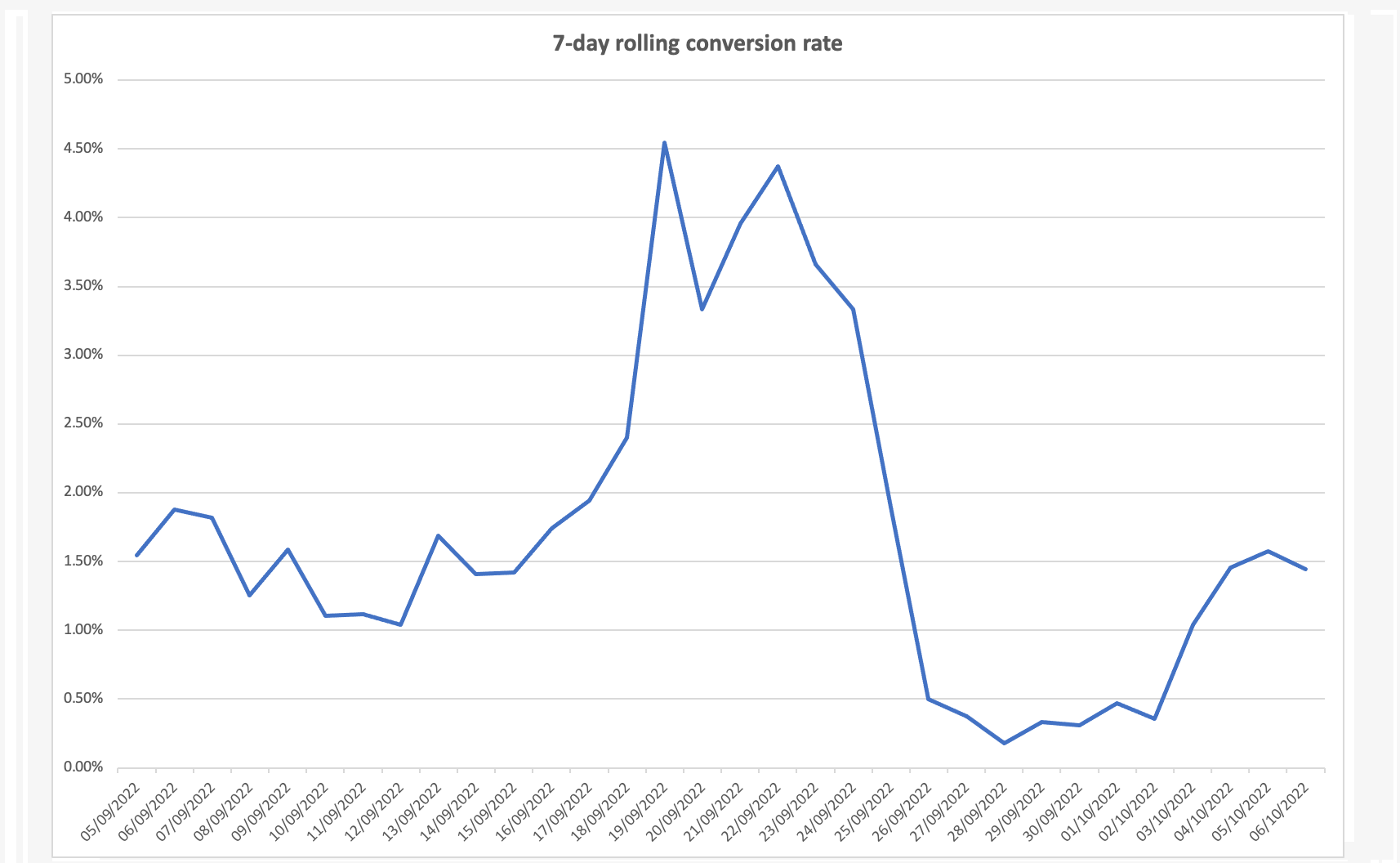
Challenge 4: High CPC Without Conversions
High clicks and low conversions usually signal a mismatch between the ad and the landing page, weak product page UX, or uncompetitive pricing.
Fix: Review your product pages for load speed, accurate product information, clear return policies, and a simple checkout process. Offer guest checkout options. Make sure pricing is competitive across channels. Use remarketing to re-engage users who dropped off before making a purchase.
Challenge 5: Google Shopping Ads Not Showing
If your ads aren’t appearing at all, the most common causes are feed disapproval, policy violations, a low daily budget, or an unlinked Merchant Center account.
Fix: In the Merchant Center, check the Diagnostics tab for feed and account-level errors. In Google Ads, verify your daily budget is sufficient, and your campaign status is Active. Confirm your Merchant Center and Google Ads accounts are properly linked.
Stop Sync Errors: Optimize Your WooCommerce Google Shopping Ads with CTX Feed Pro
CTX Feed Pro is a WooCommerce product feed plugin that generates, optimizes, and automatically updates product feeds for Google Shopping and 220+ other marketing channels.
For WooCommerce store owners managing large or frequently changing inventories, maintaining a manual feed is not practical. CTX Feed Pro handles feed generation, attribute mapping, scheduled updates, and feed distribution in one place.
Key Features:
- Supports 220+ marketing channels including Google Shopping, Facebook, and Bing
- Auto-generates all required Google Shopping attributes
- Scheduled feed updates to keep pricing and availability current
- Custom field mapping and attribute overrides
- Supports variable products, product variations, and custom taxonomies
- WooCommerce-native no separate platform or export needed
Pricing information is available on the official WebAppick website. A free version is also available with core functionality.
Frequently Asked Questions
What is the difference between a product feed and a data feed?
A product feed is a specific type of data feed that contains structured product information, titles, descriptions, prices, images, and availability. A data feed is a broader term for any structured file that provides regularly updated information. All product feeds are data feeds, but not all data feeds contain product data.
How are Google Shopping Ads created?
Shopping Ads are created automatically by Google using the product data in your feed. You do not write individual ads. Google reads your product title, image, price, and other attributes from the feed and generates the ad format. Feed quality is therefore the primary lever for improving Shopping Ad performance.
In which three places can standard Shopping Ads appear?
Standard Shopping Ads can appear on: (1) Google Search results pages, typically at the top; (2) the Google Shopping tab; and (3) Google Search partner websites. Performance Max campaigns extend placement to YouTube, Gmail, Maps, and the broader Display Network.
Which devices can Shopping Ads appear on?
Google Shopping Ads appear on desktop computers, tablets, and mobile devices. Mobile accounts for a significant share of eCommerce search traffic, and Google’s Shopping Ad format is fully optimized for smaller screens.
How do I control where my Google Shopping Ads appear?
You can configure geographic targeting (specific countries, regions, or cities), device targeting, and ad scheduling within your campaign settings. You cannot select specific websites for Shopping Ad placement in Standard campaigns.
Are Google Shopping Ads worth it for small WooCommerce stores?
Yes, for most product-based businesses. The CPC model means you only pay for actual clicks, and Shopping Ads attract high-intent shoppers who have already seen your product and price before clicking. Start with a modest budget, focus on your best-performing products, and scale based on ROAS data.
Can I use Google Shopping Ads for retargeting?
Yes. Through dynamic remarketing, you can show Shopping Ads to users who previously viewed products on your site. Set up remarketing lists in Google Ads, link them to your campaigns, and ensure your Merchant Center feed is connected for dynamic ad generation.
How much do Google Shopping Ads cost per click?
The average CPC is approximately $0.66, but costs vary significantly by industry, product category, and competition. Check current benchmarks for your specific niche before setting budget expectations.
Key Takeaways
- Google Shopping Ads are generated automatically from your product feed. Feed quality is the most important factor in campaign performance.
- Standard Shopping Ads can appear in Google Search results, the Shopping tab, and on Search partner sites. Performance Max extends placement to YouTube, Gmail, and Display.
- Setting up Google Shopping requires: a Google Merchant Center account, an approved product feed, a linked Google Ads account, and a live Shopping campaign.
- Product titles should follow the format: Brand → Product Type → Key Features, with the most important terms in the first 70 characters.
- Segment products into groups by category, brand, or performance tier to control bids efficiently and allocate budget to your highest-margin or best-converting products.
- Start new campaigns with Maximize Clicks or Manual CPC bidding. Switch to Target ROAS once you have 30–50 conversions per month.
- Shopping Ads operate on a CPC model you pay only when someone clicks. The average CPC is around $0.66, with significant variation by industry.
- WooCommerce store owners can use CTX Feed Pro to generate and automatically update Google Shopping feeds without manual maintenance.


Google shopping ads is awesome and all but how do you track it? There’s old tutorial saying there is a “Conversion” tab at the campaign settings. But, I don’t find any.
To Monitor and optimize your Shopping campaigns check this link.
To track conversions of your Ads check this link. If you are looking for something else please let me know.