%22%2F%3E%0A%3Cpath%20d%3D%22M59.8894%2016.6974C60.1689%2016.9331%2060.5416%2017.1216%2060.9142%2017.0745C61.5664%2017.0273%2061.8925%2016.6031%2061.6596%2015.7547C61.5198%2014.4349%2061.4267%2013.1623%2061.2869%2011.8425C61.1006%209.72149%2060.8211%207.55331%2060.5881%205.38512L60.1689%201.70863C60.0757%200.81307%2059.6099%200.294591%2058.7713%200.106053C58.4918%20-0.0353509%2058.2123%20-0.0353509%2057.9328%200.106053C57.7931%200.106053%2057.6999%200.106053%2057.6067%200.153187C56.5353%200.483129%2055.4172%200.81307%2054.3458%201.19015C53.5073%201.47295%2052.6222%201.75576%2051.7371%202.03857C50.2929%202.50991%2048.8488%203.02839%2047.4047%203.49974C46.4264%203.82967%2045.4016%204.1596%2044.3768%204.48952L44.3767%204.48956C43.6313%204.72523%2043.3518%205.24371%2043.6313%205.85646C43.7711%206.13927%2044.004%206.32781%2044.2369%206.46921C44.7028%206.79915%2045.2152%207.08196%2045.6811%207.4119C45.8674%207.55331%2046.0537%207.69471%2045.8208%208.02465C45.7276%208.21319%2045.5879%208.35459%2045.4481%208.54313L45.355%208.73167L44.5164%2010.0986L43.9108%2010.9941L43.3052%2011.8897L43.2121%2011.9839L42.1406%2013.5865L44.5867%2019.8706C45.5713%2022.1447%2048.6357%2026.5713%2052.552%2023.6277L53.9265%2022.2593L54.3458%2021.5523C54.3924%2021.458%2054.4856%2021.3637%2054.5321%2021.2694L54.5787%2021.2223C55.2309%2020.1854%2055.883%2019.1956%2056.5352%2018.2059L56.5353%2018.2057C57.0477%2017.4044%2057.5601%2016.6503%2058.0726%2015.849C58.2123%2015.6604%2058.3055%2015.6133%2058.4918%2015.7076C58.9577%2016.0375%2059.4235%2016.4146%2059.8894%2016.6974Z%22%20fill%3D%22%233D89D0%22%2F%3E%0A%3Cpath%20d%3D%22M28.0259%2022.0232C27.9793%2022.0703%2027.9793%2022.1175%2027.9327%2022.1646C27.9793%2022.1175%2028.0259%2022.0703%2028.0259%2022.0232Z%22%20fill%3D%22url(%23paint1_linear)%22%2F%3E%0A%3Cpath%20d%3D%22M53.9265%2022.3064C53.7402%2022.5892%2053.5538%2022.872%2053.3675%2023.202C53.0414%2023.7204%2052.7153%2024.1918%2052.3892%2024.7103C51.3178%2026.4071%2050.1531%2027.9625%2048.4295%2029.0938C46.9388%2030.0365%2045.4015%2030.6021%2043.6779%2030.8849C42.1872%2031.1206%2040.7896%2030.9791%2039.3921%2030.5549C37.6219%2030.0365%2036.038%2029.1409%2034.687%2027.8211C33.7088%2026.8784%2032.9634%2025.7944%2032.3578%2024.616C32.0317%2023.9561%2031.7988%2023.2491%2031.4727%2022.5421C31.0534%2021.5522%2030.1683%2019.2427%2030.1218%2019.1012C30.0752%2019.0541%2030.0752%2018.9598%2030.0286%2018.9127C29.9354%2018.7242%2029.8422%2018.5828%2029.7957%2018.3942C29.6559%2018.0172%2029.4696%2017.6401%2029.3298%2017.2159C29.2366%2017.0273%2029.1901%2016.8388%2029.0969%2016.6503C28.9571%2016.3674%2028.864%2016.0846%2028.7242%2015.7547C28.5845%2015.3776%2028.4447%2015.0005%2028.2584%2014.6235C28.1652%2014.3407%2028.0254%2014.0579%2027.9323%2013.775C27.9323%2013.7279%2027.9323%2013.7279%2027.8857%2013.6808C27.7925%2013.4922%2027.7459%2013.3037%2027.6528%2013.1152C27.4664%2012.5967%2027.2335%2012.1253%2027.0006%2011.6069C27.0006%2011.5597%2026.954%2011.5126%2026.9074%2011.4655C26.8142%2011.2769%2026.7211%2011.1355%2026.5813%2010.947C26.5347%2010.8998%2026.4882%2010.8527%2026.4882%2010.8056C26.4416%2010.7584%2026.395%2010.7113%2026.395%2010.6642C26.3484%2010.617%2026.3018%2010.5699%2026.2552%2010.5228C26.2086%2010.4756%2026.2086%2010.4285%2026.1621%2010.4285L26.1155%2010.3814C26.0689%2010.3342%2026.0223%2010.2871%2026.0223%2010.2871C25.9291%2010.1928%2025.8826%2010.1457%2025.7894%2010.0514C25.7428%2010.0043%2025.6962%209.95715%2025.6496%209.95715C25.603%209.91002%2025.5565%209.91002%2025.5099%209.86288C25.4167%209.81575%2025.3701%209.76861%2025.277%209.67435C25.2304%209.62721%2025.1838%209.62721%2025.1372%209.58008C25.0906%209.53294%2025.044%209.53294%2024.9974%209.48581C24.9509%209.48581%2024.9043%209.43867%2024.9043%209.43867C24.8577%209.39154%2024.8111%209.39154%2024.7645%209.3444C24.7179%209.3444%2024.7179%209.29727%2024.6714%209.29727C24.5782%209.25014%2024.485%209.203%2024.3918%209.15587C22.9943%208.59025%2021.1775%208.77879%2020.1992%209.10873C19.2675%209.43867%2018.2893%2010.3342%2018.2427%2010.4285C18.6619%209.72148%2019.0812%208.96733%2019.547%208.26031C20.1526%207.36475%2020.7117%206.4692%2021.3638%205.62078C22.3887%204.63095%2023.4602%203.78253%2024.6714%203.07551C27.0006%201.75575%2029.4696%201.52007%2032.0317%201.89715C33.3361%202.08569%2034.5939%202.60417%2035.7585%203.35832C36.9231%204.06534%2037.9014%204.96089%2038.7399%206.04499C39.2989%206.79914%2039.8114%207.60043%2040.1374%208.49598C40.6033%209.67435%2041.1623%2010.8056%2041.5816%2011.9839C41.7679%2012.5496%2042.0008%2013.068%2042.2338%2013.6336C42.2338%2013.6336%2042.2338%2013.6336%2042.2338%2013.6808V13.7279L45.0288%2019.8554C45.4015%2020.8452%2045.9139%2021.6465%2046.7059%2022.3535C47.2183%2022.872%2047.8705%2023.1548%2048.5227%2023.3905C48.5693%2023.3905%2048.6158%2023.4376%2048.6624%2023.4376C49.7805%2023.7676%2051.2246%2023.3905%2052.3426%2023.0134C53.088%2022.6835%2053.6936%2022.4007%2053.9265%2022.3064Z%22%20fill%3D%22url(%23paint2_linear)%22%2F%3E%0A%3Cpath%20d%3D%22M28.0255%2022.0238C27.9789%2022.0709%2027.9789%2022.118%2027.9324%2022.1652C27.9324%2022.1652%2027.9324%2022.1652%2027.9324%2022.2123C27.7926%2022.448%2027.6063%2022.6836%2027.4665%2022.9664C25.8826%2025.8416%2024.4385%2028.1512%2021.6434%2029.6595C19.3142%2030.9793%2016.8452%2031.215%2014.2831%2030.8379C14.1433%2030.8379%2014.0501%2030.7908%2013.9104%2030.7908C12.7458%2030.6022%2011.5812%2030.0838%2010.4165%2029.2825C8.78607%2028.1512%207.52829%2026.5958%206.64318%2024.8047L6.17733%2023.9091L5.01272%2021.5524L0.726927%2012.6911C0.447419%2012.0784%200.214496%2011.4656%200.121327%2010.8529C-0.437689%207.8834%200.95985%204.77252%203.80151%203.35849C5.43198%202.51007%207.24878%202.4158%208.87924%202.93428C10.6029%203.45276%2012.1402%204.67825%2013.0253%206.46937L13.1184%206.6579L14.7489%209.95732C14.7955%2010.0516%2014.7955%2010.1459%2014.8421%2010.2401C15.075%2010.8529%2015.8204%2012.4083%2016.426%2013.5867C16.4725%2013.6809%2016.5191%2013.7752%2016.5657%2013.8223C16.6123%2013.9638%2016.7055%2014.1052%2016.752%2014.1994C16.7986%2014.2937%2016.8452%2014.3408%2016.8452%2014.4351C16.8452%2014.4822%2016.8918%2014.4822%2016.8918%2014.5294C16.9384%2014.5765%2016.9384%2014.6708%2016.985%2014.7179C16.985%2014.765%2017.0316%2014.765%2017.0316%2014.8122C17.0316%2014.8593%2017.0781%2014.8593%2017.0781%2014.9064C17.0781%2014.9536%2017.1247%2015.0007%2017.1247%2015.0478C17.1247%2015.095%2017.1713%2015.095%2017.1713%2015.1421C17.3111%2015.4249%2017.4042%2015.7549%2017.544%2016.0377C17.6372%2016.2262%2017.6837%2016.4147%2017.7769%2016.6504C17.9632%2017.1689%2018.1962%2017.6402%2018.3825%2018.1587C18.5223%2018.4415%2018.6154%2018.7715%2018.7552%2019.0543C18.8018%2019.1485%2018.8484%2019.29%2018.8949%2019.3842C18.9881%2019.5728%2019.0347%2019.7613%2019.1279%2019.9498C19.3608%2020.5154%2019.5937%2021.0811%2019.9664%2021.5995C20.1993%2021.8823%2020.3857%2022.1652%2020.6652%2022.4008C22.3888%2023.9563%2024.9975%2023.862%2028.0255%2022.0238Z%22%20fill%3D%22url(%23paint3_linear)%22%2F%3E%0A%3Cpath%20d%3D%22M68.0888%2024.8694L68%207.88696H71.9963L71.8187%2018.4448L76.8806%207.88696H80.6548L81.3209%2018.3999L85.5392%207.88696H89.713L82.4754%2024.8694H78.1683L77.5466%2013.9072L72.3959%2024.8694H68.0888Z%22%20fill%3D%22%230D5293%22%2F%3E%0A%3Cpath%20d%3D%22M92.7771%2025.1385C89.2693%2025.1385%2086.7383%2022.6675%2086.7383%2019.2081C86.7383%2015.3893%2089.8021%2012.1545%2093.4431%2012.1545C96.6402%2012.1545%2098.8603%2014.4458%2098.8603%2017.7704C98.8603%2018.5342%2098.8159%2019.1182%2098.7271%2019.6124H90.4237C90.6457%2021.0501%2091.7114%2022.0385%2093.2211%2022.0385C94.1536%2022.0385%2094.9528%2021.724%2095.5301%2021.095L97.617%2023.4762C96.0185%2024.6443%2094.5976%2025.1385%2092.7771%2025.1385ZM90.6457%2017.411H95.4857C95.3081%2016.0632%2094.4644%2015.2545%2093.2211%2015.2545C92.0666%2015.2096%2091.0898%2016.0632%2090.6457%2017.411Z%22%20fill%3D%22%230D5293%22%2F%3E%0A%3Cpath%20d%3D%22M105.965%2024.9589C104.411%2024.9589%20103.167%2024.24%20102.368%2022.8473L101.924%2024.869H98.1499L101.791%207.52717L105.698%206.89819L104.322%2013.5923C105.166%2012.7836%20106.32%2012.2894%20107.519%2012.2894C110.139%2012.2894%20112.181%2014.8054%20112.181%2018.0401C112.226%2021.814%20109.428%2024.9589%20105.965%2024.9589ZM103.789%2016.3778L102.945%2020.4212C103.478%2021.185%20104.366%2021.6792%20105.388%2021.6792C107.208%2021.6792%20108.54%2020.2415%20108.54%2018.3097C108.54%2016.6474%20107.43%2015.4793%20105.92%2015.4793C105.077%2015.4793%20104.411%2015.7937%20103.789%2016.3778Z%22%20fill%3D%22%230D5293%22%2F%3E%0A%3Cpath%20d%3D%22M120.44%207.88696H125.058L127.899%2024.8694H123.725L123.193%2020.8259H117.154L114.978%2024.8694H110.582L120.44%207.88696ZM122.704%2017.5912L121.949%2011.9304L118.886%2017.5463H122.704V17.5912Z%22%20fill%3D%22%230D5293%22%2F%3E%0A%3Cpath%20d%3D%22M131.23%2012.3347H135.004L134.782%2013.5927C135.626%2012.7391%20136.736%2012.2449%20137.935%2012.2449C140.555%2012.2449%20142.597%2014.7608%20142.597%2017.9955C142.597%2021.8143%20139.8%2024.9592%20136.336%2024.9592C134.782%2024.9592%20133.539%2024.2853%20132.828%2022.9824L131.274%2030.0809H127.456L131.23%2012.3347ZM134.205%2016.3332L133.317%2020.5114C133.85%2021.2303%20134.738%2021.6796%20135.715%2021.6796C137.535%2021.6796%20138.867%2020.2419%20138.867%2018.31C138.867%2016.6477%20137.757%2015.4796%20136.247%2015.4796C135.493%2015.4796%20134.827%2015.7492%20134.205%2016.3332Z%22%20fill%3D%22%230D5293%22%2F%3E%0A%3Cpath%20d%3D%22M144.595%2012.3347H148.369L148.147%2013.5927C148.99%2012.7391%20150.101%2012.2449%20151.299%2012.2449C153.919%2012.2449%20155.962%2014.7608%20155.962%2017.9955C155.962%2021.8143%20153.164%2024.9592%20149.701%2024.9592C148.147%2024.9592%20146.904%2024.2853%20146.193%2022.9824L144.683%2030.0809H140.865L144.595%2012.3347ZM147.57%2016.3332L146.682%2020.5114C147.214%2021.2303%20148.102%2021.6796%20149.079%2021.6796C150.9%2021.6796%20152.232%2020.2419%20152.232%2018.31C152.232%2016.6477%20151.122%2015.4796%20149.612%2015.4796C148.857%2015.4796%20148.191%2015.7492%20147.57%2016.3332Z%22%20fill%3D%22%230D5293%22%2F%3E%0A%3Cpath%20d%3D%22M159.115%2024.8694H155.296L158.005%2012.3347H161.824L159.115%2024.8694ZM158.449%208.47099C158.449%207.1681%20159.559%206%20160.847%206C161.912%206%20162.8%206.85361%20162.8%207.93186C162.8%209.27967%20161.69%2010.4029%20160.358%2010.4029C159.248%2010.4029%20158.449%209.54924%20158.449%208.47099Z%22%20fill%3D%22%230D5293%22%2F%3E%0A%3Cpath%20d%3D%22M169.727%2020.6909L171.592%2023.1619C170.304%2024.4648%20168.572%2025.1387%20166.752%2025.1387C163.466%2025.1387%20161.068%2022.7126%20161.068%2019.388C161.068%2015.3446%20164.088%2012.1099%20167.862%2012.1099C170.082%2012.1099%20171.947%2013.0983%20173.013%2014.7606L170.304%2017.0069C169.727%2015.9736%20168.927%2015.4794%20167.773%2015.4794C166.13%2015.4794%20164.842%2017.0518%20164.842%2019.0286C164.842%2020.6909%20165.819%2021.6793%20167.329%2021.6793C168.261%2021.7243%20169.016%2021.4098%20169.727%2020.6909Z%22%20fill%3D%22%230D5293%22%2F%3E%0A%3Cpath%20d%3D%22M175.722%207.52717L179.629%206.89819L177.365%2017.6807L182.426%2012.3344H187L180.517%2018.6691L184.691%2024.869H180.162L177.009%2019.5676L175.899%2024.869H172.081L175.722%207.52717Z%22%20fill%3D%22%230D5293%22%2F%3E%0A%3Cdefs%3E%0A%3ClinearGradient%20id%3D%22paint0_linear%22%20x1%3D%2223.1831%22%20y1%3D%2224.7007%22%20x2%3D%2223.3049%22%20y2%3D%228.44851%22%20gradientUnits%3D%22userSpaceOnUse%22%3E%0A%3Cstop%20stop-color%3D%22%23327ACD%22%2F%3E%0A%3Cstop%20offset%3D%221%22%20stop-color%3D%22%234696D2%22%2F%3E%0A%3C%2FlinearGradient%3E%0A%3ClinearGradient%20id%3D%22paint1_linear%22%20x1%3D%2227.9436%22%20y1%3D%2222.0876%22%20x2%3D%2228.0428%22%20y2%3D%2222.0876%22%20gradientUnits%3D%22userSpaceOnUse%22%3E%0A%3Cstop%20offset%3D%220.2029%22%20stop-color%3D%22%234C51BF%22%20stop-opacity%3D%220.9%22%2F%3E%0A%3Cstop%20offset%3D%221%22%20stop-color%3D%22%235A67D8%22%20stop-opacity%3D%220.9%22%2F%3E%0A%3C%2FlinearGradient%3E%0A%3ClinearGradient%20id%3D%22paint2_linear%22%20x1%3D%2232.4583%22%20y1%3D%222.22148%22%20x2%3D%2239.8371%22%20y2%3D%2230.0298%22%20gradientUnits%3D%22userSpaceOnUse%22%3E%0A%3Cstop%20offset%3D%220.3367%22%20stop-color%3D%22%2342B9FF%22%2F%3E%0A%3Cstop%20offset%3D%220.7818%22%20stop-color%3D%22%233B97E1%22%2F%3E%0A%3Cstop%20offset%3D%221%22%20stop-color%3D%22%233784D1%22%2F%3E%0A%3C%2FlinearGradient%3E%0A%3ClinearGradient%20id%3D%22paint3_linear%22%20x1%3D%2211.252%22%20y1%3D%220.972585%22%20x2%3D%2215.8771%22%20y2%3D%2225.7529%22%20gradientUnits%3D%22userSpaceOnUse%22%3E%0A%3Cstop%20offset%3D%220.3367%22%20stop-color%3D%22%2342B9FF%22%2F%3E%0A%3Cstop%20offset%3D%220.7818%22%20stop-color%3D%22%233B97E1%22%2F%3E%0A%3Cstop%20offset%3D%221%22%20stop-color%3D%22%233784D1%22%2F%3E%0A%3C%2FlinearGradient%3E%0A%3C%2Fdefs%3E%0A%3C%2Fsvg%3E%0A)


What Is a WooCommerce Invoice and Why Is Invoicing Important for Your Online Store?
 Muntaha Karim
 If you’re running a WooCommerce store, you’ve probably noticed a missing link: WooCommerce doesn’t actually create PDF invoices out of the box.
While WooCommerce tracks orders beautifully, it leaves the “professional paperwork” to you.
Here is everything you need to know about setting up a reliable WooCommerce invoicing system that keeps your tax records compliant, your records clean, and your customers happy.
What is a WooCommerce Invoice?
A WooCommerce invoice is more than just a receipt. It’s a formal financial document that acts as the official record of a transaction between your store and your customer.
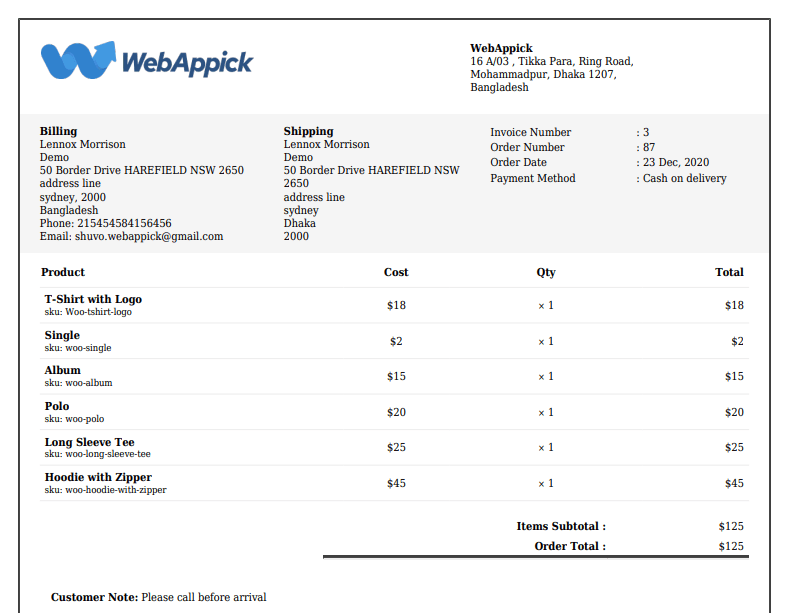
A professional WooCommerce invoice usually includes:
- The Basics: Store name, contact info, business address, and logo.
- The Paper Trail: Sequential invoice number, order number, and invoice date.
- The Money: Products, quantities, prices, tax, VAT/GST, shipping, discounts, and final total.
- The Payment Details: Payment method, payment status, and invoice payment instructions.
- The Fine Print: Return policy, refund policy, and customer support details.
In short, a WooCommerce invoice helps both the seller and customer understand exactly what was purchased, how much was paid, and what tax or shipping charges were included.
How does the invoice system work in woocommerce store?
When a customer purchases something from a Woocommerce store, the seller invoices the order with what is bought and how much it costs. Then, the buyer receives the invoice as a bill of the order.
However, besides the product list and due amount, there’re also several essential elements inclues in a Woocommerce invoice.
What are the key elements to include in a WooCommerce invoice?
- Seller’s and Buyer’s Contact Information
- Shipping Information
- Billing information
- Invoice number
- List of Goods or Services
- Shipping Charges
- Total Amount Due
- Discounts or tax amounts (GST or VAT);
- Payment details
- Debit or credit terms
Again, just including valid information in the woocommerce invoice isn’t enough. You should always follow the typical format of an invoice and slice the invoice into a header, body, & footer.
In the invoice header section, the seller & buyer pieces of information are included. The product details are placed with detailed pricing in the body section. In the invoice footer, payment methods, and refund policy are placed for further queries.
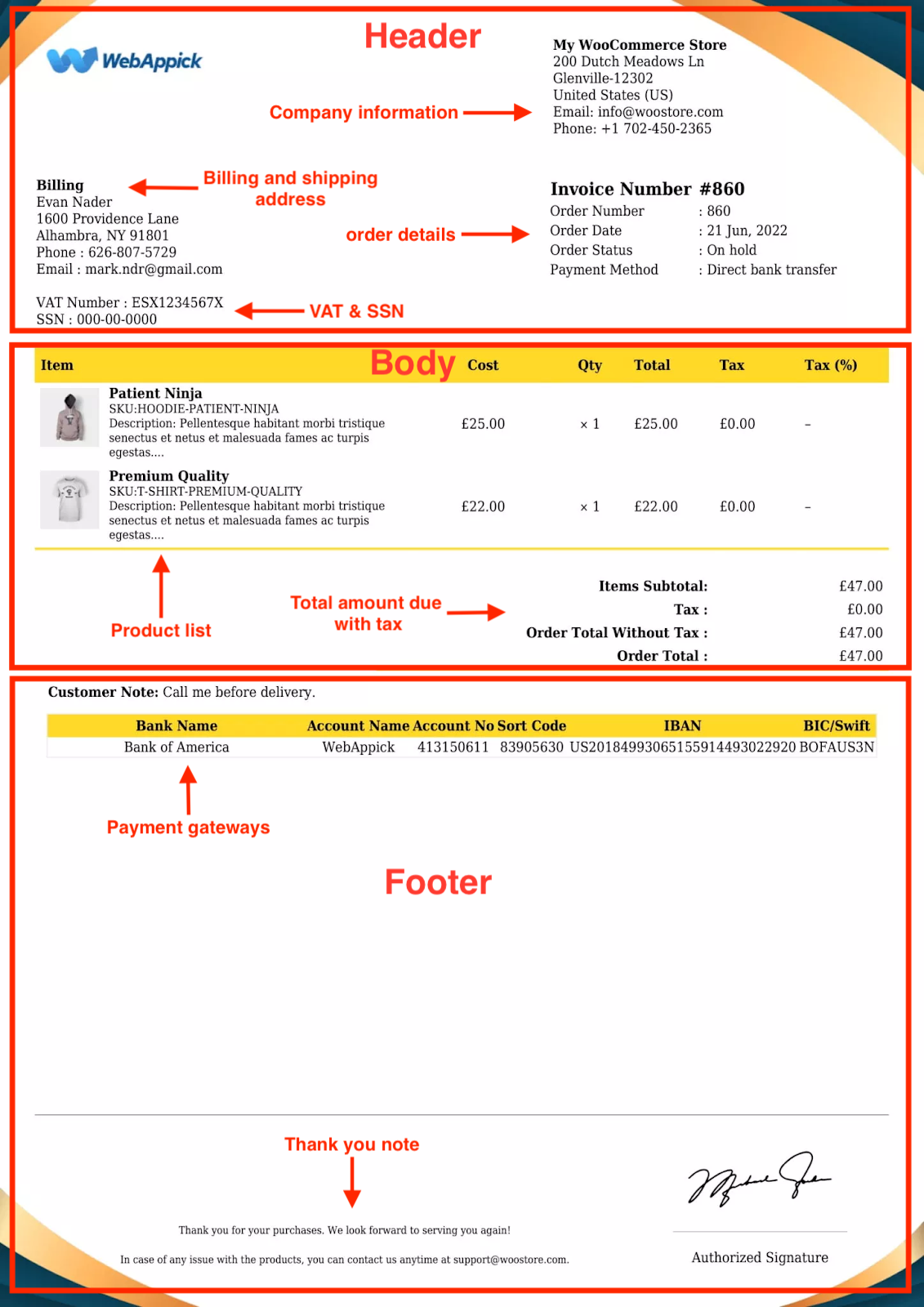
This structured invoice format is a must to make it visually clear and easily understandable for both store owners and customers as well.
Why You Can’t Skip WooCommerce Invoicing
Think of invoices as the glue between your sales and your sanity.
Tax Compliance
If you’re audited, “order notes” won’t cut it. You need proper VAT, GST, or tax-compliant invoice documents to support your sales records.
Customer Trust
A clean PDF invoice makes your WooCommerce store look like a real brand, not a hobby project.
Fewer Support Tickets
When customers have a clear PDF invoice of their purchase, they ask fewer questions about payment, shipping, refund terms, or order details.
Better Bookkeeping
Invoices help you track sales, paid orders, unpaid orders, refunds, credit notes, and store revenue more accurately.
B2B Ready
If you sell to other businesses, they usually require invoices to balance their own books and claim tax records.
Types of WooCommerce Invoices
While WooCommerce tracks orders, specialized plugins allow you to generate these specific invoice types for legal, international, and subscription-based billing.
1. Pro Forma Invoice
- Purpose: A “pre-invoice” or quote sent before payment is confirmed.
- Key Detail: Not a formal financial record; used to outline costs for buyer approval.
- Best for: Wholesale (B2B) and international trade estimates.
2. Commercial Invoice
- Purpose: Often required for international shipping and customs clearance.
- Key Detail: Includes detailed product values and country of origin to determine import duties.
3. Credit & Debit Memos
- Credit Memo: Issued for refunds or returns to reduce the amount a customer owes.
- Debit Memo: Issued when a customer underpays or incurs late fees, acting as a secondary bill.
4. Recurring (Continuation) Invoice
- Purpose: Automated billing for subscriptions or long-term rentals.
- Key Detail: Sent at set intervals (monthly/yearly) until the service is canceled.
5. Specialized Invoices
- Self-Billing: The buyer creates the invoice on behalf of the seller (common with large retailers).
- Collective (Monthly): Consolidates multiple small orders into one single monthly bill to reduce paperwork.
- Electronic (E-Invoicing): Fully digital formats (XML, EDI, or PDF) designed for automated processing and paperless record-keeping.
WooCommerce mainly stores order details and sends order emails, but it does not create professional PDF invoices by default.
Top WooCommerce Invoice Plugins
There are several plugins available for WooCommerce invoices, and you’ll get both free and paid options. Here’s the top 5 best WooCommerce invoice plugins:
1. Challan (Highly Recommended)
Challan is a great option for beginners and growing stores. It handles WooCommerce PDF invoices, packing slips, and delivery notes, with additional document options depending on the plugin version.
2. YITH WooCommerce PDF Invoices
YITH is more suitable for power users and high-volume stores that need advanced customization, invoice templates, and automation options.
3. Sliced Invoices
Sliced Invoices is useful if you also need to send quotes, custom invoices, or business reports outside the regular WooCommerce order flow.
Invoices vs. Shipping Documents: Quick Comparison
In WooCommerce, each document serves a specific stage of the fulfillment cycle. Here is how they differ:
| Document | Primary Purpose | Timing | Legal Record? |
|---|---|---|---|
| PDF Invoice | Official bill for payment, taxes, and accounting. | Sent via email after order. | Yes |
| Packing Slip | List of items inside the box (no prices). | Placed inside the package. | No |
| Delivery Note | Proof of receipt and item condition. | Provided upon delivery. | No |
| Shipping Label | Address and tracking for the carrier. | Stuck on the outside box. | No |
Key Takeaways
- The Invoice is the only document used for tax and legal financial tracking.
- The Packing Slip helps your warehouse team (or you) ensure the right items are in the box.
- The Shipping Label is strictly for the courier (FedEx, UPS, etc.) to get the package to the door.
How to Generate WooCommerce Invoices?
Typically, Woocommerce invoice processing includes 4 essential steps. These steps ensure that invoices are properly generated, customized, and delivered to your customers.
So, let’s get a step-by-step guide to Woocommerce invoice processing with Challan (free):
Step 1: Install and Activate Woocommerce auto-invoice generator-Challan
Just go to your WordPress site >> Plugins >> Add New Plugin. From there, simply search for Challan and then install the plugin.
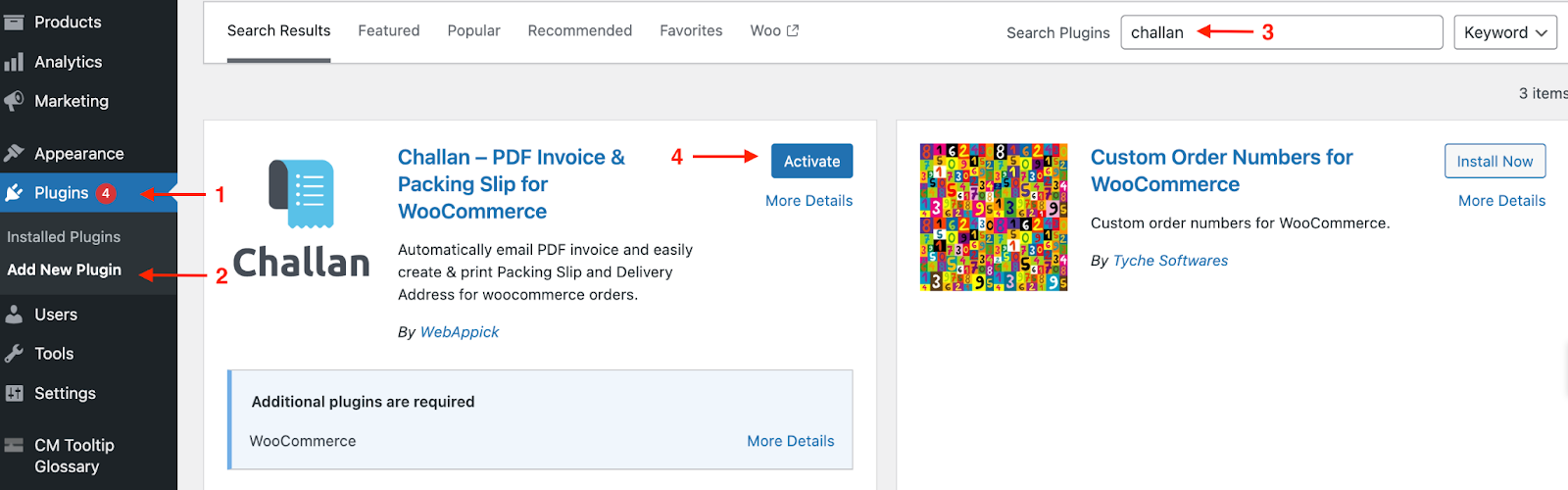
Once you’ve installed the plugin, it’ll automatically start to generate WooCommerce invoices for your store orders.
Step 2: Customize Woocommerce Invoice
Once generated, you can customize the invoice to reflect your store’s branding. Simply go to Challan >> Settings to add the custom fields in your invoice.
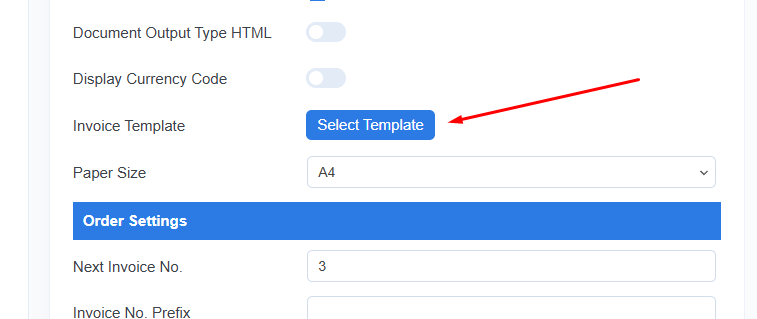
Here, you can add logos, modify layouts, store color & font, and adjust any necessary designs to fit your business needs.
Step 3: Download or Print Invoice in WooCommerce:
After customization, you can download your invoices or even print them for your Woocommerce store records. For this, go to WOocommerce >> Orders. Then, hit on Download or even print button to get the invoices for your selected orders.
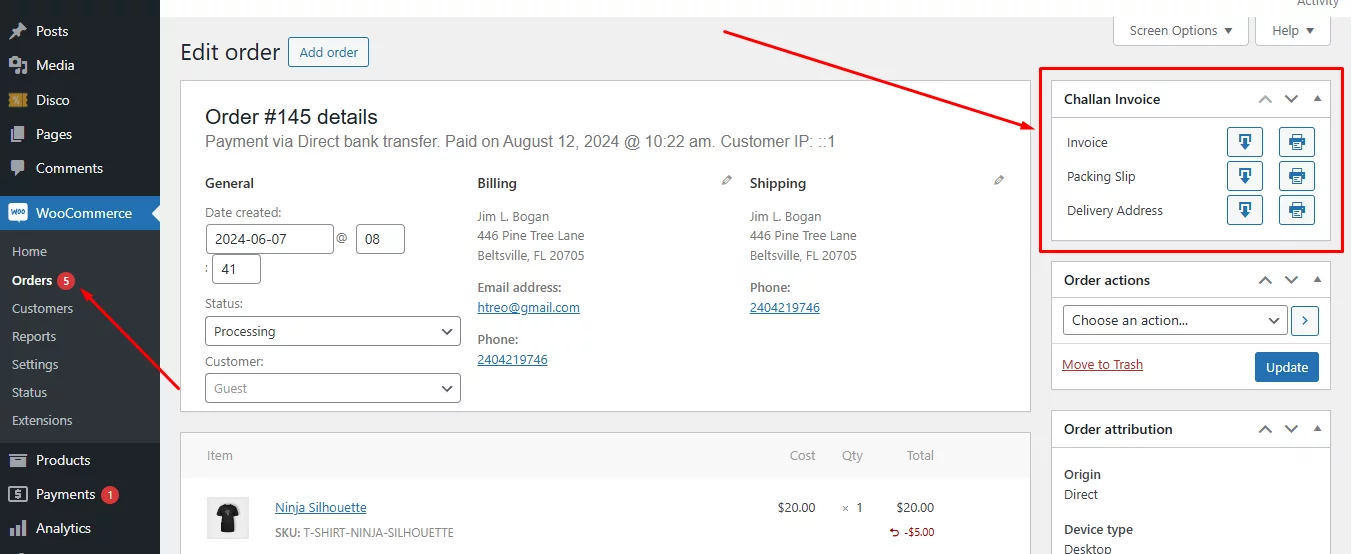
You can even bulk download your order invoices.
Step 4: Send invoice via Woocommerce order Email:
Finally, automatically send the invoice to your customer via Woocommerce email so that they can find the invoice easily and get clear about their purchase and payment due.
Just go to Challan >> Settings >> Invoice >> Attach invoice to email. Then, just select the order status according to your needs.
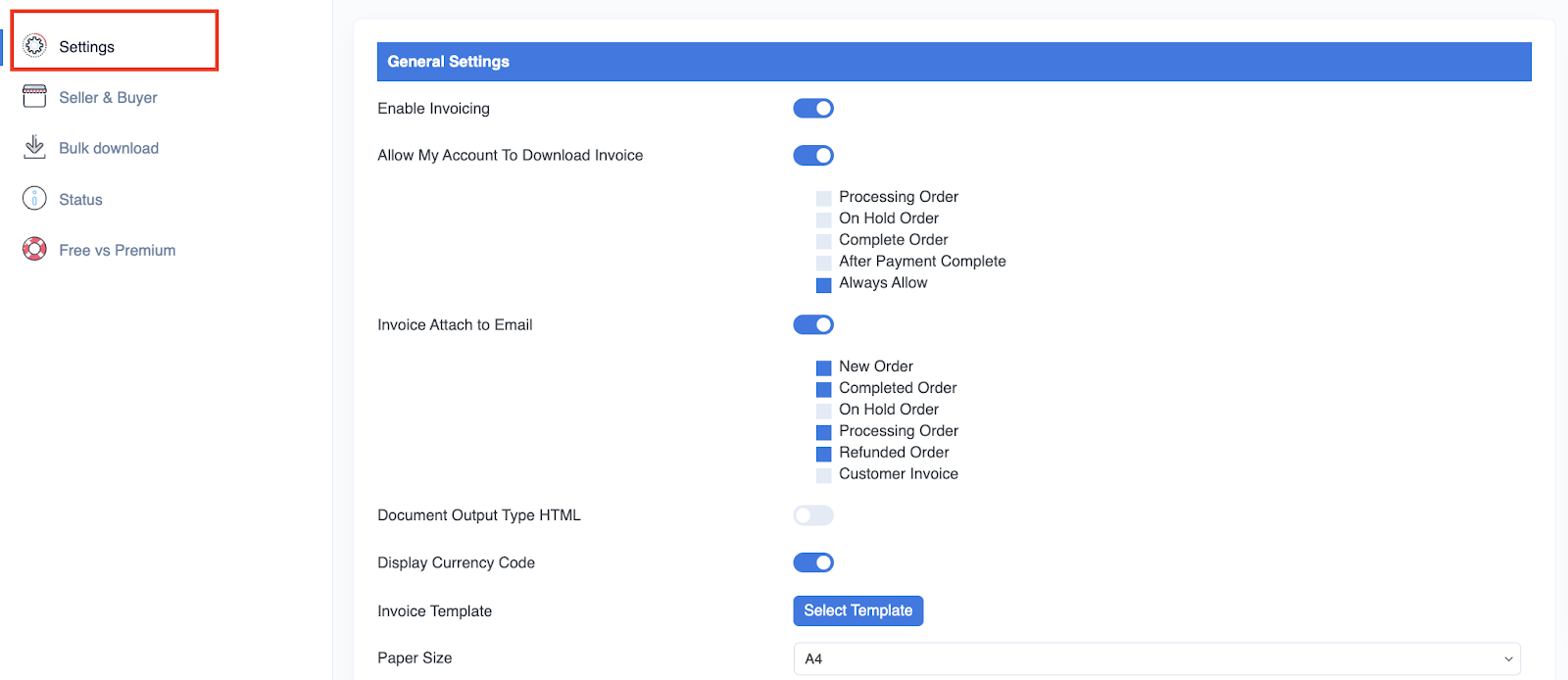
Well, that’s it. You’re done. You can use this invoice not only for your financial management but also to enhance your customer experience.
Pro Tips for a Better WooCommerce Invoicing Workflow
Use Smart Invoice Numbering
Don’t start at invoice #1. It can make your store look brand new.
Start with something more professional, like:
- INV-2026-1001
- WC-INV-2026-5001
- STORE-2026-1001
A clean WooCommerce invoice number system helps with tracking, bookkeeping, and tax reporting.
Add “Pay Now” Buttons
If you allow Pay by Invoice, especially for B2B customers, include a clickable PayPal, Stripe, or bank payment link directly inside the PDF invoice.
This makes WooCommerce invoice payment faster and helps reduce unpaid orders.
Show VAT/GST Clearly
If you collect VAT or GST, don’t hide it inside the total. Show the tax amount separately.
Your invoice should clearly display:
- Tax rate
- Tax amount
- VAT/GST number
- Total before tax
- Final total after tax
Go Multilingual
If you sell globally, make sure your invoice plugin supports multilingual invoices through tools like WPML or Polylang.
This helps customers receive WooCommerce invoices in their own language.
Keep the Invoice Clean
Avoid overloading the invoice with unnecessary design elements. A professional invoice should be simple, readable, and easy to scan.
Frequntly Asked Questions
Can WooCommerce generate invoices automatically?
Not by default. WooCommerce does not create PDF invoices out of the box. But with a WooCommerce invoice plugin, you can automatically generate and send invoices to customers.
Can I send WooCommerce invoices automatically?
Yes. Most invoice plugins allow you to trigger an invoice email when an order status changes to Processing, Completed, or On Hold.
How do I create a WooCommerce PDF invoice?
Install a WooCommerce PDF invoice plugin, customize your invoice template, and enable automatic invoice generation. The plugin will create invoices from your order data.
Why is my VAT not showing on the invoice?
First, make sure tax settings are enabled in:
WooCommerce > Settings > Tax
Then check your invoice plugin settings and enable tax fields, VAT number, or GST fields.
What happens if I refund an order?
You should issue a Credit Note. This cancels out or adjusts the original invoice in your records, so you are not taxed on money you returned.
What is the difference between an invoice and a receipt?
An invoice records the order, payment details, and amount due or paid. A receipt confirms that payment has already been completed.
What is a WooCommerce proforma invoice?
A WooCommerce proforma invoice is a preliminary invoice sent before final payment. It is commonly used for B2B, wholesale, custom orders, and international sales.
What is WooCommerce invoice payment?
WooCommerce invoice payment means customers receive an invoice and pay through a selected method, such as bank transfer, PayPal, Stripe, or a payment link.
Conclusion:
Automating your WooCommerce invoicing is one of the easiest wins for your store.
It saves hours of manual work, keeps your records clean, supports tax compliance, and gives customers a better buying experience.
If you’re just starting out, grab a free WooCommerce invoice plugin like Challan, upload your logo, set your invoice number format, enable email attachment, and let the automation handle the rest.

Yes, an Invoice is an essential document for both buyer and seller. It helps to solve any conflict if it occurred. Thanks for the details!
You are most welcome.