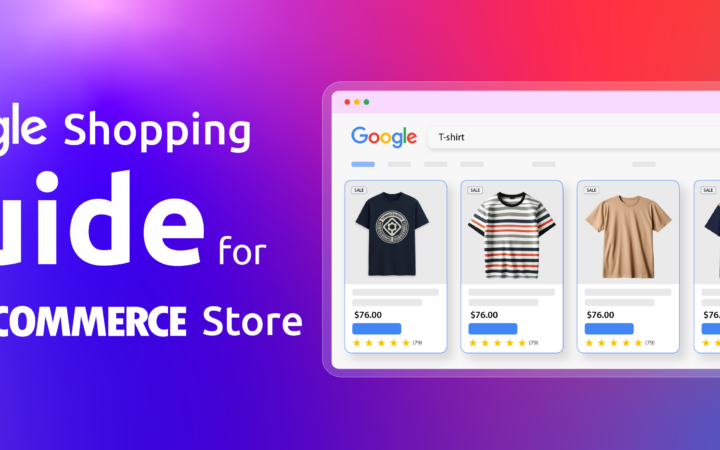
A Google Shopping feed is a structured data file that lists your products and their attributes such as ID, title, price, availability, image URL, and brand and submits them to Google Merchant Center. Google uses this feed to match your products to search queries and decide which listings appear in Shopping ads or free results.
Without a properly formatted product feed, your products either won’t appear or will be disapproved in Google Shopping.
Without a properly formatted product data source, your items simply won’t show up on Google. Worse, messy data can lead to swift, account-wide merchant disapprovals.
Whether you are looking to run high-converting Performance Max campaigns, traditional Shopping ads, or just tap into free organic product listings, your feed determines your success. This guide breaks down exactly how Google Shopping feeds work under the modern Merchant Center Next framework, details required attributes, and outlines formatting and optimization strategies to maximize your return on ad spend (ROAS).
This guide covers what a Google Shopping feed is, its required attributes, format options, product type settings, how to optimize it, and how to manage multiple feeds.
Required Attributes in a Google Shopping Feed
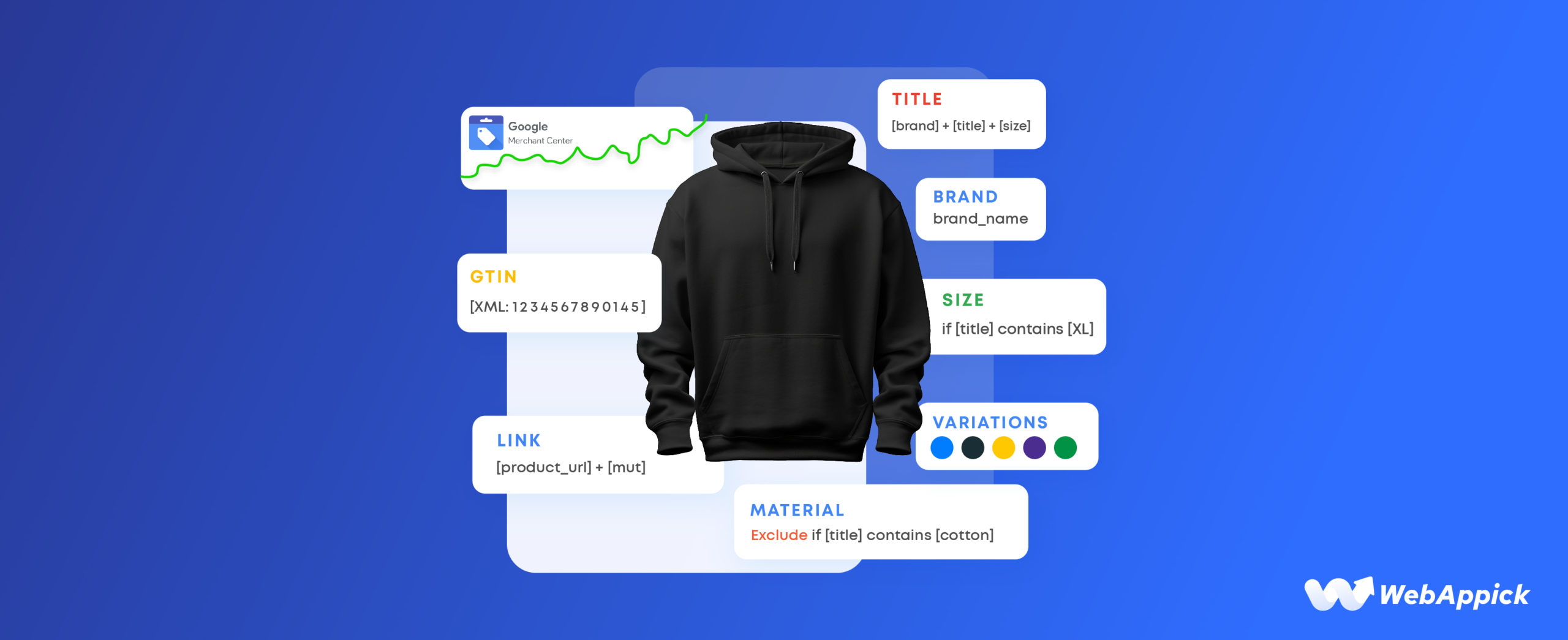
Google’s product data specification defines required and optional attributes. Getting the required fields right is the first priority; missing or incorrect required attributes cause disapproval.
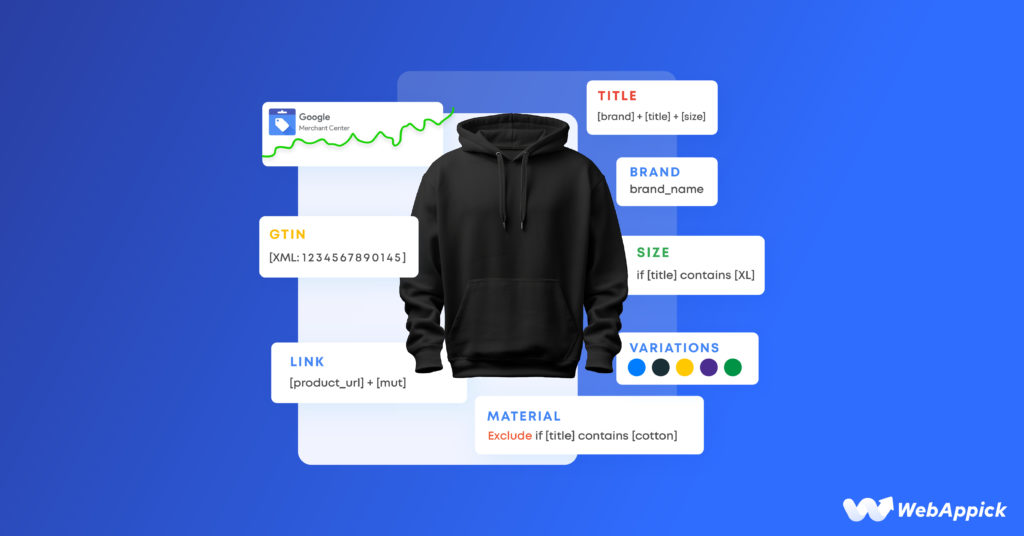
Here are the core required attributes for most product types:
| Attribute | Description |
|---|---|
id | Unique product identifier. Max 50 characters. Use SKU where possible. |
title | Product title. Max 150 characters. No promotional text, ALL CAPS, or special characters. |
description | description – Product description. Max 5,000 characters. Should match your landing page. |
link | URL of the product’s landing page. |
image_link | URL of the main product image. Must meet Google’s image guidelines. |
availability | in_stock, out_of_stock, or preorder. |
price | Price with currency code (e.g., 26.53 USD). |
condition | new, refurbished, or used. |
brand | Brand or manufacturer name. |
gtin / mpn | Global Trade Item Number or Manufacturer Part Number if GTIN is unavailable. |
identifier_exists | Set to no if GTIN and MPN are genuinely not available for the product. |
Recommended and optional attributes worth adding for better performance:
google_product_category– Google’s taxonomy mapping for your productproduct_type– Your own internal category classification (covered in detail below)sale_price/sale_price_effective_date– For discounted productsitem_group_id– Groups product variants (size, color) togethercustom_label_0–4– For your own segmentation (e.g., “high_margin”, “clearance”)shipping– Shipping cost and speed settingsshipping_weight,size,color,material– Especially important for apparel
What Is product_type in a Google Shopping Feed?
product_type is an optional but important attribute that lets you define your own internal product category hierarchy in the feed. Unlike google_product_category (which uses Google’s fixed taxonomy), product_type is fully custom.
It helps Google understand your catalog structure and gives you a way to segment and bid on products using your own naming conventions in Google Ads.
Format example:Apparel & Accessories > Men's Clothing > T-Shirts
Multiple values can be included using separate product_type entries, and Google uses the first value as the primary category for Shopping ad targeting.
product_type is separate from google_product_category. Both can and should be included. Google’s algorithm uses google_product_category for matching and eligibility; product_type gives you control over campaign structure and bidding.
Google Shopping Feed Format Options
Google Merchant Center accepts product feeds in three formats:
XML
The most common format for large catalogs. Each product is an <item> node inside an RSS channel structure. XML handles complex product data and special characters well.
A basic XML feed structure looks like this:
<rss>
  <channel>
    <item>
      <g:id>ABC123</g:id>
      <g:title>Brand X Men's Running Shoes Black Size 10</g:title>
      <g:description>High-performance running shoes for road and track.</g:description>
      <g:link>https://yourstore.com/product-abc123</g:link>
      <g:image_link>https://yourstore.com/images/abc123.jpg</g:image_link>
      <g:price>99.00 USD</g:price>
      <g:availability>in_stock</g:availability>
      <g:brand>Brand X</g:brand>
      <g:gtin>00012345678905</g:gtin>
    </item>
    <item>
      <!-- next product -->
    </item>
  </channel>
</rss>
A single XML file can contain thousands or tens of thousands of products. Google also supports feed sharding for very large catalogs.
CSV/TSV (Text)
Simpler to produce and edit manually. Better suited to smaller catalogs or stores that export data via spreadsheet tools. Each row is one product, with column headers matching Google’s attribute names.
Content API for Shopping
For large catalogs (thousands or millions of SKUs) or stores with frequent price and availability changes, the Content API is the most reliable method. It syncs feed data directly via API calls rather than file uploads, reducing latency and disapproval risk.
Why Use Multiple Google Shopping Feeds?
One feed is often enough for a simple store. But multiple feeds give you segmentation, flexibility, and more control as you scale. Common reasons to use more than one:
Different target countries or languages
Each country or region may require its own currency, language, tax and shipping rules, and feed format. Separate feeds per locale simplify compliance.
Primary feed + supplemental feeds
Google supports supplemental feeds that modify or add attributes to your primary feed without regenerating everything. This is useful for promotional updates like “free shipping” labels, custom labels, or price overrides during a sale period.
Special product subsets
Oversized items, clearance products, seasonal inventory, and bundles may need different shipping attributes, custom labels, or bidding logic. A separate feed avoids overcomplicating your main feed.
Testing and versioning
Some merchants run a standard feed and an optimized test feed simultaneously to compare performance before applying changes across all products.
Feed format differences
You might run one XML feed for Shopping ads and a separate CSV feed formatted for dynamic remarketing campaigns.
How to Submit a Product Feed to Google Merchant Center
Step 1: Set up your Google Merchant Center account
You need a verified and claimed website. In Merchant Center, go to Products → Feeds to create a new feed. If you run Shopping campaigns, link your Google Ads account.
Step 2: Collect your product data
Make sure your store has clean, complete product data: unique IDs (SKU), titles, descriptions, product URLs, image URLs, prices, availability, brand, and GTIN/MPN where required.
Step 3: Choose your feed format
Select XML, CSV/TSV, or Content API based on your store size and update needs.
Step 4: Map your store’s attributes to Google’s attributes
Match each internal product field to Google’s attribute names (such as g:id, g:title, g:price, g:availability). If you use a plugin like CTX Feed, this mapping step is handled in the plugin interface.
Step 5: Filter and clean your data
Remove products you don’t want to advertise (out of stock, low margin, excluded categories). Standardize titles, clean descriptions, and verify images meet Google’s quality requirements no promotional overlays, no low-res images.
Step 6: Generate the feed file
Create your XML or CSV file, or set up API integration. Schedule automatic updates (daily or hourly) to reflect store changes.
Step 7: Upload or link the feed in Merchant Center
Create the feed entry in Merchant Center, select your target country and language, upload the file or provide a hosted URL, and set a refresh schedule.
Step 8: Monitor diagnostics
After upload, check Products → Diagnostics in Merchant Center for errors and warnings: missing required fields, mismatched pricing, image issues, or disapprovals.
How to Optimize a Google Shopping Feed for Better Performance
Feed optimization is ongoing. Once your feed is live and approved, improving its data quality directly improves impressions, click-through rate, and conversions.
Improve titles and descriptions
Titles should be clear and descriptive, including brand, product type, and variant (size, color) where relevant. Avoid vague or promotional language (“Best price!”, “Amazing deal”). A good title format: Brand + Product Type + Key Variant. Descriptions should match what’s on the landing page and give enough detail for both Google and the user to understand the product.
Follow these best practices to optimize Google Shopping descriptions for better relevance, visibility, and click-through rates.
Use high-quality images
Clean background (white or minimal), no watermarks, no promotional overlays. Poor images reduce clicks and can trigger disapproval. Use additional_image_link to add extra product views.
Map categories correctly
Set google_product_category using Google’s taxonomy. Use product_type for your own internal categorization and campaign segmentation. Mis-categorized items may match irrelevant queries.
Leverage optional attributes
Use custom_label_0–4 to tag products for bidding strategies (e.g., “top_margin“, “seasonal“, “clearance“). Use item_group_id to group variants. Use sale_price + sale_price_effective_date for discounted items. Add identifier_exists when GTIN and MPN are not available.
Schedule frequent updates
If prices or availability change often, update your feed daily or hourly. Stale data especially mismatched prices between the feed and the product page causes disapproval and erodes user trust.
Fix errors in Diagnostics
Every disapproval or warning reduces your eligible inventory. Prioritize fixing missing required fields, mismatched prices, missing GTIN, and image policy violations.
Exclude weak products
Use feed rules or filters to exclude out-of-stock or low-margin products you don’t want to spend budget on. Focus your feed on products with conversion potential.
Align feed data with landing pages
The price, availability, title, and product details in your feed must match what’s on the product page. Mismatches hurt performance and may lead to policy violations.
Best WooCommerce Product Feed Plugin for Google Shopping
CTX Feed is a WooCommerce plugin built specifically for generating and managing Google Shopping product feeds. It automates attribute mapping, feed generation, and scheduling so your Merchant Center feed stays accurate without manual exports.
The plugin generates feeds in XML, CSV, TSV, and other formats, with built-in templates for Google Shopping and other channels. It handles product type mapping, custom labels, variant grouping, and filtering rules from within the WordPress dashboard.
Key Features
- Pre-built Google Shopping feed template with all required and recommended attributes
- Drag-and-drop attribute mapping for WooCommerce product fields
- Custom filter and rules engine to include or exclude products by category, stock, price, or tag
- Automatic feed updates on a set schedule (hourly, daily, or custom)
- Support for variable products with
item_group_idfor variant grouping - Multi-channel feed generation (Facebook, Bing, Pinterest, and more)
- Hosted feed URL for direct Merchant Center fetch
Frequently Asked Questions
What is a Google Shopping feed?
A Google Shopping feed is a structured product data file submitted to Google Merchant Center. It contains product attributes like ID, title, price, availability, image URL, and brand. Google uses this data to match your products to search queries and display them in Shopping ads or free listings.
What attributes are required in a Google Shopping product feed?
The core required attributes are: id, title, description, link, image_link, availability, price, condition, and brand. gtin or mpn is required for branded products. Use identifier_exists: no if your product genuinely has no GTIN or MPN.
What is product_type in a Google Shopping feed?
product_type is a custom attribute where you define your own category path for a product (e.g., “Clothing > Men > T-Shirts”). Unlike google_product_category, which uses Google’s fixed taxonomy, product_type uses your own naming. It’s used in Google Ads for campaign organization and bidding segmentation.
What format should a Google Shopping feed be in?
Google accepts XML, CSV/TSV (text), and Content API submissions. XML is most common for large WooCommerce stores. CSV works well for smaller catalogs. The Content API is best for large stores with frequent price and availability changes.
Can one XML file contain multiple products?
Yes, this is the standard. A single XML feed file contains one <item> node per product (or per variant). Large stores can have feeds with thousands or tens of thousands of products in one file. Google also supports feed sharding if a single file becomes too large.
How often should I update my Google Shopping feed?
At minimum, once daily. If your store has frequent price changes or availability updates, update hourly. Stale feed data, especially mismatched prices between feed and product page can cause disapprovals or policy violations.
What is a supplemental feed in Google Shopping?
A supplemental feed lets you update or override specific attributes in your primary feed without regenerating the entire feed. It’s commonly used for promotional updates like custom labels, shipping overrides, or title improvements during a sale period.
Does Google Shopping require images in the feed?
Yes. image_link is a required attribute. Images must meet Google’s quality guidelines: clear, relevant, no promotional overlays, no watermarks, and adequate resolution. Poor images can lead to disapproval or reduced performance.
Key Takeaways
- A Google Shopping feed is a structured product data file submitted to Google Merchant Center that tells Google what you sell, at what price, and whether it’s available.
- Required attributes include
id,title,description,link,image_link,availability,price,condition,brand, andgtin/mpnfor branded products. product_typeis a custom attribute you define;google_product_categoryuses Google’s fixed taxonomy; both should be included for best performance.- Google accepts feeds in XML, CSV/TSV, and via the Content API; XML is standard for large WooCommerce stores.
- Supplemental feeds let you override or add attributes to your primary feed without regenerating it, useful for promotions, custom labels, and shipping rules.
- Feed optimization is ongoing: improve titles, map categories correctly, schedule frequent updates, and fix Diagnostics errors regularly.
- For WooCommerce stores, a plugin like CTX Feed automates attribute mapping, feed generation, and scheduling directly from the WordPress dashboard.

Free version on WordPress.org. Every Pro licence includes a 30-day money-back guarantee.