
A practical guide to building, connecting, and optimizing your product feed for better platform approval rates, stronger visibility, and more multichannel sales.
Every WooCommerce store competes for attention. You can have great products, competitive prices, and a well-designed store—but if your product data isn’t reaching shopping platforms correctly, your products may never get the visibility they deserve.
That’s where your product feed comes in.
A product feed connects your WooCommerce store with platforms like Google Shopping, Meta, TikTok, Pinterest, and other sales channels by sending them the product information they need—such as titles, prices, images, availability, and product attributes.
But creating a feed is only the first step.
A successful product feed needs to be accurate, complete, properly formatted, and optimized for each platform. Small data issues can lead to rejected products, missing information, or weaker performance.
This guide walks you through the entire process—from understanding how product feeds work and setting up your first feed to connecting multiple platforms, preventing disapprovals, fixing common feed issues, and optimizing your product data for better results.
Whether you’re creating your first WooCommerce product feed or looking to improve an existing one, this guide will help you build a feed that works harder for your store—and turns more product listings into opportunities to sell.
Chapter 1: Why Feed and Website Mismatches Cost You Sales
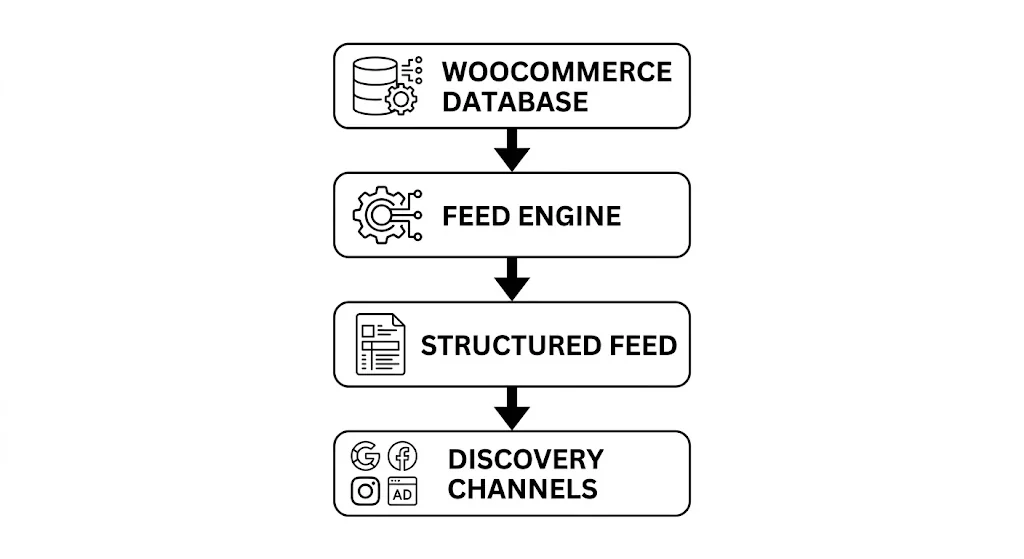
A product feed is a structured file—usually XML, CSV, or TXT—that sends your WooCommerce product information to shopping and advertising platforms.
It contains important details such as your product name, price, image, availability, product URL, and other attributes. Platforms like Google Shopping, Meta, Pinterest, and TikTok use this information to create and display your product listings.
But creating a feed is only the beginning.
Why Feed Accuracy Matters?
Think of your product feed as the connection between your WooCommerce store and the platforms where customers discover your products.
Before a shopper clicks through to your website, the platform may already be showing them:
- What you’re selling
- How much it costs
- What it looks like
- Whether it’s available
That means your feed needs to match your website as closely as possible.
For example, imagine your website shows a product for $29.99, but your feed still sends $34.99. Or your website says a product is in stock while the feed says it’s unavailable.
Industry data from Akeneo shows that 66% of consumers have abandoned a significant purchase due to missing or inaccurate product information; and every one of those data points lives in the attributes your feed sends to each channel.
These mismatches create a poor shopping experience. They can also lead to product disapprovals, limited visibility, or lost clicks and sales, depending on the platform and the type of issue.
Your Feed Is Only as Good as Your Website Data
A product feed doesn’t create accurate information on its own. It depends on the product data in your WooCommerce store.
If your prices, stock status, images, titles, or product attributes are outdated or inconsistent, those problems can make their way into your feed.
That’s why successful feed management isn’t just about generating a file. It’s about keeping your WooCommerce store, product feed, and sales channels in sync.
In the chapters ahead, we’ll look at how to build a reliable feed, connect it to different platforms, prevent common disapprovals, and optimize your product data for better multichannel performance.
Chapter 2: Essential Product Feed Attributes
Every shopping platform has its own feed requirements. Some product attributes are essential across most platforms, while others depend on the channel, product type, or how you sell.
Getting these fields right is important because they help platforms understand your products, match them with relevant searches, and display accurate information to shoppers.
Here are the core attributes you should pay attention to:
| Attribute | Feed Tag | What It Does | Best Practice |
| Product Title | title | Tells shoppers and platforms what the product is | Keep it clear and descriptive. Include important details such as brand, product type, size, color, or key features where relevant. Avoid unnecessary promotional text or ALL CAPS. |
| Product ID | id | Gives each product a unique identifier | Keep IDs consistent. Avoid changing them unnecessarily, especially when products are already connected to advertising campaigns. |
| Description | description | Provides additional product details and context | Include important features, specifications, compatibility information, and other useful product details. |
| Category | category | Helps platforms classify your product | Use the platform’s recommended taxonomy where required, rather than relying only on your WooCommerce category structure. |
| Condition | condition | Tells the platform whether the product is new, used, or refurbished | Use the platform’s accepted values and make sure they match the actual product condition. |
| Price | price | Shows the product’s current selling price | Keep the feed price synchronized with the price shown on your product page. |
| Product URL | link | Sends shoppers to your product page | Use the correct product URL and make sure the landing page matches the product shown in the feed. |
| Image | image_link | Provides the main product image | Use a clear, high-quality image that follows the destination platform’s image requirements. Avoid unnecessary watermarks, promotional text, or overlays. |
| Availability | availability | Shows whether the product can currently be purchased | Keep stock status synchronized with your WooCommerce store. Use the platform’s accepted values such as in_stock, out_of_stock, or preorder where supported. |
| GTIN | gtin | Identifies products using a global trade number | Provide the correct UPC, EAN, ISBN, or other supported identifier when your product has one. Don’t invent GTINs for products that don’t have them. |
| Sale Price | sale_price | Shows a temporary promotional price | Use it when a product is genuinely on sale. Where supported, use the relevant effective-date field to define when the sale starts and ends. |
| Item Group ID | item_group_id | Connects product variants together | Use a shared group ID for variants such as different sizes, colors, or materials when the platform requires it. |
The Most Important Rule: Keep Your Data Consistent
A complete feed isn’t necessarily a good feed.
Your product title, price, availability, image, and other important information should match what shoppers see when they visit your website. If the feed says one thing and the product page says another, you can run into product disapprovals, inaccurate listings, or lost sales.
Also remember that requirements vary by platform. A field that is required by Google may not be required in exactly the same way by Meta, TikTok, Pinterest, or a marketplace.
Before submitting your feed, always check the specific requirements of the platform you’re connecting to.
The goal isn’t to fill every possible field. It’s to provide accurate, complete, and platform-compatible product data that helps your products get approved and shown to the right shoppers.
Chapter 3: Common Feed Errors That Stop Your Ads
Shopping platforms such as Google Merchant Center and Meta Commerce Manager have rules that your product feed needs to follow. If important product information is missing, incorrect, or doesn’t match your website, your products may be disapproved, limited, or removed from certain placements.
The good news is that most feed problems are common and fixable.
Here are six issues you should watch for:
1. Price and Stock Mismatches
The problem:
The price or stock status in your feed doesn’t match what shoppers see on your website.
For example, your feed may show a product at $29.99 while your website shows $34.99, or your feed may say the product is in stock when it has already sold out.
The fix:
Keep your feed updated automatically instead of relying on old manual files. Use your platform’s supported sale-price fields and effective dates for scheduled promotions, and make sure your feed regularly reflects changes in your store.
2. Missing or Incorrect GTINs
The problem:
A product has a GTIN such as a UPC, EAN, or ISBN, but the feed is missing it or contains an incorrect number.
Never use made-up or placeholder GTINs.
The fix:
Check your product records and use the official identifier provided by the manufacturer when one exists. If a product genuinely doesn’t have a GTIN, follow the platform’s rules for products without identifiers rather than adding a fake one.
3. Promotional Text in Product Titles
The problem:
Adding marketing messages such as “FREE SHIPPING,” “BEST SELLER,” or “50% OFF” directly to the product title.
The fix:
Keep product titles focused on what the product actually is. Include useful details such as the brand, product type, size, color, or important features. Put promotional messaging in the appropriate campaign or promotion fields instead.
4. Broken or Slow-Loading Images
The problem:
Your feed contains an image URL that no longer works, returns an error, or takes too long to load.
This can happen after a website migration, theme change, CDN update, or changes to your media library.
The fix:
Regularly check that your feed’s image URLs are working and accessible. If you’re using security or firewall rules, make sure they don’t unnecessarily block legitimate platform crawlers from accessing your product images.
5. Incorrect Variant Grouping
The problem:
Products with different sizes, colors, or materials aren’t properly connected as variants.
This can make it harder for shopping platforms to understand that several listings belong to the same product.
The fix:
Where the platform supports or requires variant grouping, use a shared item_group_id for related variants. Each individual variant should still have its own unique id and the correct variant-specific information, including images where appropriate.
6. Outdated Feed Data
The problem:
A manually uploaded XML or CSV file doesn’t reflect recent changes to your store.
Prices change, products sell out, new products are added, and promotions end. A static feed can quickly become outdated.
The fix:
Use an automatically updated feed whenever possible. A scheduled feed refresh or dynamic feed URL can help keep your product information synchronized with your WooCommerce store.
Keep Your Feed Healthy
Feed errors aren’t just technical problems. An incorrect price, unavailable product, or broken image can prevent shoppers from seeing the right information—or prevent the product from appearing at all.
The best approach is simple: keep your product data accurate, keep your feed updated, and regularly check for errors before they affect your campaigns.
Chapter 4: How to Build and Connect a WooCommerce Product Feed
Manually creating and updating product feeds can become difficult as your catalog grows. Product prices, stock levels, images, and product details change regularly, so maintaining static feed files can lead to outdated or incorrect data.
A dedicated feed management plugin can automate much of this work. It can generate your feed, keep it updated, and map your WooCommerce product data to the requirements of different shopping platforms from one dashboard.
For this guide, we’ll use CTX Feed as the reference tool.
Phase 1: Generate and Map Your Feed
1. Install the Plugin
From your WordPress dashboard, go to Plugins → Add New and search for CTX Feed.
Click Install Now, then Activate the plugin.
2. Create a New Feed
In your WordPress sidebar, go to CTX Feed → Make Feed.
This is where you’ll create the product feed for your chosen shopping platform.
3. Configure Your Feed
Choose the basic settings for your feed:
- Country: Select the market where you plan to sell.
- Template: Choose the platform you’re sending your products to, such as Google Shopping, Meta, or Pinterest.
- File Type: Select the format supported by your destination platform, such as XML or CSV.
4. Check Your Attribute Mapping
Feed plugins can automatically map common WooCommerce fields to the fields required by your selected platform.
Still, don’t assume everything is correct.
Check important custom fields such as GTIN, Brand, MPN, product categories, and variant information to make sure the right WooCommerce data is being sent to the right feed attributes.
Phase 2: Filter and Improve Your Feed
Once the basic feed is created, use filters to control which products are included.
- Exclude unavailable products. Remove out-of-stock products when they shouldn’t be advertised, based on your platform and campaign strategy.
- Check product completeness. Consider excluding products that are missing important information such as images, prices, or required attributes.
- Handle sale prices correctly. When your platform supports sale-price fields and effective dates, use them to communicate temporary promotions without replacing your regular product price.
These filters help keep your feed cleaner and reduce avoidable product errors.
Phase 3: Connect Your Feed to Shopping Platforms
Google Merchant Center
Once your feed is ready:
- Copy the feed URL from CTX Feed → Manage Feeds.
- Open Google Merchant Center and select your product data source.
- Add a new product source and choose the option for a scheduled feed fetch.
- Enter your feed URL.
- Choose an appropriate update schedule based on how often your product data changes.
- Check the feed after the first fetch and review any warnings or errors.
For stores with frequently changing prices or inventory, more frequent updates may be useful if supported by your setup.
Meta Commerce Manager
To connect your feed to Meta:
- Open Meta Commerce Manager and select your catalog.
- Go to Data Sources and add a new product data source.
- Choose the option to use a feed URL.
- Enter your dynamic feed URL.
- Set an appropriate update schedule.
- Review the imported products and check for errors.
If your store has product variants, make sure the relevant variant fields are mapped correctly so the platform can understand the relationship between different sizes, colors, or other options.
Always Test Before You Scale
Getting the feed connected doesn’t mean the job is finished.
After your first upload or scheduled fetch, check whether:
- Products are being imported correctly.
- Prices match your website.
- Stock status is accurate.
- Images load correctly.
- Variants are grouped properly.
- Required attributes are present.
- The platform reports any warnings or disapprovals.
A few minutes of testing can prevent feed problems from affecting hundreds or thousands of products.
Once everything is working correctly, you can move from simply having a product feed to optimizing it for better visibility and performance across your sales channels.
Chapter 5: Advanced Feed Performance Strategies
Now that your product feed is approved and running smoothly, it’s time to move past basic compliance. This chapter covers how to turn your catalog into a revenue driver that gets more sales for every dollar you spend.
1. Front-Load Search Intent in Titles
Algorithms read product titles from left to right, assigning the highest weight to the first few words. Re-architecting titles around explicit user search intent dramatically improves click-through rates (CTR).
- Standard Title: Classic T-Shirt – Blue – Large
- Optimized Title: Brand Name Men’s Heavy Cotton Classic Short Sleeve T-Shirt – Royal Blue, Large
2. Segment Campaigns Using Custom Labels
Use [custom_label_0] through [custom_label_4] to pass internal business metrics into ad platforms without altering visible landing page data.
| Custom Label Tag | Strategic Metric | Example Values | Campaign Application |
| custom_label_0 | Profit Margin Tier | High_Margin, Low_Margin | Allocate higher bids to high-margin SKUs. |
| custom_label_1 | Velocity Tier | Top_Seller, Underperformer | Isolate proven revenue drivers into standalone budgets. |
| custom_label_2 | Seasonality | Summer_Collection, All_Year | Scale up or pause campaigns dynamically by season. |
| custom_label_3 | Price Range | Under_50, 50_to_100, Over_100 | Group bid strategies by purchase threshold. |
3. Deploy Lifestyle Assets for Top Performers
While clean white-background photos work best for standard catalog compliance, deploying lifestyle imagery for your top 10% highest-margin SKUs delivers a significant boost to visual CTR on platforms like Google Shopping and Meta Catalog.
Use Supplemental Feeds to overwrite primary [image_link] attributes for specific top-performing SKUs without altering your WooCommerce media gallery.
4. Optimize for AI-Driven Commerce Engines
AI shopping assistants (like Google’s AI Mode and Meta AI) pull directly from structured product feed data — not your on-page copy — when they answer a shopper’s question or recommend a product. Populate optional attributes such as [gender], [age_group], [material], [pattern], and [size_system] so these tools have enough structured detail to match your product to a specific query, rather than skipping it for a competitor with fuller data.
Chapter 6: Troubleshooting & Summary Checklist
Even great product feeds run into issues sometimes. This final chapter shows you how to quickly find and fix account warnings, plus gives you a simple checklist to double-check everything before running ads.
Step-by-Step Diagnostics Workflow
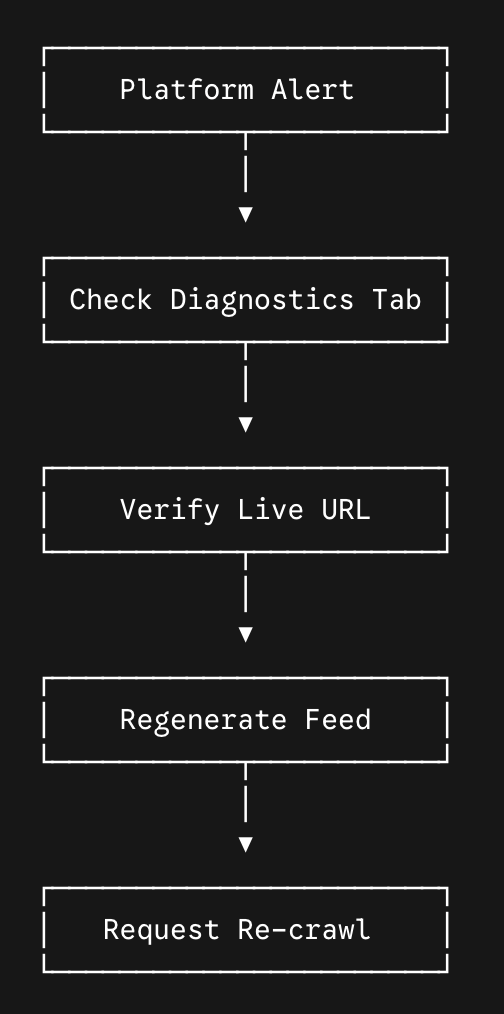
When a product or account receives an error flag, follow this order:
- Check the platform’s diagnostics tab — Google Merchant Center (Products > Diagnostics) or Meta Commerce Manager (Overview > Issues) — instead of manually scanning raw XML. Focus on Disapprovals first; Warnings only limit reach without suppressing items entirely.
- Compare the live product page against the feed. Watch for hidden JavaScript price scripts, dynamic currency converters, or regional tax settings that can show platform crawlers a different value than what a human sees.
- Inspect the raw feed URL directly in a browser tab. Search for the specific Product ID ([id]) to confirm whether the problem is in your WooCommerce data mapping or the platform’s ingestion.
- Regenerate the feed inside CTX Feed after fixing the underlying data, then click Fetch Now in Merchant Center or Commerce Manager to trigger an immediate re-check.
Chapter 7: Choosing the Right WooCommerce Product Feed Tool
Not all product feed plugins are equal. Evaluate any option against five criteria: auto-update frequency, template coverage for your target platforms, how flexible the attribute mapping is, built-in filtering (to exclude out-of-stock or incomplete listings), and support for multi-currency/multi-language if you sell internationally.
- Auto-Update Frequency: Check if the plugin offers automatic sync scheduling, or if you will have to manually regenerate the feed every time product data changes.
- Template Coverage: Ensure pre-built templates exist for your target platforms (Google Shopping, Meta, Pinterest, etc.) so you avoid manual attribute mapping.
- Attribute Mapping Flexibility: Verify that you can add, remove, or customize product attributes easily without writing custom code.
- Advanced Filtering Options: Look for built-in filters to exclude out-of-stock items, incomplete listings, or specific categories on the fly.
- Global Sales Support: Confirm it supports multi-currency and multi-language setups if you sell internationally.
| CTX Feed, used in this guide’s setup walkthrough, covers all five — automatic updates, 220+ pre-configured channel templates, and built-in filtering. |
Master Pre-Launch Checklist
Complete this quick audit before launching or scaling your shopping ads to catch errors early and protect your ad spend:
- Dynamic Feed URL: Is the feed hosted on a live URL with an active daily auto-update schedule?
- Title Architecture: Are key brand, category, and variant attributes front-loaded in product titles without promotional fluff?
- GTIN Validation: Are official UPC/EAN numbers mapped accurately, or is [identifier_exists] set to false for custom/handmade goods?
- Price & Stock Sync: Do price, sale price, and stock status match your live site checkout 100%?
- Taxonomy Mapping: Are local categories mapped directly to standard channel taxonomies (e.g., Google Product Taxonomy)?
- Variant Grouping: Do all product variants share a consistent [item_group_id] while retaining distinct individual [id] values?
- Visual Assets: Are image links high-resolution, un-watermarked, and loading rapidly without server blocking?
- Custom Labels: Are profit margins or performance tiers tagged via [custom_label] attributes for campaign segmentation?
The Takeaway: Feed Accuracy Drives Everything Downstream
A product feed is the single file that decides whether your products get seen, trusted, and bought across every channel you sell on. Get the fundamentals right — accurate attributes, clean titles, synced prices and stock — and you clear compliance checks and earn platform trust. Skip them, and even a great product stays invisible behind disapprovals and dropped rankings.
The pattern that works across every chapter in this guide is the same: map your attributes correctly, keep your feed and website in sync at all times, fix errors at the root cause instead of patching symptoms, and treat your feed as a growth lever — not a one-time setup task. A feed built well once keeps paying off in impression share and ad efficiency long after the initial setup is done.

Free version on WordPress.org. Every Pro licence includes a 30-day money-back guarantee.

