%22%2F%3E%0A%3Cpath%20d%3D%22M59.8894%2016.6974C60.1689%2016.9331%2060.5416%2017.1216%2060.9142%2017.0745C61.5664%2017.0273%2061.8925%2016.6031%2061.6596%2015.7547C61.5198%2014.4349%2061.4267%2013.1623%2061.2869%2011.8425C61.1006%209.72149%2060.8211%207.55331%2060.5881%205.38512L60.1689%201.70863C60.0757%200.81307%2059.6099%200.294591%2058.7713%200.106053C58.4918%20-0.0353509%2058.2123%20-0.0353509%2057.9328%200.106053C57.7931%200.106053%2057.6999%200.106053%2057.6067%200.153187C56.5353%200.483129%2055.4172%200.81307%2054.3458%201.19015C53.5073%201.47295%2052.6222%201.75576%2051.7371%202.03857C50.2929%202.50991%2048.8488%203.02839%2047.4047%203.49974C46.4264%203.82967%2045.4016%204.1596%2044.3768%204.48952L44.3767%204.48956C43.6313%204.72523%2043.3518%205.24371%2043.6313%205.85646C43.7711%206.13927%2044.004%206.32781%2044.2369%206.46921C44.7028%206.79915%2045.2152%207.08196%2045.6811%207.4119C45.8674%207.55331%2046.0537%207.69471%2045.8208%208.02465C45.7276%208.21319%2045.5879%208.35459%2045.4481%208.54313L45.355%208.73167L44.5164%2010.0986L43.9108%2010.9941L43.3052%2011.8897L43.2121%2011.9839L42.1406%2013.5865L44.5867%2019.8706C45.5713%2022.1447%2048.6357%2026.5713%2052.552%2023.6277L53.9265%2022.2593L54.3458%2021.5523C54.3924%2021.458%2054.4856%2021.3637%2054.5321%2021.2694L54.5787%2021.2223C55.2309%2020.1854%2055.883%2019.1956%2056.5352%2018.2059L56.5353%2018.2057C57.0477%2017.4044%2057.5601%2016.6503%2058.0726%2015.849C58.2123%2015.6604%2058.3055%2015.6133%2058.4918%2015.7076C58.9577%2016.0375%2059.4235%2016.4146%2059.8894%2016.6974Z%22%20fill%3D%22%233D89D0%22%2F%3E%0A%3Cpath%20d%3D%22M28.0259%2022.0232C27.9793%2022.0703%2027.9793%2022.1175%2027.9327%2022.1646C27.9793%2022.1175%2028.0259%2022.0703%2028.0259%2022.0232Z%22%20fill%3D%22url(%23paint1_linear)%22%2F%3E%0A%3Cpath%20d%3D%22M53.9265%2022.3064C53.7402%2022.5892%2053.5538%2022.872%2053.3675%2023.202C53.0414%2023.7204%2052.7153%2024.1918%2052.3892%2024.7103C51.3178%2026.4071%2050.1531%2027.9625%2048.4295%2029.0938C46.9388%2030.0365%2045.4015%2030.6021%2043.6779%2030.8849C42.1872%2031.1206%2040.7896%2030.9791%2039.3921%2030.5549C37.6219%2030.0365%2036.038%2029.1409%2034.687%2027.8211C33.7088%2026.8784%2032.9634%2025.7944%2032.3578%2024.616C32.0317%2023.9561%2031.7988%2023.2491%2031.4727%2022.5421C31.0534%2021.5522%2030.1683%2019.2427%2030.1218%2019.1012C30.0752%2019.0541%2030.0752%2018.9598%2030.0286%2018.9127C29.9354%2018.7242%2029.8422%2018.5828%2029.7957%2018.3942C29.6559%2018.0172%2029.4696%2017.6401%2029.3298%2017.2159C29.2366%2017.0273%2029.1901%2016.8388%2029.0969%2016.6503C28.9571%2016.3674%2028.864%2016.0846%2028.7242%2015.7547C28.5845%2015.3776%2028.4447%2015.0005%2028.2584%2014.6235C28.1652%2014.3407%2028.0254%2014.0579%2027.9323%2013.775C27.9323%2013.7279%2027.9323%2013.7279%2027.8857%2013.6808C27.7925%2013.4922%2027.7459%2013.3037%2027.6528%2013.1152C27.4664%2012.5967%2027.2335%2012.1253%2027.0006%2011.6069C27.0006%2011.5597%2026.954%2011.5126%2026.9074%2011.4655C26.8142%2011.2769%2026.7211%2011.1355%2026.5813%2010.947C26.5347%2010.8998%2026.4882%2010.8527%2026.4882%2010.8056C26.4416%2010.7584%2026.395%2010.7113%2026.395%2010.6642C26.3484%2010.617%2026.3018%2010.5699%2026.2552%2010.5228C26.2086%2010.4756%2026.2086%2010.4285%2026.1621%2010.4285L26.1155%2010.3814C26.0689%2010.3342%2026.0223%2010.2871%2026.0223%2010.2871C25.9291%2010.1928%2025.8826%2010.1457%2025.7894%2010.0514C25.7428%2010.0043%2025.6962%209.95715%2025.6496%209.95715C25.603%209.91002%2025.5565%209.91002%2025.5099%209.86288C25.4167%209.81575%2025.3701%209.76861%2025.277%209.67435C25.2304%209.62721%2025.1838%209.62721%2025.1372%209.58008C25.0906%209.53294%2025.044%209.53294%2024.9974%209.48581C24.9509%209.48581%2024.9043%209.43867%2024.9043%209.43867C24.8577%209.39154%2024.8111%209.39154%2024.7645%209.3444C24.7179%209.3444%2024.7179%209.29727%2024.6714%209.29727C24.5782%209.25014%2024.485%209.203%2024.3918%209.15587C22.9943%208.59025%2021.1775%208.77879%2020.1992%209.10873C19.2675%209.43867%2018.2893%2010.3342%2018.2427%2010.4285C18.6619%209.72148%2019.0812%208.96733%2019.547%208.26031C20.1526%207.36475%2020.7117%206.4692%2021.3638%205.62078C22.3887%204.63095%2023.4602%203.78253%2024.6714%203.07551C27.0006%201.75575%2029.4696%201.52007%2032.0317%201.89715C33.3361%202.08569%2034.5939%202.60417%2035.7585%203.35832C36.9231%204.06534%2037.9014%204.96089%2038.7399%206.04499C39.2989%206.79914%2039.8114%207.60043%2040.1374%208.49598C40.6033%209.67435%2041.1623%2010.8056%2041.5816%2011.9839C41.7679%2012.5496%2042.0008%2013.068%2042.2338%2013.6336C42.2338%2013.6336%2042.2338%2013.6336%2042.2338%2013.6808V13.7279L45.0288%2019.8554C45.4015%2020.8452%2045.9139%2021.6465%2046.7059%2022.3535C47.2183%2022.872%2047.8705%2023.1548%2048.5227%2023.3905C48.5693%2023.3905%2048.6158%2023.4376%2048.6624%2023.4376C49.7805%2023.7676%2051.2246%2023.3905%2052.3426%2023.0134C53.088%2022.6835%2053.6936%2022.4007%2053.9265%2022.3064Z%22%20fill%3D%22url(%23paint2_linear)%22%2F%3E%0A%3Cpath%20d%3D%22M28.0255%2022.0238C27.9789%2022.0709%2027.9789%2022.118%2027.9324%2022.1652C27.9324%2022.1652%2027.9324%2022.1652%2027.9324%2022.2123C27.7926%2022.448%2027.6063%2022.6836%2027.4665%2022.9664C25.8826%2025.8416%2024.4385%2028.1512%2021.6434%2029.6595C19.3142%2030.9793%2016.8452%2031.215%2014.2831%2030.8379C14.1433%2030.8379%2014.0501%2030.7908%2013.9104%2030.7908C12.7458%2030.6022%2011.5812%2030.0838%2010.4165%2029.2825C8.78607%2028.1512%207.52829%2026.5958%206.64318%2024.8047L6.17733%2023.9091L5.01272%2021.5524L0.726927%2012.6911C0.447419%2012.0784%200.214496%2011.4656%200.121327%2010.8529C-0.437689%207.8834%200.95985%204.77252%203.80151%203.35849C5.43198%202.51007%207.24878%202.4158%208.87924%202.93428C10.6029%203.45276%2012.1402%204.67825%2013.0253%206.46937L13.1184%206.6579L14.7489%209.95732C14.7955%2010.0516%2014.7955%2010.1459%2014.8421%2010.2401C15.075%2010.8529%2015.8204%2012.4083%2016.426%2013.5867C16.4725%2013.6809%2016.5191%2013.7752%2016.5657%2013.8223C16.6123%2013.9638%2016.7055%2014.1052%2016.752%2014.1994C16.7986%2014.2937%2016.8452%2014.3408%2016.8452%2014.4351C16.8452%2014.4822%2016.8918%2014.4822%2016.8918%2014.5294C16.9384%2014.5765%2016.9384%2014.6708%2016.985%2014.7179C16.985%2014.765%2017.0316%2014.765%2017.0316%2014.8122C17.0316%2014.8593%2017.0781%2014.8593%2017.0781%2014.9064C17.0781%2014.9536%2017.1247%2015.0007%2017.1247%2015.0478C17.1247%2015.095%2017.1713%2015.095%2017.1713%2015.1421C17.3111%2015.4249%2017.4042%2015.7549%2017.544%2016.0377C17.6372%2016.2262%2017.6837%2016.4147%2017.7769%2016.6504C17.9632%2017.1689%2018.1962%2017.6402%2018.3825%2018.1587C18.5223%2018.4415%2018.6154%2018.7715%2018.7552%2019.0543C18.8018%2019.1485%2018.8484%2019.29%2018.8949%2019.3842C18.9881%2019.5728%2019.0347%2019.7613%2019.1279%2019.9498C19.3608%2020.5154%2019.5937%2021.0811%2019.9664%2021.5995C20.1993%2021.8823%2020.3857%2022.1652%2020.6652%2022.4008C22.3888%2023.9563%2024.9975%2023.862%2028.0255%2022.0238Z%22%20fill%3D%22url(%23paint3_linear)%22%2F%3E%0A%3Cpath%20d%3D%22M68.0888%2024.8694L68%207.88696H71.9963L71.8187%2018.4448L76.8806%207.88696H80.6548L81.3209%2018.3999L85.5392%207.88696H89.713L82.4754%2024.8694H78.1683L77.5466%2013.9072L72.3959%2024.8694H68.0888Z%22%20fill%3D%22%230D5293%22%2F%3E%0A%3Cpath%20d%3D%22M92.7771%2025.1385C89.2693%2025.1385%2086.7383%2022.6675%2086.7383%2019.2081C86.7383%2015.3893%2089.8021%2012.1545%2093.4431%2012.1545C96.6402%2012.1545%2098.8603%2014.4458%2098.8603%2017.7704C98.8603%2018.5342%2098.8159%2019.1182%2098.7271%2019.6124H90.4237C90.6457%2021.0501%2091.7114%2022.0385%2093.2211%2022.0385C94.1536%2022.0385%2094.9528%2021.724%2095.5301%2021.095L97.617%2023.4762C96.0185%2024.6443%2094.5976%2025.1385%2092.7771%2025.1385ZM90.6457%2017.411H95.4857C95.3081%2016.0632%2094.4644%2015.2545%2093.2211%2015.2545C92.0666%2015.2096%2091.0898%2016.0632%2090.6457%2017.411Z%22%20fill%3D%22%230D5293%22%2F%3E%0A%3Cpath%20d%3D%22M105.965%2024.9589C104.411%2024.9589%20103.167%2024.24%20102.368%2022.8473L101.924%2024.869H98.1499L101.791%207.52717L105.698%206.89819L104.322%2013.5923C105.166%2012.7836%20106.32%2012.2894%20107.519%2012.2894C110.139%2012.2894%20112.181%2014.8054%20112.181%2018.0401C112.226%2021.814%20109.428%2024.9589%20105.965%2024.9589ZM103.789%2016.3778L102.945%2020.4212C103.478%2021.185%20104.366%2021.6792%20105.388%2021.6792C107.208%2021.6792%20108.54%2020.2415%20108.54%2018.3097C108.54%2016.6474%20107.43%2015.4793%20105.92%2015.4793C105.077%2015.4793%20104.411%2015.7937%20103.789%2016.3778Z%22%20fill%3D%22%230D5293%22%2F%3E%0A%3Cpath%20d%3D%22M120.44%207.88696H125.058L127.899%2024.8694H123.725L123.193%2020.8259H117.154L114.978%2024.8694H110.582L120.44%207.88696ZM122.704%2017.5912L121.949%2011.9304L118.886%2017.5463H122.704V17.5912Z%22%20fill%3D%22%230D5293%22%2F%3E%0A%3Cpath%20d%3D%22M131.23%2012.3347H135.004L134.782%2013.5927C135.626%2012.7391%20136.736%2012.2449%20137.935%2012.2449C140.555%2012.2449%20142.597%2014.7608%20142.597%2017.9955C142.597%2021.8143%20139.8%2024.9592%20136.336%2024.9592C134.782%2024.9592%20133.539%2024.2853%20132.828%2022.9824L131.274%2030.0809H127.456L131.23%2012.3347ZM134.205%2016.3332L133.317%2020.5114C133.85%2021.2303%20134.738%2021.6796%20135.715%2021.6796C137.535%2021.6796%20138.867%2020.2419%20138.867%2018.31C138.867%2016.6477%20137.757%2015.4796%20136.247%2015.4796C135.493%2015.4796%20134.827%2015.7492%20134.205%2016.3332Z%22%20fill%3D%22%230D5293%22%2F%3E%0A%3Cpath%20d%3D%22M144.595%2012.3347H148.369L148.147%2013.5927C148.99%2012.7391%20150.101%2012.2449%20151.299%2012.2449C153.919%2012.2449%20155.962%2014.7608%20155.962%2017.9955C155.962%2021.8143%20153.164%2024.9592%20149.701%2024.9592C148.147%2024.9592%20146.904%2024.2853%20146.193%2022.9824L144.683%2030.0809H140.865L144.595%2012.3347ZM147.57%2016.3332L146.682%2020.5114C147.214%2021.2303%20148.102%2021.6796%20149.079%2021.6796C150.9%2021.6796%20152.232%2020.2419%20152.232%2018.31C152.232%2016.6477%20151.122%2015.4796%20149.612%2015.4796C148.857%2015.4796%20148.191%2015.7492%20147.57%2016.3332Z%22%20fill%3D%22%230D5293%22%2F%3E%0A%3Cpath%20d%3D%22M159.115%2024.8694H155.296L158.005%2012.3347H161.824L159.115%2024.8694ZM158.449%208.47099C158.449%207.1681%20159.559%206%20160.847%206C161.912%206%20162.8%206.85361%20162.8%207.93186C162.8%209.27967%20161.69%2010.4029%20160.358%2010.4029C159.248%2010.4029%20158.449%209.54924%20158.449%208.47099Z%22%20fill%3D%22%230D5293%22%2F%3E%0A%3Cpath%20d%3D%22M169.727%2020.6909L171.592%2023.1619C170.304%2024.4648%20168.572%2025.1387%20166.752%2025.1387C163.466%2025.1387%20161.068%2022.7126%20161.068%2019.388C161.068%2015.3446%20164.088%2012.1099%20167.862%2012.1099C170.082%2012.1099%20171.947%2013.0983%20173.013%2014.7606L170.304%2017.0069C169.727%2015.9736%20168.927%2015.4794%20167.773%2015.4794C166.13%2015.4794%20164.842%2017.0518%20164.842%2019.0286C164.842%2020.6909%20165.819%2021.6793%20167.329%2021.6793C168.261%2021.7243%20169.016%2021.4098%20169.727%2020.6909Z%22%20fill%3D%22%230D5293%22%2F%3E%0A%3Cpath%20d%3D%22M175.722%207.52717L179.629%206.89819L177.365%2017.6807L182.426%2012.3344H187L180.517%2018.6691L184.691%2024.869H180.162L177.009%2019.5676L175.899%2024.869H172.081L175.722%207.52717Z%22%20fill%3D%22%230D5293%22%2F%3E%0A%3Cdefs%3E%0A%3ClinearGradient%20id%3D%22paint0_linear%22%20x1%3D%2223.1831%22%20y1%3D%2224.7007%22%20x2%3D%2223.3049%22%20y2%3D%228.44851%22%20gradientUnits%3D%22userSpaceOnUse%22%3E%0A%3Cstop%20stop-color%3D%22%23327ACD%22%2F%3E%0A%3Cstop%20offset%3D%221%22%20stop-color%3D%22%234696D2%22%2F%3E%0A%3C%2FlinearGradient%3E%0A%3ClinearGradient%20id%3D%22paint1_linear%22%20x1%3D%2227.9436%22%20y1%3D%2222.0876%22%20x2%3D%2228.0428%22%20y2%3D%2222.0876%22%20gradientUnits%3D%22userSpaceOnUse%22%3E%0A%3Cstop%20offset%3D%220.2029%22%20stop-color%3D%22%234C51BF%22%20stop-opacity%3D%220.9%22%2F%3E%0A%3Cstop%20offset%3D%221%22%20stop-color%3D%22%235A67D8%22%20stop-opacity%3D%220.9%22%2F%3E%0A%3C%2FlinearGradient%3E%0A%3ClinearGradient%20id%3D%22paint2_linear%22%20x1%3D%2232.4583%22%20y1%3D%222.22148%22%20x2%3D%2239.8371%22%20y2%3D%2230.0298%22%20gradientUnits%3D%22userSpaceOnUse%22%3E%0A%3Cstop%20offset%3D%220.3367%22%20stop-color%3D%22%2342B9FF%22%2F%3E%0A%3Cstop%20offset%3D%220.7818%22%20stop-color%3D%22%233B97E1%22%2F%3E%0A%3Cstop%20offset%3D%221%22%20stop-color%3D%22%233784D1%22%2F%3E%0A%3C%2FlinearGradient%3E%0A%3ClinearGradient%20id%3D%22paint3_linear%22%20x1%3D%2211.252%22%20y1%3D%220.972585%22%20x2%3D%2215.8771%22%20y2%3D%2225.7529%22%20gradientUnits%3D%22userSpaceOnUse%22%3E%0A%3Cstop%20offset%3D%220.3367%22%20stop-color%3D%22%2342B9FF%22%2F%3E%0A%3Cstop%20offset%3D%220.7818%22%20stop-color%3D%22%233B97E1%22%2F%3E%0A%3Cstop%20offset%3D%221%22%20stop-color%3D%22%233784D1%22%2F%3E%0A%3C%2FlinearGradient%3E%0A%3C%2Fdefs%3E%0A%3C%2Fsvg%3E%0A)

How to Set Up Facebook Dynamic Product Ads (Advantage+ Catalog Ads)
 Mohammad Miraj
 To run Facebook Dynamic Product Ads, connect your product catalog to Meta through the Commerce Manager, install the Meta Pixel or Conversions API on your site, and launch an Advantage+ Sales campaign that automatically matches products to the people most likely to buy them. Meta officially calls this ad type Advantage+ Catalog Ads now, though most advertisers still search for and refer to it as DPA.
This guide walks through what it is, how it works, and how to set one up step by step.
What Are Facebook Dynamic Product Ads (DPA)?
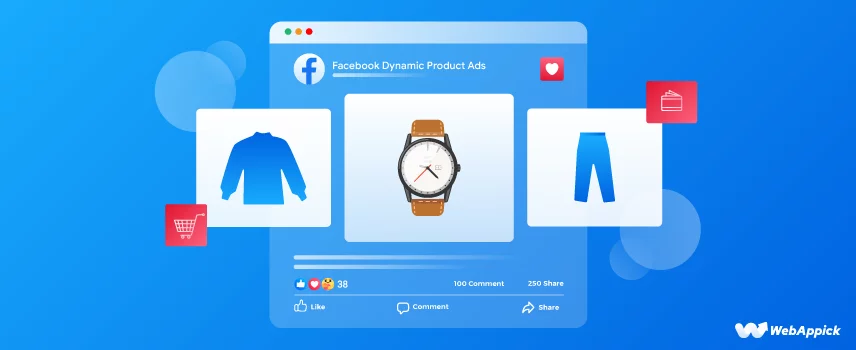
A Facebook Dynamic Product Ad is not a single ad. It is a template that pulls products from your catalog and shows each viewer the items most relevant to their own behavior, based on what they viewed, added to cart, or purchased on your site or app. Meta now labels this ad type Advantage+ Catalog Ads inside Ads Manager, but the underlying mechanic, retargeting shoppers with the exact products they showed interest in, hasn’t changed.
DPA ads can run in several formats:
- Carousel: Multiple product cards a viewer can scroll through in one ad.
- Collection: A full-screen, mobile-first shopping experience with a cover image or video and product tiles beneath it.
- Single image or video: One product shown per impression, still pulled dynamically from the catalog.
These ads appear across Facebook, Instagram, and Meta’s Audience Network, and they retarget visitors who browsed your site without buying, which matters given that cart abandonment rates hover around 70% for online retail according to widely cited industry benchmarks.
Dynamic Product Ads vs. Traditional Facebook Ads
Traditional Facebook ads are static. You manually pick the audience, write the copy, choose the image, and the same ad shows to everyone in that audience. This gives you full creative control and works well for brand messaging or promotions that aren’t tied to specific products.
DPA ads work differently. Instead of one fixed ad, you upload a catalog and a template, and Meta’s algorithm assembles a personalized version for each viewer using their own browsing data. You lose some manual control, but you gain automation at scale. This makes DPA the better fit for stores with large or frequently changing inventories that need to retarget efficiently, while traditional ads remain the better choice for non-product campaigns or precise brand control.
How Do Facebook Dynamic Product Ads Work?
Two things drive DPA delivery: your product catalog and Meta’s tracking data. Here’s the sequence:
Step 1: You upload your product catalog to Meta with the required fields (ID, title, price, availability, image, and so on).
Step 2: Meta tracks visitor behavior on your site or app through the Meta Pixel and Conversions API.
Step 3: Meta’s ad algorithm matches that behavior data against your catalog to decide which products each person should see.
Step 4: Meta assembles the ad using your template and the matched products, then serves it across Facebook, Instagram, and Audience Network.
Step 5: The algorithm continuously tests which product combinations and creative variations perform best for each audience segment, and shifts delivery toward the winners.
Understanding this flow matters because catalog quality and Pixel/Conversions API accuracy directly determine how well the ads perform in the setup steps below.
How to Set Up Facebook Dynamic Product Ads Using Meta Business Portfolio
Step 1: Set Up Your Meta Business Portfolio
You need a Facebook Page, a Meta Business Portfolio (formerly called Business Manager), and an ad account to run DPA campaigns.
- Visit business.facebook.com and sign in or create an account.
- Provide your full name and a business email address to verify ownership.
- Add your business details: name, address, website, and phone number.
- Under Business Assets, add your Facebook Page and Instagram account.
- Add your ad account, including its name, time zone, and currency.
- If you work with a team or agency, assign full or partial access under Business Settings.
Step 2: Install the Meta Pixel and Conversions API
The Meta Pixel is a snippet of code on your website that tracks visitor behavior, such as product views, cart ads, and purchases, and feeds that data back to your ad account.
In Events Manager, go to Business Settings, then Data Sources, then Pixels.
Name your Pixel and enter your website URL for the guided setup.
Copy the code snippet into the <head> section of your site, or use a partner integration if your platform supports one.
Select which events to track: View Content, Add to Cart, Purchase, and Lead are the core ones for DPA.
Verify the installation using the Send Test Event tool.
In 2026, pair the Pixel with the Conversions API rather than relying on the Pixel alone.
Server-side tracking through Conversions API improves match quality, especially with browser tracking restrictions affecting client-side Pixel data.
Step 3: Create Your Product Catalog in Commerce Manager
Open Commerce Manager from your Business Portfolio and click Get Started.
Choose Create a Catalog, then select the E-commerce vertical.
Choose how you want to add products: manual entry, a data feed (using a plugin like CTX
Feed to auto-generate and sync your feed), a partner platform integration (Shopify,
WooCommerce, and similar), or Pixel-based collection.
For most stores, a data feed is the fastest and most reliable option, since it keeps price, stock, and availability synced automatically instead of requiring manual updates.
Upload your feed file or a feed URL, name the catalog, and select your currency.
Once the upload finishes, review the session report for any flagged errors, such as missing fields or invalid prices, before moving on.
Step 4: Choose Your Campaign Type: Advantage+ Sales or Manual Sales
In Ads Manager, click Create under Campaigns and select the Sales objective.
Meta will default you into an Advantage+ Sales campaign, which automates audience targeting, budget allocation, and placements using your catalog and Pixel/Conversions API data. This is the recommended starting point for most catalog advertisers in 2026, since it typically requires less manual tuning to reach reliable performance.
A manual sales campaign is still available if you need granular control, such as excluding specific audience segments, running a brand-new ad account with no conversion history yet, or promoting high-ticket products with long consideration cycles. Choose manual setup in those cases; otherwise, Advantage+ Sales is the simpler default.
Step 5: Set Your Budget, Audience, and Placements
- Name your campaign and, if using manual setup, name your ad set.
- Select your conversion location: website, app, WhatsApp, or Messenger.
- Choose the Pixel or dataset connected to your catalog.
- Set your daily or lifetime budget and campaign schedule.
- For manual campaigns, define your audience by demographics, interests, or behavior, or let
- Meta’s Advantage+ audience expands it automatically.
- Leave placements on Advantage+ Placements unless you have a specific reason to restrict them, since automated placement selection generally performs better for catalog ads.
Step 6: Build Your Ad Creative
- Name your ad and connect your Facebook Page and Instagram account.
- Choose your format: Carousel for a scrollable multi-product feed, or Collection for a full-screen mobile shopping experience.
- Upload up to 10 images or videos if using Carousel, each with its own headline, description, and destination URL.
- Write up to five primary text variations and select a call-to-action button.
- Choose your destination: your website, app, or an Instant Experience for a native mobile shopping flow.
- Confirm your tracking setup so both website and app events are captured if relevant.
Step 7: Review and Publish Your Campaign
Use the Review tab to check your full campaign setup, then use Advanced Preview to see how your ad will look across placements before it goes live. Once you’re satisfied, click Publish. Meta will begin serving your ads to people who match your targeting criteria and to people showing behavioral signals around similar products.
Best Practices for Facebook Dynamic Product Ads
- Keep your product feed accurate, complete, and updated regularly so out-of-stock or discontinued items don’t appear in ads.
- Use high-resolution, mobile-optimized product images with clear titles.
- Verify your Pixel and Conversions API are both firing correctly before scaling the budget.
- Layer in lookalike audiences and past purchasers alongside DPA retargeting for prospecting.
- Test Carousel against Collection format to see which converts better for your catalog.
- Give campaigns time to exit the learning phase before making large budget changes. Large jumps in daily budget can reset the learning phase and temporarily raise your cost per result.
- Segment your catalog into product sets so you can retarget by category or margin instead of treating your whole inventory the same way.
- Track cost per acquisition and return on ad spend weekly, not daily, since DPA performance stabilizes over time as the algorithm gathers more signal.
Best Product Feed Plugin for Facebook Dynamic Product Ads
Your DPA performance depends heavily on your product feed. CTX Feed is a WooCommerce plugin built to generate and automatically sync product feeds for Meta’s Commerce Manager, so your catalog stays accurate without manual re-uploads every time a price or stock level changes.
Key Features
- Automatic feed generation and scheduled syncing for WooCommerce stores.
- Support for custom attribute mapping to match Meta’s required catalog fields.
- Bulk editing tools for fixing flagged catalog errors before they affect delivery.
- Category and product set filtering to control exactly which items go into your DPA campaigns.
- Compatibility with multiple ad platforms beyond Meta, so one feed setup can serve more than one channel.
- Pricing and current plan details are listed on the CTX Feed page; check there before publishing your final decision, since plans and feature tiers can change.
Frequently Asked Questions
What does DPA mean in marketing?
DPA stands for Dynamic Product Ad, a Facebook and Instagram ad format that automatically shows products from your catalog to people based on their browsing or purchase behavior. Meta now officially calls this format Advantage+ Catalog Ads, though DPA remains the more commonly used term among advertisers.
Are DPA ads the same as Advantage+ Catalog Ads?
Yes. Advantage+ Catalog Ads is Meta’s current name for what used to be called Dynamic Product Ads. The setup process, catalog requirements, and underlying mechanics are the same; only the label in Ads Manager has changed.
Do I need both the Meta Pixel and Conversions API?
You don’t strictly need both, but running them together is the current best practice. The Pixel tracks browser-side events, while Conversions API sends data server-side, which improves match quality and reduces data loss from browser tracking restrictions.
What’s the minimum catalog size for DPA to work well?
DPA can technically run with any catalog size, but performance tends to improve with larger catalogs, since the algorithm has more products to test against different audience segments. Smaller catalogs still work, particularly for tight retargeting use cases.
Can I run DPA ads on Instagram?
Yes. DPA and Advantage+ Catalog Ads run across Facebook, Instagram, and Meta’s Audience Network from the same campaign setup, without needing a separate catalog or campaign for Instagram specifically.
Key Takeaways
- Facebook Dynamic Product Ads, now officially called Advantage+ Catalog Ads, automatically match products from your catalog to individual viewers based on their behavior.
- Setup requires a Meta Business Portfolio, a working Meta Pixel and Conversions API, and a synced product catalog in Commerce Manager.
- Advantage+ Sales campaigns are the recommended default for most catalog advertisers in 2026, with manual campaigns reserved for cases needing granular control.
- Feed quality and event tracking accuracy are the two biggest levers for DPA performance, more so than creative alone.
- A dedicated feed plugin like CTX Feed keeps your WooCommerce catalog synced automatically instead of relying on manual uploads.
- Give new campaigns time to exit the learning phase before adjusting budgets, since early volatility is normal.


I have found a lot of information about dynamics ads. Thanks, guys.
We always try to share an informative article with our readers. Keep in touch to get the latest one.
Yes Facebook dynamic ads growing day by day
Yes, it is growing rapidly.
Every blog is so informative and tech relevant. It’s really true that benefits of Facebook dynamic product ads is huge !
Yes, especially in 2021 is becoming more efficient & effective.