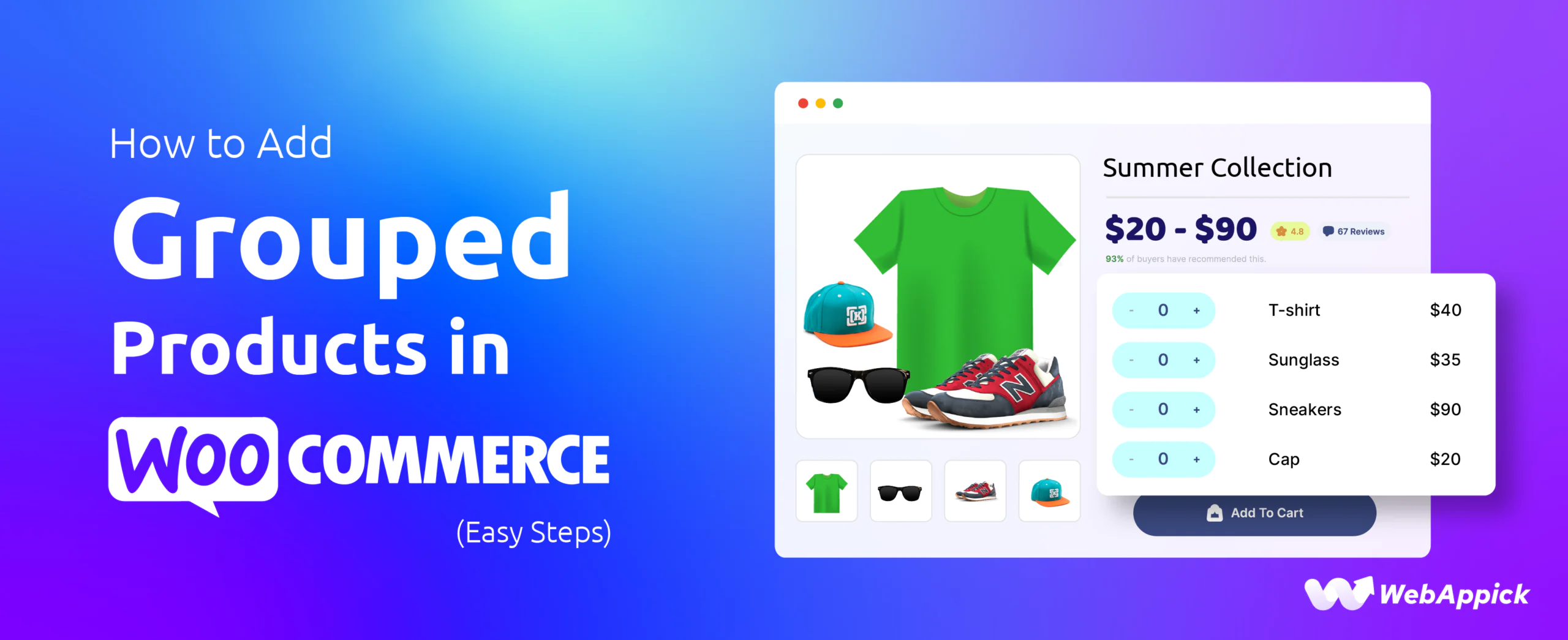
To add a grouped product in WooCommerce, go to Products > Add New, select Grouped product from the Product data dropdown, then use the Linked Products tab to attach the individual products you want sold together. Each linked product keeps its own price and stock, and customers can add any combination of them to the cart from a single page.
A grouped product isn’t one item with a fixed price. It’s a display shell that lists other products you’ve already created, so you set it up only after those individual products exist in your store. This guide walks through creating the group, linking products correctly, and the two limitations that trip people up most: variable products and discounts.
What is a grouped product in WooCommerce
A grouped product is a parent listing that pulls together several standalone products on one page, without merging them into a single purchasable item. Customers can buy the whole set or pick individual pieces, and each item keeps its own SKU, stock count, and price. It’s a good fit for a dining table sold alongside matching chairs, or a camera body displayed next to its lens options.
It’s easy to confuse this with two other WooCommerce product types, so here’s how they differ:
| Type | What it is | Pricing |
| Grouped product | A parent page listing several separate simple products | No price of its own; each child keeps its own price |
| Product bundle | A package sold as one unit, usually at a discount | Bundle typically has one combined, discounted price |
| Variable product | One product with different options (size, color) | One base product, price can vary by variation |
One limitation worth knowing before you start: a grouped product can only link to simple products. Variable products (the kind with size or color options) aren’t supported inside a group, so if your “child” item needs variations, it has to stay as its own variable product rather than being pulled into the group.
How to create a grouped product in WooCommerce
Creating a grouped product happens in two stages: build the individual products first, then create the parent listing that ties them together.
Step 1: Create the individual products
Before you can group anything, the products you want to include need to exist as regular simple products. Say you’re building a “Gaming Starter Pack” out of a headset, keyboard, and mouse.
In your WordPress dashboard, go to Products > Add New for each item, and fill in:
- Product title: A clear, specific name, such as “ProSound Gaming Headset.”
- Product description: The features and benefits, written for the individual item.
- Product image: At least one clear photo, more if the product has details worth showing.
- Regular price: The price for that single product.
- Sale price: Optional, if the item is on sale.
- Inventory: Stock quantity, if you’re tracking it at the product level.
- Short description: A one- or two-line summary for listings and category pages.
Publish each product before moving to the next step. You need all the child products live before you can link them.
Step 2: Create the grouped product
Go to Products > Add New again, but this time give it a title that describes the whole set, like “Ultimate Gaming Starter Pack.” In the Product data section, choose Grouped product from the dropdown. Notice that the price and stock fields disappear. That’s expected: a grouped product doesn’t carry its own price, since it’s just pointing at the products you already priced individually.
Step 3: Link the child products
Click the Linked Products tab. In the Grouped products field, start typing the name of one of the products from Step 1 and select it from the suggestions. Repeat for every item you want in the group. The order you add them in is the order they’ll display on the front end, and you can drag and drop to rearrange them later.
While you’re in this tab, the Upsells field lets you point to higher-value alternatives or complementary products, like a premium headset or an extra controller, which show up on the front end under a “You may also like” style section.
Step 4: Publish and preview
Add a featured image for the group as a whole, plus individual images for each child product in the gallery, then click Publish. On the front end, the group page will show every linked product with its own quantity box, so customers can add one item, several, or the whole set to their cart in one go. Clicking a product’s title takes shoppers to its own dedicated product page.
How to manage a grouped product after it’s live
Once a grouped product is published, most of the maintenance happens in the same Linked Products tab you used to build it.
To edit the group, open the parent product from Products, go to the Linked Products tab, and either click the “x” next to a product’s name to remove it, or start typing a new product name to add one. Drag and drop still works here to change display order. Click Update to save.
Changes you make to a child product elsewhere in your store show up automatically on the grouped listing, without any extra work:
- Price: If you update a child product’s price, the group’s displayed price updates with it.
- Stock: If a child product sells out, it shows as out of stock on the group page too, and customers can’t add it to their cart.
- Descriptions and images: Any edits to a child product’s own page carry over wherever that product is linked.
The one thing that doesn’t update on its own is the group’s featured gallery image. If you swap a product in or out of the group, go back and update the gallery manually so it still reflects what’s actually in the set.
Grouped products and Google Shopping feeds
If you’re running WooCommerce alongside a product feed for Google Shopping or Meta, grouped products need a bit of special handling. A grouped (parent) product has no price, weight, or SKU of its own, since that data lives on the child products instead. Because Google Shopping has no clear, documented way to treat a parent listing as a sellable item, WebAppick’s own support guidance for CTX Feed recommends leaving parent/grouped products out of the feed entirely and letting the individual child products (which already have real prices and stock) populate the feed on their own.
With CTX Feed Pro, you can set this up in a few clicks using the Advanced Filter under Feed Config: set Attributes to Product Type, Condition to “not equal,” and Value to “grouped.” That excludes the parent listing from the feed while still sending every child product through normally.
Real-world examples of grouped products
Furniture stores use grouped products to sell collections without forcing a fixed bundle. A “Modern Dining Room Collection” might link an oak dining table, a set of two black leather chairs, and a matching bench, letting a customer buy just the table, just the chairs, or everything at once. It works because furniture buyers rarely want the exact same combination.
Electronics retailers lean on grouping for starter kits, where beginners need guidance but shouldn’t be locked into one configuration. A “Professional Photography Starter Kit” can group a DSLR body with a standard zoom lens, then leave the camera bag and extra battery as optional add-ons in the same group.
For clothing, grouping works best as visual merchandising. A “Boho Chic Summer Outfit” made of a maxi dress, a leather belt, suede boots, and a straw hat lets shoppers see how the pieces look together, then buy the whole outfit or just the one item they came for.
Coffee roasters and similar food and beverage sellers use grouping to pair a consumable with the equipment needed to use it. An “Ultimate Home Brewing Kit” can link a bag of beans (in the customer’s preferred roast) with a French press, grinder, and scoop, so someone starting from zero doesn’t have to hunt down four separate product pages.
Frequently asked questions
Can a grouped product include variable products?
No. Grouped products can only link to simple products. If one of your items needs size or color variations, keep it as a standalone variable product rather than trying to add it to the group.
Does a WooCommerce grouped product support its own discount?
Not natively. A grouped product has no price of its own, so there’s no group-level discount field to set. If you want a lower combined price when customers buy several items together, that needs a separate discount rule, which is what a plugin like Discoplugin is built to handle, since it applies pricing rules across products rather than relying on the group structure itself.
Why does the price on my grouped product page show as a range or a total?
Because the group has no price of its own, WooCommerce displays the combined price of the linked child products instead. Change a child’s price and the group’s displayed figure updates to match.
Should I include grouped products in my Google Shopping feed?
Generally, no. Since a grouped product has no independent price, weight, or SKU, it’s safer to exclude it from the feed and let the individual child products (which do have that data) show up in Google Shopping on their own.
Is a grouped product the same as WooCommerce’s “related products”?
No. Related products are automatic suggestions WooCommerce shows based on shared categories or tags, and you don’t manually assign them. A grouped product is a page you build on purpose, linking specific items together as one listing.
Key takeaways
- A grouped product is a parent listing for several existing simple products, not a single item with its own price.
- Create the individual child products first, then build the grouped (parent) product and link them under Linked Products.
- Grouped products can’t include variable products. Variable items stay separate.
- There’s no native discount at the group level. Use a discount plugin like Discoplugin if you want combined pricing.
- Price and stock changes on child products flow through to the group automatically, but gallery images need manual updates.
- Keep grouped/parent products out of your Google Shopping feed and let the child products carry your listings instead.

Free version on WordPress.org. Every Pro licence includes a 30-day money-back guarantee.