To remove the Uncategorized category in WooCommerce, you first need to set a new default category. After that, you can delete, rename, or hide the Uncategorized category from your store.
The “Uncategorized” category in WordPress and WooCommerce acts as a default fallback to ensure every product is assigned somewhere. While useful in the backend, it can make your storefront look unfinished, confuse customers, and weaken your SEO.
If you want a cleaner, more professional store, this guide will show you three simple ways to remove, rename, or hide the Uncategorized category in WooCommerce.
What is the “Uncategorized” Category?
In WooCommerce, every product must belong to at least one category.
If no category is assigned, WooCommerce automatically places the product under “Uncategorized.”
This prevents missing product assignments, but it is not ideal for a professional online store.
Method 1: Change Default Category in WooCommerce (Step-by-Step)
In WooCommerce, there has to be a default category for the products. And WooCommerce makes the “Uncategorized” default category.
So, the best approach to remove uncategorized categories in WooCommerce is to create a new default category and then delete it. Here are the steps you need to follow.
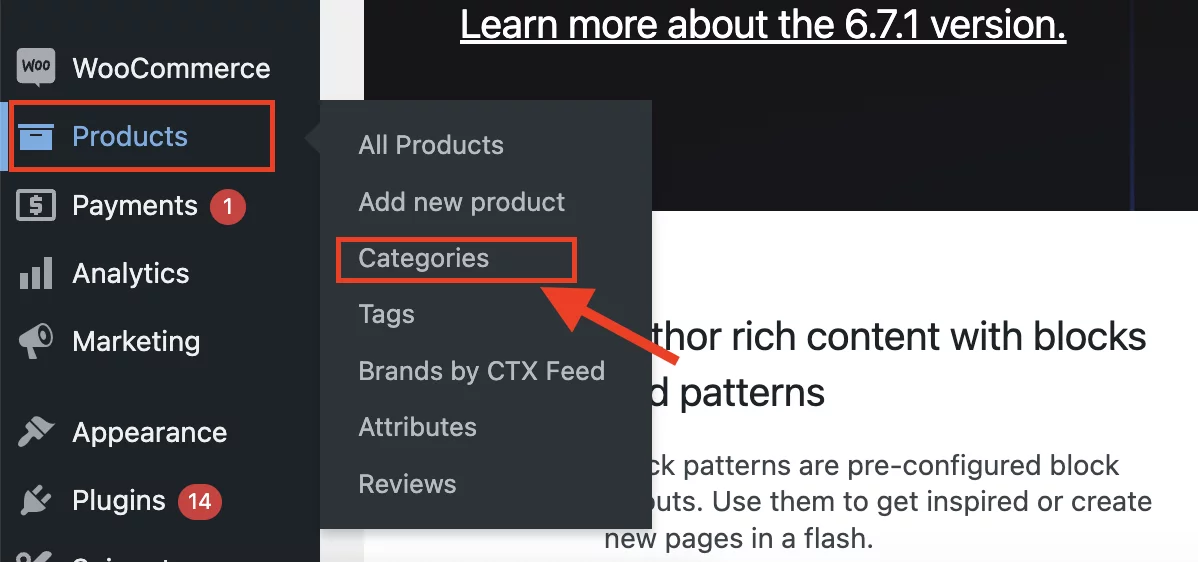
Step 1: Go to Products then Categories
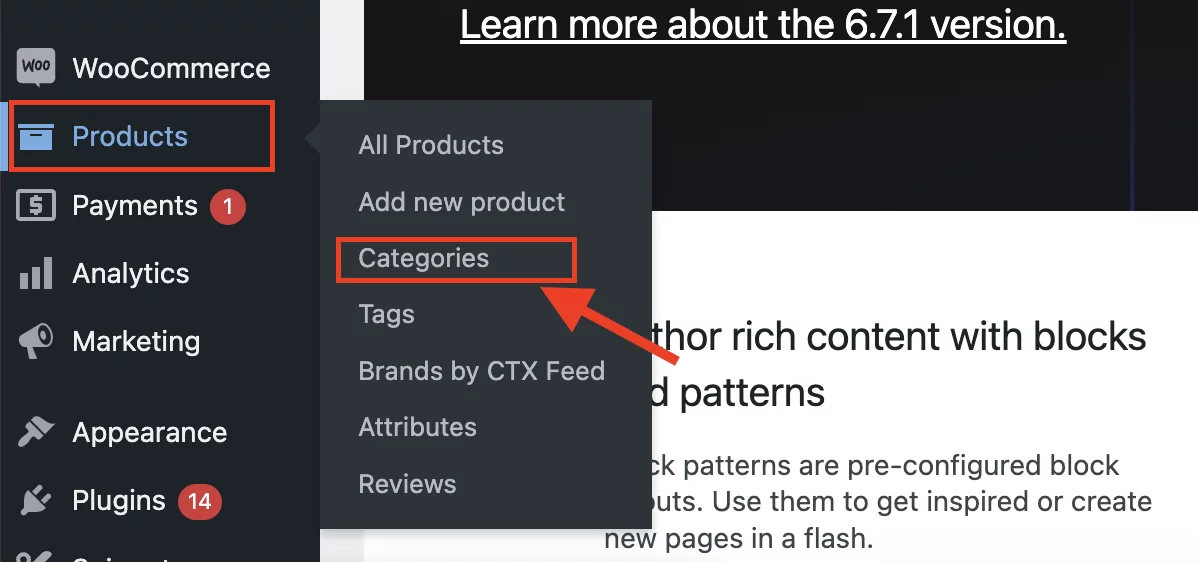
From your WordPress Dashboard, go to Products>>Categories.
Step 2: Select a Category and Make it the Default Category
Next up, you should make another category the “Default Category”. But how, you ask?
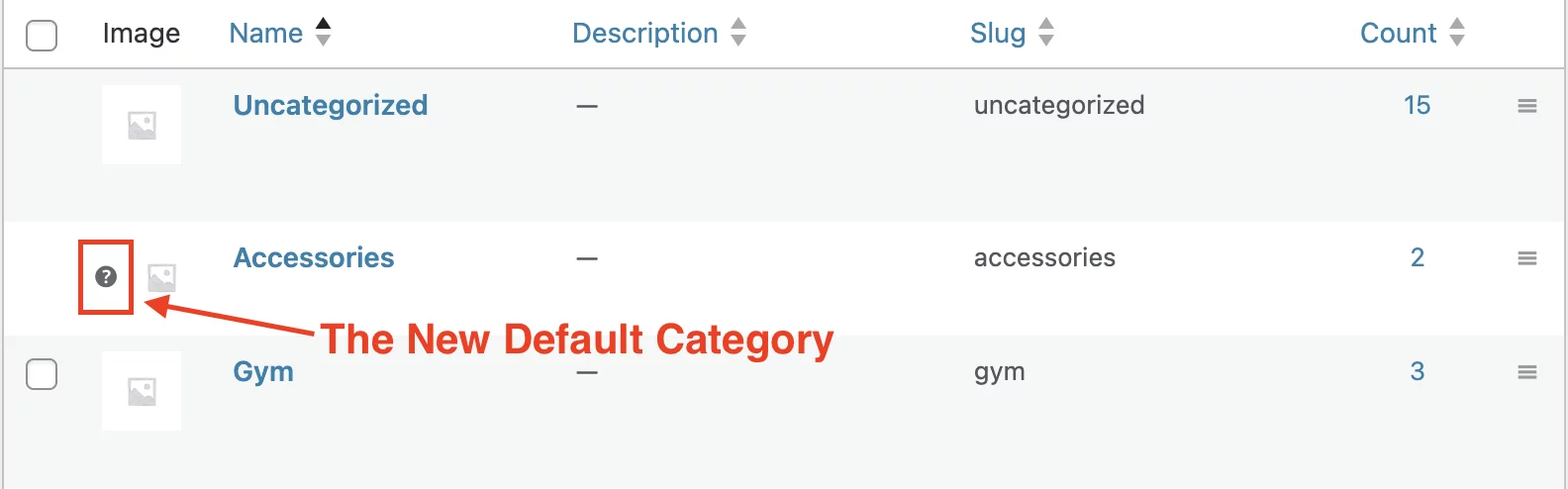
On your right-hand side, you will find the list of all of your categories. Go to your desired category and click on “Make Default”.
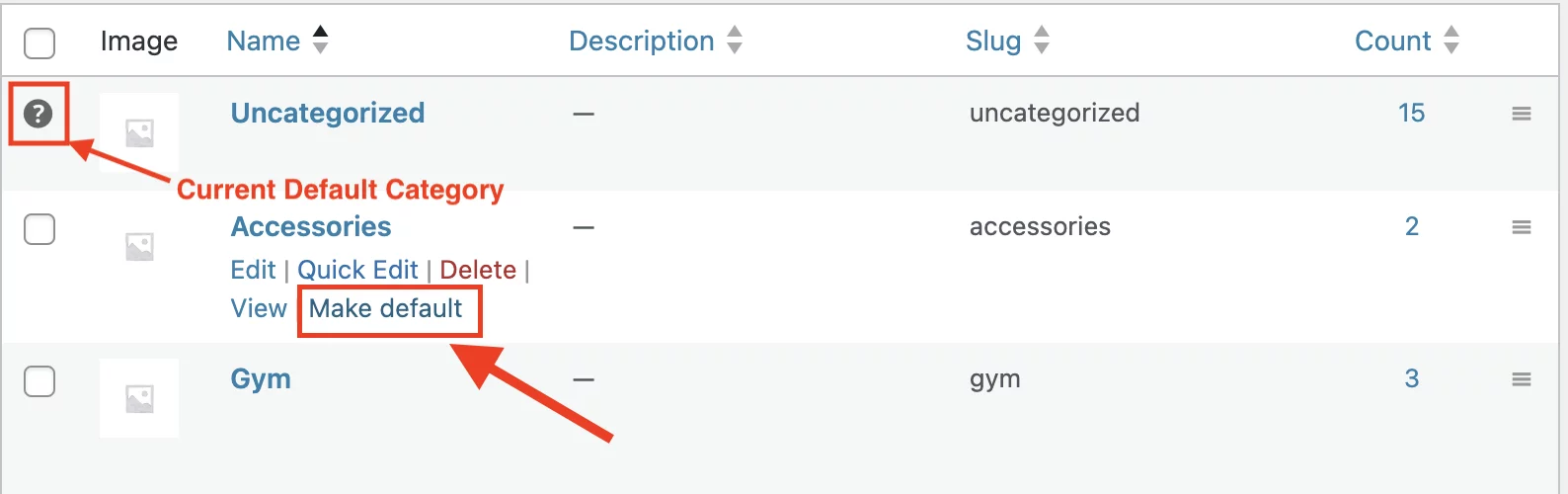
In the image above, the “Uncategorized” category is currently set as the default category. To change this, we clicked the “Make default” button next to our preferred category, “Accessories“.
Now, “Accessories” has been made the default category.
Pro Tip:
If you don’t have an existing category to set as the default, you can easily create a new category and assign it as the default category.
Step 3: Delete Uncategorized Category
Once you are done with changing the default category, it’s finally time to remove the Uncategorized category. So, hover in the Uncategorized category and simply click on “Delete”.
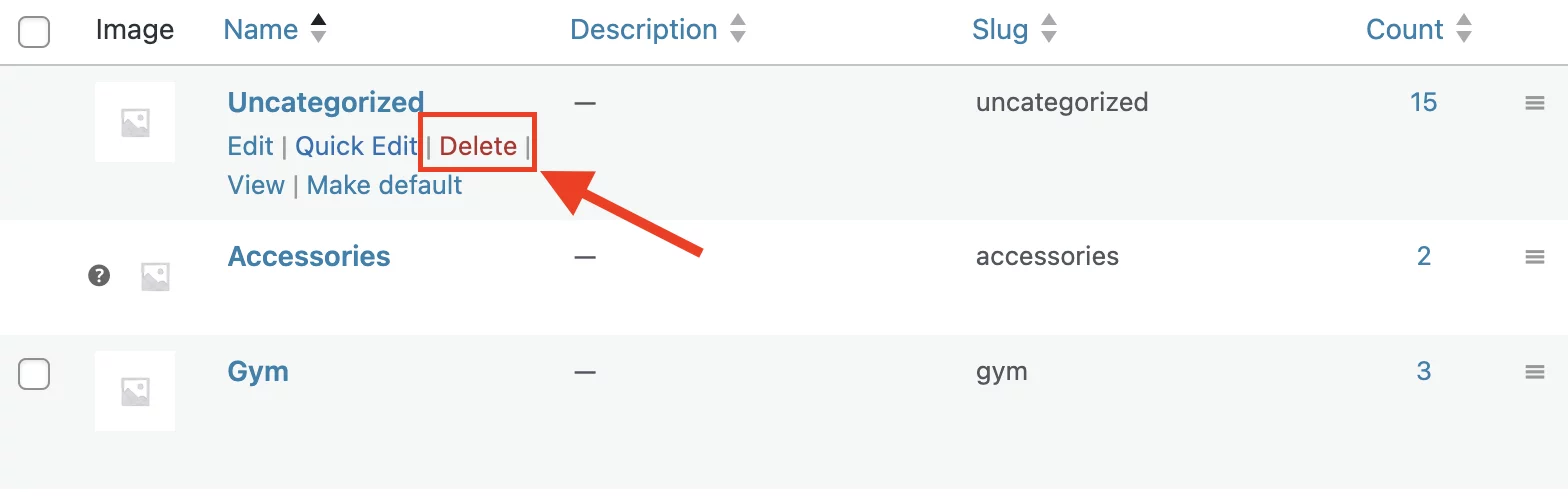
And that’s it! You have successfully removed the Uncategorized category.
Method 2: Rename the Uncategorized Category
If you prefer not to delete the “Uncategorized” category, you can simply rename it. This allows you to repurpose the default category into something more relevant to your store’s product lineup. Instead of leaving it as “Uncategorized,” you can give it a meaningful name that aligns with your product categories.
Here’s what you need to do.
Step 1: Navigate to Products > Categories.
In order to rename the “Uncategorized” category the first thing you need to do is go to Products>>Categories from your WordPress Dashboard.
Step 2: Edit the Uncategorized Category
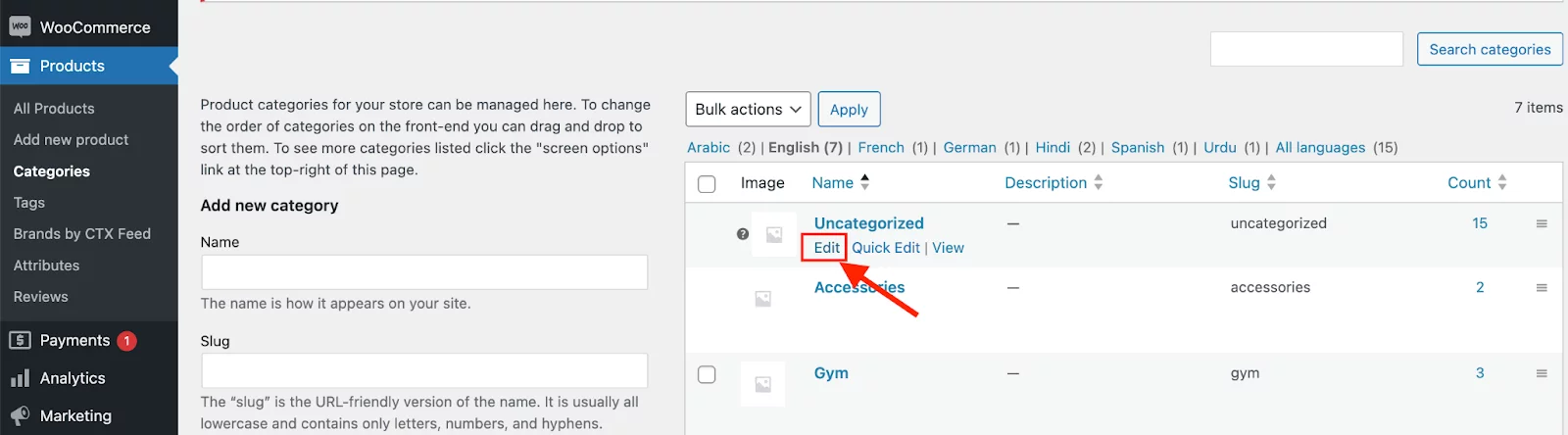
Find the Uncategorized category in the list. Then, Click the “Edit” option below it.
Step 3: Change the Name and Slug
Update the Name field to something relevant, such as “General” or “Miscellaneous.” Update the Slug to match the new name.
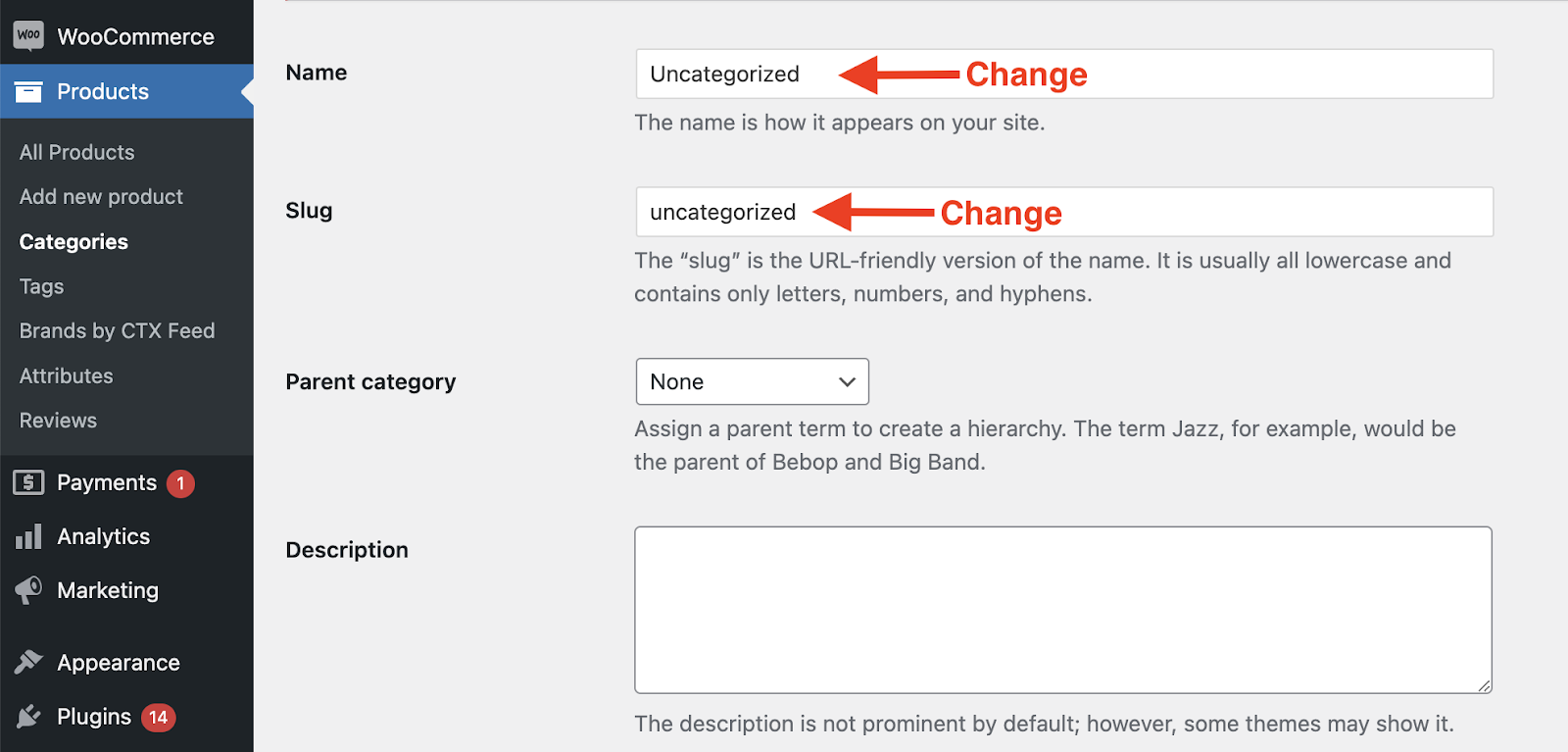
Step 4: Save Changes
Click Update to apply the changes. And that’s it! The “Uncategorized” category will be removed and changed into a brand new category where your products will be assigned.
Hopefully, you have understood the two methods, and now you can successfully handle the Uncategorized category in WordPress WooCommerce. Now, let’s dive into why removing this category can be beneficial for your store.
Optional Method 3: How to Hide “Uncategorized” Category
If you only want to hide it from customers (not remove it), you can do it using CSS or theme settings.
Option 1: Hide via CSS
Add this to your theme customizer:
/* Hides the Uncategorized category from the Shop page grid */
.product-category.category-uncategorized {
    display: none !important;
}
Option 2: Exclude from Menus
- Go to Appearance → Menus
- Remove “Uncategorized” from navigation
Option 3: Plugin Filtering
Some WooCommerce category plugins allow hiding default categories from archives.
Why You Should Remove or Rename “Uncategorized”
Keeping the default category unchanged can negatively impact your store in several ways:
1. Poor User Experience
Customers may see products grouped under “Uncategorized,” which looks unorganized and unprofessional.
2. Weak SEO Structure
Search engines rely on category names to understand your website structure. “Uncategorized” provides no keyword relevance.
3. Reduced Brand Trust
A structured store appears more professional and trustworthy.
4. Missed SEO Opportunity
Custom categories help improve keyword targeting and product visibility.
Advanced WooCommerce Category Optimization Tips
To improve your store structure and SEO:
1. Audit Categories Regularly
Remove unused or duplicate categories to maintain clarity.
2. Use Subcategories
Example:
Clothing
- Men
- Women
- Kids
3. Use SEO-Friendly Names
Avoid vague labels like “Other” or “Misc.”
4. Assign Products Properly
Ensure every product belongs to the correct category.
5. Optimize Category Pages
Improve SEO by adding:
- Descriptions
- Keywords
- Images
Frequently Asked Questions
Can I delete the Uncategorized category in WooCommerce?
Yes, but only after setting another category as the default.
Why does WooCommerce use Uncategorized by default?
It ensures every product has at least one category assigned.
Can I rename the Uncategorized category?
Yes, you can change its name and slug from the category settings.
How do I stop products from going into Uncategorized?
Set a custom default category in WooCommerce settings or assign categories manually.
Is it safe to remove the Uncategorized category?
Yes, as long as another default category exists.
What is the ID of the Uncategorized category?
In almost every WordPress installation, the Uncategorized category is ID 1. Knowing this ID is helpful if you are using CSS to hide it or code snippets to exclude it from your shop’s frontend.
Final Thoughts
Removing or renaming the “Uncategorized” category in WooCommerce is a small change that makes a big difference.
It improves:
- Store organization
- User experience
- SEO structure
- Brand professionalism
If you manage your categories properly, your WooCommerce store will look more trustworthy and perform better in search results.

Free version on WordPress.org. Every Pro licence includes a 30-day money-back guarantee.