
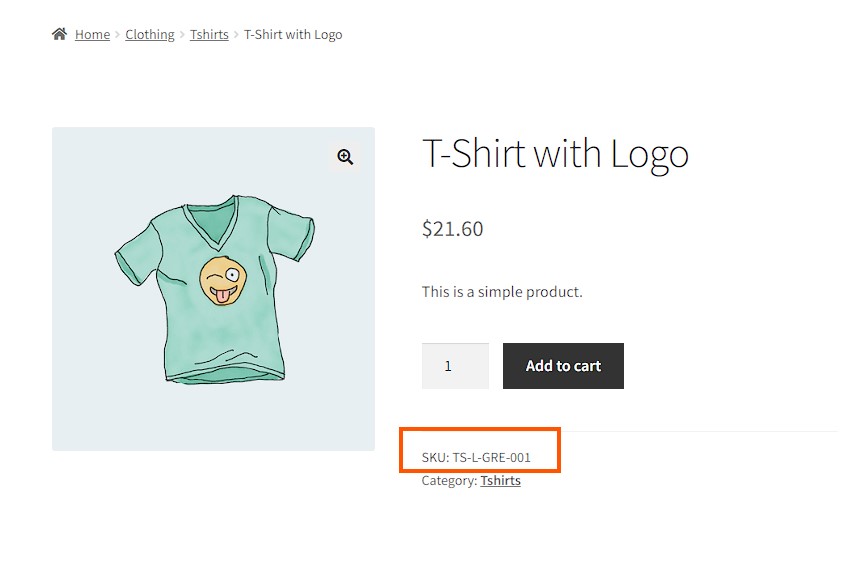
You can show SKU on WooCommerce product pages by using one of three primary methods: adding the SKU from WooCommerce product settings, using a dedicated WooCommerce SKU plugin, or adding a custom PHP snippet to your functions.php file.
The SKU field is available inside the WooCommerce Inventory tab and works as a unique product identifier for simple products, variable products, and product variations. However, many modern themes hide SKUs on the front end to keep the product page minimal.
Whether you prefer a no-code option or a custom code solution, here is the roadmap to making your WooCommerce SKU visible on the product page.
Method 1: Use a Dedicated Plugin to Display WooCommerce SKU
If your theme doesn’t support displaying SKUs, or you want more control over how and where the SKU appears, using a dedicated plugin can be a hassle-free solution.
Many dedicated plugins on the market can help you with your SKU management. Here are our top pics:
| Name | Key Features | Price |
|---|---|---|
| SKU Generator for WooCommerce | Automatic SKU generation for new/existing products, Customizable SKU formats, Bulk SKU regeneration | Starts From $29.99 (Free Plugin Available) |
| Product SKU Generator for WooCommerce | Generates SKUs for all product types, Bulk SKU updating, Attribute-based SKU generation | Free |
| Easy Auto SKU Generator for WooCommerce | Automatic SKU assignment, Bulk generation by category, Customizable SKU format options | Free |
For our guide today, we’re using one of the most renowned plugins for this feature titled, “SKU Generator for WooCommerce”.

This dynamic plugin can not only generate thousands of product SKUs in seconds, but also automatically displays SKUs on product pages without requiring any coding. Here’s how you can do this:
- Go to Plugins → Add New in your WordPress dashboard. Search for “SKU Generator for WooCommerce”. When the plugin appears, click to Install and then Activate the plugin.
- Navigate to WooCommerce → Settings → SKU to customize your SKUs with the number of characters, prefixes/suffixes, templates, and more.
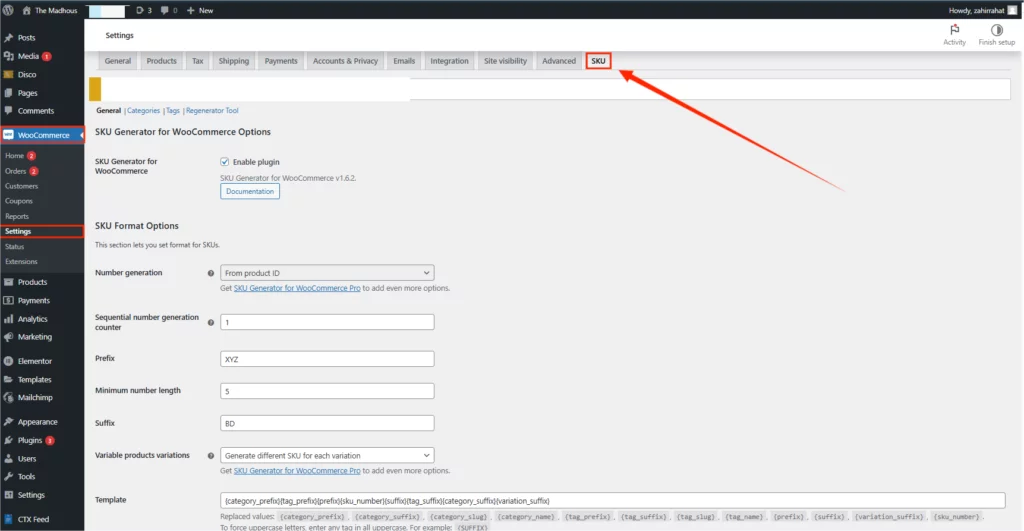
- Once you are happy with the format, click on the ”Save Changes” Button.
- Next, click on the “Generate SKU preview for all products” button under the “Regenerator Tool” tab. The plugin will automatically preview your desired SKUs.
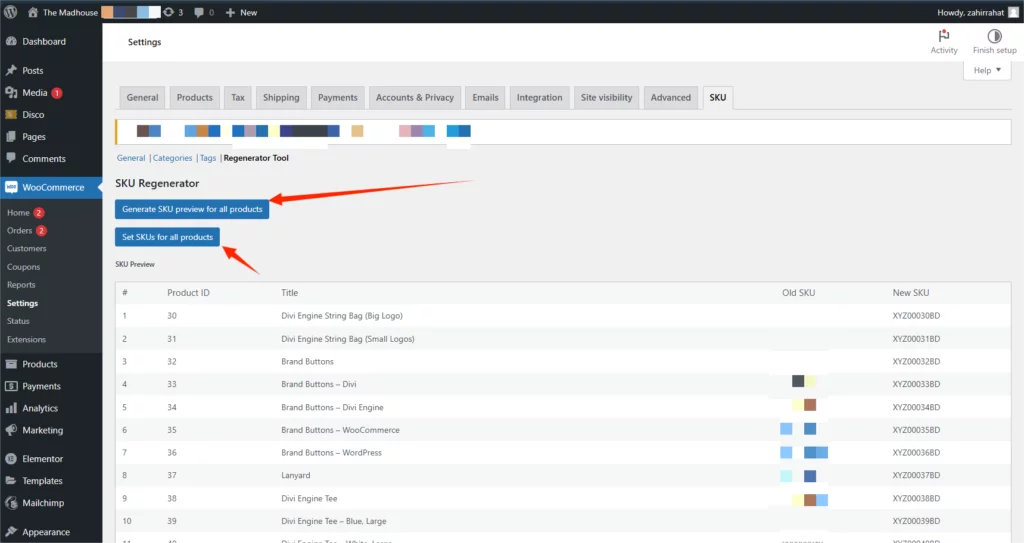
- Once you are happy with the preview, click on the “Set SKUs for all Products” button.
- Click on the “Save Changes” Button below and reload your product pages to check if the SKUs have been displayed.
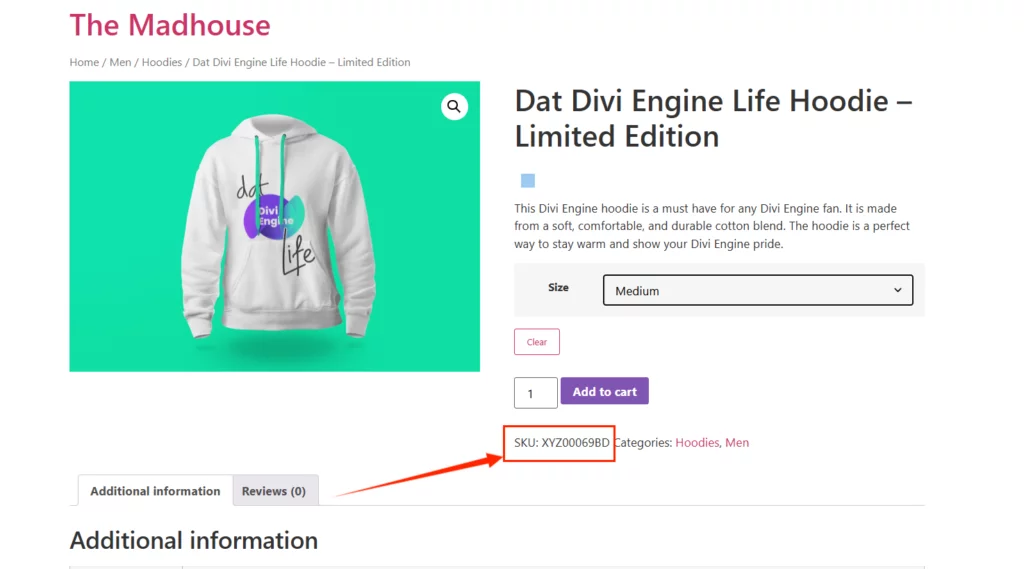
And, just like that, all your product SKUs are visible on your product pages. Plugins like “SKU Generator for WooCommerce” are really easy to use, provide many customization options, and are compatible with most WooCommerce themes.
Method 2: Display SKU From WooCommerce Settings
Next, let’s explore how to show SKU On WooCommerce product page directly from WooCommerce’s built-in product settings.
Some WooCommerce themes automatically display the SKU on the product page. If your theme supports this feature, you can enable it by adding SKUs to your products. Here’s the easiest way to do that:
- Log in to your WordPress Admin Dashboard.
- Go to Products → All Products and select the product you want to edit.
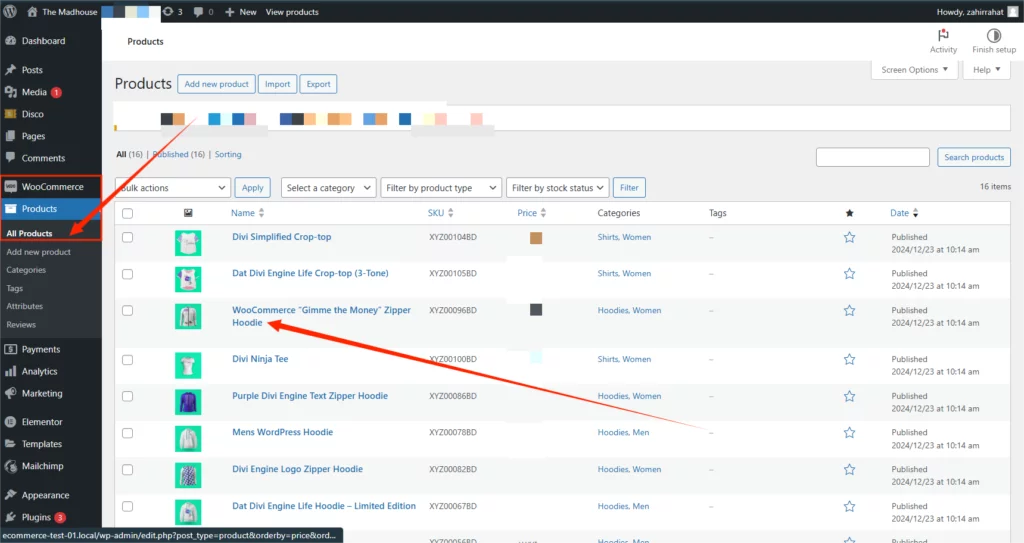
- In the Product Data section, go to the Inventory tab.
- Enter a unique SKU for the product.
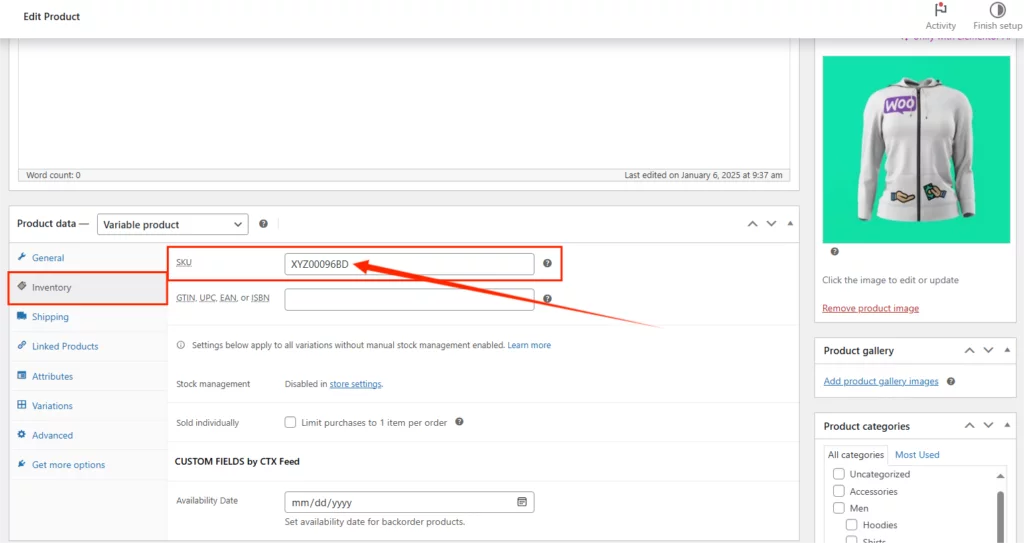
- Save the product by clicking Update.
Once SKUs are added, check the product page on the front end. If your theme supports it, the SKU will be displayed automatically.
This is the most straightforward way to display SKUs on your WooCommerce product page.
However, manually adding each SKU can quickly become tedious and error-prone, especially if you work with a large inventory.
This approach is ideal for simple WooCommerce stores where minimal changes are needed.
Method 3: Manually Add SKU with Custom Code
Lastly, let’s explore how to show SKU On WooCommerce product page manually.
For advanced users or those comfortable with code, adding SKUs manually using custom code provides maximum flexibility.
This way, you can control exactly where and how the SKU is displayed on your product page.
- Go to Appearance → Theme File Editor in your WordPress dashboard.
- Select the functions.php file of your active theme.
- Add the following code snippet to display the SKU on the product page:
function display_product_sku() {
    global $product;
    if ( $product->get_sku() ) {
        echo '<p class="product-sku"><strong>SKU:</strong> ' . $product->get_sku() . '</p>';
    }
}- Click Update File to save your changes.
- Visit a product page on your site to verify that the SKU is now displayed.

This method is ideal for developers or store owners with some coding knowledge who want precise control over the placement and styling of the SKU.
WooCommerce SKU Not Showing? Common Reasons and Fixes
Sometimes, the SKU is added in the backend but still does not appear on the product page. If your WooCommerce SKU is not showing, here are the most common reasons and fixes:
1. Your Theme Hides the SKU
Many WooCommerce themes hide the SKU by default to keep the product page clean.
In this case, check your theme settings first. If your theme does not provide a SKU display option, use a plugin or add the custom code snippet shared above.
2. The Product Has No SKU
WooCommerce cannot display an empty SKU field.
Go to Products → All Products → Product Data → Inventory and make sure the SKU field is filled.
3. The Product Is a Variation
If the main variable product has no SKU but each variation has a different SKU, the SKU may only update after the customer selects a variation.
Make sure each variation has its own unique SKU.
4. The Product Template Was Customized
If your WooCommerce product page template has been customized, the default SKU output may have been removed.
You can fix this by restoring the product meta section or using a custom WooCommerce hook.
5. Cache Is Showing the Old Product Page
If you recently added SKUs but they are not visible, clear your site cache, browser cache, and any server-level cache.
Then reload the product page again.
How to Show SKU for WooCommerce Variable Products
If you sell variable products, such as T-shirts with different sizes or colors, you should also assign SKUs to individual variations.
To do this:
- Go to Products → All Products and open your variable product.
- Scroll down to the Product Data section.
- Select Variable product from the dropdown.
- Go to the Variations tab.
- Open each variation and enter a unique SKU for that specific product variation.
- Click Save changes and update the product.
This helps you track each WooCommerce variation SKU separately. For example, a red medium T-shirt and a red large T-shirt should not use the same SKU because they are two different stock items.
How to Get Product SKU in WooCommerce
If you are working with custom templates, snippets, or developer-level customization, you may need to get product SKU in WooCommerce using code.
The most common way is:
global $product;
$sku = $product->get_sku();
If you already have the product ID, you can use:
$product = wc_get_product( $product_id );
$sku = $product ? $product->get_sku() : '';
This is useful when you want to display the SKU in a custom section, show it inside a product table, include it in a custom email template, or use it in a WooCommerce product lookup workflow.
Pro Tips for Getting the Most Out of WooCommerce SKUs
SKUs aren’t just random strings of letters and numbers; they’re a powerful tool for product/inventory management, order fulfilment, and customer support.
When used strategically, SKUs can help streamline your WooCommerce store’s operations, improve search functionality, and enhance the overall shopping experience for your customers.
In this section, let’s explore some expert tips on how to create, manage, and leverage SKUs effectively to maximize their value in your WooCommerce business. So, here goes:
- Use a consistent format for SKUs across all products to avoid confusion. For example, you can include category prefixes or product type codes, such as TSH-RED-M for a medium red T-shirt.
- Avoid using spaces and special characters. Stick to alphanumeric characters and dashes (-) or underscores (_) only.
- Ensure the SKU is displayed near the product title or price so that customers can easily find it.
- Make it easier for customers and staff to find products by enabling SKU-based search in your WooCommerce store.
- Assign unique SKUs to product variations, such as size, color, or material, to track each variation individually.
- Avoid cryptic SKUs like XJ93LK89 and instead opt for human readable formats like LAPTOP-15-BLK.
- Use CSS to style the SKU display, making it stand out without disrupting the product page design. For example:
.product-sku {
    font-size: 14px;
    color: #555;
    margin-top: 10px;
}- Ensure SKUs are also shown in order confirmation emails for easier order processing and inventory management.
- As your product catalog grows, periodically review your SKUs to ensure they remain logical and consistent.
Bonus Tip: If you offer product bundles or kits, create a unique SKU for each bundle. This simplifies inventory tracking and ensures bundle components are managed correctly.
Frequently Asked Questions
Where is the SKU field in WooCommerce?
Go to Products → All Products → Edit Product. Scroll down to the Product Data box and click the Inventory tab to find the SKU field. For variable products, you can also set unique SKUs under the Variations tab.
Does a WooCommerce SKU need to be unique?
Yes. Every SKU must be unique. Duplicate SKUs cause system conflicts, break inventory syncs with external software, and lead to errors during order fulfillment.
Can I display the SKU near the product title?
Yes. While WooCommerce displays it in the product meta by default, you can move it next to the title using a custom PHP code snippet (hooking into woocommerce_single_product_summary) or a page builder.
Can customers search for products by SKU?
Yes, WooCommerce supports native SKU search out of the box. However, if your theme limits this feature or you sell complex variations, using a dedicated AJAX search plugin will guarantee more reliable results.
Can I generate SKUs automatically?
Yes. For large stores, you can use a WooCommerce SKU generator plugin to automatically create structured SKUs based on product IDs, categories, or attributes.
Can I hide the SKU in WooCommerce?
Yes. If you prefer a minimalist design, you can hide the SKU using your theme settings, a dedicated plugin, or by adding this simple CSS snippet to your site: .sku_wrapper { display: none !important; }.
Key Takeaways
- You can show SKU on WooCommerce product pages using WooCommerce product settings, a dedicated SKU plugin, or a custom code snippet.
- If your theme supports SKU display, adding the SKU from the Inventory tab may be enough.
- If you manage a large catalog, a WooCommerce SKU generator plugin can save time and reduce manual errors.
- If your theme hides SKUs by default, custom code gives you more control over where the SKU appears on the product page.
- For variable products, each variation should have a unique SKU to make inventory tracking, product lookup, and order fulfillment easier.

Free version on WordPress.org. Every Pro licence includes a 30-day money-back guarantee.