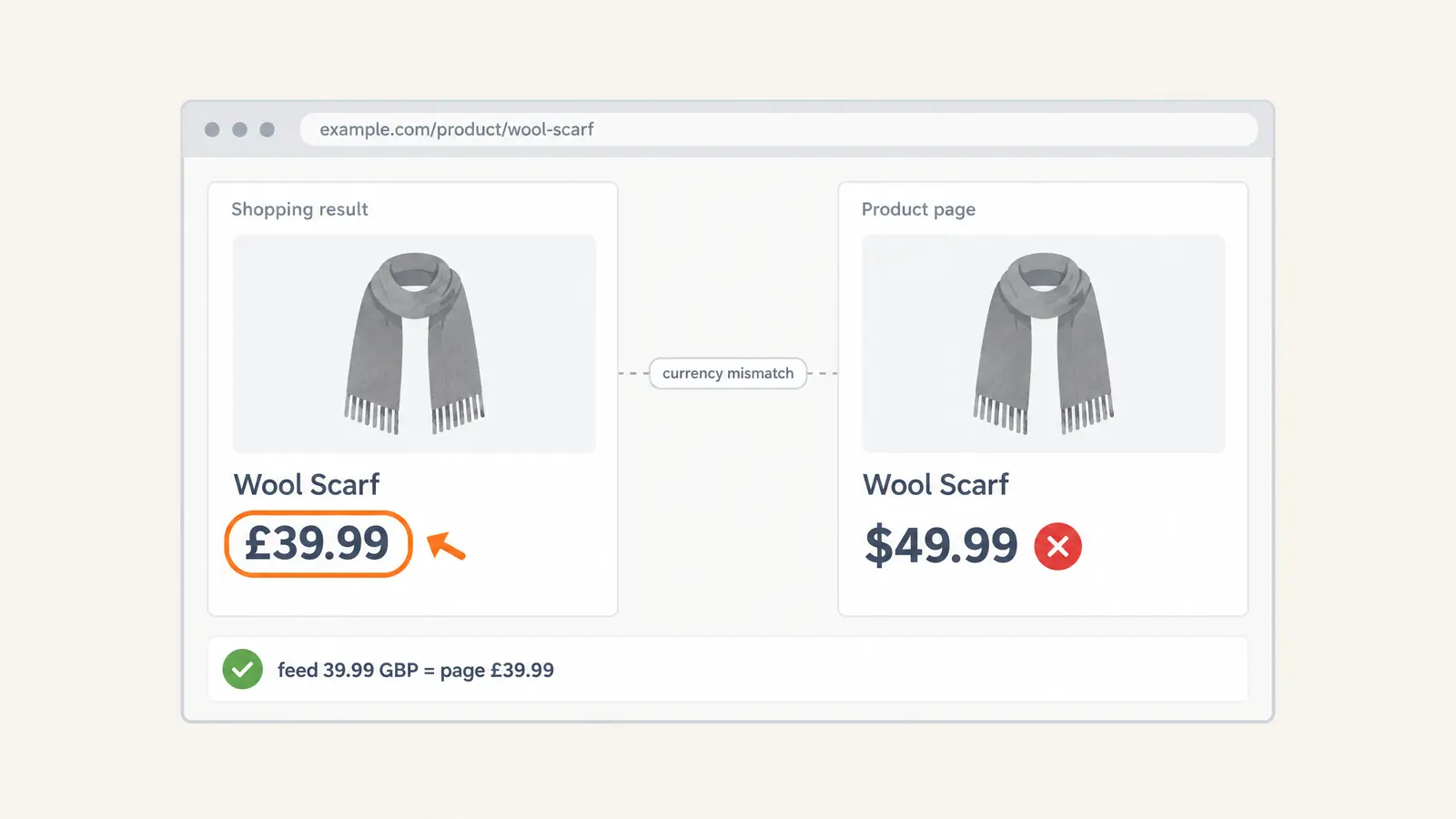
Google Shopping shows a different currency for one of two reasons. Either Google converted your price for shoppers in another country, which is normal and shows both prices, or your product data, product page or checkout disagree on currency, which is an error that can get your Merchant Center account warned or suspended. Sellers change the currency through the price in their product data; shoppers change it through their search region. One feed can serve several countries, with Google converting the price; WooCommerce stores that want local-currency prices can generate one feed per currency straight from the store.
| What you see | What it means | What to do |
|---|---|---|
| A local price, with your own price shown next to it | Google’s currency conversion | Nothing. Or add a feed in the local currency |
| Products warned or disapproved for inconsistent currency | Your feed doesn’t match your page or checkout | Make them match, resubmit, request a review |
| You’re shopping and prices show in another currency | Results follow your region | Change your search region in Google’s settings |
What Does “Google Shopping Showing the Wrong Currency” Actually Mean?
First check whether anything is actually wrong.
Case 1: Google is converting your price on purpose. Currency conversion is automatically enabled in all Merchant Center accounts (it’s unavailable in South Korea). When your product data is in a currency that isn’t the target country’s, Google converts the price to the local currency with Google Finance exchange rates and shows both prices in your ads and free listings. A US store advertising in Canada, for example, shows prices in CAD with USD listed second. You don’t need a second feed for this: one data source can target several countries, so add the country in its Countries setting or with the shipping attribute. You still need to meet that country’s language requirements and set up shipping for it. Google lists Shopping ads and Display campaigns (dynamic remarketing) as working with currency conversion. Your site still charges in your own currency, so the final amount the shopper pays depends on their card or payment provider’s exchange rate. This isn’t an error.
Case 2: your pricing signals disagree. Google names this error “Inconsistent currency between your product data and your website“, and it can lead to a warning or a suspension. If your account was already suspended, see how to fix a Google Merchant Center suspension.
Common examples include:
- Your product feed submits USD, but the landing page displays GBP.
- Google Shopping shows EUR while the checkout switches to USD.
- A product feed targets the United Kingdom, but prices are submitted in USD (this one is often Case 1, not an error).
- Your store changes the price by the visitor’s location, so Google’s crawler sees a different currency from the one in your feed. Google’s rules forbid this: “IP detection is against our guidelines and may interfere with the crawler behavior”.
- Structured data reports one currency while the visible product price shows another.
Google doesn’t read the price from one place. It compares the currency submitted to Google Merchant Center with your landing page, your structured data and your checkout.
How to Change Currency in Google Shopping
Many merchants search for “how to change Google Shopping currency”. Google takes the currency from the price in your product data: a number plus an ISO 4217 code, such as 39.99 GBP. That’s where you change it.
If you sell (the store owner). To show a different currency in a country, you have two routes:
- Submit product data in that country’s currency. Add a data source with prices in the target country’s currency, and show all cost information in that currency on your landing pages and website. Checkout must let the shopper pay in it too. Send shipping costs for that country in the same currency as the prices.
- Let currency conversion do it. Keep your existing feed and pages, and add the new country to the same data source. Google shows the converted local price next to yours. The converted price doesn’t need to appear on your landing page or at checkout. You still need to meet that country’s language requirements and set up shipping for it.
To switch a feed to a new currency:
- Update your store’s pricing currency (see how to change currency in WooCommerce), or add the currency in your currency switcher.
- Regenerate your product feed in that currency. WooCommerce stores can generate one feed per currency from the store; the steps are in Create Multi-Currency Feeds With Currency Switcher Plugins.
- Make sure landing pages show the same currency as the default, prominent one.
- Update schema markup if necessary.
- Resubmit the products to Merchant Center (how to upload a WooCommerce product feed to Google Merchant Center). If products were disapproved, request a review.
If you’re shopping and see the wrong currency. Google customises results to your current region. On a computer, open Search settings → Region Settings, pick a region and click Save. In the Google app on Android or iPhone, tap your profile picture → Settings and choose the search region under the language and region settings. If Google has your location wrong, update your location in Google.
How Google Verifies Product Currency
Google checks the currency in four places. The rule for each one comes from Google’s own help.
Product Feed
Google compares the price in your product data with your landing page and structured data. The price attribute is a number plus a currency code in ISO 4217 format.
Example:
- 49.99 USD
- 39.99 GBP
- 69.99 AUD
Use a currency that’s supported for your target country. Google’s currency table notes that other currencies may be supported using currency conversion. See the full Google product feed specifications.
Landing Page
Google crawls the product page and compares the price with your product data. For the currency error, Google asks for the price in the official currency of the target country, in your product data and on your website, from the landing page through checkout. If you use currency conversion instead (Case 1), your product data, landing page and checkout stay in your own currency, and their prices must still match.
Several currencies on the page are fine: Google allows multiple currencies “as long as the appropriate currency of your product data is the default, prominently listed currency”. What isn’t allowed is changing the price by the visitor’s location.
Googlebot crawls the data in the HTML your web server returns. If a currency switcher swaps the price with JavaScript after the page loads, Google treats that as an error. For price mismatches in general (not only currency), see the most common price errors in Google Merchant Center.
Structured Data
Google compares your feed price with the prices on your landing page or in your structured data markup, if you have it, and lists incorrect structured data as a common cause of price mismatches.
A common issue occurs when:
"price": "49.99",
"priceCurrency": "USD"
exists in your Product schema while the visible page displays GBP. Google suggests the Rich Results Test to check what it reads from the page. CTX Feed doesn’t change your page markup; your theme or SEO plugin outputs it.
Checkout
The shopper must be able to pay in the currency of your product data. Several currencies at checkout are allowed “as long as the customer can easily select the currency listed in your product data for at least one payment method”. Google’s own fix steps tell you to go all the way to checkout and check the currency there.
The 7 Most Common Reasons Google Shopping Shows the Wrong Currency
1. Feed Currency and Landing Page Currency Don’t Match
This is the case Google’s “Inconsistent currency” error describes: the currency in your product data doesn’t match the landing pages.
Example:
| Source | Currency |
|---|---|
| Product Feed | USD |
| Product Page | GBP |
Even if the number is right, a different currency alone is enough for the error. How you’d notice: a warning email from Google listing example products.
2. Your Feed Targets the Wrong Country
Many merchants submit a feed in one currency while targeting a market that uses another.
Examples:
| Target Country | Submitted Currency |
|---|---|
| United Kingdom | USD |
| Australia | EUR |
| Canada | GBP |
This isn’t automatically an error. Google converts the price into the local currency and shows both. But you must then follow the price and tax requirements of the country your currency belongs to: a USD feed charged in USD follows US rules. How you’d notice: listings show the local price with your own price beside it.
3. Currency Switchers Are Modifying Product Pages
WooCommerce merchants often install:
- Multi-currency plugins
- Currency switchers
- Geolocation pricing tools
The feed may stay in USD while visitors see GBP, EUR or CAD. A switcher on its own is fine, as long as the page opens in your product-data currency by default. Problems start when the page Google crawls defaults to another currency. See WooCommerce-specific currency problems below.
4. Googlebot Sees a Different Currency Than Users
Many stores pick the currency by IP address.
For example:
- US visitors see USD.
- UK visitors see GBP.
- European visitors see EUR.
Google’s price rules are direct: “Don’t change the price of your product on your landing page based on a user’s location. IP detection is against our guidelines and may interfere with the crawler behavior.” Google also notes that crawlers may get different price and currency data from what users see. The page Googlebot receives may not be the one you see. How you’d notice: the page looks right to you, but Merchant Center reports another currency.
5. Product Schema Uses the Wrong Currency
Merchants often update front-end pricing but forget the schema markup.
Example:
Visible page:
£39.99
Schema:
"priceCurrency": "USD"
Incorrect structured data is one of Google’s listed reasons for a price mismatch. How you’d notice: run the product URL through the Rich Results Test and compare priceCurrency with the visible price.
6. Checkout Currency Changes After Add-to-Cart
Some payment setups switch currency during checkout.
Example:
- Product page: GBP
- Cart: GBP
- Checkout: USD
Google requires that the shopper can pay in the product-data currency, with at least one payment method. How you’d notice: walk a test order to the payment step and check the currency there.
7. Automatic Currency Conversion Creates Price Differences
This is about conversion on your own store: a switcher or plugin that recalculates your prices from a live rate. Google’s own currency conversion (Case 1 above) is allowed and isn’t an error, as long as your product data, landing page and checkout prices still match.
Converted prices move with the exchange rate. For example, a product priced at $100 USD in your store might show on your UK pages as:
- £74.11 GBP
- £74.09 GBP
- £74.15 GBP
depending on the exchange rate, caching and rounding. Google’s rule: “Don’t submit products with a price that constantly changes, such as auctions and prices based on a live currency exchange.” Use stable converted prices, and regenerate the feed when you change the rate.
How to Find the Exact Cause in Merchant Center
Instead of guessing, start with the product issues list in Merchant Center.
Step 1: Open Diagnostics
In the current Merchant Center, product issues are listed under the Needs attention tab: go to Products under Products & store, then select Needs attention. Use the filter icon to show the products with your issue, or download the list as a CSV. For the currency error, Google also emails you with examples of affected products.
Look for:
- Inconsistent currency between your product data and your website
- Inconsistent currencies: one product uses different currencies, for example a USD price with EUR shipping
- Invalid currency: a currency code that isn’t valid or isn’t supported
- Mismatched product price
- Landing page issues
For other errors on that list, see common Google Merchant Center errors.
Step 2: Open an Affected Product
Review:
- Submitted price
- Submitted currency
- Landing page URL
Step 3: Compare What Google Sees
Open the product link from your feed, not the one in your browser history, in a private window. That’s the landing page you submitted, including any currency parameter your feed adds. Then check:
- Visible product price
- Structured data
- Cart currency
- Checkout currency
How to Fix Google Shopping Showing the Wrong Currency
Fix 1: Make Feed and Landing Page Match
Update the currency in your product data to match your landing page, or update the landing page to match your product data.
Bad:
- Feed = USD
- Landing Page = GBP
Good:
- Feed = GBP
- Landing Page = GBP
Fix 2: Create Country-Specific Feeds
If you want local prices on your own pages, create separate feeds for each market, each in the target country’s currency. If you don’t, currency conversion already shows shoppers a local price.
| Country | Currency |
|---|---|
| United States | USD |
| United Kingdom | GBP |
| Australia | AUD |
| Canada | CAD |
WooCommerce stores don’t need to build these by hand: generate each one from the store. See the CTX Feed section below.
Fix 3: Audit Multi-Currency Plugins
If you’re using WooCommerce currency plugins, verify that:
- Feed currency
- Product page currency (the default one)
- Schema currency
- Checkout currency
all agree for the targeted country.
Fix 4: Verify Product Schema
Review your structured data and confirm that:
"price": "49.99",
"priceCurrency": "GBP"
matches the actual product page. Test it with the Rich Results Test. If the markup is wrong, fix it in your theme or SEO plugin; see how to solve the microdata error for Google Merchant.
Fix 5: Prevent Googlebot From Seeing a Different Currency
Stop changing the price or currency by visitor IP.
Whenever possible:
- Use dedicated regional URLs.
- Use country-specific feeds.
- Keep pricing stable for crawlers.
If your prices really do differ by region, Google points you to its regional pricing program where available: regional availability and pricing, a Merchant Center add-on for a list of supported countries.
Fix 6: Refresh Feed Data
After making corrections:
- Regenerate your feed.
- Resubmit your product data to Merchant Center.
- If your account or products were disapproved, request a review. Google says these review crawls usually finish within 24 to 48 hours.
WooCommerce-Specific Currency Problems
WooCommerce stores often combine:
- Product feed plugins
- Multi-currency plugins
- Geolocation tools
- Dynamic pricing plugins
A typical scenario looks like this:
- Feed submitted in USD
- UK visitor sees GBP
- Schema still contains USD
- Checkout converts again
From Google’s point of view, that’s four different pricing signals for one product. The fix isn’t more conversion rules. It’s making every signal show the same currency for each market, and that starts with the feed.
Generate one feed per currency from your store. In CTX Feed Pro, you pick a Feed Currency in the feed settings. Every price in that feed, including the regular price and the sale price, is converted to that currency, and you create one feed per currency (or duplicate one from Manage Feeds). Steps: Create Multi-Currency Feeds With Currency Switcher Plugins.
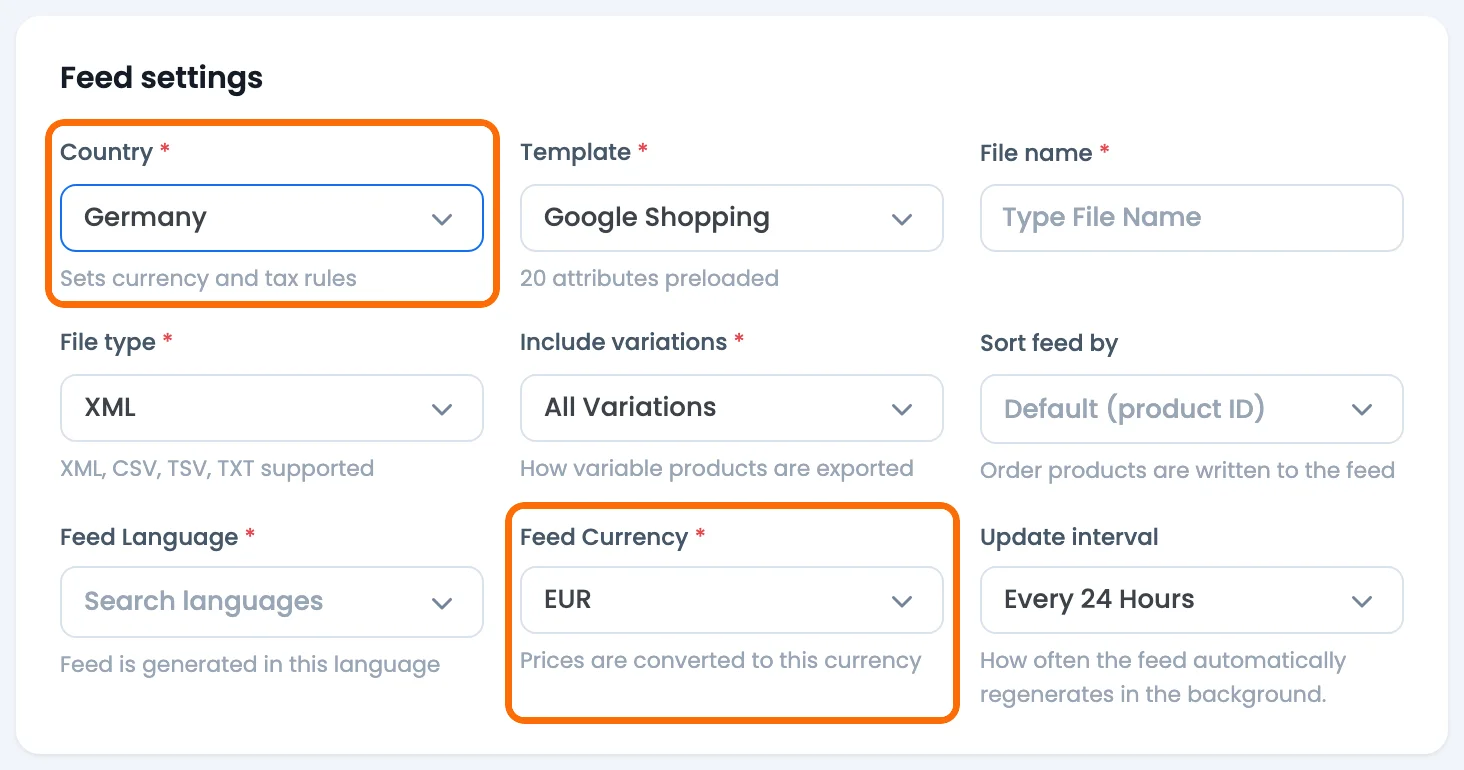
What that gets you:
- Your switcher’s own rates. CTX Feed doesn’t invent exchange rates. It converts through the currency switcher you already run, so the feed price matches what your shop shows.
- Supported switchers: Aelia Currency Switcher, FOX (formerly WOOCS), CURCY (free and Premium), Currency Switcher for WooCommerce by Algoritmika/WPFactory, X-Currency, YayCurrency, WPML with WCML (multi-currency enabled) and WooPayments Multi-Currency (CTX Feed Pro 8.0.22 and CTX Feed 8.0.31 or later). Full list: which plugins are compatible with CTX Feed Pro.
- One switcher at a time. CTX Feed converts with only one of them and shows a notice if several are active.
- Product links in the feed currency. With most supported switchers, product links get the currency added, so shoppers land on the page in the feed currency:
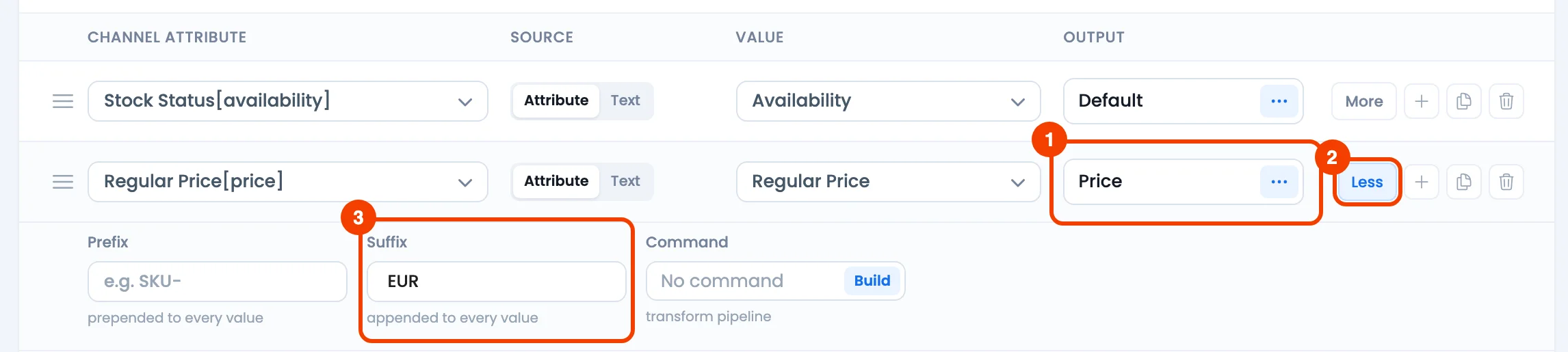
?currency=EURwith FOX or WooPayments,?aelia_cs_currency=EURwith Aelia,?wmc-currency=EURwith CURCY free. With WPML/WCML, links aren’t changed. The parameter helps a multi-currency store meet Google’s rule that the product-data currency is the default one on the landing page. - The right currency code. Changing Feed Currency updates a
USDsuffix on the price rows toEURautomatically. Google needs the ISO code, not a symbol such as$. See add a currency code or symbol to the price. - Your visitors’ currency stays out of the feed. Since Pro 8.0.29, the feed is built in its own currency even when it runs while you or a shopper have another currency selected.
Selling in another language too? For a country with a different language, Google wants a separate data source translated into that language, with landing pages in the same language. CTX Feed Pro’s Feed Language field builds one feed per language from WPML, Polylang or TranslatePress, and you can set a Feed Currency on the same feed when a currency switcher is active. See which plugins are compatible with CTX Feed Pro.
Two fixed issues show what to check if a currency feed looks wrong. Two active switchers used to convert prices twice (fixed in Pro 8.0.3), and with CURCY, feeds in several currencies updated at the same time could reuse another feed’s prices (fixed in Pro 8.0.26). Keep CTX Feed Pro up to date, and regenerate each currency feed after changing rates.
What CTX Feed doesn’t do. It doesn’t change your product pages or their schema; your theme or SEO plugin outputs the priceCurrency markup.
Free vs Pro. Making feeds is free. Converting prices to another currency with Feed Currency needs CTX Feed Pro and an active currency switcher with more than one currency set up. Without a switcher, the field doesn’t appear. Feeds in another language (Feed Language) need CTX Feed Pro too; on the free plugin both fields show locked.
Example: Google Shopping Shows USD Instead of GBP
Suppose you sell in the United Kingdom.
Current setup:
| Component | Currency |
|---|---|
| Feed | USD |
| Product Page | GBP |
| Schema | USD |
| Checkout | GBP |
Google receives conflicting information.
Correct setup:
| Component | Currency |
|---|---|
| Feed | GBP |
| Product Page | GBP |
| Schema | GBP |
| Checkout | GBP |
Once all four agree, resubmit your product data and request a review if products were disapproved.
A third case: Google shows GBP with USD alongside. That’s currency conversion of a USD feed for UK shoppers, not an error. If you want GBP on your own pages too, add a GBP feed and show GBP on your landing pages and at checkout.
Best Practices to Prevent Currency Mismatches
- Use a separate feed per currency (and per language) when you want local prices; countries that share both can share one feed.
- Match feed currency with landing page currency.
- Match schema currency with visible pricing.
- Check the Needs attention tab in Merchant Center weekly.
- Test product pages in a private window, using the product link from your feed.
- Don’t change prices by visitor location.
- Keep checkout currency identical to advertised pricing.
- Revalidate feeds after installing new currency plugins.
- Use one currency switcher at a time.
- Use the ISO code (
USD), not a symbol, in Google feeds. - If shipping costs come in another currency, see mismatched currency in shipping information.
Frequently Asked Questions
Why is Google Shopping showing a different currency than my website?
Either Google is converting your price for shoppers in another country, which shows both prices and isn’t an error, or the currency in your product data doesn’t match your landing page or checkout, which Google flags as “Inconsistent currency between your product data and your website”.
Why is Google showing me prices in a different currency?
Google customises results to your current region, and it can show prices converted into your local currency. To see another country’s results, change the region in Google’s Search settings (computer) or in the Google app’s language and region settings.
Can multi-currency stores use Google Shopping?
Yes. Several currencies on the landing page are allowed if your product-data currency is the default, prominently listed one, and checkout lets the shopper pay in it with at least one payment method. For local prices in each country, use one feed per currency; otherwise one feed can target several countries and Google converts the price.
Does Google convert my prices automatically?
Yes, when your product data targets a country whose currency differs from yours. Currency conversion is automatically enabled in all Merchant Center accounts, except in South Korea. Add the country to your data source and meet its language and shipping requirements; Google then converts your price with Google Finance exchange rates and shows both prices.
Can currency converters cause Merchant Center errors?
Yes. Google says not to submit prices “based on a live currency exchange”, and not to change the landing-page price by the visitor’s location. If you use a converter plugin, check that it does neither.
How long does Google take to update currency changes?
After you fix the data, resubmit it and request a review, Google says review crawls usually finish within 24 to 48 hours.
Final Thoughts
When Google Shopping shows the wrong currency, first decide which case you’re in: Google converting your price, or your feed, page and checkout disagreeing. Google’s conversion isn’t an error as long as your prices still match. A mismatch is: make every pricing signal show the same currency for each country, then resubmit. For WooCommerce, keep one feed and let Google convert, or generate one feed per currency (and per language) from your store when you want local prices.
Selling in more than one currency? CTX Feed Pro builds a Google Shopping feed per currency from your WooCommerce store, converted at your currency switcher’s own rates, with product links that open in the same currency on most supported switchers. Making feeds is free on WordPress.org. See CTX Feed Pro →

Free version on WordPress.org. Every Pro licence includes a 30-day money-back guarantee.