
To change currency in WooCommerce, go to WooCommerce → Settings → General, scroll to the Currency Options section, and select your preferred currency from the dropdown. Click Save changes, and WooCommerce will update the default currency across all product pages, cart, and checkout.
This guide covers three scenarios: changing the default store currency, customizing the currency symbol, and setting up multi-currency switching for international customers.
How to Change Currency in WooCommerce? (Step-by-Step Guide)
All the magic happens in your WooCommerce currency settings. Here’s how to change WooCommerce store currency:
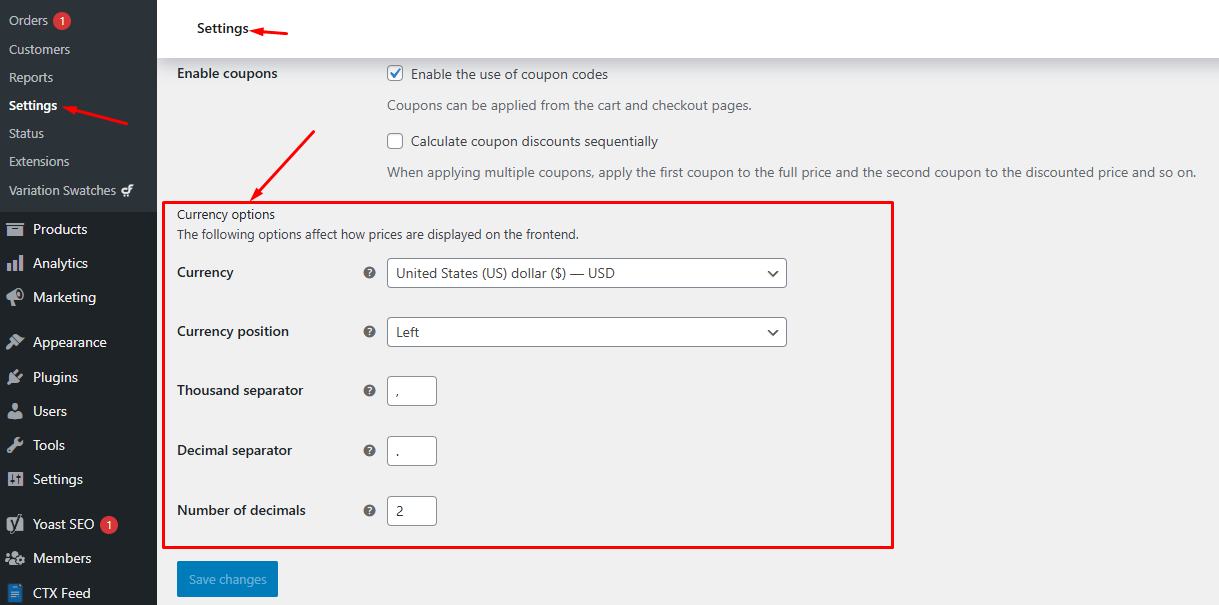
Step 1: Navigate to WooCommerce Settings
- Go to WooCommerce >> Settings >> General in your WordPress dashboard.
- Scroll down to the Currency Options section. This is where you can find the default currency WooCommerce settings.
Step 2: Select Your New Currency
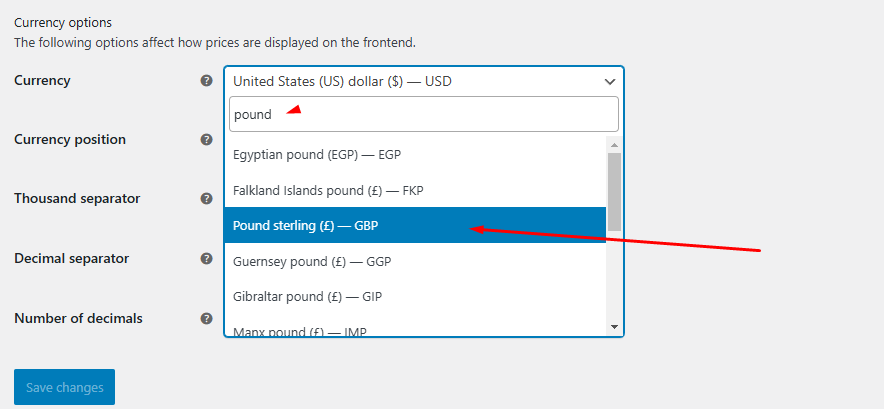
Locate the “Currency” dropdown menu. Click on it and select the currency from the list you want to use for your store.
For example, let’s say you want to set British Pound as your default currency for your store. Select the option from the dropdown.
Step 3: WooCommerce Currency Format Customization
Here’s a breakdown of the other key settings you can configure from the Currency Options.
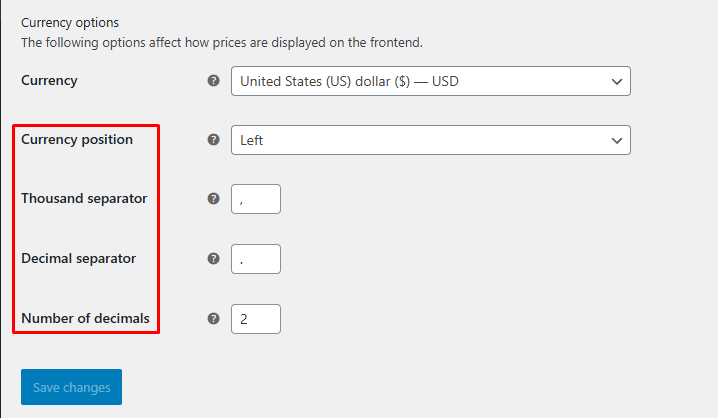
- Currency Position: This determines where the currency symbol will appear beside your product prices. You have four options:
- Left: e.g., $10.00
- Right: e.g., 10.00$
- Left with space: e.g., $ 10.00
- Right with space: e.g., 10.00 $
- Thousand Separator: This is the character used to separate thousands in larger numbers. Common choices are a comma (,) or a period (.). For example, 1,000 or 1.000.
- Decimal Separator: This is the character used to separate the whole number from the decimal part. Again, a comma (,) or a period (.) are common. For example, 10.50 or 10,50.
- Number of Decimals: This setting controls how many decimal places are displayed in your prices. For example, setting it to 2 will display prices like $10.00, while setting it to 0 will display $10.
Step 4: Save Your Changes
Once you’ve selected your new currency, scroll to the bottom of the page and click the “Save changes” button.
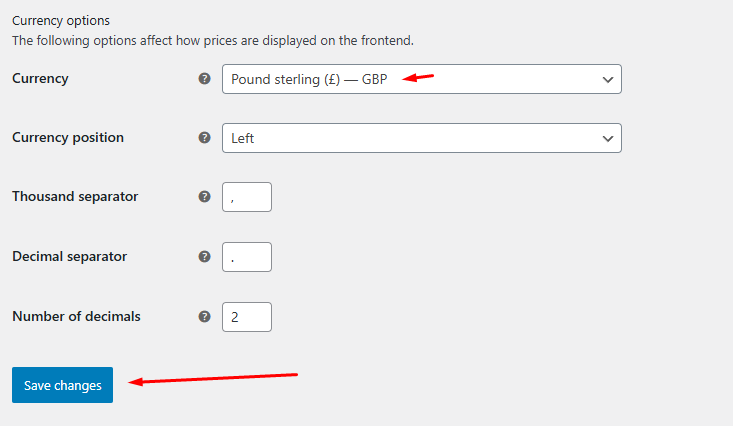
This will apply your changes to your store. That’s it! This is how to change WooCommerce store currency.
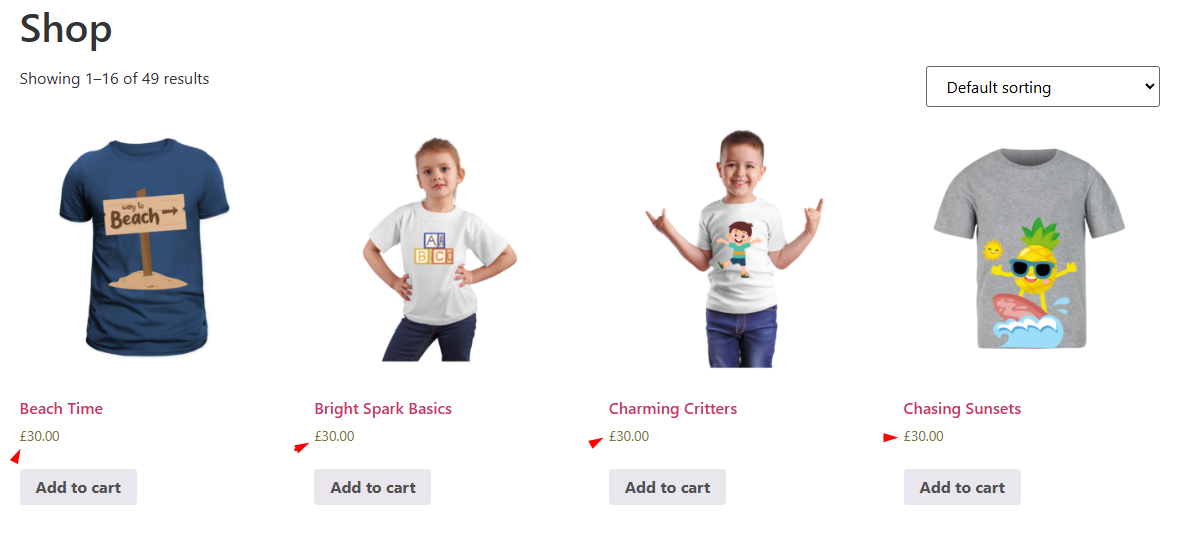
Important Note: Changing your default currency will affect existing products and orders. Product prices will be converted to the new currency using the current exchange rate (if applicable).
However, completed orders will retain the currency they were processed in. It’s a good idea to inform your customers of any significant currency changes to avoid confusion.
How to Change the WooCommerce Currency Symbol
The default WooCommerce currency settings use the standard symbol for each currency ($ for USD, £ for GBP, etc.). If you need to display a custom symbol, for example, showing “US(” instead of “)” to distinguish it from other dollar currencies, you can override it using a filter or a plugin.
Using Code (woocommerce_currency_symbol Filter)
Add this snippet to your theme’s functions.php file or a code snippets plugin:
add_filter( 'woocommerce_currency_symbol', 'custom_woocommerce_currency_symbol', 10, 2 );

function custom_woocommerce_currency_symbol( $currency_symbol, $currency ) {
    switch ( $currency ) {
        case 'USD':
            $currency_symbol = 'US$';
            break;
    }
    return $currency_symbol;
}
Replace ‘USD’ with your currency code and ‘US$’ with the symbol you want to display.
Using a Plugin
If you prefer not to use code, plugins like Custom Currency for WooCommerce allow you to set a custom default currency symbol from the WordPress admin without editing any files. Multi-currency plugins (covered below) also include a custom symbol option per currency.
How to Add a Custom Currency in WooCommerce
If your required currency does not appear in the default WooCommerce currency list for example, certain cryptocurrencies or lesser-known regional currencies you can add it manually.
Before editing your theme files, create a full website backup. If anything goes wrong, you will need it to restore your site. Using a code snippets plugin is safer than editing
functions.phpdirectly.
Step 1: Access the Theme file
From your WordPress admin dashboard, go to Appearance >> Theme File Editor.
Step 2: Insert the Code
Click the functions.php file, scroll to the bottom, and add the following code:
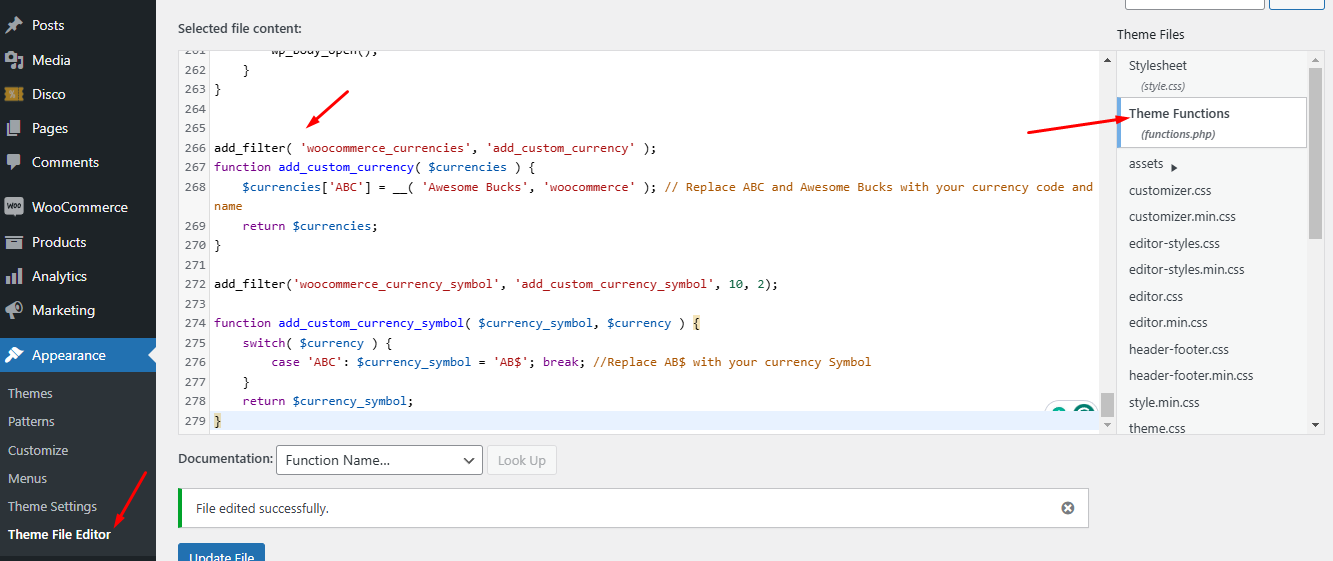
add_filter( 'woocommerce_currencies', 'add_custom_currency' );

function add_custom_currency( $currencies ) {
    $currencies['ABC'] = __( 'Awesome Bucks', 'woocommerce' );
    // Replace ABC with your 3-letter currency code and Awesome Bucks with its name
    return $currencies;
}

add_filter( 'woocommerce_currency_symbol', 'add_custom_currency_symbol', 10, 2 );

function add_custom_currency_symbol( $currency_symbol, $currency ) {
    switch( $currency ) {
        case 'ABC':
            $currency_symbol = 'AB$';
            break;
        // Replace AB$ with your actual currency symbol
    }
    return $currency_symbol;
}
Explanation:
- The first part of the code adds the currency code (ABC in this example) and its name (‘Awesome Bucks’) to the list of WooCommerce currencies. You’ll need to replace ABC with the correct three-letter currency code and “Awesome Bucks” with the actual name of your currency.
- The second part of the code adds the currency symbol. You will need to replace AB$ with the actual symbol of your currency.
Step 3: Save and Select the Custom Currency
Save the file, then go to WooCommerce → Settings → General → Currency Options. Your custom currency will now appear in the dropdown. Select it and save.
How to Set Up Multi-Currency in WooCommerce
WooCommerce does not include multi-currency switching out of the box. To let customers browse and pay in their local currency, you need a WooCommerce multi-currency plugin.
Step 1: Install a Multi-Currency Plugin
Go to Plugins → Add New and search for “multi-currency.” Install and activate a plugin of your choice. Popular options are covered in the plugin section below.
Step 2: Enable Multi-Currency
Most plugins add their own settings menu after activation. For example, in CURCY, go to Multi-Currency → General to enable the feature and configure your currency list.
Step 3: Add Currencies and Set Exchange Rates
In the plugin settings, you will see a default primary currency (usually USD). Add additional currencies using the Add Currency button and select each one from the dropdown. For each currency, set or fetch the exchange rate. Most plugins include an Update Rate button that automatically pulls the current rate from an exchange rate API.
Key settings available in most multi-currency plugins:
- Default Currency: Your store’s primary currency.
- Exchange Rate + Fee: The conversion rate and any markup you want to apply.
- Currency Position: Where the symbol appears relative to the price.
- Number of Decimals: Decimal places for each currency.
- Custom Symbol: Override the default symbol, for example showing “US$100” instead of “$100.”
- Geolocation Detection: Automatically display the local currency based on the customer’s IP address.
Step 4: Save and Test
Save your settings and check the frontend. A currency switcher bar or widget will appear, allowing customers to select their preferred currency. Prices update automatically based on the exchange rate.
WooCommerce Change Currency at Checkout
When a customer selects a currency and proceeds to checkout, the order is processed in that currency provided your payment gateway supports it. Not all payment gateways accept every currency, so verify compatibility before going live.
- Stripe supports multi-currency natively and works with most WooCommerce multi-currency plugins.
- PayPal also supports multiple currencies, but requires the currencies to be enabled in your PayPal account settings.
- If a gateway does not support the selected currency, most plugins will fall back to the store’s default currency or display a notice at checkout.
Best WooCommerce Multi-Currency Plugins
CURCY – WooCommerce Multi-Currency by VillaTheme

CURCY is a freemium multi-currency plugin designed for WooCommerce stores targeting international customers. It converts prices, coupons, shipping costs, and taxes based on the selected currency.
Key Features:
- Automatic exchange rate updates
- Seven frontend currency switcher styles plus a floating currency bar
- Geolocation-based currency detection via IP address
- Accepts payments in all enabled currencies
- Manual exchange rate override
- Custom currency symbol and price display format (e.g., US$100, 100.00 US$)
- Uses session storage instead of cookies for currency selection
YayCurrency – WooCommerce Multi-Currency Switcher
YayCurrency is a multi-currency plugin focused on clean UI and sales reporting. It is well-suited for stores that want automated currency switching alongside analytics.
Key Features:
- Automatic geolocation-based currency display
- Drag-and-drop currency order management
- Automatic exchange rate updates
- Compatible with PayPal and Stripe
- Currency-based sales performance reports
FOX – Currency Switcher Professional for WooCommerce

FOX (former name is WOOCS) is a highly customizable multi-currency plugin that supports both display switching and payment in the selected currency.
Key Features:
- Widget or button placement anywhere on the site
- GEO IP detection for automatic currency display
- Manual currency selection for customers
- Automatic exchange rate updates
- Compatible with WooCommerce and major third-party plugins
Currency Formatting in WooCommerce
Correct currency formatting builds trust with international customers. A store that displays prices using unfamiliar conventions — wrong decimal or thousand separators, wrong symbol position — can appear untrustworthy or confusing.
WooCommerce handles these settings under WooCommerce → Settings → General → Currency Options. Multi-currency plugins extend this by applying region-appropriate formatting automatically per currency.
Regional formatting differences to be aware of:
- United States (USD): $1,234.56 — symbol left, comma as thousand separator, period as decimal separator
- Germany (EUR): 1.234,56 € — symbol right, period as thousand separator, comma as decimal separator
- United Kingdom (GBP): £1,234.56 — symbol left, comma as thousand separator, period as decimal separator
- France (EUR): 1 234,56 € — symbol right, space as thousand separator, comma as decimal separator
WooCommerce’s built-in settings let you configure these options for your default currency. If you run a multi-currency store, a plugin handles the formatting differences per currency automatically.
WooCommerce Currency Per Product
By default, WooCommerce applies one currency to all products. If you need to set a different currency for individual products for example, selling digital goods priced in USD alongside physical goods priced in EUR you need a plugin that supports per-product currency overrides.
The Currency per Product for WooCommerce plugin and similar tools allow you to assign a specific currency at the product level. This is a niche use case but useful for marketplaces or stores operating across very different pricing markets.
Frequently Asked Questions
How do I change the currency symbol in WooCommerce without a plugin?
Use the woocommerce_currency_symbol filter in your theme’s functions.php or a code snippets plugin. Add a switch statement targeting your currency code and return the symbol you want to display. This method changes the symbol globally across the frontend.
Does changing the default WooCommerce currency affect existing orders?
Completed orders retain the currency they were processed in and will not be converted. Future orders and product prices will reflect the new currency. If product prices are already set in the old currency, review them after switching to confirm they are correct for the new currency.
Can I change the WooCommerce currency at checkout only?
WooCommerce does not offer a native checkout-only currency switch. With a multi-currency plugin, the currency selected by the customer during browsing carries through to checkout and is used for payment, subject to payment gateway compatibility.
How do I add multiple currencies in WooCommerce for free?
CURCY (by VillaTheme) and WOOCS both offer free versions with multi-currency switching, automatic exchange rate updates, and geolocation-based currency detection. Install either plugin from the WordPress plugin directory and configure it under its dedicated settings menu.
Which payment gateways support multi-currency in WooCommerce?
Stripe and PayPal both support multi-currency payments when combined with a compatible multi-currency plugin. Stripe handles the conversion natively. For PayPal, the additional currencies must be enabled in your PayPal account. Always verify gateway support before enabling a currency for checkout.
How do I change currency in WordPress WooCommerce using only the default settings?
Go to WooCommerce → Settings → General, find the Currency Options section, select your currency from the dropdown, and click Save changes. This covers the default store currency. For multi-currency switching, you need a plugin.
Key Takeaways
- Change the WooCommerce default currency from WooCommerce → Settings → General → Currency Options and click Save changes.
- To customize the currency symbol, use the
woocommerce_currency_symbolfilter or a multi-currency plugin’s custom symbol setting. - WooCommerce does not include multi-currency switching natively a plugin such as CURCY, YayCurrency, or WOOCS is required.
- Multi-currency plugins handle exchange rate updates, geolocation detection, and checkout currency automatically.
- Not all payment gateways support every currency; verify Stripe or PayPal compatibility before enabling a currency for checkout.
- For currencies missing from WooCommerce’s default list, add them using the
woocommerce_currenciesfilter or a custom currency plugin. - Currency formatting (symbol position, decimal separator, thousand separator) is set per currency in WooCommerce settings and handled automatically by multi-currency plugins.

Free version on WordPress.org. Every Pro licence includes a 30-day money-back guarantee.