To set up WooCommerce guest checkout, go to WooCommerce > Settings > Accounts & Privacy, and check the box labeled “Allow customers to place orders without an account.” This lets shoppers complete a purchase without registering, while still capturing their email, billing, and shipping details on every order.
This guide covers enabling guest checkout, restricting checkout to guests only, forcing login or account creation instead, auto-registering guest accounts after checkout, and optimizing the flow for higher conversions.
How to Enable WooCommerce Guest Checkout
To enable guest checkout on WooCommerce, do the following:
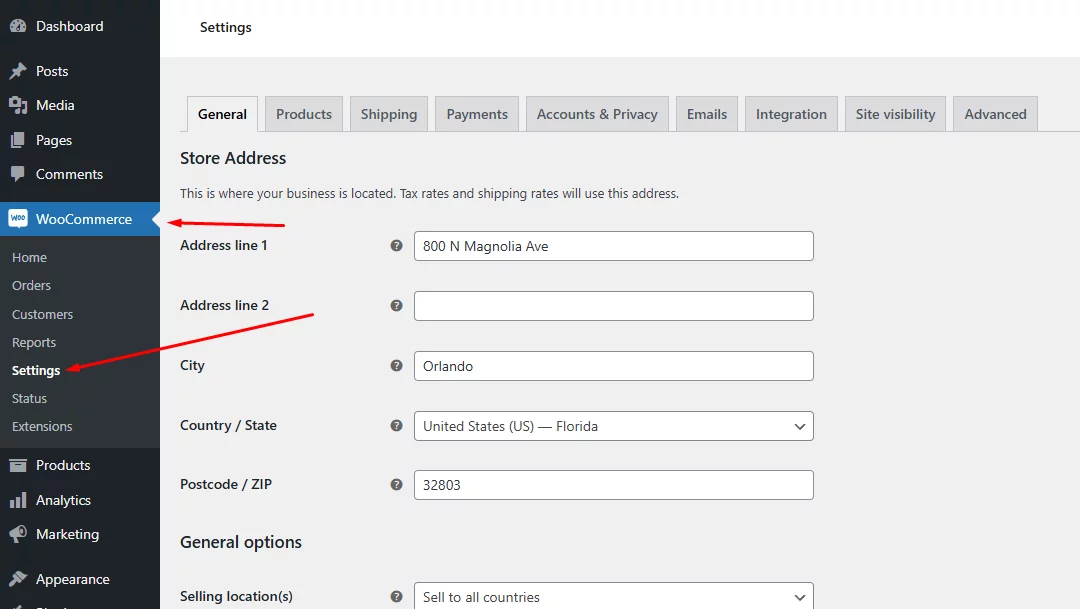
- Access WooCommerce Settings:
- Login to your WordPress back panel and navigate to WooCommerce >> Settings.
- Accounts & Privacy Settings:
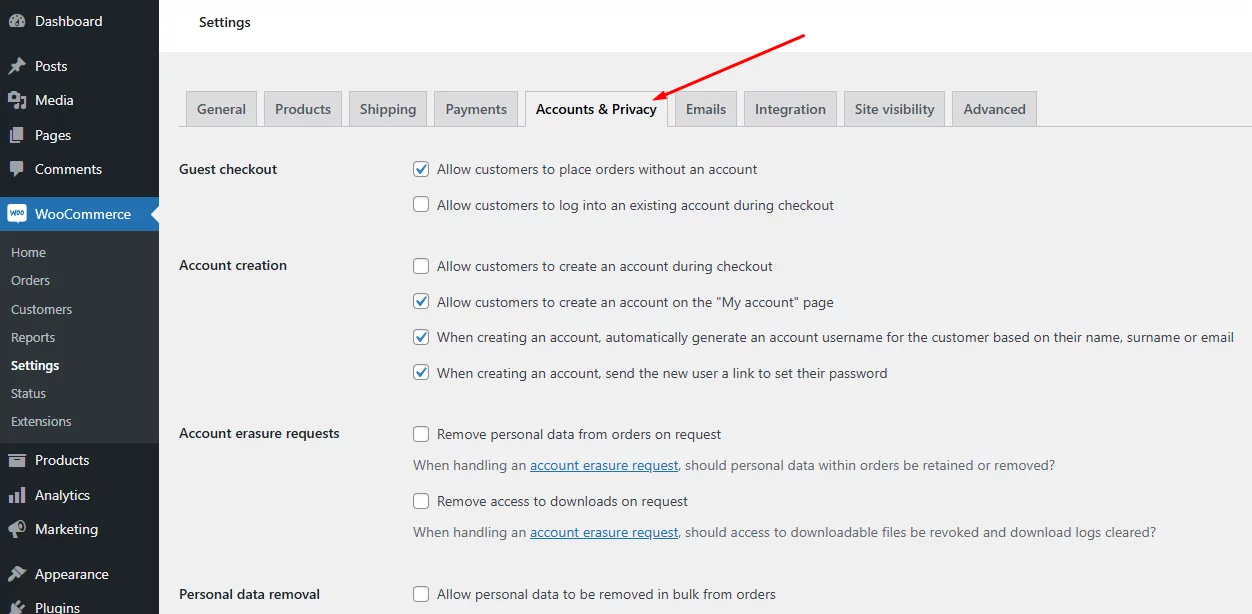
- Go to the Accounts & Privacy tab.
- Enable Guest Checkout:
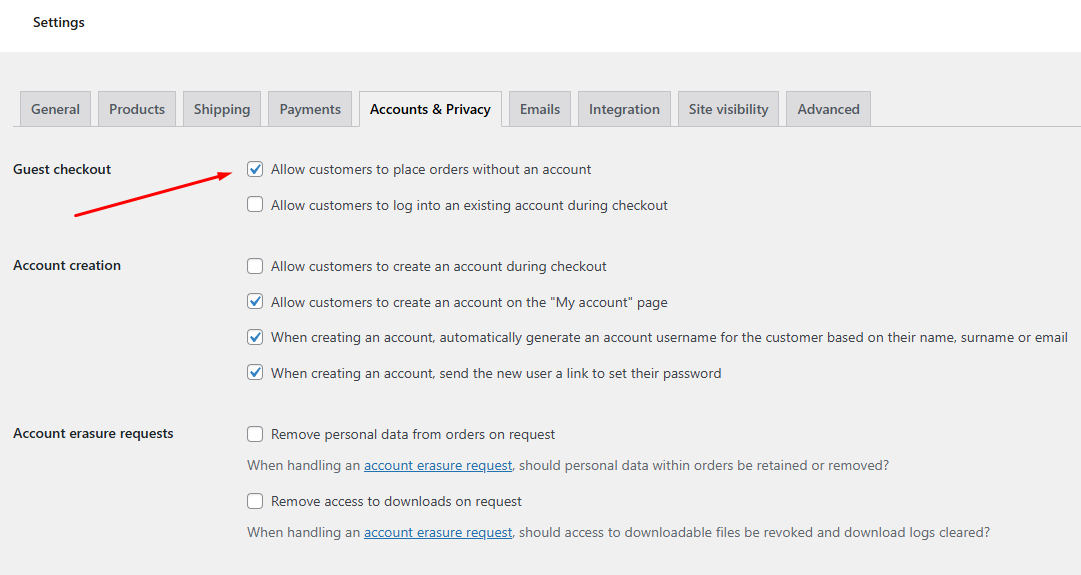
There’s a dedicated section for WooCommerce Guest Checkout with the following options –
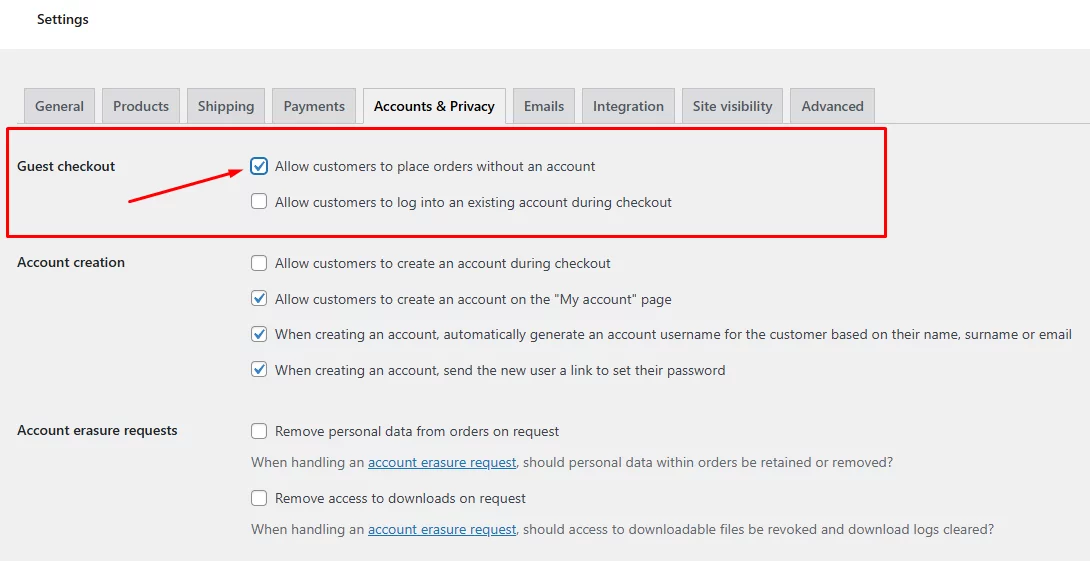
- Allow customers to place orders without an account
- Allow customers to log into an existing account during checkout.
Checkmark the first option to enable/disable guest checkout WooCommerce.
- Save Changes:
- Ensure that all your settings are saved by clicking the “Save changes” button at the bottom of the page.
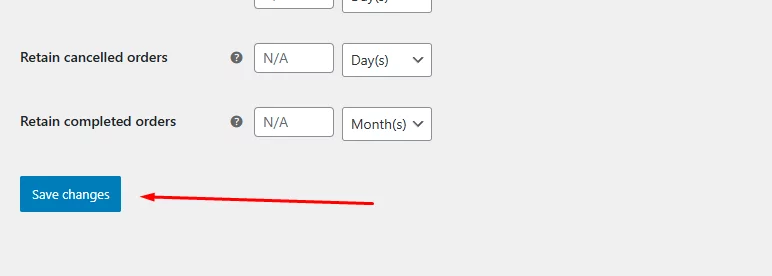
Following these steps will enable guest checkout for your WooCommerce store. This will allow customers to complete their purchases without needing to create an account.
Testing WooCommerce Guest Checkout
We have walked you through the simple process of how to set up WooCommerce to allow guest checkout only. Let’s test it out from the front end.
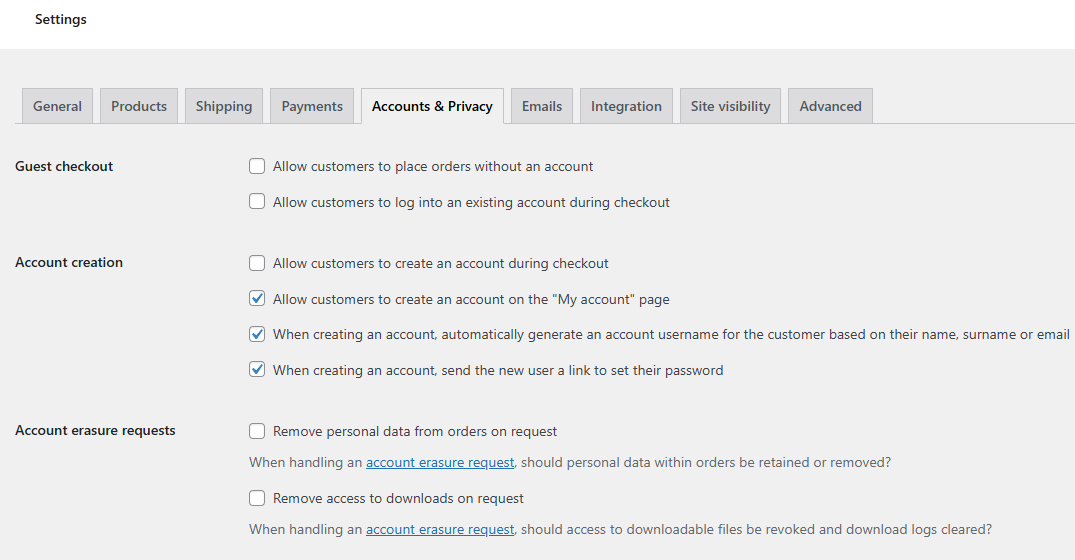
Before that, we want to show you what checkout page returns if you have not enabled guest checkout.
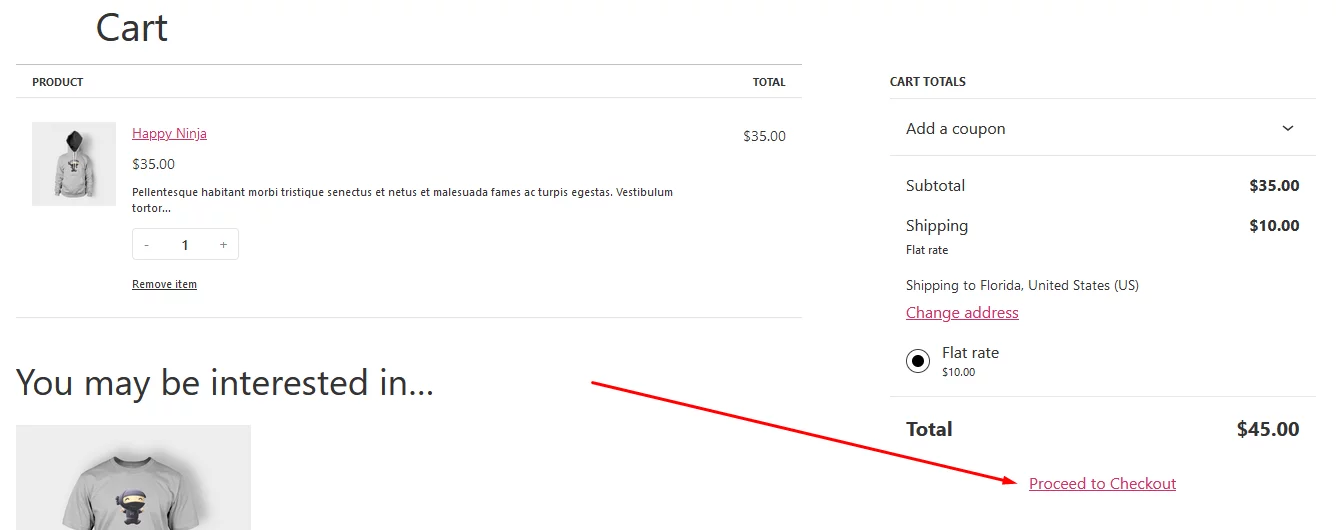
Add some products and click on the Checkout link.
Here’s what the checkout page will return.
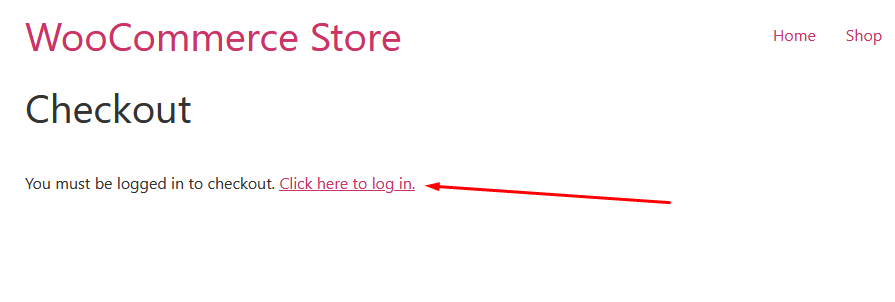
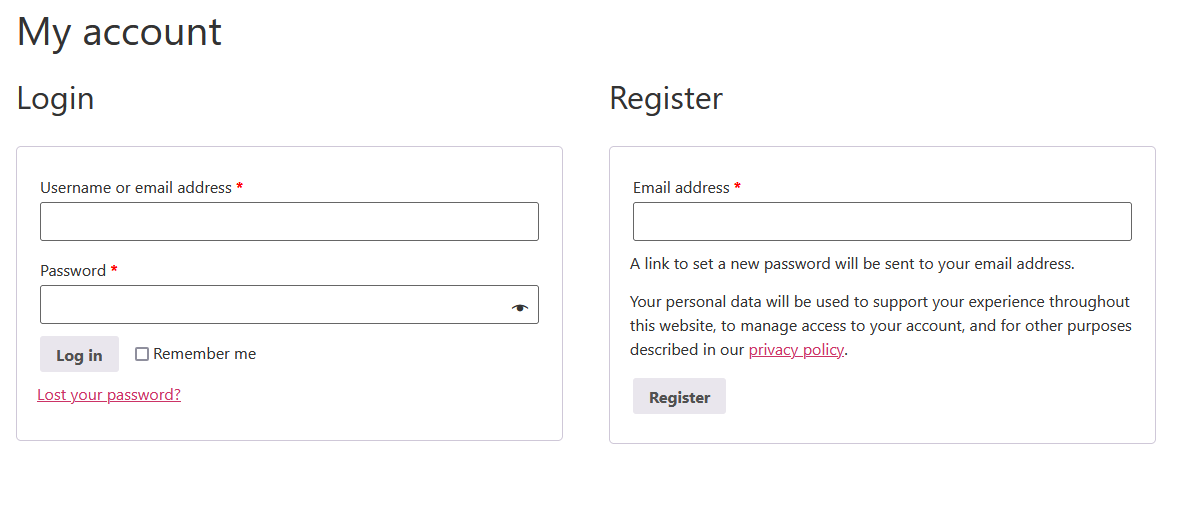
As you can see, WooCommerce guest checkout not working as you haven’t enabled it yet. As per the settings from the screenshot above, customers either have to log in to an existing account or register from the My Account page.
Return to the Accounts & Privacy tab and activate the checkmark – “Allow customers to place orders without an account.”
The Checkout page will now let the customer complete the order without creating an account.
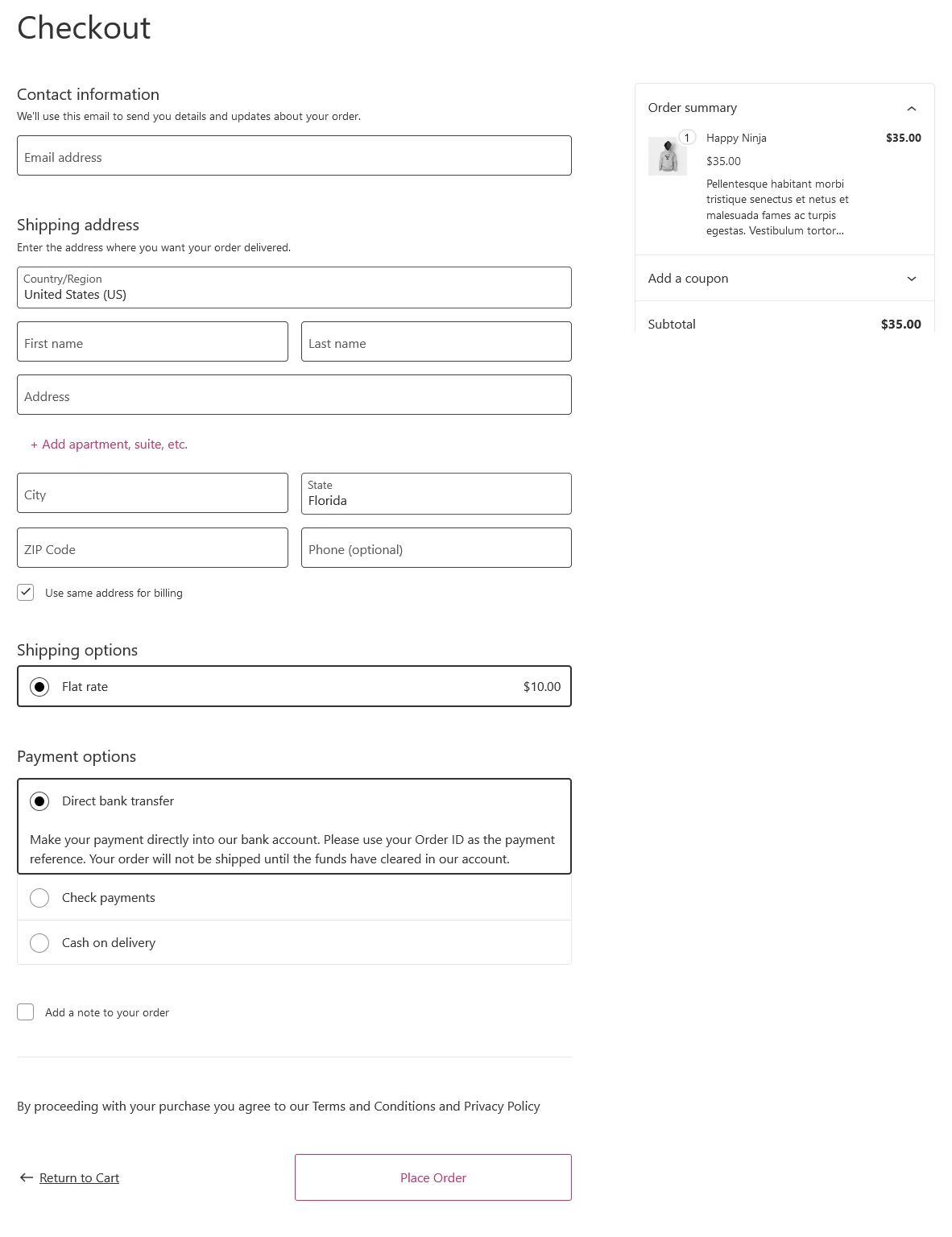
How to Test WooCommerce Guest Checkout
Add a product to your cart and go to the checkout page in an incognito or private browser window. If guest checkout is off, WooCommerce will require login or registration before the customer can pay. Once you enable the setting above and reload the checkout page, the order form should let a new visitor complete payment with no account fields required.
How to Restrict Checkout to Guests Only
By default, customers can still create an account or log in from the checkout page even after you enable guest checkout. To limit checkout to guests only, uncheck these two boxes in the same Accounts & Privacy tab:
Allow customers to log into an existing account during checkout: Unchecking this removes the login option from the checkout page.
Allow customers to create an account during checkout: Unchecking this removes the signup fields from checkout.
You can also uncheck “Allow customers to create an account on the My Account page” if you want to block registration everywhere, not just at checkout.
How to Disable Guest Checkout and Require Login or Account Creation
Some stores, particularly subscription businesses, wholesale sites, or stores built around loyalty programs, need the opposite setup: requiring an account before checkout instead of allowing guests.
To require an account, go back to WooCommerce > Settings > Accounts & Privacy and uncheck “Allow customers to place orders without an account.” Once this is unchecked, WooCommerce will prompt every visitor to either log in or register before they can complete an order. You can pair this with “Allow customers to create an account during checkout” so new visitors can register directly on the checkout page instead of being sent to a separate signup form.
How to Automatically Register Guest Users at Checkout Using Custom Code
WooCommerce can auto-register new accounts at checkout through its built-in “Allow customers to create an account during checkout” setting, but that still requires the customer to fill in account fields. To silently create an account from a guest order with no extra fields for the customer, you need custom code.
Before adding code, confirm you’re comfortable editing theme files, or have a developer do it. Always back up your site first.
Step 1: Create a Child Theme
Add custom code to a child theme, not your active parent theme, so the code survives theme updates. If you don’t already have one set up, create a full site backup before proceeding.
Step 2: Open the functions.php File
Go to Appearance > Theme Editor in your WordPress dashboard, then open functions.php for your child theme.
Step 3: Add the Registration Code
Paste the following at the bottom of the file:
// Automatically create an account for guest users at checkout

add_action( 'woocommerce_thankyou', 'fadiyah_register_guests', 9999 );

function fadiyah_register_guests( $order_id ) {

   $order = wc_get_order( $order_id );
   $email = $order->get_billing_email();

   if ( ! email_exists( $email ) && ! username_exists( $email ) ) {

      $customer_id = wc_create_new_customer( $email, '', '', array(
         'first_name' => $order->get_billing_first_name(),
         'last_name'  => $order->get_billing_last_name(),
      ));

      if ( is_wp_error( $customer_id ) ) {
         throw new Exception( $customer_id->get_error_message() );
      }

      wc_update_new_customer_past_orders( $customer_id );
      wc_set_customer_auth_cookie( $customer_id );

   } else {
      $user = get_user_by( 'email', $email );
      wc_update_new_customer_past_orders( $user->ID );
   }
}
Here’s what each function does:
- wc_create_new_customer(): Creates a new WordPress user account from the order’s billing email, generates a random password, and emails the login details to the customer.
- wc_update_new_customer_past_orders(): Links any previous guest orders placed with that same email address to the newly created account, so order history isn’t lost.
- wc_set_customer_auth_cookie(): Logs the new customer in automatically right after checkout, so they land on the thank-you page already signed in instead of needing to log in separately.
Step 4: Save and Enable Guest Checkout
Save the file, then make sure guest checkout is still enabled in Accounts & Privacy. The code only runs after a guest order completes.
Step 5: Test the Functionality
From an incognito window, add a product and complete checkout with test data. After the order finishes, check the WordPress user list. If it worked, a new account tied to that email will appear. You can confirm from the customer’s side too: visiting My Account right after checkout should show account pages instead of a login prompt.
Best Practices to Optimize Guest Checkout for Conversions
A few changes make the biggest difference to guest checkout completion rates:
- Fewer steps: Combine shipping and billing into a single form, and pre-fill non-essential fields like country based on IP address where possible.
- Inline validation: Flag errors next to the field as the customer types, rather than only after they submit the form.
- Address autocomplete: Use address or postcode autocomplete so customers don’t have to type full addresses manually.
- Prominent guest option: Label guest checkout clearly on the checkout page instead of burying it under an account-first flow.
- Progress indicator: A short progress bar for multi-step checkouts keeps customers oriented and reduces drop-off.
- Mobile-first layout: Test checkout on mobile specifically, since most guest checkouts happen there.
If you want to nudge guests toward creating an account without adding friction, consider offering a small discount at checkout in exchange for registering. Discoplugin can run this kind of conditional discount rule without touching your checkout code directly.
Best WooCommerce Checkout Plugin for Guest Checkout: Iconic Flux Checkout
If you want a more polished guest checkout experience than the default WooCommerce layout, Iconic’s Flux Checkout for WooCommerce replaces the standard one-page checkout with a multi-step flow and includes built-in account-creation prompts that don’t interrupt guest customers. It works with both the classic and block-based WooCommerce checkout, and with standard payment gateways like Stripe and PayPal.
Key Features
- Multi-step checkout with fewer visible fields per step
- Address autocomplete and postcode lookup
- Account creation checkbox that doesn’t slow down guest checkout
- Compatible with major payment gateways and WooCommerce shipping/tax plugins
- Works with both classic and block checkout
Pricing starts from around $99/year. Check the official pricing page before publishing, since plans change.
If you need a full sales funnel and marketing automation layer rather than just a checkout redesign, FunnelKit Funnel Builder (formerly WooFunnels) is a broader alternative that includes checkout templates, order bumps, and post-purchase upsells, with a free base version on WordPress.org.
If you’d rather customize checkout visually, page builders like Elementor, Divi, or WPBakery Page Builder (formerly Visual Composer) let you restyle checkout page elements without a dedicated checkout plugin.
Frequently Asked Questions
What is WooCommerce guest checkout?
WooCommerce guest checkout lets customers complete an order without creating an account. They still enter billing and shipping details, and WooCommerce still records the order and sends a confirmation email; there’s just no username or password required.
Why is WooCommerce showing “you must be logged in to checkout”?
This message appears when guest checkout is disabled and account creation during checkout is also turned off. Go to WooCommerce > Settings > Accounts & Privacy and check “Allow customers to place orders without an account” to remove this requirement.
How do I disable guest checkout in WooCommerce?
Uncheck “Allow customers to place orders without an account” under Accounts & Privacy. Customers will then need to log in or register before completing checkout.
Is guest checkout the same as checkout without an account?
Yes. “Guest checkout,” “checkout as guest,” and “checkout without an account” all describe the same WooCommerce setting: allowing an order to complete without user registration.
Does guest checkout mean I lose customer data?
No. Guest orders still capture email, billing, and shipping information. What you lose is the login account itself, not the order data, unless you also add the auto-registration code above.
Key Takeaways
- Enable guest checkout under WooCommerce > Settings > Accounts & Privacy by checking “Allow customers to place orders without an account.”
- To restrict checkout to guests only, uncheck the login and account-creation boxes in the same tab.
- To require login instead, uncheck the guest checkout box and let customers register at checkout instead.
- Use the provided code snippet to automatically register guest accounts post-checkout without adding fields to the customer’s checkout form.
- Plugins like Iconic Flux Checkout or FunnelKit Funnel Builder can streamline the guest checkout experience further with multi-step layouts and address autocomplete.
- A small discount incentive, run through a tool like Discoplugin, is a low-friction way to convert guests into registered accounts.

Free version on WordPress.org. Every Pro licence includes a 30-day money-back guarantee.